index
All available commands can be found in the AT Command Manual section of this document.
NOTE
To enable AT command via BLE, upload first a custom firmware with initialization of the BLE UART. This can be done by adding BLE UART initialization code in the void setup() function - api.ble.uart.start(0);. You can also run the example code BLE_Uart example as a direct alternative.
The complete steps are as follows:
- Download and install the Serial Bluetooth Terminal to connect the device.
- Make sure the Bluetooth on your mobile is turned on.
- Select Category then Devices.
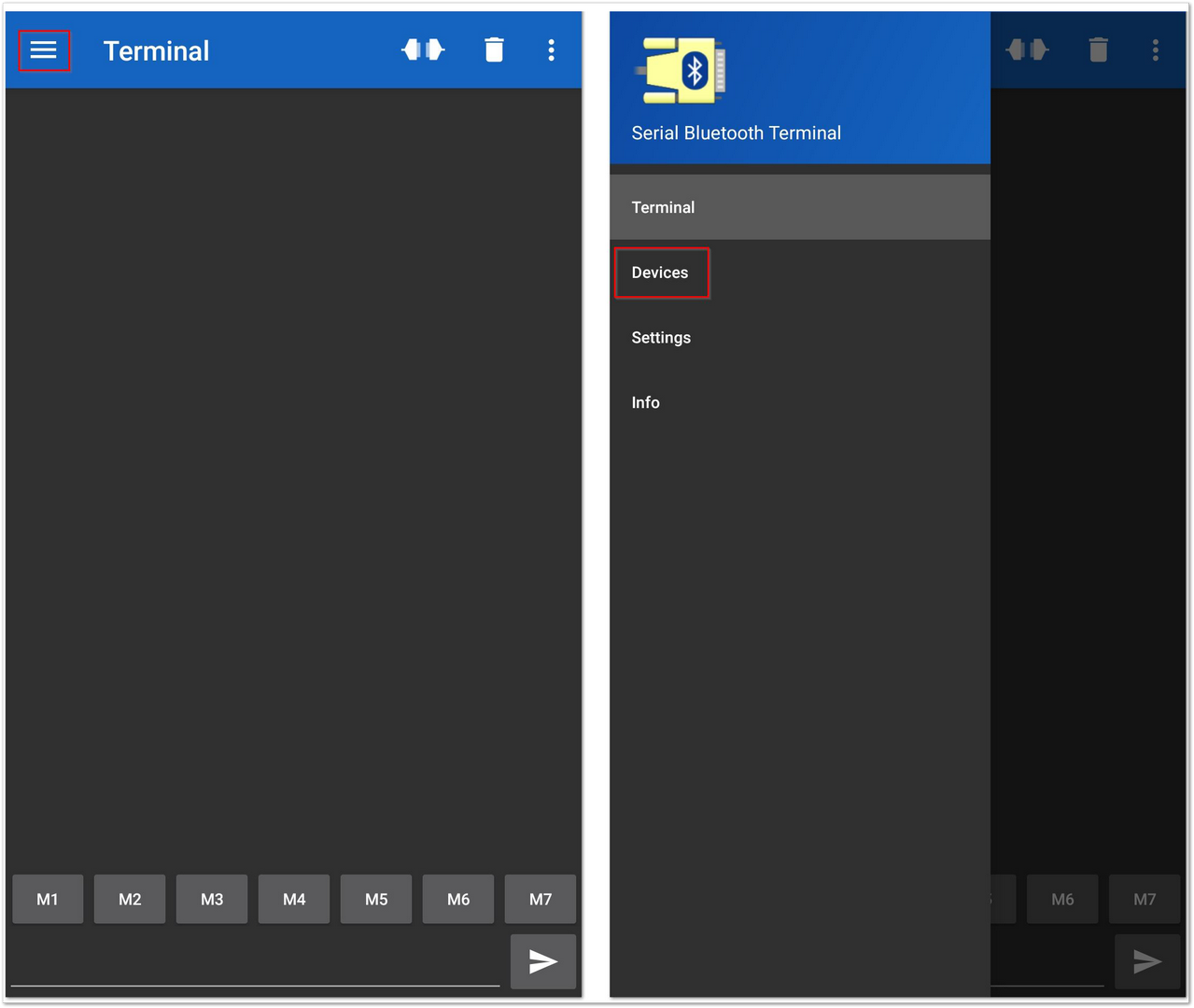 Figure 1: Available Serial Bluetooth Terminal
- Select the Bluetooth LE icon and click the SCAN icon to scan the device.
- Look for a BLE Device named RAK.XXXXXX in the scanner list of the app and connect to this device.
NOTE
By default, the BLE signal of the module has turned off automatically if no connection is established after 30 seconds. Connect to the BLE signal of the module immediately after pressing the reset button.
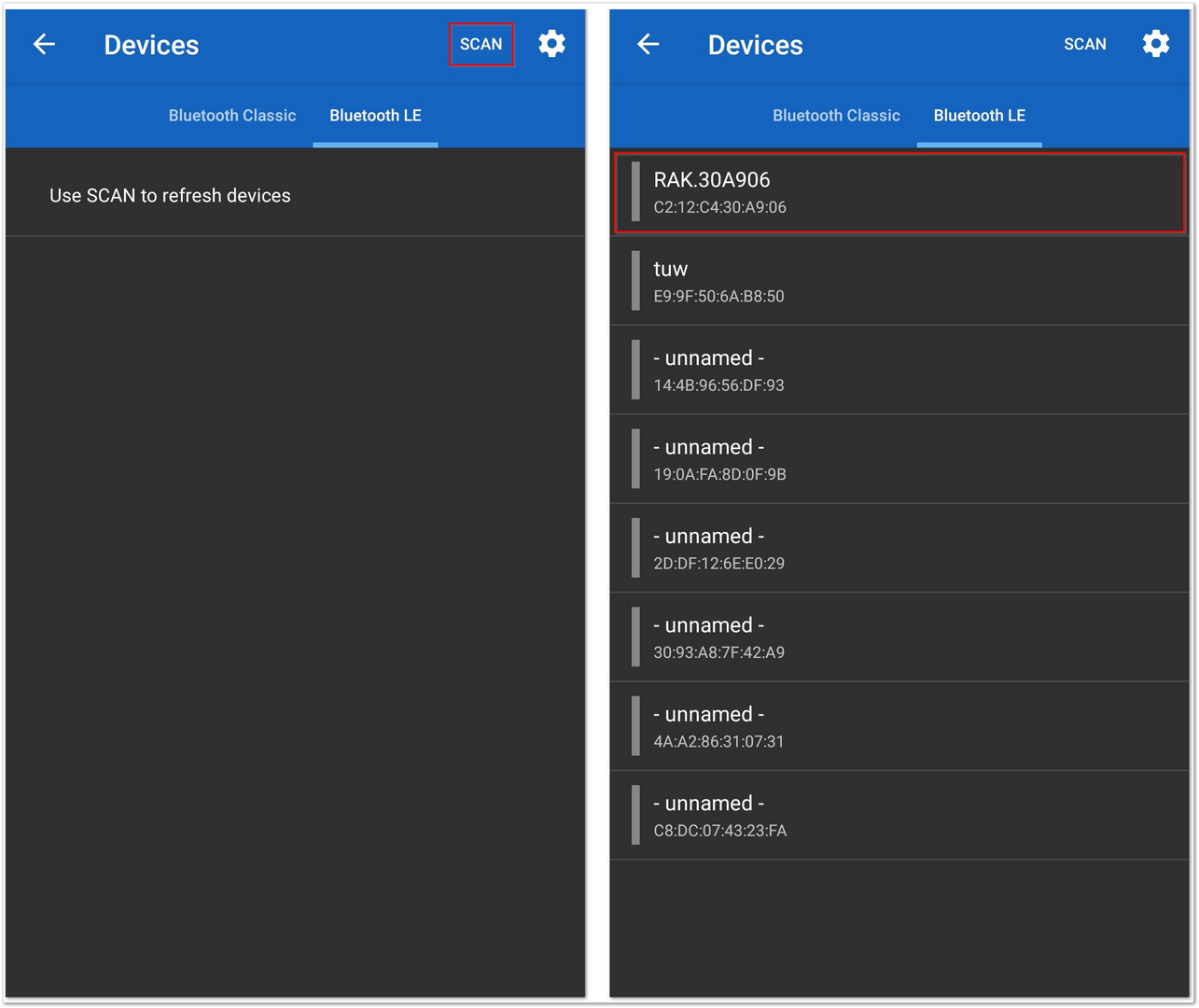 Figure 1: Scanning devices
- Make sure the connection is successful with RAK.XXXXXX.
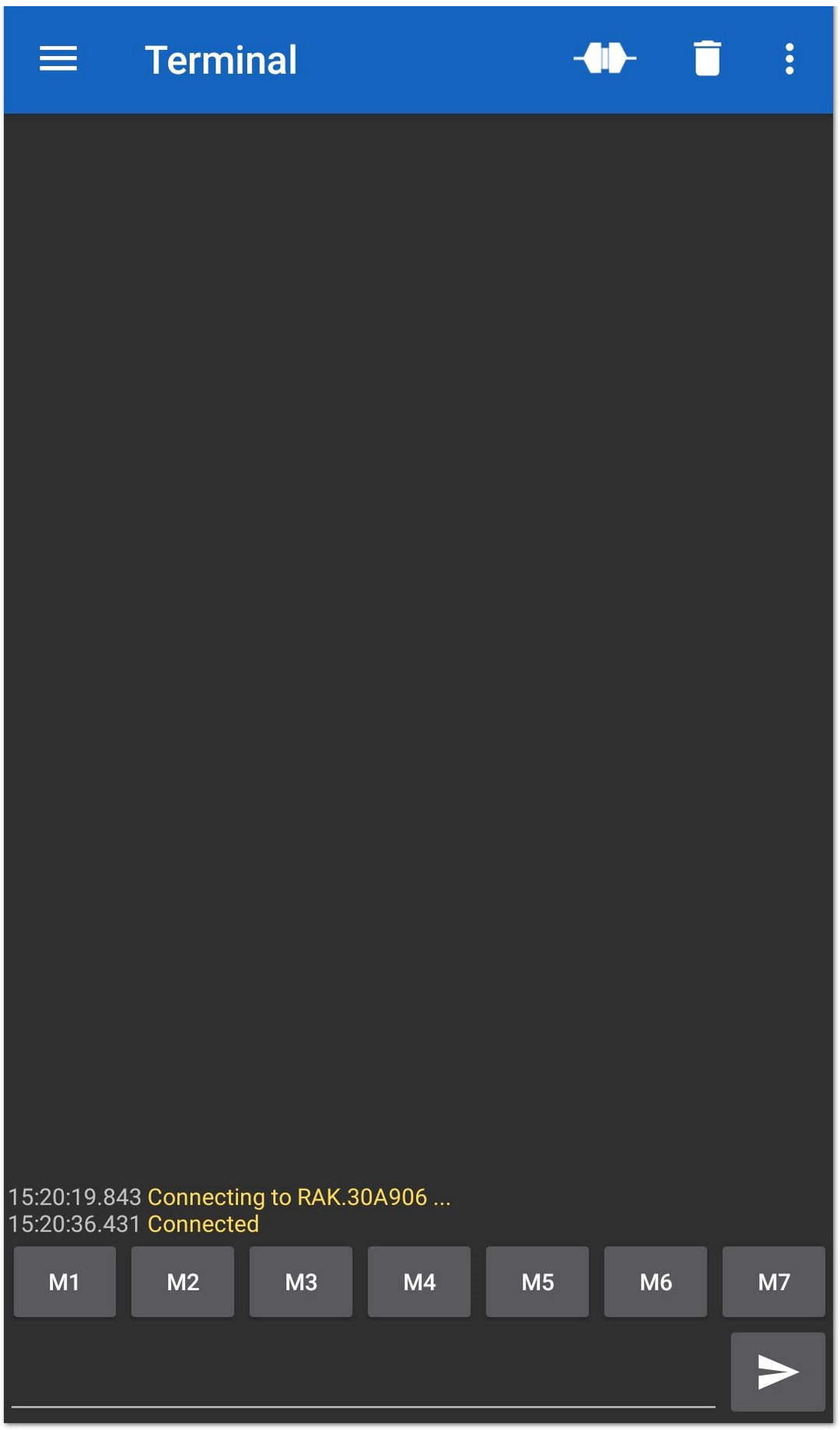 Figure 1: Connect with the device
- Send an AT Command and check remote console is received or not.
at+ver=?
- The remote device will receive the same AT Commands.
at+ver=?
AT+VER=3.2.0-p2_22q1_final.87

OK

at+class=?
AT+CLASS=A

OK
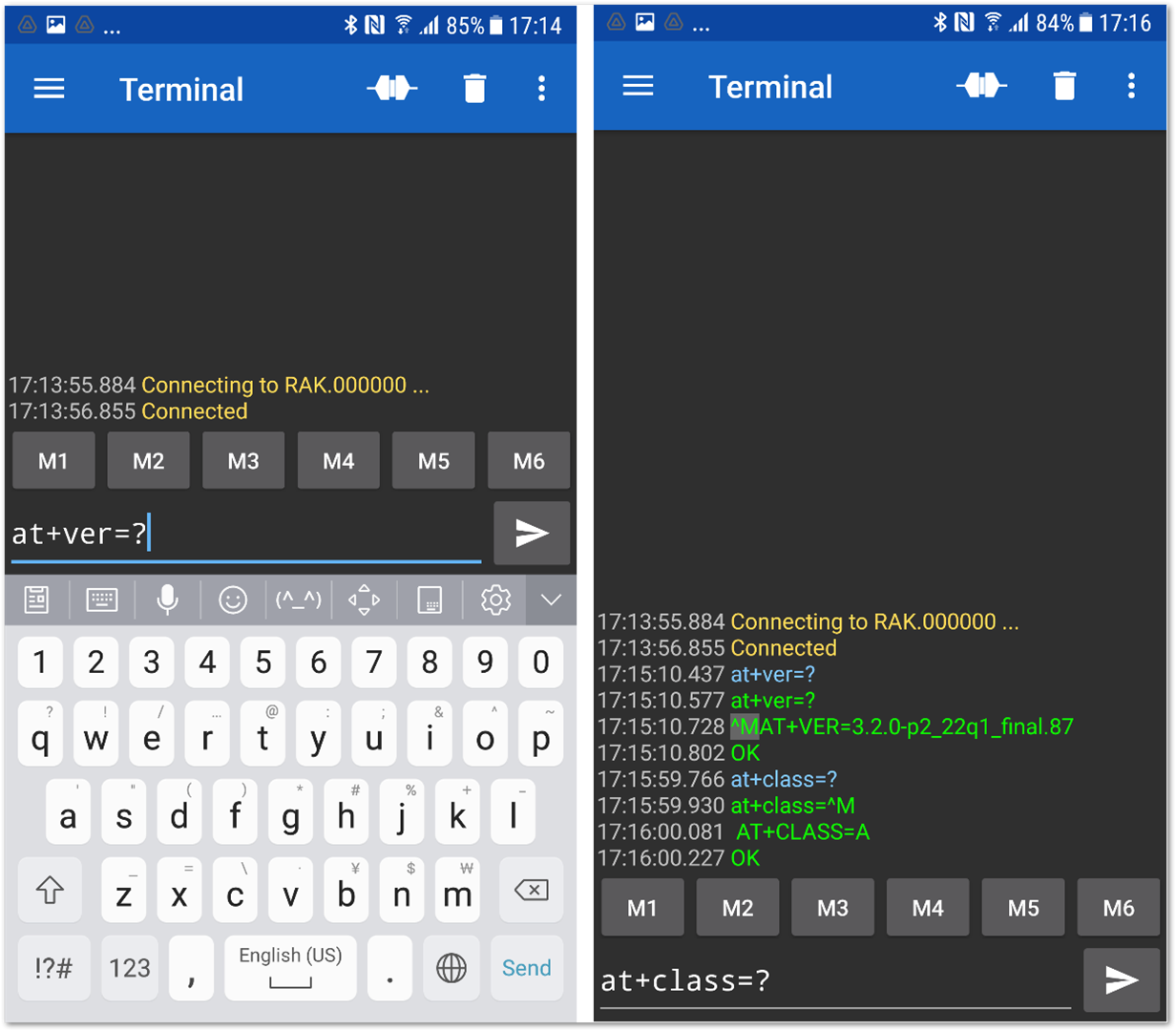 Figure 1: Connect with the device
/>


