index
Manage Equipment in the BACnet Gateway
Go to the Equipment tab in the BACnet Gateway Extension to view all devices registered as BACnet equipment.
You can use the search bar to quickly locate equipment by Name or DevEUI. You can also use groups to organize equipment by project, location, floor, room, device type, or maintenance scope.
You can manage a single equipment item or select multiple equipment items for bulk operations.
To manage multiple equipment items, select them using the checkboxes on the left. After selection, bulk action buttons appear at the top of the table.
Reassign Group
You can move equipment to another group. This helps organize devices by location, project, device type, or maintenance scope.
- Select Reassign equipment group from the ⋮ menu for a single equipment item, or select multiple equipment items and click Reassign Group.
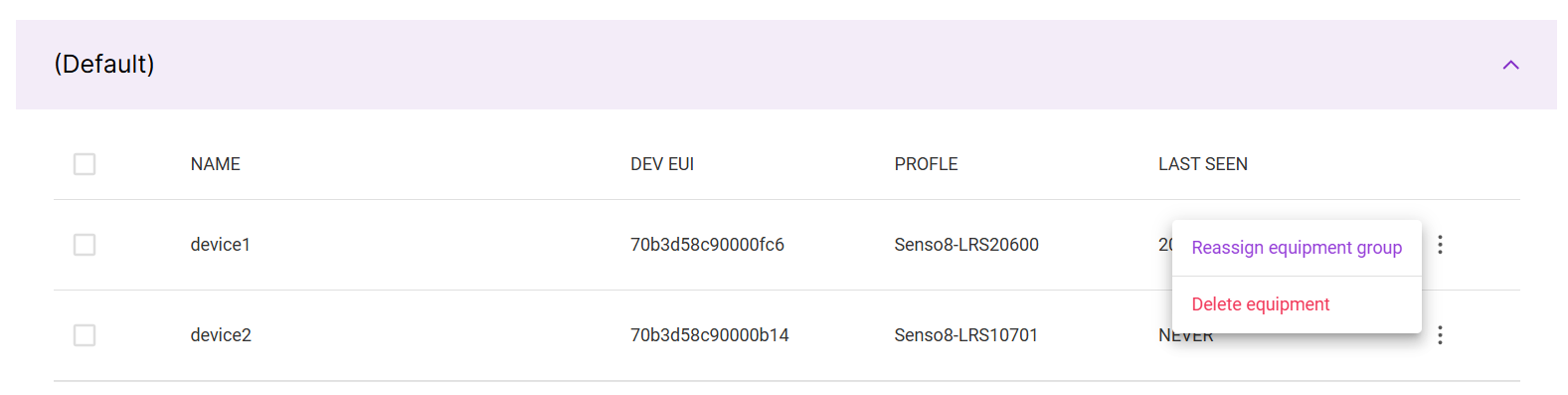 Figure 1: Single Equipment Actions
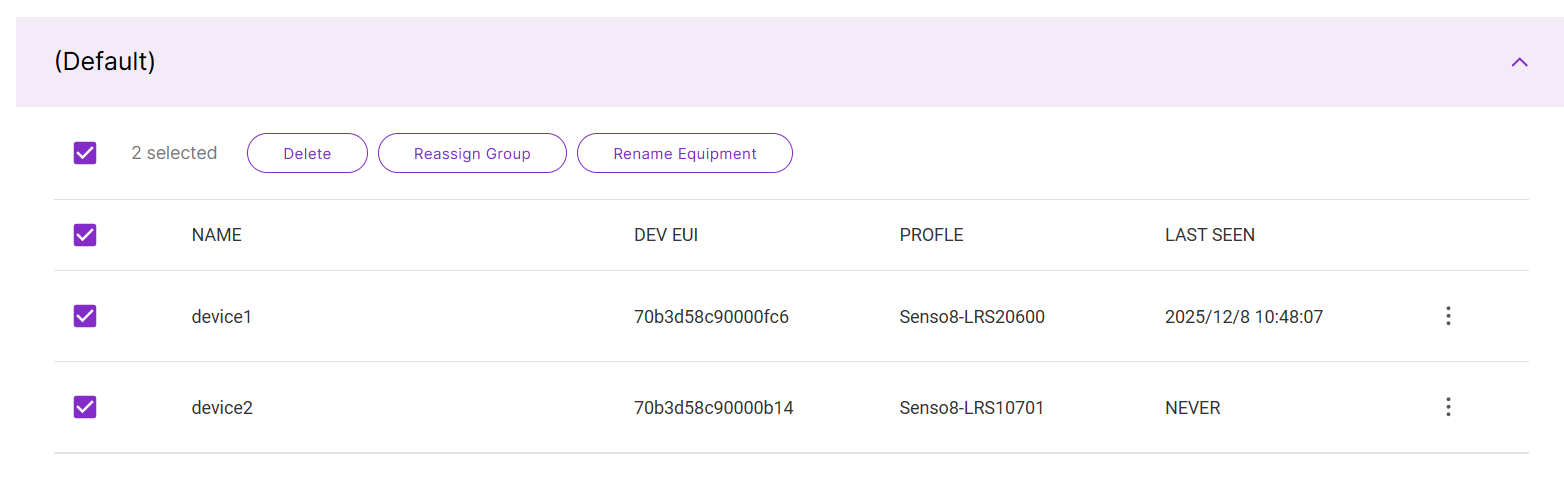 Figure 1: Bulk Equipment Actions
- In the pop-up window, search for and select the target group.
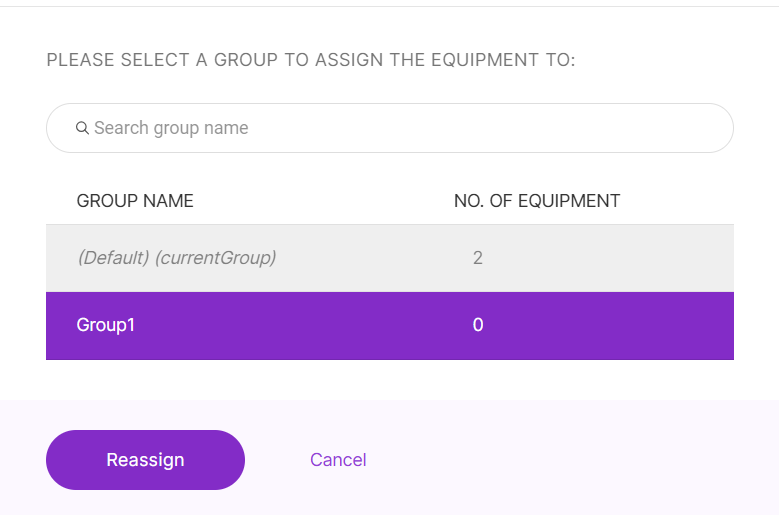 Figure 1: Assign to a New Group
- Click Reassign to complete the action.
Rename Equipment
You can rename equipment to make it easier to identify in the BACnet Gateway, exported CSV files, and BMS point lists.
To rename a single equipment item, click the edit icon in the Name column and enter the new name.
To rename multiple equipment items, select the equipment items, click Rename Equipment, enter the new name, and click Rename.
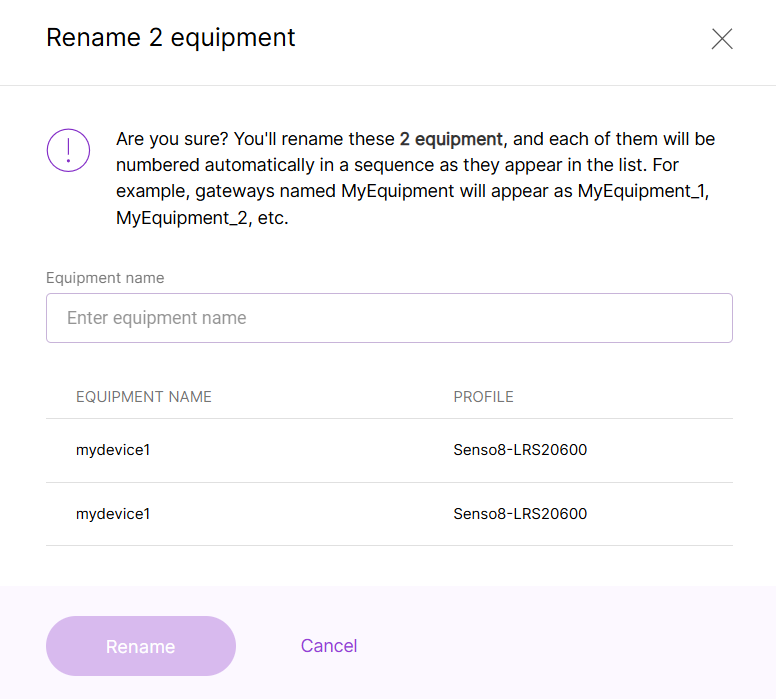 Figure 1: Bulk Rename Equipment
Use clear and consistent equipment names. Equipment names may be used in data point names, exported CSV files, and BMS point identification.
Delete Equipment
You can delete equipment from the BACnet Gateway when it is no longer needed.
Deleting equipment removes it from the BACnet Gateway. This action does not delete the associated equipment profile.
If the equipment needs to be used again, you must add it again.
- Select Delete equipment from the ⋮ menu for a single equipment item, or select multiple equipment items and click Delete.
Figure 1: Single Equipment ActionsFigure 1: Bulk Equipment Actions- Confirm the action in the pop-up window.
Add Group
Click Add Group to create a new equipment group.
Groups help you organize equipment based on project, location, floor, room, device type, or maintenance scope.
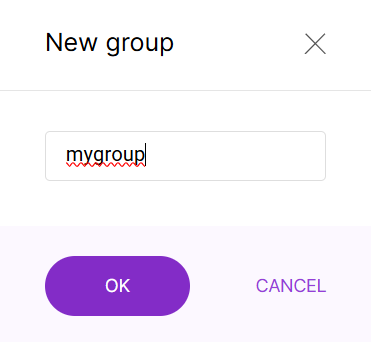 Figure 1: Create a Group
Export Equipment Data
Click Export to download registered equipment information as a CSV file.
The exported CSV can be used for equipment backup, review, or as a reference when replacing devices. It includes device authentication information and BACnet data point mapping information.
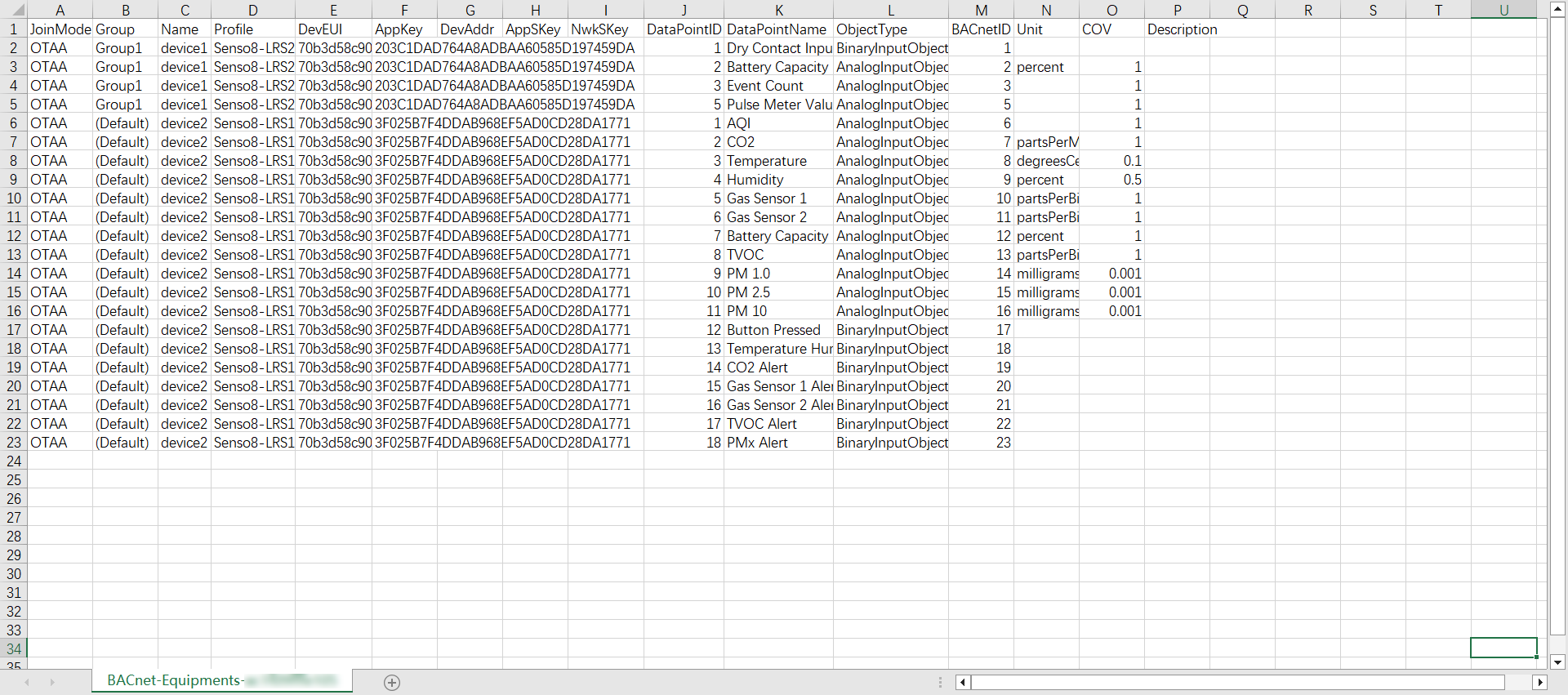 Figure 1: Equipment Data CSV Structure
CSV Field Descriptions
| Field Name | Description |
|---|---|
| JoinMode | LoRaWAN join mode, such as OTAA or ABP. |
| Group | The equipment group assigned to the device. |
| Name | The equipment name. |
| Profile | The equipment profile applied to the device. |
| DevEUI | The unique DevEUI of the LoRaWAN device. |
| APPKey | The application key used in OTAA mode. |
| DevAddr | The device address used in ABP mode. |
| AppSKey | The application session key used in ABP mode. |
| NwkSKey | The network session key used in ABP mode. |
| DataPointID | The internal data point ID defined by the profile or generated by the system. |
| DataPointName | The name of the data point. |
| ObjectType | The BACnet object type mapped to the data point. |
| BACnetID | The BACnet object instance ID. |
| Unit | The unit of the data point. |
| COV | Change-of-Value increment used for BACnet COV reporting. |
| Description | Additional description of the data point. |
When replacing a sensor, you can export the equipment data, update the device authentication information such as DevEUI, AppKey, DevAddr, AppSKey, or NwkSKey, and import the updated file again. This helps keep the BACnet point mapping unchanged, so the BMS configuration does not need to be rebuilt.
View BACnet-managed Devices in LoRa Applications
Equipment added in the BACnet Gateway Extension is also displayed under LoRa > Applications. This allows you to view the corresponding BACnet Application and End Devices created in the built-in Network Server.
Use this page for status checking and troubleshooting only. BACnet-managed Applications and End Devices cannot be modified directly from LoRa > Applications.
View the BACnet Application
Go to LoRa > Applications to view the BACnet Application created by the BACnet Gateway Extension.
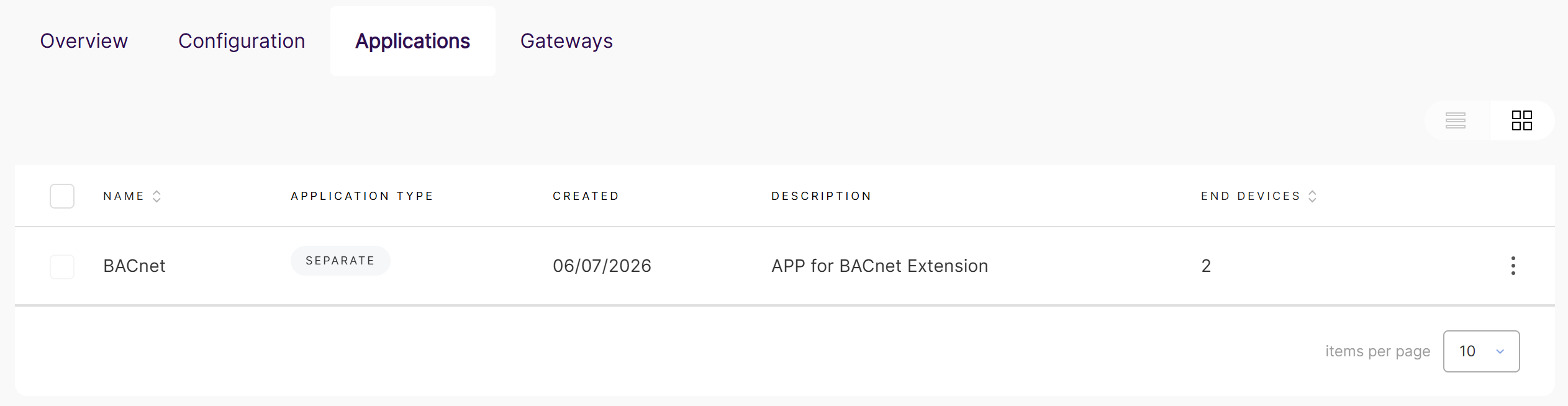 Figure 1: BACnet Application in Built-in NS
The Application list may include the following information:
| Item | Description |
|---|---|
| Name | The Application name created for the BACnet Gateway. |
| Application Type | The Application type used by the built-in NS. |
| Created | The time when the Application was created. |
| Description | The Application description. |
| End Devices | The number of End Devices associated with this Application. |
View BACnet End Devices
Open the BACnet Application and go to the End devices tab to view the End Devices managed by the BACnet Gateway.
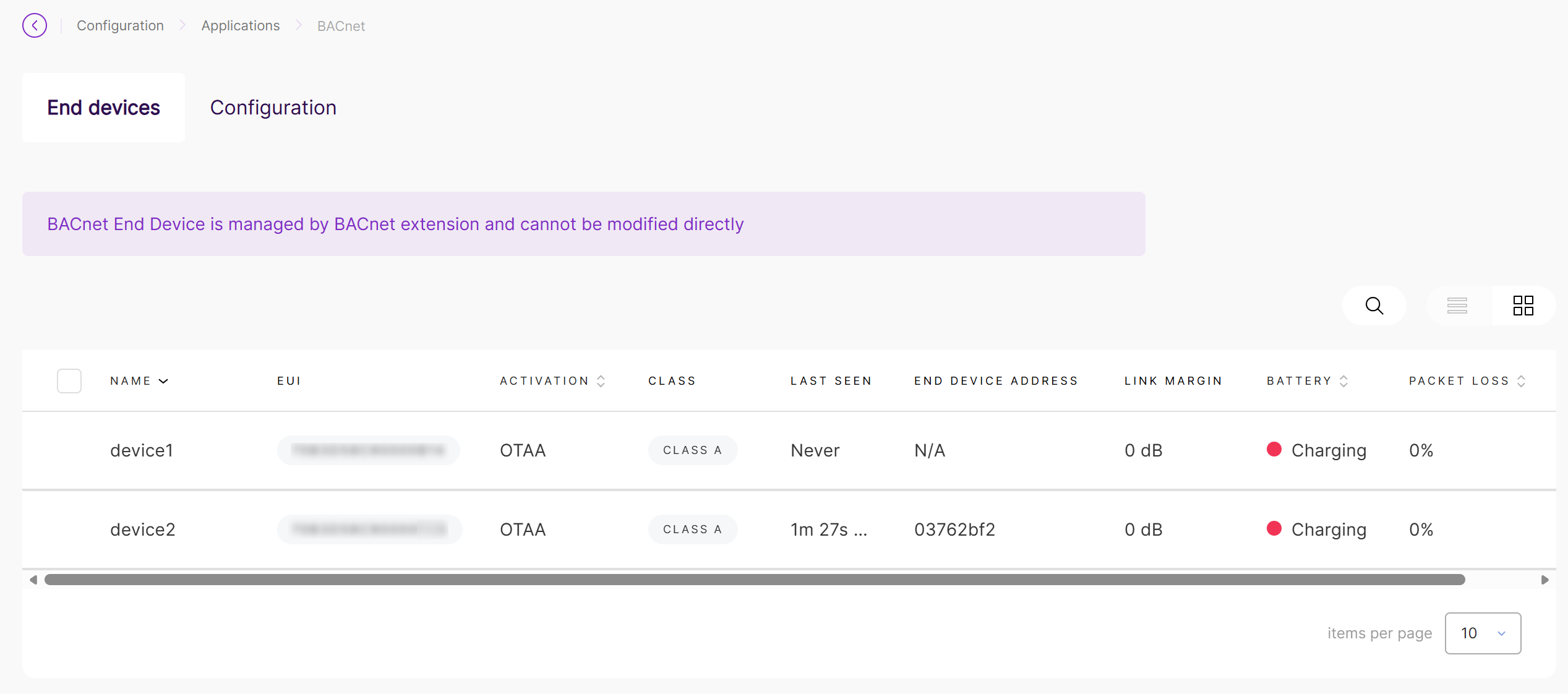 Figure 1: BACnet-managed End Devices
You can use this page to confirm whether BACnet-managed devices have joined the built-in NS and whether recent uplinks have been received.
The End Devices shown here are created and maintained by the BACnet Gateway Extension. Use this page for device status checking only.
View BACnet Application Configuration
Open the BACnet Application and go to the Configuration tab to view the Application settings.
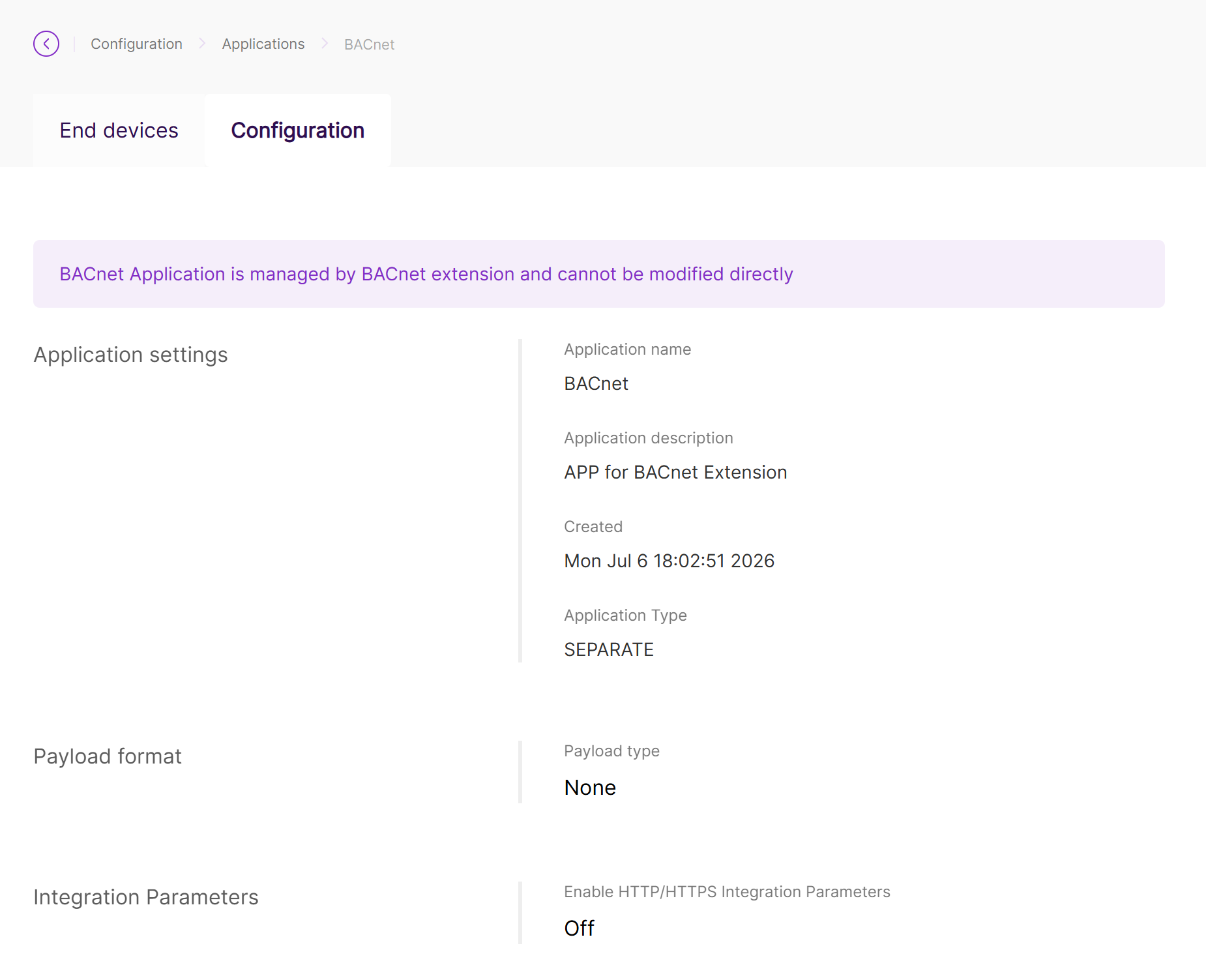 Figure 1: BACnet Application Configuration
View BACnet End Device Details
You can open a BACnet-managed End Device to view additional device information.
The Overview page may show uplink and downlink counters, battery status, DevAddr, packet loss, Last Seen time, SNR/RSSI statistics, traffic history, and data rate statistics.
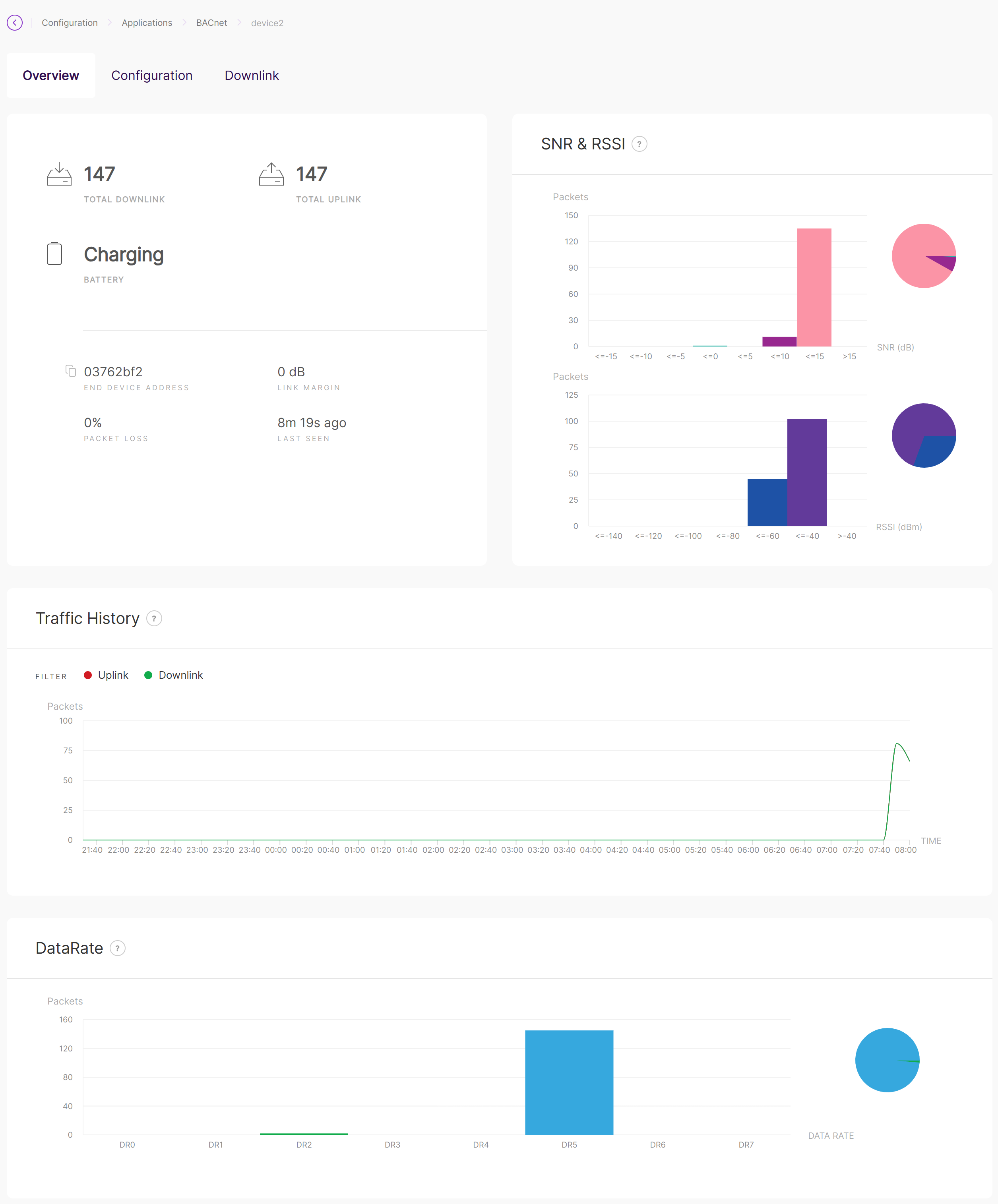 Figure 1: Built-in NS End Device Overview
The Configuration page shows the End Device configuration generated by the BACnet Gateway Extension.
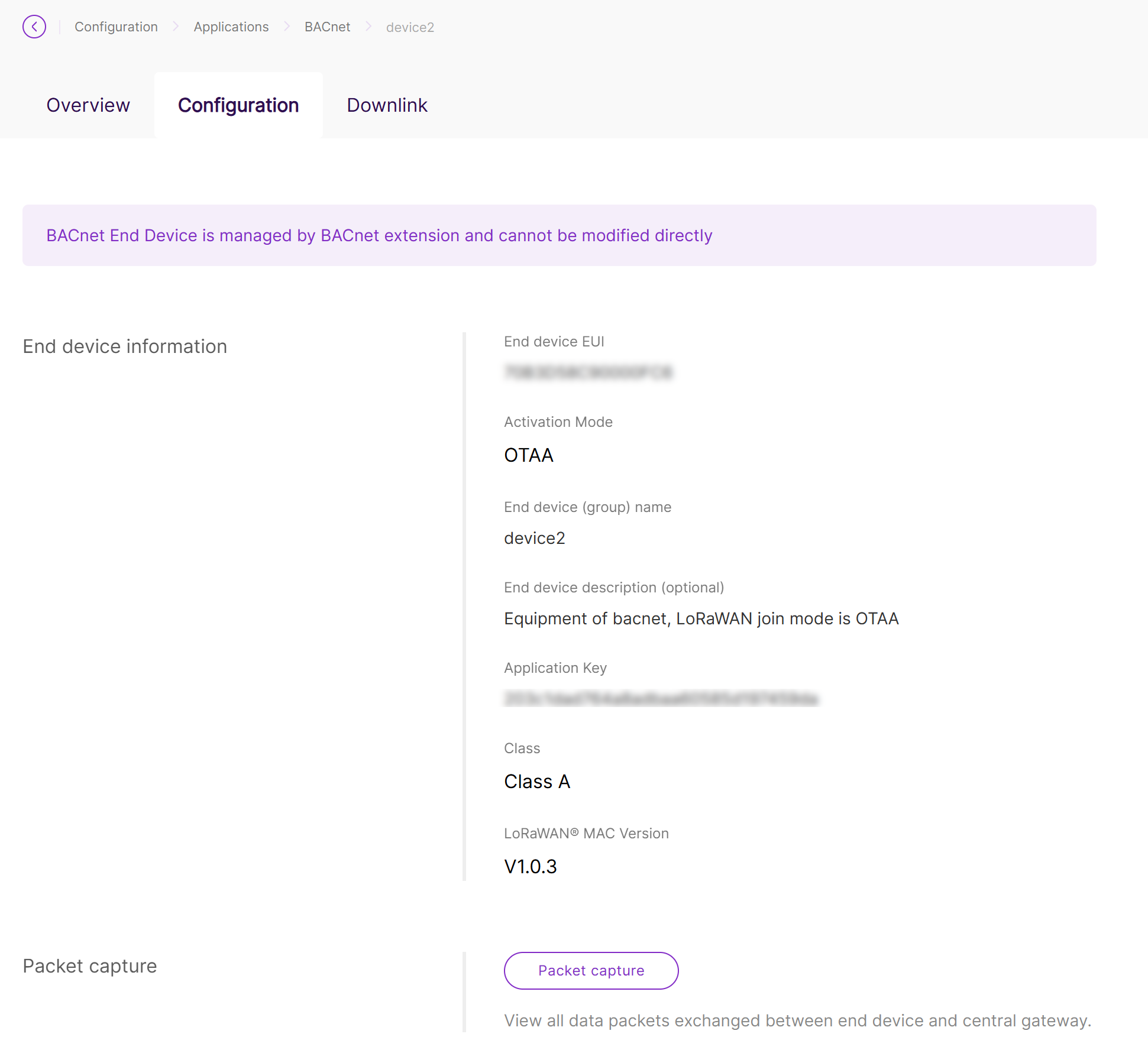 Figure 1: Built-in NS End Device Configuration
View Packet Capture
You can use Packet capture from the End Device details page to inspect packets exchanged between the End Device and the gateway.
This is useful for troubleshooting LoRaWAN communication issues, such as checking whether the device has joined successfully, whether uplinks are received, and whether downlinks are sent.
To access Packet capture:
- Go to LoRa > Applications.
- Open the BACnet Application.
- Select the target End Device.
- Go to the Configuration tab.
- Click Packet capture.
Packet capture is used for LoRaWAN status checking and troubleshooting only.


