index
View Data Points
Go to the Data Points tab to view the data points associated with your registered equipment.
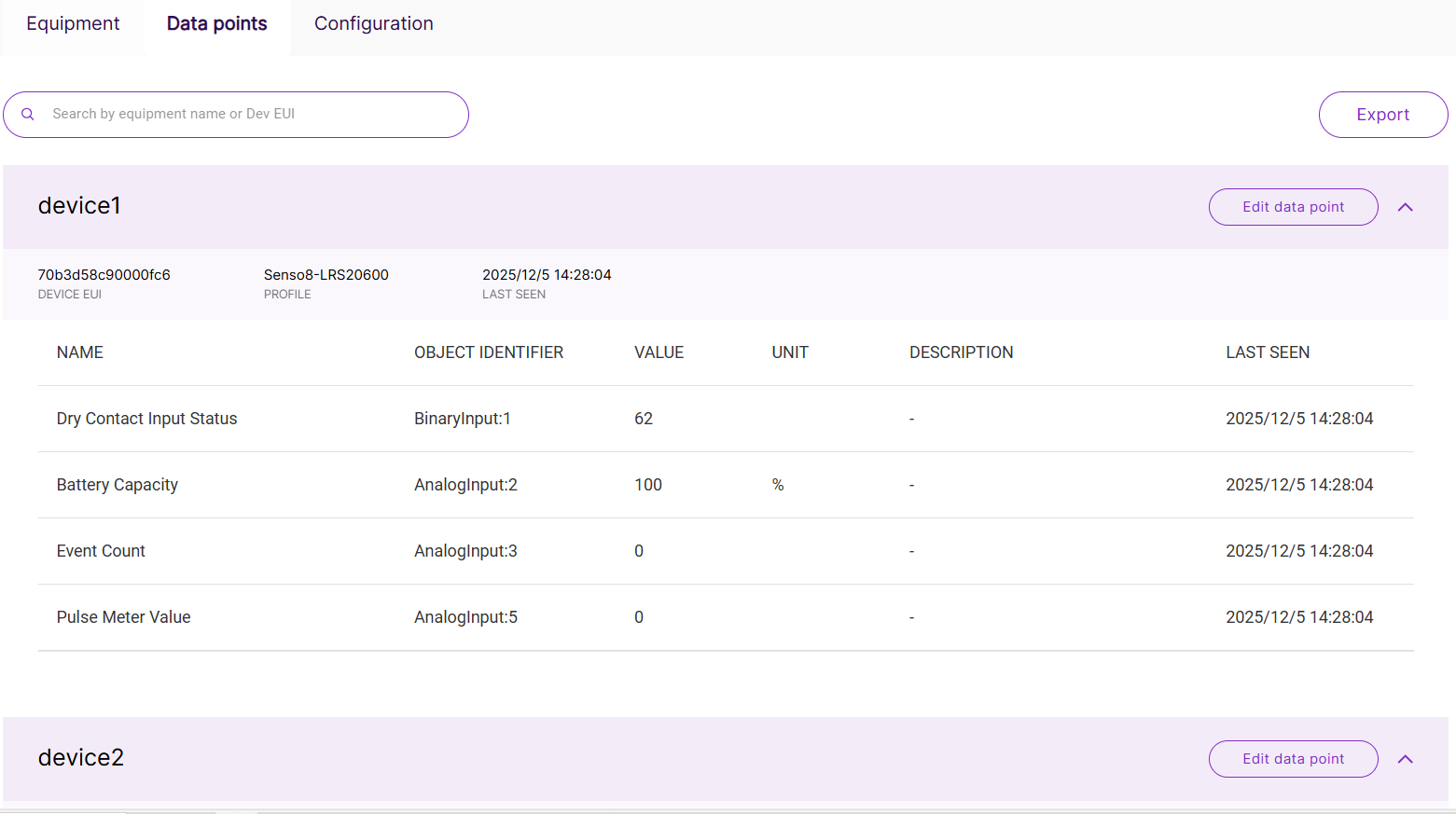 Figure 1: Data Points Overview
Each equipment item is displayed as an expandable section. You can click the arrow icon to expand or collapse the equipment details. You can use the search bar to quickly find equipment by equipment name or Dev EUI.
For each equipment, the page displays the following basic information:
| Item | Description |
|---|---|
| Device EUI | The Dev EUI of the LoRaWAN device associated with the equipment. |
| Profile | The equipment profile used to decode LoRaWAN payloads and map data to BACnet objects. |
| Last Seen | The most recent time uplink data was received. |
After expanding an equipment item, you can view its mapped data points.
| Column | Description |
|---|---|
| Name | The data point name generated from the equipment profile. |
| Object Identifier | The BACnet object identifier, including the object type and object instance, such as AnalogInput:23 or BinaryInput:25. |
| Value | The latest value decoded from the LoRaWAN uplink. |
| Unit | The unit defined in the equipment profile, such as %, ℃, or other BACnet-supported units. |
| Description | Additional description of the data point, if configured. |
If no value is displayed, verify that the equipment has joined successfully, the gateway has received uplink data, and the selected profile contains valid BACnet object mappings.
Edit Data Point
You can customize how data points are displayed in the Data Points tab. Click the Edit data point icon for the target equipment.
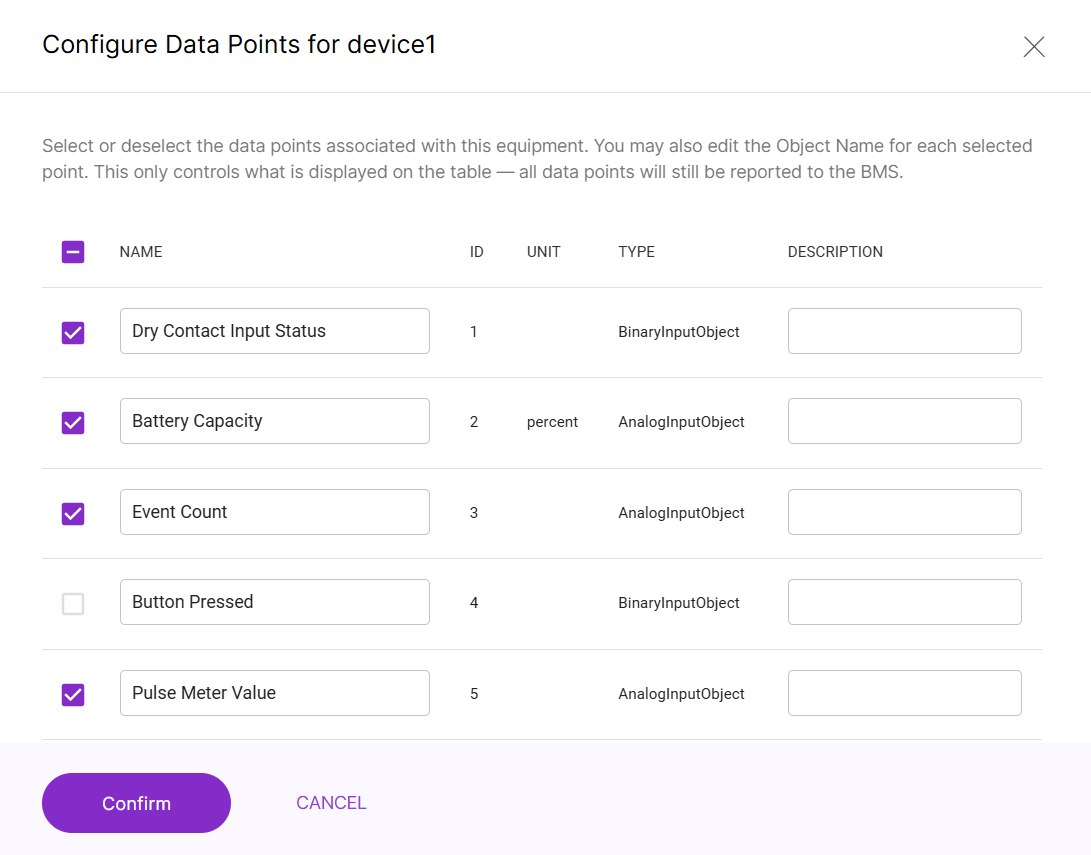 Figure 1: Edit Data Points
You can:
- Select which data points are displayed in the Data Points table.
- Edit the Object Name and Description for each data point.
After making changes, click Confirm to save.
Changing the displayed data points only affects what is shown in the gateway UI. The BACnet Gateway still exposes the data points according to the equipment profile and BACnet object mapping.
Export Data Points
Click Export to generate a CSV file containing the BACnet-mapped data points from your registered equipment.
The exported CSV file can be used as a point list for BMS integration. It helps the BMS engineer identify the BACnet device instance, object type, object instance, object name, and description for each mapped data point.
The exported CSV includes the data points displayed in the gateway UI. If you have customized the displayed data points, confirm the selection before exporting.
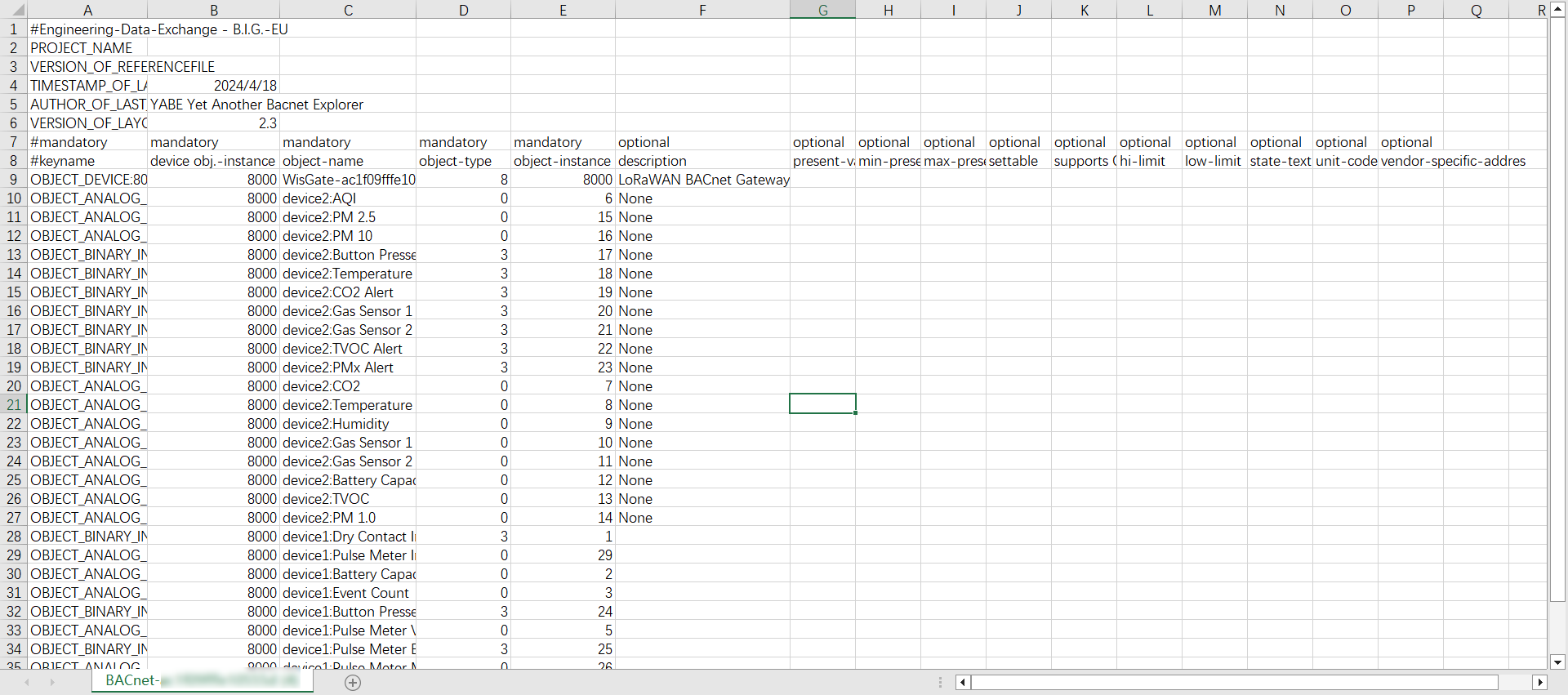 Figure 1: Data Points CSV Structure
CSV Field Descriptions
| Field Name | Description |
|---|---|
| keyname | The unique key that identifies each BACnet object. It follows the format OBJECT_<Object Type>:<Instance ID>. |
| device obj.-instance | The BACnet device instance ID of the gateway. The BMS uses this ID to identify the BACnet Gateway in the BACnet network. |
| object-name | The BACnet object name. It is usually generated from the equipment name and the mapped object name. |
| object-type | The BACnet object type, such as AnalogInputObject, BinaryInputObject, AnalogOutputObject, or BinaryOutputObject. |
| object-instance | The BACnet object instance ID. The combination of object type and object instance uniquely identifies a BACnet object. |
| description | Optional description that provides additional context for the data point. |
Use the Exported Data in BMS
After exporting the data point list, use the CSV file as a reference when configuring or verifying points in your BMS.
The BMS can discover the BACnet Gateway as a BACnet/IP device and read the BACnet objects exposed by the gateway. The exported CSV helps you match the objects discovered in the BMS with the LoRaWAN equipment and data points configured in the gateway.
Once connected, your BMS can automatically discover and display:
- BACnet Device Instance
- BACnet Objects (AI, BI, AV, BV, OSV, etc.)
- Object Names (mapped from Profile)
- Real-time values (from LoRa uplinks)
These values are updated based on the LoRaWAN device uplink frequency, profile mapping rules, and BACnet settings such as COV configuration.
Example: View BACnet Objects in a BACnet Browser
The following example uses Yabe, a BACnet browser tool, to show how BACnet objects from the gateway appear in a BACnet environment.
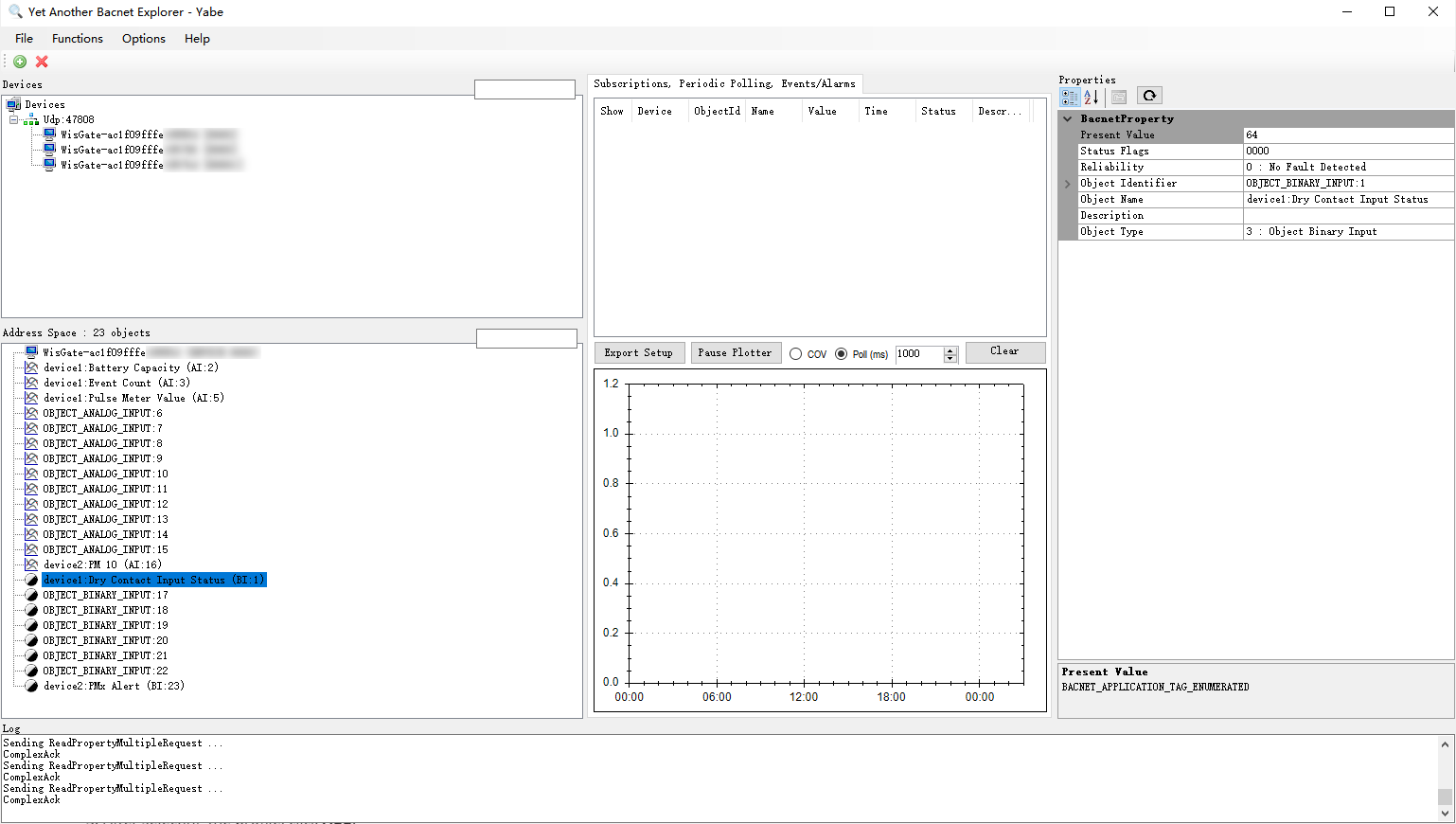 Figure 1: BACnet Objects and Values Displayed in Yabe
In an actual BMS, the displayed object list may vary depending on the BMS software, discovery method, and BACnet network configuration.
After your equipment comes online, you can view its mapped BACnet data either in the Data Points page or inside your Building Management System (BMS).


