index
Step 1: Create a TTN Application
-
Log in to The Things Stack using the account and cluster where your gateway is registered.
-
Once logged in, click **Create application **to create a new application.
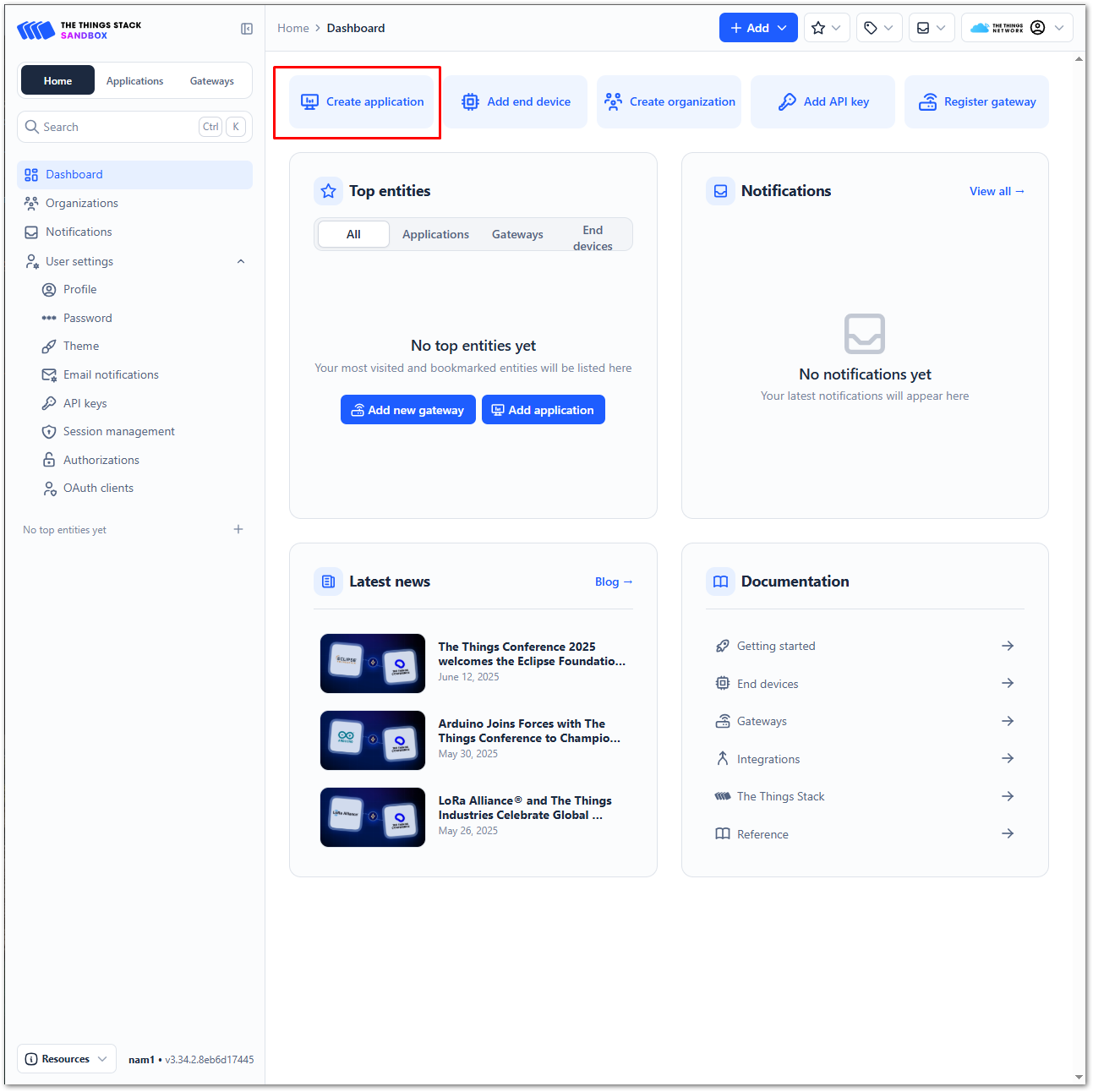 Figure 1: The Things Stack Platform
- To register an application, enter the required details and necessary information about your application, then click Create application.
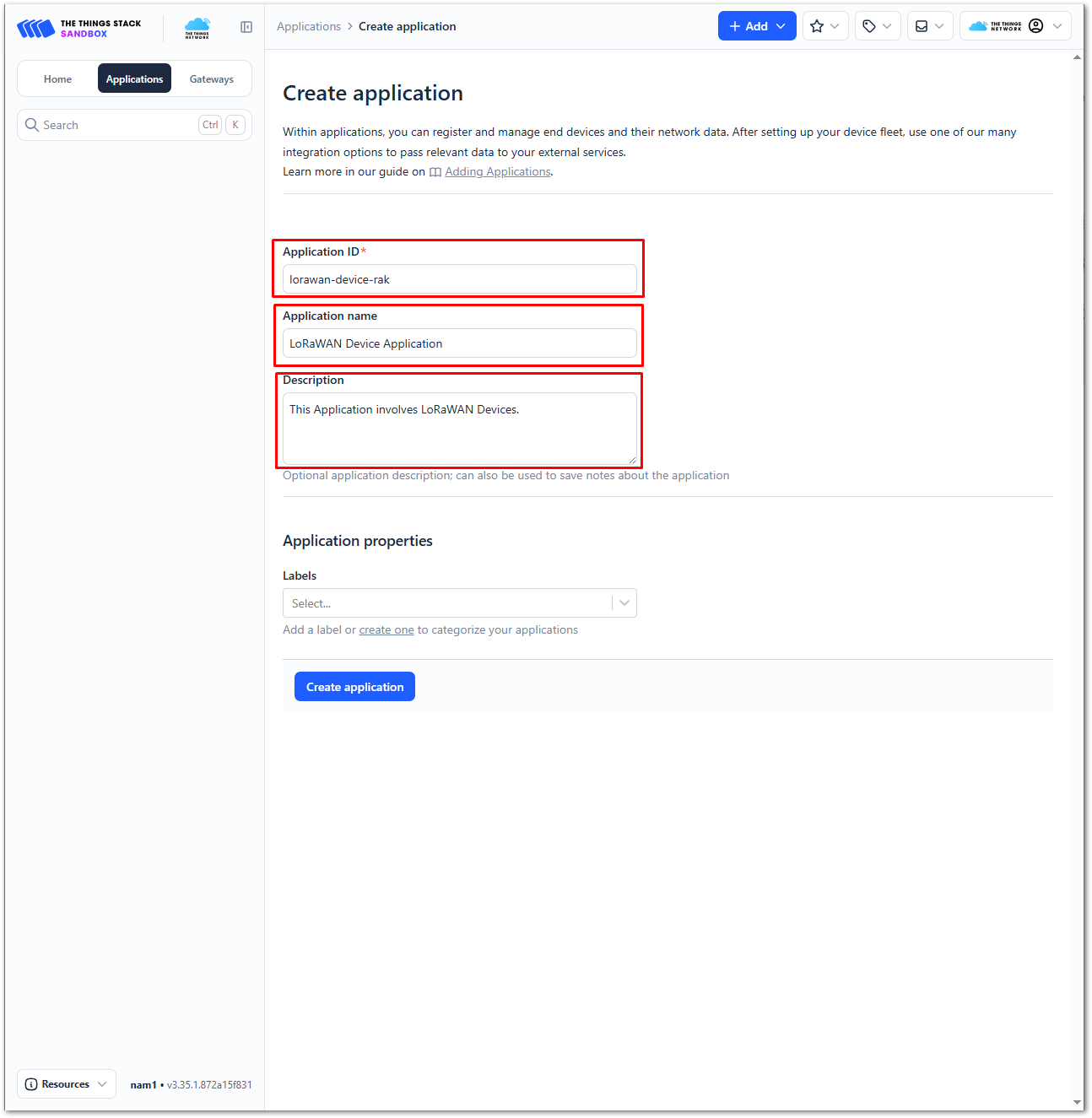 Figure 1: Details of the TTN application
- If you have no error in the previous step, you should now be on the application console page. The next step is to add end-devices to your TTN application.
Step 2: Register an End Device
Each LoRaWAN end device must be registered and activated using either Over-The-Air Activation (OTAA) or Activation By Personalization (ABP). Follow the steps below to register the module on TTN. Some configuration steps and credentials may differ depending on the selected activation method.
- Go to your application console to register a device. To start adding an OTAA end-device, click + Register end device.
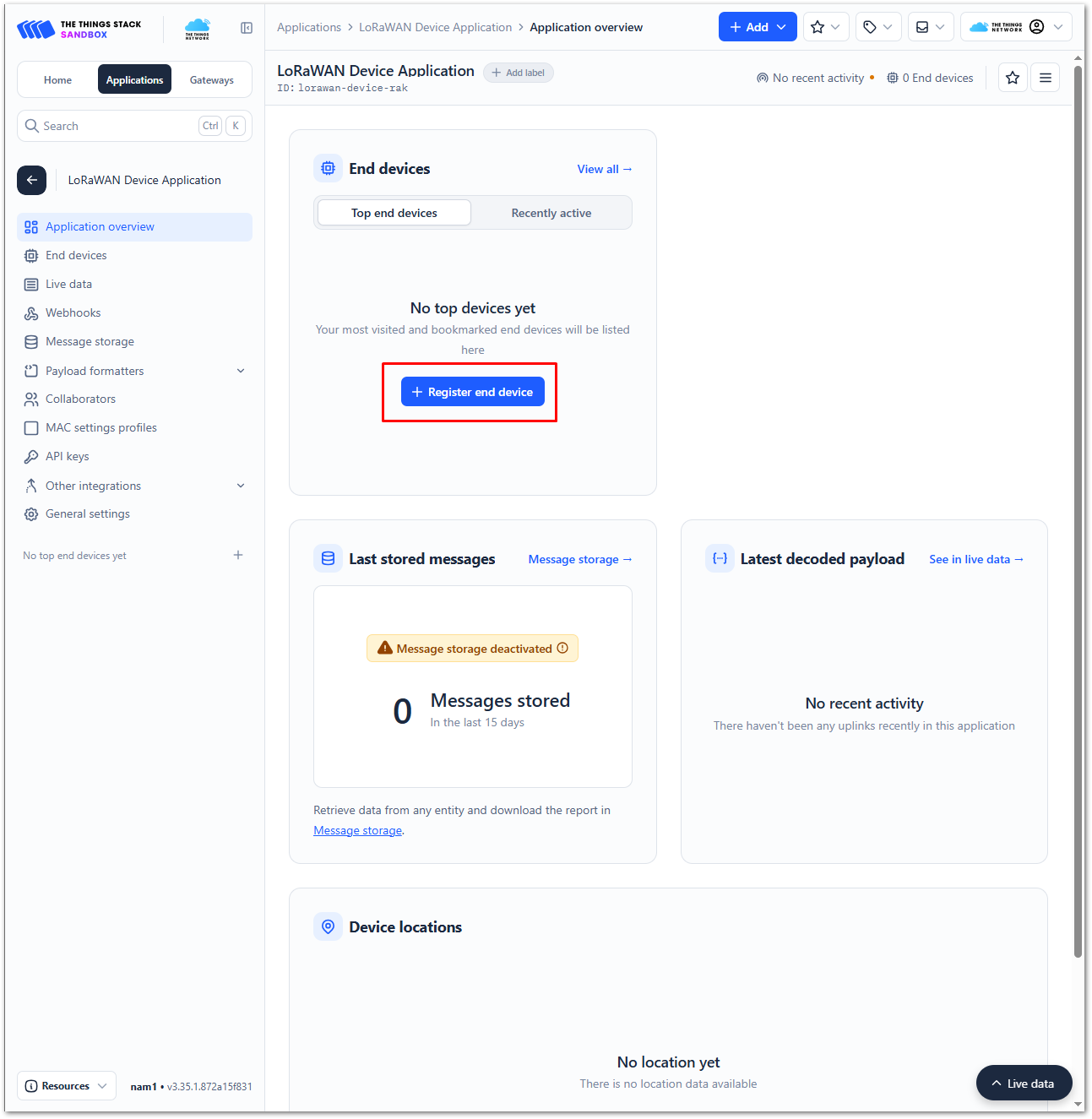 Figure 1: Register end device
- To register the board, select Enter end device specifics manually.
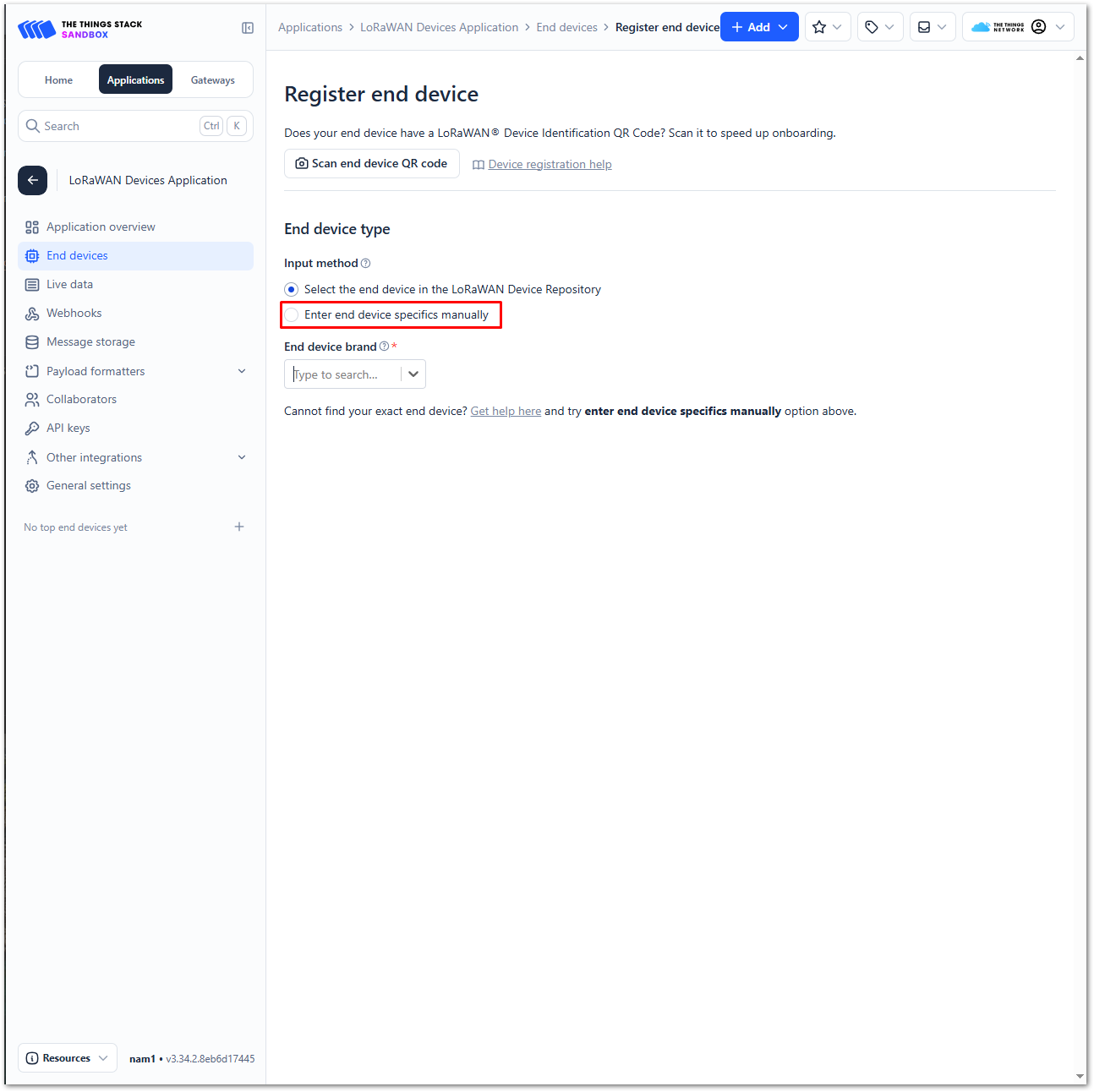 Figure 1: Enter end device specifics manually
- Set up the appropriate Frequency plan, compatible LoRaWAN version, and Regional Parameters version supported by your device. For OTAA activation, set the JoinEUI to all zeros. This step is not required for ABP activation.
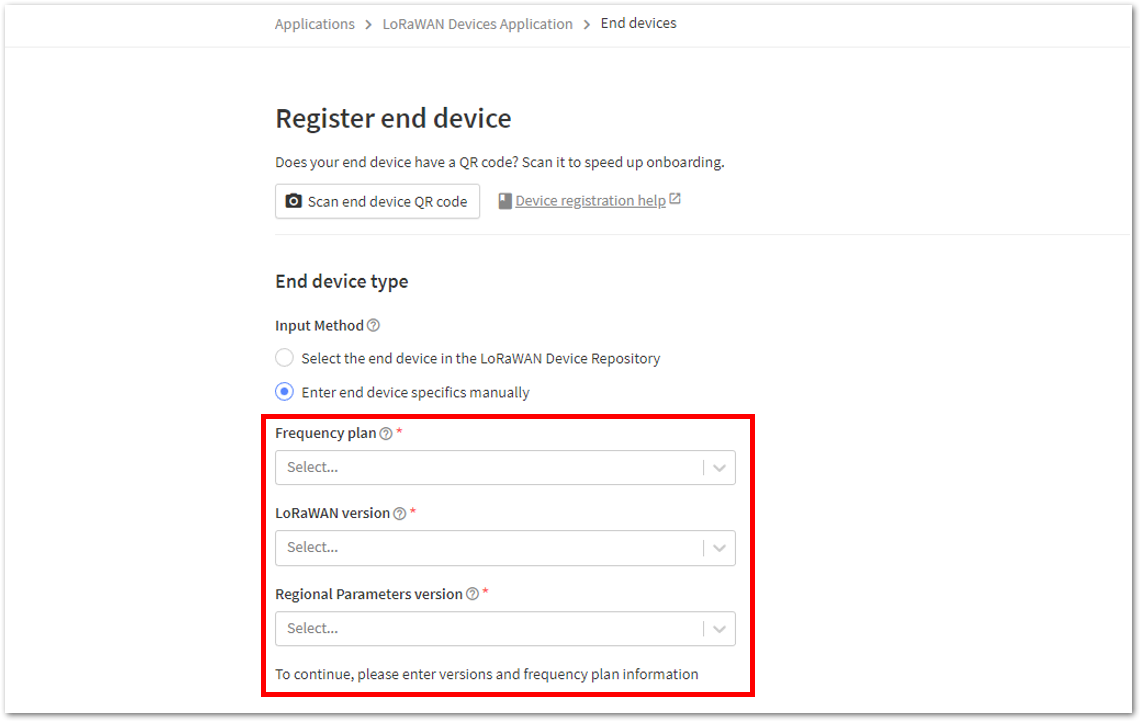 Figure 1: Setting up for your device
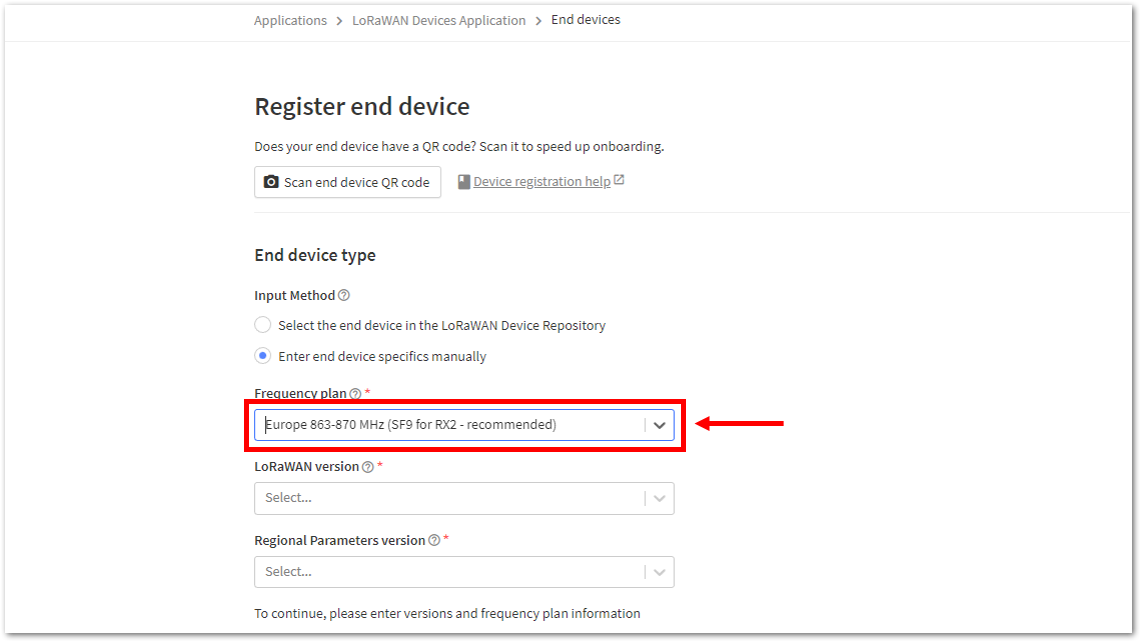 Figure 1: Setting the Frequency plan
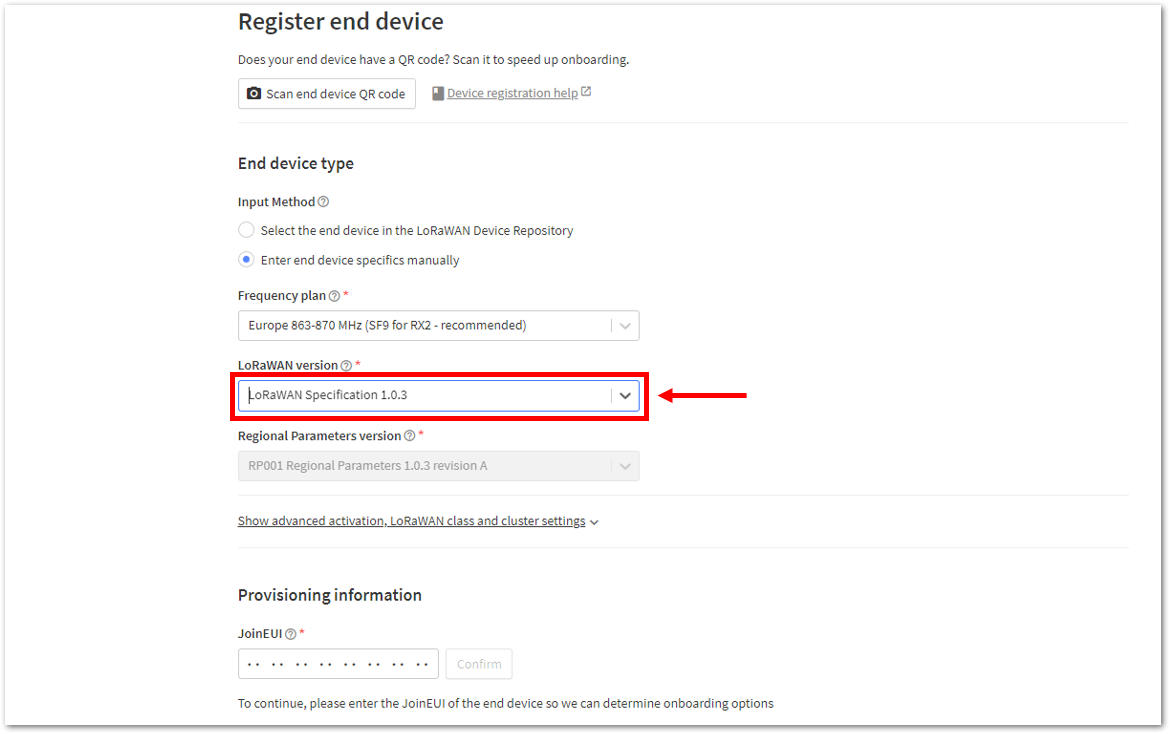 Figure 1: Setting the LoRaWAN version
 Figure 1: Setting the JoinEUI
- Click Show advanced activation, LoRaWAN class and cluster settings. Select the activation method supported by your device and set Additional LoRaWAN class capabilities to Class A only.
- OTAA: Select Over the air activation (OTAA). In the JoinEUI field, enter all zeroes to allow the DevEUI to be configured, then click Confirm.
- ABP: Select Activation by personalization (ABP).
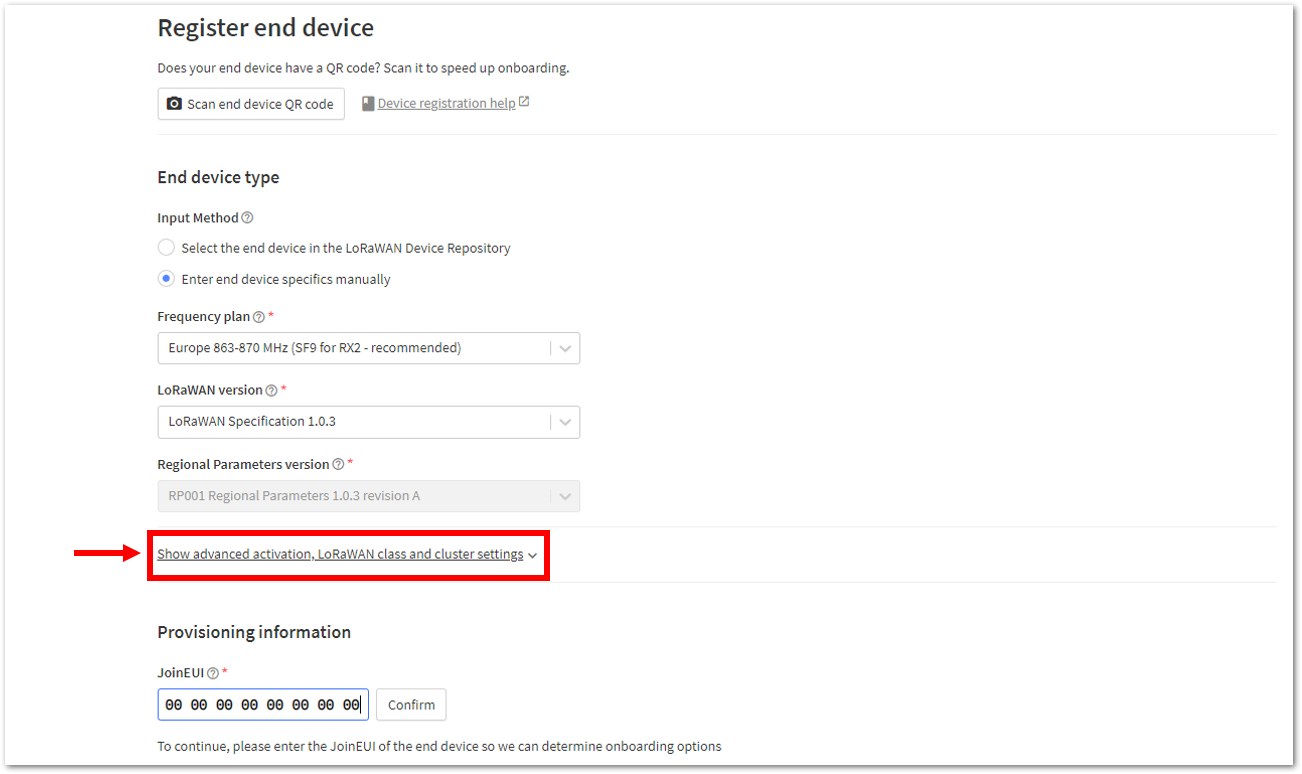 Figure 1: Setting up for your device
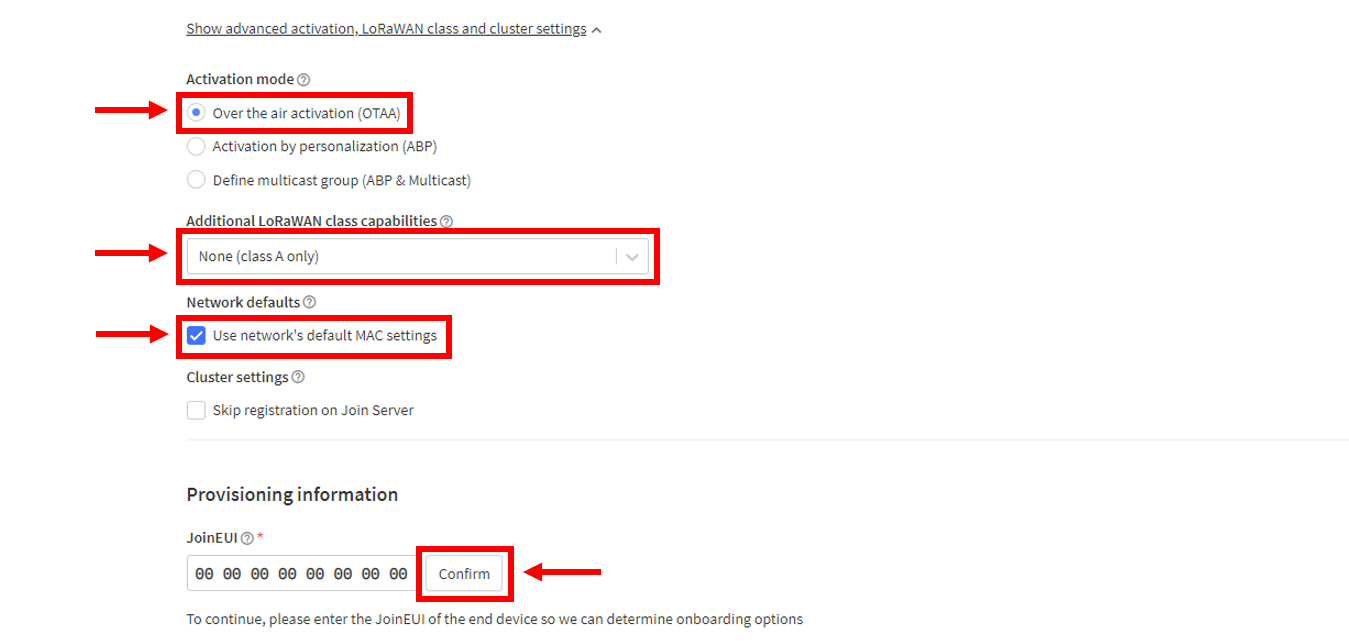 Figure 1: Configuring OTAA activation settings
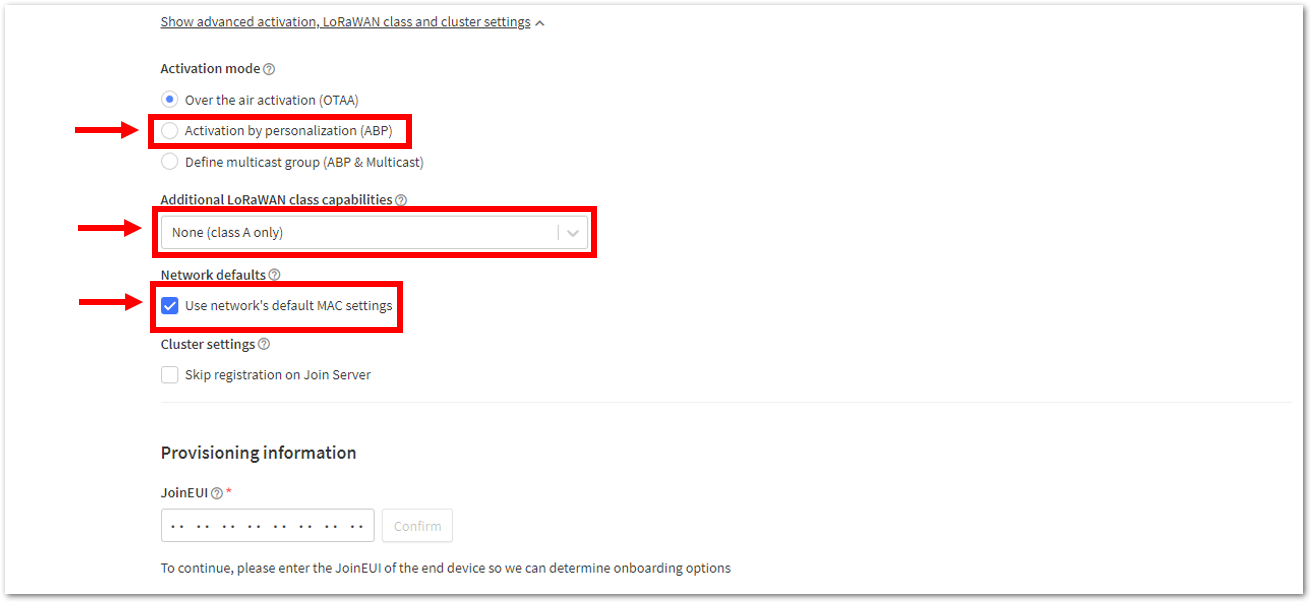 Figure 1: Configuring ABP activation settings
- Enter the DevEUI credentials of your device into the DevEUI portion. This will automatically generate the specific End device ID of your board. Then generate the credentials required by the selected activation method:
- OTAA: Generate the AppKey, then click Register end device.
- ABP: Generate the Device address, AppSKey, and NwkSKey.
NOTE
- The DevEUI is unique to each RAK device. Depending on the activation mode, the following credentials are hidden in this section and must be generated for your specific device and application:
- ABP: Device address, AppSKey, and NwkSKey.
- OTAA: AppEUI and AppKey.
- For OTAA, the AppEUI is the same as the JoinEUI.
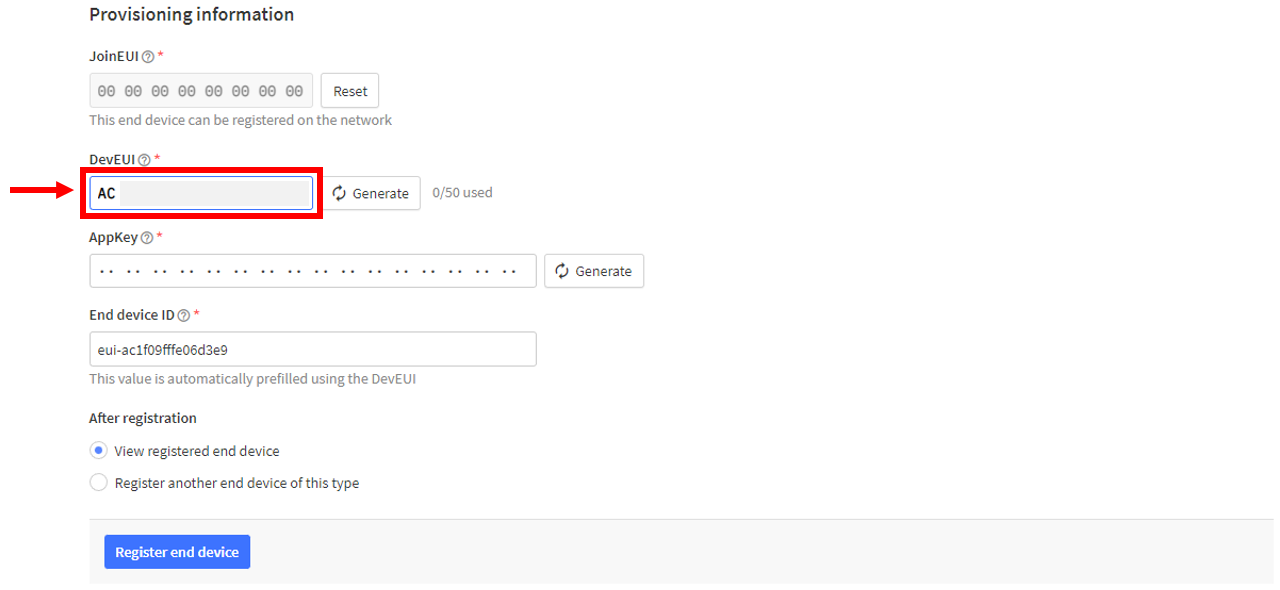 Figure 1: Generating OTAA credentials
 Figure 1: Generating ABP credentials
- Finally, click Register end device.
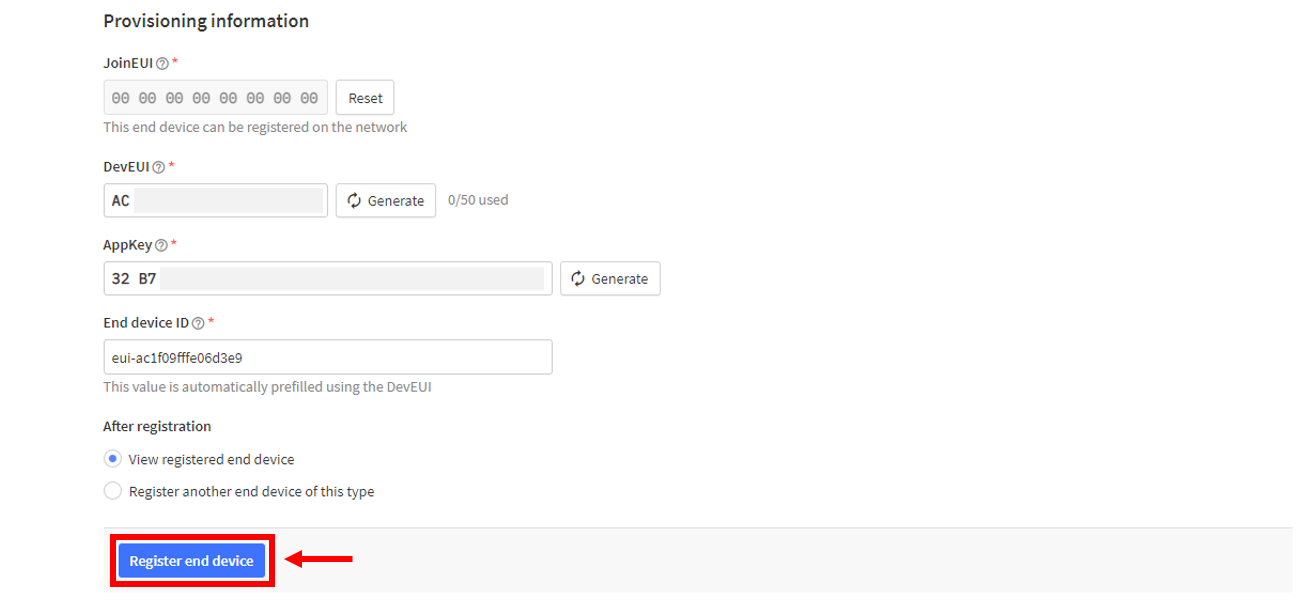 Figure 1: Register end device
- You should now be able to see the device on the TTN console after you fully register your device
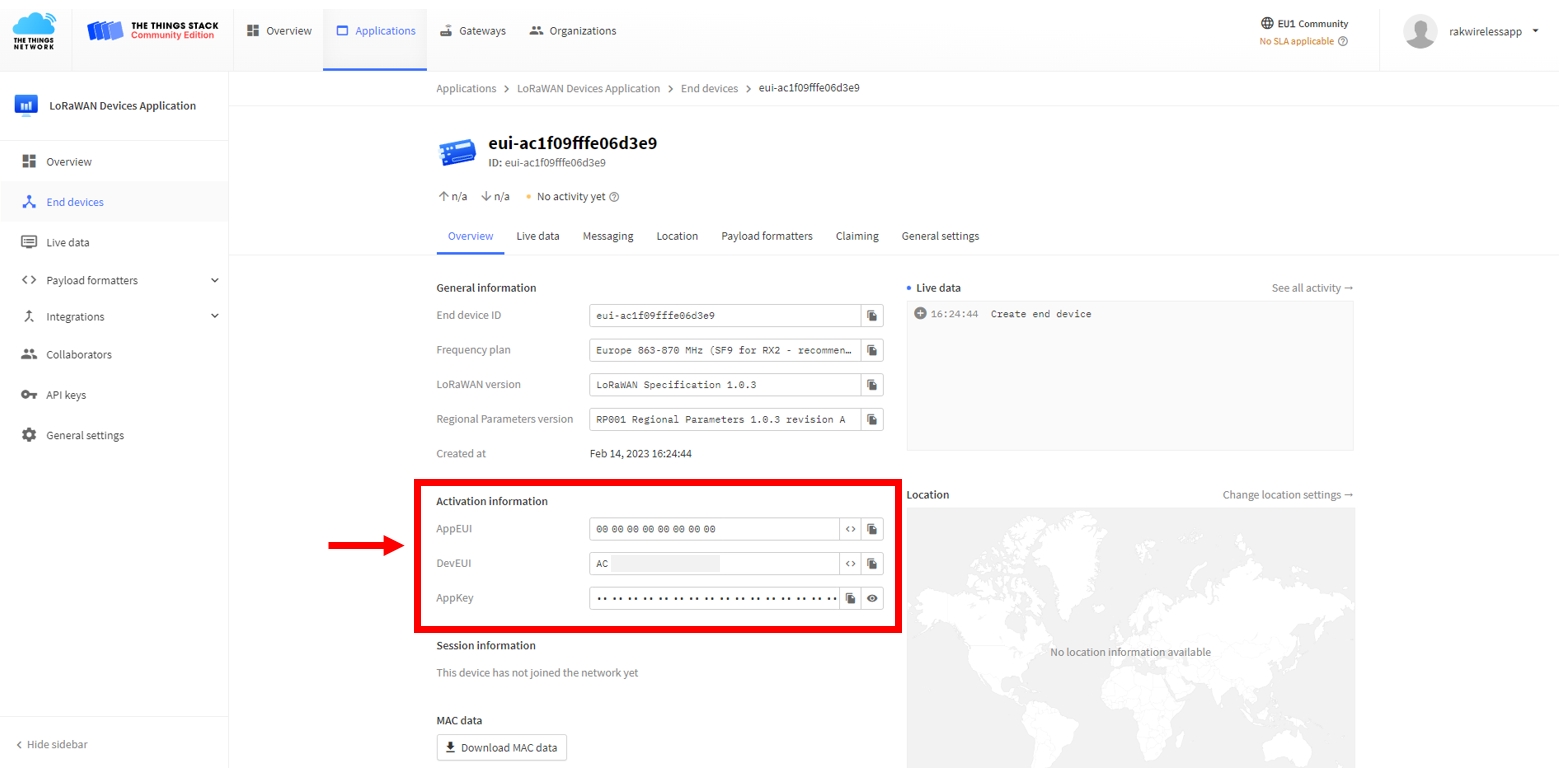 Figure 1: OTAA device successfully registered to TTN
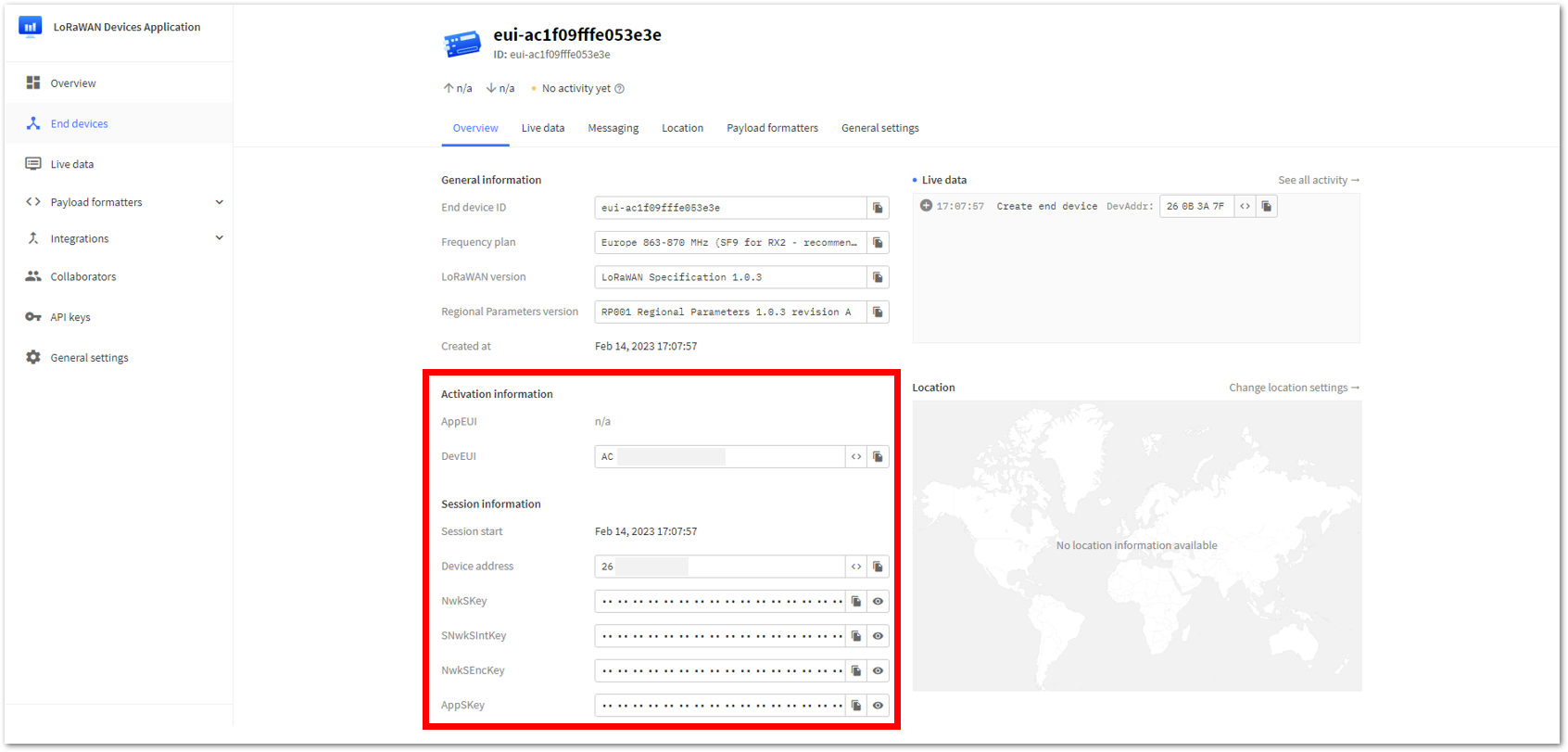 Figure 1: ABP device registered on TTN


