RAK11300 WisDuo Module Firmware Update
This guide explains how to update or reflash the firmware on the RAK11300 WisDuo Module using the RAK Device Firmware Upgrade (DFU) Tool.
Minimum Hardware and Software Requirements
Refer to the table for the minimum hardware and software required to perform the firmware upgrade via USB.
| Hardware/Software | Requirement |
|---|---|
| Computer | A Windows/Ubuntu/Mac computer |
| USB Connection | RAK11300 main board must have USB support |
Firmware Upgrade Procedure
Execute the following procedure to upgrade the firmware via USB using the .uf2 firmware file.
-
Download the latest application firmware of the RAK11300.
-
Connect the RAK11300 module to the computer via USB. If your main board has no USB connection, you won't be able to upload the
.uf2firmware file. -
Activate RAK11300 USB bootloader mode. There are two possible ways to do this.
-
Reset the module twice by momentarily shorting the reset pin to the ground.
-
Hold the BootSel button in the RAK11300 module, reset the module (short the reset pin to ground for at least 2 seconds), then wait for the USB Mass Storage
RPI-RP2before releasing the BootSel button.
-
You need to do either of the two options until the USB Mass Storage RPI-RP2 shows on your computer.
- Copy the firmware.uf2 file to the
RPI-RP2Mass Storage device.
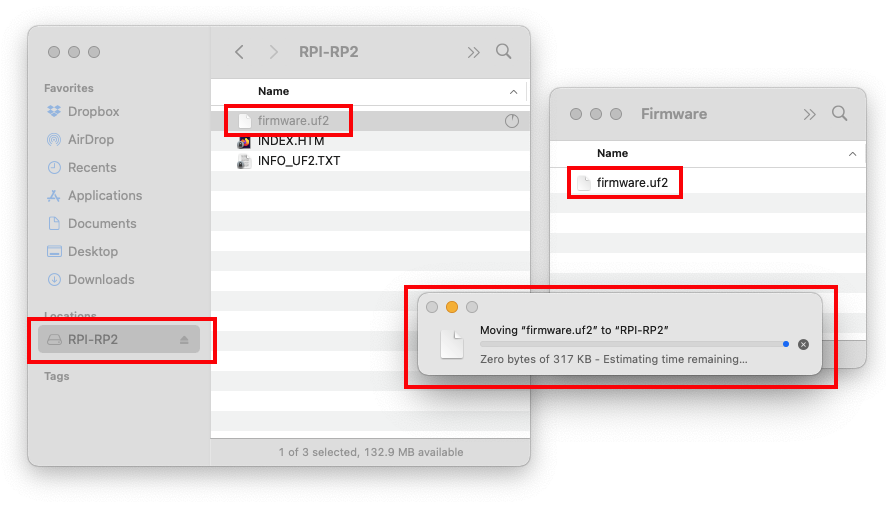 Figure 1: Drag the firmware.uf2 file to RPI-RP2 USB Mass Storage
- You need to reset the device after updating the
.uf2firmware file.


