RAK3172 WisDuo Module for LoRaWAN® Firmware Update
This guide explains how to update or reflash the firmware on the RAK3172 WisDuo Module using the RAK Device Firmware Upgrade (DFU) Tool through the UART2 interface.
Device Recovery Option
If the RAK3172 module stops responding to AT commands or firmware updates, you can recover it using the .hex file available in the datasheet and upload it via STM32CubeProgrammer.
For detailed steps, refer to the STM32CubeProgrammer Guide for RAK Modules.
Uploading the .hex file via STM32CubeProgrammer will erase all configured data on the device.
Minimum Hardware and Software Requirements
Refer to the table for the minimum hardware and software required to perform the firmware upgrade via UART2:
| Hardware/Software | Requirement |
|---|---|
| Computer | A Windows/Ubuntu/Mac computer |
| Firmware File | Bin firmware file downloaded from the website |
| Others | A USB-to-UART TTL adapter |
Firmware Upgrade Procedure
Execute the following procedure to upgrade the firmware in Device Firmware Upgrade (DFU) mode through the UART2 interface.
RAK3172 should automatically go to BOOT mode when the firmware is uploaded via RAK DFU Tool or WisToolBox.
If BOOT mode is not initiated, you can manually send AT+BOOT command to start bootloader mode.
-
Download the latest application firmware of the RAK3172.
-
Download the RAK Device Firmware Upgrade (DFU) tool.
-
Connect the RAK3172 module with a computer through a USB to TTL.
-
Open the Device Firmware Upgrade tool. Select the serial port and baud rate (115200) of the module and click the Select Port button.
If your firmware upload always fails, check your current baud rate setting using the AT+BAUD=? command and use that baud rate value in the RAK DFU Tool. You can also check if you selected the right COM port.
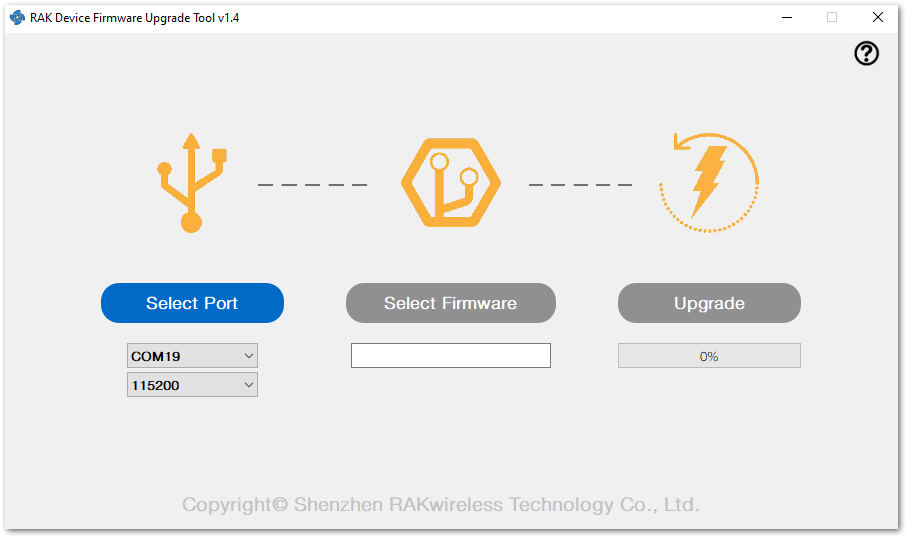 Figure 1: Device Firmware Upgrade Tool
- Select the application firmware file of the module with the suffix .bin.
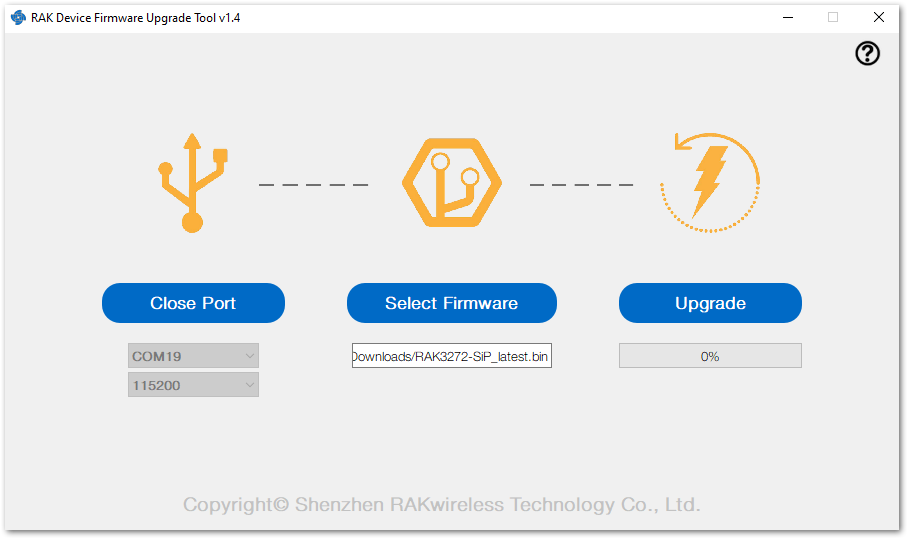 Figure 1: Select firmware
- Click the Upgrade button to upgrade the device. After the upgrade is complete, the RAK3172 will be ready to work with the new firmware.
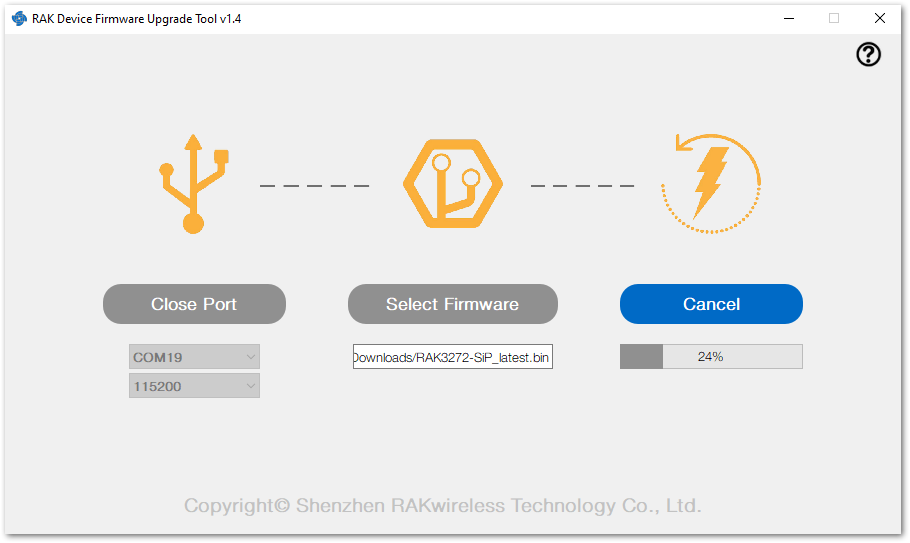 Figure 1: Firmware upgrading
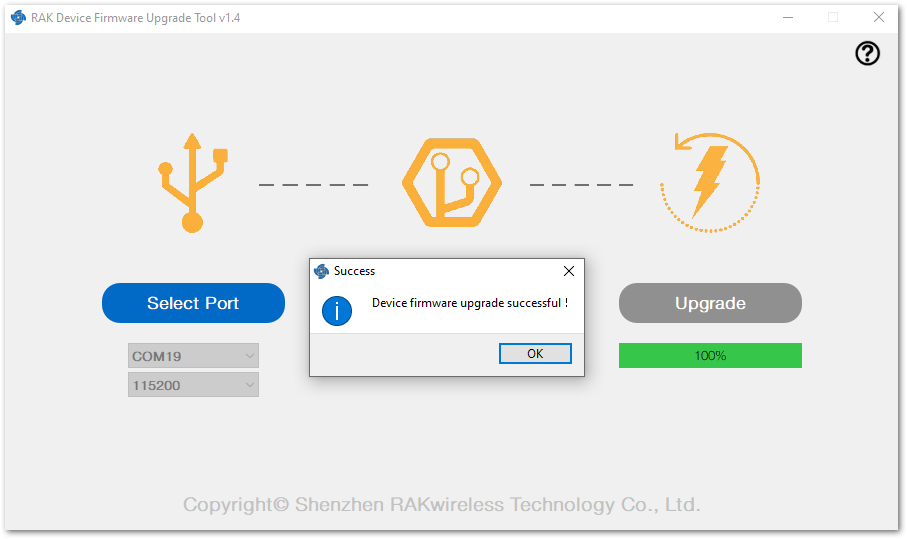 Figure 1: Upgrade successful


