index
-
Open the RAK Serial Port Tool. Select the right COM port and set the baud rate to 115200.
-
The next step is to configure the ABP LoRaWAN parameters in RAK end device:
Set the work mode to LoRaWAN. You might need to reconnect on the Serial Terminal Software Tool if you lost connection after using the AT+NWM=1 command.
AT+NWM=1
Set the LoRaWAN activation to ABP.
AT+NJM=0
Set the LoRaWAN class to Class A.
AT+CLASS=A
Set the frequency/region to EU868.
AT+BAND=4
Depending on the Regional Band you selected, you might need to configure the sub-band of your RAK end device to match the gateway and LoRaWAN network server. This is especially important on Regional Bands like US915, AU915, and CN470.
To configure the masking of channels for the sub-bands, you can use the AT+MASK command that can be found on the AT Commands Manual.
To illustrate, you can use sub-band 2 by sending the command AT+MASK=0002.
List of band parameter options
| Code | Regional Band |
|---|---|
| 0 | EU433 |
| 1 | CN470 |
| 2 | RU864 |
| 3 | IN865 |
| 4 | EU868 |
| 5 | US915 |
| 6 | AU915 |
| 7 | KR920 |
| 8 | AS923 |
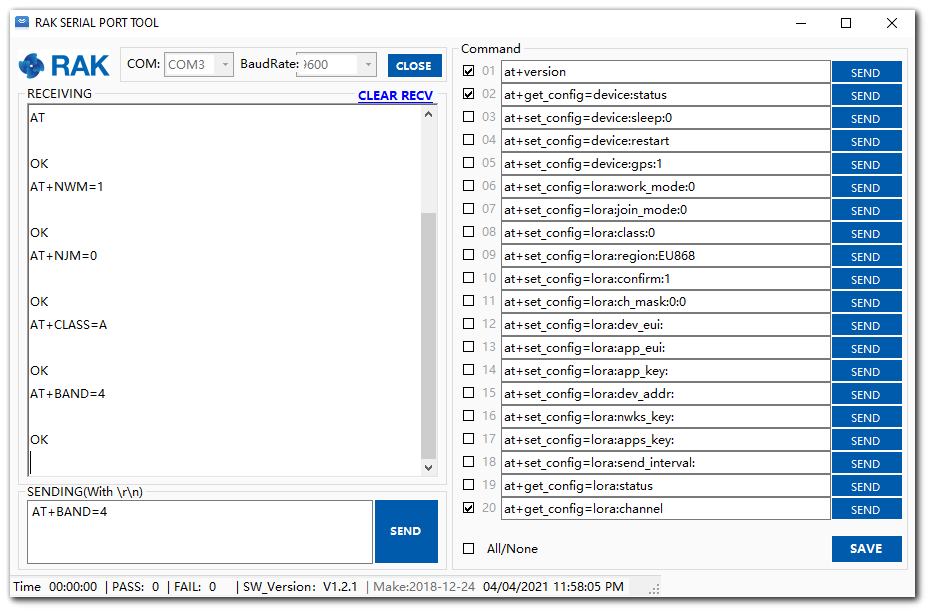 Figure 1: Configuring LoRa parameters
- After the configuration of the LoRaWAN parameters, the next step is to set up the device address and session keys. Use the values from the Chirpstack device console.
Set the Device Address.
AT+DEVADDR=26011AF9
Set the Application Session Key.
AT+APPSKEY=4D42EC5CAF97F03D833CDAf5003F69E1
Set the Network Session Key.
AT+NWKSKEY=C280CB8D1DF688BC18601A97025C5488
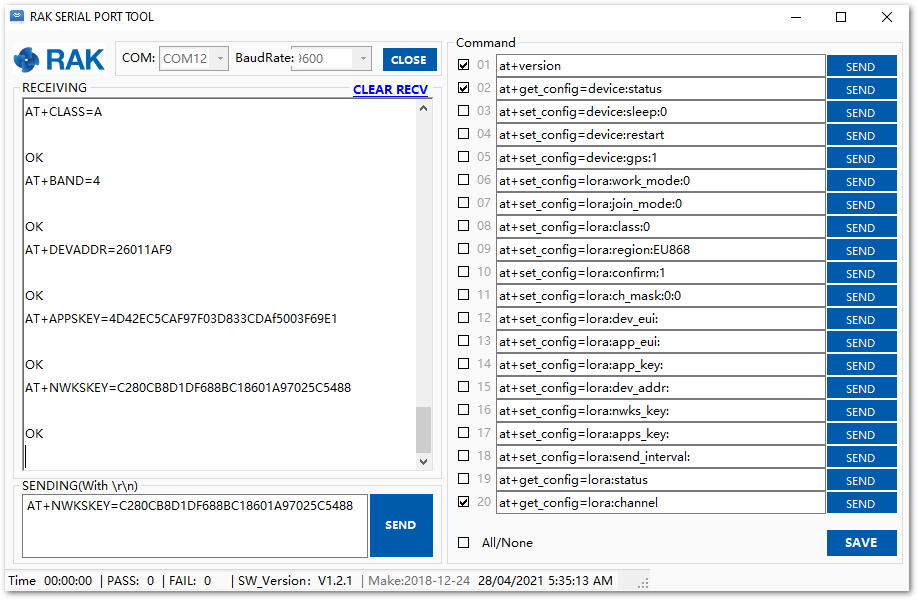 Figure 1: Configuring LoRa parameters
After the EUI and keys configuration, the device can now join the network and send some payload.
AT+JOIN=1:0:10:8
Join command format: AT+JOIN=w:x:y:z
| Parameter | Description |
|---|---|
| w | Join command - 1: joining, 0: stop joining. |
| x | Auto-join config - 1: auto-join on power-up, 0: no auto-join |
| y | Reattempt interval in seconds (7-255) - 8 is the default. |
| z | Number of join attempts (0-255) - 0 is default. |
-
After 5 or 6 seconds, if the request is successfully received by a LoRa gateway, you should see the JOINED status reply.
-
You can now try to send some payload after a successful join. Send command format:
AT+SEND=<port>:<payload>
AT+SEND=2:12341234
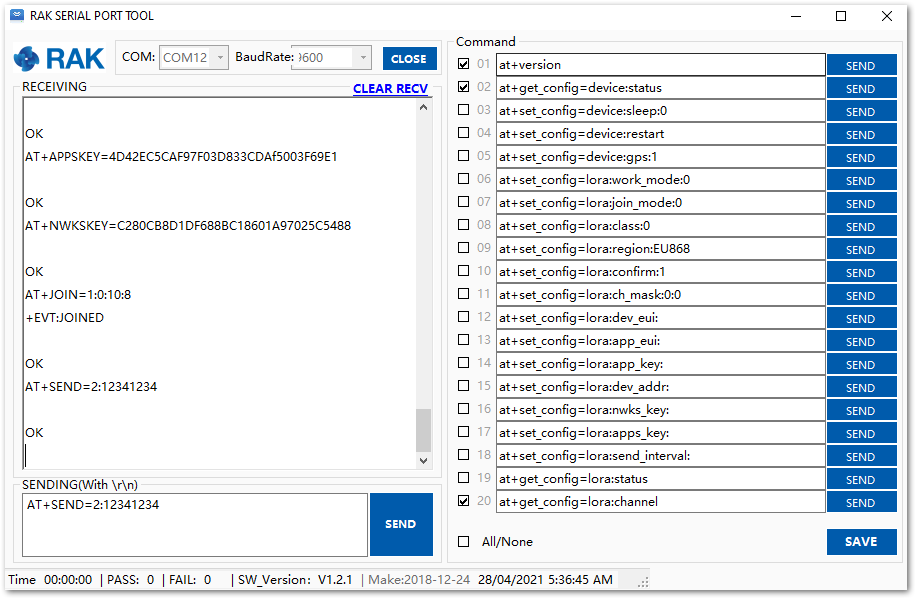 Figure 1: ABP test sample data sent via RAK Serial Port Tool


