index
End Node The Things Network (TTN)
Registration to TTN and Creating LoRaWAN Applications
- Log on to The Things Network site.
NOTE
- For community LoRaWAN Network Server (LNS) The Things Network Sandbox, go to https://console.cloud.thethings.network/.
- If you use The Things Industries Cloud, go directly to your account URL.
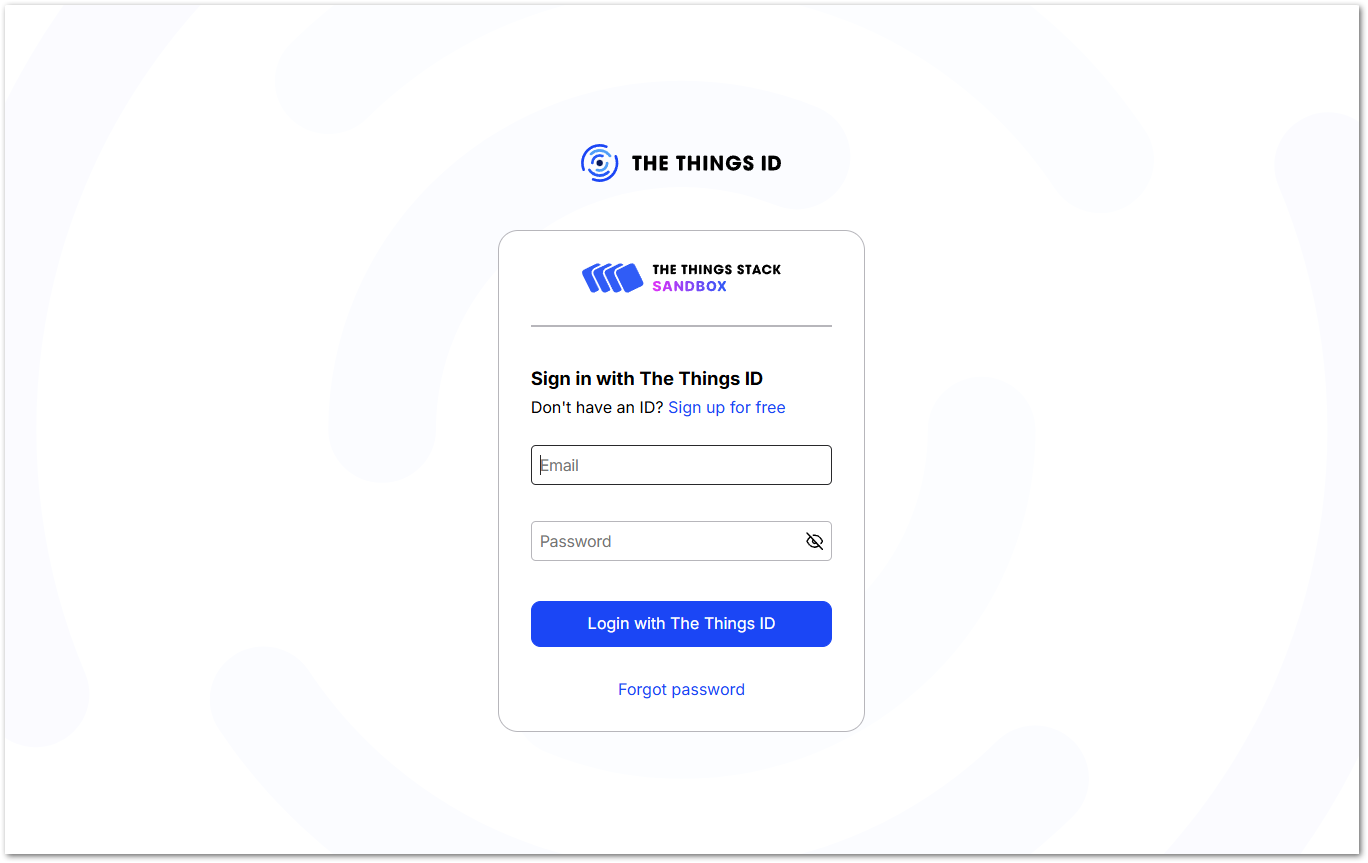 Figure 1: TTN login interface
- Under the Existing clusters, select a cluster where your device or gateway is located.
NOTE
Alternatively, you can select the country or region where the device or gateway is located from the dropdown menu. Then, click on the recommended cluster.
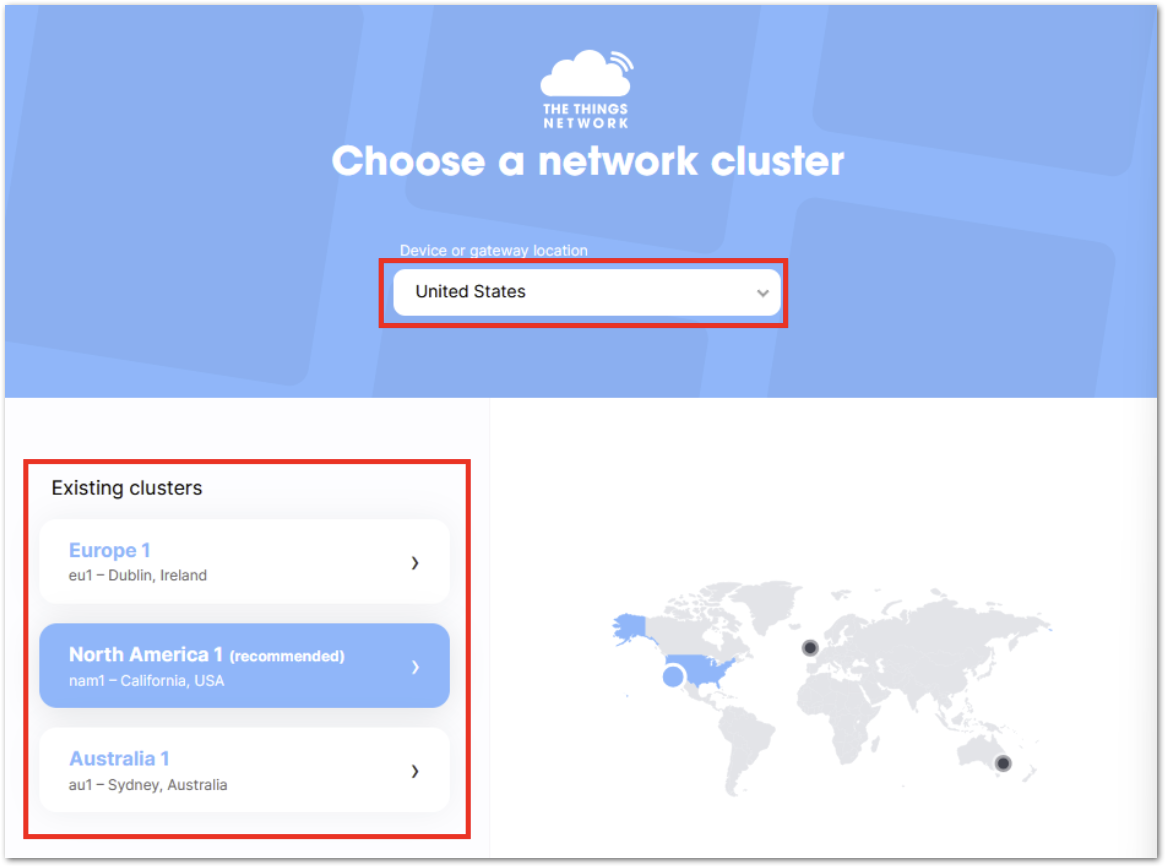 Figure 1: Select a cluster
- On the home page, create an application where you can register the device.
NOTE
You can also register the device on any application that is already in your account.
- Navigate on Home > Dashboard, then click Add application to create an application.
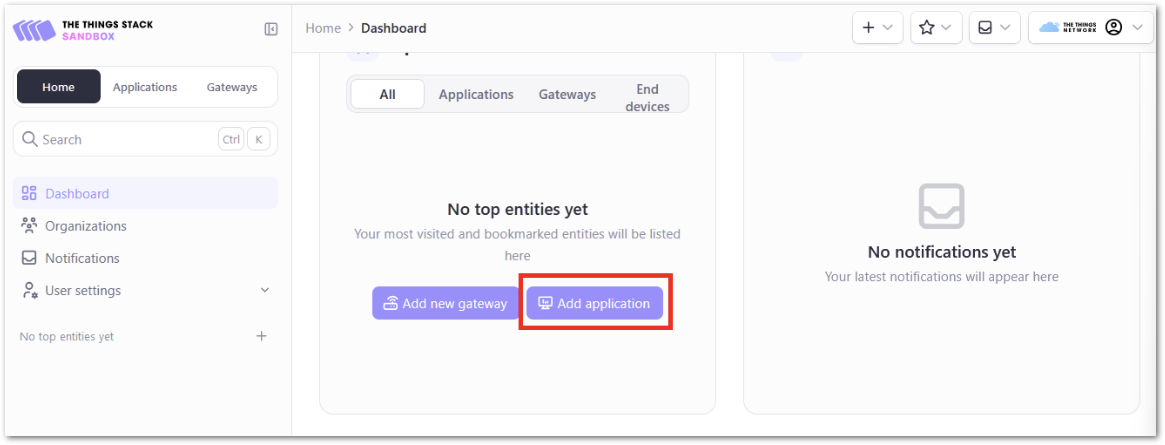 Figure 1: Add application
- Click on the Application tab. Under the Create application page, enter the Application ID, Application name, and Description, then click Create application.
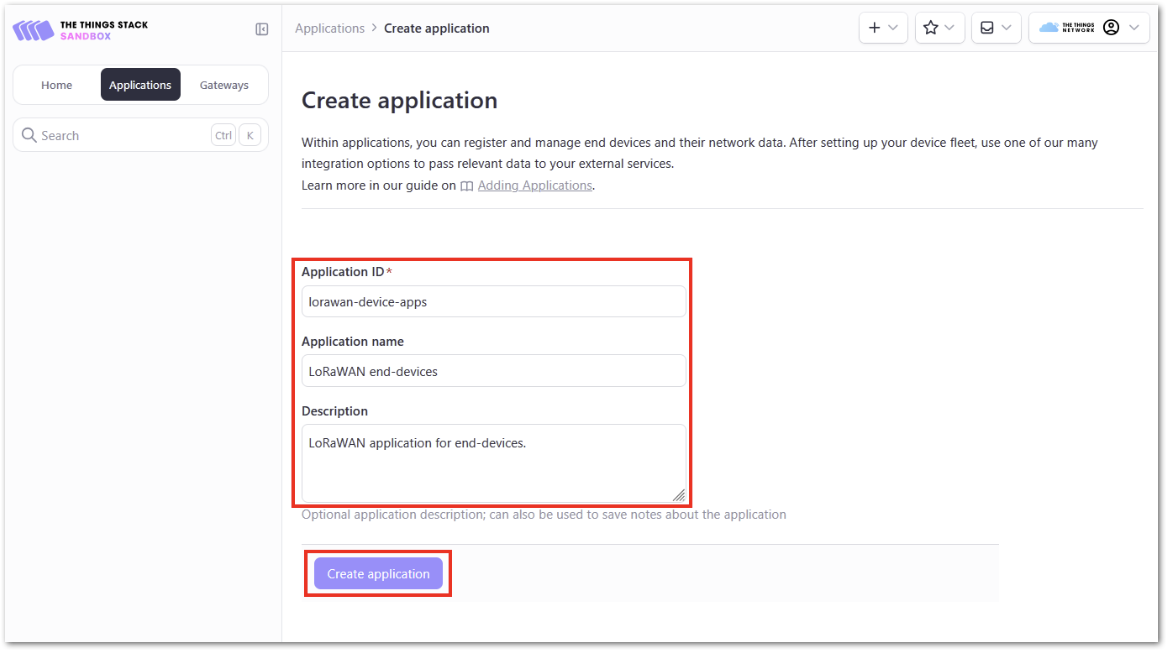 Figure 1: Create an application
- Newly created applications have no end-devices yet. On the Application overview > LoRaWAN end-devices page, click +Register end device to add the end-devices.
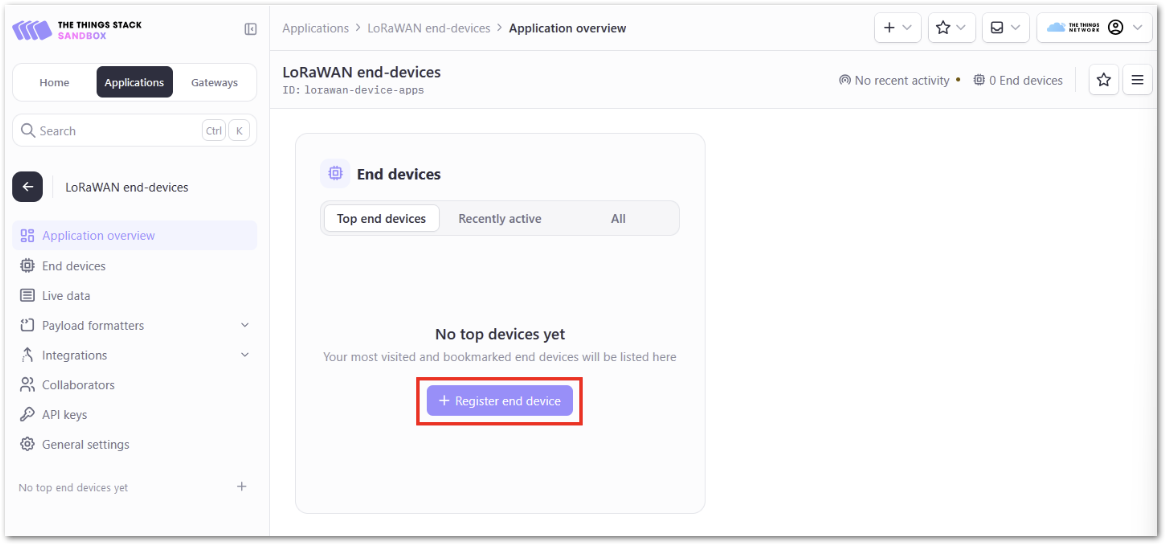 Figure 1: Add end-devices
- Choose Enter end device specifics manually as the input method.
NOTE
Clicking Enter end device specifics manually allows you to add the Frequency plan, LoRaWAN version, Regional Parameters version and JoinEUI. The values of these parameters depend on the hardware you use. If your device has a preconfigured JoinEUI, use it.
- Register the end device. Enter the device details, such as the Frequency plan, LoRaWAN version, and Regional Parameters version, then click Confirm.
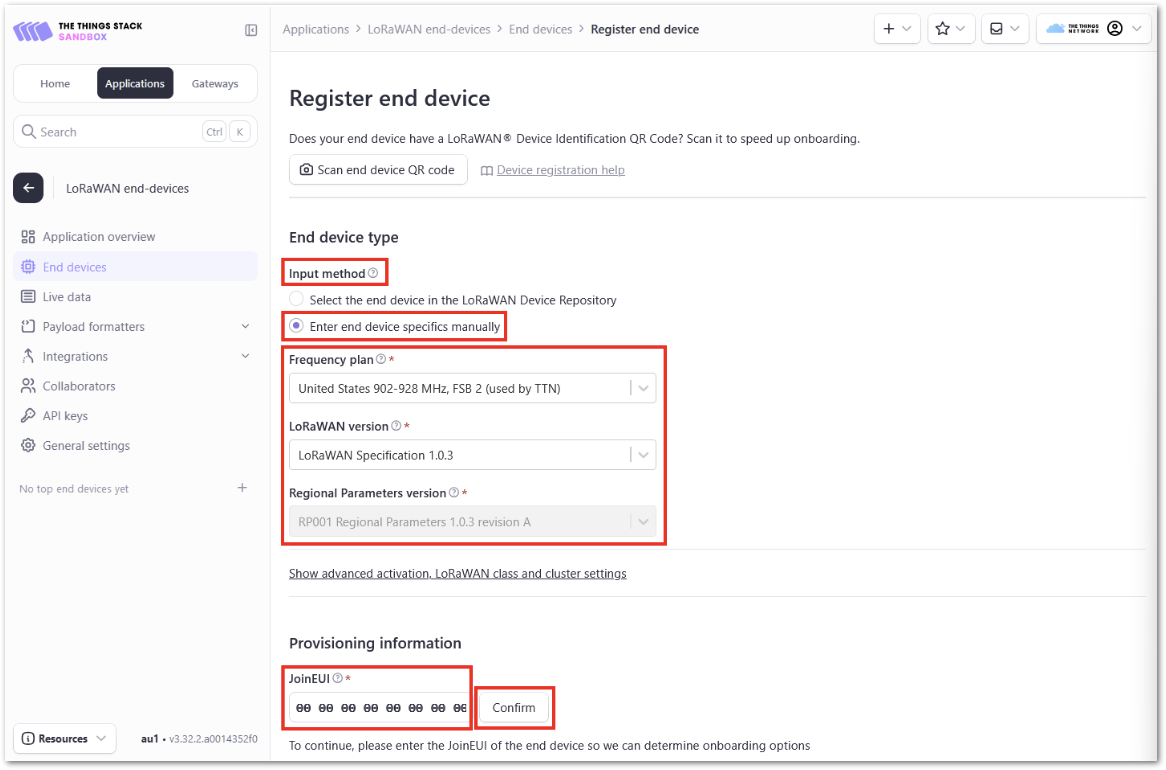 Figure 1: Register end device
- Once the JoinEUI is confirmed, add the other OTAA parameters – DevEUI, AppKey, and End device ID. Then, under After registration, choose View registered end device and click on Register end device.
NOTE
- If these parameters are not provided in the device, click the Generate button.
- Alternatively, use the OTAA parameters provided in the device.
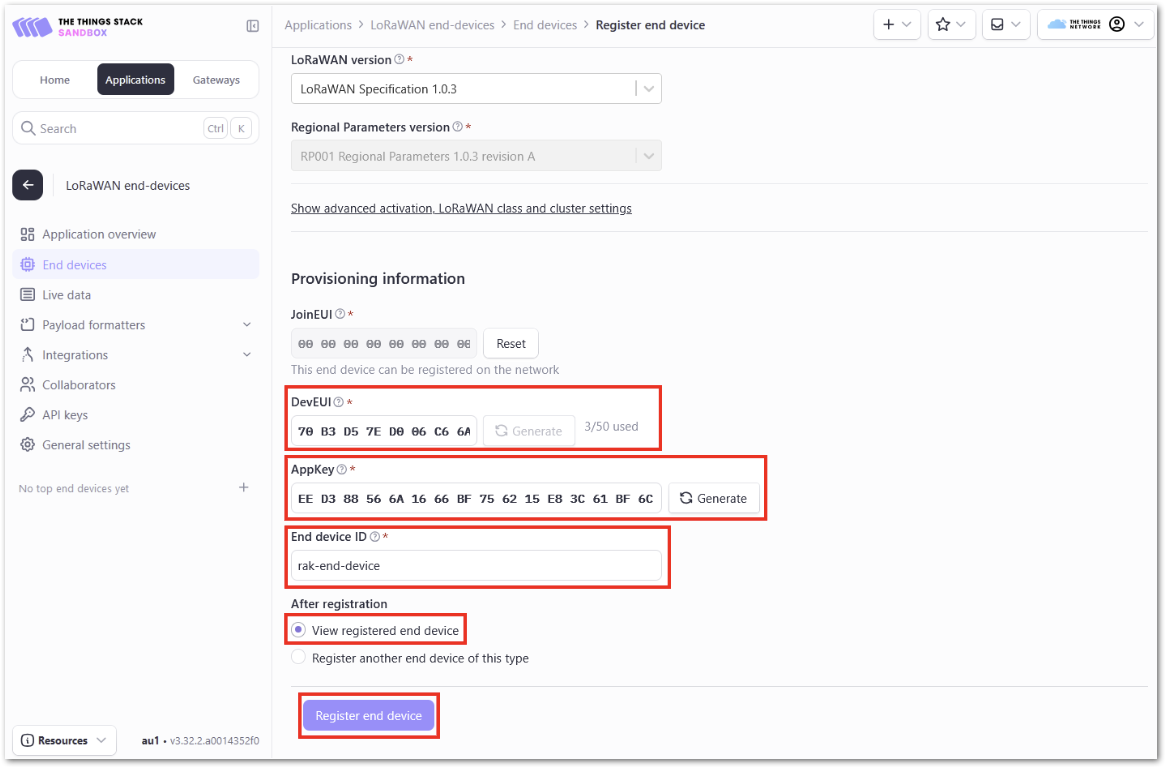 Figure 1: Add Provisioning information
After you register the device, it will be added to the LoRaWAN Application you use.


