RAK7201V2 Firmware Upgrade Guide
This guide explains how to download and upgrade the firmware of the RAK7201V2 WisNode Button 4K using the RAK Device Firmware Upgrade Tool.
Prerequisites
Before starting the firmware upgrade, prepare the following:
- RAK7201V2 WisNode Button 4K
- A Windows PC
- Micro USB cable
- RAK Device Firmware Upgrade Tool
- Latest RAK7201V2 Firmware
Upgrade Process
Execute the following steps for the upgrade process.
NOTE
The OS used for this guide is Windows.
- Download and extract the RAK Device Firmware Upgrade Tool.
- Download and extract the latest RAK7201V2 firmware. The firmware file used for the upgrade is in
.binformat. - Connect RAK7201V2 to the PC with the Micro USB cable.
- Press and hold Button 1 to enter configuration mode. All four LEDs light up blue.
- Open the RAK Device Firmware Upgrade Tool.
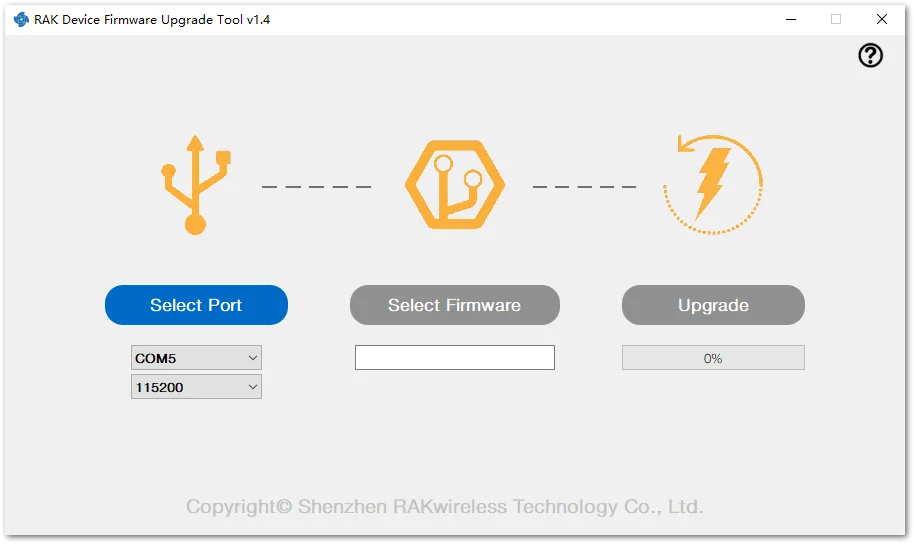 Figure 1: RAK DFU tool overview
 - Click Select Port.
- Select the serial port used by the RAK7201V2 and set the baud rate to 115200 bps.
NOTE
If multiple serial devices are connected to your PC, use Windows Device Manager to identify the COM port assigned to the RAK7201V2.
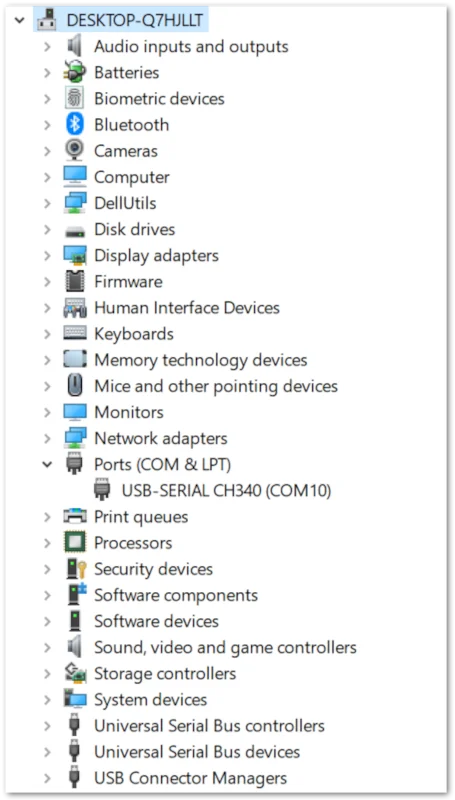 Figure 1: Checking the serial port number
 - Click Select Firmware and select the extracted
.binfirmware file.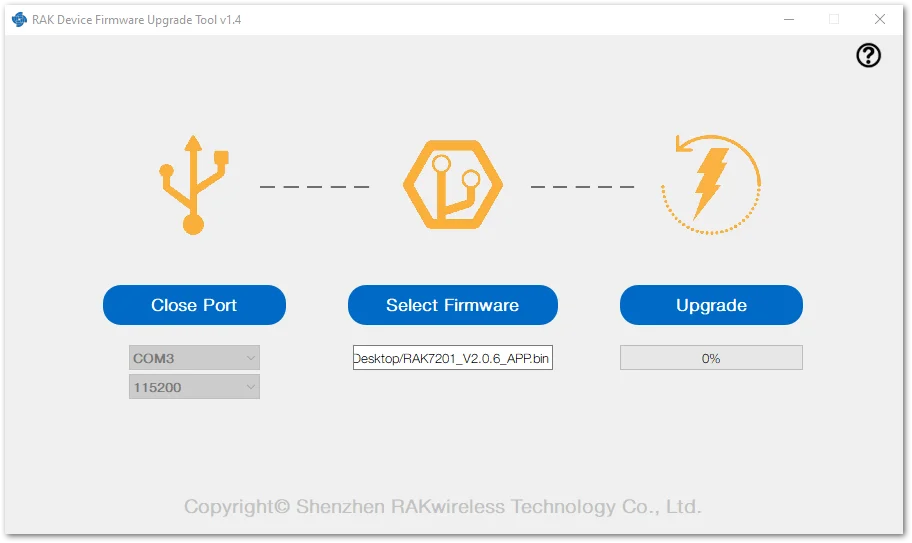 Figure 1: Selecting the firmware
 - Click Upgrade to start the firmware upgrade.
The LEDs on the RAK7201V2 turn off during the upgrade. The upgrade progress is displayed in the DFU Tool and may take up to two minutes.warningDo not disconnect the RAK7201V2 or interrupt the upgrade process while the firmware is being updated.
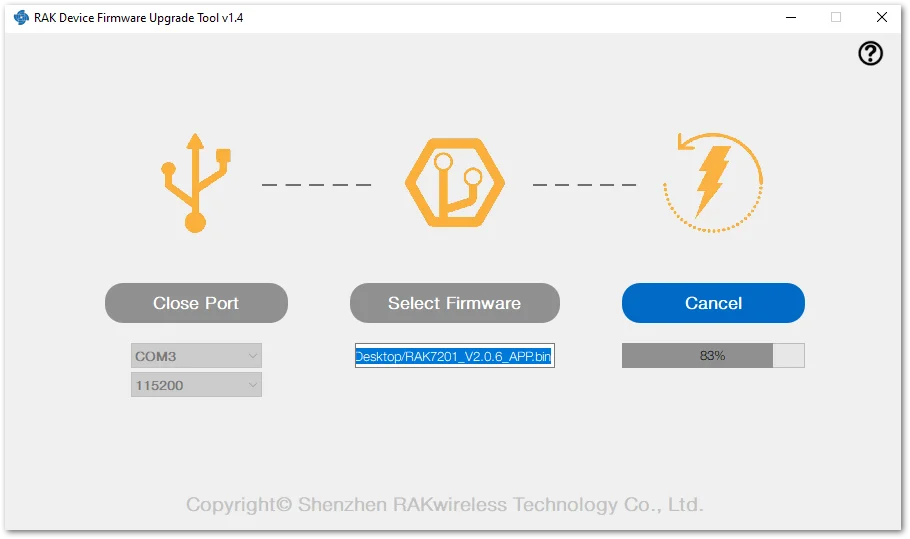 Figure 1: Upgrade process
 - After the upgrade completes successfully, the RAK7201V2 automatically restarts and runs the new firmware. The four blue LEDs flash clockwise in the sequence 1-2-4-3 during startup.
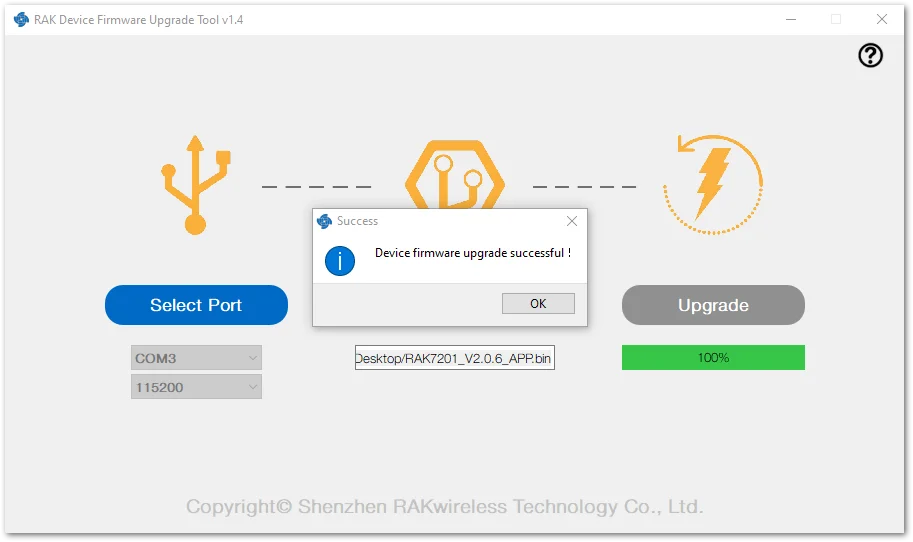 Figure 1: Successful firmware upgrade


