RAK12004 WisBlock MQ2 Gas Sensor Module PlatformIO Setup
PlatformIO Setup (Optional)
PlatformIO provides an alternative development environment for building and uploading the RAK12004 example.If you prefer to use PlatformIO IDE instead of Arduino IDE, follow this guide.
Build RAK12004 Example on PlatformIO IDE
This procedure was tested only on Windows 10 and Ubuntu.
- Install the original PlatformIO platform, as shown in PlatformIO First Install section.
-
For WisBlock Core RAK4631, install Nordic nRF52 platform.
-
For WisBlock Core RAK11200, install Espressif 32 platform.
-
For WisBlock Core RAK11310, install Raspberry Pi RP2040 platform.
-
Open a project example that uses the new installed platform.
-
Launch Visual Studio Code and select PlatformIO PIO Home.
-
On PIO Home, click on Project Examples.
-
Choose arduino-blink project, then click on Import button.
 Figure 1: Import arduino-blink project
- Click the Yes button on the trust window.
 Figure 1: PlatformIO trust authors
-
Build the project and ignore warnings and errors.
-
Download and install the RAK Patch script.
-
Unzip the contents of RAK_PATCH.zip into the folder RAK_PATCH in your PlatformIO installation folder.
The table below shows the PlatformIO installation directory for each operating system:
| PlatformIO path on different OS | |
|---|---|
| Windows 10 | %UserProfile%\.platformio\ |
| Linux | ~/.platformio/ |
| MacOS | /Users/{Your_User_id}/.platformio/ |
The PlatformIO installation directory on Windows 10.
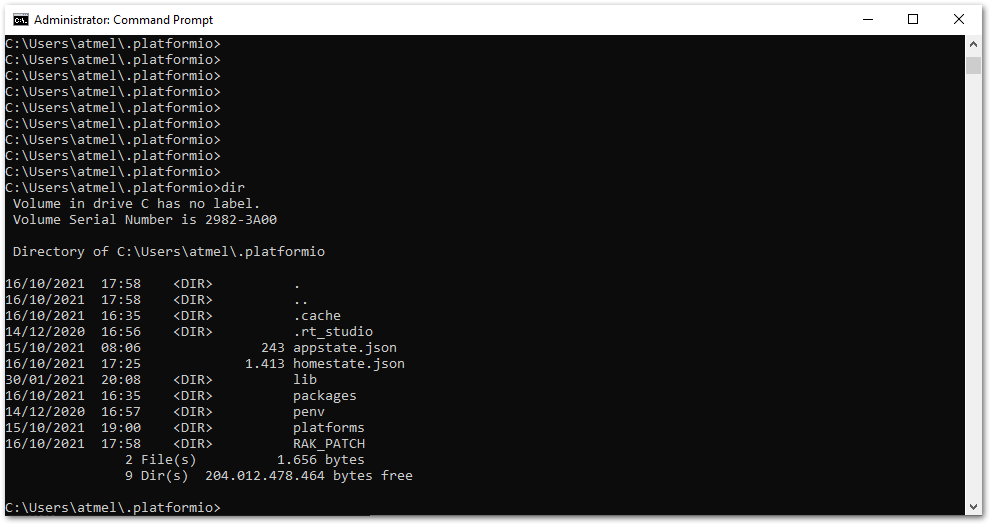 Figure 1: RAK patch folder on Windows
- Open a command prompt in
%UserProfile%.platformio\RAK_PATCHfolder and execute python./rak_patch.py.
 Figure 1: RAK patch installed on Windows
In case of any platform update on PlatformIO, the RAK_PATH script must be executed again after the platform update.
-
Import the RAK12004 Arduino Project to PlatformIO.
-
Open PlatformIO PIO Home and select **Import Arduino Project.
 Figure 1: Import RAK12004 Arduino Project
-
Select your preferred WisBlock Core and check "Use Libraries installed by the Arduino IDE" option.
-
Then choose the directory of the original RAK12004 Arduino Project.
 Figure 1: Select Board and check Import Libraries
- To finish the import, click on the Import button.
 Figure 1: Select Board and check Import libraries
- Build the imported project on the PlatformIO.
Now, you can build the project by clicking on the highlighted icon.
 Figure 1: Build Arduino imported project
-
Upload the imported project on the PlatformIO.
-
To upload the project on the target board, click on the highlighted icon.
 Figure 1: Upload Arduino imported project


