RAK5804 With RAK11310 WisBlock Core Guide
Software Configuration and Example
I²C Connection on RAK5804
This is just an example and illustration on how to use the RAK5804 for external I²C sensors, modules, or devices. You can use any I²C device as long as it operates at 3.3 V.
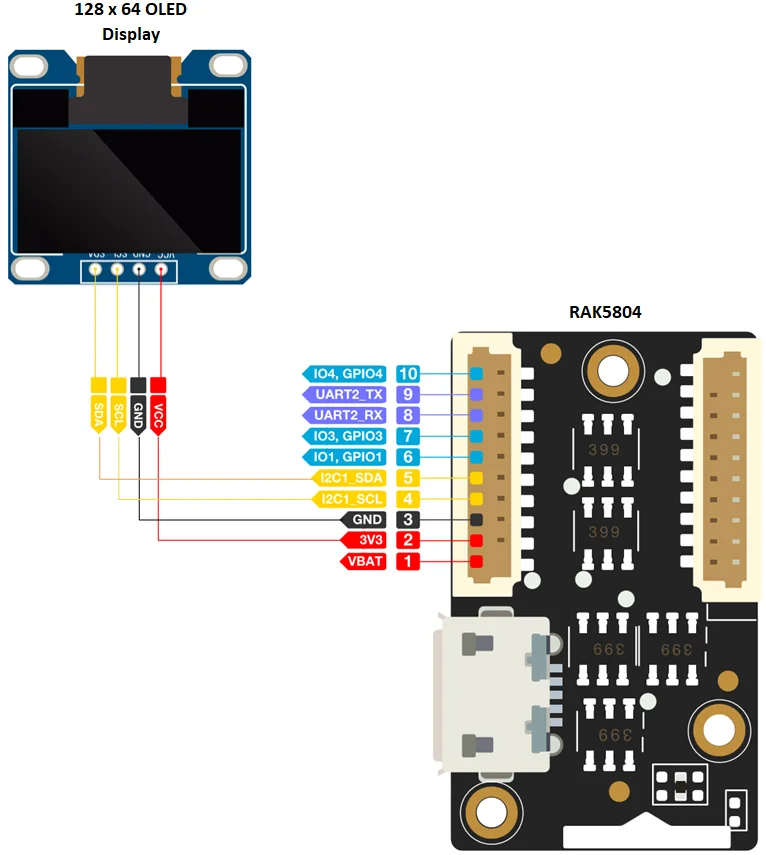 Figure 1: Connecting the RAK5804 to the I²C pin of the module
- Select the RAK11310 WisBlock Core.
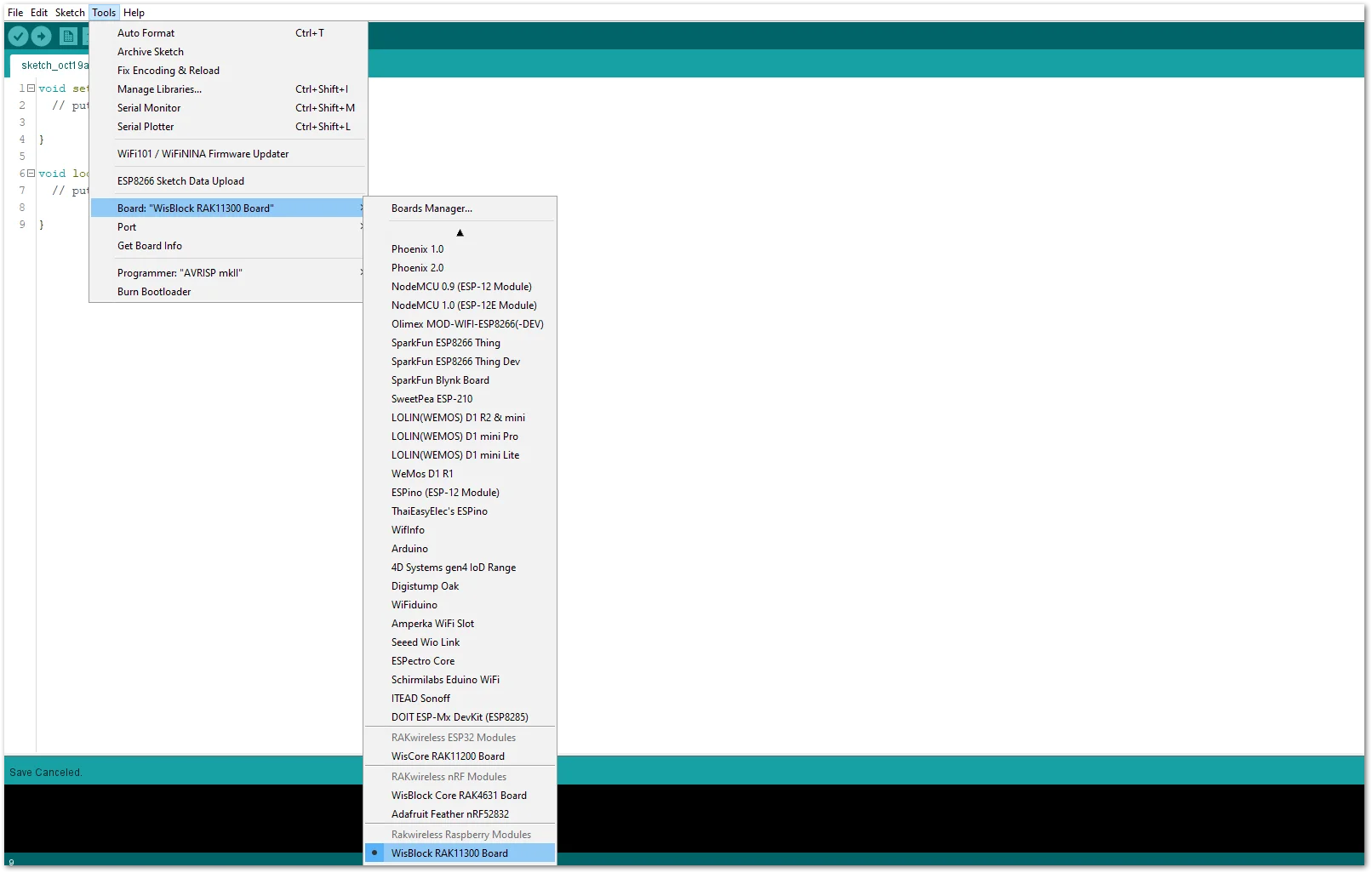 Figure 1: Selecting RAK11310 as WisBlock Core
- On the Arduino IDE, go to Sketch > Include Library > Manage Libraries. The Library Manager should open, then install the Adafruit SSD1306 and the Adafruit GFX libraries.
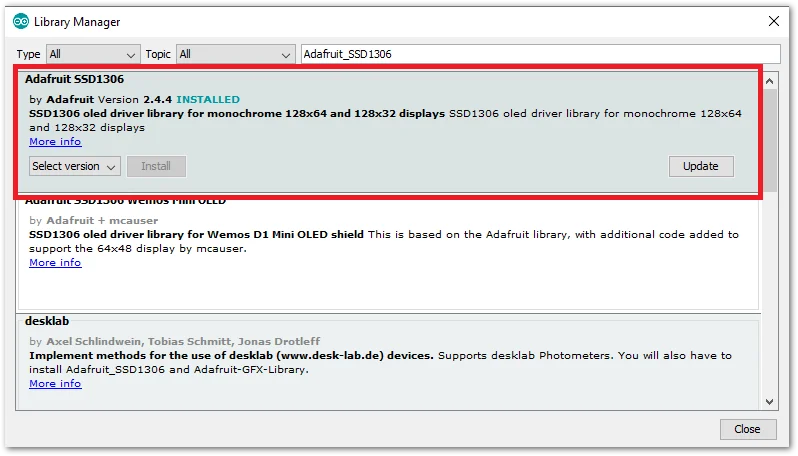 Figure 1: Installing the Adafruit SSD1306 library
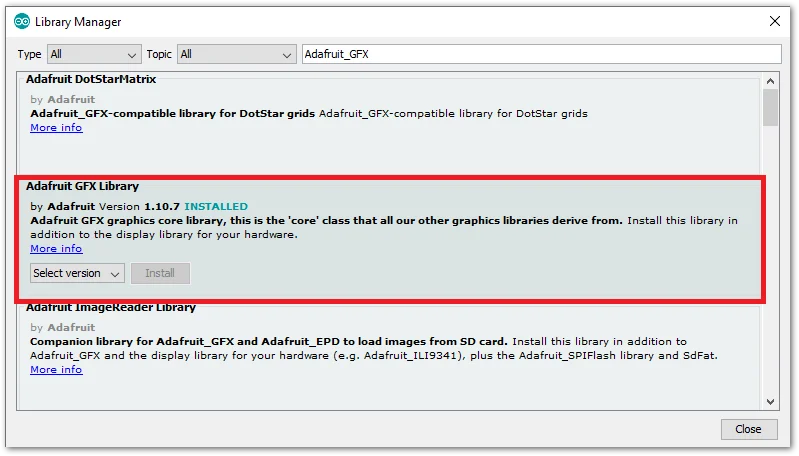 Figure 1: Installing the Adafruit GFX library
- After successful installation of the libraries, you can now copy the following sample code into your Arduino IDE:
/*********
 The following code will display the RAK logo into the OLED Display.
*********/

#include <Wire.h>
#include <Adafruit_GFX.h>
#include <Adafruit_SSD1306.h>

#define SCREEN_WIDTH 128
#define SCREEN_HEIGHT 64

Adafruit_SSD1306 display(SCREEN_WIDTH, SCREEN_HEIGHT, &Wire, -1);

static const unsigned char PROGMEM image_data_Saraarray[] = {
    0x00, 0x00, 0x00, 0x00, 0x00, 0x00, 0x00, 0x00, 0x00, 0x00, 0x00, 0x00, 0x00, 0x00, 0x00, 0x00,
    0x00, 0x00, 0x00, 0x00, 0x00, 0x00, 0x00, 0x00, 0x00, 0x00, 0x00, 0x00, 0x00, 0x00, 0x00, 0x00,
    0x00, 0x00, 0x00, 0x00, 0x00, 0x00, 0x00, 0x00, 0x00, 0x00, 0x00, 0x00, 0x00, 0x00, 0x00, 0x00,
    0x00, 0x00, 0x00, 0x00, 0x00, 0x00, 0x00, 0x00, 0x00, 0x00, 0x00, 0x00, 0x00, 0x00, 0x00, 0x00,
    0x00, 0x00, 0x00, 0x00, 0x00, 0x00, 0x00, 0x00, 0x00, 0x00, 0x00, 0x00, 0x00, 0x00, 0x00, 0x00,
    0x00, 0x00, 0x00, 0x00, 0x00, 0x00, 0x00, 0x00, 0x00, 0x00, 0x00, 0x00, 0x00, 0x00, 0x00, 0x00,
    0x00, 0x00, 0x00, 0x00, 0x00, 0x00, 0x00, 0x00, 0x00, 0x00, 0x00, 0x00, 0x00, 0x00, 0x00, 0x00,
    0x00, 0x00, 0x00, 0x00, 0x00, 0x00, 0x00, 0x00, 0x00, 0x00, 0x00, 0x00, 0x00, 0x00, 0x00, 0x00,
    0x00, 0x00, 0x00, 0x00, 0x00, 0x00, 0x00, 0x00, 0x00, 0x00, 0x00, 0x00, 0x00, 0x00, 0x00, 0x00,
    0x00, 0x00, 0x00, 0x00, 0x00, 0x00, 0x00, 0x03, 0xff, 0xe0, 0x00, 0x00, 0x00, 0x00, 0x00, 0x00,
    0x00, 0x00, 0x00, 0x00, 0x00, 0x00, 0x00, 0x7f, 0xff, 0xf0, 0x00, 0x00, 0x00, 0x00, 0x00, 0x00,
    0x00, 0x00, 0x00, 0x00, 0x00, 0x00, 0x03, 0xff, 0xff, 0xf0, 0x00, 0x00, 0x00, 0x00, 0x00, 0x00,
    0x00, 0x00, 0x00, 0x00, 0x00, 0x00, 0x0f, 0xff, 0xff, 0xf0, 0x00, 0x00, 0x00, 0x00, 0x00, 0x00,
    0x00, 0x00, 0x00, 0x00, 0x00, 0x00, 0x3f, 0xff, 0xc0, 0x00, 0x00, 0x00, 0x00, 0x00, 0x00, 0x00,
    0x00, 0x00, 0x00, 0x00, 0x00, 0x00, 0xff, 0xf8, 0xff, 0xf0, 0x00, 0x00, 0x00, 0x00, 0x00, 0x00,
    0x00, 0x00, 0x00, 0x00, 0x00, 0x01, 0xff, 0xcf, 0xff, 0xf8, 0x00, 0x00, 0x00, 0x00, 0x00, 0x00,
    0x00, 0x00, 0x00, 0x00, 0x00, 0x03, 0xfe, 0x7f, 0xff, 0xfb, 0xc0, 0x00, 0x00, 0x00, 0x00, 0x00,
    0x00, 0x00, 0x00, 0x00, 0x00, 0x07, 0xf9, 0xff, 0xff, 0xf3, 0xf8, 0x00, 0x00, 0x00, 0x00, 0x00,
    0x00, 0x00, 0x00, 0x00, 0x00, 0x1e, 0x67, 0x30, 0x3e, 0x07, 0xfe, 0x00, 0x00, 0x00, 0x00, 0x00,
    0x00, 0x00, 0x00, 0x00, 0xfe, 0x3f, 0x9f, 0xcf, 0xff, 0xf3, 0xff, 0x80, 0x00, 0x00, 0x00, 0x00,
    0x00, 0x00, 0x00, 0x00, 0xff, 0x7f, 0xbf, 0xef, 0xff, 0xf8, 0xff, 0xe0, 0x00, 0x00, 0x00, 0x00,
    0x00, 0x00, 0x00, 0x01, 0xff, 0x7f, 0xbf, 0xef, 0xff, 0xfb, 0x3f, 0xf0, 0x00, 0x00, 0x00, 0x00,
    0x00, 0x00, 0x00, 0x01, 0xff, 0x7f, 0xbf, 0xef, 0xff, 0xf7, 0xdf, 0xf8, 0x00, 0x00, 0x00, 0x00,
    0x00, 0x00, 0x00, 0x01, 0xff, 0x7f, 0xbf, 0xe0, 0x00, 0x27, 0xe7, 0xfc, 0x00, 0x00, 0x00, 0x00,
    0x00, 0x00, 0x00, 0x00, 0xff, 0x3f, 0xbf, 0xe0, 0x0f, 0xf7, 0xf3, 0xfe, 0x00, 0x00, 0x00, 0x00,
    0x00, 0x00, 0x00, 0x00, 0xff, 0xbf, 0x9f, 0xe0, 0x0f, 0xf3, 0xfb, 0xfe, 0x00, 0x00, 0x00, 0x00,
    0x00, 0x00, 0x00, 0x00, 0x7f, 0xdf, 0xdf, 0xe0, 0x0f, 0xfb, 0xf9, 0xff, 0x00, 0x00, 0x00, 0x00,
    0x00, 0x00, 0x00, 0x00, 0x7f, 0xe7, 0xc7, 0xff, 0xef, 0xfb, 0xfd, 0xff, 0x00, 0x00, 0x00, 0x00,
    0x00, 0x00, 0x00, 0x00, 0x3f, 0xf3, 0x9f, 0xff, 0xef, 0xfb, 0xfd, 0xff, 0x00, 0x00, 0x00, 0x00,
    0x00, 0x00, 0x00, 0x00, 0x0f, 0xfc, 0x3f, 0xff, 0xef, 0xfb, 0xfd, 0xff, 0x00, 0x00, 0x00, 0x00,
    0x00, 0x00, 0x00, 0x00, 0x07, 0xff, 0x3f, 0xff, 0xef, 0xf3, 0xfd, 0xfe, 0x00, 0x00, 0x00, 0x00,
    0x00, 0x00, 0x00, 0x00, 0x01, 0xff, 0xcf, 0xff, 0xc3, 0xe1, 0xf8, 0x7c, 0x00, 0x00, 0x00, 0x00,
    0x00, 0x00, 0x00, 0x00, 0x00, 0x7f, 0xde, 0x03, 0xfe, 0x1e, 0x00, 0x00, 0x00, 0x00, 0x00, 0x00,
    0x00, 0x00, 0x00, 0x00, 0x00, 0x0f, 0xbf, 0xff, 0xfe, 0x7f, 0xc0, 0x00, 0x00, 0x00, 0x00, 0x00,
    0x00, 0x00, 0x00, 0x00, 0x00, 0x01, 0x3f, 0xff, 0xf9, 0xff, 0x80, 0x00, 0x00, 0x00, 0x00, 0x00,
    0x00, 0x00, 0x00, 0x00, 0x00, 0x00, 0x3f, 0xff, 0x8f, 0xfe, 0x00, 0x00, 0x00, 0x00, 0x00, 0x00,
    0x00, 0x00, 0x00, 0x00, 0x00, 0x00, 0x00, 0x80, 0xff, 0xfc, 0x00, 0x00, 0x00, 0x00, 0x00, 0x00,
    0x00, 0x00, 0x00, 0x00, 0x00, 0x00, 0x0f, 0xff, 0xff, 0xf0, 0x00, 0x00, 0x00, 0x00, 0x00, 0x00,
    0x00, 0x00, 0x00, 0x00, 0x00, 0x00, 0x1f, 0xff, 0xff, 0xc0, 0x00, 0x00, 0x00, 0x00, 0x00, 0x00,
    0x00, 0x00, 0x00, 0x00, 0x00, 0x00, 0x1f, 0xff, 0xfe, 0x00, 0x00, 0x00, 0x00, 0x00, 0x00, 0x00,
    0x00, 0x00, 0x00, 0x00, 0x00, 0x00, 0x1f, 0xff, 0xf0, 0x00, 0x00, 0x00, 0x00, 0x00, 0x00, 0x00,
    0x00, 0x00, 0x00, 0x00, 0x00, 0x00, 0x00, 0x00, 0x00, 0x00, 0x00, 0x00, 0x00, 0x00, 0x00, 0x00,
    0x00, 0x00, 0x00, 0x00, 0x00, 0x00, 0x00, 0x00, 0x00, 0x00, 0x00, 0x00, 0x00, 0x00, 0x00, 0x00,
    0x00, 0x00, 0x00, 0x00, 0x00, 0x00, 0x00, 0x00, 0x00, 0x00, 0x00, 0x00, 0x00, 0x00, 0x00, 0x00,
    0x00, 0x00, 0x00, 0x00, 0x1f, 0xff, 0xe0, 0x0f, 0xc0, 0x7c, 0x1f, 0xc0, 0x00, 0x00, 0x00, 0x00,
    0x00, 0x00, 0x00, 0x00, 0x1f, 0xff, 0xf0, 0x1f, 0xc0, 0x7c, 0x3f, 0x00, 0x00, 0x00, 0x00, 0x00,
    0x00, 0x00, 0x00, 0x00, 0x1f, 0x01, 0xf0, 0x3f, 0xe0, 0x7c, 0xfc, 0x00, 0x00, 0x00, 0x00, 0x00,
    0x00, 0x00, 0x00, 0x00, 0x1f, 0x01, 0xf0, 0x7d, 0xf0, 0x7f, 0xf0, 0x00, 0x00, 0x00, 0x00, 0x00,
    0x00, 0x00, 0x00, 0x00, 0x1f, 0xff, 0xe0, 0x78, 0xf8, 0x7f, 0xf0, 0x00, 0x00, 0x00, 0x00, 0x00,
    0x00, 0x00, 0x00, 0x00, 0x1f, 0xff, 0xe0, 0xf8, 0x78, 0x7f, 0xfc, 0x00, 0x00, 0x00, 0x00, 0x00,
    0x00, 0x00, 0x00, 0x00, 0x1f, 0x01, 0xf1, 0xff, 0xfc, 0x7c, 0x7e, 0x00, 0x00, 0x00, 0x00, 0x00,
    0x00, 0x00, 0x00, 0x00, 0x1f, 0x01, 0xf3, 0xff, 0xfe, 0x7c, 0x1f, 0x80, 0x00, 0x00, 0x00, 0x00,
    0x00, 0x00, 0x00, 0x00, 0x1f, 0x00, 0xf3, 0xc0, 0x1f, 0x7c, 0x0f, 0xc0, 0x00, 0x00, 0x00, 0x00,
    0x00, 0x00, 0x00, 0x00, 0x1f, 0x00, 0xf7, 0xc0, 0x1f, 0x7c, 0x07, 0xe0, 0x00, 0x00, 0x00, 0x00,
    0x00, 0x00, 0x00, 0x00, 0x00, 0x00, 0x00, 0x00, 0x00, 0x00, 0x00, 0x00, 0x00, 0x00, 0x00, 0x00,
    0x00, 0x00, 0x00, 0x00, 0x00, 0x00, 0x00, 0x00, 0x00, 0x00, 0x00, 0x00, 0x00, 0x00, 0x00, 0x00,
    0x00, 0x00, 0x00, 0x00, 0x00, 0x00, 0x00, 0x00, 0x00, 0x00, 0x00, 0x00, 0x00, 0x00, 0x00, 0x00,
    0x00, 0x00, 0x00, 0x00, 0x00, 0x00, 0x00, 0x00, 0x00, 0x00, 0x00, 0x00, 0x00, 0x00, 0x00, 0x00,
    0x00, 0x00, 0x00, 0x00, 0x00, 0x00, 0x00, 0x00, 0x00, 0x00, 0x00, 0x00, 0x00, 0x00, 0x00, 0x00,
    0x00, 0x00, 0x00, 0x00, 0x00, 0x00, 0x00, 0x00, 0x00, 0x00, 0x00, 0x00, 0x00, 0x00, 0x00, 0x00,
    0x00, 0x00, 0x00, 0x00, 0x00, 0x00, 0x00, 0x00, 0x00, 0x00, 0x00, 0x00, 0x00, 0x00, 0x00, 0x00,
    0x00, 0x00, 0x00, 0x00, 0x00, 0x00, 0x00, 0x00, 0x00, 0x00, 0x00, 0x00, 0x00, 0x00, 0x00, 0x00,
    0x00, 0x00, 0x00, 0x00, 0x00, 0x00, 0x00, 0x00, 0x00, 0x00, 0x00, 0x00, 0x00, 0x00, 0x00, 0x00,
    0x00, 0x00, 0x00, 0x00, 0x00, 0x00, 0x00, 0x00, 0x00, 0x00, 0x00, 0x00, 0x00, 0x00, 0x00, 0x00
};

void setup() {
    // put your setup code here, to run once:
  Serial.begin(115200);

  if(!display.begin(SSD1306_SWITCHCAPVCC, 0x3C)) {
    Serial.println(F("SSD1306 allocation failed"));
    for(;;);
  }
  delay(2000); // Pause for 2 seconds

  // Clear the buffer.
  display.clearDisplay();

  // Draw bitmap on the screen
  display.drawBitmap(0, 0, image_data_Saraarray, 128, 64, 1);
  display.display();
}

void loop() {
    // put your main code here, to run repeatedly:

}
- Select the right Serial Port and upload the code.
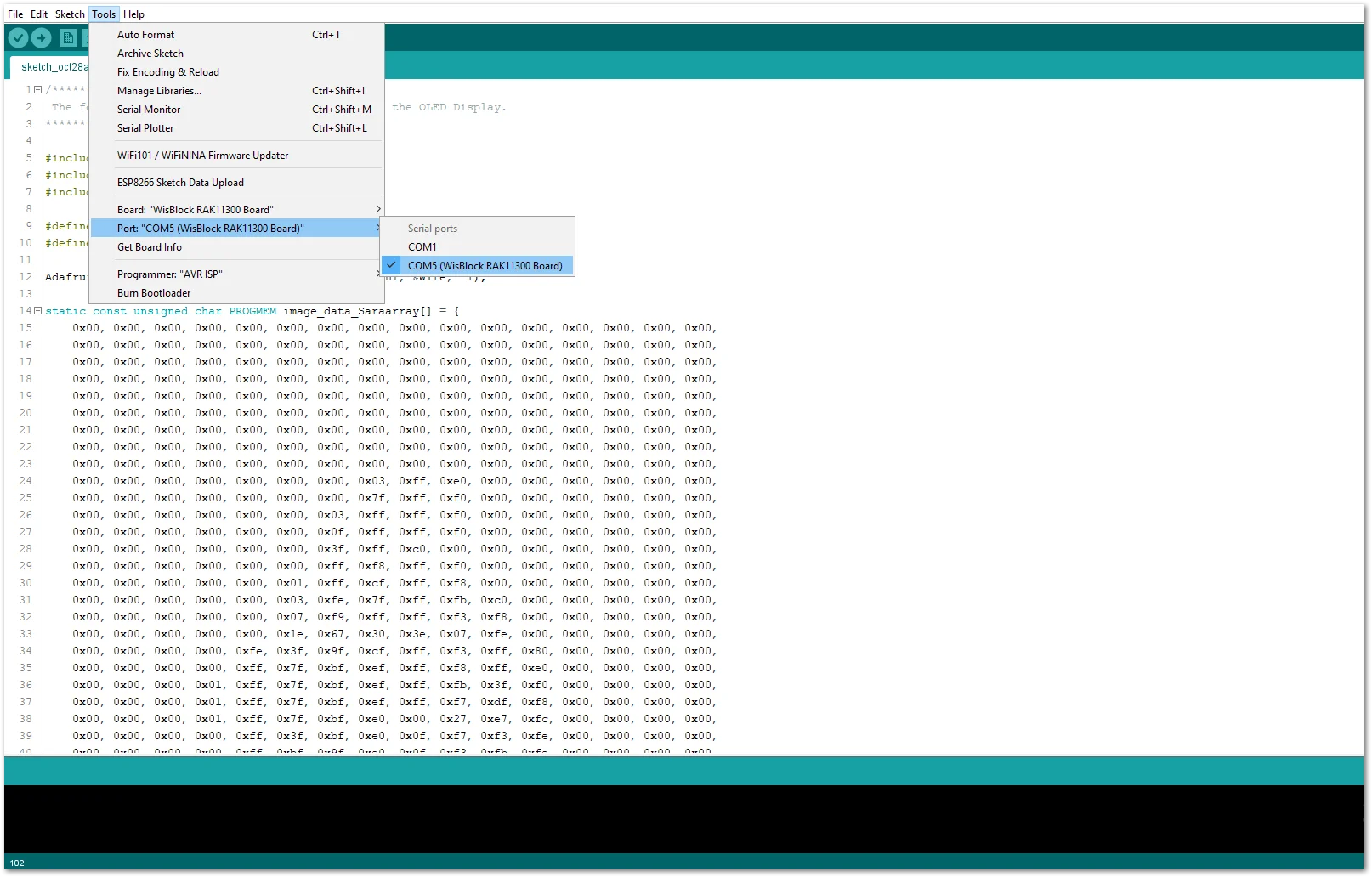 Figure 1: Selecting the correct Serial Port
- When you successfully uploaded the sample code, you will now be able to see the RAK logo displayed on your OLED screen, which means that the module is properly communicating with the WisBlock core using the I²C protocol.
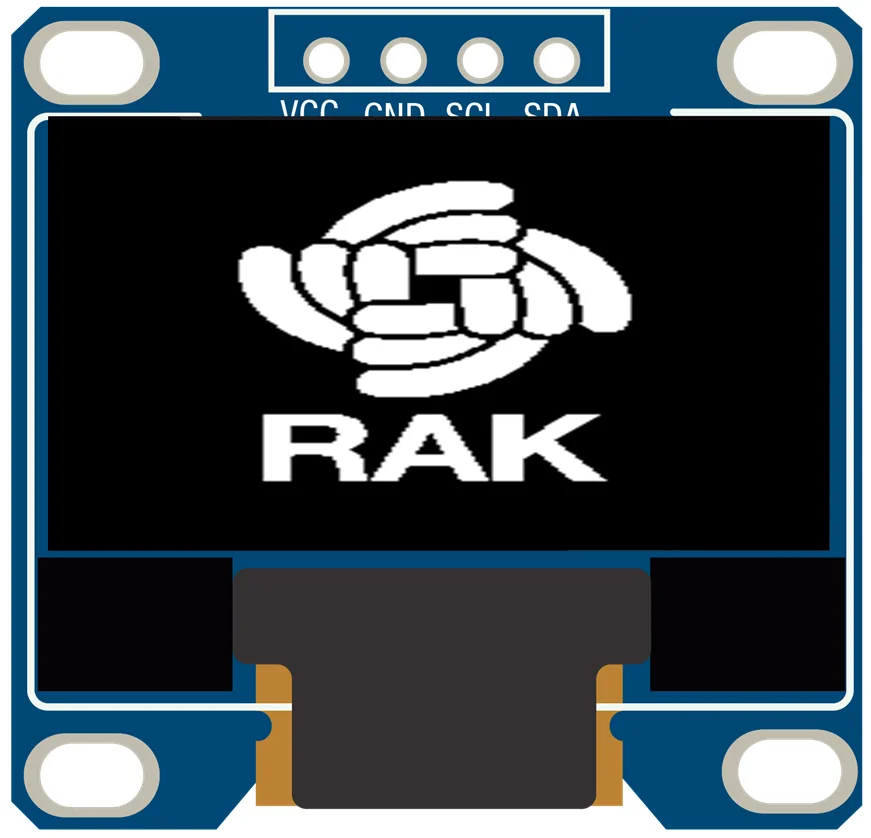 Figure 1: RAK logo displayed on OLED screen
GPIO Connection on RAK5804
This is just an example and illustration on how to use the GPIO pins of RAK5804 for external sensors, modules, or devices. There are four (4) GPIO pins available on the RAK5804. You can use any of the GPIO pins as long as your modules, sensors, or devices operate at 3.3 V.
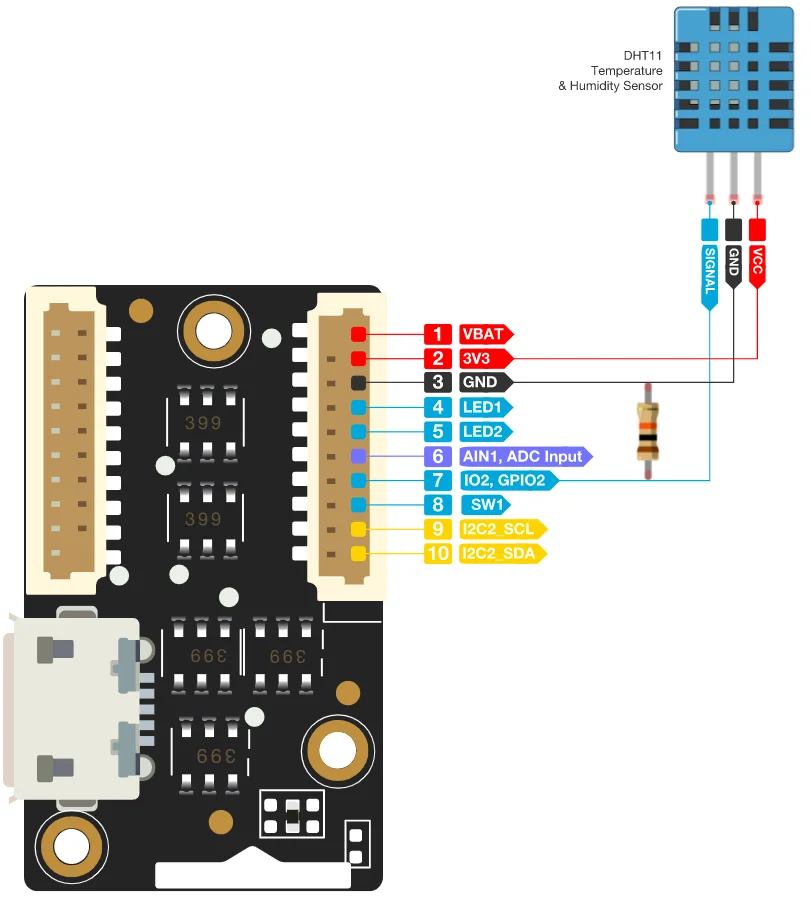 Figure 1: Connecting the RAK5804 to the GPIO pin of the sensor module
- Select the RAK11310 WisBlock Core.
Figure 1: Selecting RAK11310 as WisBlock Core- On the Arduino IDE, go to Sketch > Include Library > Manage Libraries. The Library Manager should open, then install the Adafruit DHT Sensor library.
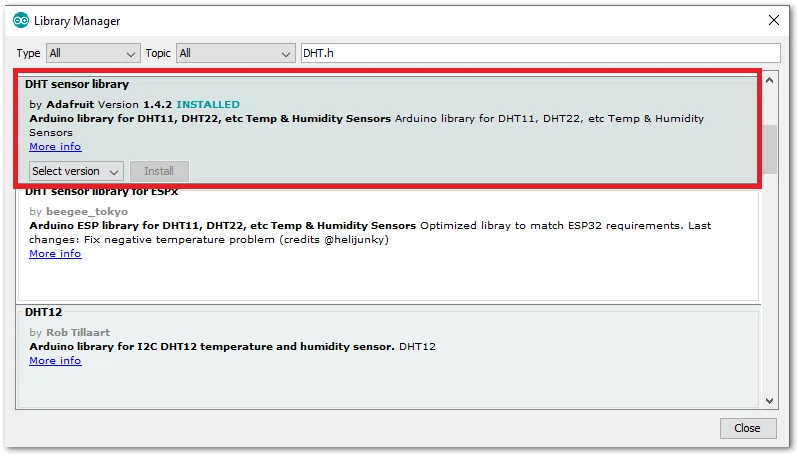 Figure 1: Installing the Adafruit DHT library
- After successful installation of the library, you can now copy the following sample code into your Arduino IDE:
/*********
 The following code will display the temperature & humidity
 using the DHT11 sensor in the Serial Monitor.
*********/

#include "DHT.h"

#define DHTPIN WB_IO2
#define DHTTYPE DHT11

DHT dht(DHTPIN, DHTTYPE);

void setup() {
  Serial.begin(9600);
  Serial.println(F("DHTxx test!"));
  dht.begin();
}

void loop() {
  delay(2000);
  float h = dht.readHumidity();
  float t = dht.readTemperature();
  float f = dht.readTemperature(true);

  if (isnan(h) || isnan(t) || isnan(f)) {
    Serial.println(F("Failed to read from DHT sensor!"));
    return;
  }

  float hif = dht.computeHeatIndex(f, h);
  float hic = dht.computeHeatIndex(t, h, false);

  Serial.print(F("Humidity: "));
  Serial.print(h);
  Serial.print(F("%  Temperature: "));
  Serial.print(t);
  Serial.print(F("°C "));
  Serial.print(f);
  Serial.print(F("°F  Heat index: "));
  Serial.print(hic);
  Serial.print(F("°C "));
  Serial.print(hif);
  Serial.println(F("°F"));
}
- Select the right Serial Port and upload the code.
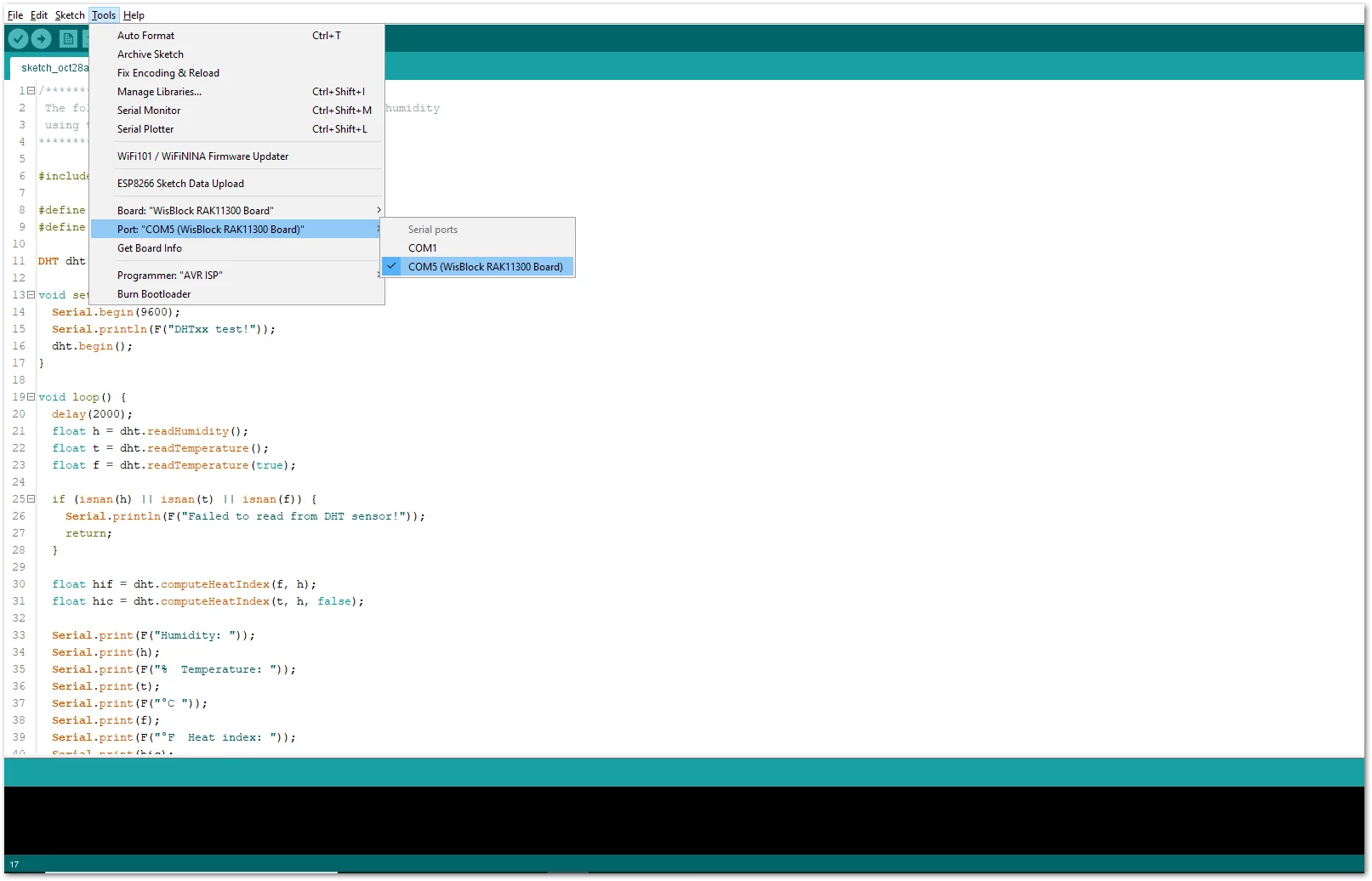 Figure 1: Selecting the correct Serial Port
- When you successfully uploaded the sample code, open the Serial Monitor of the Arduino IDE to see the module's reading logs. If you see the logs, then your module or sensor is properly communicating to the WisBlock core using the Digital Interface.
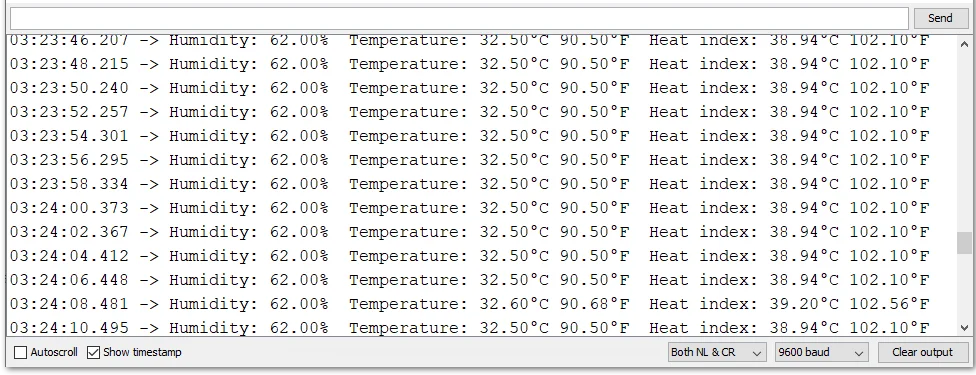 Figure 1: DHT11 Temp & Humidity data logs
Analog Input (ADC) Connection on RAK5804
This is just an example and illustration on how to use the ADC pin of RAK5804 for external sensors, modules, or devices. There is only one (1) ADC pin available on the RAK5804 that you can use as long as your modules, sensors, or devices operate at 3.3 V.
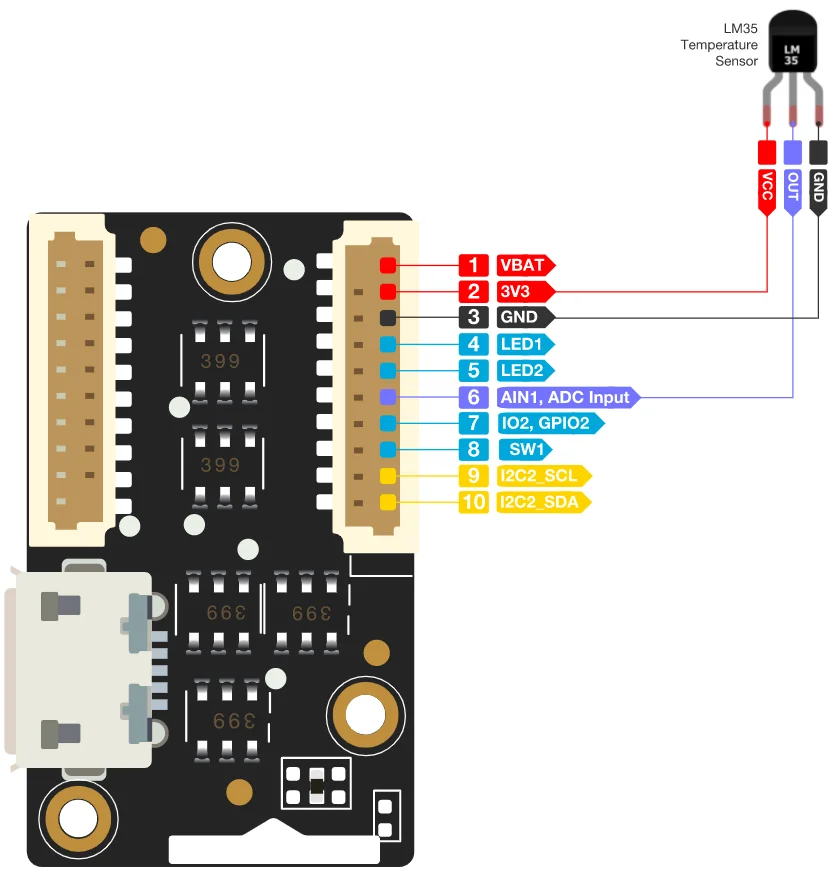 Figure 1: Connecting the RAK5804 to the ADC pin of the sensor module
- Select the RAK11310 WisBlock Core.
Figure 1: Selecting RAK11310 as WisBlock Core- Copy the following sample code into your Arduino IDE:
/*********
 The following code will display the ambient temperature using the LM35 sensor
 in the Serial Monitor.
*********/

#define lm35 WB_A1

int lmVal = 0;
int tem = 0;

void setup() {
  // put your setup code here, to run once:
  Serial.begin(9600);
}
void loop() {
  // put your main code here, to run repeatedly:
  lmVal = analogRead(lm35);
  tem = (lmVal*330)/1024;

  Serial.print(tem);
  Serial.print(" Celsius");
  Serial.println();
  delay(1000);
}
- Select the right Serial Port and upload the code.
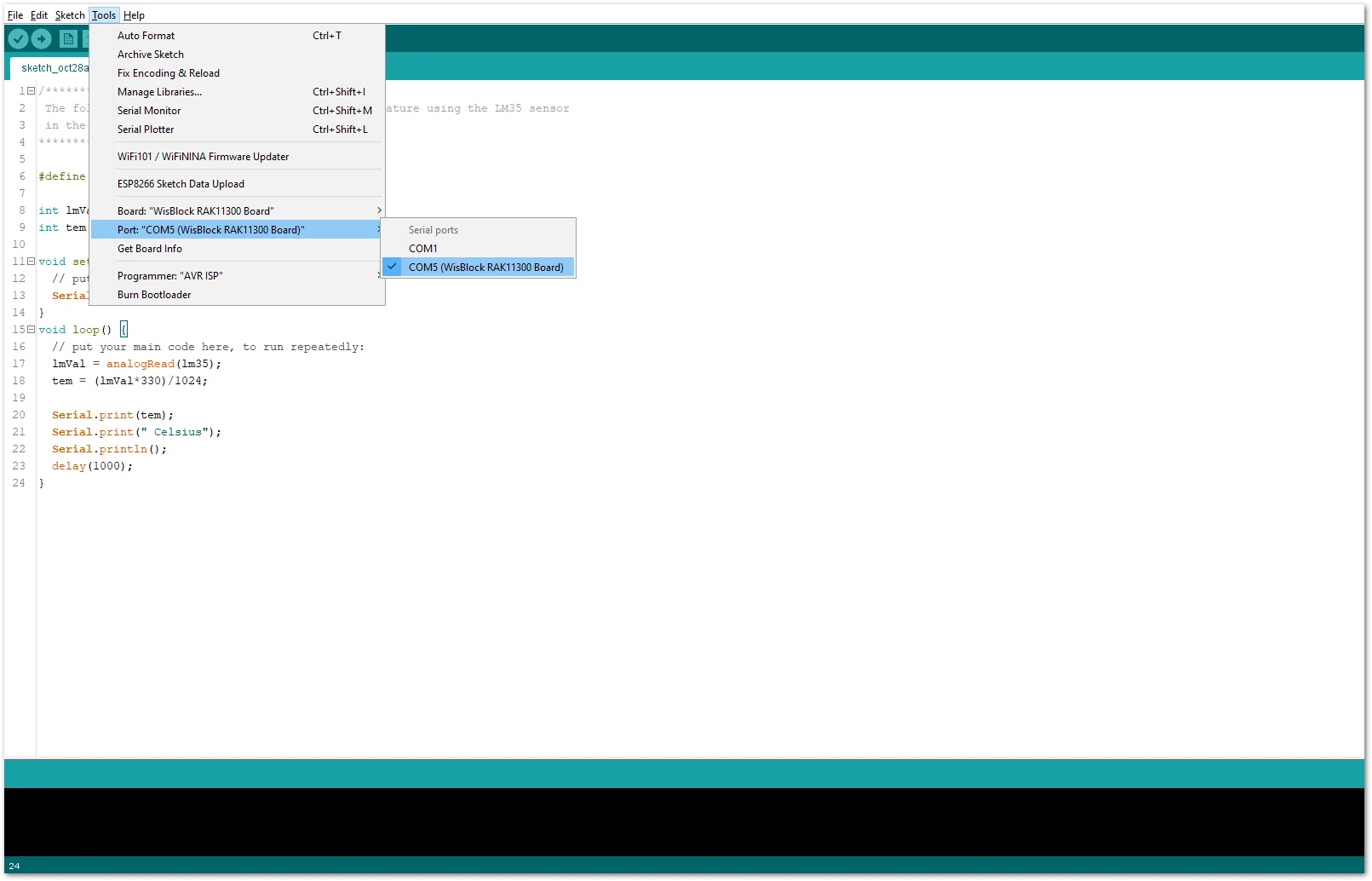 Figure 1: Selecting the correct Serial Port
- When you successfully uploaded the sample code, open the Serial Monitor of the Arduino IDE to see the module's reading logs. If you see the logs, then your module or sensor is properly communicating to the WisBlock core using the Analog Interface.
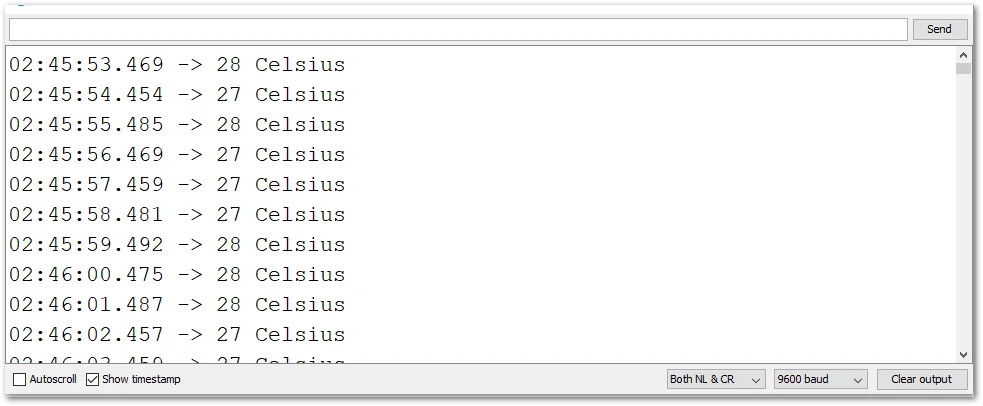 Figure 1: LM35 Temperature data logs


