RAK2270-Solutions Guide
RAK2270-Solutions is designed for plug-and-play asset tracking with the Trackpac platform and the Helium Network. This variant is preconfigured for Trackpac usage, so you do not need to manually register the device on your own LoRaWAN® network server.
Package Contents
Check the package contents according to your RAK2270-Solutions variant.
- 1x RAK2270 RAKwireless Tracking and Temperature Sticker
- 1x Trackpac License
- 1x Battery
Prerequisites
Before you start, prepare the required items.
- A RAK2270-Solutions Sticker Tracker.
- A device with a camera, such as a smartphone, tablet, or laptop.
- A Trackpac account on Trackpac.
- Helium Network coverage in your deployment area.
The RAK2270 does not have an integrated GPS module. For the RAK2270-Solutions variant, location is estimated through the Helium Network and Trackpac platform. Location accuracy depends on Helium Hotspot coverage, Hotspot density, signal conditions, and whether multiple Hotspots receive the uplink packets.
To learn more about trilateration, refer to Trackpac Medium.
Unpack the Device
- Remove the protective covering from the RAK2270 sticker.
- Locate the QR code on the sticker.
- Locate the DevEUI printed near the QR code.
The QR code is used for onboarding the device to Trackpac. The DevEUI is the unique LoRaWAN device identifier and can be used for device identification or support.
Access the Trackpac Portal
- Go to the Trackpac portal.
- Log in with your Trackpac account.
If you do not have an account, create one first. Depending on the available login options, you can sign up with an email address, username and password, or a supported social login method.
Add the RAK2270 Device
After logging in to the Trackpac portal, add your RAK2270 device.
- Open the Trackpac dashboard.
- Go to Devices and click + Add Device.
- Select Scan QR Code.
- Allow camera access if your browser requests permission.
- Place the RAK2270 sticker flat and scan the QR code.
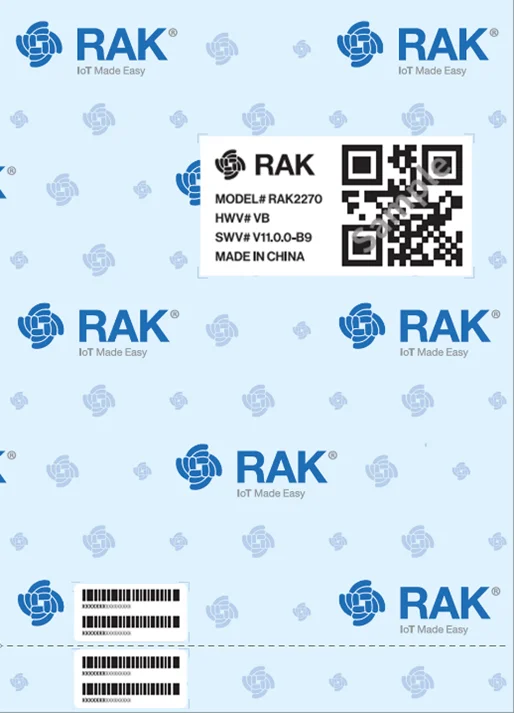 Figure 1: Scan the QR Code
 - Confirm that the device appears in the Trackpac dashboard.
The Trackpac portal interface may change over time. If the button name is different, look for an option used to add a new device or scan a QR code.
Activate the RAK2270
After adding the RAK2270 to the Trackpac portal, activate and power on the device by gently ripping or peeling off the perforated tab at the bottom of the sticker.
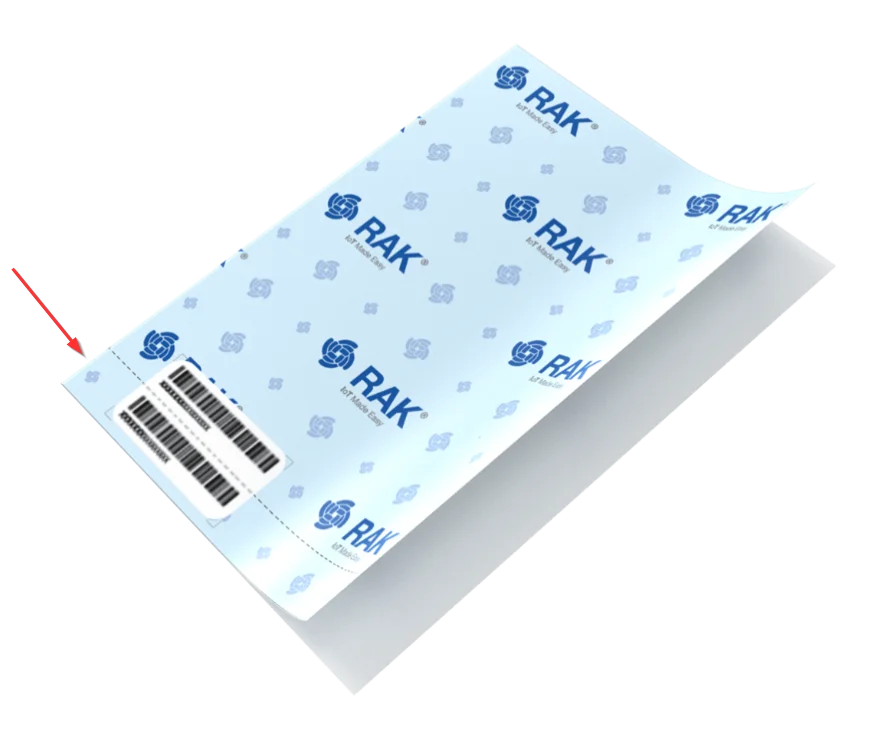 Figure 1: Power on the Sticker Tracker
Monitor the Device
After activation, wait for the device to send its first uplink. By default, the RAK2270 checks in periodically. It may take up to 60 minutes for the first data to appear on the Trackpac dashboard.
Once data is received, you can monitor the RAK2270 from the Trackpac dashboard.
Configure Geofences
Trackpac supports geofences for location-based alerts and notifications. You can create a geofence, set its radius, configure boundary-crossing alerts, define alert time rules, and select contacts to receive notifications.
For the latest geofence configuration steps, refer to the Trackpac official documentation.


