RAK1903 WisBlock Ambient Light Sensor Module Quick Start Guide
Prerequisite
-
WisBlock Base, WisBlock Core, and RAK1903. For assembly instructions, refer to the RAK1903 Installation Guide.
-
Download and install the Arduino IDE, then add the RAKwireless Core boards by installing the RAKwireless Arduino BSP.
-
USB cable
Initial Test of the RAK1903 WisBlock Module
-
This guide uses the RAK4631 WisBlock Core to demonstrate the configuration process. You can also use the RAK11200 or RAK11310 as the WisBlock Core.
-
When using the RAK11200, configure the BOOT0 pin correctly before uploading the source code. Otherwise, the upload may fail. For detailed instructions, refer to the RAK11200 Quick Start Guide.
-
Install the RAKwireless Arduino BSP using the
package_rakwireless_index.jsonboard package. The supported WisBlock Core boards will then be available in the Arduino IDE. -
You need to select the WisBlock Core you have.
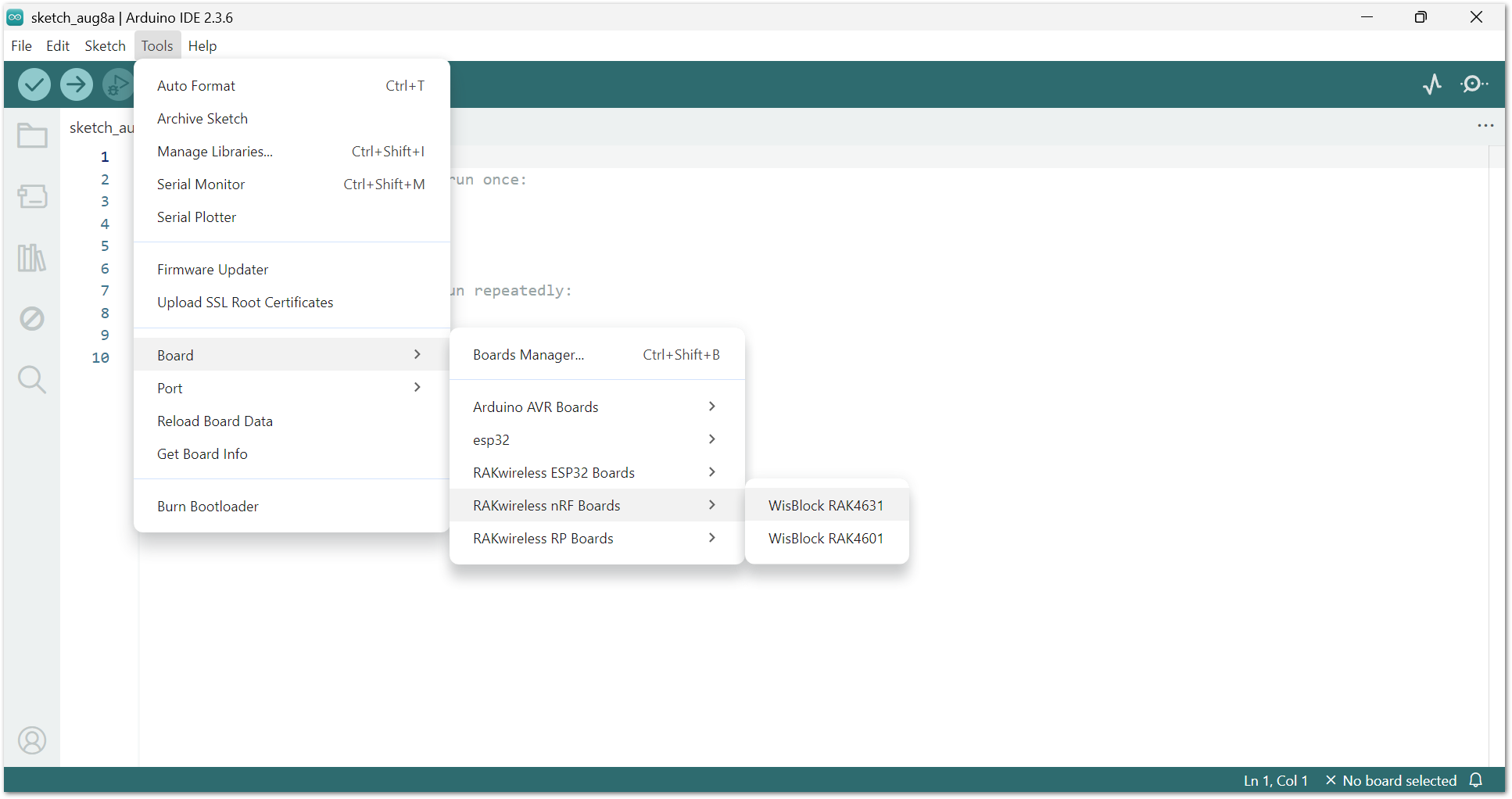 Figure 1: Selecting RAK4631 as WisBlock Core
- Copy the following sample code into your Arduino IDE:
Click to view the code
/**
   @file RAK1903_Optical_OPT3001.ino
   @author rakwireless.com
   @brief Setup and read values from a opt3001 sensor
   @version 0.1
   @date 2020-12-28
   @copyright Copyright (c) 2020
**/

#include <Wire.h>
#include <ClosedCube_OPT3001.h> // Click here to get the library: http://librarymanager/All#OPT3001

// Forward declarations for functions
void printError(String text, OPT3001_ErrorCode error);

ClosedCube_OPT3001 g_opt3001;
#define OPT3001_ADDRESS 0x44

void configureSensor()
{
  OPT3001_Config newConfig;

  newConfig.RangeNumber = B1100;
  newConfig.ConvertionTime = B0;
  newConfig.Latch = B1;
  newConfig.ModeOfConversionOperation = B11;

  OPT3001_ErrorCode errorConfig = g_opt3001.writeConfig(newConfig);
  if (errorConfig != NO_ERROR)
    printError("OPT3001 configuration", errorConfig);
  else
  {
    OPT3001_Config sensorConfig = g_opt3001.readConfig();
    Serial.println("OPT3001 Current Config:");
    Serial.println("------------------------------");

    Serial.print("Conversion ready (R):");
    Serial.println(sensorConfig.ConversionReady, HEX);

    Serial.print("Conversion time (R/W):");
    Serial.println(sensorConfig.ConvertionTime, HEX);

    Serial.print("Fault count field (R/W):");
    Serial.println(sensorConfig.FaultCount, HEX);

    Serial.print("Flag high field (R-only):");
    Serial.println(sensorConfig.FlagHigh, HEX);

    Serial.print("Flag low field (R-only):");
    Serial.println(sensorConfig.FlagLow, HEX);

    Serial.print("Latch field (R/W):");
    Serial.println(sensorConfig.Latch, HEX);

    Serial.print("Mask exponent field (R/W):");
    Serial.println(sensorConfig.MaskExponent, HEX);

    Serial.print("Mode of conversion operation (R/W):");
    Serial.println(sensorConfig.ModeOfConversionOperation, HEX);

    Serial.print("Polarity field (R/W):");
    Serial.println(sensorConfig.Polarity, HEX);

    Serial.print("Overflow flag (R-only):");
    Serial.println(sensorConfig.OverflowFlag, HEX);

    Serial.print("Range number (R/W):");
    Serial.println(sensorConfig.RangeNumber, HEX);

    Serial.println("------------------------------");
  }
}

void opt3001_read_data()
{
  OPT3001 result = g_opt3001.readResult();
  if (result.error == NO_ERROR)
  {
    Serial.print("OPT3001");
    Serial.print(": ");
    Serial.print(result.lux);
    Serial.println(" lux");

    uint16_t luminosity = result.lux;
  }
  else
  {
    printError("OPT3001", result.error);
  }
}

void printResult(String text, OPT3001 result)
{
  if (result.error == NO_ERROR)
  {
    Serial.print(text);
    Serial.print(": ");
    Serial.print(result.lux);
    Serial.println(" lux");
  }
  else
  {
    printError(text, result.error);
  }
}
void printError(String text, OPT3001_ErrorCode error)
{
  Serial.print(text);
  Serial.print(": [ERROR] Code #");
  Serial.println(error);
}
void setup()
{
    time_t timeout = millis();
    Serial.begin(115200);
    while (!Serial)
    {
    if ((millis() - timeout) < 5000)
    {
      delay(100);
    }
    else
    {
      break;
    }
    }

    /* opt3001 init */
    g_opt3001.begin(OPT3001_ADDRESS);
    Serial.print("OPT3001 Manufacturer ID");
    Serial.println(g_opt3001.readManufacturerID());
    Serial.print("OPT3001 Device ID");
    Serial.println(g_opt3001.readDeviceID());

    configureSensor();
    printResult("High-Limit", g_opt3001.readHighLimit());
    printResult("Low-Limit", g_opt3001.readLowLimit());
}

void loop()
{
    opt3001_read_data();
    delay(1000);
}
If you experience any error in compiling the example sketch, check the updated code for your WisBlock Core Module that can be found on the RAK1903 WisBlock Example Code Repository and this sample code in Github will work on all WisBlock Core.
- Once the example code is open, install the ClosedCube OPT3001 library by pressing
Ctrland clicking the highlighted link.
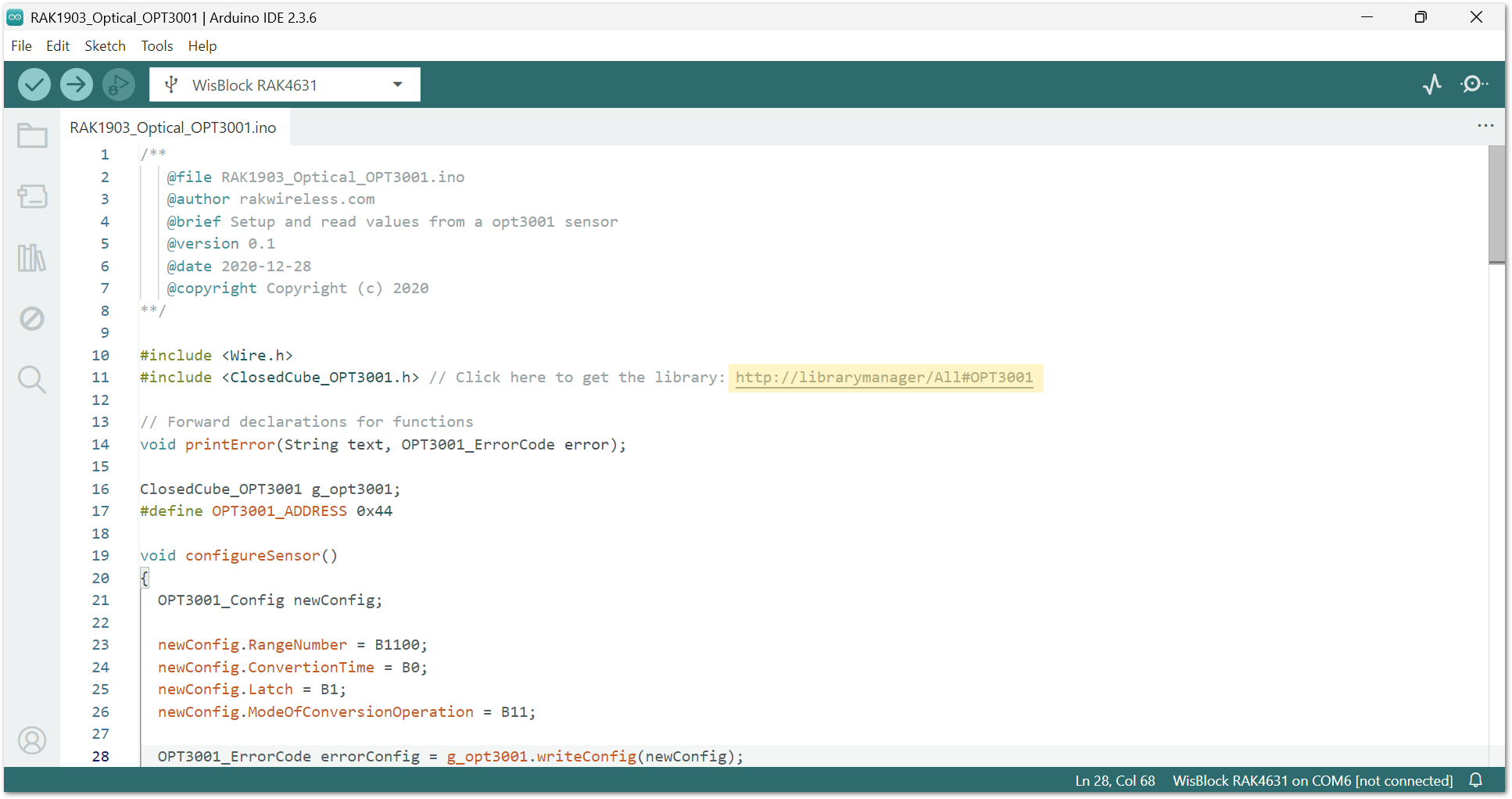 Figure 1: Accessing the library used for RAK1903 Module
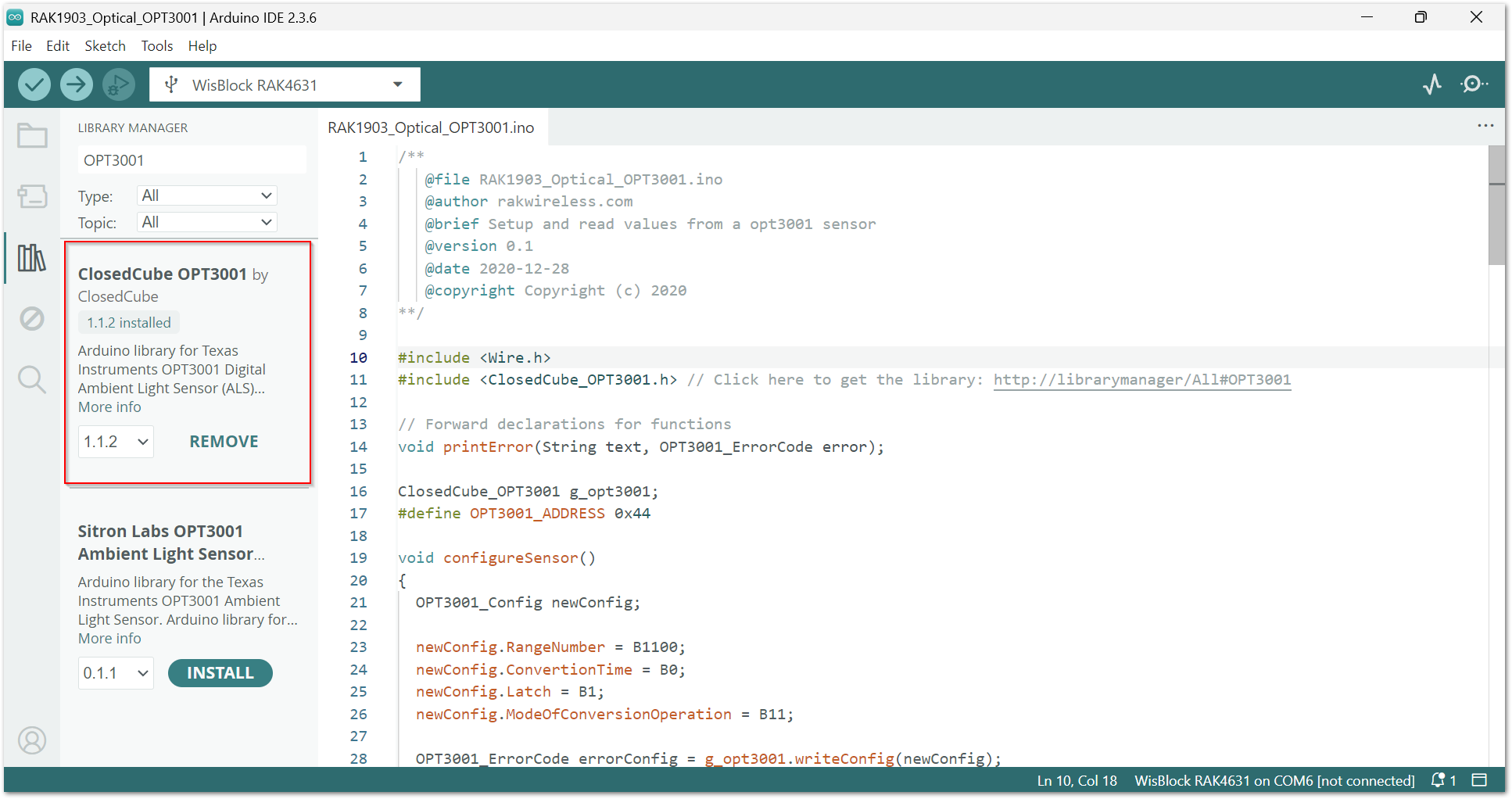 Figure 1: Installing the compatible library for RAK1903 Module
- After installing the library, select the correct serial port and upload the code.
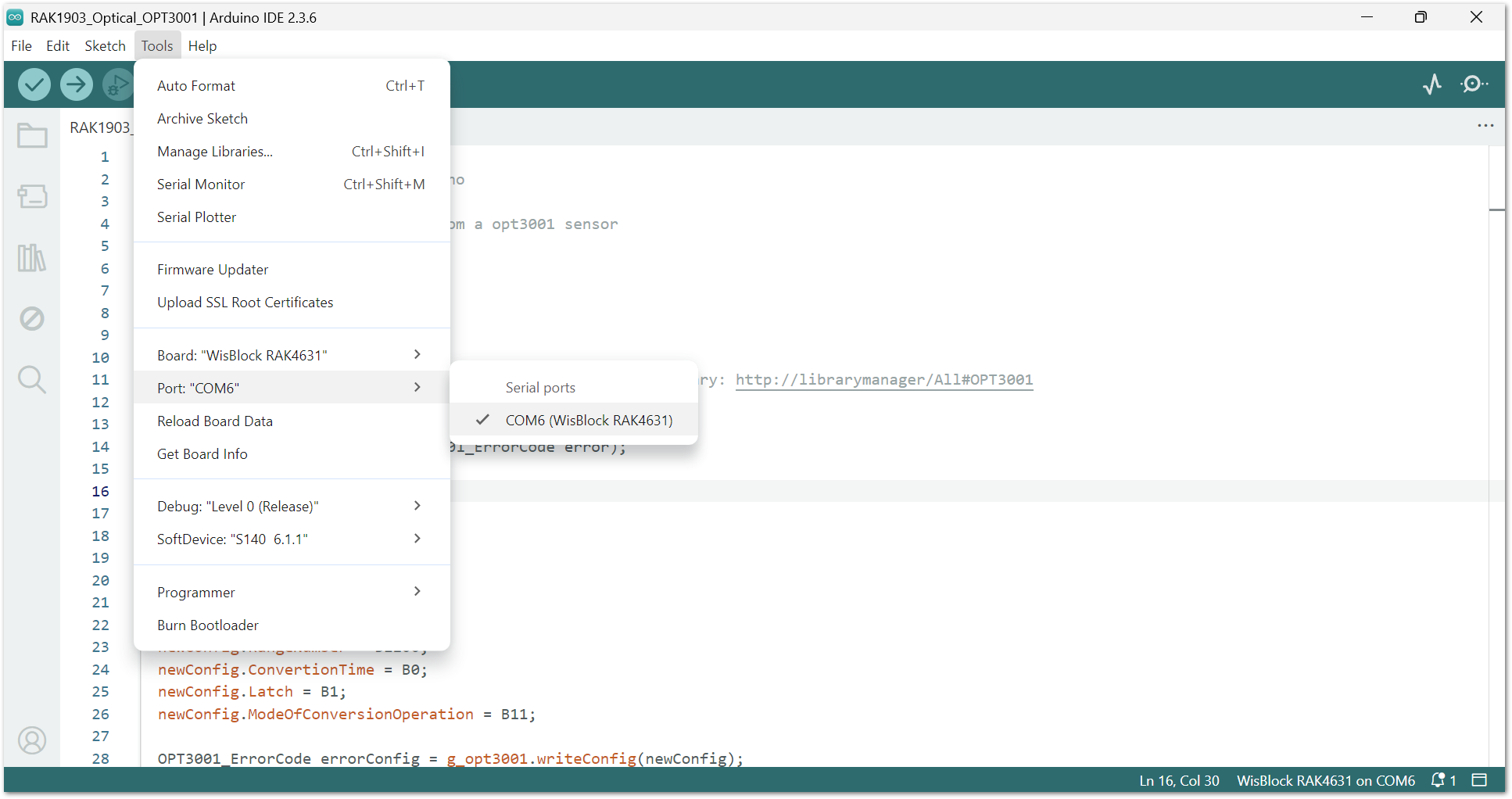 Figure 1: Selecting the correct Serial Port
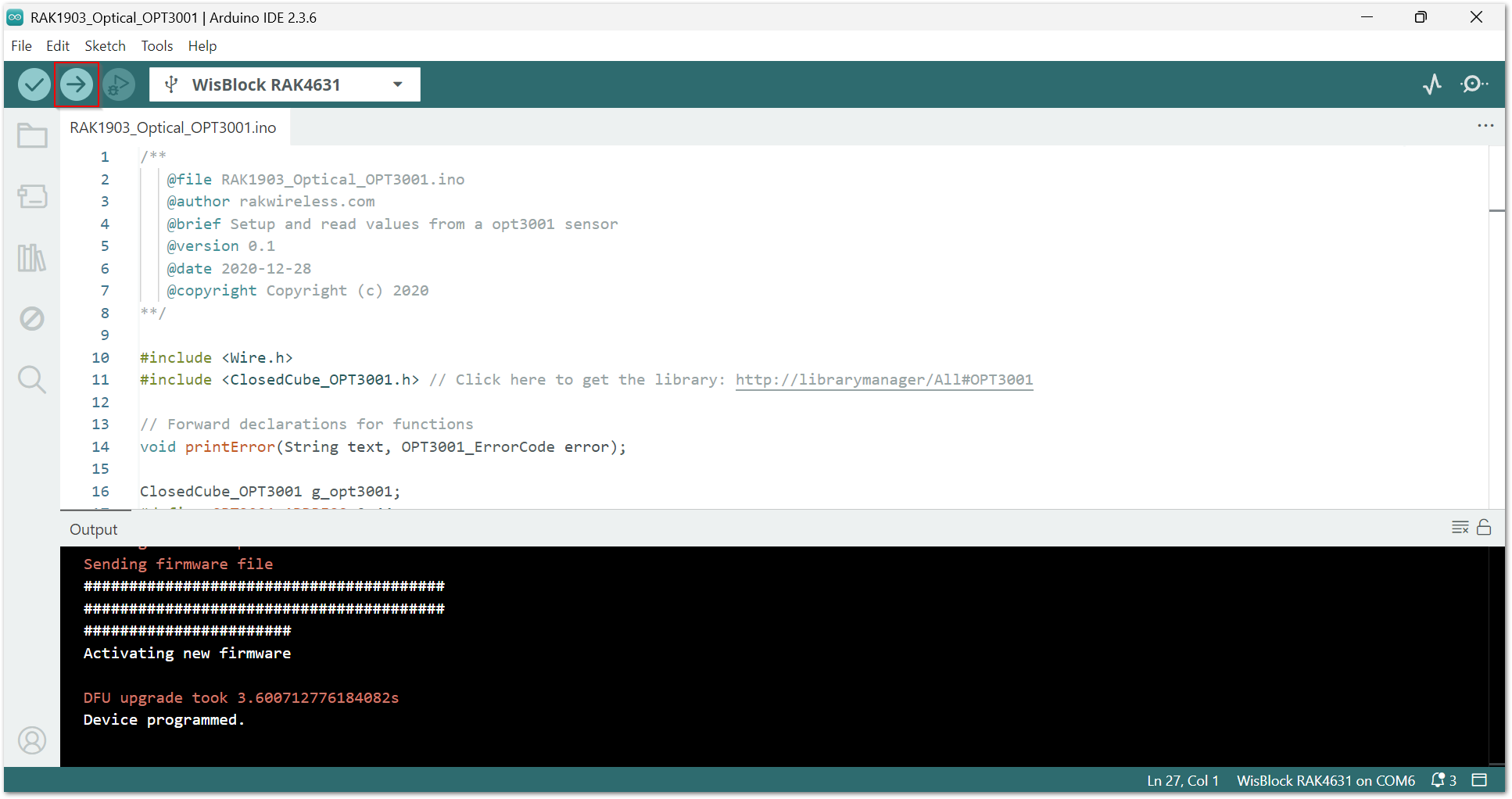 Figure 1: Uploading the RAK1903 example code
- When you successfully uploaded the example sketch, open the Serial Monitor of the Arduino IDE to see the sensor's reading logs. If you see the logs, then your RAK1903 is properly communicating to the WisBlock core.
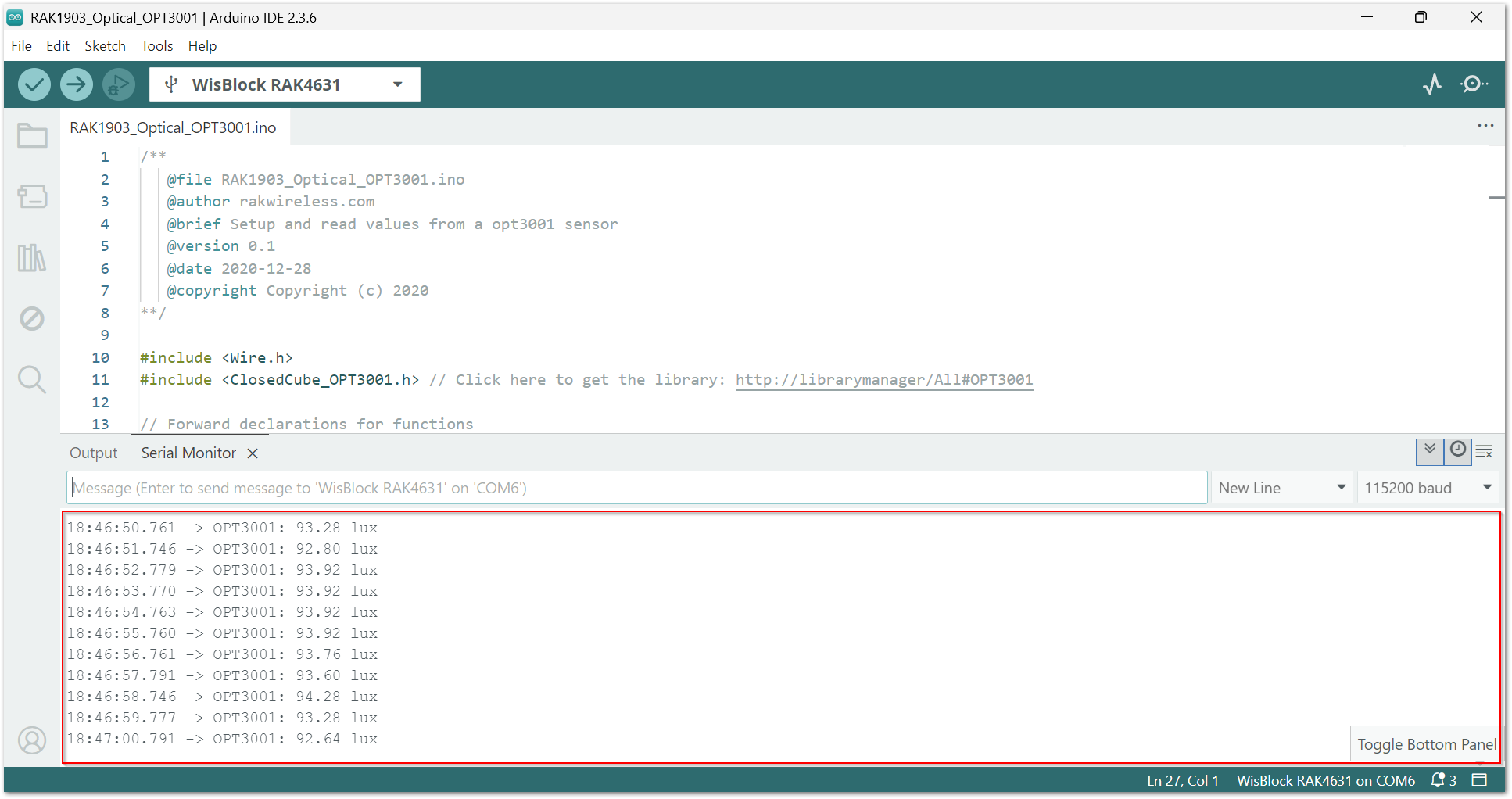 Figure 1: RAK1903 ambient light data logs
Resources
- For a weather monitoring application based on the RAK4630, refer to the Weather Monitoring Sample Code.
- For a complete weather monitoring solution using the RAK1903, refer to the LoRaWAN Weather Monitoring Kit.


