Flash Different ESP-AT Firmware to Your Device
To flash the AT firmware, use a USB-to-UART TTL adapter, such as the RAKDAP1 Flash and Debug Tool. Connect the adapter to the RAK2305 according to the pin connections shown in Figure 1.
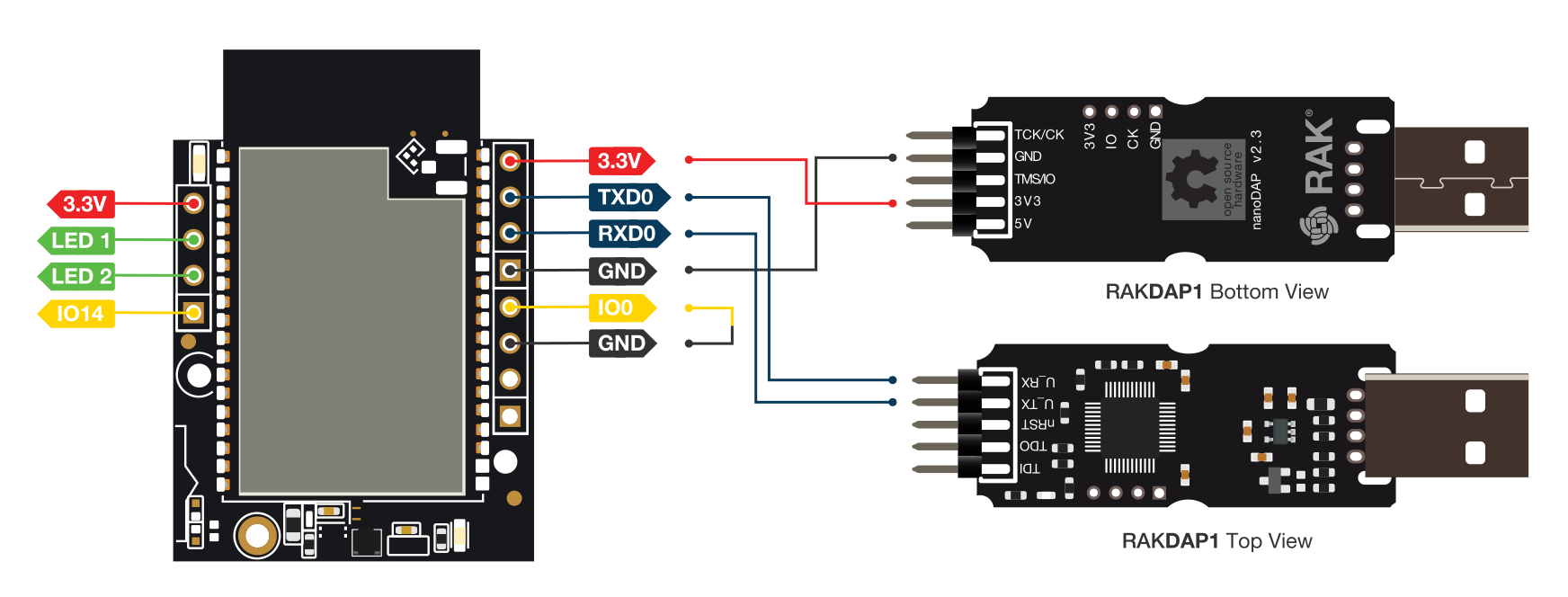 Figure 1: RAK2305 Firmware Upgrade
RAK2305 connection to RAKDAP1:
- Connect the USB adapter's GND pin to the RAK2305 GND pin.
- Connect the RAK2305 IO0 pin to GND using a jumper.
- Connect the USB adapter's U_TX pin to the RAK2305 RXD0 pin.
- Connect the USB adapter's U_RX pin to the RAK2305 TXD0 pin.
Before starting the firmware upgrade, you need to download Flash Download Tools for Windows.
- Open the ESP Flash Download Tool and select ChipType and WorkMode. Then click the OK button.
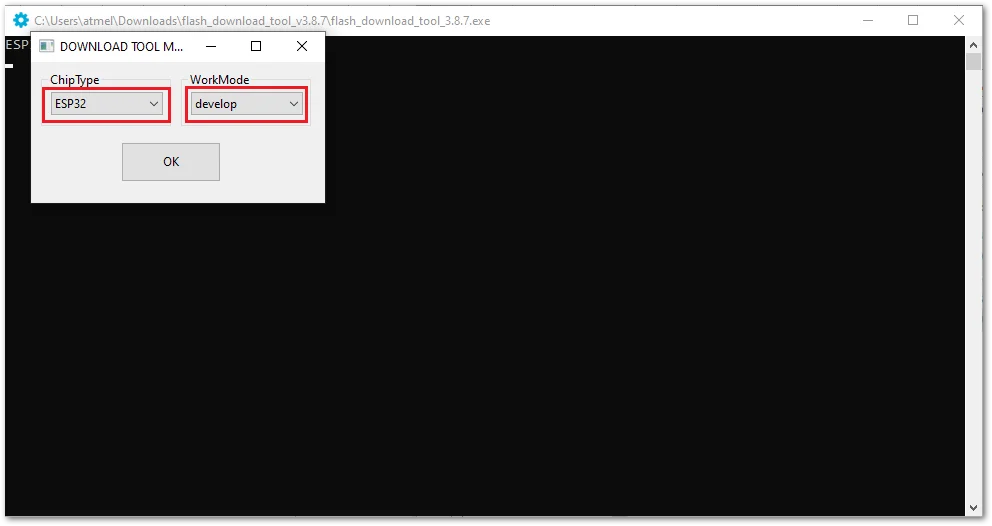 Figure 1: ESP Flash Download Tool
- Choose SPIDownload tab.
- Click on the ... icon and choose the bin file at address 0x0.
- Select DoNotChgBin to use the default configuration.
- Select the COM port of the USB adapter and use 921600 for BAUD.
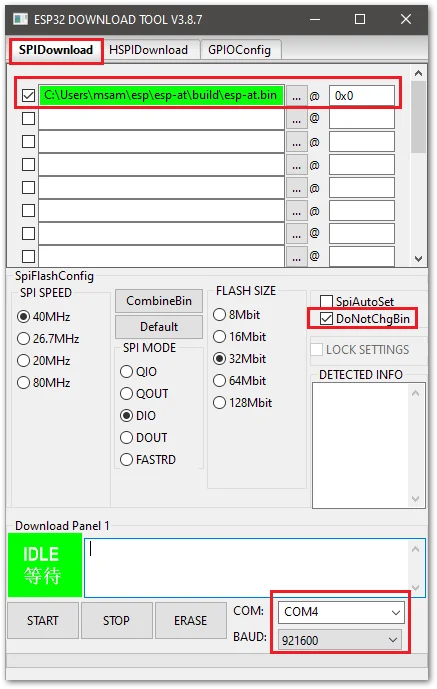 Figure 1: ESP Flash Download Tool Configuration
- To start Flash Download, click on the START button.
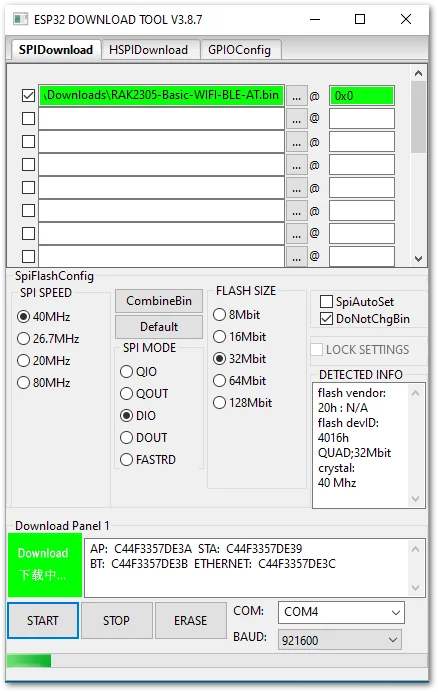 Figure 1: ESP Flash download started
- Download is now finished.
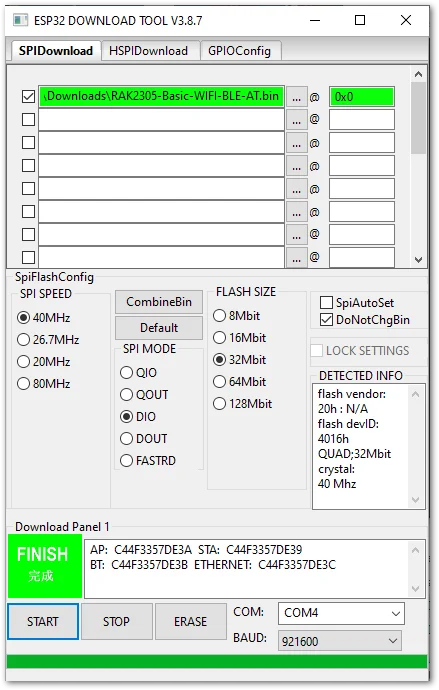 Figure 1: ESP Flash download tool finished
Available Firmware Versions
The RAK2305 comes pre-loaded with the default ESP-AT firmware (supporting WiFi and BLE).
To enable HTTP or MQTT functionalities, or to update the existing firmware, you must flash a different ESP-AT firmware version.
Two RAK2305 ESP-AT firmware versions are available:
- RAK2305-Basic-WIFI-BLE-AT.bin: The factory
.binversion with WiFi and BLE AT commands. This is the default firmware uploaded to the RAK2305. - RAK2305-Basic-WIFI-HTTP-MQTT-AT.bin: Supports WiFi, MQTT, and HTTP AT commands. You must flash this firmware if you want to use MQTT and HTTP AT commands.
NOTE
If you want to develop your own custom AT commands based on the ESP-AT project, refer to the Low Level Development section.


