Backup and Restore
The Backup and restore page allows you to back up and restore BACnet Gateway Extension data. This is useful before firmware upgrades, system maintenance, configuration migration, or recovery from an unexpected configuration issue.
The backup file includes BACnet Gateway Extension data such as equipment, profiles, data points, and configuration settings.
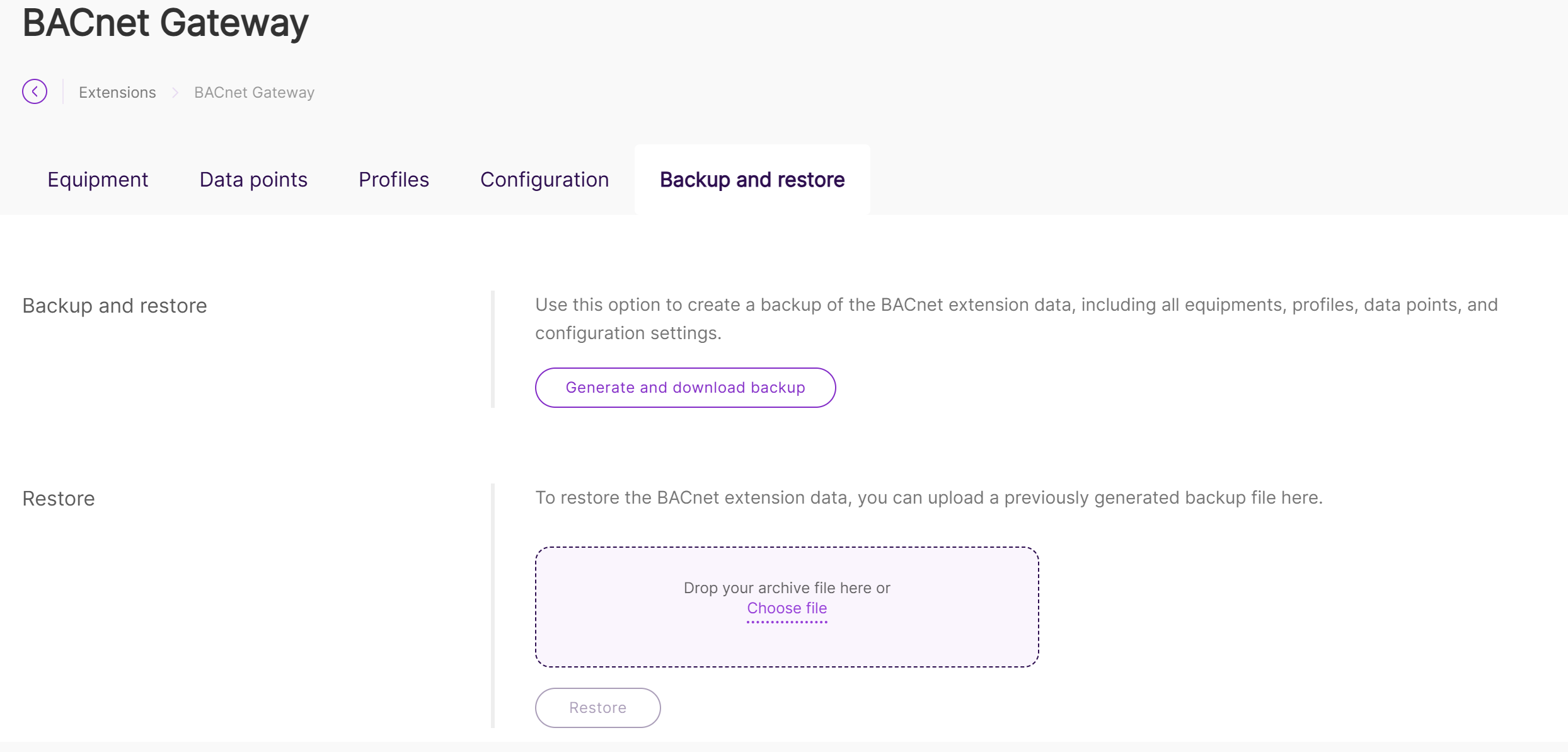 Figure 1: Backup and Restore
The backup file may contain sensitive device and configuration information, such as equipment data, profiles, and device authentication parameters. Store the backup file securely and share it only with authorized personnel.
Create a Backup
To create a backup of the BACnet Gateway Extension data:
- Go to the Backup and restore tab.
- Click Generate and download backup.
- Wait for the system to generate the backup file.
- After the backup is created, the file is downloaded automatically.
The downloaded backup file is an archive file. It contains the BACnet Gateway Extension data required for restore.
Do not manually modify the files inside the backup archive unless instructed by RAK technical support. To restore the BACnet Gateway Extension data, upload the original backup archive file.
Restore from a Backup
You can restore BACnet Gateway Extension data by uploading a previously generated backup file.
To restore a backup:
- Go to the Backup and restore tab.
- In the Restore section, click Choose file, or drag and drop the backup archive file into the upload area.
- After the file is selected, click Restore.
- Wait for the restore process to complete.
Restoring a backup may replace the current BACnet Gateway Extension data, including equipment, profiles, data points, and configuration settings. Before restoring, verify that you have selected the correct backup file.


