RAK7590 Field Tester Pad Firmware Update
This guide will walk you through the process of upgrading the firmware on your RAK7590 Field Tester Pad using balenaEtcher.
Prerequisites
- A card reader to connect the microSD card to your computer
- PC (Windows/macOS) for USB upgrade
- balenaEtcher software (download from balena.io)
- Download the firmware image file from RAK Wireless Downloads
Steps for Firmware Update
- Power Off the RAK7590.
- Remove the microSD card from the Pad.
warning
Never remove the SD card while the device is powered on, as this can damage the card or the system.
- Place the SD card into an SD card reader and connect it to your computer.
- Launch balenaEtcher on your computer.
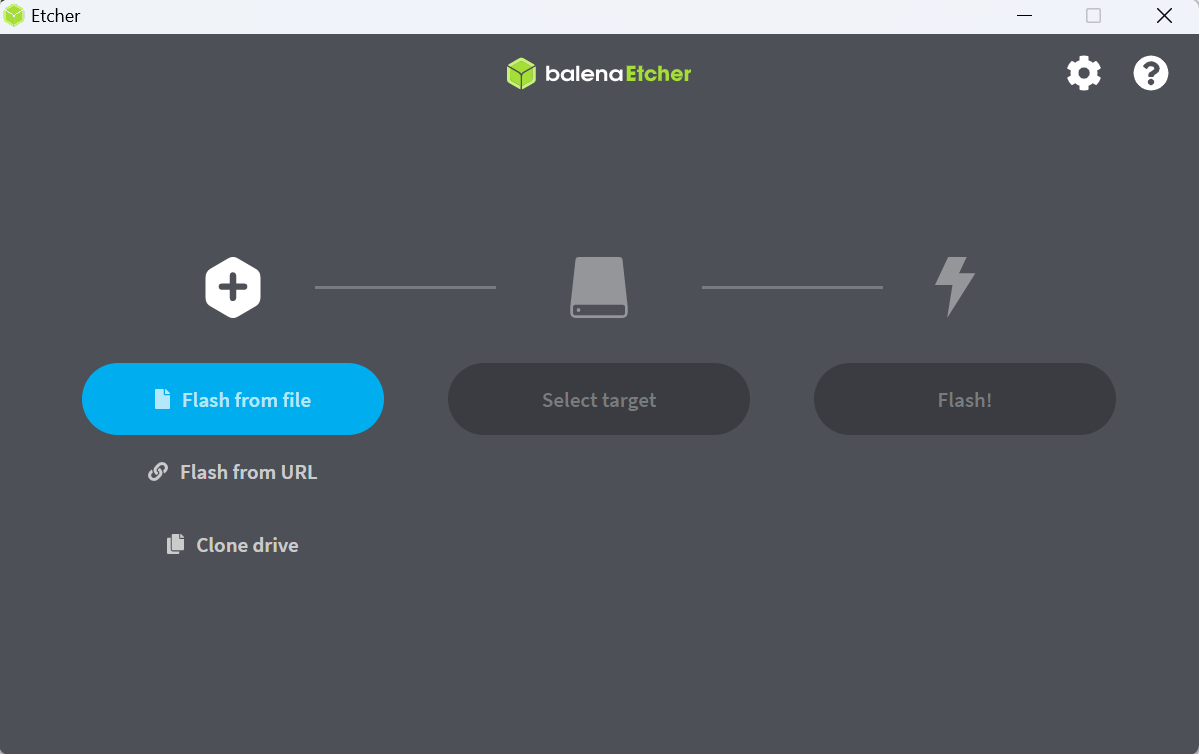 Figure 1: Launch balenaEtcher
 - In balenaEtcher, click Flash from file and select the downloaded firmware file (it should end with
.zip).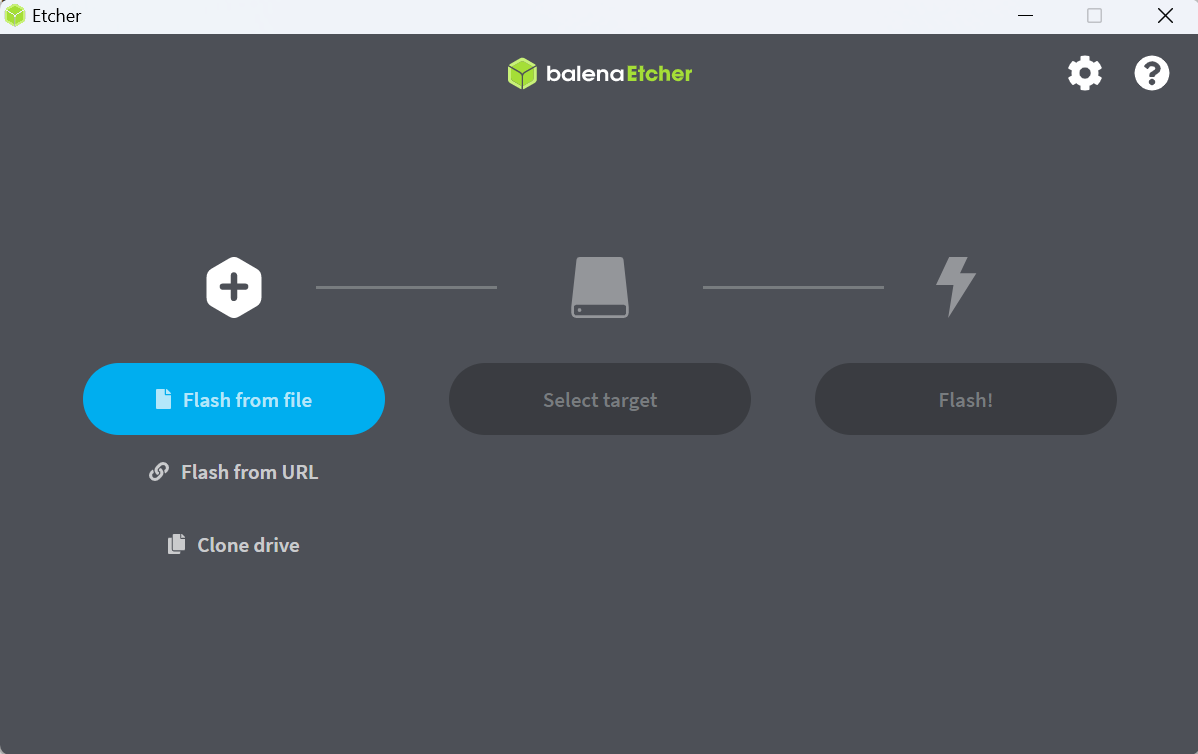 Figure 1: Upload firmware file
 - Click Select Target and choose the SD card as the target device to write the firmware.
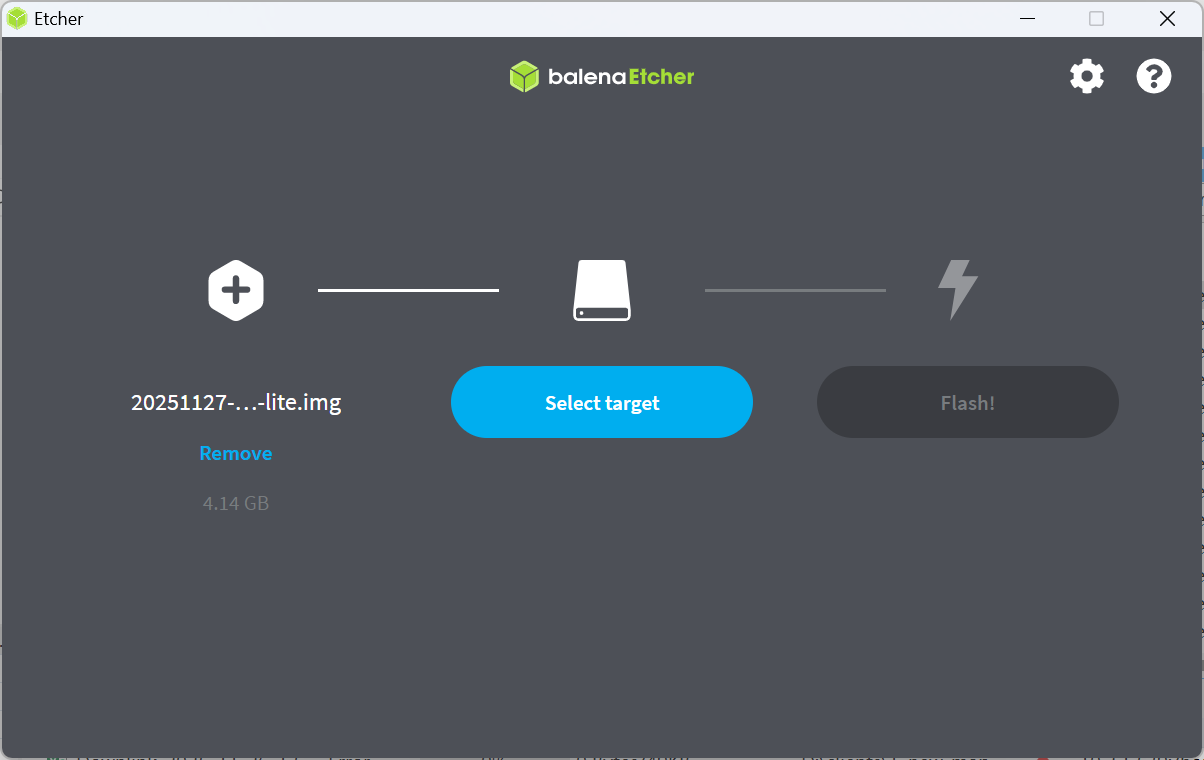 Figure 1: Select SD card
 - Click Select to confirm your selection.
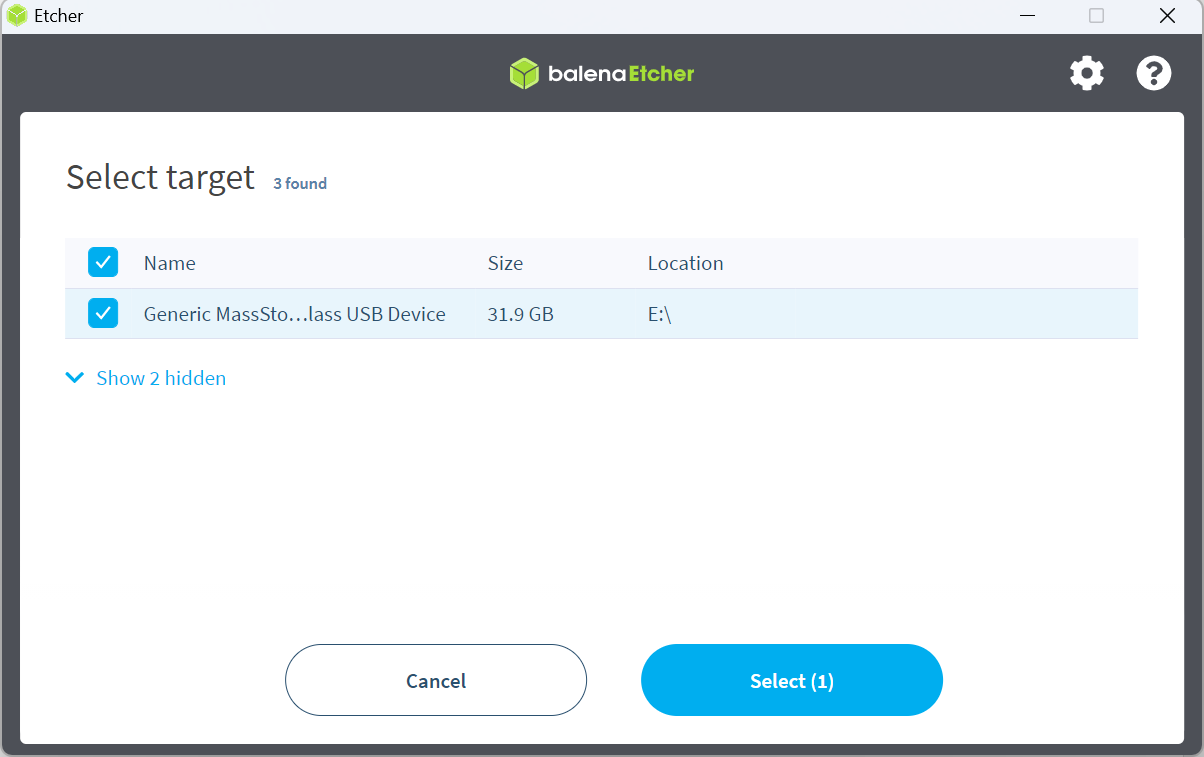 Figure 1: Confirm selection
 - Click Flash! to begin the firmware flashing process. Wait until the flashing process is completed.
NOTE
This may take several minutes depending on the size of the firmware file.
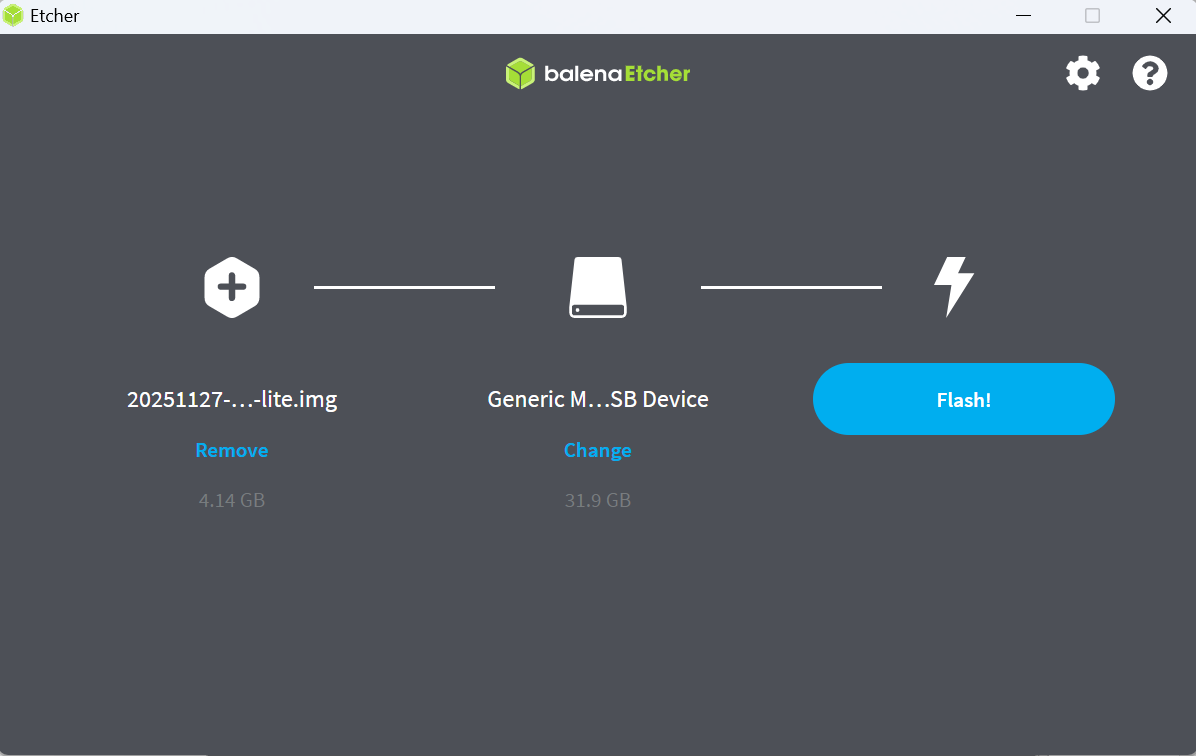 Figure 1: Flash the Firmware
 - Once the flashing process is complete, safely eject the SD card from the reader. Insert the SD card back into the Pad.
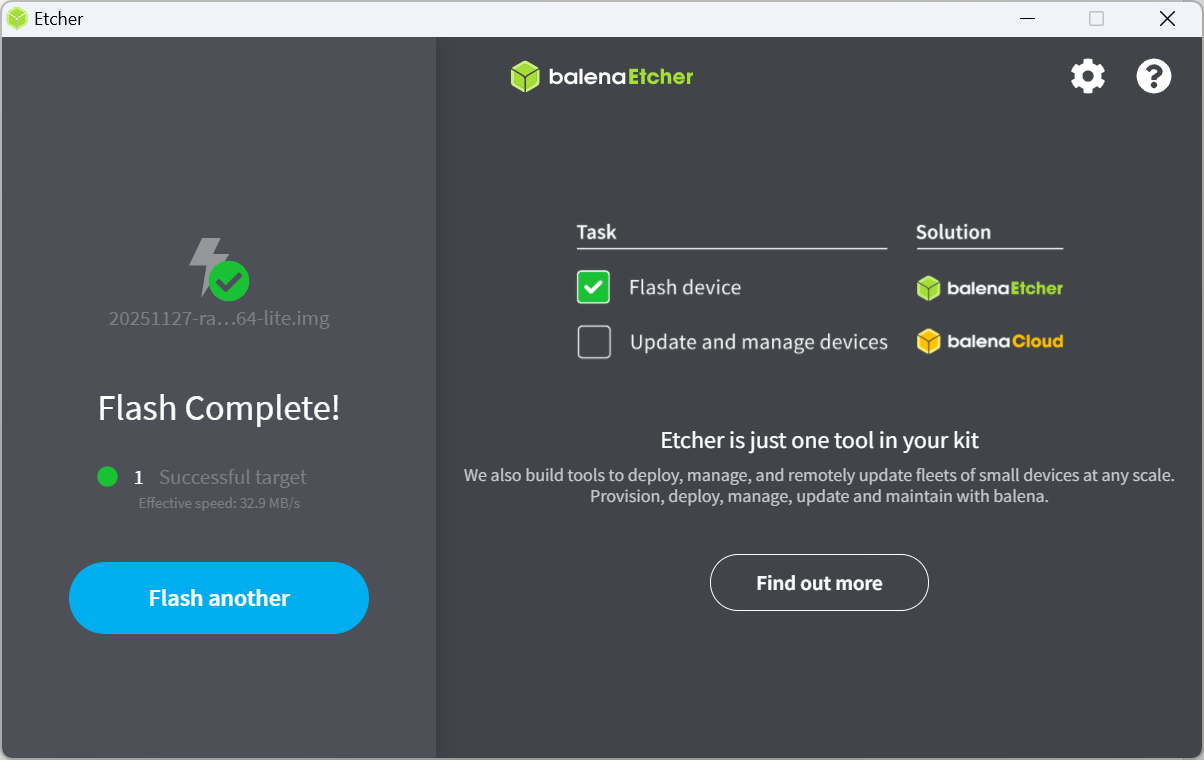 Figure 1: Flash Completed
 - Power on the RAK7590 Field Tester Pad, and the device should boot with the newly flashed firmware.


