System Settings
The System Settings page allows you to configure essential system-level parameters of the Field Tester Pad. These settings ensure accurate timestamps for reports, proper GPS and map rendering, and stable wireless connectivity during field testing.
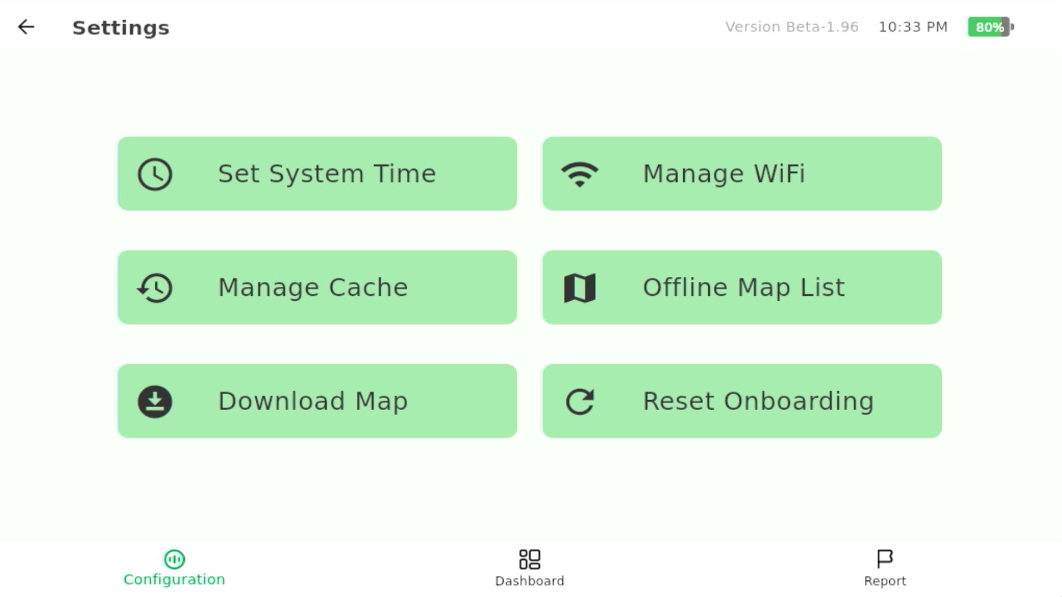 Figure 1: System Settings Overview
Set System Time
Accurate system time is essential for:
- Correct timestamps in test logs and reports
- Ordered packet analysis
- Synchronizing test data with the LoRaWAN Network Server (LNS)
- If the Pad is connected to the Internet, time synchronization is handled automatically through NTP, and manual time adjustment will be disabled.
- If the test site does not have Internet access, you must manually set the Pad’s system time before performing any field tests.
Steps
- On the Configuration page, tap the Settings icon at the top of the screen.
- Tap Set System Time.
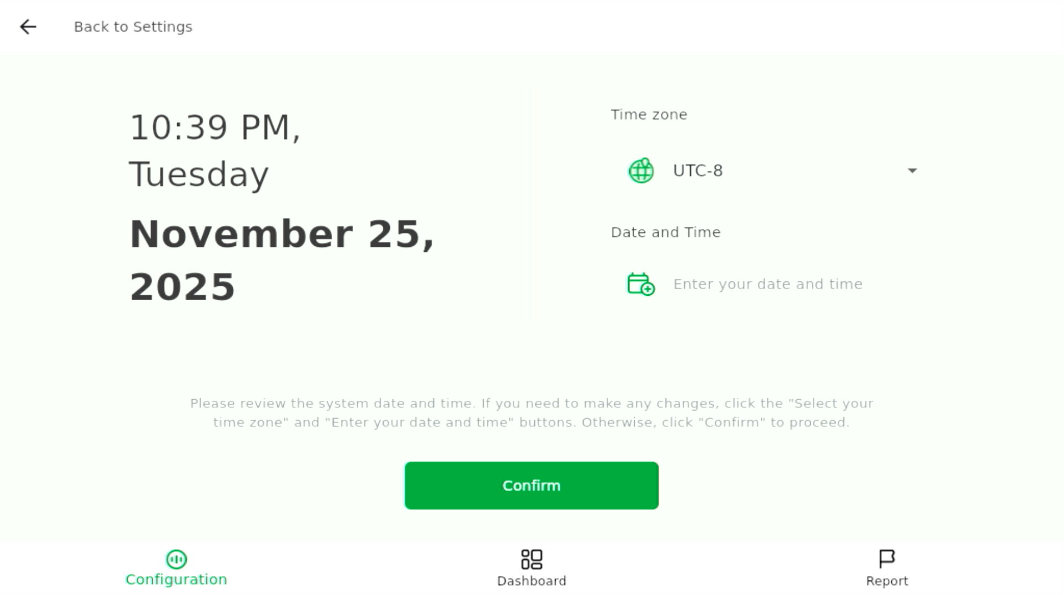 Figure 1: Set Time Zone, Date, and Time
 - Configure the following:
- Select your Time zone.
- Set the Date and Time.
- Tap Confirm to save the settings.
Manage Wi-Fi
The Wi-Fi settings allow the Field Tester Pad to connect to the Internet for:
- Download offline maps
- Sync time automatically
Steps
- On the Configuration page, tap the Settings icon at the top of the screen.
- Tap Manage Wi-Fi. The Pad will display a list of nearby access points.
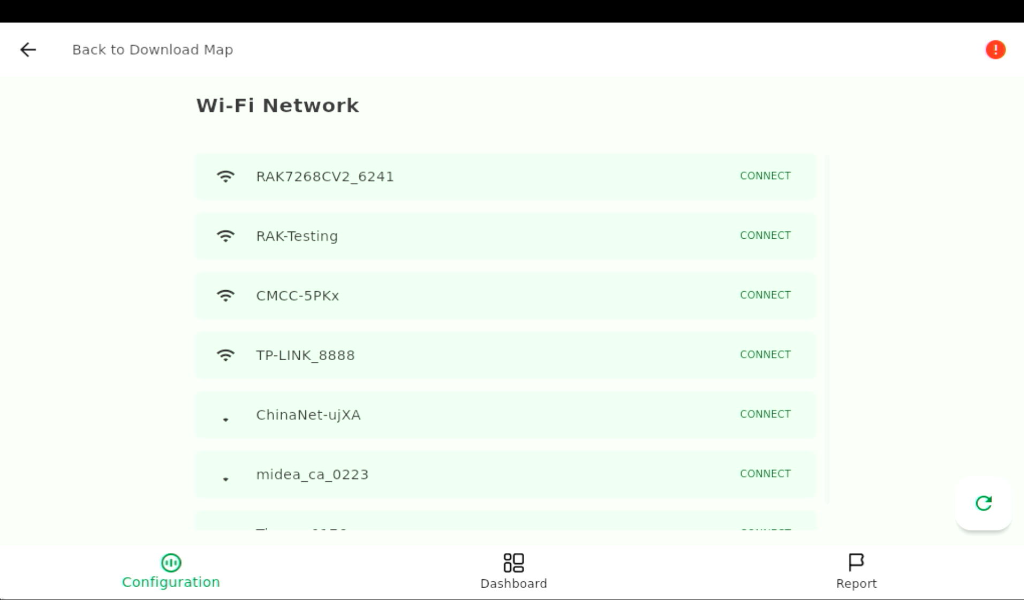 Figure 1: Wi-Fi Network List
 - Select an access point and tap Connect.
- Enter the Wi-Fi password on the pop-up keyboard and tap confirm button.
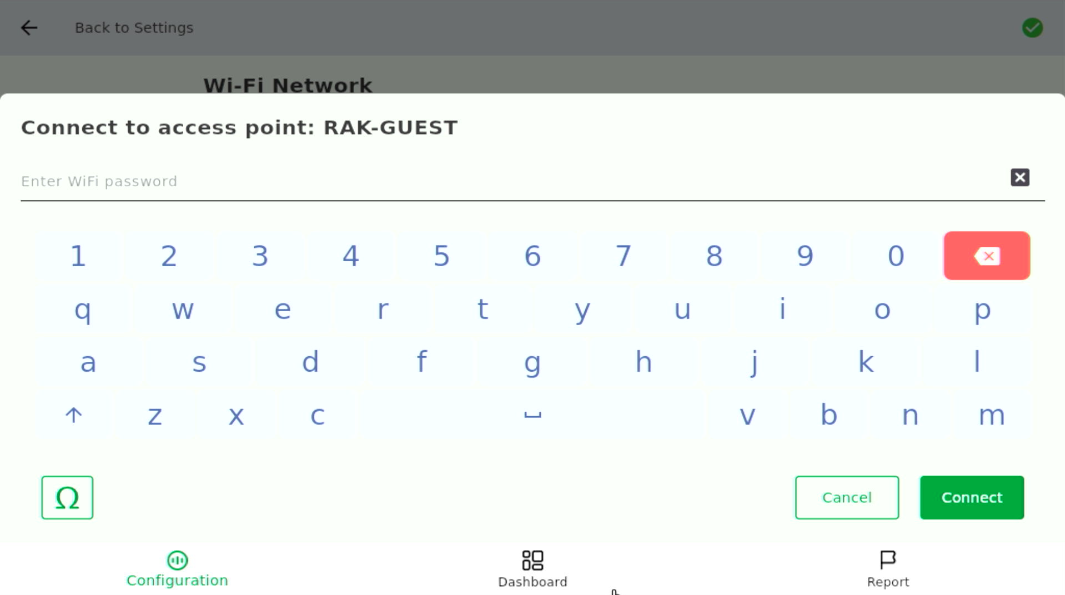 Figure 1: Enter Wi-Fi Password
 - After connection:
- A toast message confirms a successful connection.
- A network status indicator appears at the top right of the page.
- When the Pad is connected to both Wi-Fi and the OpenStreetMap tile server, the indicator turns green.
- (Optional) Tap the indicator to view the Pad’s IP address.
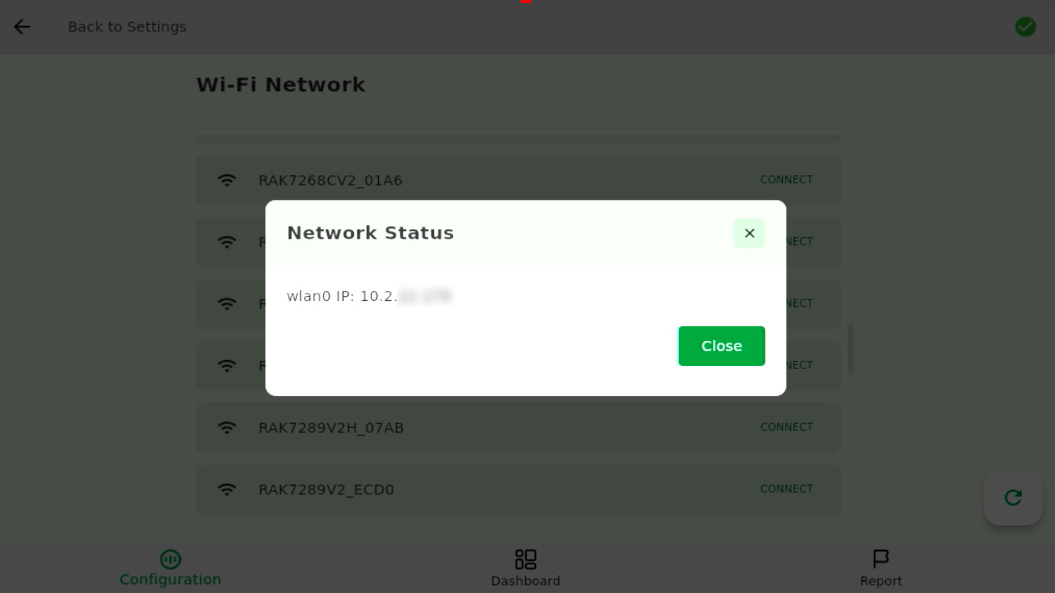 Figure 1: Wi-Fi Network Status (IP Address)
Manage Cache
The Clear Cache function allows you to manage and remove stored data on the Field Tester Pad. Regularly clearing cache helps keep the device storage healthy and ensures optimal performance.
Cache clearing is irreversible. Once deleted, the data cannot be recovered. Please proceed with caution.
Steps
- On the Configuration page, tap the Settings icon at the top of the screen.
- Tap Manage Cache.
You will see:
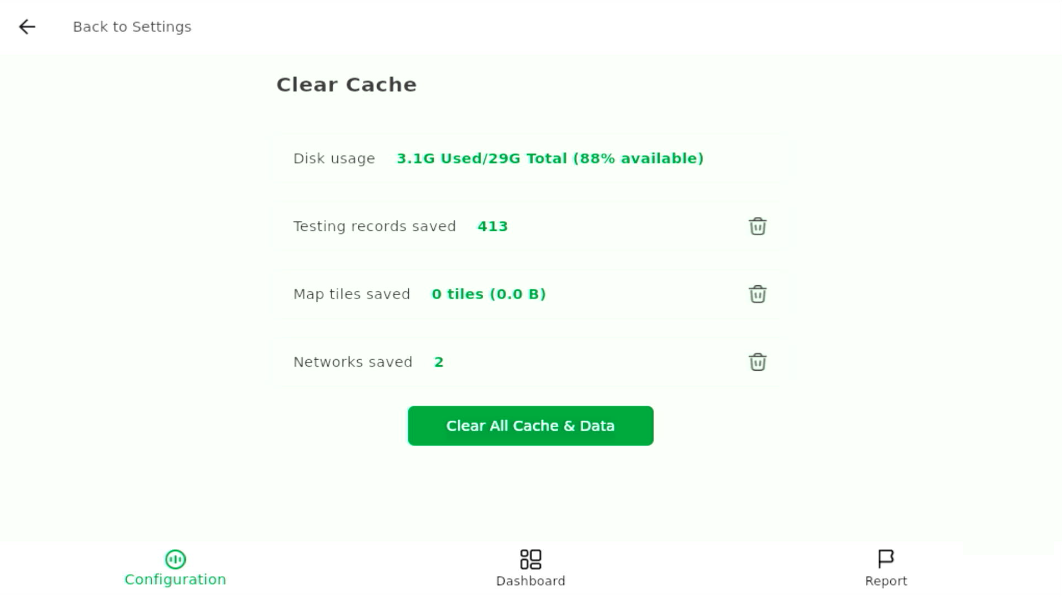 Figure 1: Clear Cache Overview
- Disk usage: current used space and available space
- Testing records saved: number of test entries stored
- Map tiles saved: offline map tiles downloaded
- Networks saved: remembered Wi-Fi networks
NOTE
Clearing the Networks saved cache will disconnect the current Wi-Fi connection.
- Each entry has a trash icon, allowing you to delete that specific category.
- To remove everything at once, tap Clear All Cache & Data.
Download Map
The Download Map feature allows the Field Tester Pad to store map tiles locally so maps can still be displayed even when the test site has no internet connection.
This is optional, but recommended for displaying test points on the Report map when testing offline.
Connect to the Internet
Downloading maps requires an active internet connection. If the Pad is not connected, the system will prompt you to connect before you can continue.
- On the Configuration page, tap the Settings icon at the top of the screen.
- Tap Download Map.
- If no offline maps are available, the system will display a prompt. Tap Download Now.
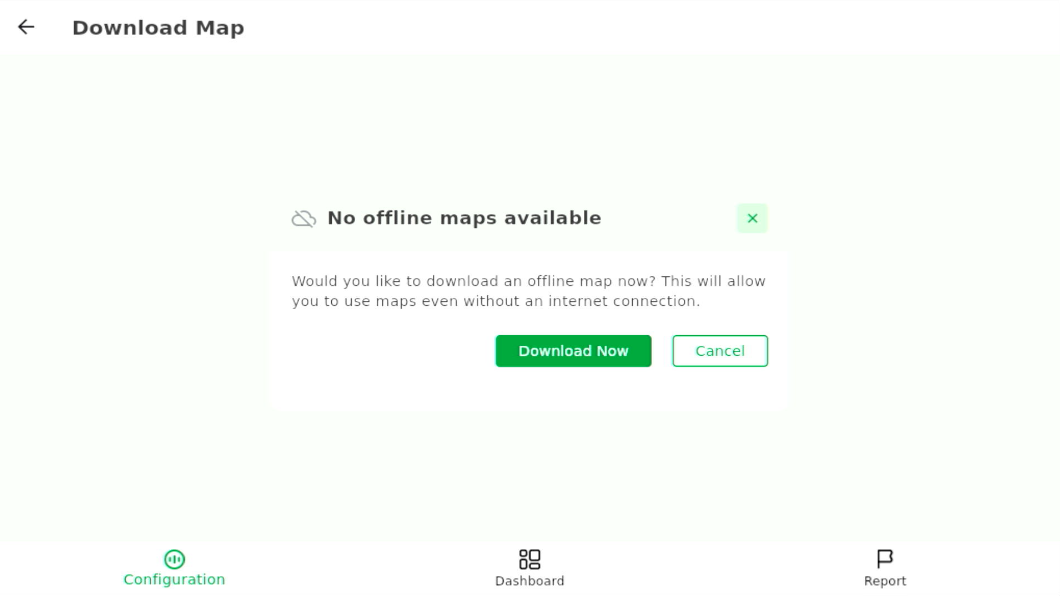 Figure 1: No Offline Maps Available
 - Tap Go to Wi-Fi settings to connect to a hotspot or router (see Manage Wi-Fi for detailed steps). You may also connect via Ethernet if available.
 Figure 1: Connect to Wi-Fi
Download an Offline Map
Once the Pad is connected to the internet, follow the steps below to download offline map tiles:
- On the Configuration page, tap the Settings icon at the top of the screen.
- Tap Download Map.
- Tap Download more maps to open the interactive map view.
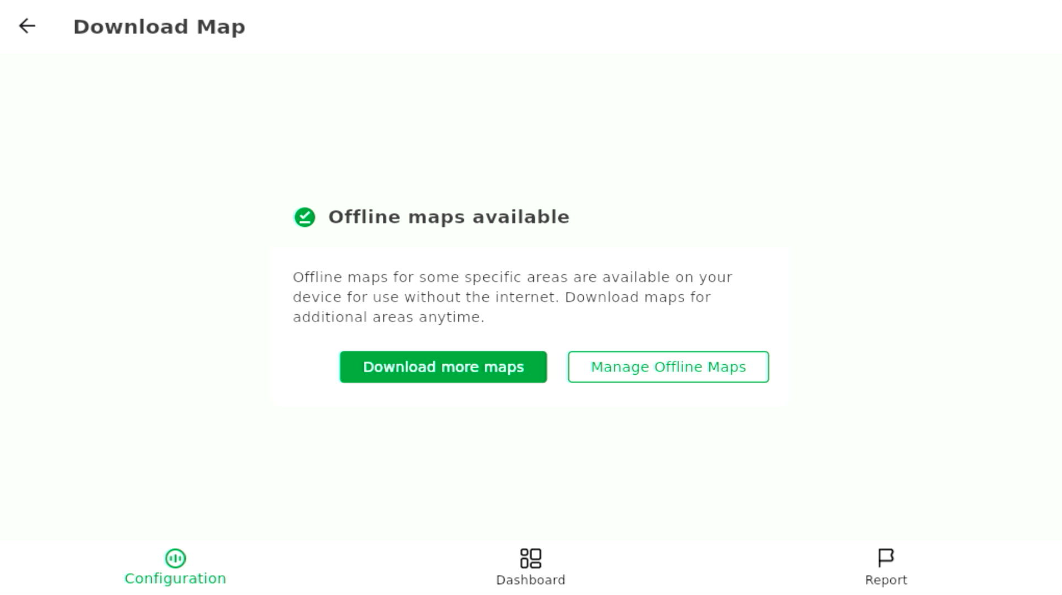 Figure 1: Offline Maps Available
 - Navigate the map using pinch-to-zoom and drag gestures. Tap on the map to select the desired area.
- A blue selection box will appear.
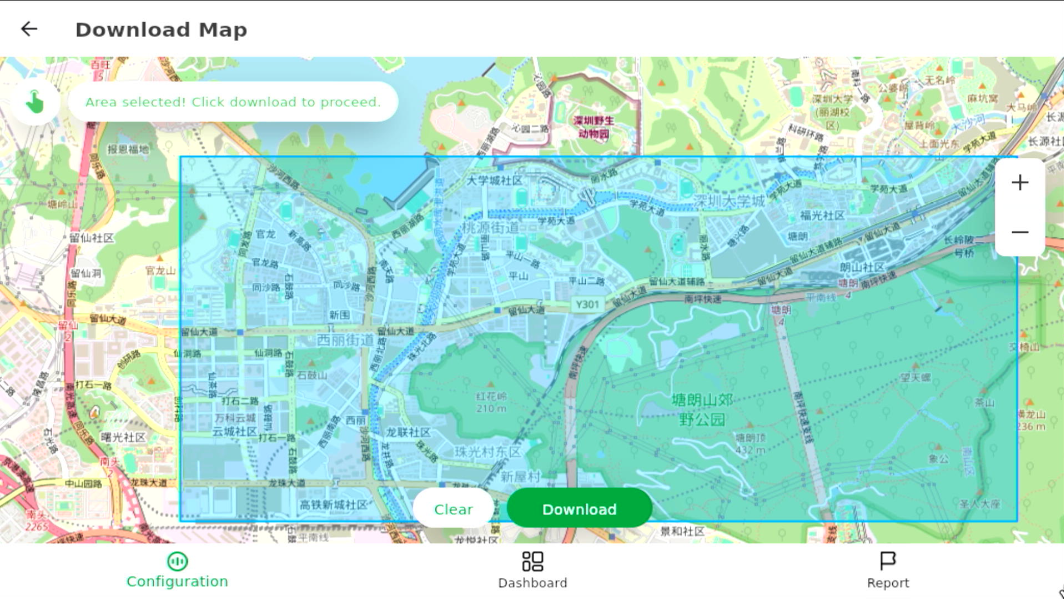 Figure 1: Map Selection — Choose Area to Download
- Tap Clear to reselect the area
- Tap Download to continue
- Configure the download parameters:
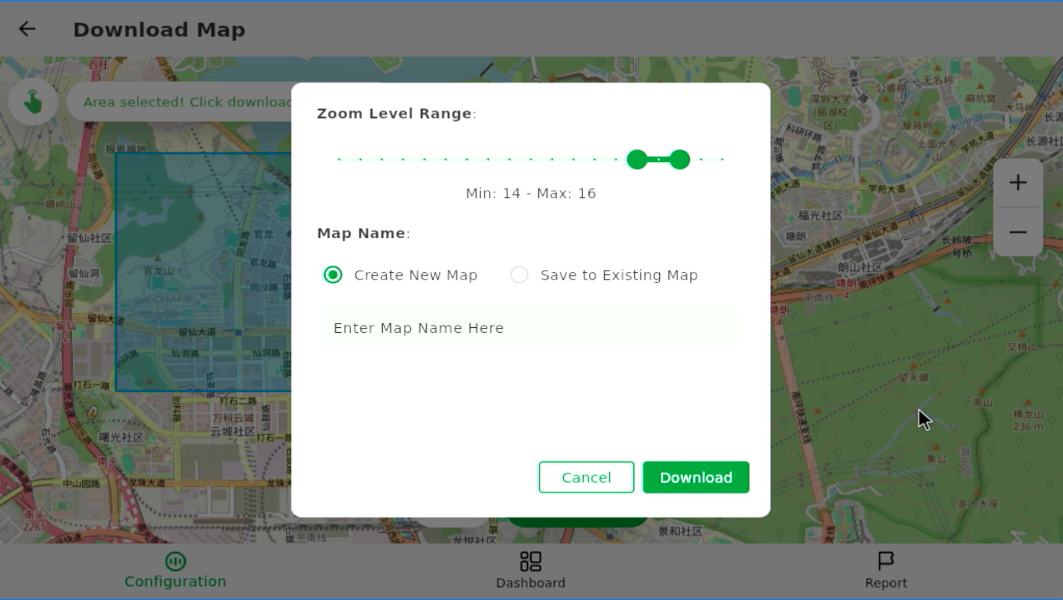 Figure 1: Zoom Level Selection and Map Naming
- Zoom Level Range
- Map Name
- Choose to Create New Map or Save to Existing Map
- Tap Download to save the map tiles.
When the download completes, tap Confirm to close.
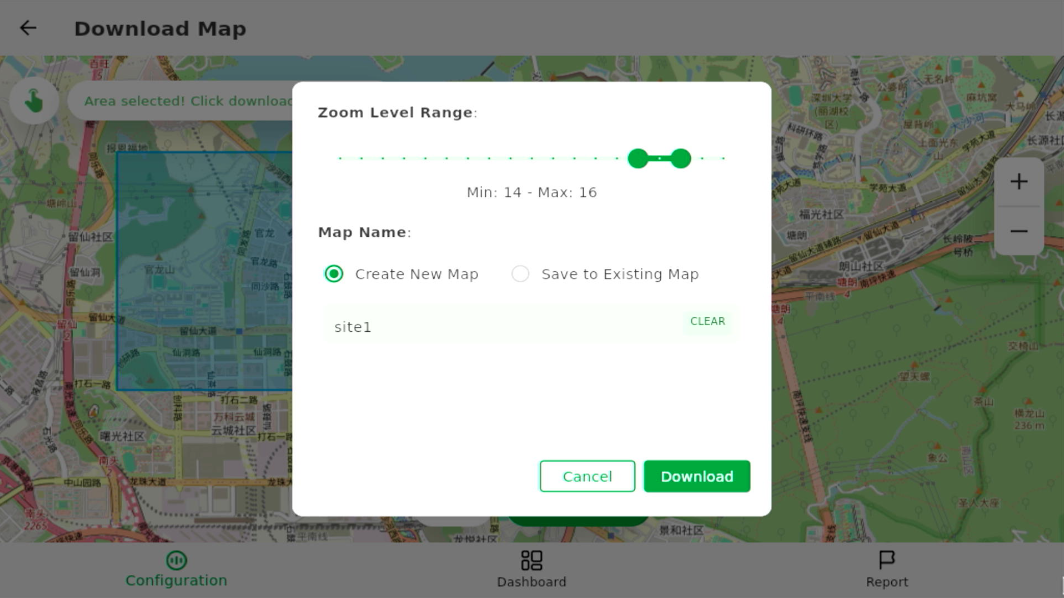 Figure 1: Map Download
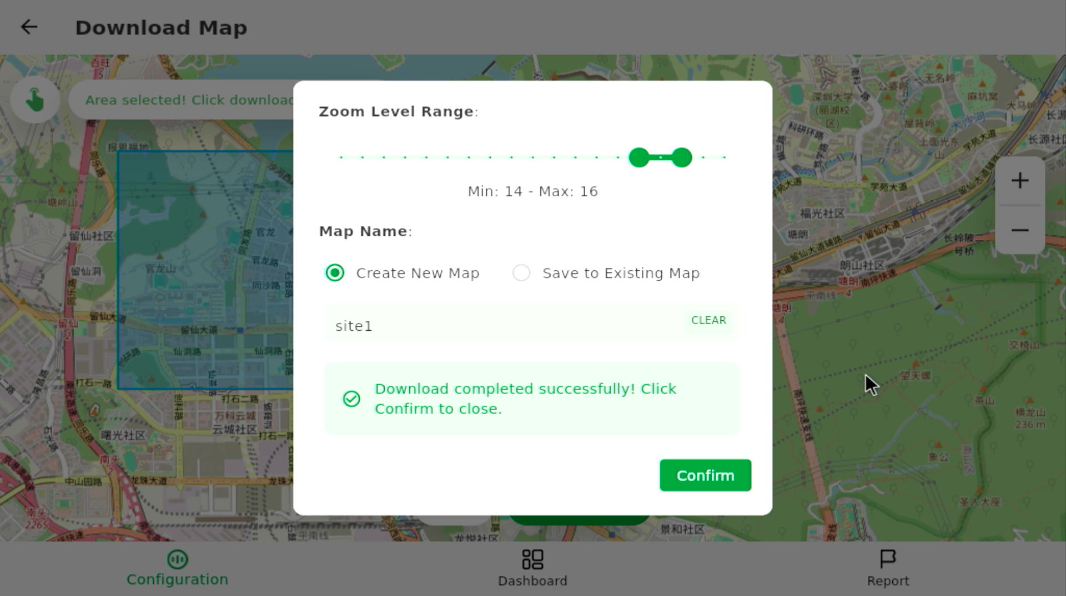 Figure 1: Map Download Completed
Offline Map List
The Offline Map List allows you to view, rename, and delete offline maps stored on the Field Tester Pad.
- On the Configuration page, tap the Settings icon at the top of the screen.
- Tap Offline Map List.
- Browse the list of stored offline maps.
Each item shows:
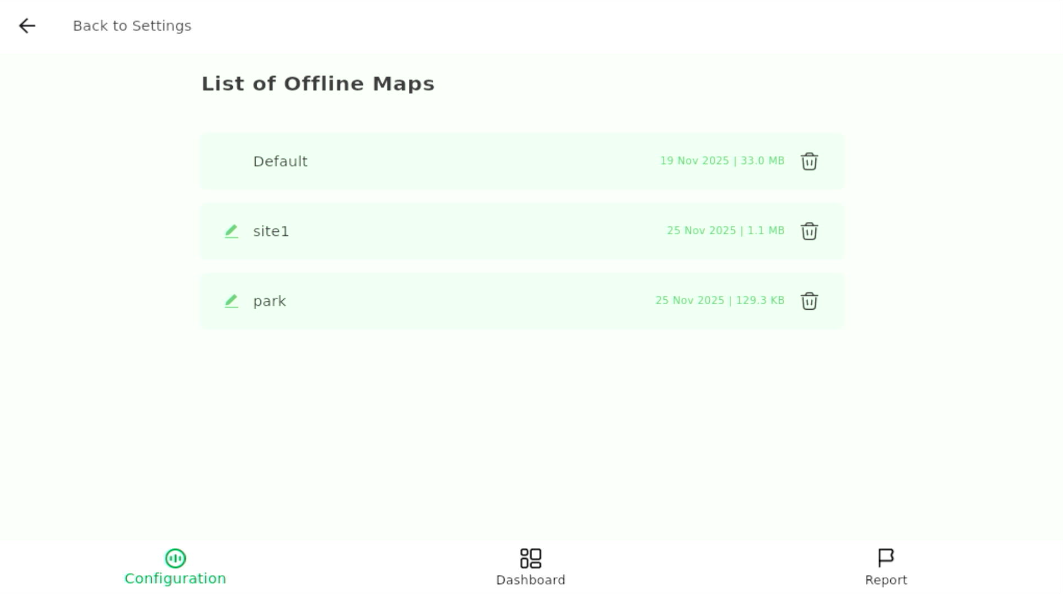 Figure 1: List of Offline Maps
- Map name
- Download date
- File size
- Delete icon
- Select the target map file to rename or delete as needed.
Deleting an offline map is permanent and cannot be undone. If you remove a map that is still needed, you must re-download it with an active internet connection.
Reset Onboarding
The Reset Onboarding feature restores the introductory onboarding experience of the Field Tester Pad.
- On the Configuration page, tap the Settings icon at the top of the screen.
- Tap Reset Onboarding.
A message will appear indicating that the onboarding experience has been reset.
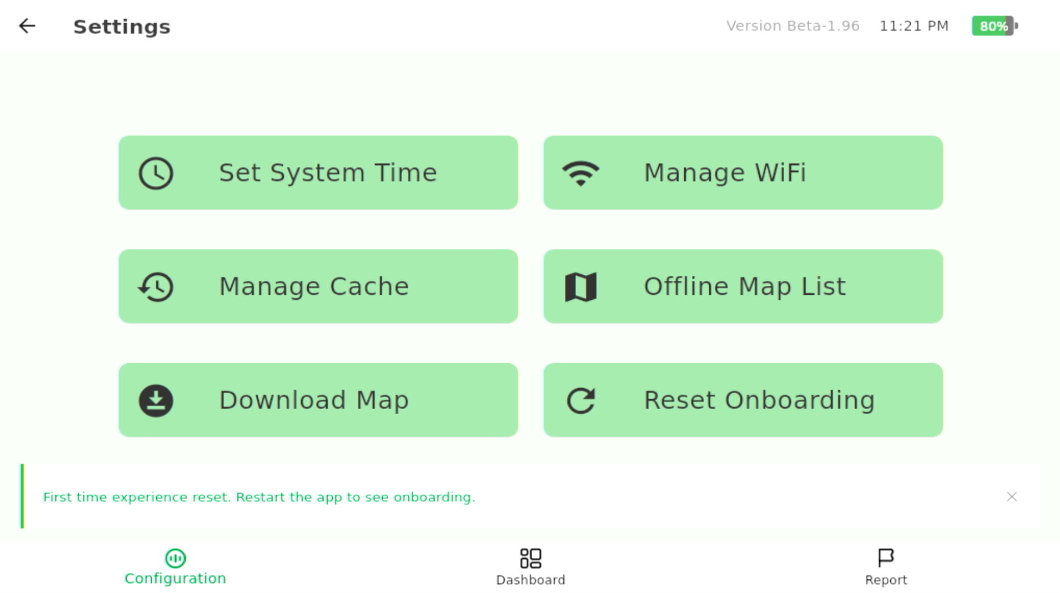 Figure 1: Reset Onboarding
 - Restart the device to view the onboarding sequence again.


