RAK6421 Pi HAT EEPROM Flashing Guide
This guide walks you through enabling EEPROM writes, flashing the RAK6421 HAT EEPROM, verifying the written data, and confirming successful detection by Raspberry Pi OS.
Overview
The EEPROM flashing process consists of the following steps:
- Enable I2C bus 0.
- Verify EEPROM detection at address
0x50. - Prepare the EEPROM configuration file.
- Enable EEPROM write mode using the write-enable pins.
- Flash the EEPROM.
- Verify the written data.
- Confirm EEPROM detection through Raspberry Pi OS.
What Is Raspberry Pi HAT+?
HAT means Hardware Attached on Top. A Raspberry Pi HAT/HAT+ is an add-on board that can identify itself to the Pi through an EEPROM (usually at I2C address 0x50).
When EEPROM data is valid, Raspberry Pi OS can read details such as:
- Vendor and product name
- Product ID and version
- Custom fields (for example hardware version or slot/module mapping)
Those values appear under /proc/device-tree/hat/.
- Power off first before changing any jumper/short.
- You must short the EEPROM write-enable pins on the RAK6421 to allow writing.
- If write-enable is not shorted, the flash command can look successful but the EEPROM content is not actually updated.
- After flashing, remove the short again if you want normal write protection behavior.
Prerequisites
- Raspberry Pi OS running on the target Pi.
- Basic terminal access (
sshor local terminal). - Required commands available:
eepmake,eepflash.sh,eepdump,i2cdetect,python3. - This repository cloned on the Pi.
Quick check:
which eepmake eepflash.sh eepdump i2cdetect python3
Flashing Steps
1. Enable I2C Bus 0 (Required)
The HAT EEPROM is on I2C bus 0. If bus 0 is not enabled, the EEPROM at 0x50 will not be detected.
Edit the Raspberry Pi config and make sure these lines are present in /boot/firmware/config.txt:
dtparam=i2c_vc=on
dtoverlay=i2c0
Then reboot:
sudo reboot
2. Confirm EEPROM Is Visible at 0x50
After reboot:
i2cdetect -y 0
Expected output includes 50 in the 0x50 row, similar to:
     0  1  2  3  4  5  6  7  8  9  a  b  c  d  e  f
00:                          -- -- -- -- -- -- -- --
10:  -- -- -- -- -- -- -- -- -- -- -- -- -- -- -- --
20:  -- -- -- -- -- -- -- -- -- -- -- -- -- -- -- --
30:  -- -- -- -- -- -- -- -- -- -- -- -- -- -- -- --
40:  -- -- -- -- -- -- -- -- -- -- -- -- -- -- -- --
50:  50 -- -- -- -- -- -- -- -- -- -- -- -- -- -- --
60:  -- -- -- -- -- -- -- -- -- -- -- -- -- -- -- --
70:  -- -- -- -- -- -- -- --
If 0x50 is missing, fix I2C config first before flashing.
A successful scan displays device address 50 on I2C bus 0.
3. Prepare EEPROM Content File
Edit RAK-6421-eeprom.txt for your board:
product_id,product_ver,vendor,productcustom_datalines such as:
custom_data "hardware_version D"
custom_data "io_slot1 RAK13302"
- Use format
custom_data "field value"(space separator, no colon). - Keep comments starting with
#. - Keep
product_uuidas all zeroes if you wanteepmaketo auto-generate a UUID.
4. Enable Write (Hardware Short)
Before writing EEPROM:
- Power off the Pi.
- Short the EEPROM write-enable pins on the RAK6421.
- Power on the Pi.
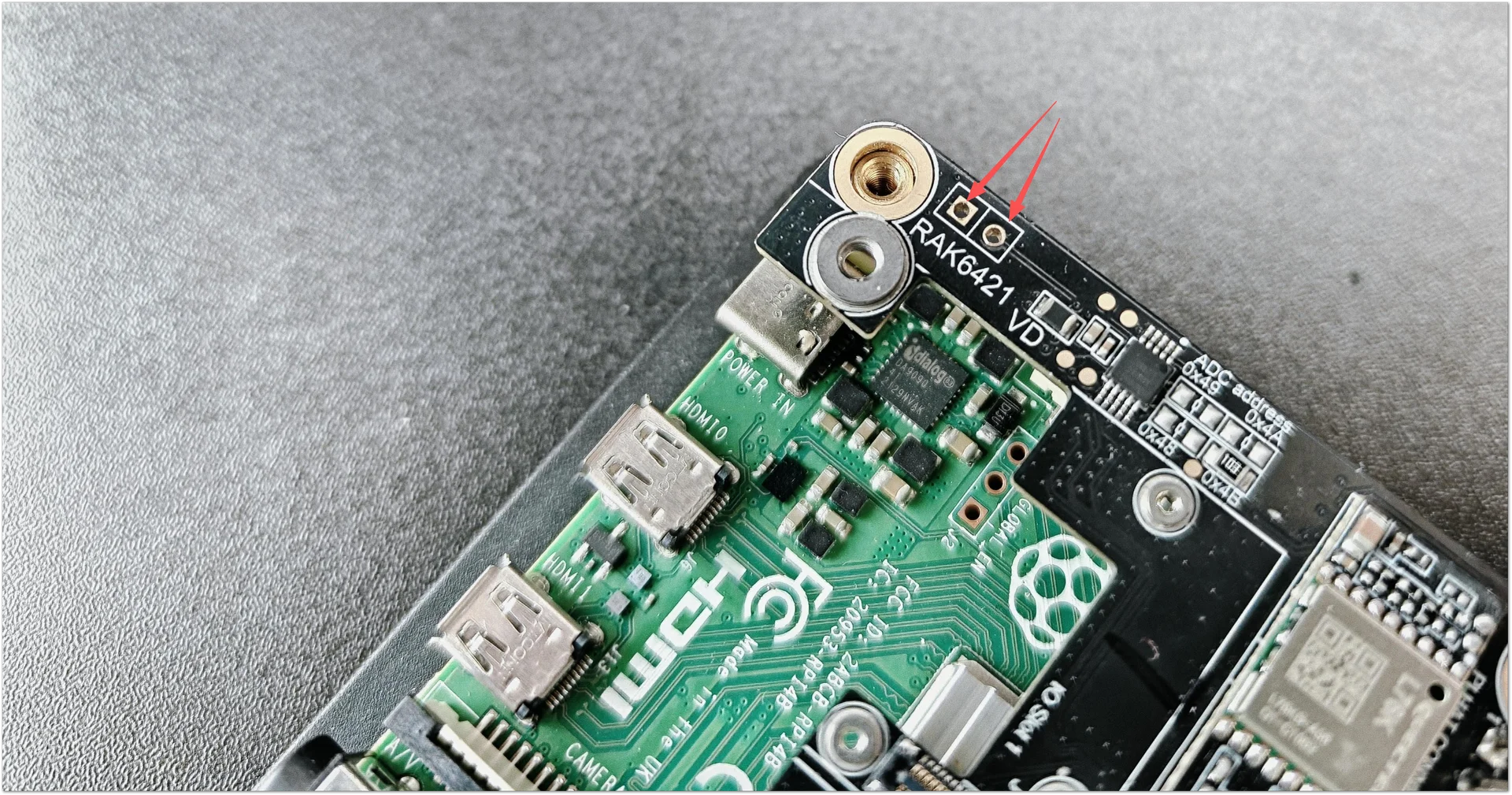 Figure 1: Short on the EEPROM Enable Pins
Do not skip this step.
5. Flash + Verify (Recommended Script)
Run from repository root:
python3 flash-eeprom-and-check.py
You can also pass a sudo password as an argument:
python3 flash-eeprom-and-check.py '<sudo-password>'
The script performs:
eepmake RAK-6421-eeprom.txt RAK-6421-eeprom.eepeepflash.sh -y -w -f=RAK-6421-eeprom.eep -t=24c32- Read-back + parse verification against the config file
- JSON result output with PASS/FAIL status per field
A successful flash completes without errors and the verification output reports PASS for all configured fields.
Manual Flashing (Without the Script)
If you prefer to run the commands yourself instead of using flash-eeprom-and-check.py, follow these steps. The same prerequisites apply (I2C bus 0 enabled, write-enable pins shorted, etc.).
1. Generate the Binary EEPROM File
Use eepmake to convert your text config into a binary .eep file:
eepmake RAK-6421-eeprom.txt RAK-6421-eeprom.eep
If you use a different config file or output name:
eepmake <your-config>.txt <output>.eep
2. Write to the EEPROM
Use eepflash.sh to write the binary image. The RAK6421 uses a 24c32 EEPROM:
sudo eepflash.sh -y -w -f=RAK-6421-eeprom.eep -t=24c32
| Flag | Description |
|---|---|
-y | Skips confirmation prompts |
-w | Write mode (use -r for read) |
-f= | Specifies the file |
-t=24c32 | Specifies the EEPROM type |
3. (Optional) Read Back and Verify
To manually verify what was written:
# Read EEPROM to a file
sudo eepflash.sh -y -r -f=verify.eep -t=24c32

# Dump binary to human-readable text
eepdump verify.eep verify.txt

# Inspect the result
cat verify.txt
Then compare verify.txt with your RAK-6421-eeprom.txt to confirm the values match.
The values in verify.txt should match the configuration file, including vendor, product information, and all custom_data fields.
4. Reboot and Check Device-Tree
Reboot the Pi, then inspect what the OS sees:
cat /proc/device-tree/hat/
cat /proc/device-tree/hat/custom_0
cat /proc/device-tree/hat/custom_1
If flashing was successful, the /proc/device-tree/hat/ directory will contain the programmed metadata and custom fields.
Troubleshooting Checklist
i2cdetect -y 0 does not show 50
- Confirm
dtparam=i2c_vc=onanddtoverlay=i2c0are in config. - Reboot and test again.
Flash command reports success but values do not change
- Write-enable pins were not shorted (most common issue).
Verification mismatch in script output
- Check
custom_dataformatting and spelling inRAK-6421-eeprom.txt. - Reflash with write-enable short in place.


