RAK1905 WisBlock 9-Axis Sensor Installation Guide
Prerequisite
The modules required before installation include:
- RAK1905 WisBlock 9-Axis Sensor
- Your choice of WisBlock Base
- Your choice of WisBlock Core
WisBlock Module Installation
The RAK1905 combined with any WisBlock Core module is a ready-to-go system for navigation, orientation measurement, tilt sensing, platform stabilization, and robotic systems. The acquired data can be sent using LoRaWAN communication, LoRa Point-to-Point connections, BLE, or WiFi, depending on the Core module.
RAK1905 module can be connected to the sensor's slot of WisBlock Base to communicate with the WisBlock Core. It will work on SLOT A to F. Also, always secure the connection of the WisBlock module by using compatible screws.
Select a compatible WisBlock Base and WisBlock Core according to the sensor module's interface, slot, power, and software requirements.
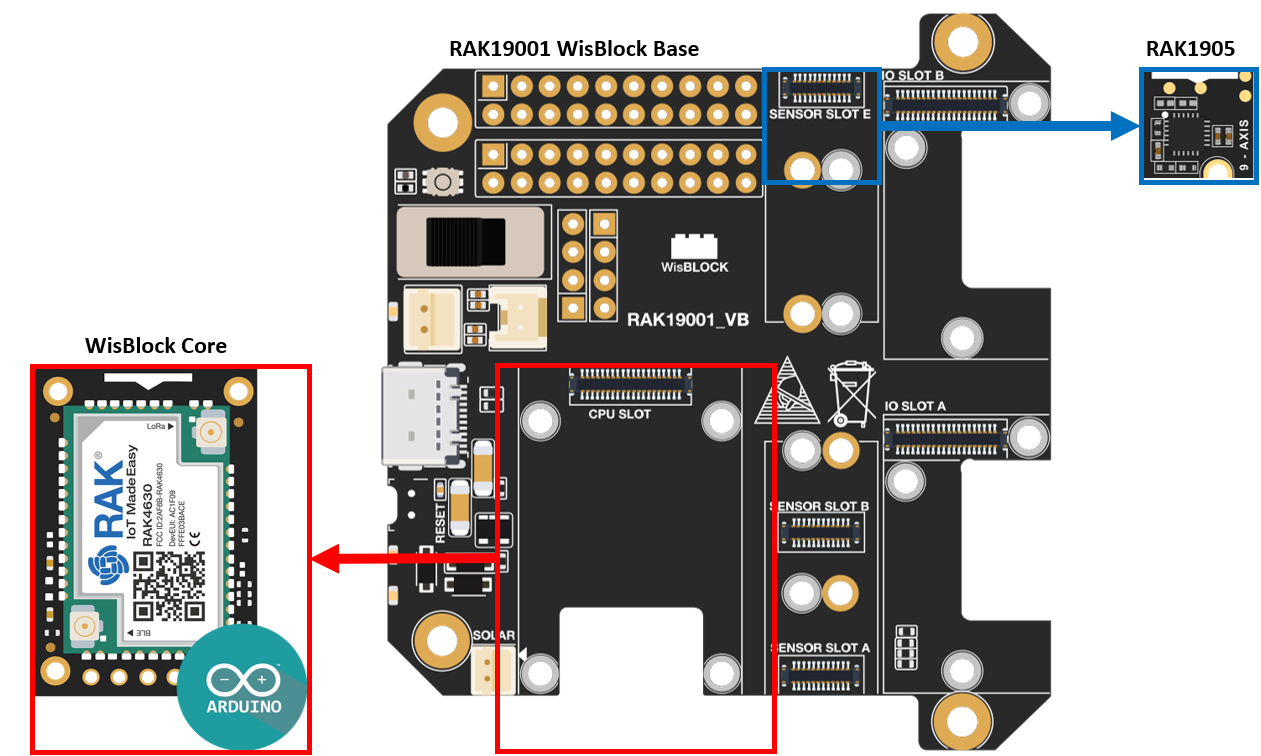 Figure 1: RAK1905 connection to WisBlock Base
Assembling and Disassembling WisBlock Modules
Assembling
The location for Slots A, B, C, D, E, and F are properly marked by silkscreen. Slots C and D are located on the bottom of the WisBlock Base. Follow carefully the procedure defined in WisBlock Base board assembly/disassembly instructions to attach a WisBlock module. Once attached, carefully fix the module with an M1.2 x 3 mm screw.
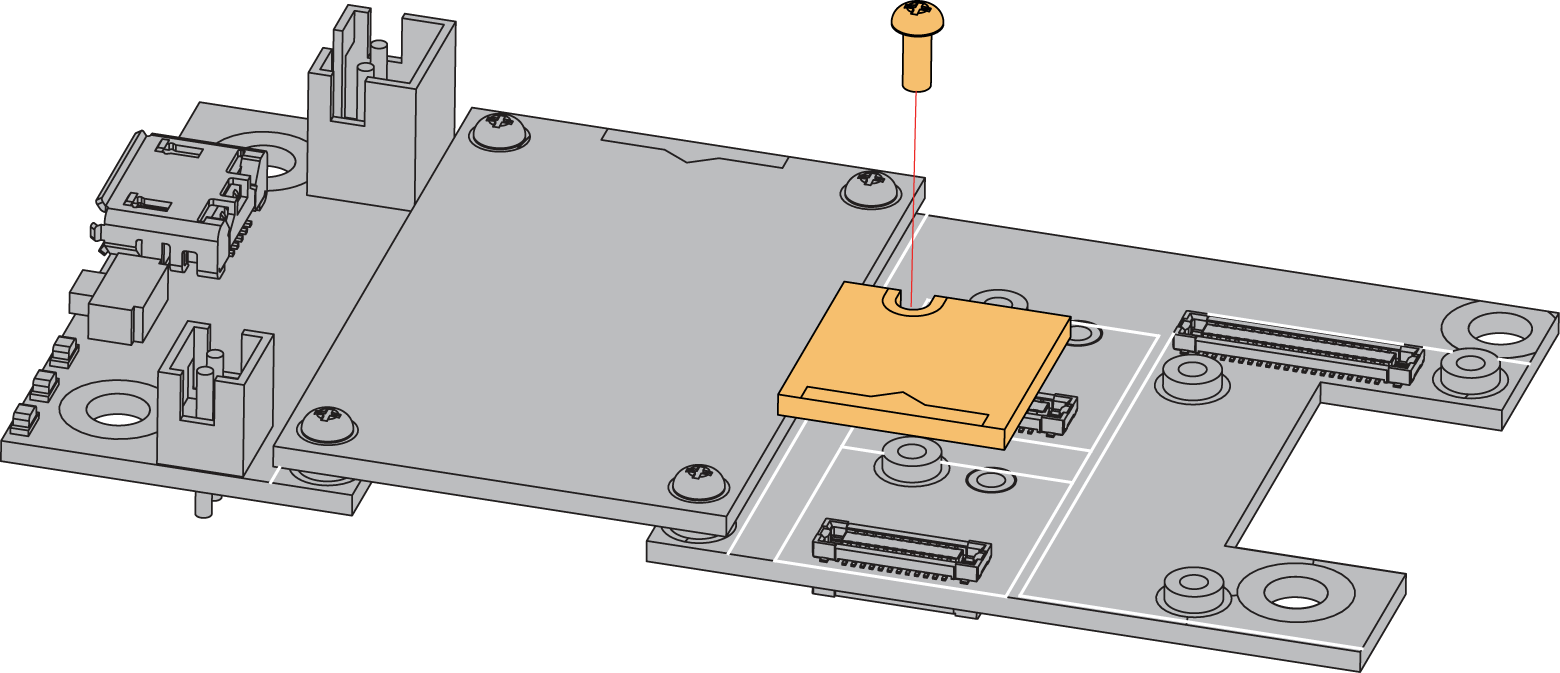 Figure 1: Installing the RAK1905 on a WisBlock Base
Disassembling
The procedure in disassembling any type of WisBlock modules is the same.
- First, remove the screws.
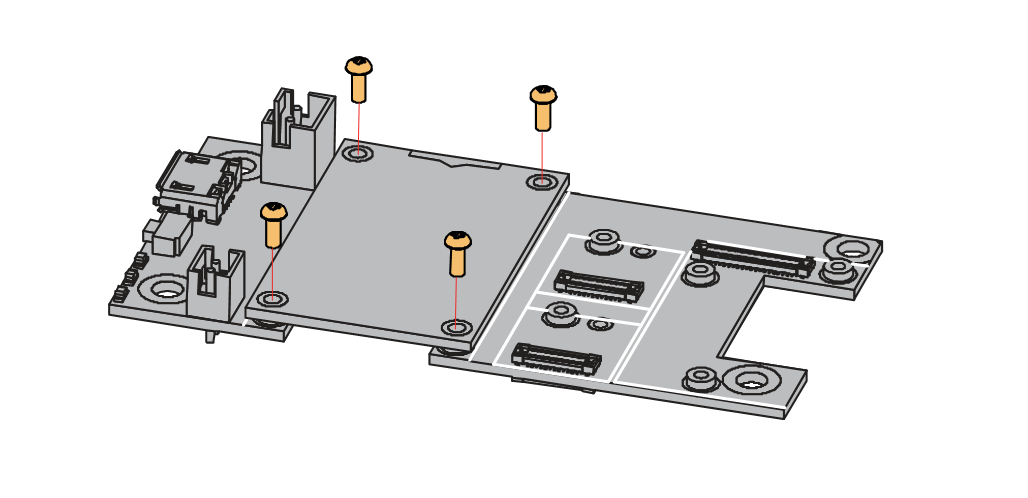 Figure 1: Removing screws from the WisBlock module
- Once the screws are removed, check the silkscreen of the module to find the correct location where force can be applied.
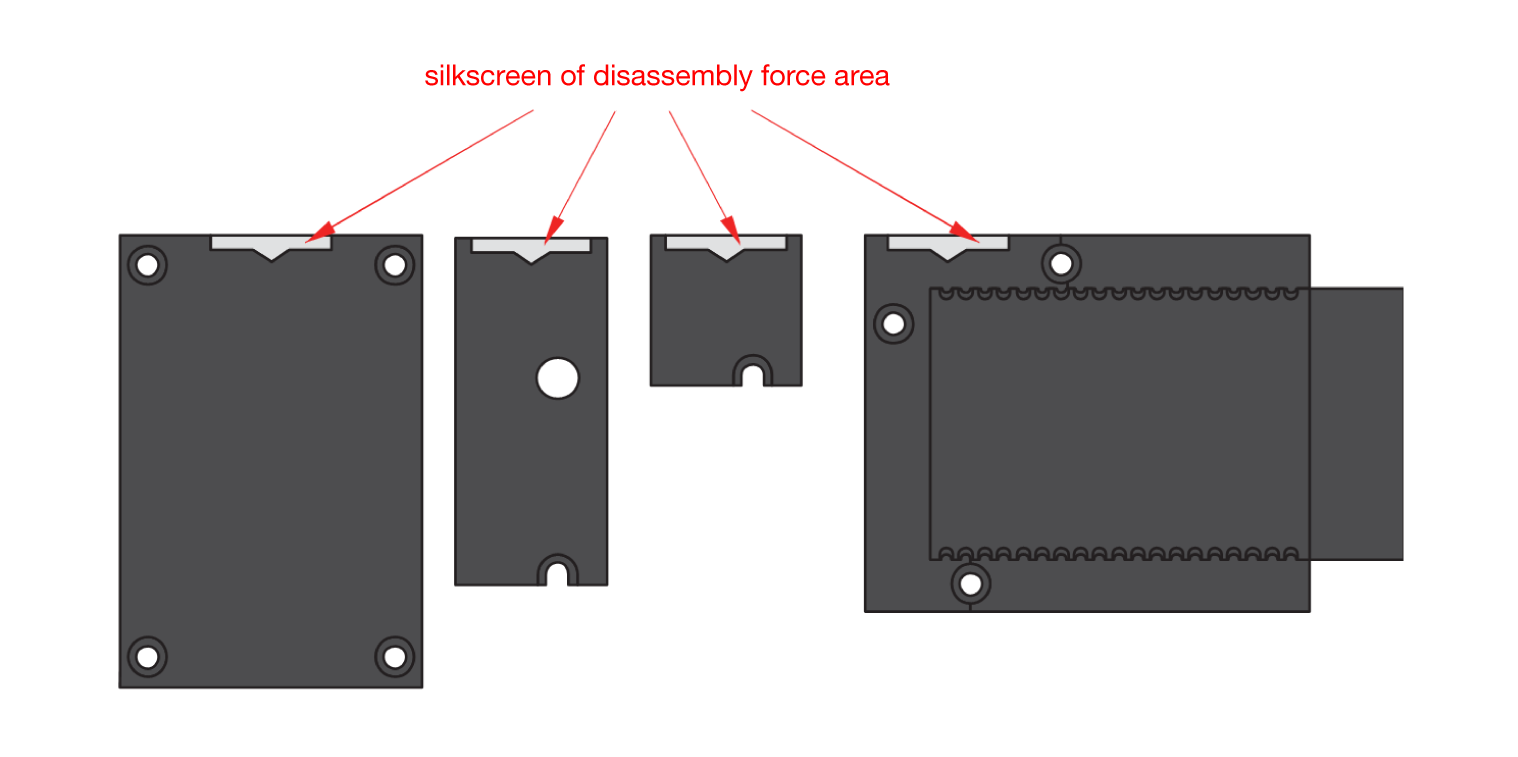 Figure 1: Finding the proper position to detach the WisBlock module
- Apply even force to the module at the position of the connector to detach the module from the WisBlock Base.
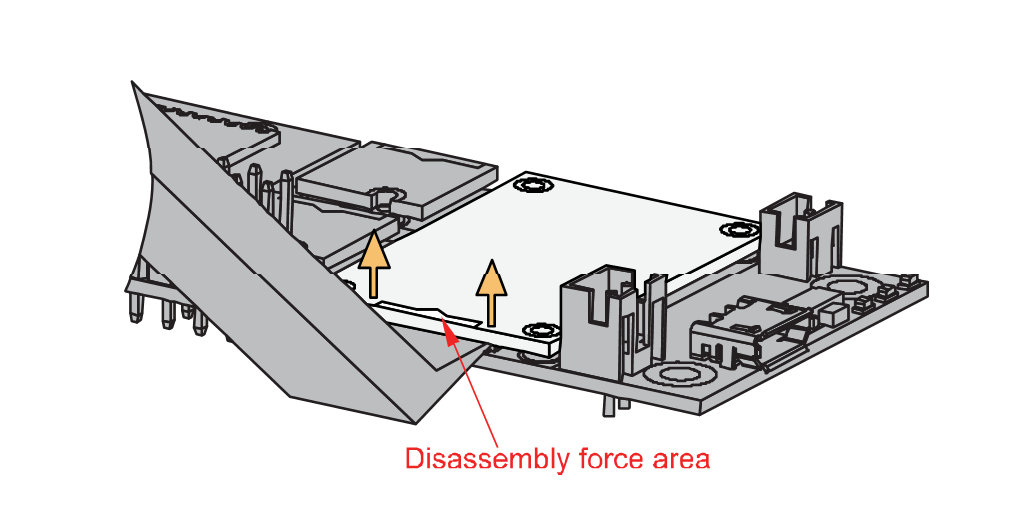 Figure 1: Applying even forces on the proper location of a WisBlock module
If you will connect other modules to the remaining WisBlock Base slots, check on the WisBlock Pin Mapper tool for possible conflicts.
After all this setup, you can now connect the battery (optional) and USB cable to start programming your WisBlock Core.
- Batteries can cause harm if not handled properly.
- Only 3.7-4.2 V Rechargeable LiPo batteries are supported. It is highly recommended not to use other types of batteries with the system unless you know what you are doing.
- If a non-rechargeable battery is used, it has to be unplugged first before connecting the USB cable to the USB port of the board to configure the device. Not doing so might damage the battery or cause a fire.
- Only 5 V solar panels are supported. Do not use 12 V solar panels. It will destroy the charging unit and eventually other electronic parts.
- Make sure the battery wires match the polarity on the WisBlock Base board. Not all batteries have the same wiring.


