RAK5801 With RAK11200 WisBlock Core Guide
Software Configuration and Example
If you already installed the RAKwireless Arduino BSP, the WisBlock Core and example code should now be available on the Arduino IDE.
- Select the RAK11200 WisBlock Core.
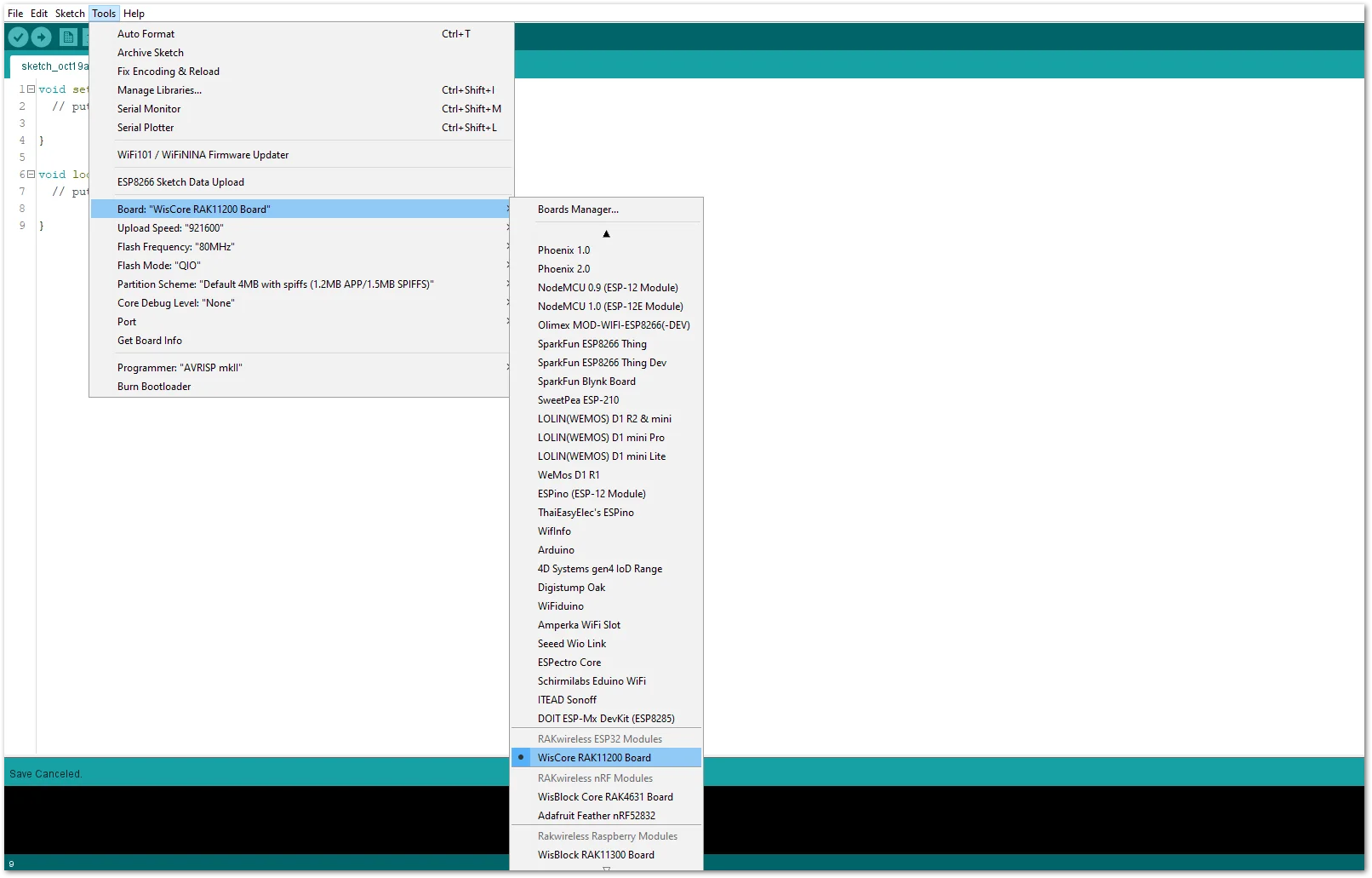 Figure 1: Selecting RAK11200 as WisBlock Core
- The Basic Sample Code for RAK5801 in GitHub will work on RAK11200 WisBlock Core. You can also open the example codes depending on your WisBlock Core.
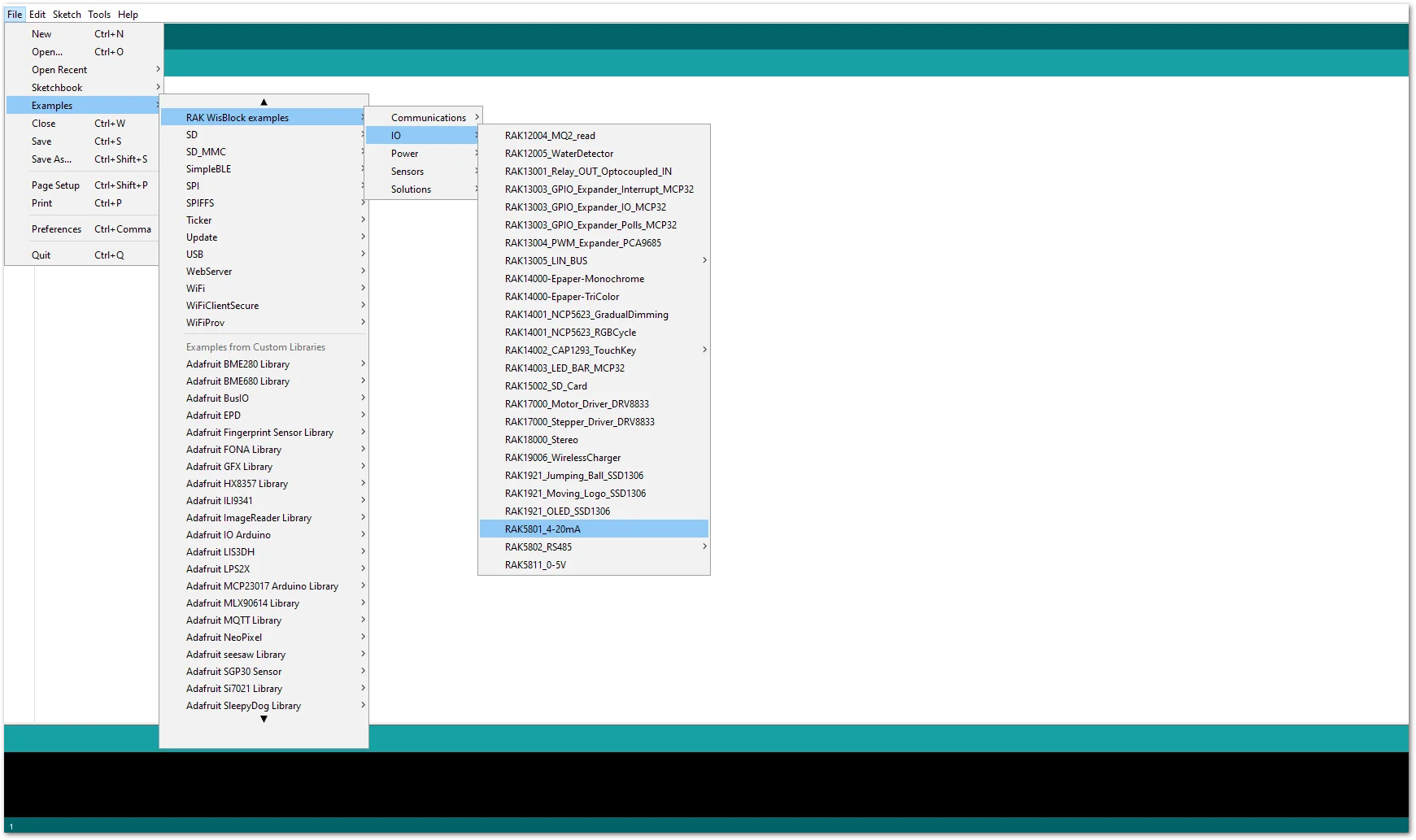 Figure 1: Opening RAK5801 example for RAK11200 WisBlock Core
Code Explanation
1.1 Initializes WisBlock IO 4-20mA Board
{
  /* WisBLOCK 5801 Power On*/

  pinMode(WB_IO1, OUTPUT);
  digitalWrite(WB_IO1, HIGH);

  /* WisBLOCK 5801 Power On*/
}
1.2 Get ADC Results
{
    for (i = 0; i < NO_OF_SAMPLES; i++)
  {
    mcu_ain_raw += analogRead(WB_A1);       // select the input pin A1 for the analog sensor
  }
  average_raw = mcu_ain_raw / i;
}
1.3 Calculate the Current Value
{
  voltage_ain = average_raw * 3.6 / 1024;     //raef 3.6v / 10bit ADC
  current_sensor = voltage_ain / 149.9 * 1000;  //WisBlock RAK5801 (0 ~ 20mA) I=U/149.9*1000 (mA)
}
- After opening the example code, you can now select the right port and upload the code.
NOTE
RAK11200 requires the Boot0 pin to be configured properly first before uploading. If not done properly, uploading the source code to RAK11200 will fail. Check the full details on the RAK11200 Quick Start Guide.
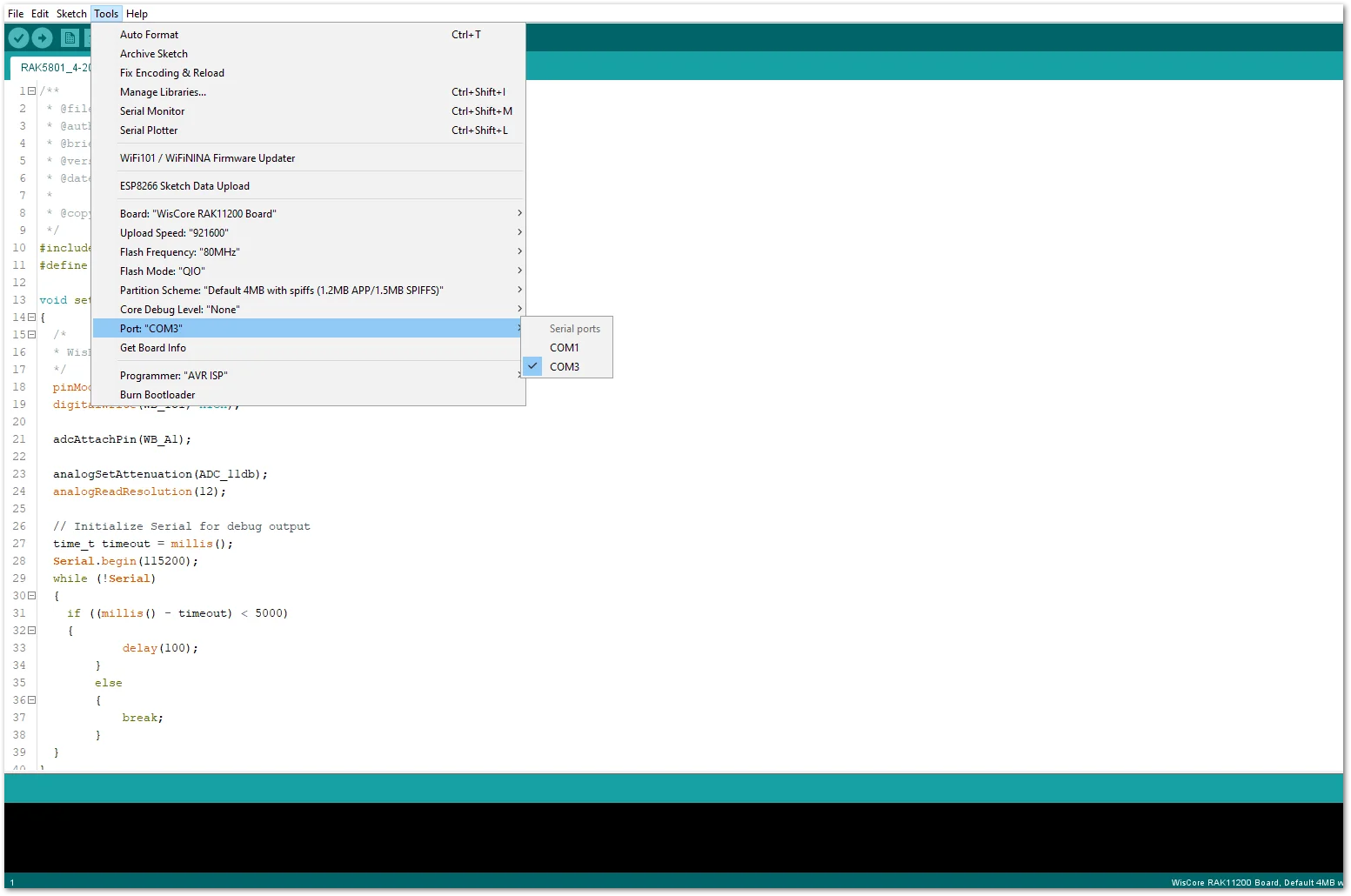 Figure 1: Selecting the correct Serial Port
- When you successfully uploaded the example sketch, open the Serial Monitor of the Arduino IDE to see the sensor's reading logs.
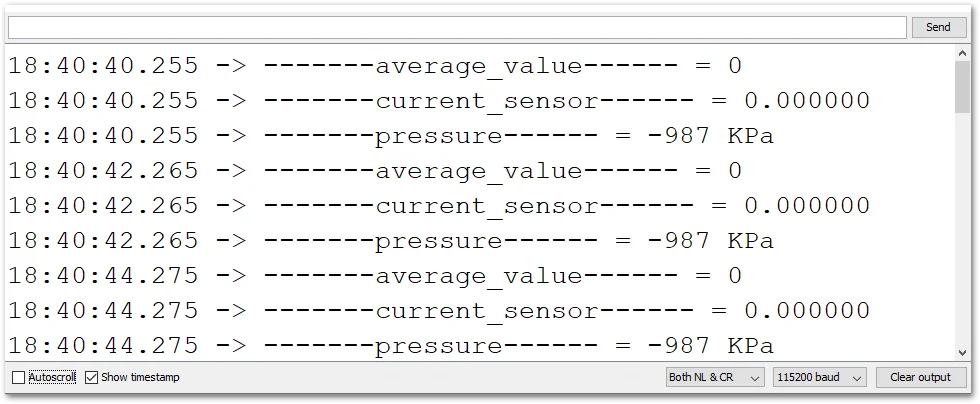 Figure 1: SUP-P300 Hydraulic Pressure sensor data logs


