RAK5811 PlatformIO Setup Guide
To develop using PlatformIO, you need to install the RAK_PATCH script as described in the section PlatformIO.
- Open the RAK5811 Arduino example. Then install the libraries, build the project, and save the sketch.
- Now launch open Platformio > PIO Home and click on import Arduino project button.
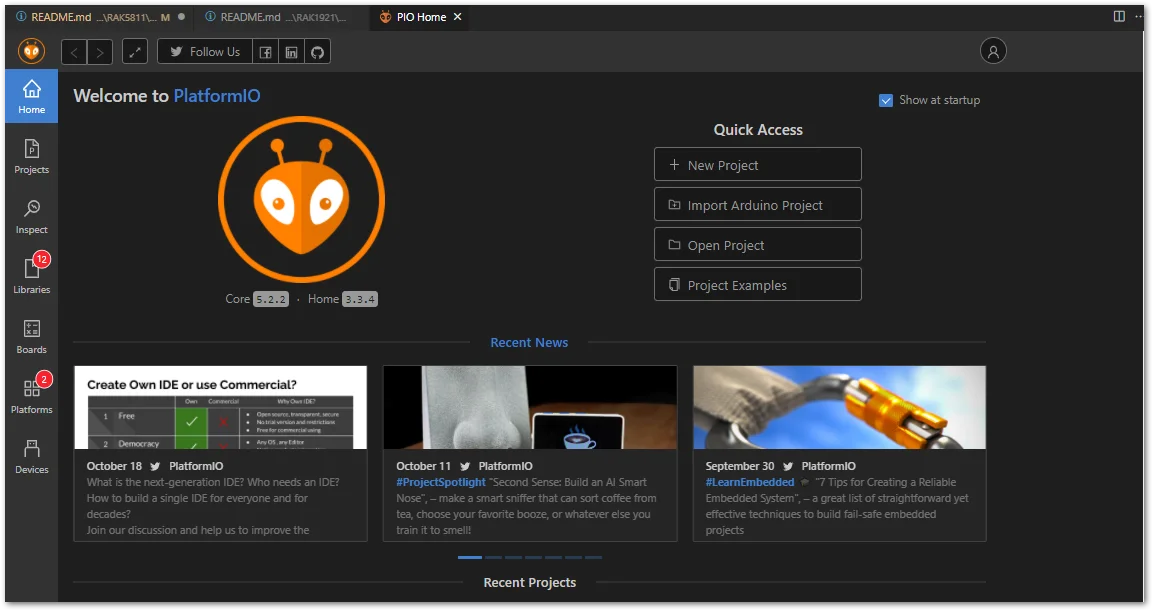 Figure 1: Import Arduino project
-
Configure Import Arduino Project parameters:
- On the boards list, select your favorite WisCore. For example: WisCore RAK11310 Board (RAKwireless) (Label 1).
- Check Use libraries installed by Arduino IDE (Label 2).
- Choose the directory of your Arduino project to be imported (Label 3).
- To finish import, click on the Import button (Label 4).
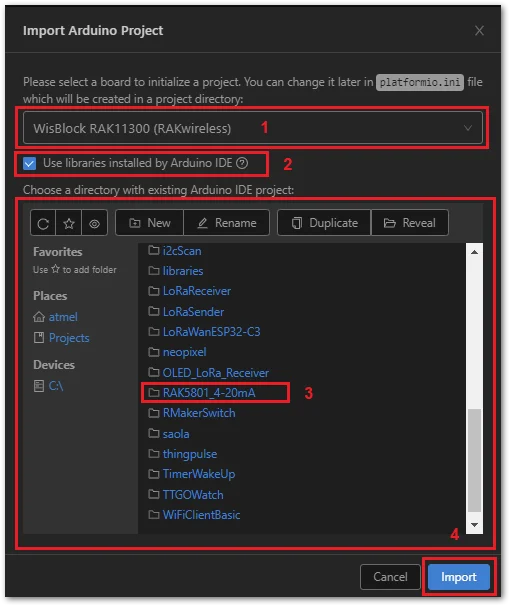 Figure 1: Configure Import parameters
- On the Trust author window, click Yes.
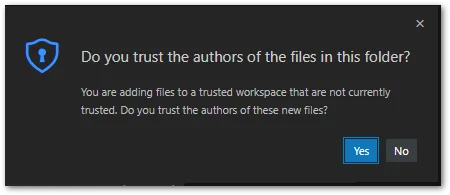 Figure 1: Trust author window
Now, your project is imported successfully.
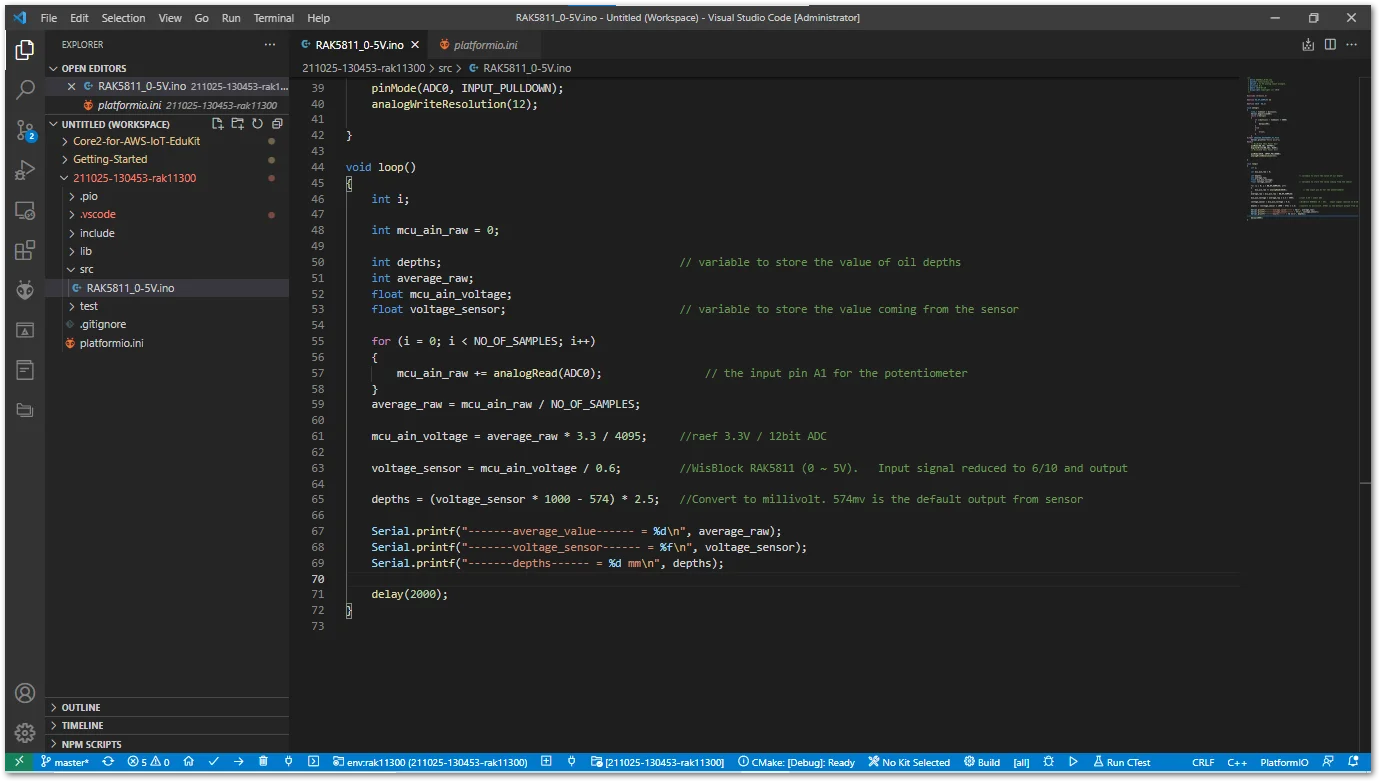 Figure 1: Imported Arduino project
On the imported project, check the platformio.ini file:
The parameter libs_extra_dirs is your Arduino library directory. In case of upload error, add the parameter upload_port.
[env:rak11300]
platform = raspberrypi
board = rak11300
framework = arduino
lib_extra_dirs = ~/Documents/Arduino/libraries
upload_port = COM8
If your project is running on Windows, use the Device Manager program to find correct the COM port allocated.
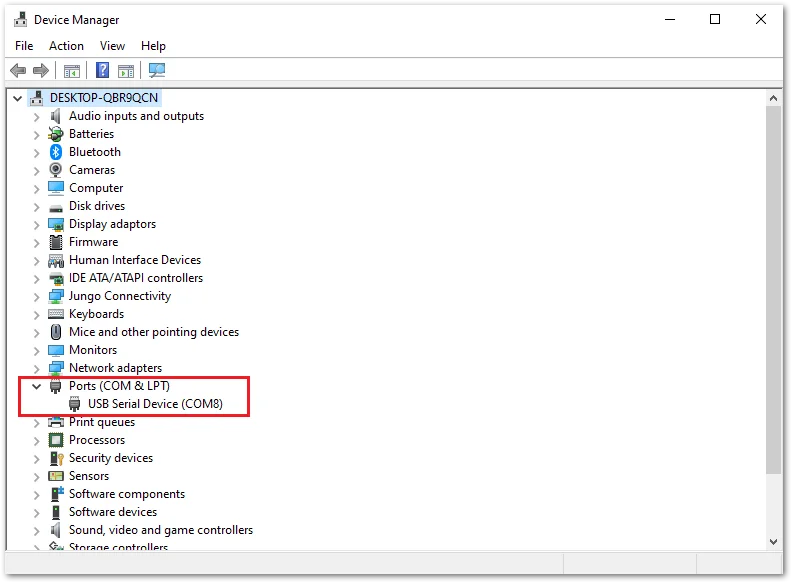 Figure 1: Windows Device Manager Ports (COM & LPT)


