Firmware Upgrade
This section guides you through the process of checking and upgrading the firmware on your WisGateOS 2 gateway.
Check the Firmware Version
Go to Settings> Firmware to view the current firmware version.
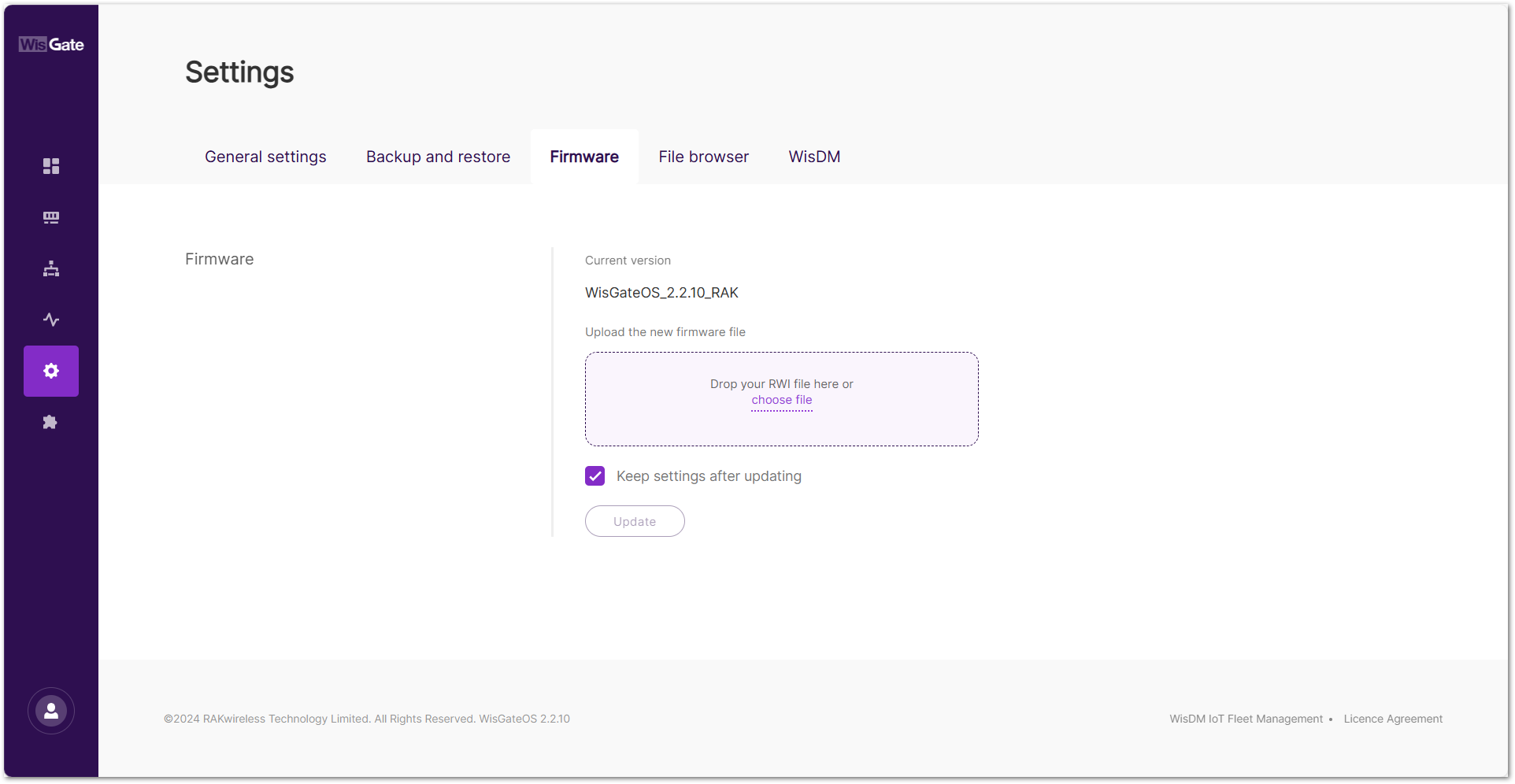 Figure 1: Firmware tab
Firmware Upgrade
Before You Upgrade
Backup Before Any Upgrade
Before performing any firmware upgrade, it is highly recommended to create a full backup of your configuration. This ensures you can restore your settings in case of unexpected issues or if a reset is required.
For detailed steps on how to back up your configuration, refer to Backup Configuration.
Upgrade to WisGateOS 2.2.x
When upgrading from WisGateOS 2.1.x or earlier to 2.2.x, take note of the following important considerations:
-
Downgrading Restrictions
After upgrading to WisGateOS 2.2.x, reverting to version 2.1.x through the standard downgrade method (WebUI) is not possible. Make sure that all critical data is backed up before proceeding with the upgrade.Downgrading is only possible through a recovery procedure. For details, see OpenWRT Recovery Procedure on the RAK Learn site.
-
Extension Signature Requirement
Starting with WisGateOS 2.2.x, all official extensions are released with valid signatures to maintain security and compatibility. The system still allows uploading custom extensions without signatures, mainly for development or customization purposes.Unsigned extensions installed before the upgrade remain functional and do not require reinstallation.
-
Internet Connection Requirement
An Internet connection is required during the upgrade to verify the new firmware and extension signatures. -
Dual Firmware Support
Both 2.1.x and 2.2.x will be supported. Make sure the correct extensions for each version to avoid compatibility issues.
Upgrade Steps
Do not disconnect the power during the gateway upgrade.
- Download the latest version of the WisGateOS 2 firmware for the gateway and unzip the file.
- Drag and drop the
.rwifile in the Drop your RWI file here or choose file form, or click the choose file link to browse for the file. - Check the Keep settings after updating option.
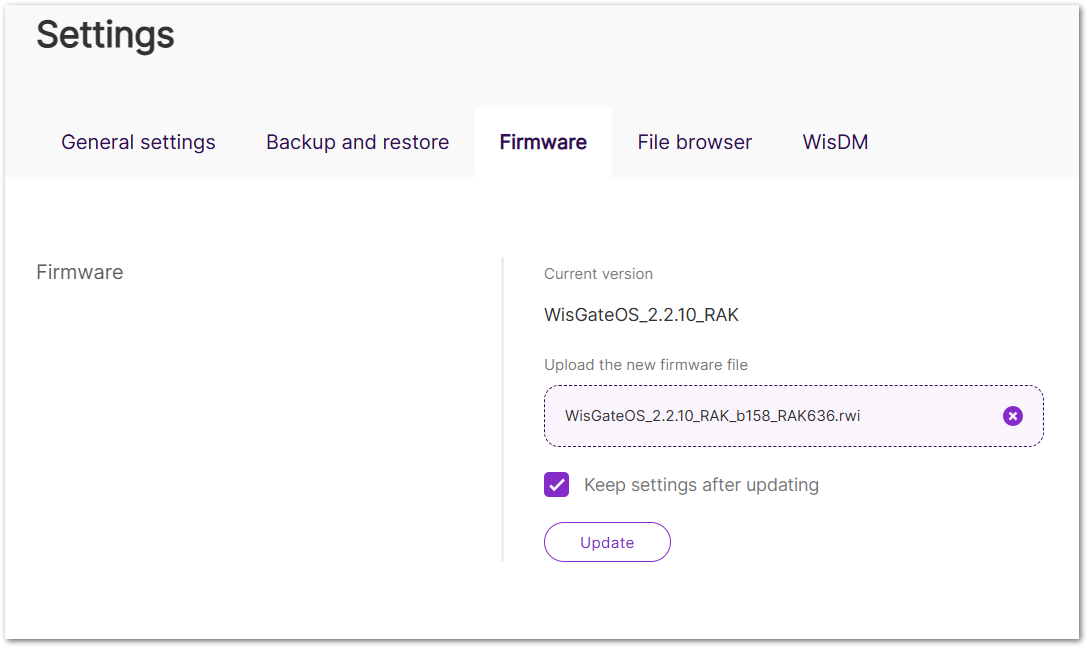 Figure 1: Upload the firmware fileNOTE
The Keep settings after updating check box is selected by default. Unchecking it will reset the gateway to stock settings after the upgrade.
- Click Update to initiate the firmware flashing process.
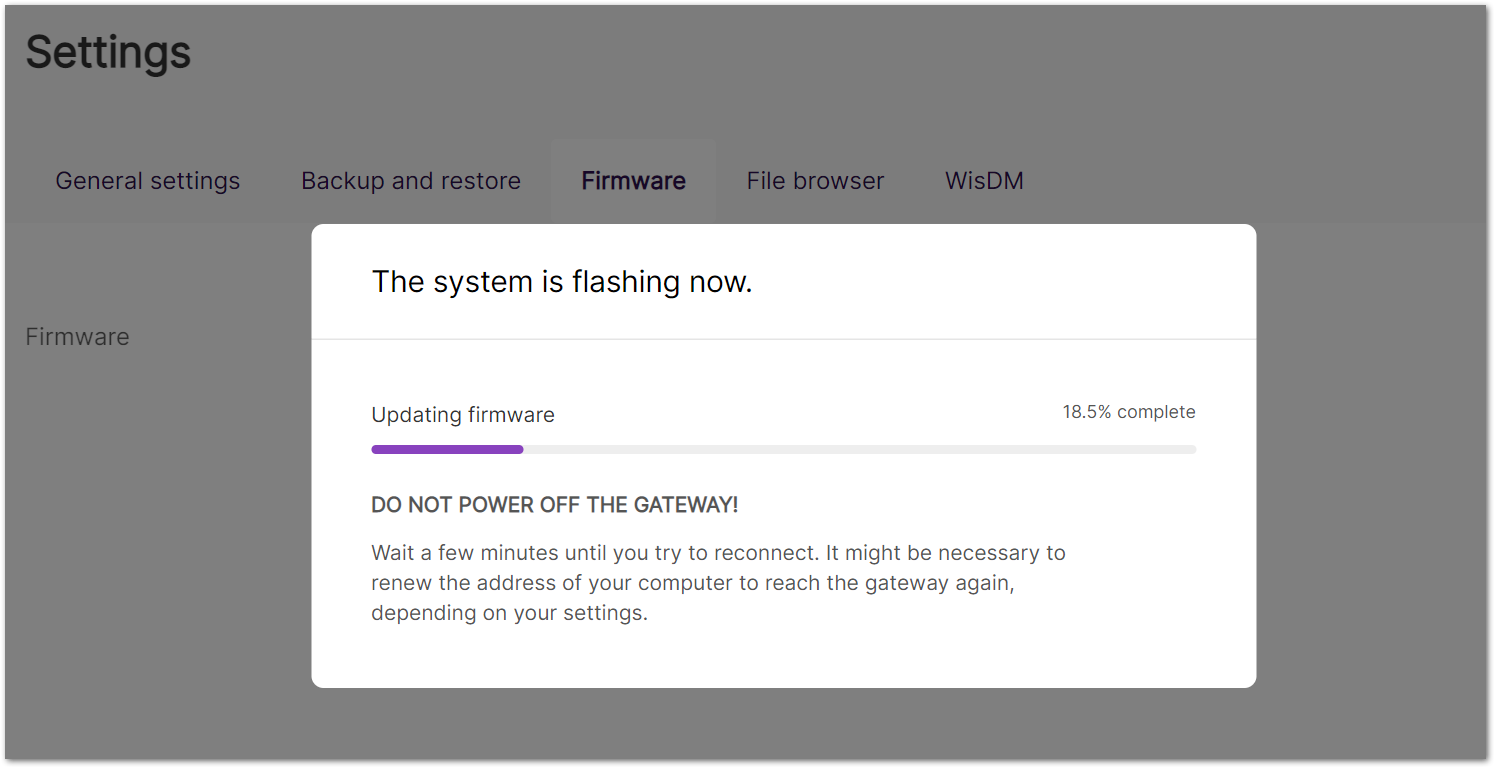 Figure 1: Upgrading
 - After the upgrade is complete, log in to the gateway and check the Firmware tab to confirm that the installed firmware version is correct.
Remote Firmware Upgrade via WisDM
When the gateway is integrated with WisDM and FOTA is enabled, firmware upgrades are managed exclusively by WisDM, and the local Firmware tab in WisGateOS is disabled to prevent manual upgrades.
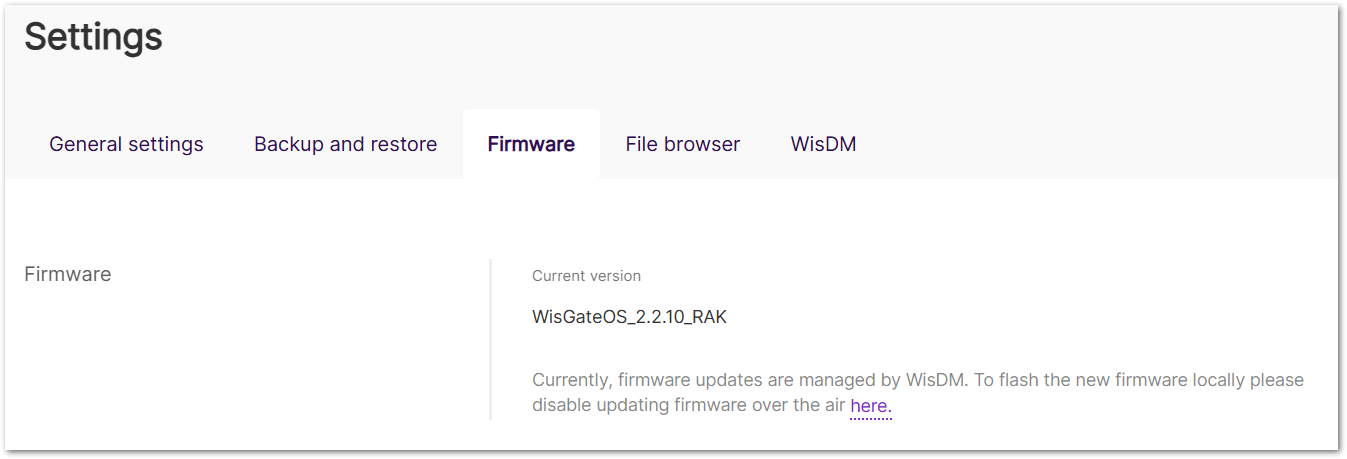 Figure 1: Firmware tab inactive
If you need to perform a manual firmware upgrade on the gateway, you must first disable WisDM FOTA:
- Go to the Settings > WisDM tab.
- Disable the Enable FOTA option.
- Save the changes.
Once FOTA is disabled, the Firmware tab becomes active again, allowing you to manually upgrade the firmware through WisGateOS.
Disabling FOTA stops the gateway from receiving remote firmware updates via WisDM and restores the ability to perform manual firmware upgrades locally through WisGateOS.


