WisGateOS 2 Firmware Upgrade for Edge/Soho Gateways
This section guides you through the process of checking and upgrading the firmware on your WisGateOS 2 gateway.
Check the Firmware Version
Go to Settings> Firmware to view the current firmware version.
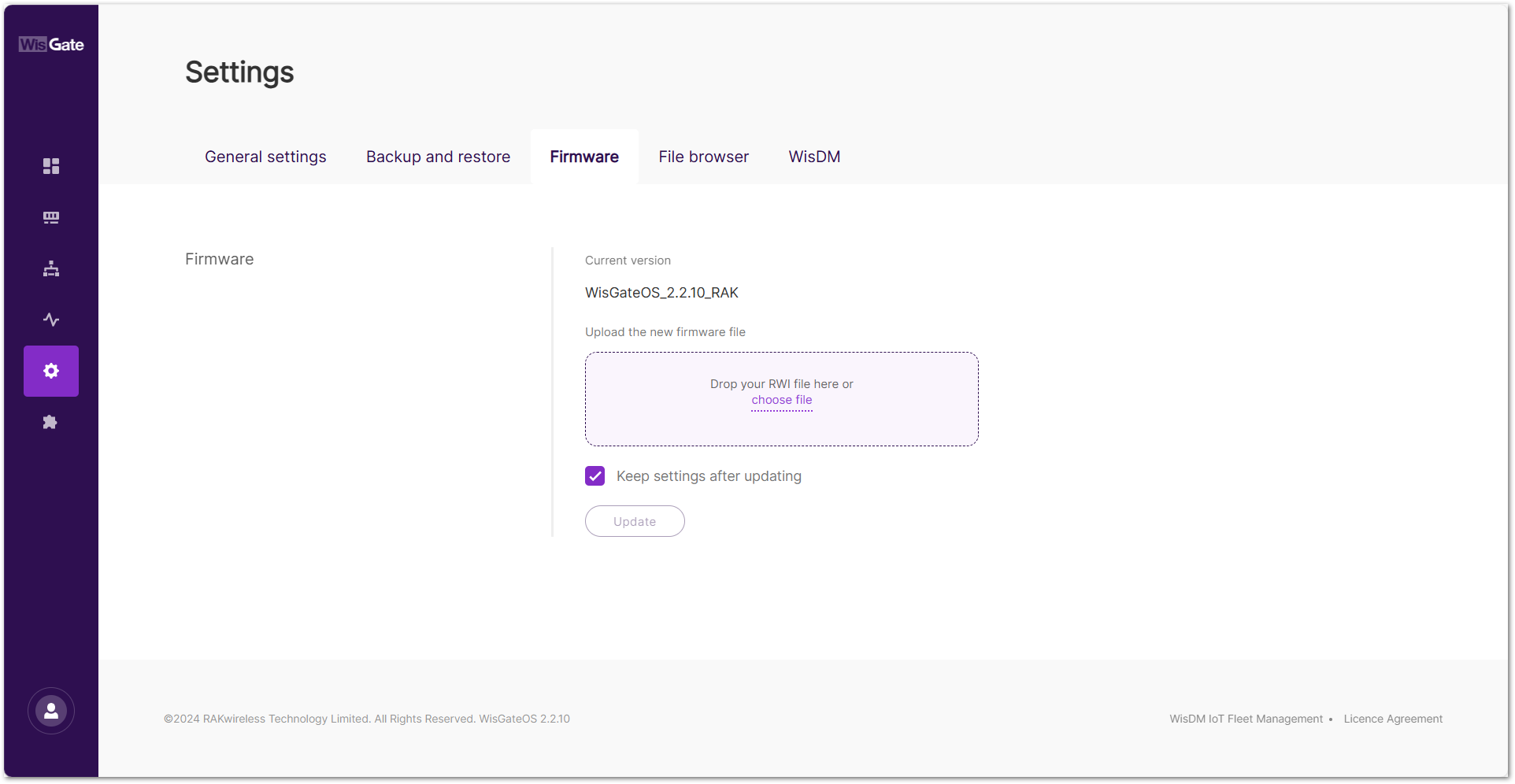 Figure 1: Firmware tab
Upgrade Notes
Backup Before Upgrade
Before performing any firmware upgrade, it is highly recommended to create a full backup of your configuration. This ensures you can restore your settings in case of unexpected issues or if a reset is required.
For detailed steps on how to back up your configuration, refer to Backup Configuration.
Upgrade Path
The following table defines all supported direct upgrade paths between firmware versions.
| From Version | Supported Direct Upgrades |
|---|---|
| V2.0.X | V2.1.X, V2.2.X |
| V2.1.X | V2.2.X |
| V2.2.X | V2.3.X |
| V2.3.X | None |
For example:
A direct upgrade from 2.1.x to 2.3.x is not supported. You must first upgrade from 2.1.x to 2.2.x, and then from 2.2.x to 2.3.x.
Upgrade to WisGateOS 2.3.x
When upgrading from WisGateOS 2.2.x to 2.3.x, consider the following:
- After upgrading to 2.3.x, reverting to 2.2.x via the standard WebUI downgrade method is not supported.
- Extensions installed in 2.2.x will remain available after the upgrade. To ensure compatibility with WisGateOS 2.3.x, the system will automatically update extensions to the latest compatible versions after the upgrade.
Upgrade to WisGateOS 2.2.x
When upgrading from WisGateOS 2.1.x or earlier to 2.2.x, consider the following:
-
After upgrading to 2.2.x, reverting to 2.1.x or earlier via the WebUI downgrade method is not supported.
-
Starting with WisGateOS 2.2.x, all official extensions are released with valid signatures to maintain security and compatibility. The system still allows uploading custom extensions without signatures, mainly for development or customization purposes. Unsigned extensions installed before the upgrade remain functional and do not require reinstallation.
Downgrading is only possible through a recovery procedure. For details, see OpenWRT Recovery Procedure on the RAK Learn site.
Firmware Upgrade
Do not disconnect the power during the gateway upgrade.
- Download the latest version of the WisGateOS 2 firmware for the gateway and unzip the file.
- Drag and drop the
.rwifile in the Drop your RWI file here or choose file form, or click the choose file link to browse for the file. - Check the Keep settings after updating option.
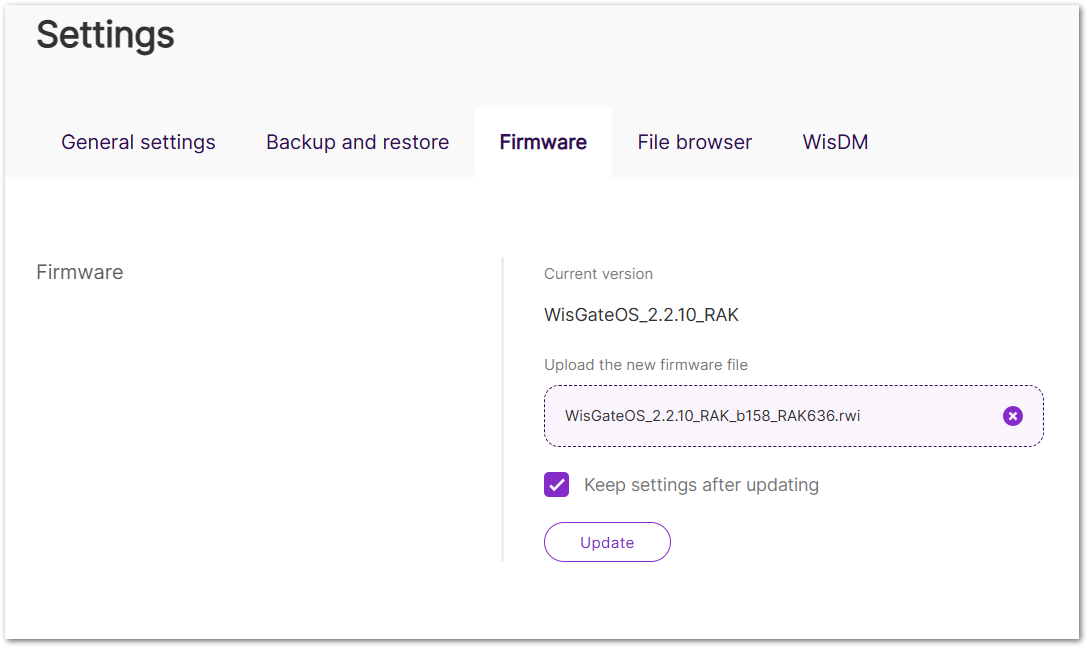 Figure 1: Upload the firmware fileNOTE
The Keep settings after updating check box is selected by default. Unchecking it will reset the gateway to stock settings after the upgrade.
- Click Update to initiate the firmware flashing process.
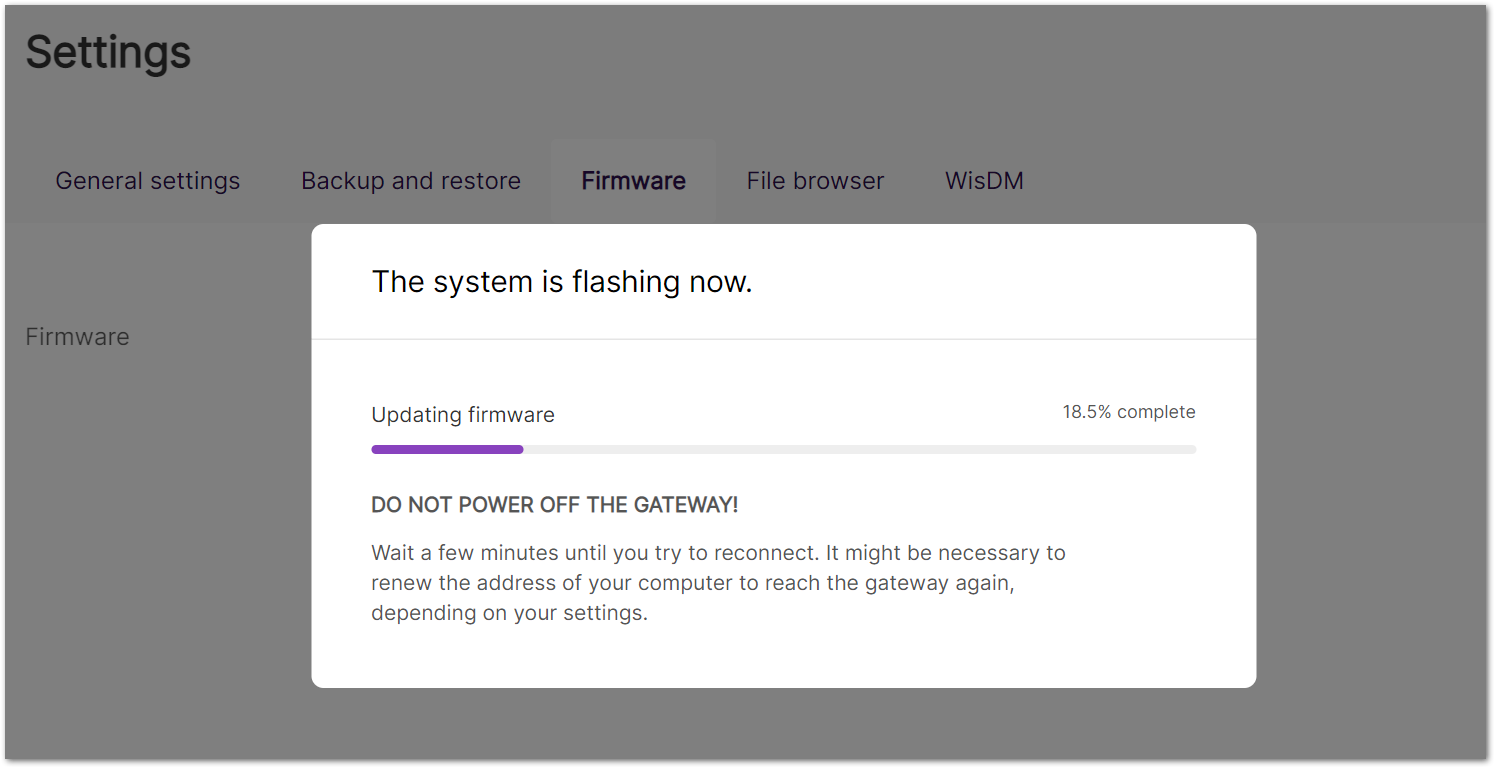 Figure 1: Upgrading
 - After the upgrade is complete, log in to the gateway and check the Firmware tab to confirm that the installed firmware version is correct.
If the gateway becomes unresponsive or the upgrade process fails, it can be restored using the recovery procedure. For details, refer to: OpenWRT Recovery Procedure.
Remote Firmware Upgrade via WisDM
When the gateway is integrated with WisDM and FOTA is enabled, firmware upgrades are managed exclusively by WisDM, and the local Firmware tab in WisGateOS is disabled to prevent manual upgrades.
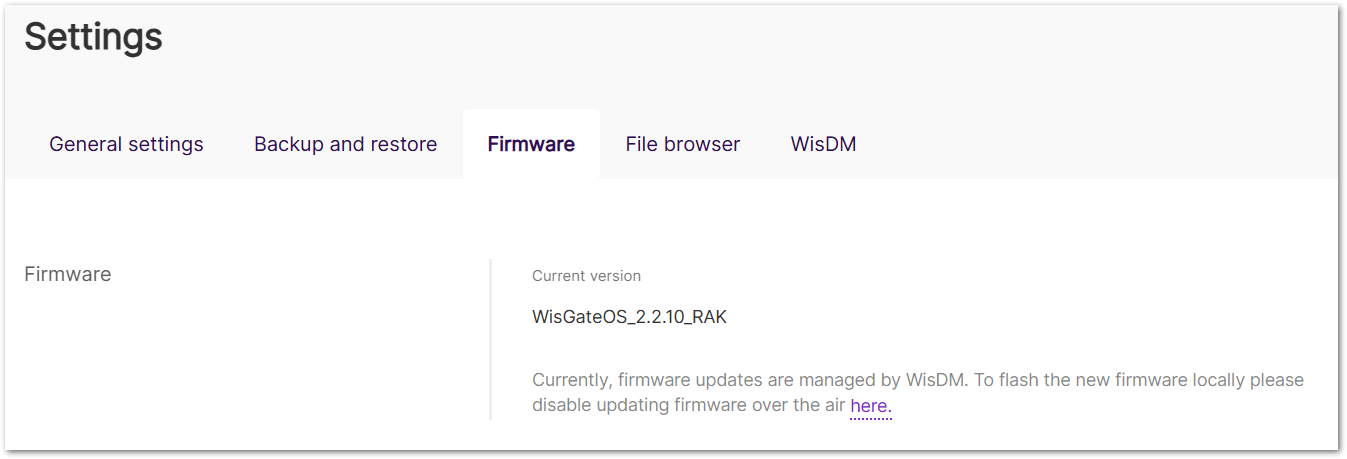 Figure 1: Firmware tab inactive
If you need to perform a manual firmware upgrade on the gateway, you must first disable WisDM FOTA:
- Go to the Settings > WisDM tab.
- Disable the Enable FOTA option.
- Save the changes.
Once FOTA is disabled, the Firmware tab becomes active again, allowing you to manually upgrade the firmware through WisGateOS.
Disabling FOTA stops the gateway from receiving remote firmware updates via WisDM and restores the ability to perform manual firmware upgrades locally through WisGateOS.
Firmware Downgrade
Firmware downgrade is not recommended and is generally unsupported.


