RAK14002 With RAK4631 via Arduino Quick Start Guide
Prerequisite
- Assemble the RAK14002 with a WisBlock Base and WisBlock Core by following the RAK14002 Installation Guide.
- Download and install the Arduino IDE, then add the RAKwireless Core boards by installing the RAKwireless Arduino BSP.
- USB Cable
- Li-Ion/LiPo battery (optional)
- Solar charger (optional)
Software Configuration and Example
- Install the RAKwireless Arduino BSP.
- Select the RAK4631 WisBlock Core.
Arduino programs are usually referred to as sketches. The sketches for this module will be available in the Arduino IDE after installing the library.
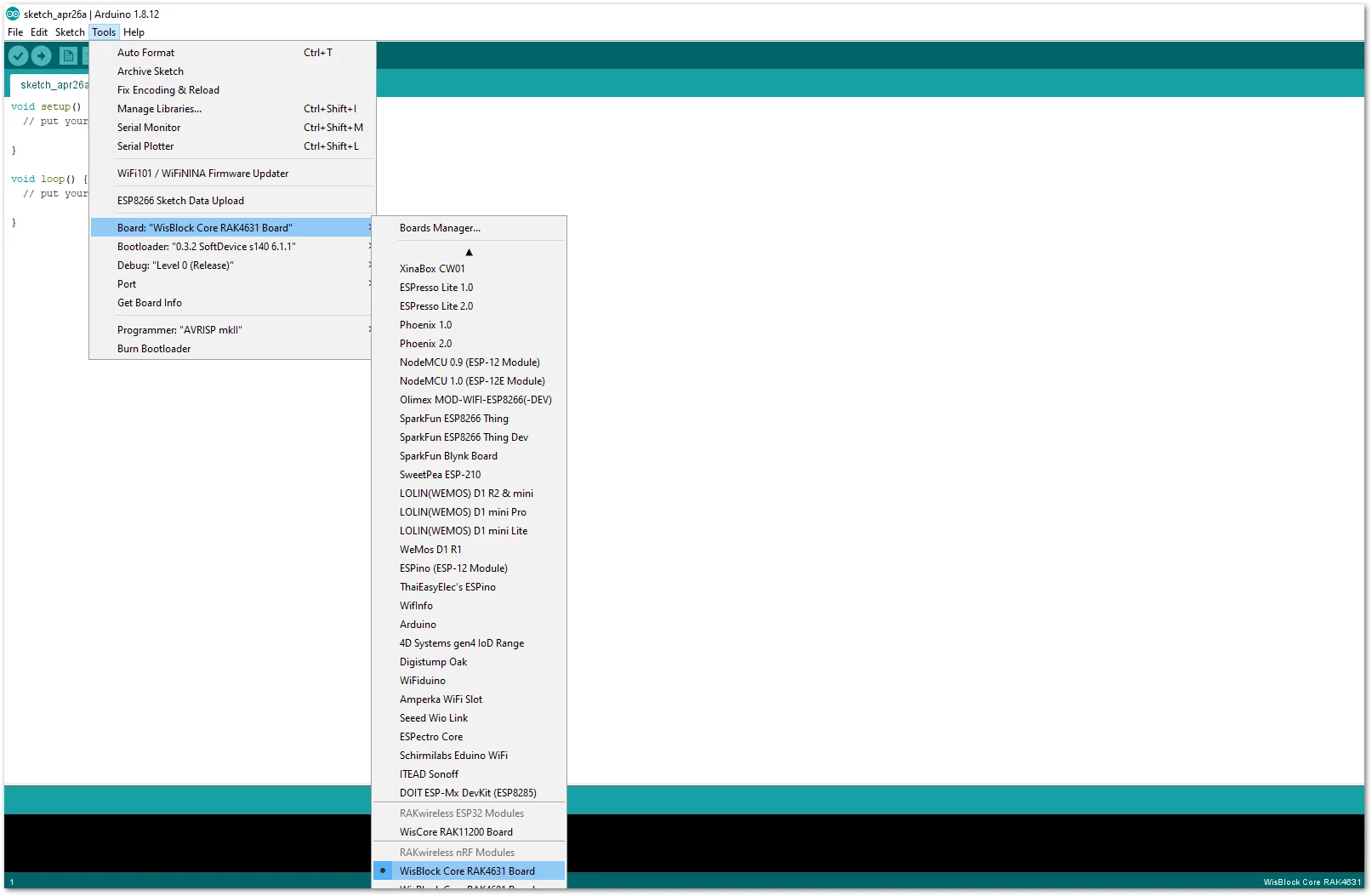 Figure 1: Select RAK4631 as WisBlock Core
- Install the RAKwireless CAP1293 Library using Arduino Library Manager.
Navigate to Sketch-> Include Library -> Manage Libraries.In the Library Manager search field, enter RAKwireless CAP1293.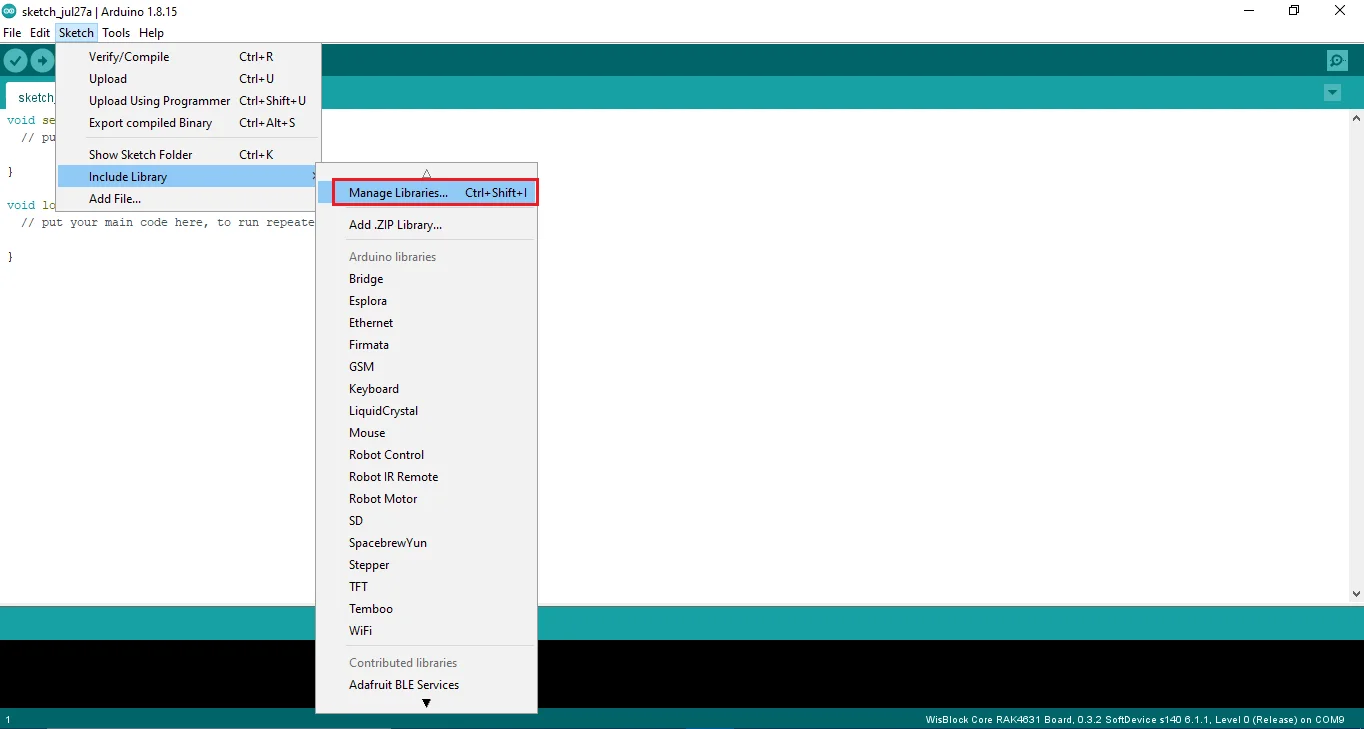 Figure 1: Select Arduino Library ManagerClick Install to complete the library installation.
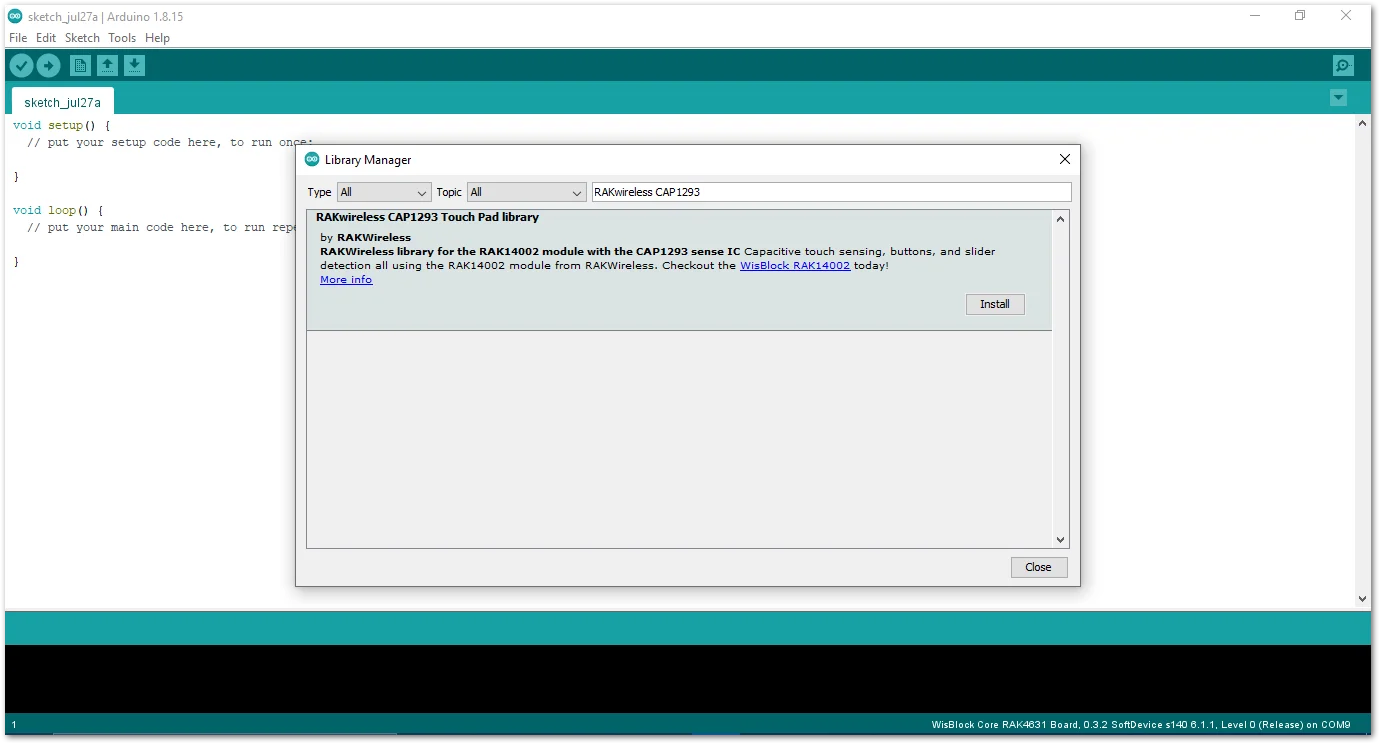 Figure 1: Arduino Library Manager RAKwireless CAP1293
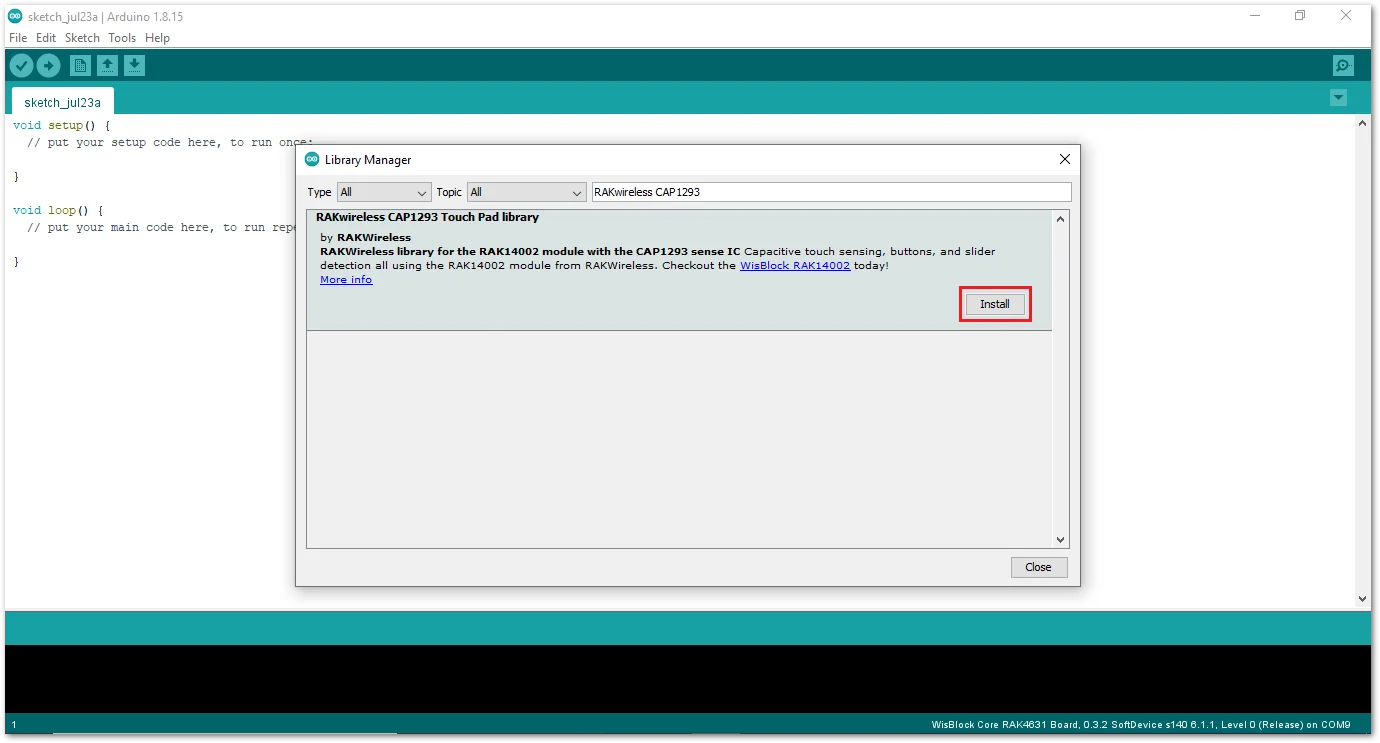 Figure 1: Finish RAKwireless CAP1293 Touch Pad Library Installation
- Open the RAK14002 Example01_BasicReading sketch from the File-> Examples -> RAKwireless CAP1293 Touch Pad Library -> RAK14002 Example01_BasicReading.
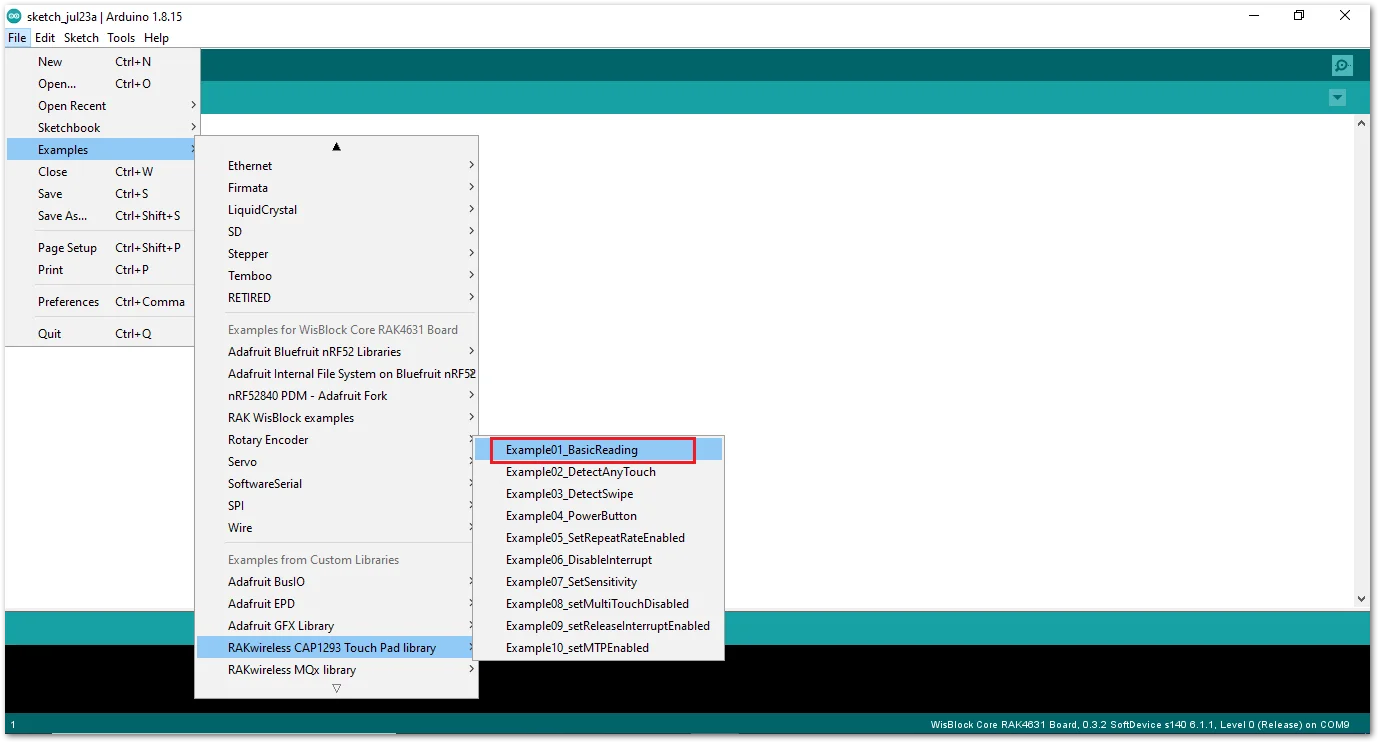 Figure 1: Open RAK14002 Example01_BasicReading Sketch
- Select the correct serial port and upload the example code.
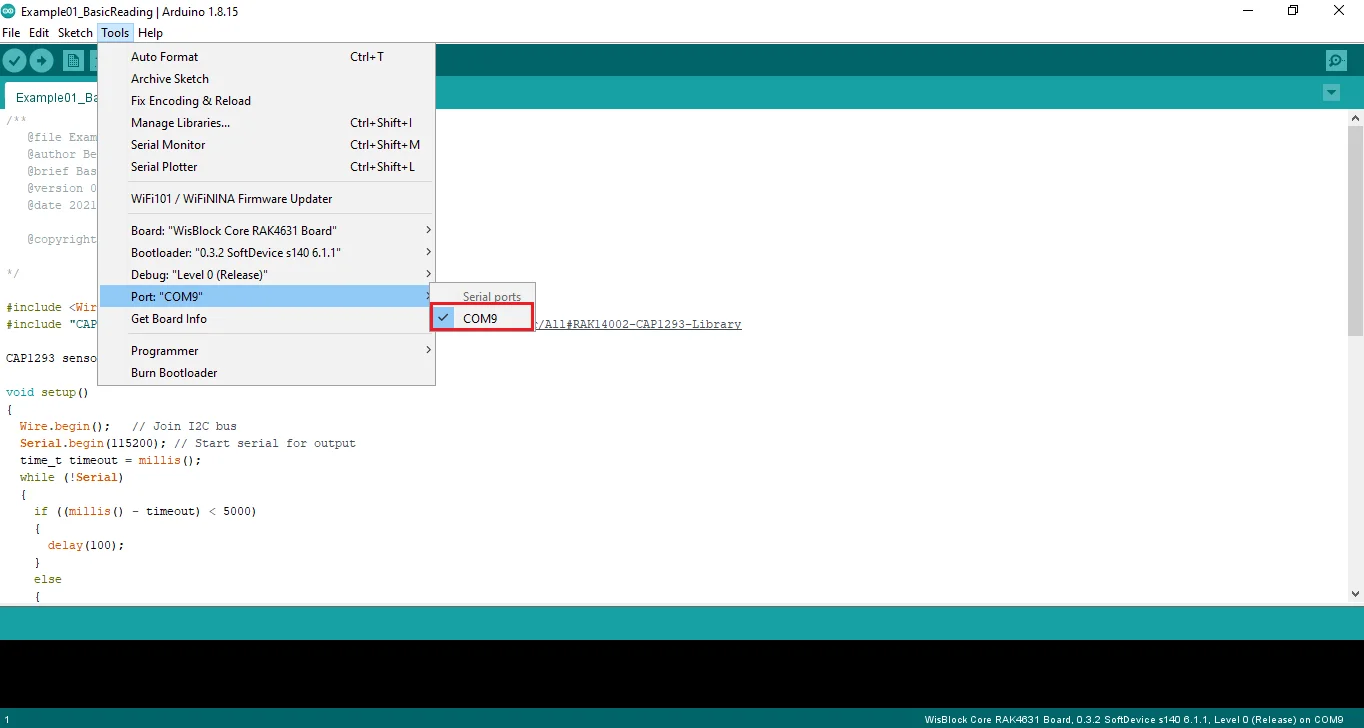 Figure 1: Selecting the correct Serial Port
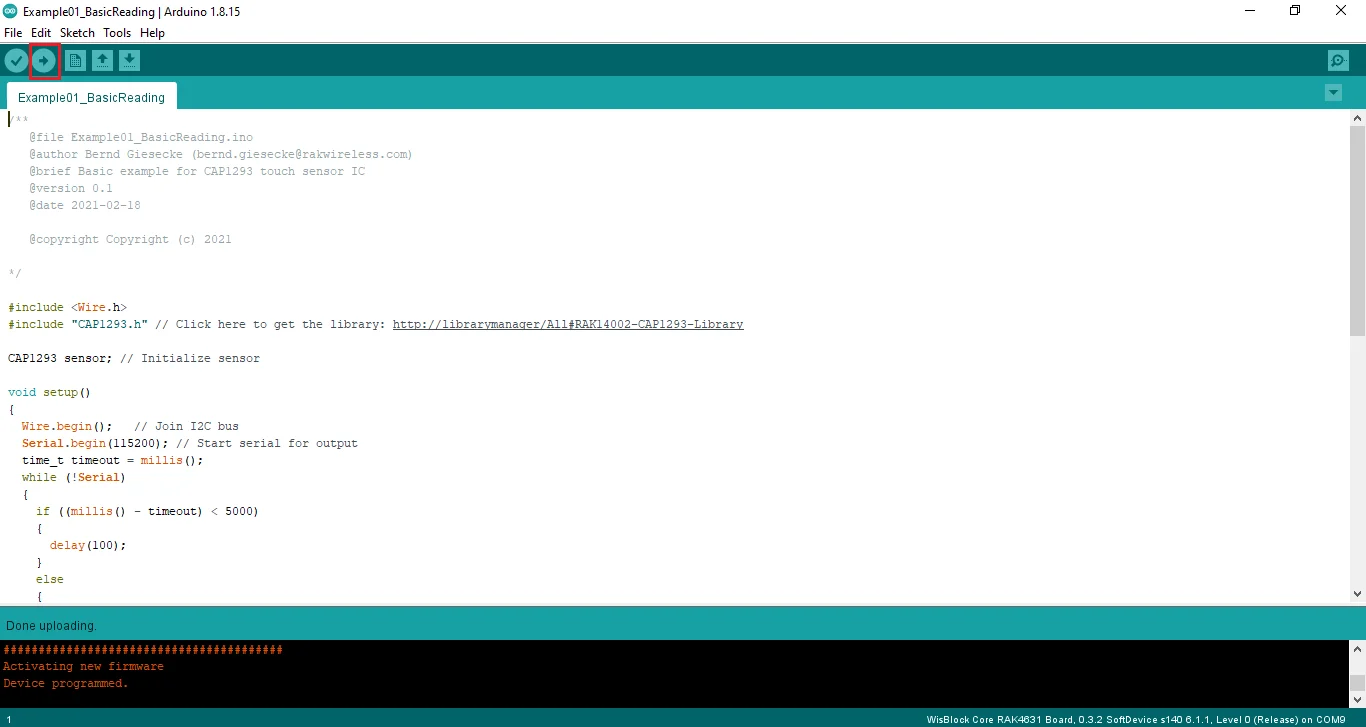 Figure 1: Uploading the RAK14002 example code on RAK4631
- After successfully uploading the Example01_BasicReading sketch, open the Arduino IDE Serial Monitor to view the sensor readings.
Touch the left pad of the RAK14002 module. If the logs appear, the RAK14002 is communicating properly with the WisBlock Core. The Connected! message indicates that the I²C bus of the RAK4631 WisBlock Core is connected to the RAK14002.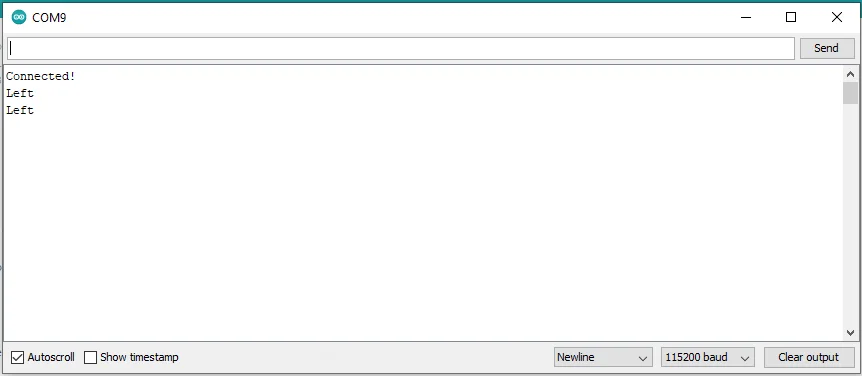 Figure 1: RAK14002 sensor data logs


