RAK7437/RAK7437C Quick Start Guide
This quick start guide helps you access the gateway, connect it to the network, and complete the basic LoRaWAN settings required for BACnet Gateway deployments.
After the basic gateway setup is complete, continue with the BACnet Gateway workflow to configure BACnet/IP parameters, add LoRaWAN equipment, and export BACnet data points for Building Management System (BMS) integration.
Log in to the WisGateOS 2 Web UI
Access the Gateway
This document presents two methods for accessing the gateway, offering different alternatives based on the availability of necessary resources.
Wi-Fi AP Mode
By default, the gateway operates in Wi-Fi AP Mode. This means you can find an SSID named "RAK7437_XXXX or RAK7437C_XXXX" on your PC's Wi-Fi Network List, where "XXXX" represents the last two bytes of the gateway's MAC address.
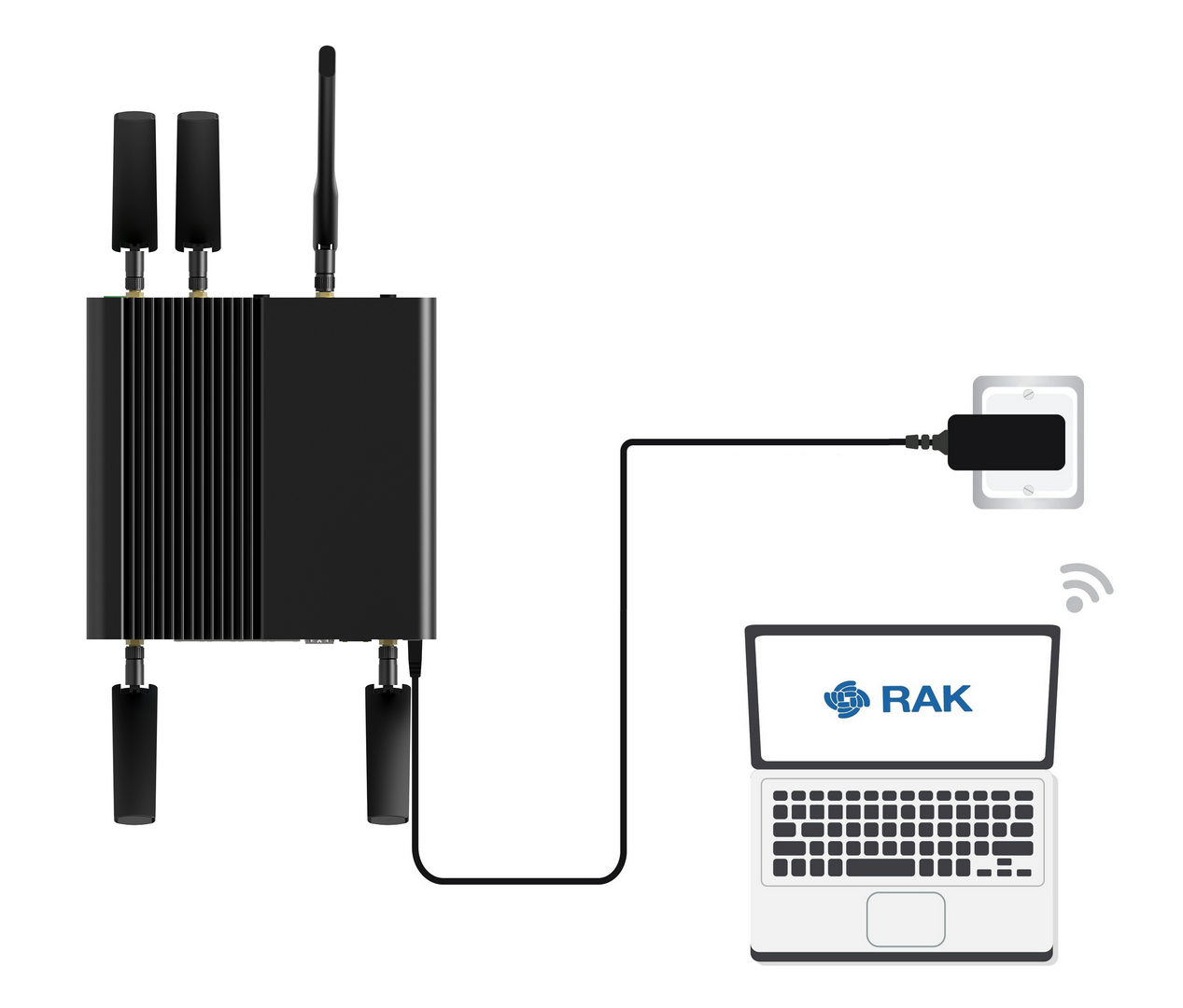 Figure 1: Accessing the gateway via Wi-Fi AP Mode
-
Connect to the gateway's Wi-Fi.
NOTENo password is required to connect via Wi-Fi AP mode.
-
Open a web browser and enter the IP address:
192.168.230.1.
WAN Port (Ethernet)
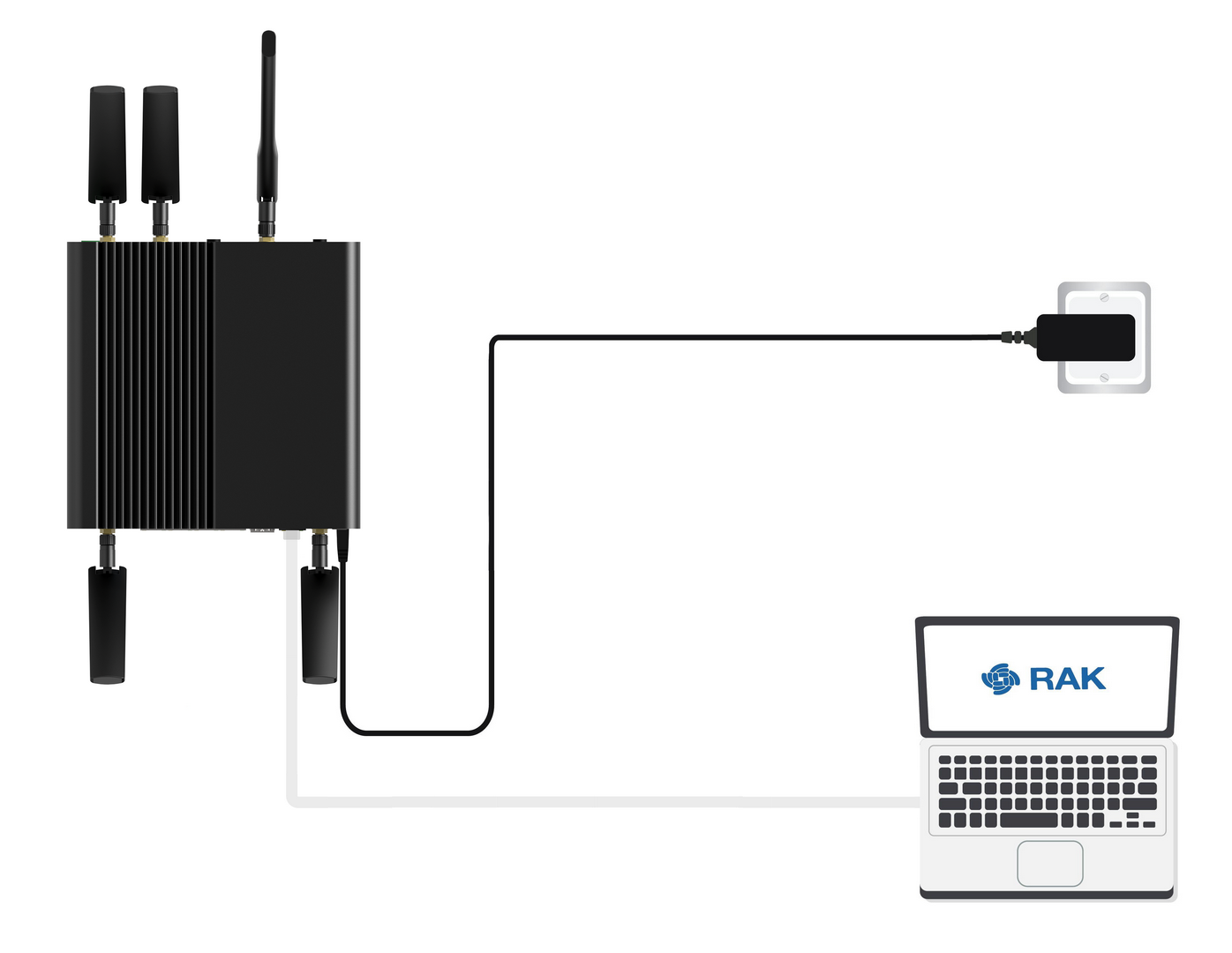 Figure 1: Accessing the gateway via WAN Port
- Connect the Ethernet cable to the gateway port labeled ETH0(PoE+) and the other end to your PC.
- Configure a static IP address on your PC that is in the same subnet as the gateway:
The default IP address of the gateway is 169.254.X.X, which is based on the last four bits of the MAC address. For example, if the last four bits are 0F:01, the gateway IP will be 169.254.15.1.
Set your PC's IP address accordingly, for instance, 169.254.15.100.
- Open the Internet Properties of your PC, and select Internet Protocol Version 4 (TCP/IPv4).
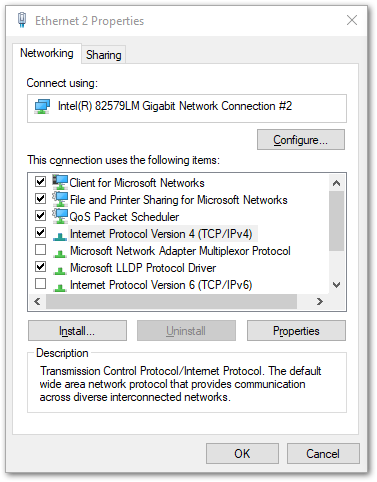 Figure 1: Internet properties
- Select Use the following IP address, and enter the PC’s IP address (e.g.,
169.254.15.100). Ensure that the PC’s IP address is in the same subnet as the gateway. For example, if the gateway IP is169.254.15.1, set the PC to169.254.15.100.
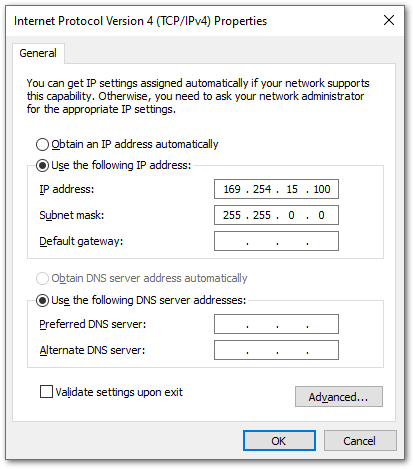 Figure 1: Setting IP address of the PC
- Open a web browser and enter the gateway's IP address (e.g.,
169.254.15.1) to access the Web UI. You will be directed to the gateway system login page.
Log in
-
On the first login, you must set a login password. The password must:
- At least 12 characters long
- Has at least one special character (
!“#$%&\‘()*+,-./:;<=>?@[]^_{|}~) - Has at least one number
- Has at least one standard Latin letter (used in the English alphabet)
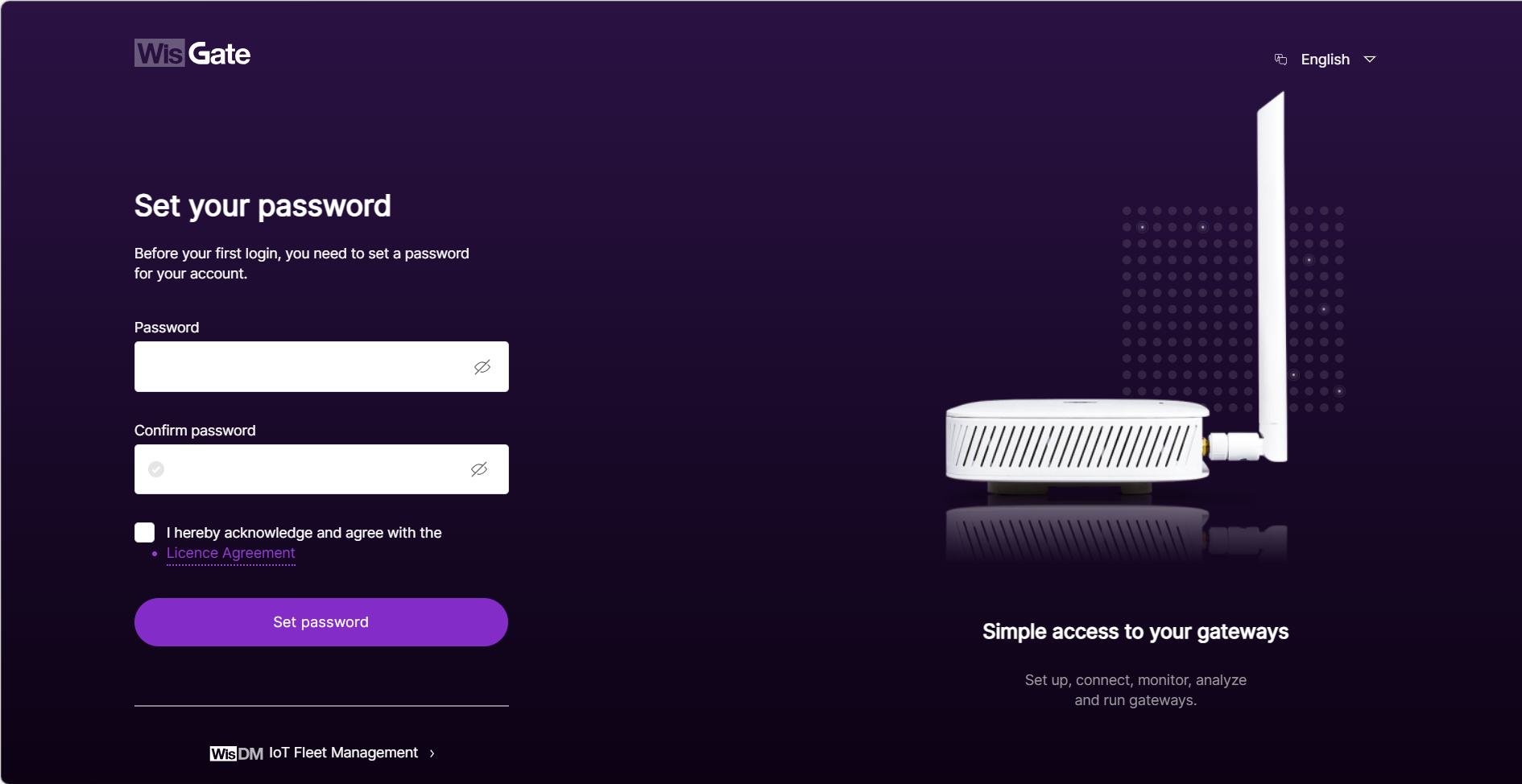 Figure 1: Web UI login page
 -
Check the agreement box to accept the License Agreement before proceeding.
-
Click Set password to continue. You will be redirected to the LoRaWAN Statistics page.
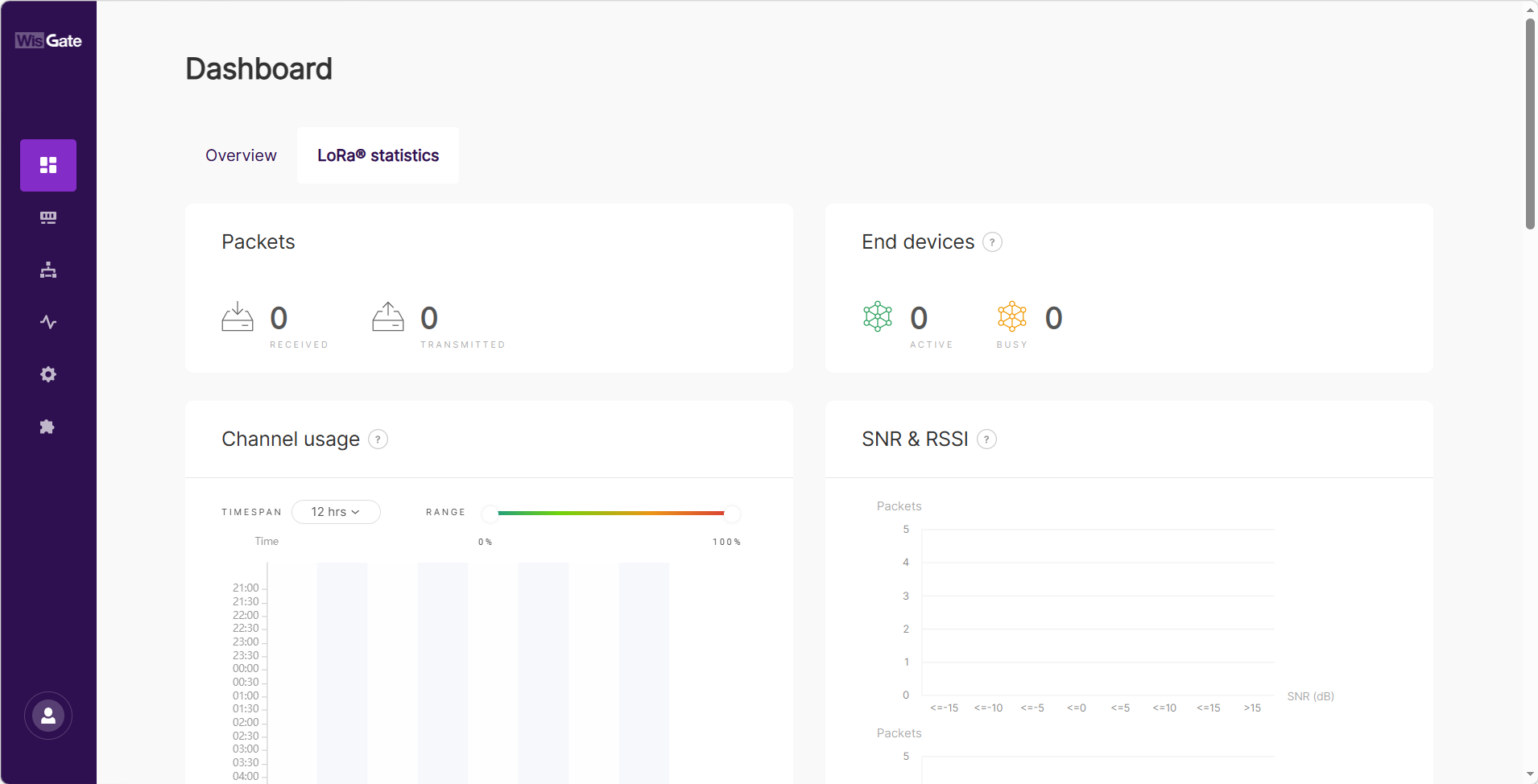 Figure 1: LoRaWAN statistics page
 -
For future logins, use the password you set. The default login username is root.
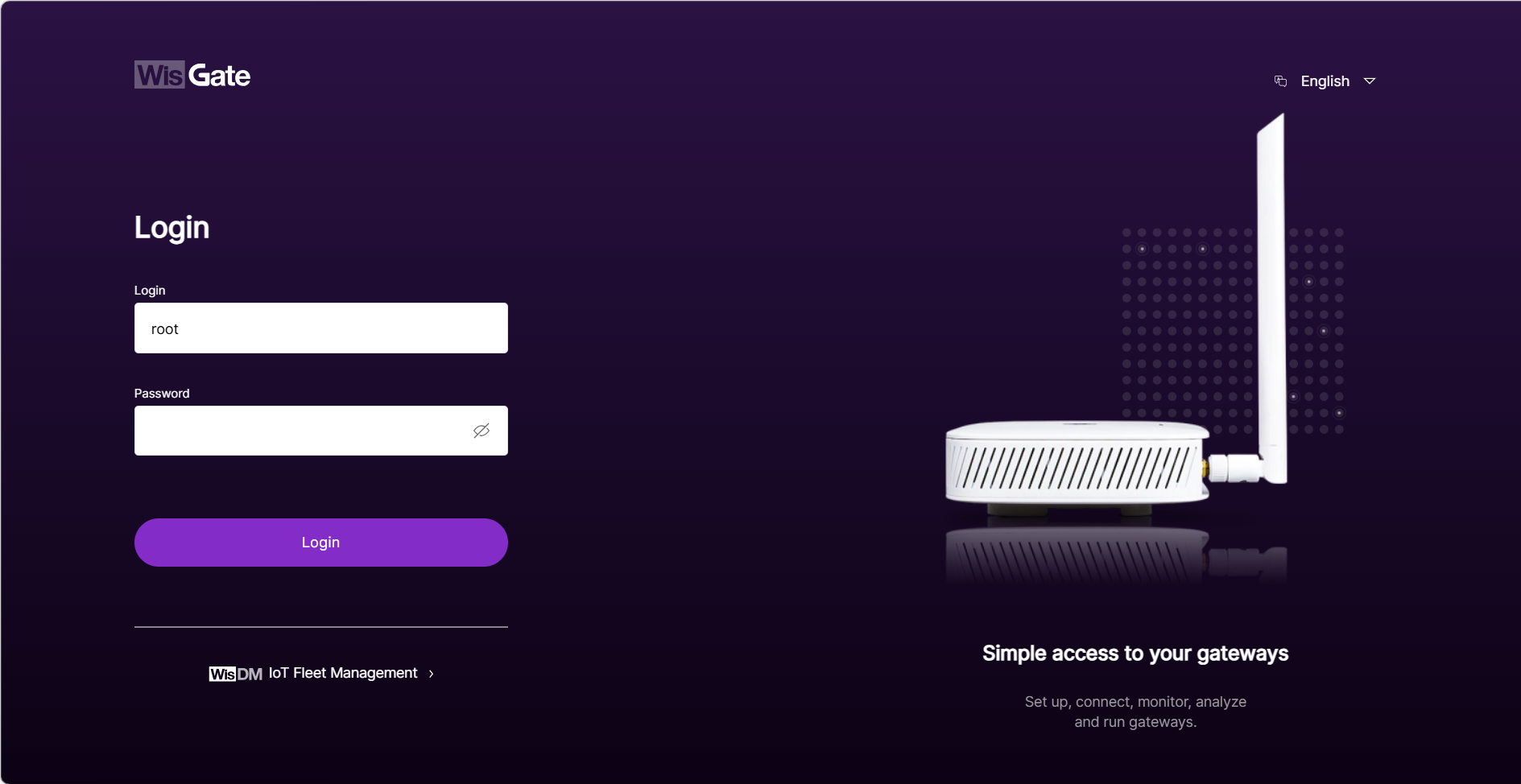 Figure 1: Login Page with set password
Please make sure to save your password securely. If you forget the WisGateOS 2 password, the only way to regain access is to reset the gateway to factory settings. This will erase all configurations.
Access the Internet
You can connect the gateway to the Internet using Wi-Fi, Ethernet, or Cellular (for LTE models). Multiple connection types can be configured at the same time.
Connect Through Wi-Fi
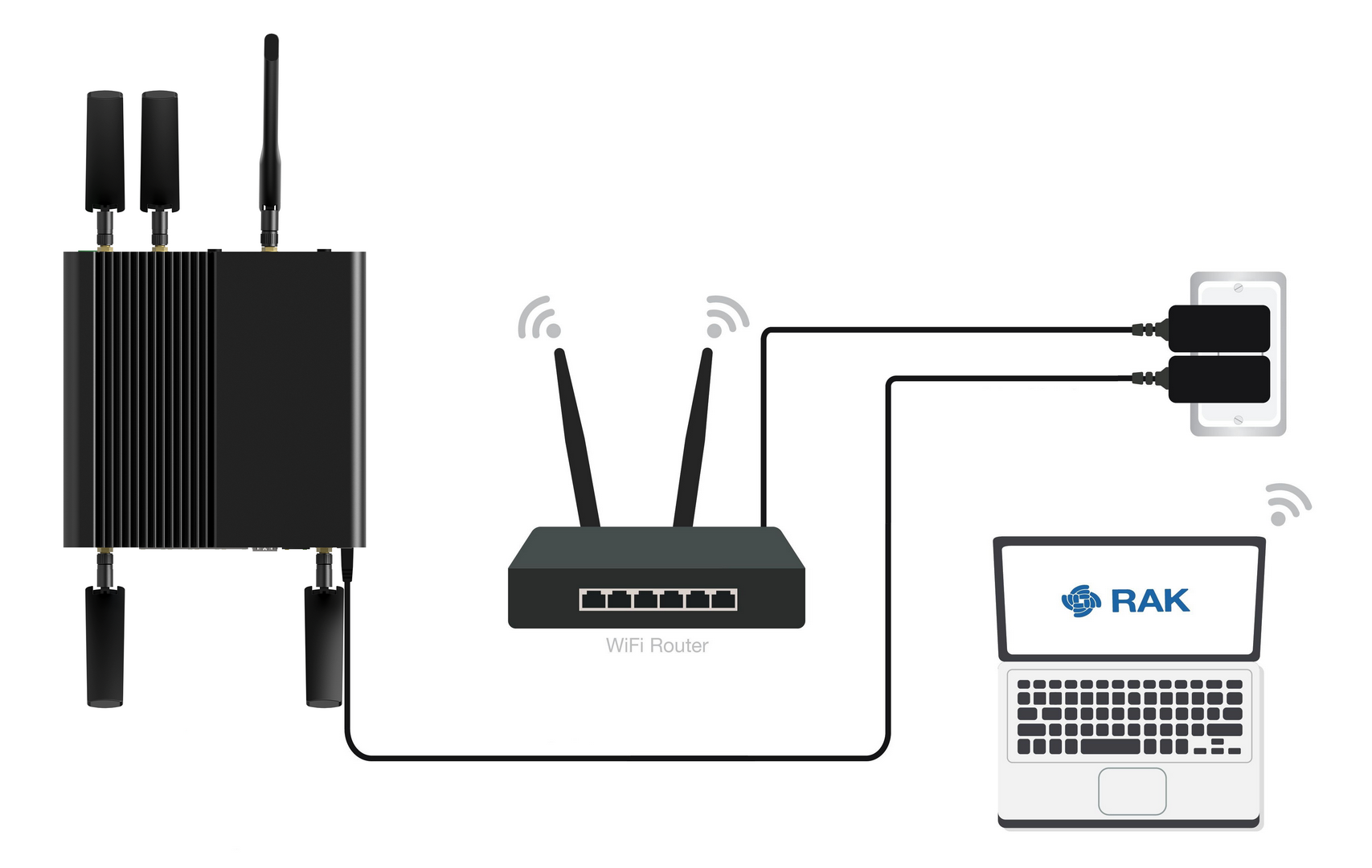 Figure 1: Accessing the Internet via Wi-Fi
-
Log in to the Web UI and navigate to Network > WAN > Wi-Fi.
-
Expand the Wi-Fi section and click on Settings. Ensure that the Interface is enabled.
-
Click the Scan button to select your ESSID, or manually enter the ESSID of the network by clicking Enter network (E)SSID manually.
-
Select the appropriate Encryption method and enter the corresponding Key.
-
Click Save.
NOTEIf you have entered the correct parameter values, you should receive an IP address assigned by your Wi-Fi router's built-in DHCP server. You can use this IP address to log in through a web browser.
For details, refer to the WisGateOS 2 User Manual>WAN>Wi-Fi.
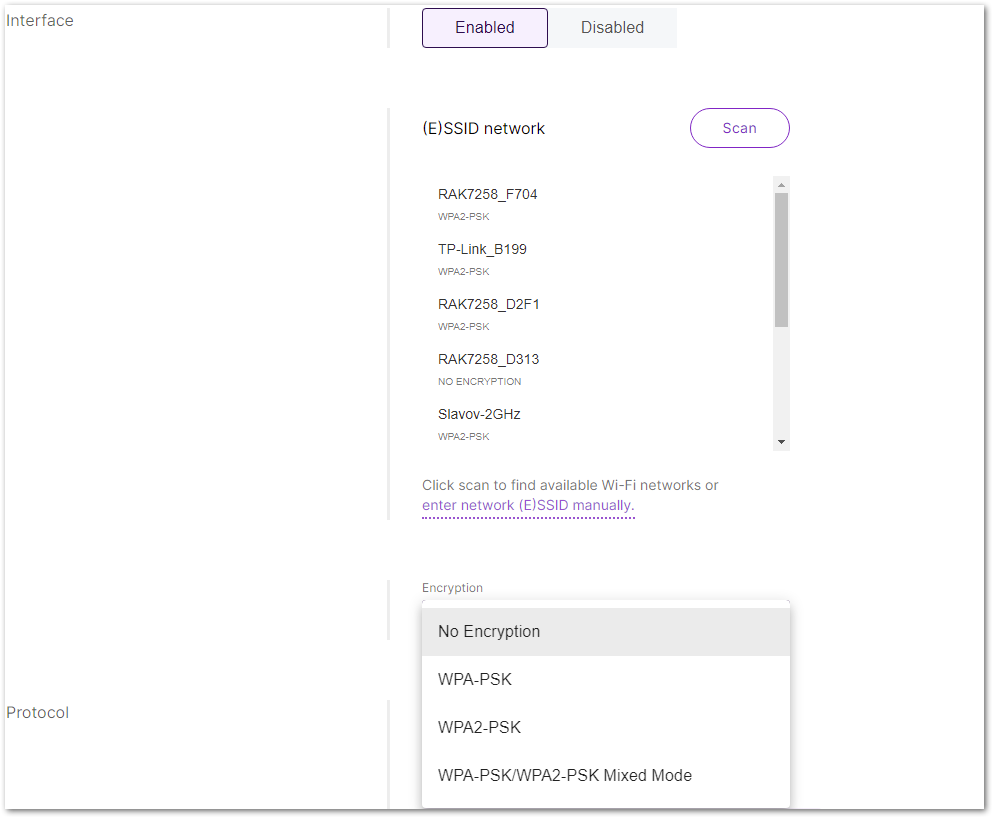 Figure 1: Wi-Fi settings
Connect Through Ethernet
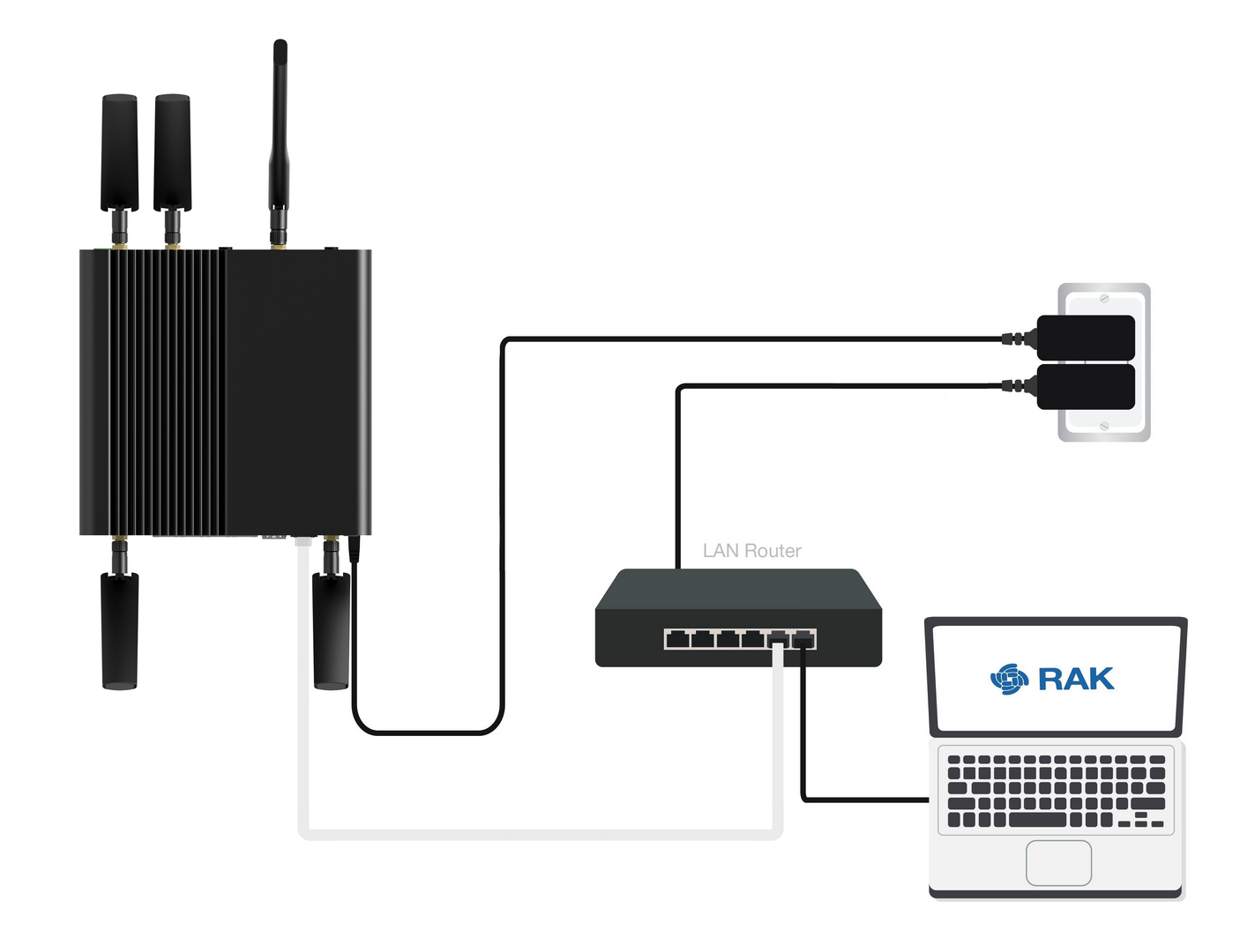 Figure 1: Accessing the Internet through Ethernet
-
Connect the Ethernet cable to the port labeled ETH0(PoE+) on the gateway, and connect the other end to your router.
NOTE- Make sure the cable is connected to ETH0 (PoE+), which is the WAN port. Do not use ETH1–ETH4 for this step, because they are LAN ports.
- If DHCP is enabled on your router, the router will automatically assign an IP address to the gateway. Use this IP address to access the gateway through a web browser.
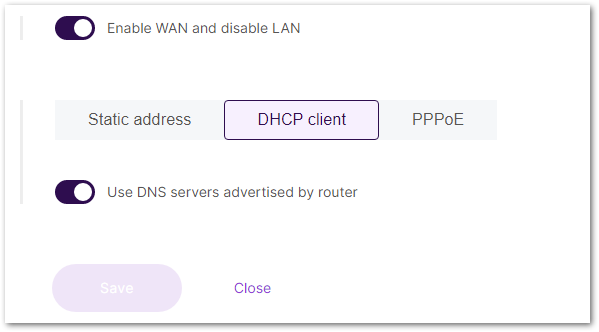 Figure 1: Connect through Ethernet settings
If additional configuration is required, refer to the WisGateOS 2 User Manual > WAN > Ethernet .
Connect Through Cellular
If your gateway supports LTE and you have inserted the SIM card, it will automatically connect to the cellular network.
However, in some regions, manual APN configuration may be necessary, depending on your mobile operator.
To manually configure the APN and other LTE settings:
- Log in to the Web UI and navigate to Network > WAN > Cellular.
- Expand the Cellular section and click on Settings.
- Enter the required APN, username, password, and PIN code if provided by your mobile operator.
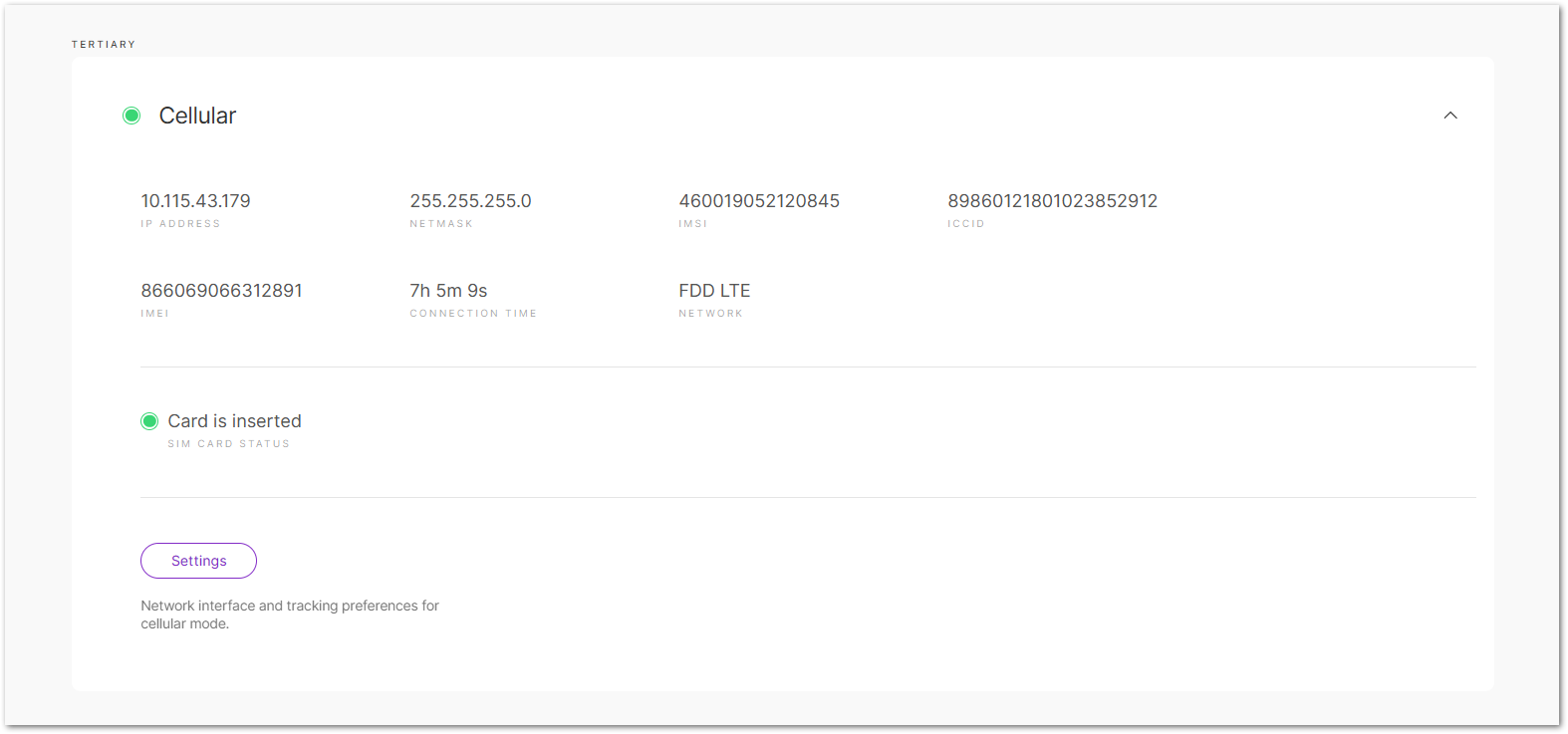 Figure 1: Cellular settings
For parameter configuration, refer to the WisGateOS 2 User Manual > WAN > Cellular .
Ensure that your SIM card is activated and capable of supporting data services.
Connect Through Fiber (via SFP)
If you prefer to use fiber optic connectivity, you can connect the gateway via the SFP port for high-speed internet access.
-
Insert the appropriate SFP module into the SFP port on the gateway.
-
Connect one end of the fiber optic cable (LC-LC) to the SFP module.
-
Connect the other end of the fiber optic cable to your fiber optic switch or fiber modem.
Configure the Built-in LoRaWAN Network Server
For BACnet Gateway deployments, the gateway must use the Built-in LoRaWAN Network Server. This is a required step to enable BACnet device mapping and data exchange.
Set the Gateway Work Mode
- Navigate to LoRa® > Configuration. For Work mode, select Built-in network server.
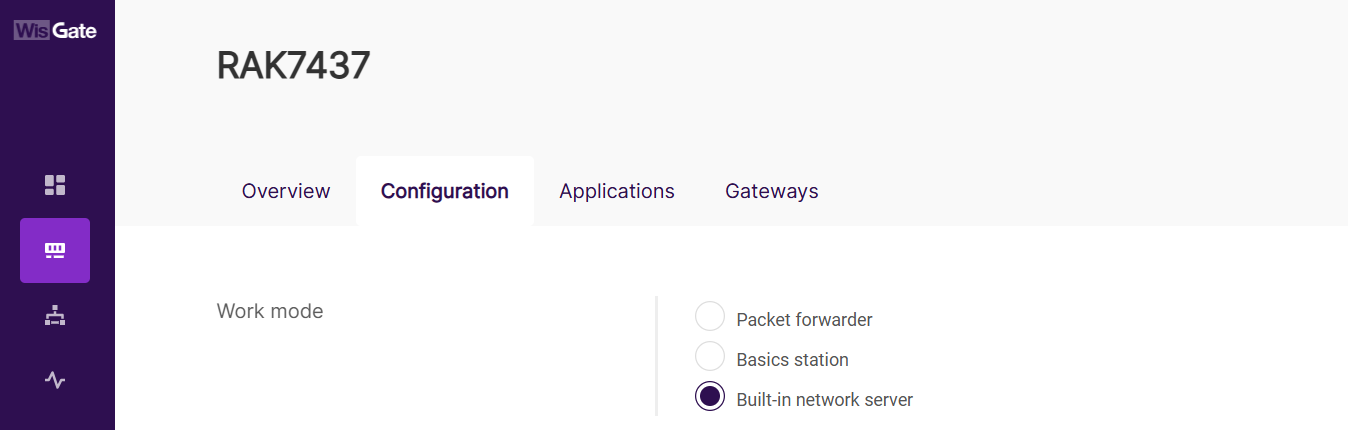 Figure 1: Set the gateway work mode
Select Your Country & Region
- Select your country and frequency band to ensure compliance with local regulations and to facilitate proper LoRa® operation.
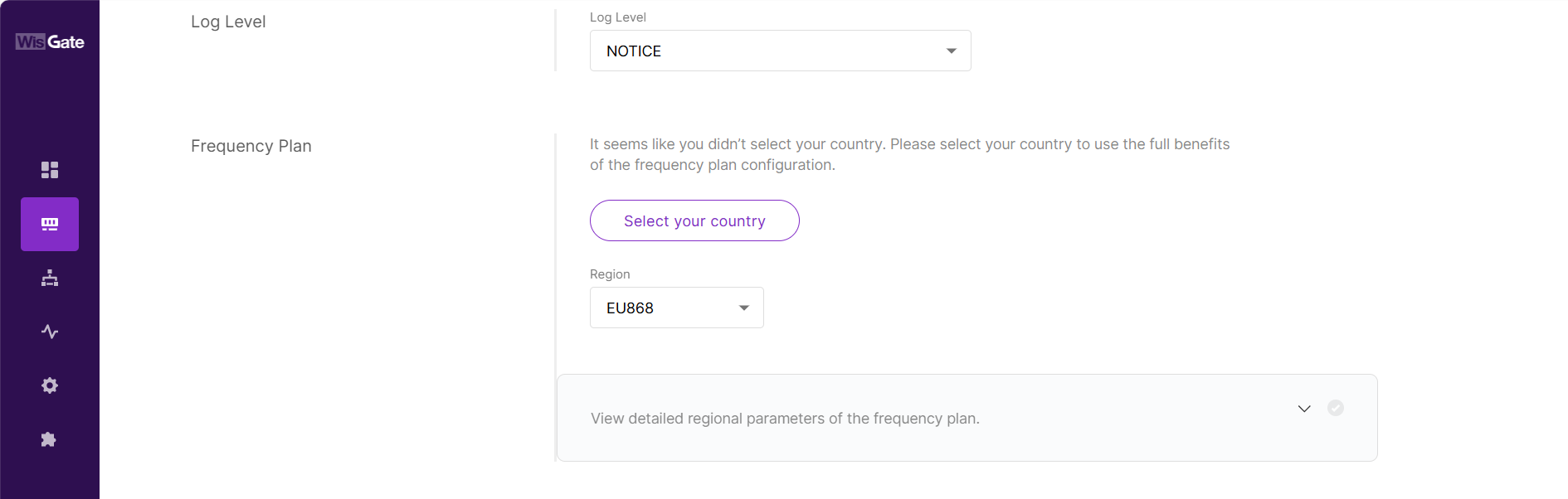 Figure 1: Configure frequency band
Configure the BACnet Gateway
After completing the basic gateway access, network, and LoRaWAN settings, continue with the BACnet Gateway workflow.
The setup mainly includes two parts:
- BACnet Gateway setup: Complete the BACnet/IP configuration, prepare the required equipment profiles, and add LoRaWAN devices as BACnet equipment.
- BACnet data point preparation for BMS: Review the generated BACnet objects and export the data point list for BMS integration.


