RAK2461 Bridge IO Lite Maintenance and Firmware Upgrade
Use IO.Box to view device information, manage power outputs, reboot or reset the device, and upgrade the firmware.
Prerequisites
Before performing maintenance or a firmware upgrade, ensure that:
- IO.Box is installed on your computer.
- The Bridge IO device is powered on and successfully connected to IO.Box.
- For a firmware upgrade, the firmware package for your device has been downloaded to your computer.
System Reset & Firmware Upgrade
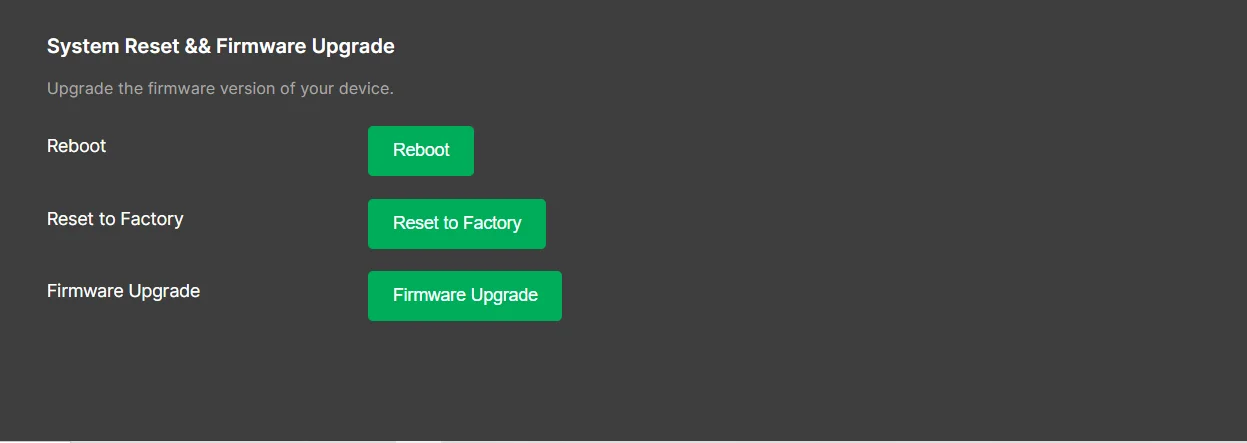 Figure 1: System reset & firmware upgrade
Firmware Upgrade
- Download the latest firmware of the RAK2461.
- Extract the downloaded firmware package.
RAK2461_Latest_Firmware
└── RAK2461_vx.x.x_updated
└── RAK2461_vx.x.x-bin - Open the
RAK2461_vx.x.x-binfolder and locate the following firmware file:IOBox_rak2461-stm32-app.bin - In IO.Box, go to System and click Firmware Upgrade.
- Select the
IOBox_rak2461-stm32-app.binfile. - Confirm the firmware information, then click Upgrade and wait for the procedure to finish.
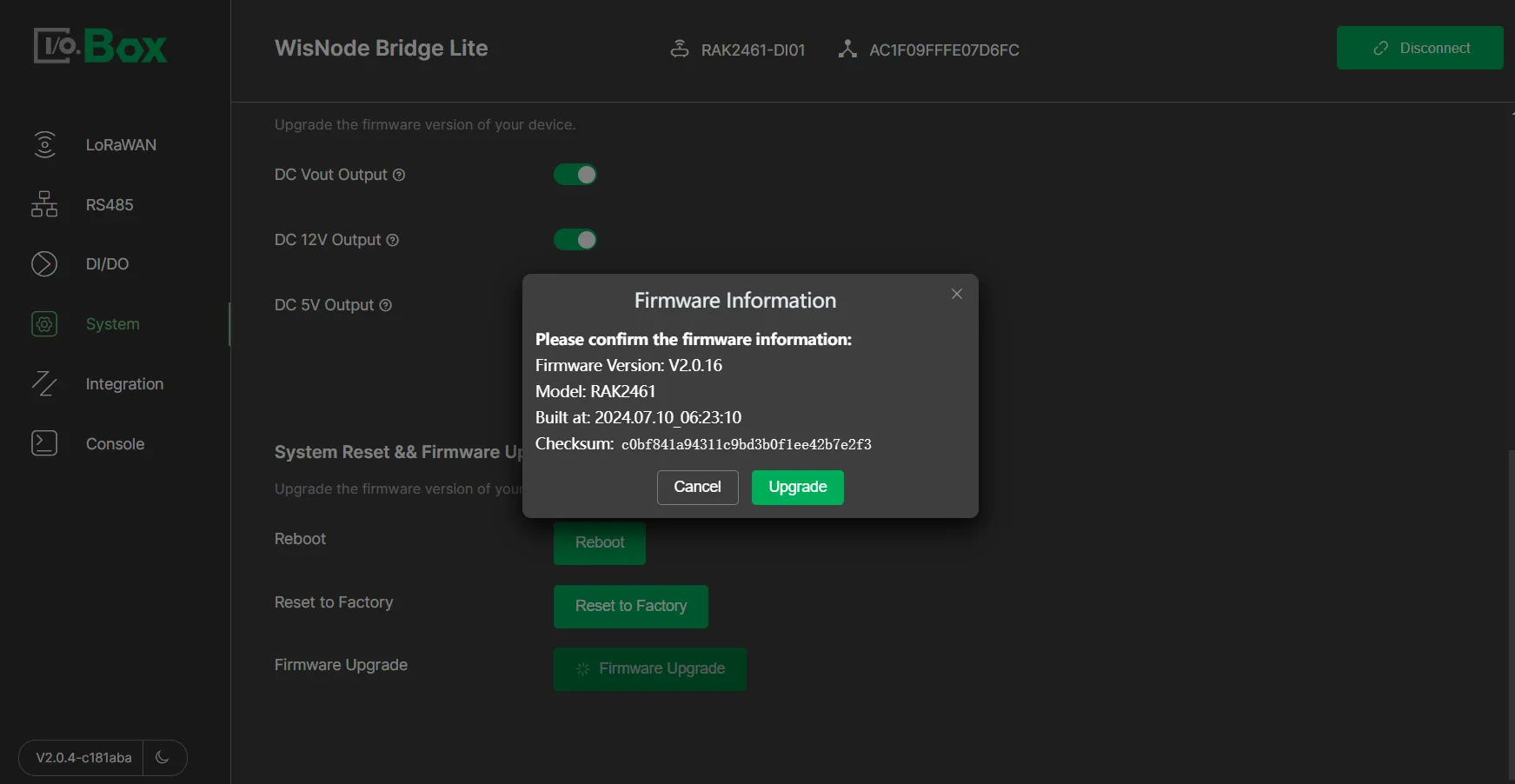 Figure 1: Confirm the firmware information
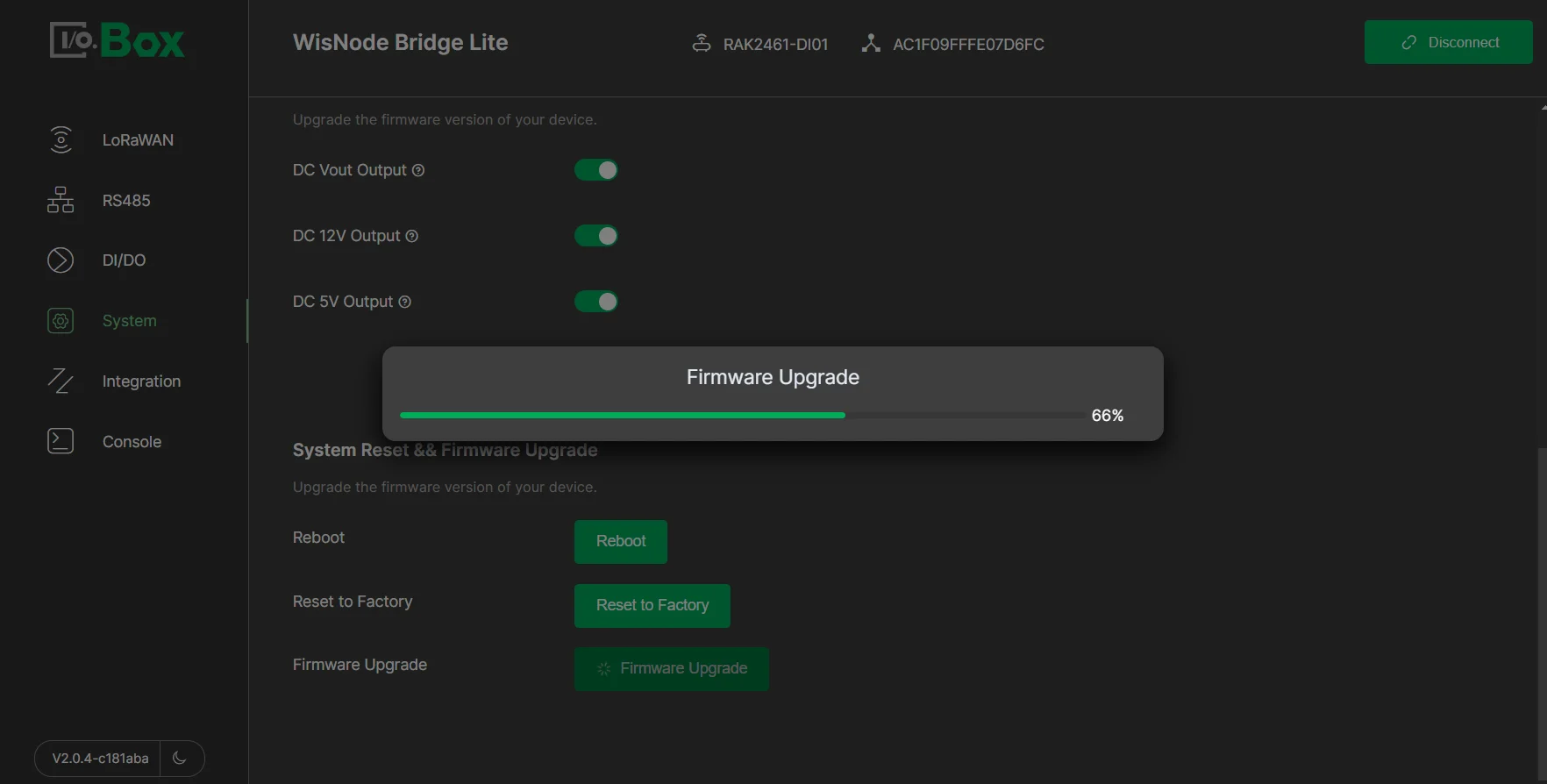 Figure 1: Upgrading procedure
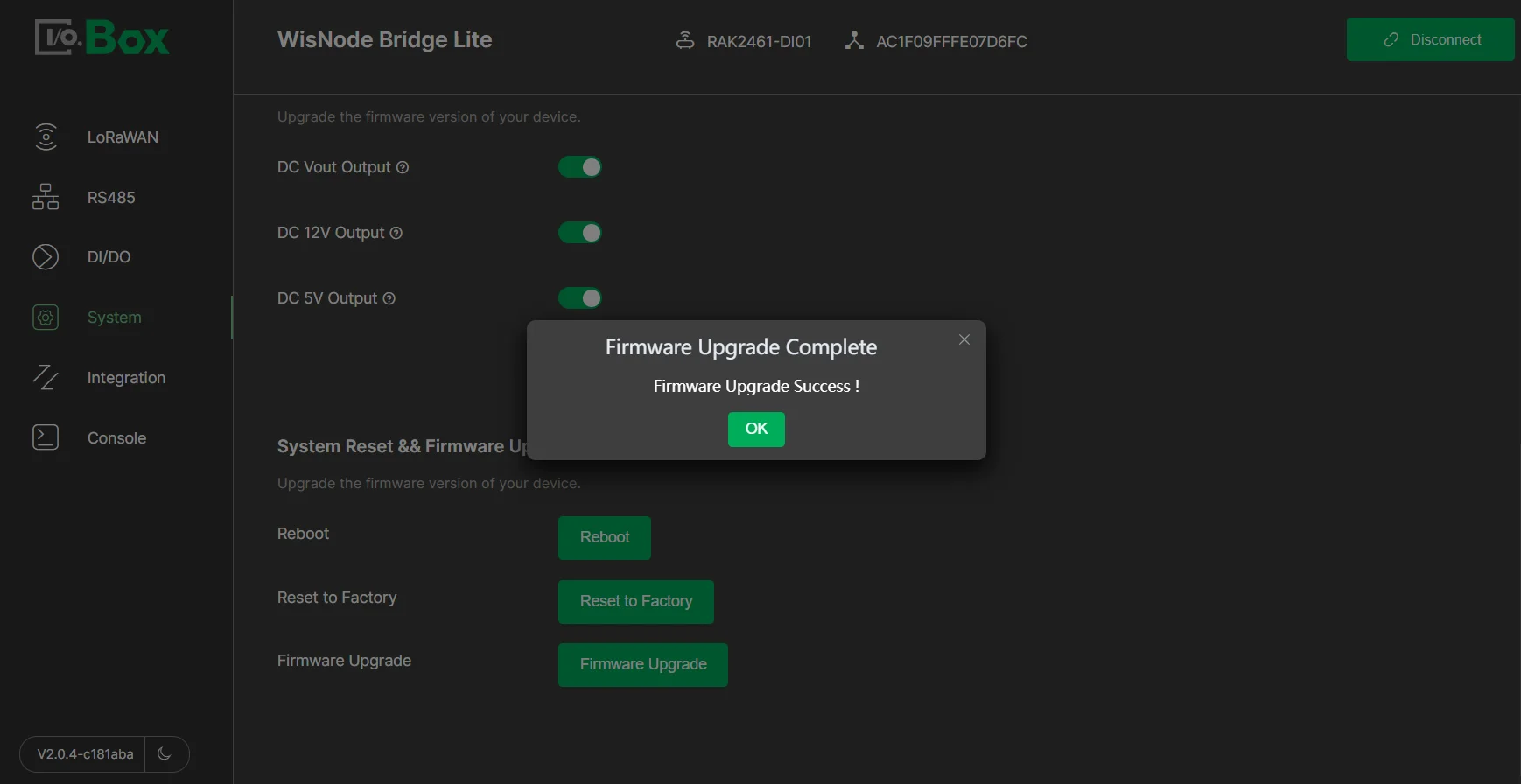 Figure 1: Successful upgrade
Reboot
- Simply press the Reboot button.
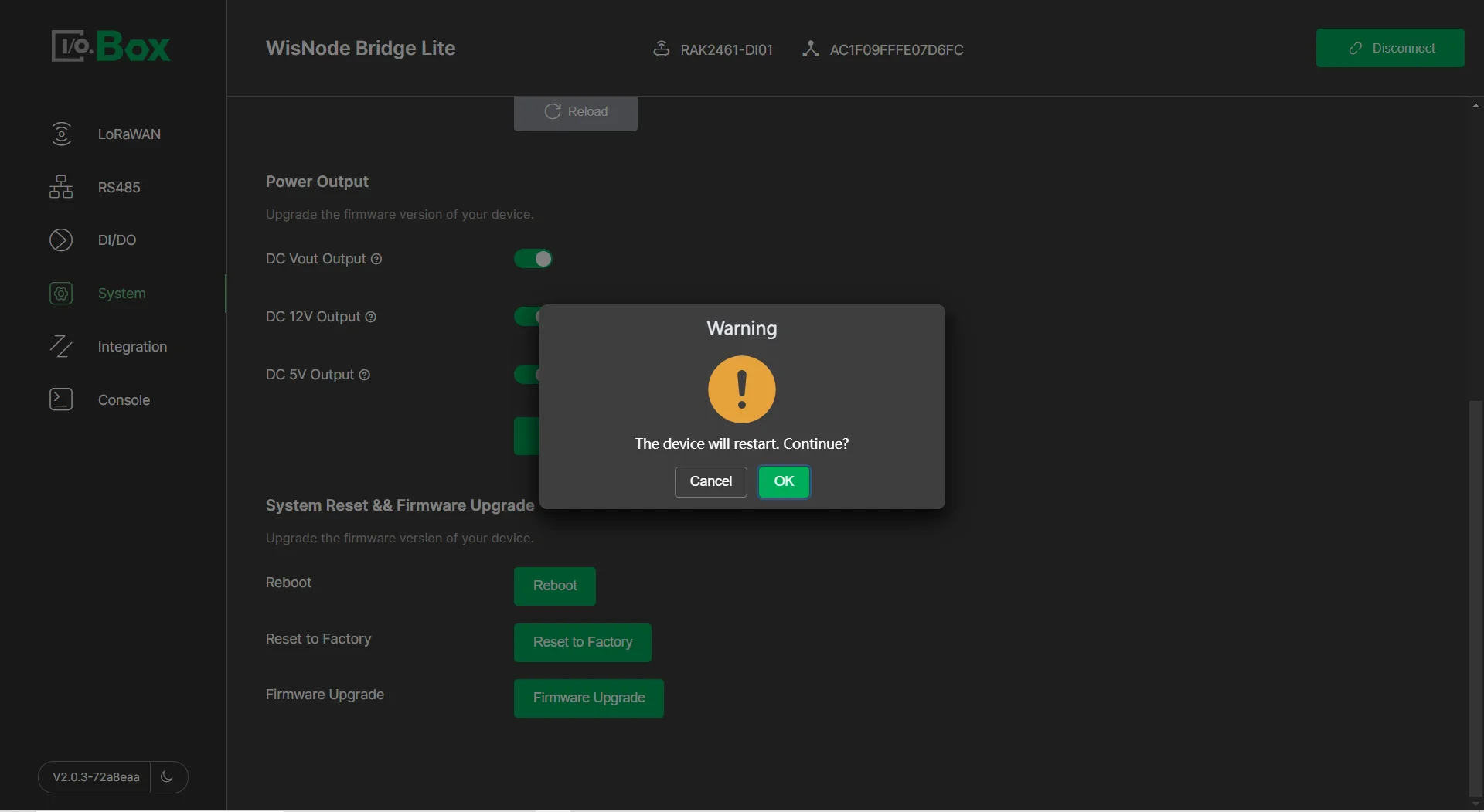 Figure 1: Reboot button
 - After clicking OK, the device will reboot and disconnect from the IO.Box application.
Factory Reset
-
To restore the device to factory settings, press the Reset to Factory button.
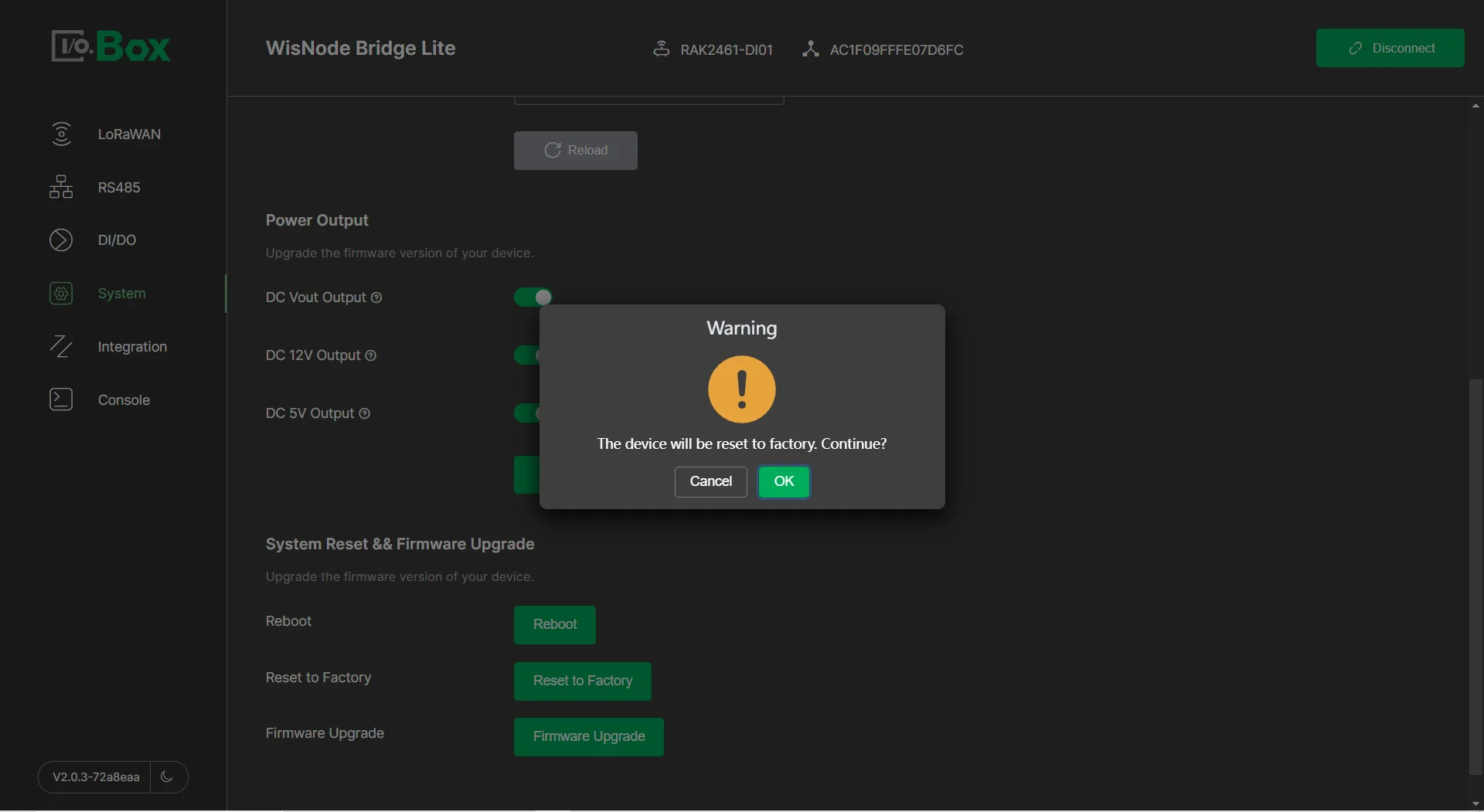 Figure 1: Reset button
 -
After clicking OK, the device will restore to factory settings.
Device Version Information
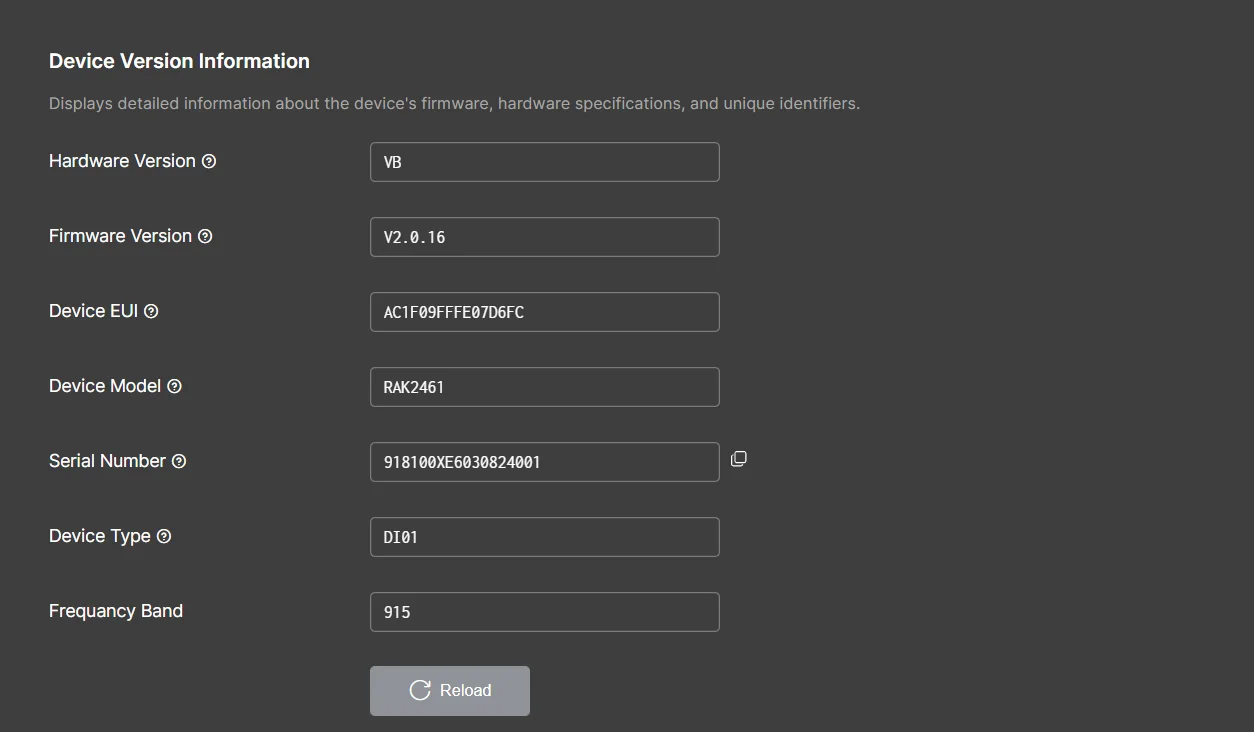 Figure 1: Device version information
- Hardware Version: Displays the specific version of the device’s hardware.
- Firmware Version: Displays the device's firmware version.
- Device EUI: Displays the unique identifier assigned by the manufacturer.
- Device Model: Displays the specific model name or number of the device.
- Serial Number: Displays the device’s serial number.
- Device Type: Indicates the category or classification of the device, defining its interface types and functionalities. For detailed specifications, refer to the device’s model information.
- Frequency Band: The device’s frequency band.
Power Output
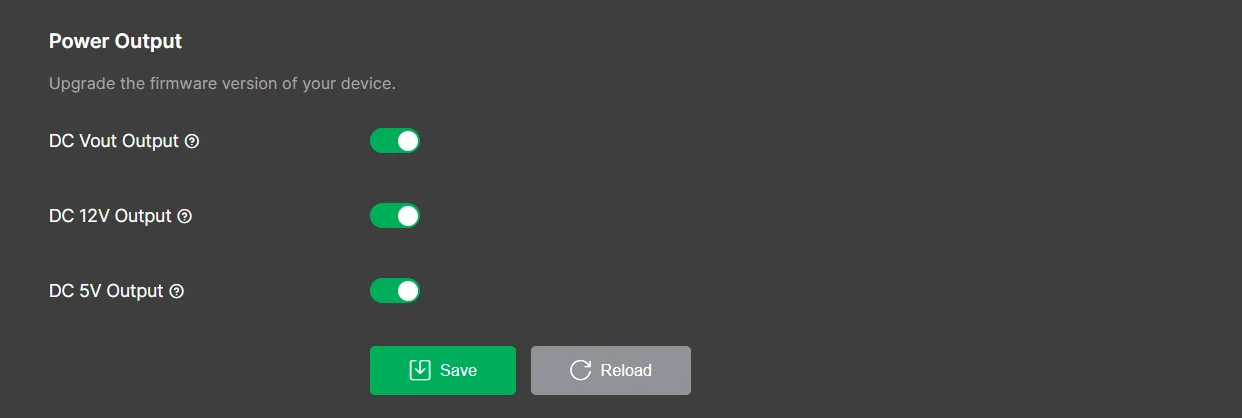 Figure 1: Power output
- DC Vout Output: Toggle to enable or disable the Vout power output. When enabled, Vout passes through the same voltage as the Vin input.
- DC 12V Output: Toggle to enable or disable the 12V_Out power output. When enabled, it provides a 12 V / 0.5 A power output.
- DC 5V Output: Toggle to enable or disable the 5V_Out power output. When enabled, it provides a 5 V / 0.5 A power output.


