Maintenance and Firmware Upgrade
Download IO.Box and connect Bridge IO device to IO.Box. Then, from the main menu of IO.Box, go to the System tab to view the RAK2470 device information, power output controls, and firmware update options.
System Reset & Firmware Upgrade
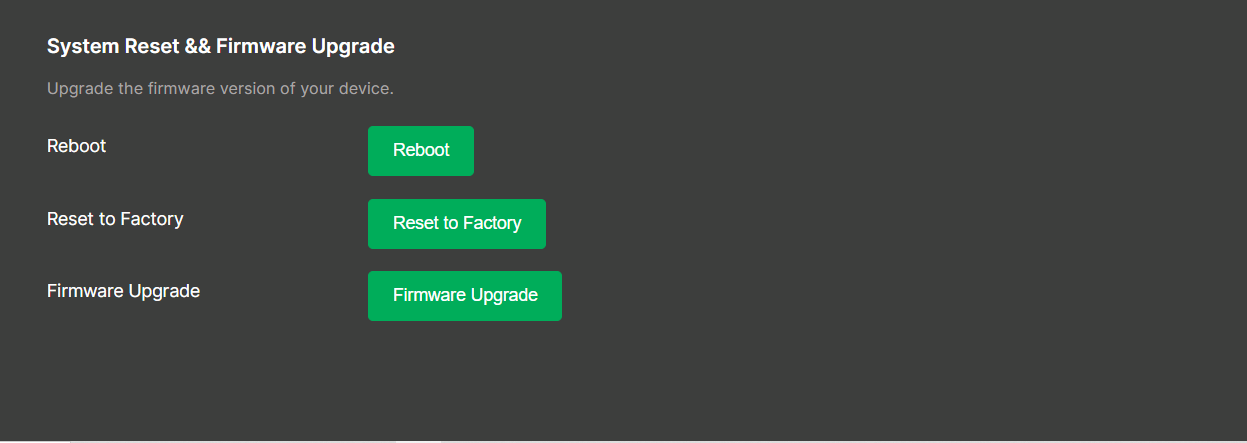 Figure 1: System reset & firmware upgrade
Firmware Upgrade
- Download the latest firmware.
- Click Firmware Upgrade and select the firmware file.
- Confirm the firmware information and then click Upgrade. Wait for the procedure to finish.
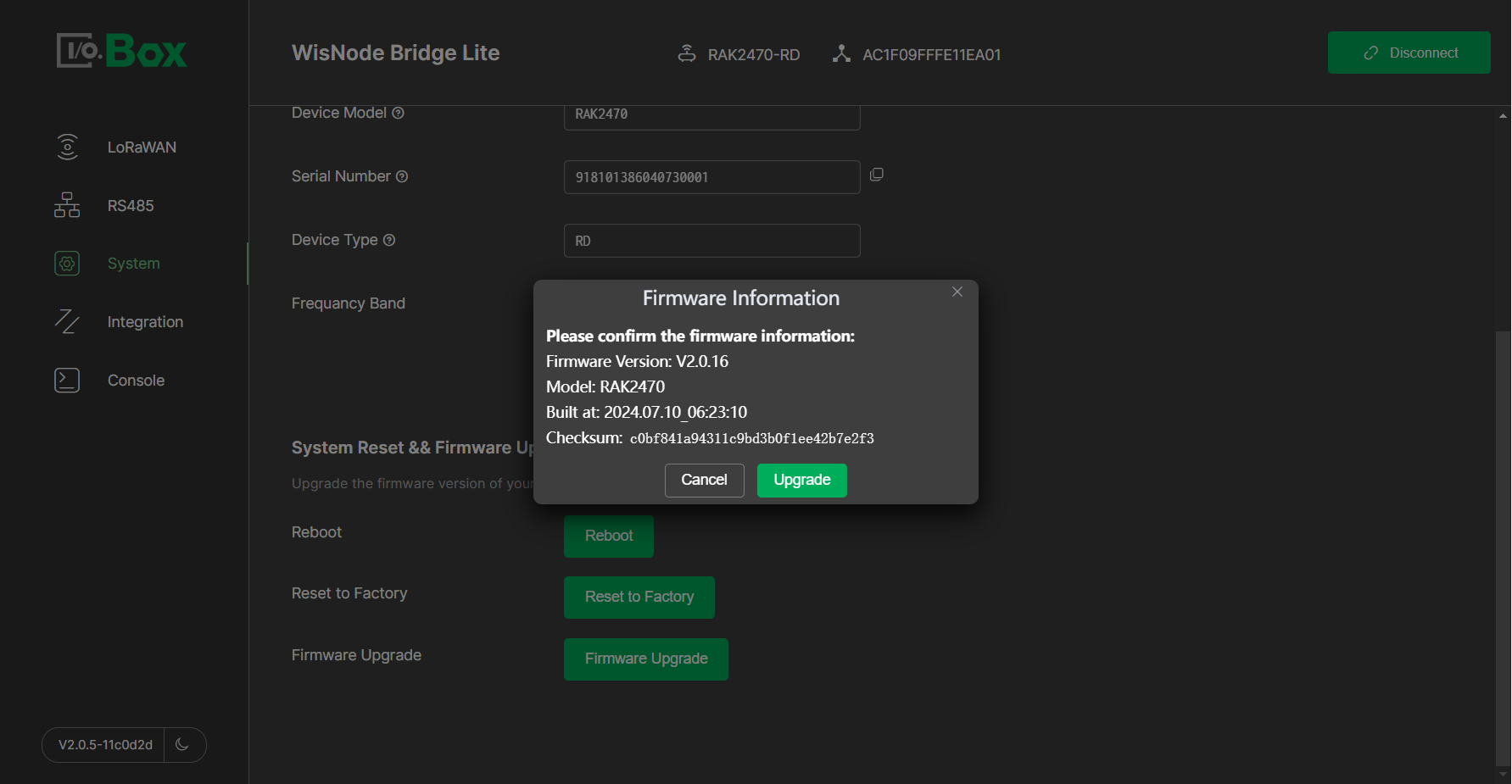 Figure 1: Confirm the firmware information
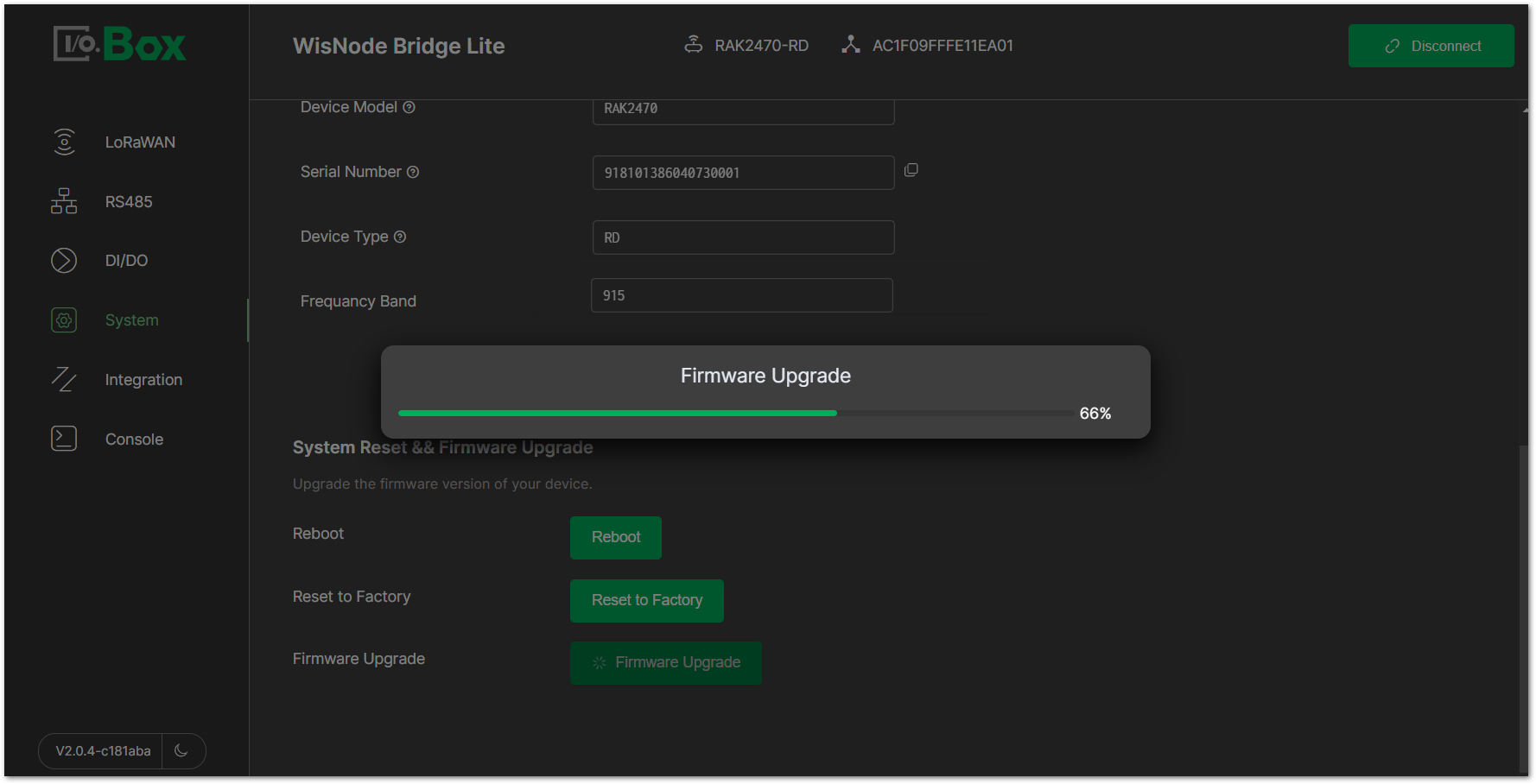 Figure 1: Upgrading procedure
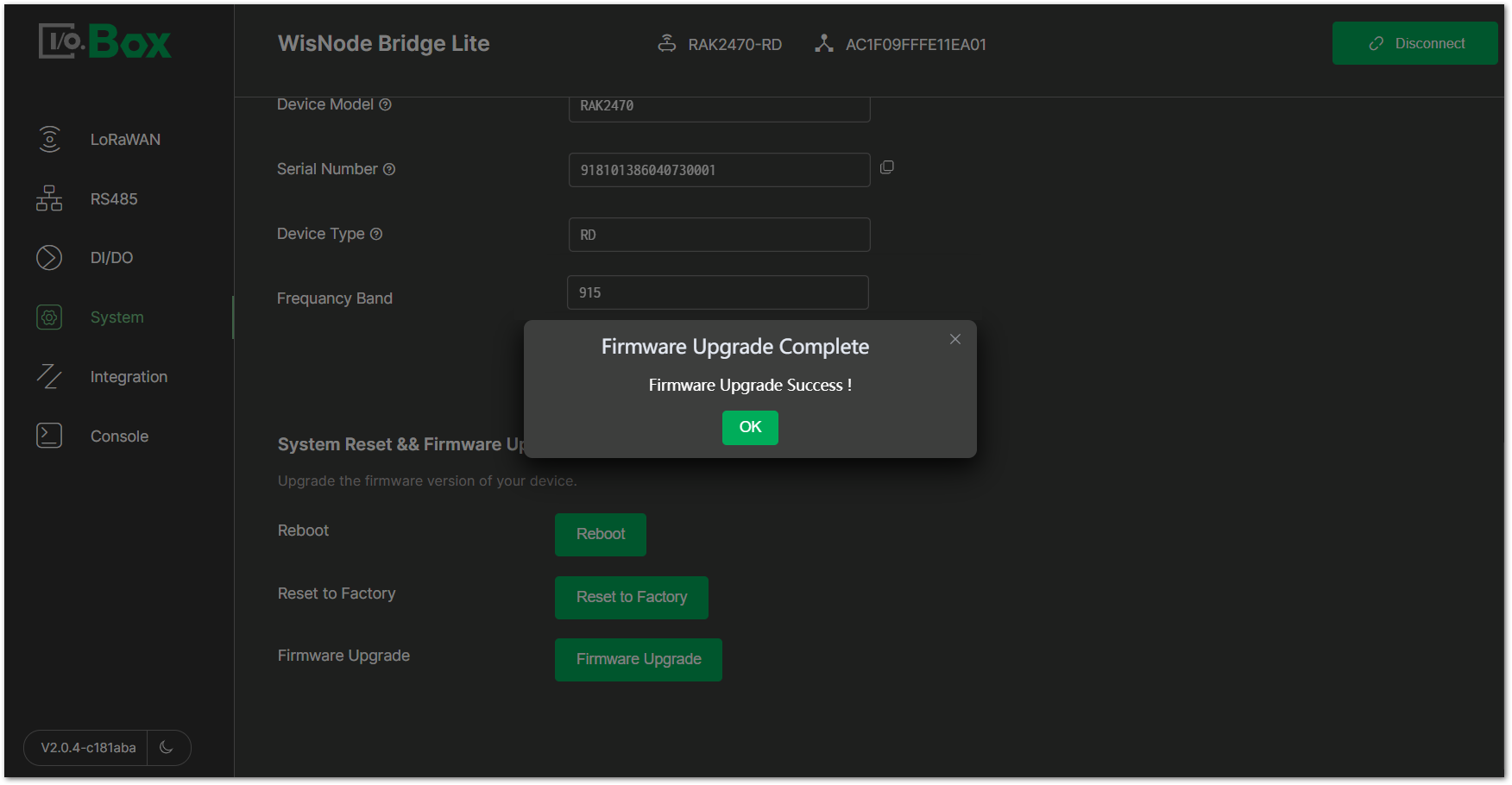 Figure 1: Successful upgrade
Reboot
- Simply press the Reboot button.
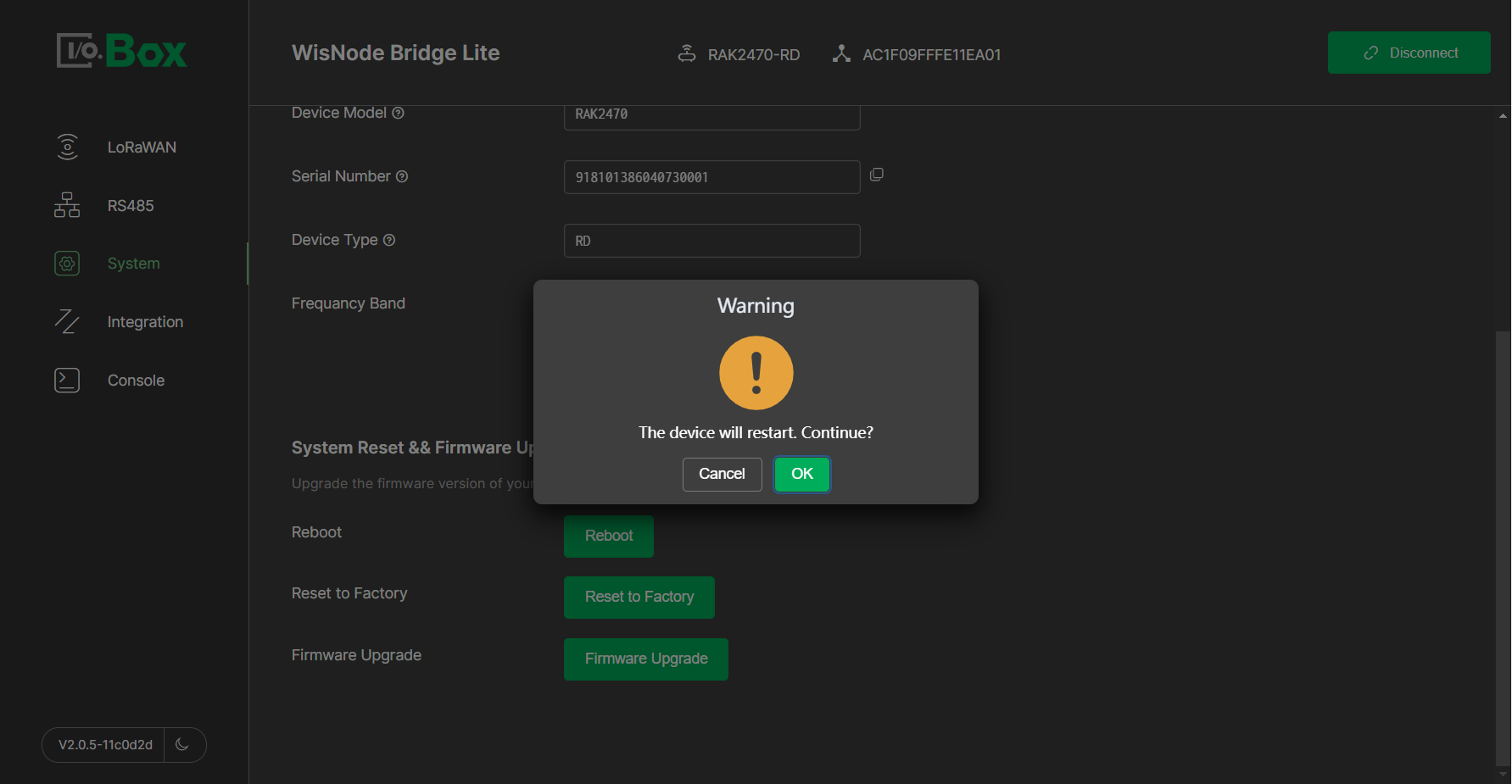 Figure 1: Reboot button
- After clicking OK, the device will reboot and disconnect from the IO.Box application.
Factory Reset
- To restore the device to factory settings, press the Reset to Factory button.
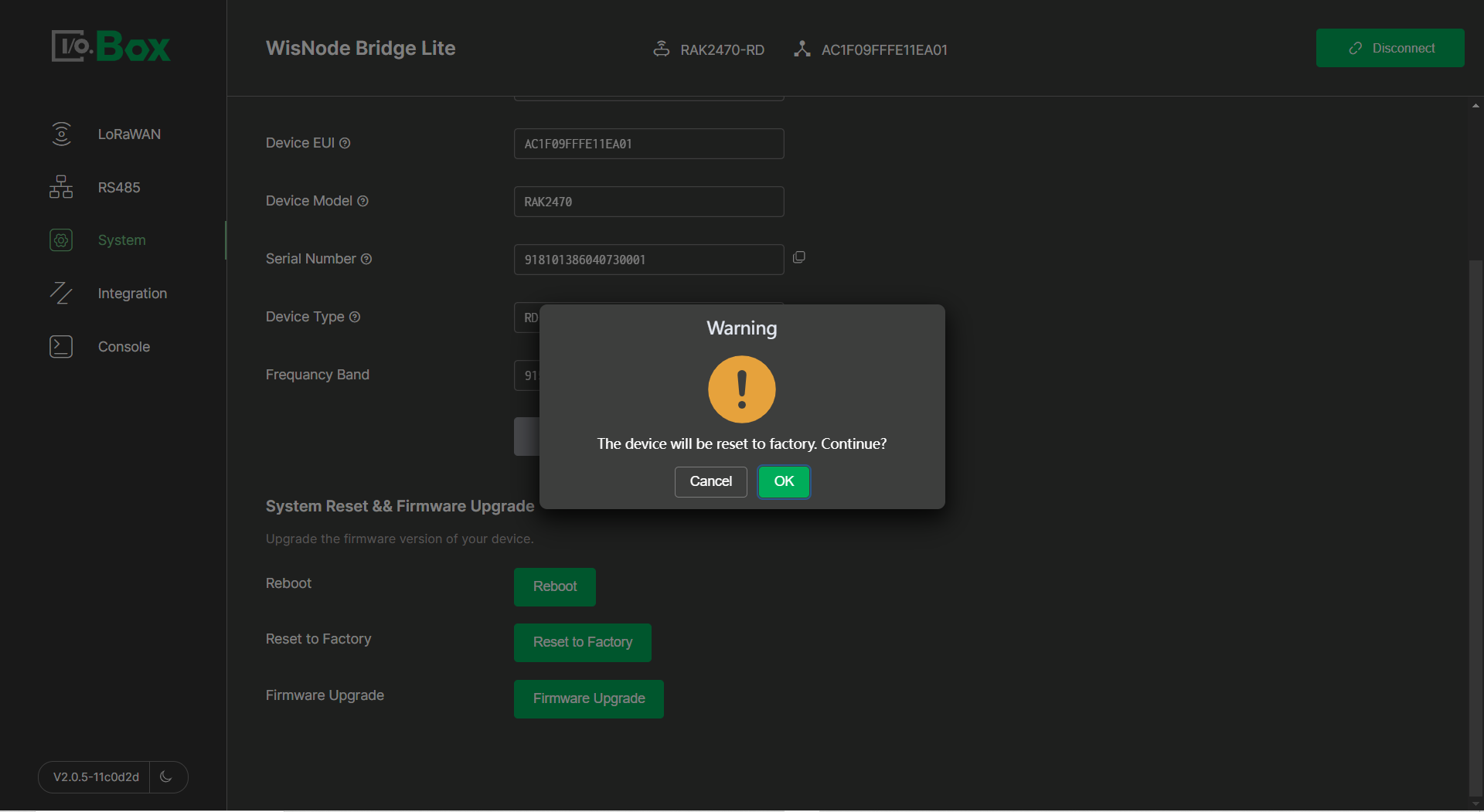 Figure 1: Reset Button
- After clicking OK, the device will restore to factory setting.
Device Version Information
- Hardware Version: Displays the specific version of the device’s hardware.
- Firmware Version: Displays the device's firmware version.
- Device EUI: Displays the unique identifier assigned by the manufacturer.
- Device Model: Displays the specific model name or number of the device.
- Serial Number: Displays the device’s serial number of the device.
- Device Type: Indicates the category or classification of the device, defining its interface types and functionalities. For detailed specifications refer to the device’s model information.
- Frequency Band: The device’s frequency band.


