RS485 Device Configuration Guide
This guide explains how to connect an RS485 (Modbus) sensor to the RAK2470, configure polling tasks to collect data, send it via LoRaWAN.
Prerequisite
Before connecting the sensor to the RAK2470 device, make sure to prepare the necessary items listed below.
- RAK2470 WisNode Bridge Serial Prime
- Configuration Cable for WisNode Bridge Serial Prime RAK2470
- An RS485 (Modbus) sensor
- Gateway in range
- IO.Box (latest version recommended)
Connect RS485 Device to the RAK2470
There are two ways to connect devices to RAK2470:
-
When the device has its own power source (e.g. a MPPT solar charge controller), it can be directly connected to the connector on the RAK2470.
-
When the device cannot provide power, it needs to be powered through the T-type conversion cable as follows.
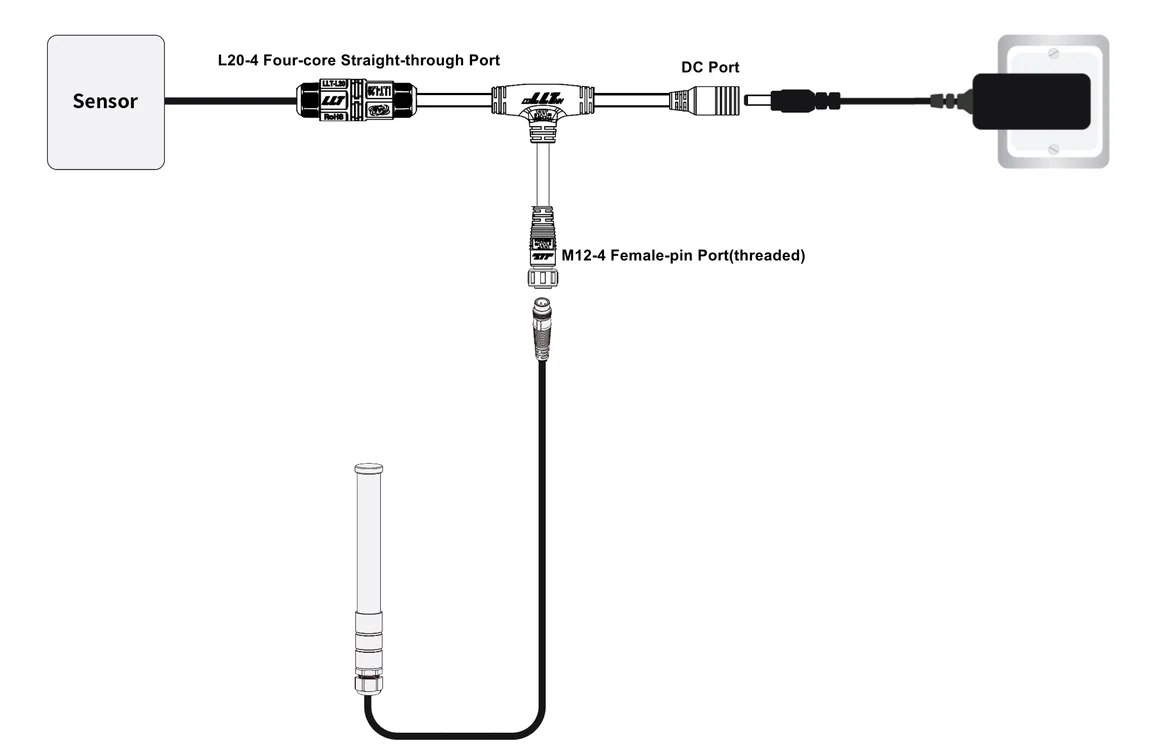 Figure 1: Connecting the bridge to a device
Data Interface Connection
The sensor is connected through the L20-4 port of the T-type conversion cable. In this section, the RK520-02 Soil Moisture, Temperature, and Electrical Conductivity sensors will be used as an example.
- Pin 1: Connect to the positive terminal of the sensor's power cord.
- Pin 2: Connect to RS485-A of the sensor.
- Pin 3: Connect to RS485-B of the sensor.
- Pin 4: Connect to the negative terminal of the sensor's power cord.
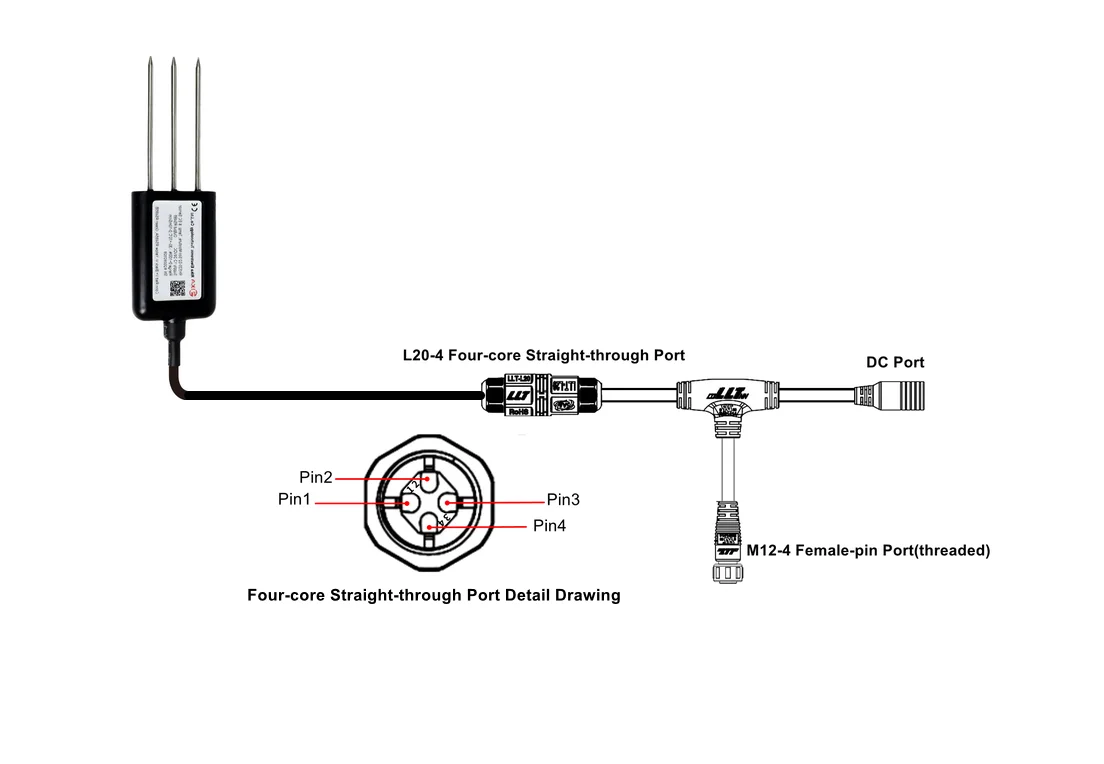 Figure 1: Data interface connection
RAK2470 Connection
If you are using the RAK2470 for the first time, you need to configure it. To do so, connect the RAK2470 to your PC using the USB configuration cable.
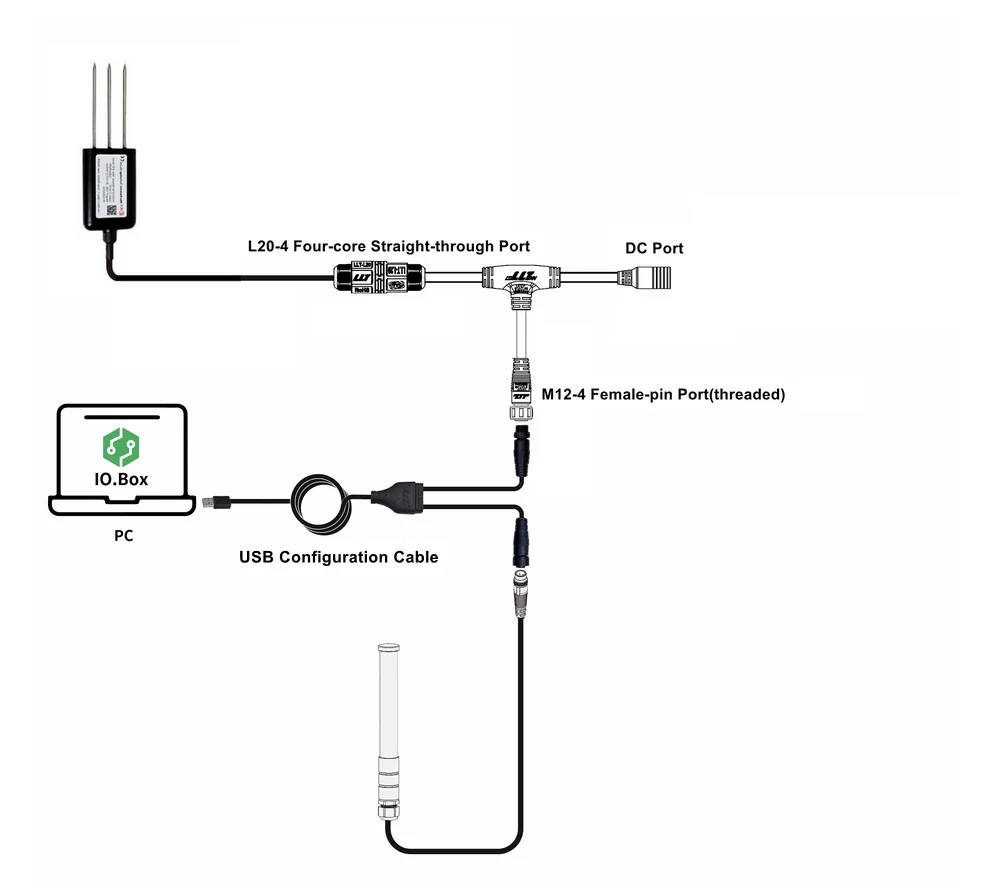 Figure 1: RAK2470 Connection
Power On the Device
The RAK2470 device can be powered with 5 ~ 12 VDC wide-range input via a 12 VDC adapter. Simply connect the adapter to the DC port of the T-type conversion cable.
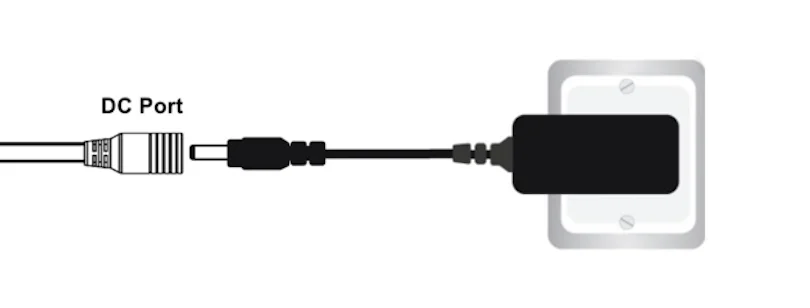 Figure 1: Power interface connection
RS485 Interface Configuration
Configure RS485 Communication Parameters
RS485 interface parameters must exactly match the sensor’s communication settings. Incorrect configuration will result in Modbus communication failure.
Go to the RS485 tab and configure the interface based on the connected sensor or device. Remember to save the settings.
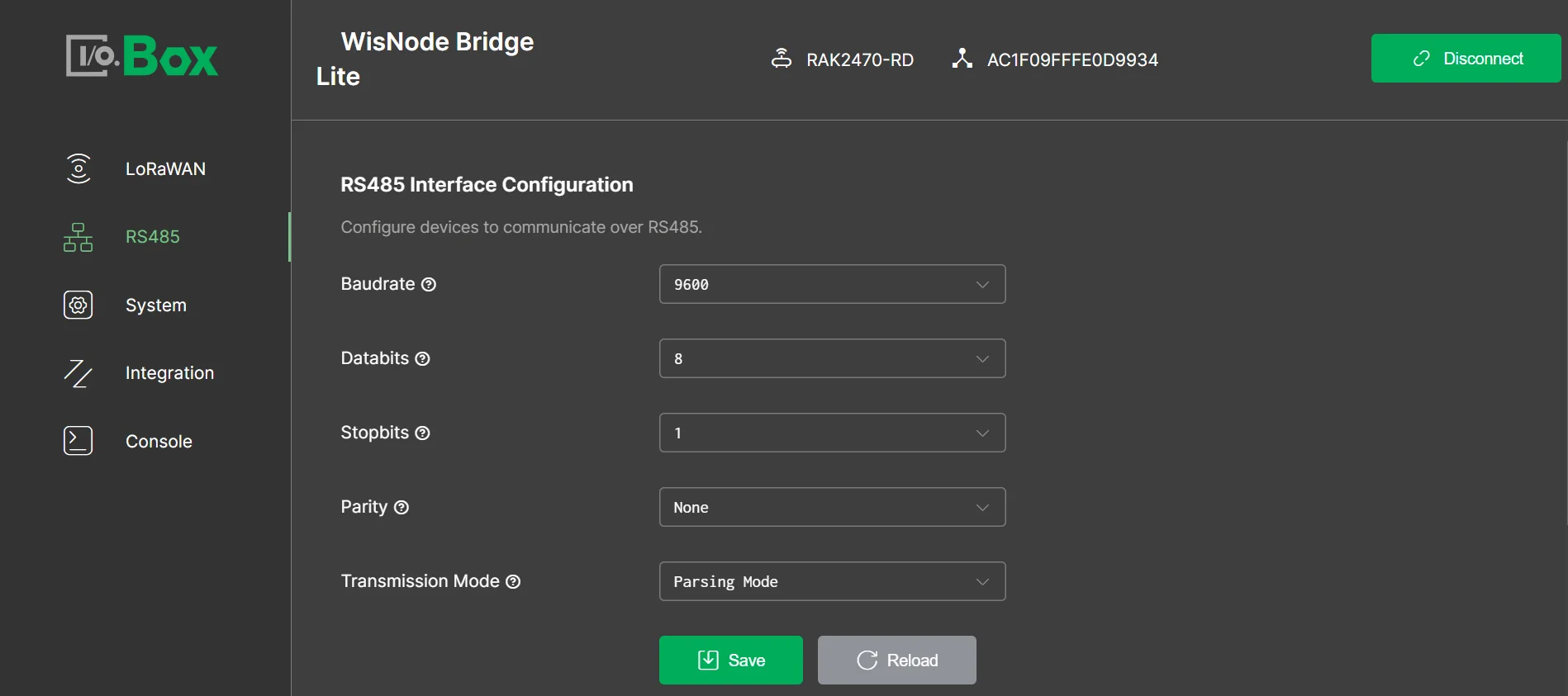 Figure 1: RS485 interface configuration
-
Baudrate: Select the RS485 communication speed (bits per second).
-
Databits: Select the number of data bits for each character in the RS485 communication.
-
Stopbits: Select the number of stop bits used in the RS485 communication.
-
Parity: Select the parity setting for the RS485 interface.
-
Transmission Mode: Defines how RS485 data is processed and transmitted over LoRaWAN®. This guide uses Parsing Mode. For configuration and data transmission using the transparent modes, refer to RS485 Transparent Transmission.
- Parsing Mode: Actively polls RS485 devices and converts the returned data into structured LoRaWAN payloads. A Modbus polling task is required.
- Polling Transparent Mode: Actively polls RS485 devices and forwards the returned raw Modbus data without parsing. A Modbus polling task is required.
- Passive Transparent Mode: Forwards received RS485 data without parsing or active polling. No Modbus polling task is required.
Add Modbus Poll Task
Because Parsing Mode is selected in this example, create Modbus polling tasks to define how the Bridge device queries and parses data from the connected RS485 sensor.
This example creates polling tasks for temperature, moisture, and electrical conductivity (EC). If you need to create a polling task with a raw binary data type, refer to (Optional) Add a Raw Data in Binary Poll Task.
- In the Modbus Poll Task menu, click +Add for a new poll. You will see the Polling Task parameters that need to be configured.
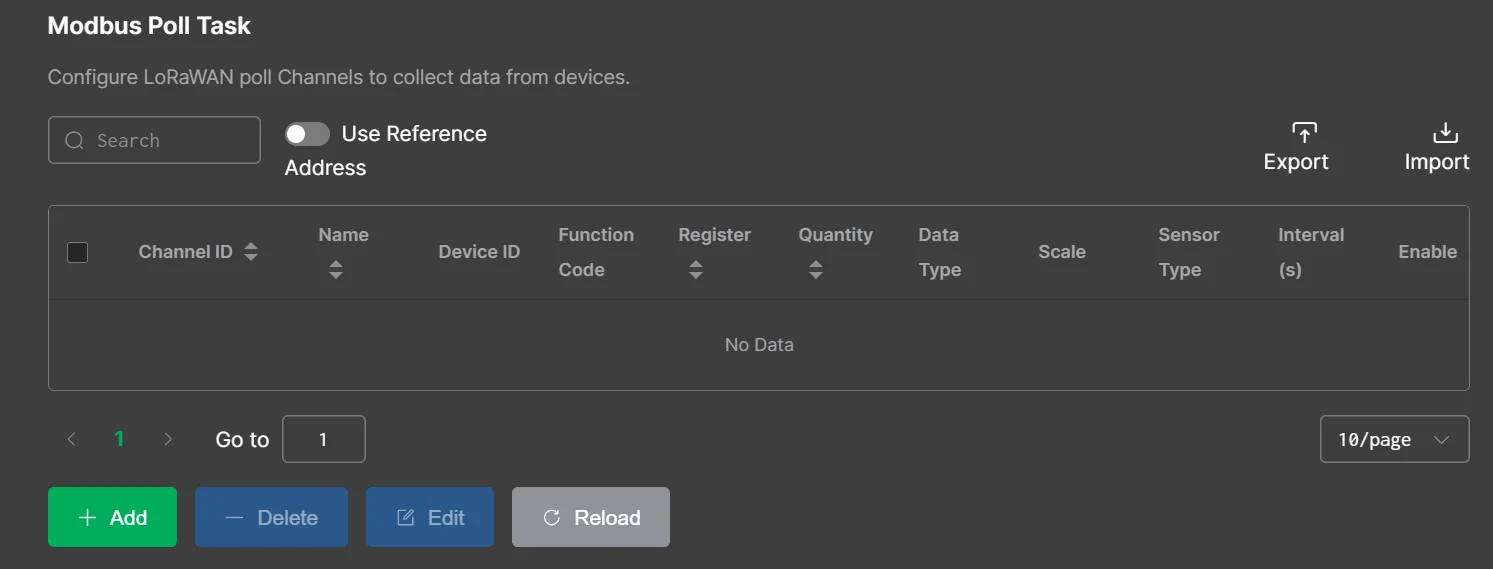 Figure 1: Add poll task
- Fill in the required fields based on the sensor’s datasheet, as shown in the screenshot and parameter settings below. In this example, a water quality pH sensor is used.
Only parameters directly related to these polling tasks are described here. Other parameters remain at their default values. For more details, refer to Add Modbus Poll Task.
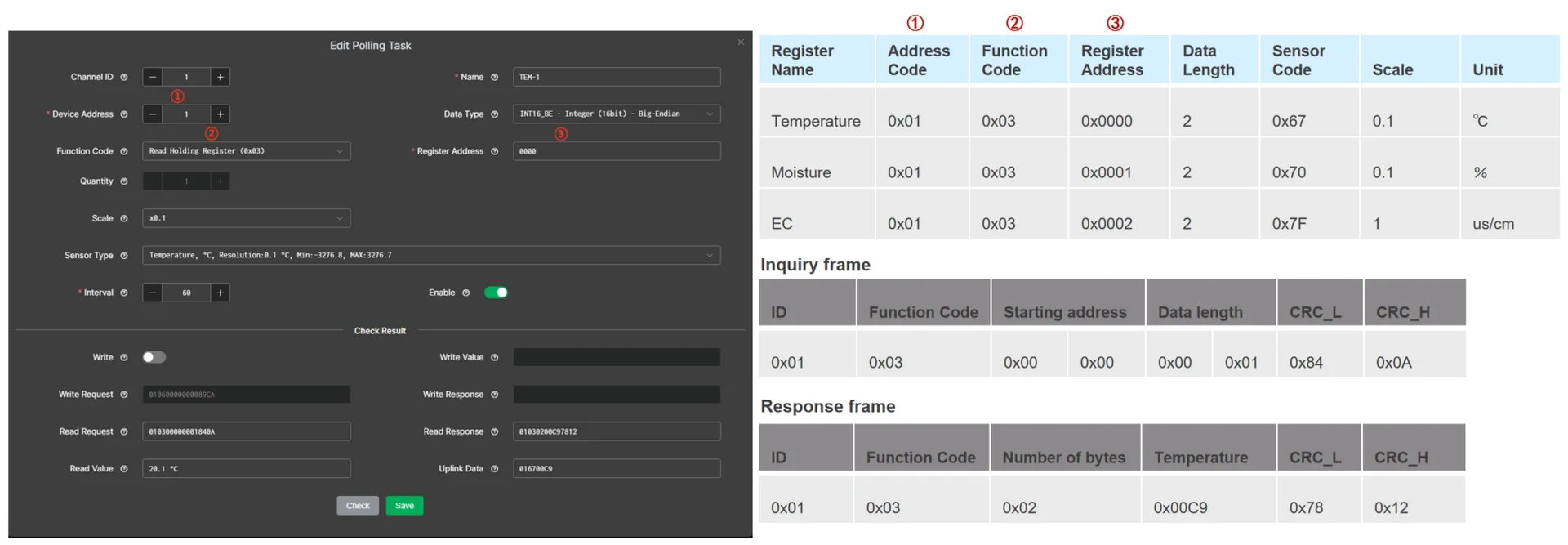 Figure 1: Configure the polling task
-
Channel ID: Identifier of the polling task.
-
Device Address: The unique address of the connected device on the RS485 bus, obtained from the device manual.
-
Function Code: Specifies the task's Modbus operation type (read or write), obtained from the device manual.
-
Register Address: The target register or coil address used in the Modbus request, obtained from the device manual.
-
Scale: To adjust the raw data from the Modbus response to the desired units.
-
Sensor Type: Select the unit or category that best matches your slave device output (used for correct interpretation and presentation).
Click Check to perform automatic validation. If the returned values are correct, save the polling task.
-
Read Request: Displays the Modbus command generated from the selected settings, which is used to communicate with the device.
-
Read Response: Displays the response received from the Modbus slave device.
-
Read Value: Shows the parsed value extracted from the Response, based on the configuration above.
-
Uplink Data: Displays the data payload format that will be sent to the server, based on the configuration above.
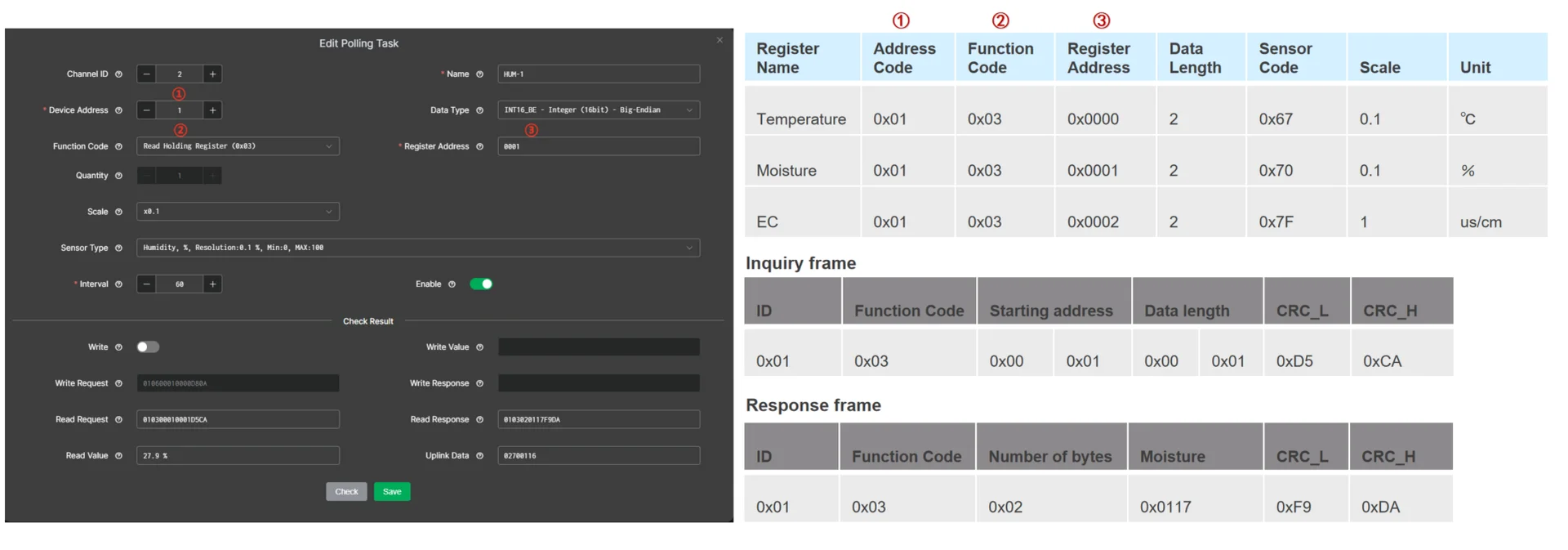 Figure 1: Add a moisture polling task
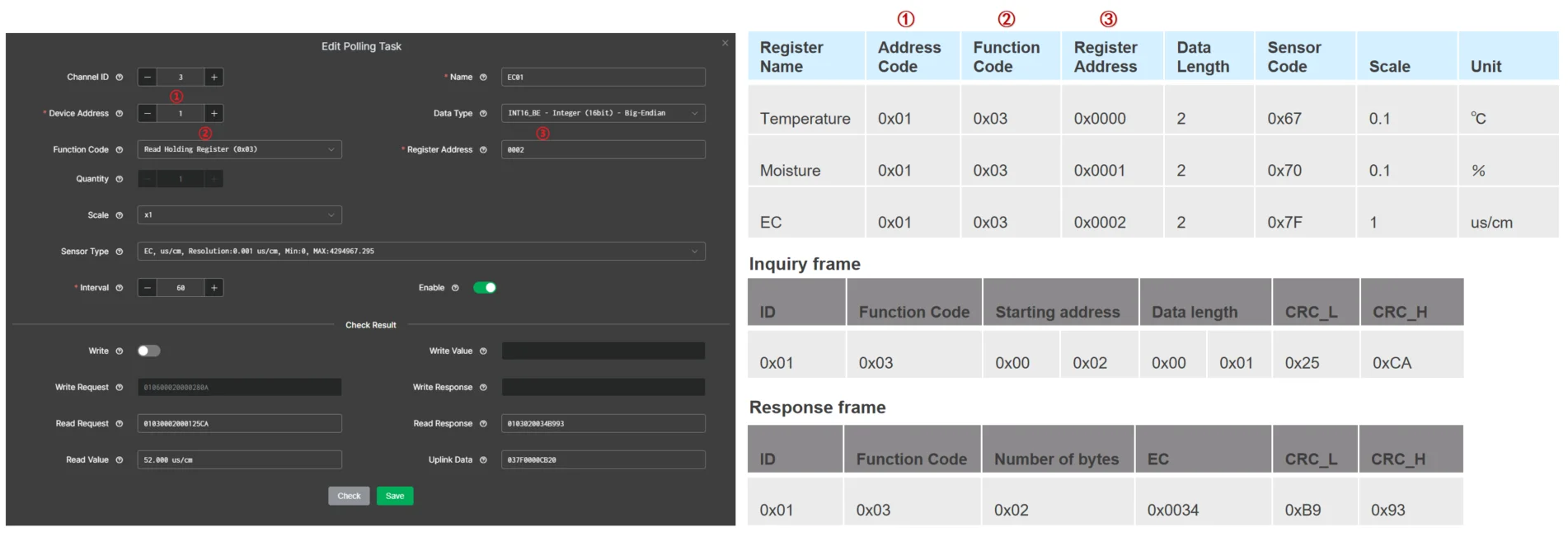 Figure 1: Add an EC polling task
 Figure 1: Created polling tasks
The RAK2470 WisNode Serial Prime has one channel used for both the RS485 communication with the sensor, and in the setup procedure. This is why you cannot see the requested data (polled data) from the sensor during setup.
(Optional) Add a Raw Data in Binary Poll Task
- In the Modbus Poll Task menu click + Add for a new poll. You will see the Polling Task parameters that need to be configured.
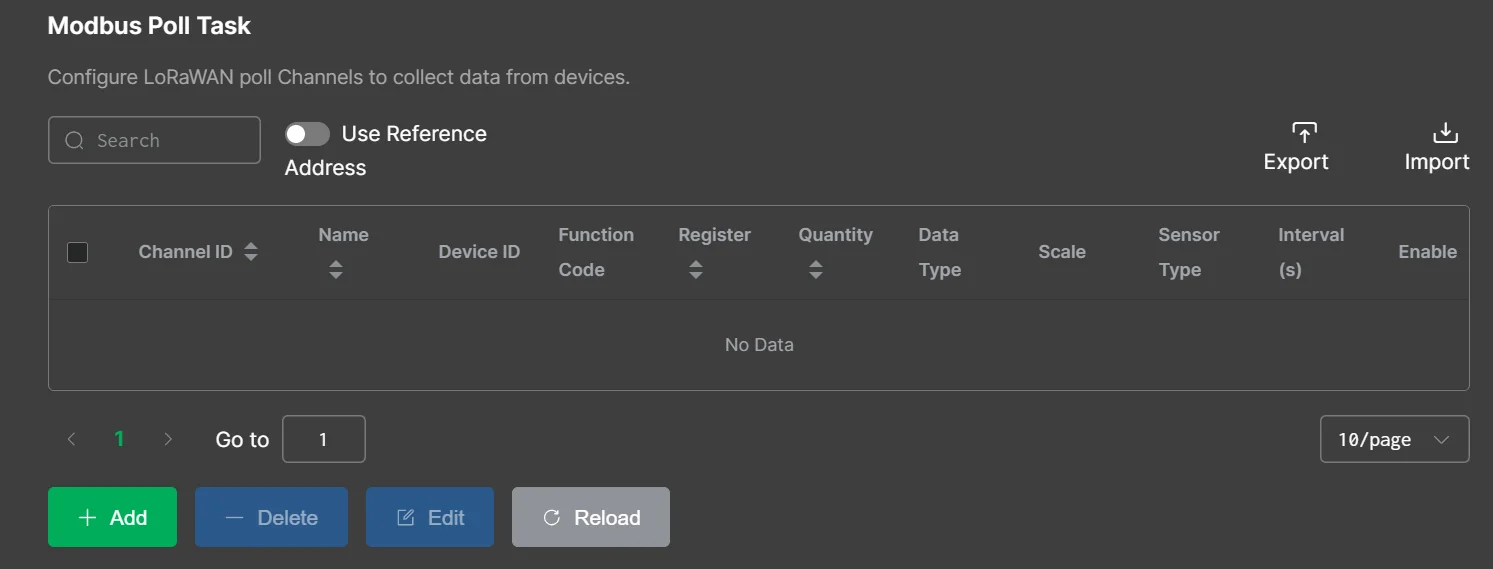 Figure 1: Modbus poll task
- Fill in the register address and other relevant fields according to the specific sensor's datasheet. Here we create a temperature polling task as an example.
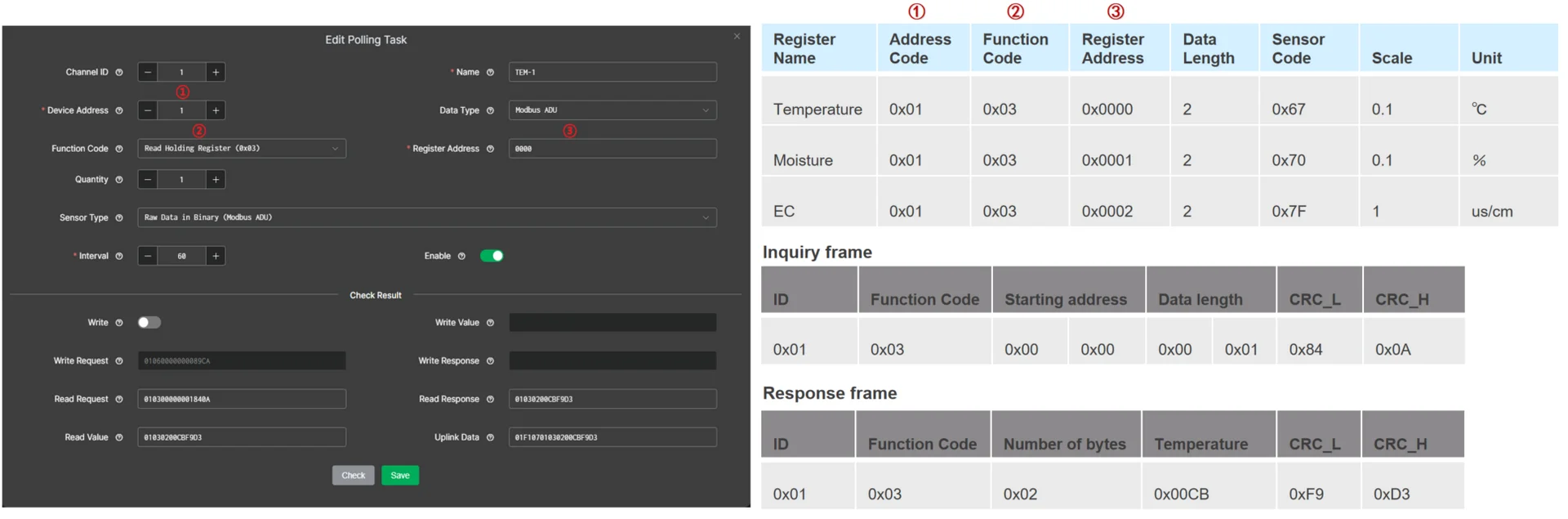 Figure 1: Configure the polling task
-
Channel ID: Enter the identifier for the polling task.
-
Device Address: The unique address of the connected device on the RS485 bus, obtained from the device manual.
-
Function Code: Specifies the Modbus operation type (read or write), obtained from the device manual.
-
Register Address: The target register or coil address used in the Modbus request, as specified in the device manual.
-
Data Type: The data type of the Modbus response. In this document, select
Modbus ADU. -
Sensor Type: Select the unit or category that best matches your slave device output. In this document, set it to
Raw Data in Binary (Modbus ADU).
Click Check to perform automatic validation. If the returned values are correct, save the polling task.
-
Request: Displays the Modbus command generated from the selected settings, which is used to communicate with the device.
-
Response: Displays the response received from the Modbus slave device.
-
Value: Shows the parsed value extracted from the Response, based on the configuration above.
-
Uplink Data: Displays the data payload format that will be sent to the server, based on the configuration above.
-
Before saving the task, click Check for automatic validation.
-
Save the polling task.
-
Create moisture and EC polling tasks in the same way.
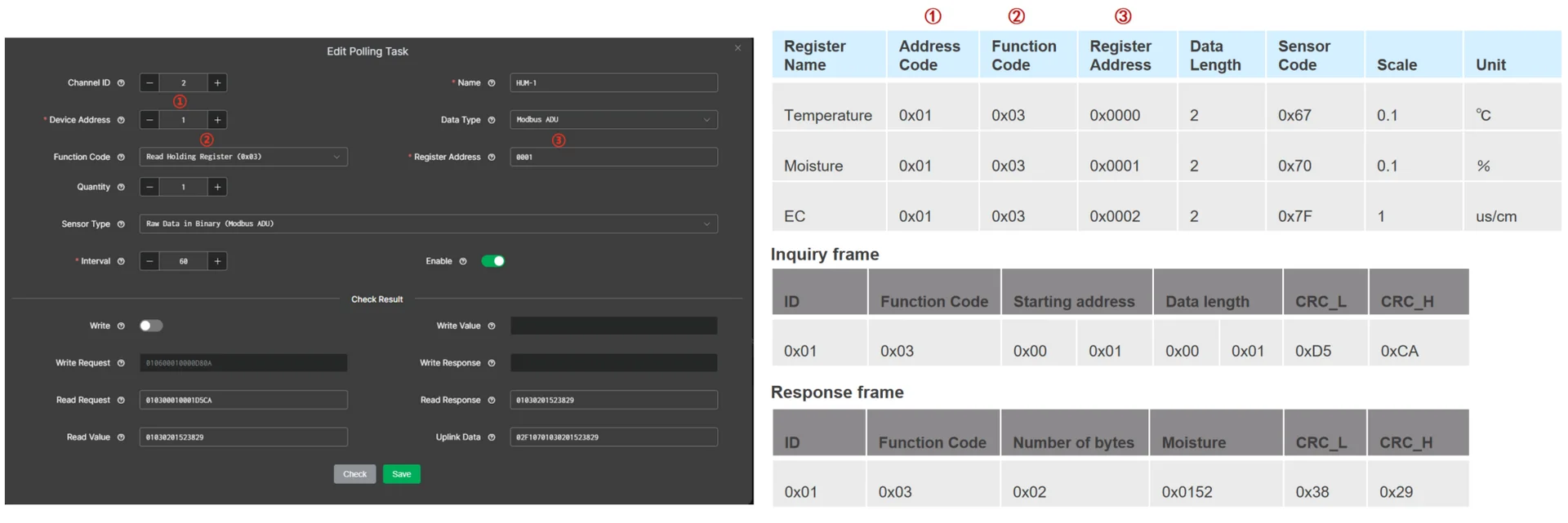 Figure 1: Add a moisture polling task
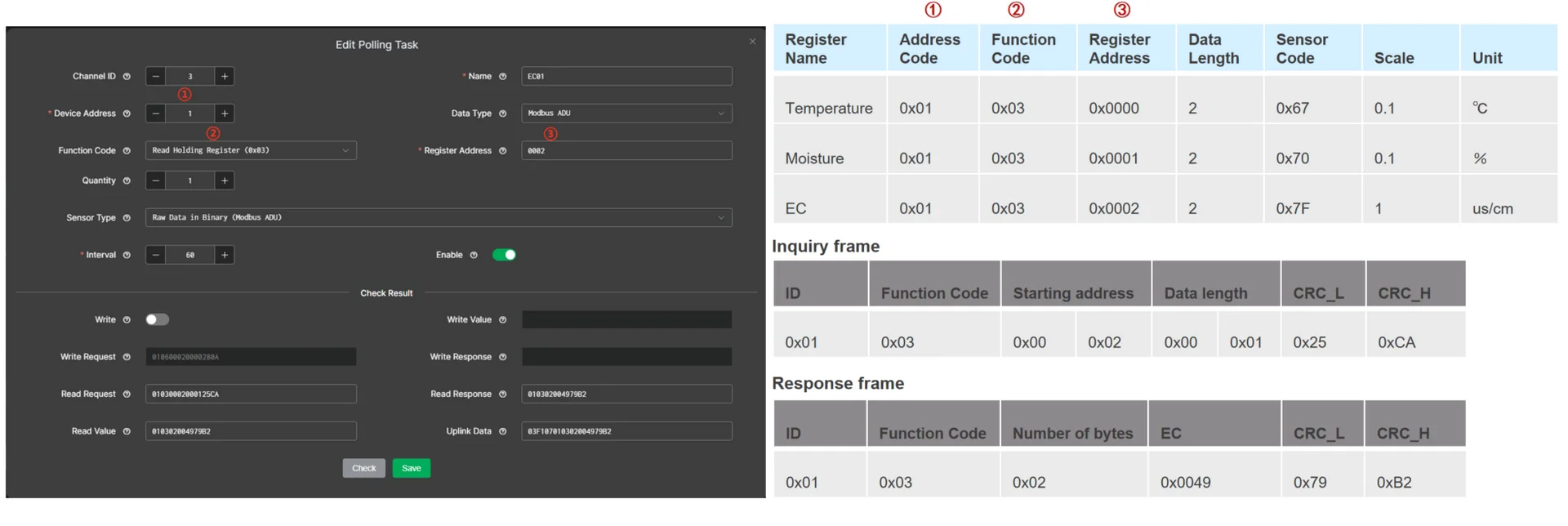 Figure 1: Add a EC polling task
 Figure 1: Created polling tasks
The RAK2470 WisNode Serial Prime has one channel that is used both for the RS485 communication with the sensor and in the setup procedure. This is why you cannot see the requested data (polled data) from the sensor during setup.
Connect the RAK2470 to LoRa Network Server
This section provides you with operation guidance for connecting the RAK2470 to different LoRaWAN network servers.
Before connecting to the LNS, ensure that you have completed Configure LoRaWAN Parameters in IO.Box.
Built-in Network Server
In this section, the RAK2470 WisNode Bridge Serial Prime is connected to a RAKwireless gateway running WisGateOS 2, using the gateway's built-in LoRaWAN Network Server (LNS).
Set Up the Built-in Network Server
- Log in to the gateway Web UI. For instructions on how to access the Web UI, refer to the user guide for your gateway.
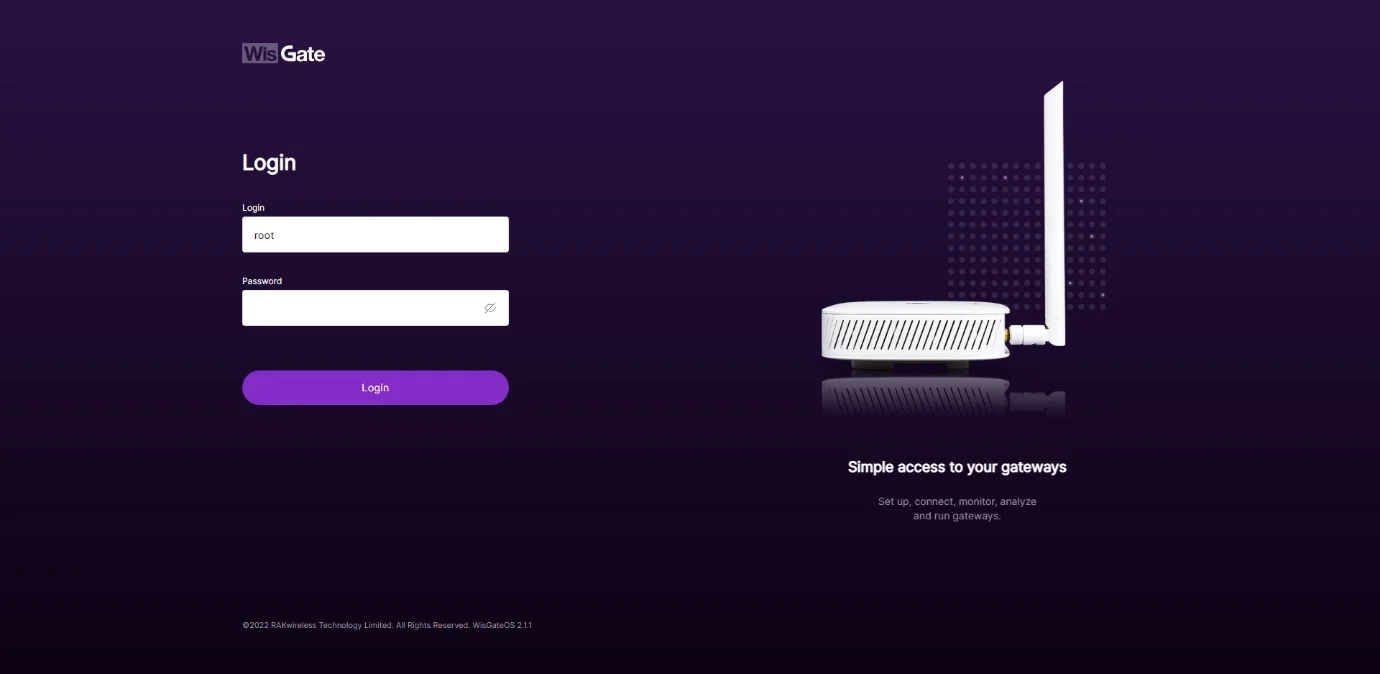 Figure 1: WisGateOS 2 login page
- Once logged in, head to the LoRa menu.
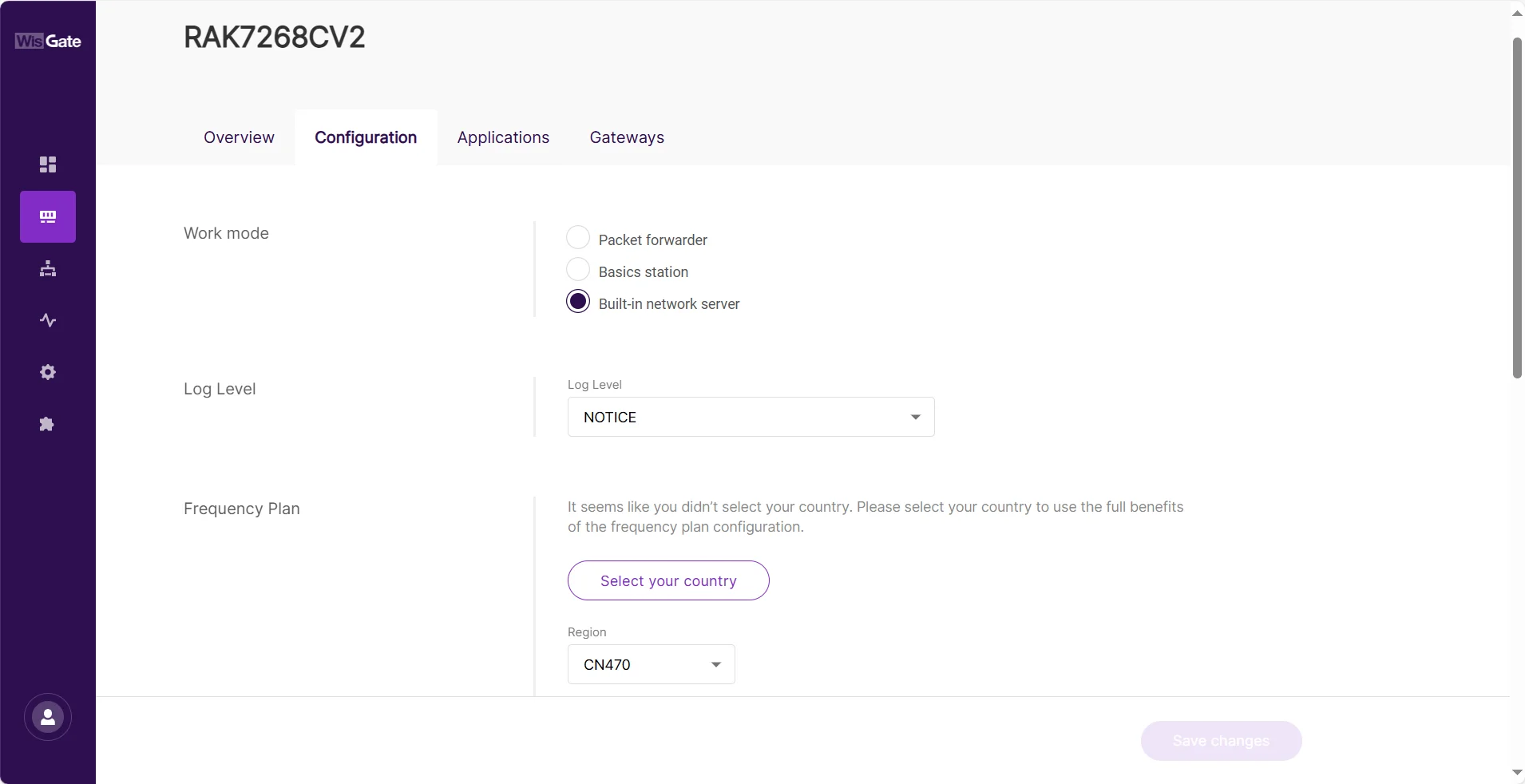 Figure 1: LoRa page
- By default, the gateway works as a Built-In Network Server. If not, switch the Work mode to Built-in network server.
Adding Application
- Once the gateway is in Built-in network server mode, head to the Applications tab.
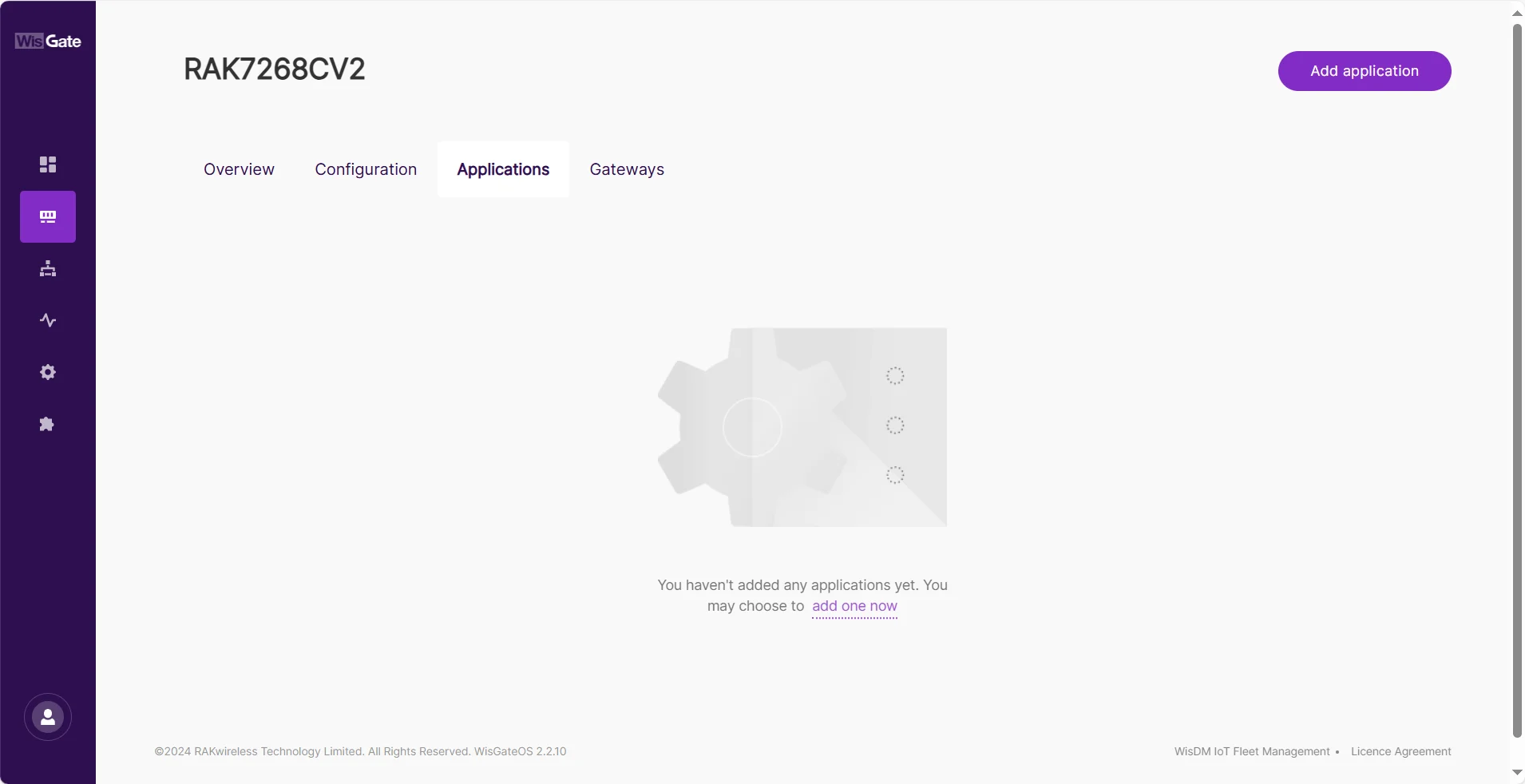 Figure 1: Create Application in the Built-In Network Server
- Click the Add application button or add one now link to add a new application. On the new page, fill in the following information:
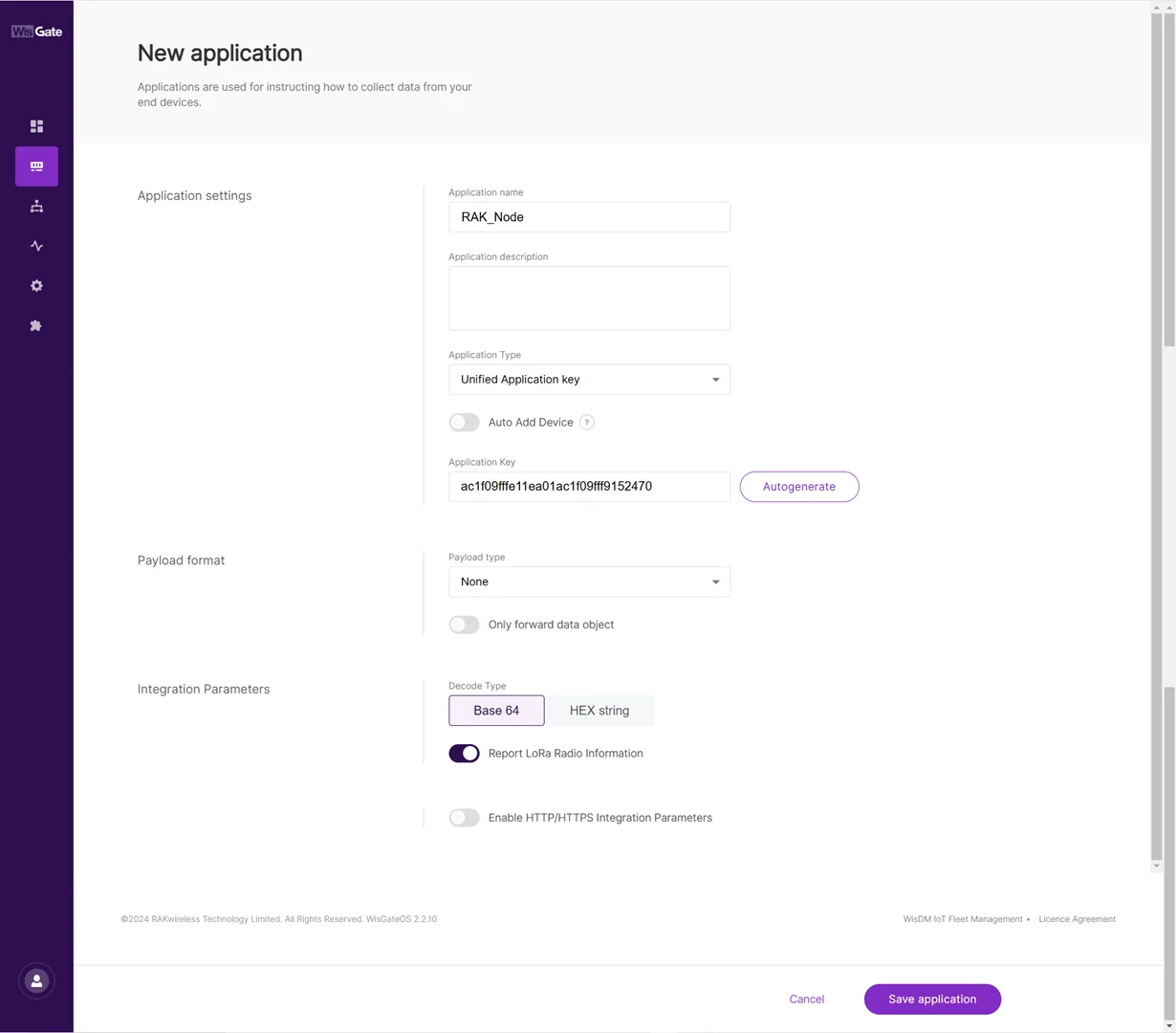 Figure 1: Adding application
- Application name: Type a name for the application.
- Application Type: from the drop-down menu select the type of application. In this document, choose Unified Application Key.
- Unified Application key: All devices use the same application key. After selecting this option, the Application Key field will appear. This value must match the one configured on the end device. You can manually enter the application key or click Autogenerate to generate one automatically.
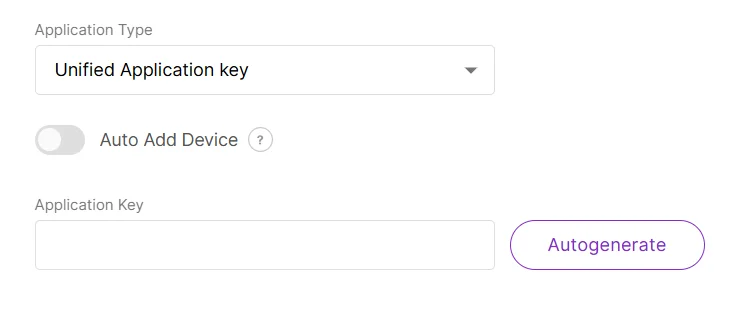 Figure 1: Unified application key
The Auto Add Device switch activates the Application EUI field. The device will be automatically added to the application after the application EUI and key verification.
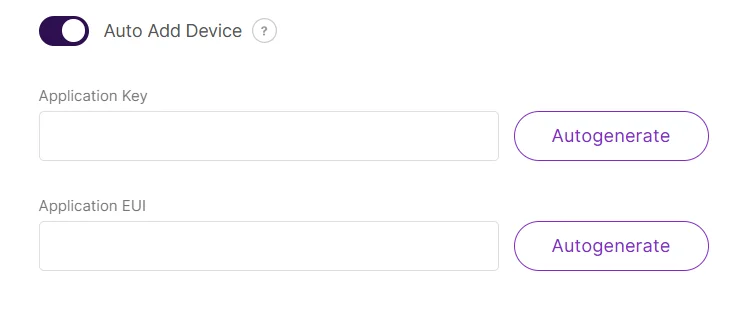 Figure 1: Auto add device
- Payload type: From the drop-down, select CayenneLPP payload type and turn on the Only forward data object feature.
-
Once set, click Save application to add the application.
-
After the application is added, head to the End devices tab. The devices should automatically register upon join request if you are using the Auto Add Device feature.
If that’s not the case, click the Add end device button. On the End device information page fill in the following information:
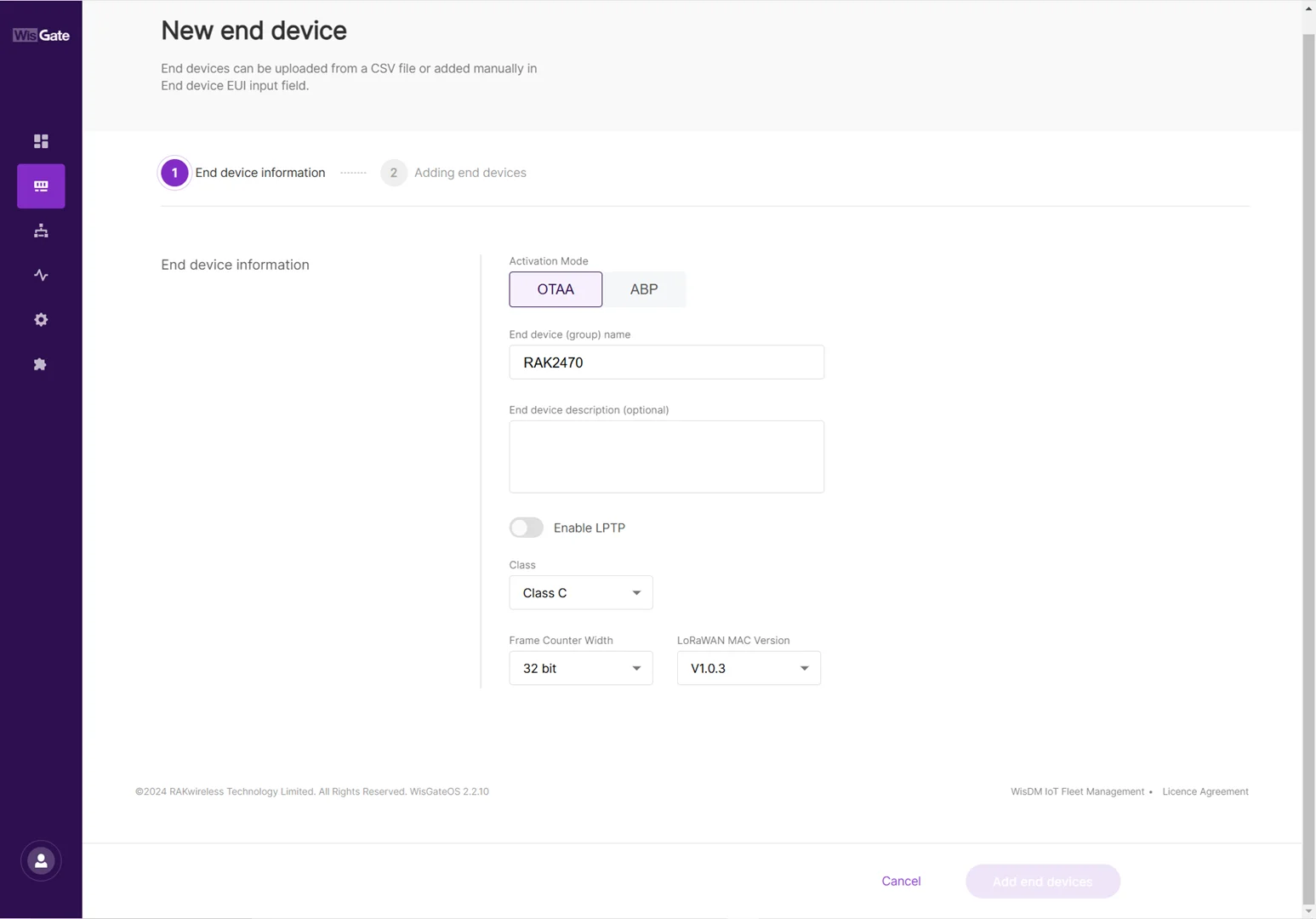 Figure 1: Successfully created application
- Activation Mode: choose the activation mode of your device.
- OTAA: Selected in this document.
- ABP: This mode pops up two additional fields:
- Application Session Key
- Network Session Key
- End device (group) name: the name of the device.
- Class: the class of the device.
- Frame Counter width: the width of the frame counter. Leave it as default.
- LoRaWAN MAC Version: the LoRaWAN MAC version.
Adding the Device
-
Once everything is set, click Add end devices to go to the page and add the device.
-
On the Adding end devices page, type the device EUI at the End Device EUI (main) and click Add to “End Devices list”.
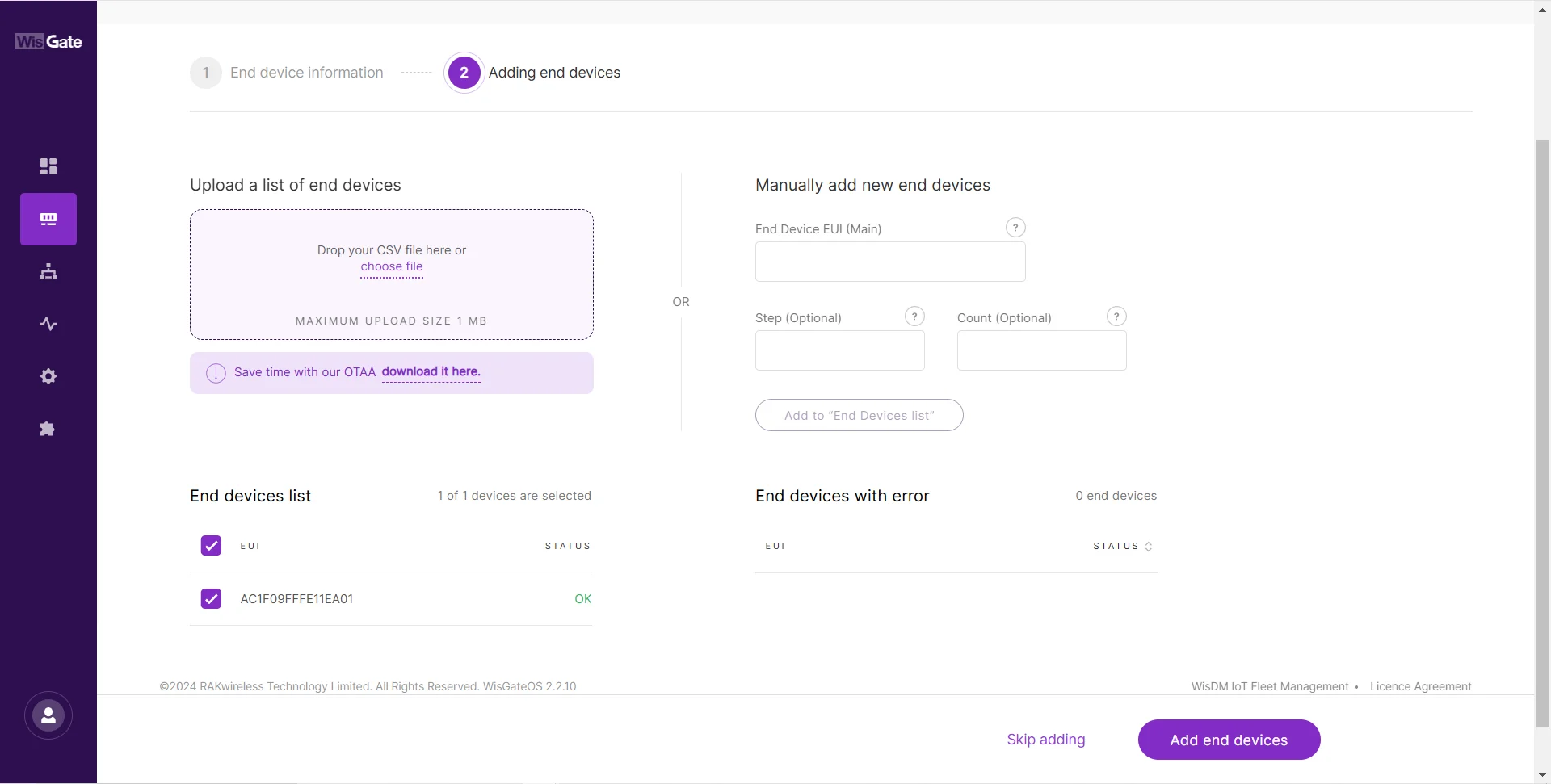 Figure 1: Adding end device
- Once the device is added to the End devices list click Add end devices. Confirm you are adding the device.
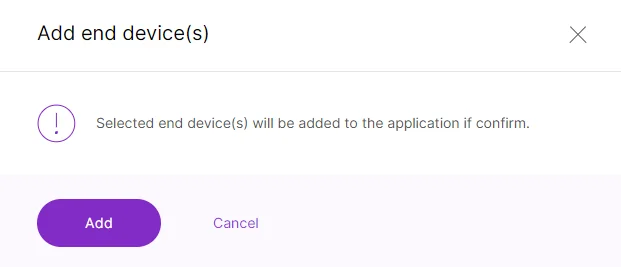 Figure 1: Confirmation message for adding a device
- After the device has successfully joined the LNS, you will see the LoRaWAN status in the IO.Box console toggles as activated. You might need to refresh the page.
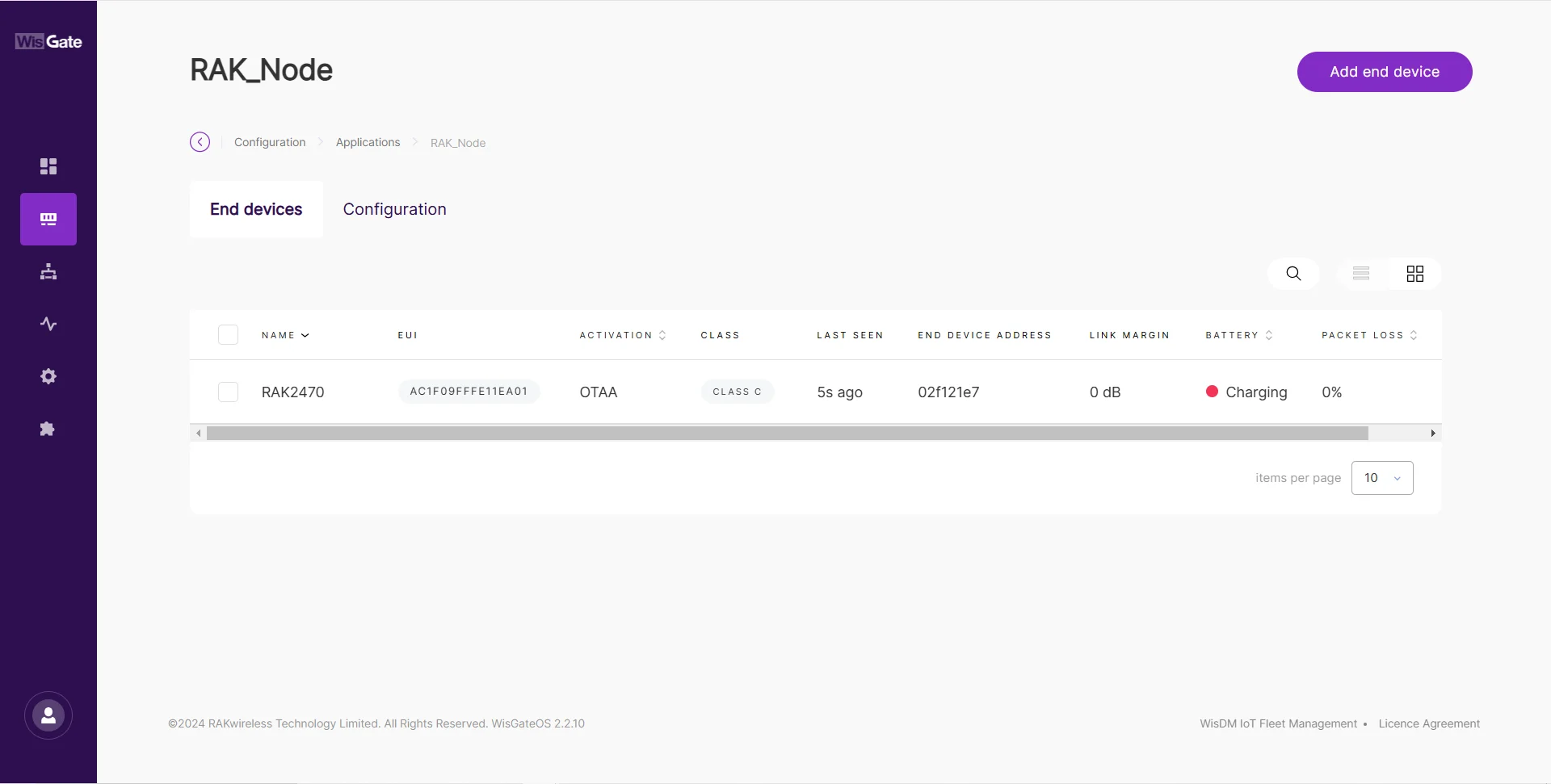 Figure 1: Device is online
 Figure 1: LoRaWAN status
You have now completed the configuration of the RAK2470. However, the LoRa network server is not yet able to receive the uplink data because the RAK2470 currently has only one channel, which is being used both for RS485 communication with the sensor and during the setup process. To resolve this, remove the configuration cable to exit configuration mode. Then, connect the RAK2470 directly to the T-type conversion cable.
After disconnecting the device, wait for a while, and you'll see uplink data from the LoRaWAN network in the gateway Web UI. The figure below shows the uplink data from the example sensor.
- Temperature:
0167 - Data:
00d9
00d9 (hex) = 217 (dec)
217 x 0.1 (conversion factor) = 21.7° C
- RH:
02bc - Data:
028d
028d (hex) = 653 (dec)
653 x 0.001 (conversion factor) = 65.3%
- EC:
037f - Data:
0002ee00
0002ee00 (hex) = 192000 (dec)
192000 x 0.001 (conversion factor) = 192.000 us/cm
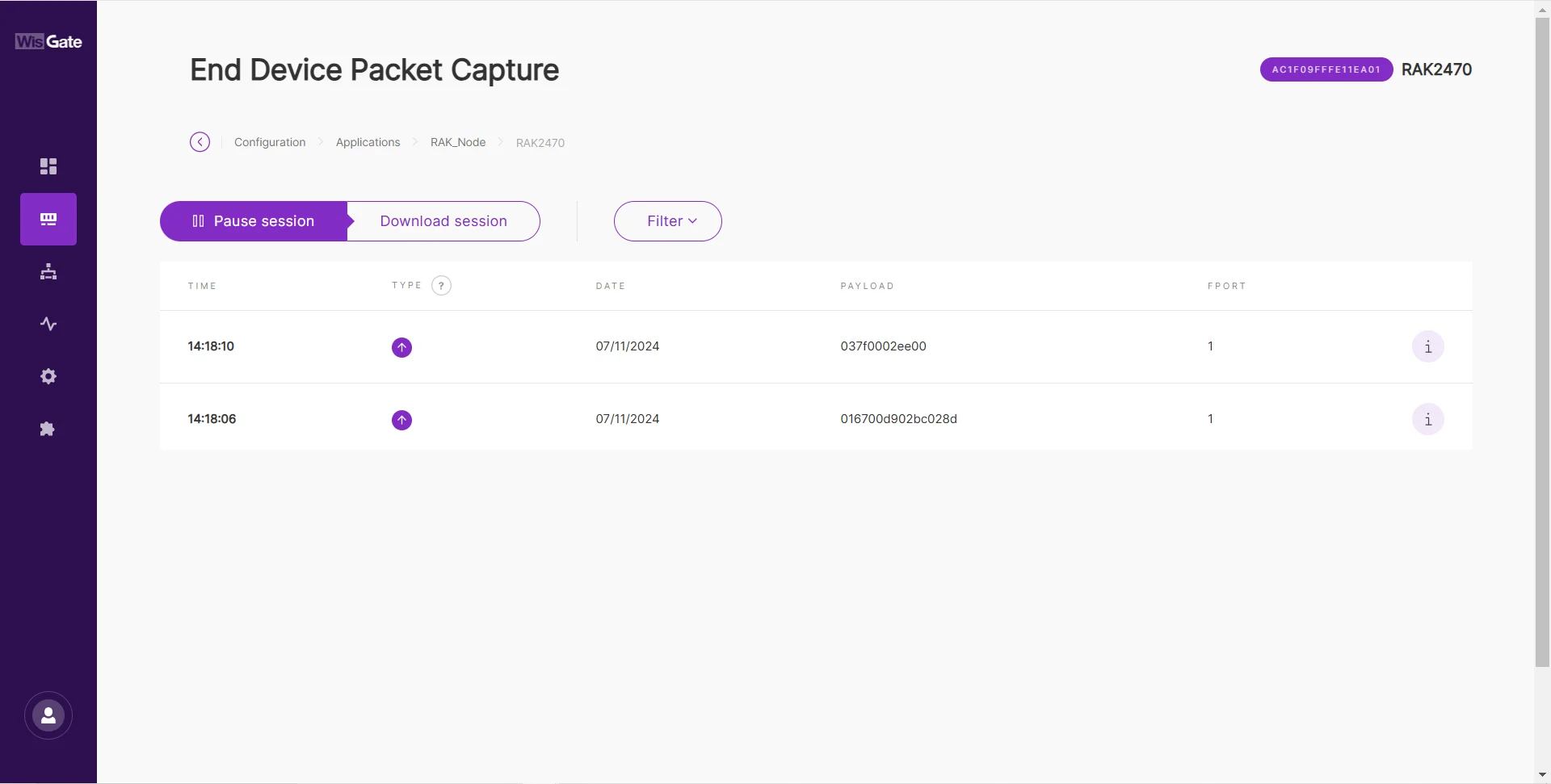 Figure 1: Uplink data
The Things Network (TTN)
Gateway Configuration
RAK gateways can connect to The Things Stack (TTN v3) using the following methods:
Packet Forwarder (UDP)
To connect a gateway to TTN v3 using Packet Forwarder (UDP), see How to Connect RAK Gateways to TTN v3 via UDP.
Basics™ Station (LNS)
To connect a gateway to TTN v3 using Basics™ Station (LNS), see How to Connect RAK Gateways to TTN v3 Using Basics™ Station (LNS).
Basics™ Station (CUPS)
To connect a gateway to TTN v3 using Basics™ Station (CUPS), see How to Connect RAK Gateways to TTN v3 Using Basics™ Station (CUPS).
Bridge IO Configuration
You can create applications and automatically register node devices on the TTN network server through IO.Box. For detailed configuration steps, refer to The Things Stack (TTN v3) Integration.
- After the device is created successfully, you can view the added device in the TTN.
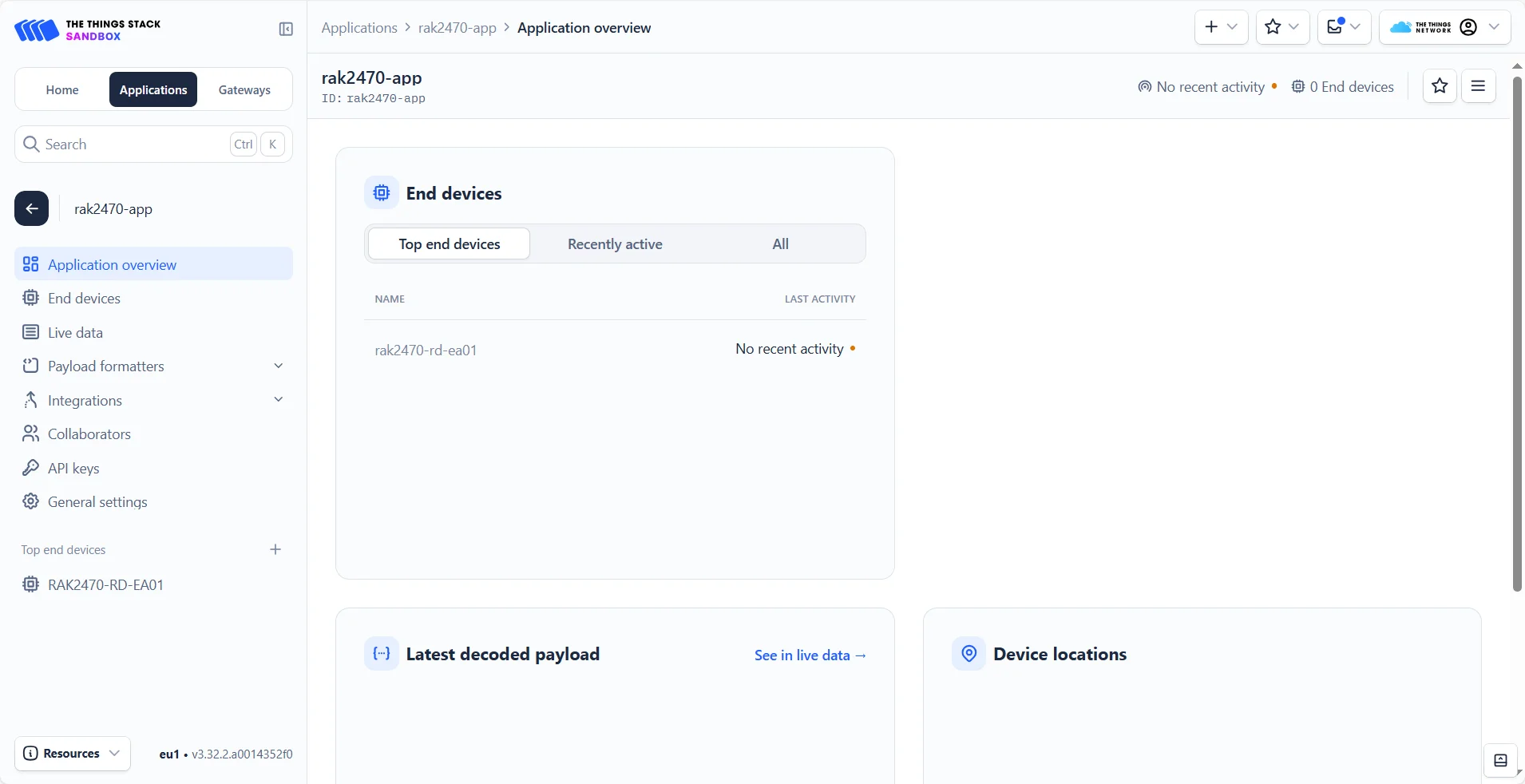 Figure 1: Added device in the TTN
- To activate the device, click Apply.
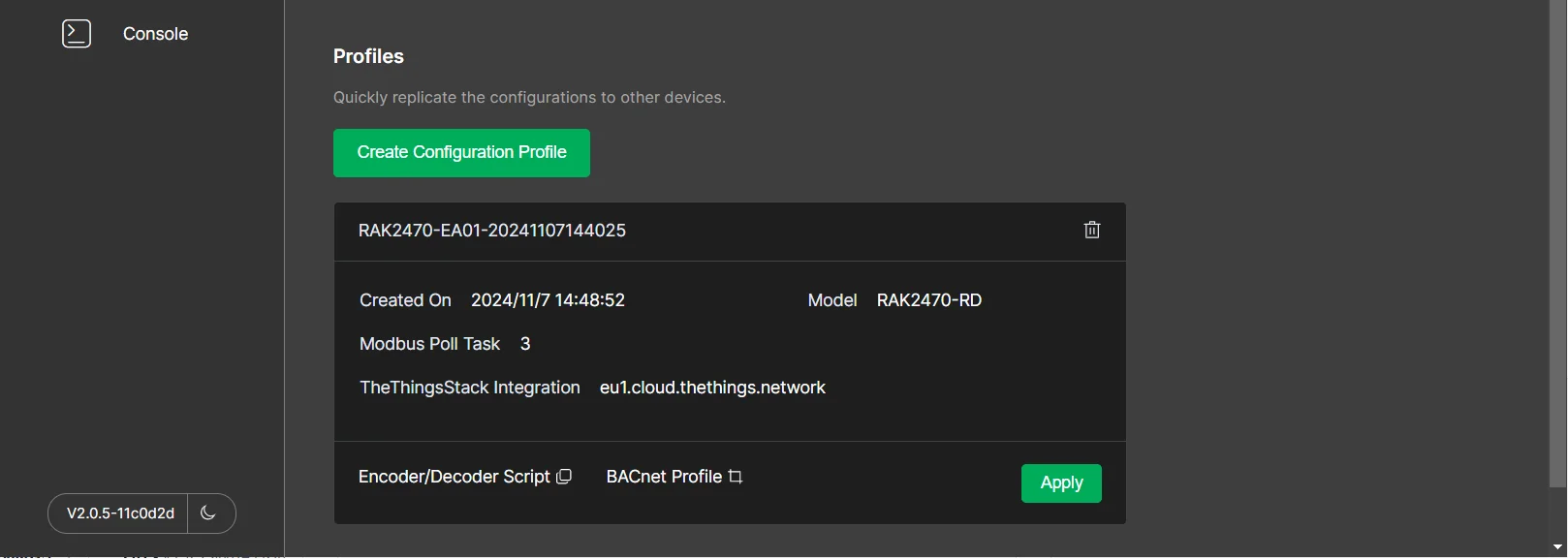 Figure 1: Active the device
- After a successful Apply, the device in the TTN is activated.
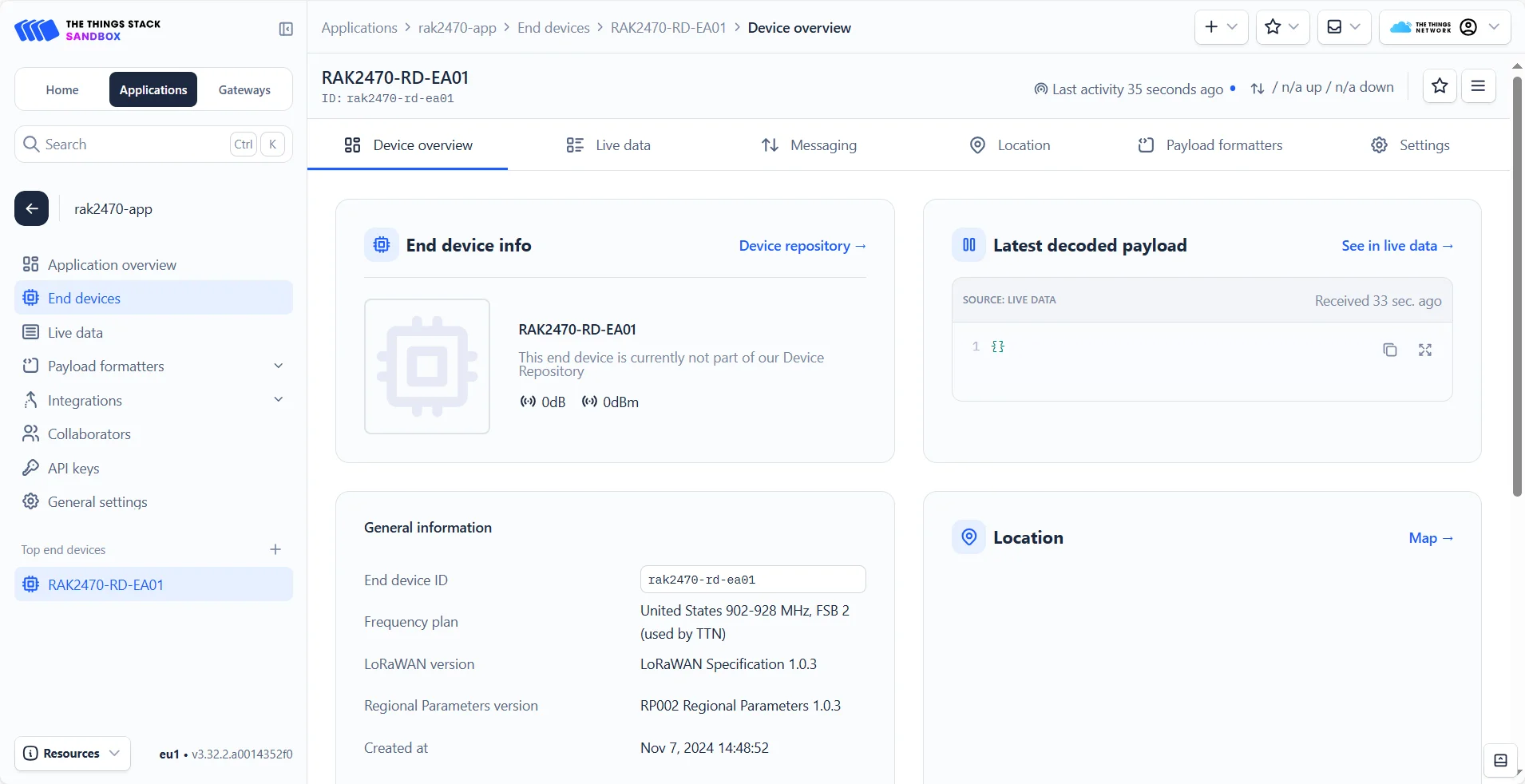 Figure 1: Device is onlineFigure 1: LoRaWAN status
You have now completed the configuration of the RAK2470. However, the LoRa network server is not yet able to receive the uplink data because the RAK2470 currently has only one channel, which is being used both for RS485 communication with the sensor and during the setup process. To resolve this, remove the configuration cable to exit configuration mode. Then, connect the RAK2470 directly to the T-type conversion cable.
After disconnecting the device, wait for a while, and you'll see uplink data from the LoRaWAN network in the TTN. The figure below shows the uplink data from the example sensor.
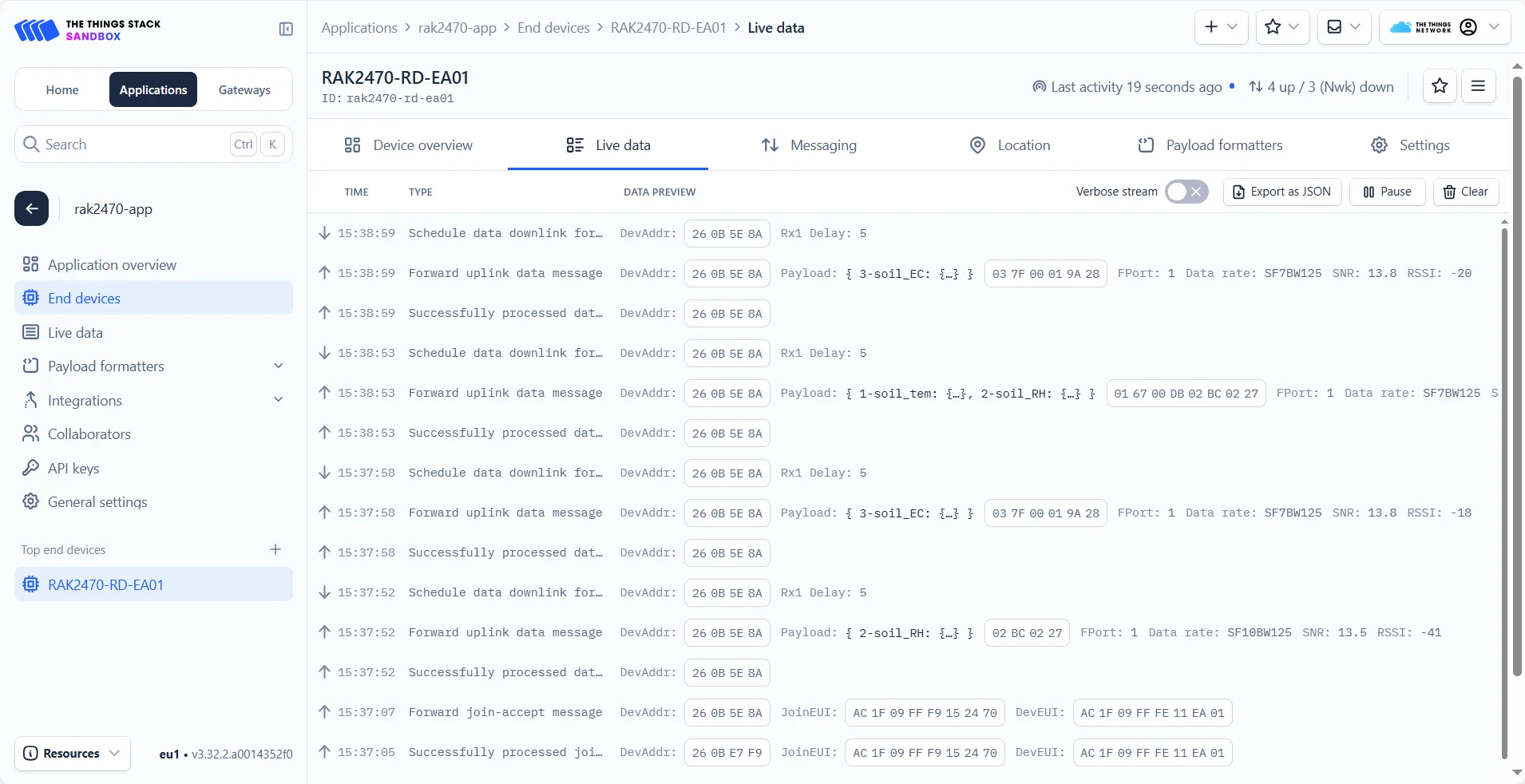 Figure 1: Data details
ChirpStack
This guide will show you how to connect the RAK2470 to a ChirpStack network server. In this tutorial, the ChirpStack v4 network server is used as an example.
Gateway Configuration
A gateway can be connected to the ChirpStack v4 server using the following methods:
Packet Forwarder (UDP)
To connect a gateway to ChirpStack v4 using Packet Forwarder (UDP), see How to Connect RAK Gateways to Chirpstack v4 via UDP.
Packet forwarder (MQTT)
To connect a gateway to ChirpStack v4 using Packet Forwarder (MQTT), see How to Connect RAK Gateways to Chirpstack v4 via MQTT.
Basics™ Station (CUPS)
To connect a gateway to ChirpStack v4 using Basics™ Station (LNS), see How to Connect RAK Gateway to Chirpstack v4 Using Basics™ Station (LNS).
Bridge IO Configuration
You can create applications and automatically register node devices on the ChirpStack server through IO.Box. For detailed configuration steps, refer to ChirpStack v4 Integration.
- After the device is created successfully, you can view the added device in the ChirpStack.
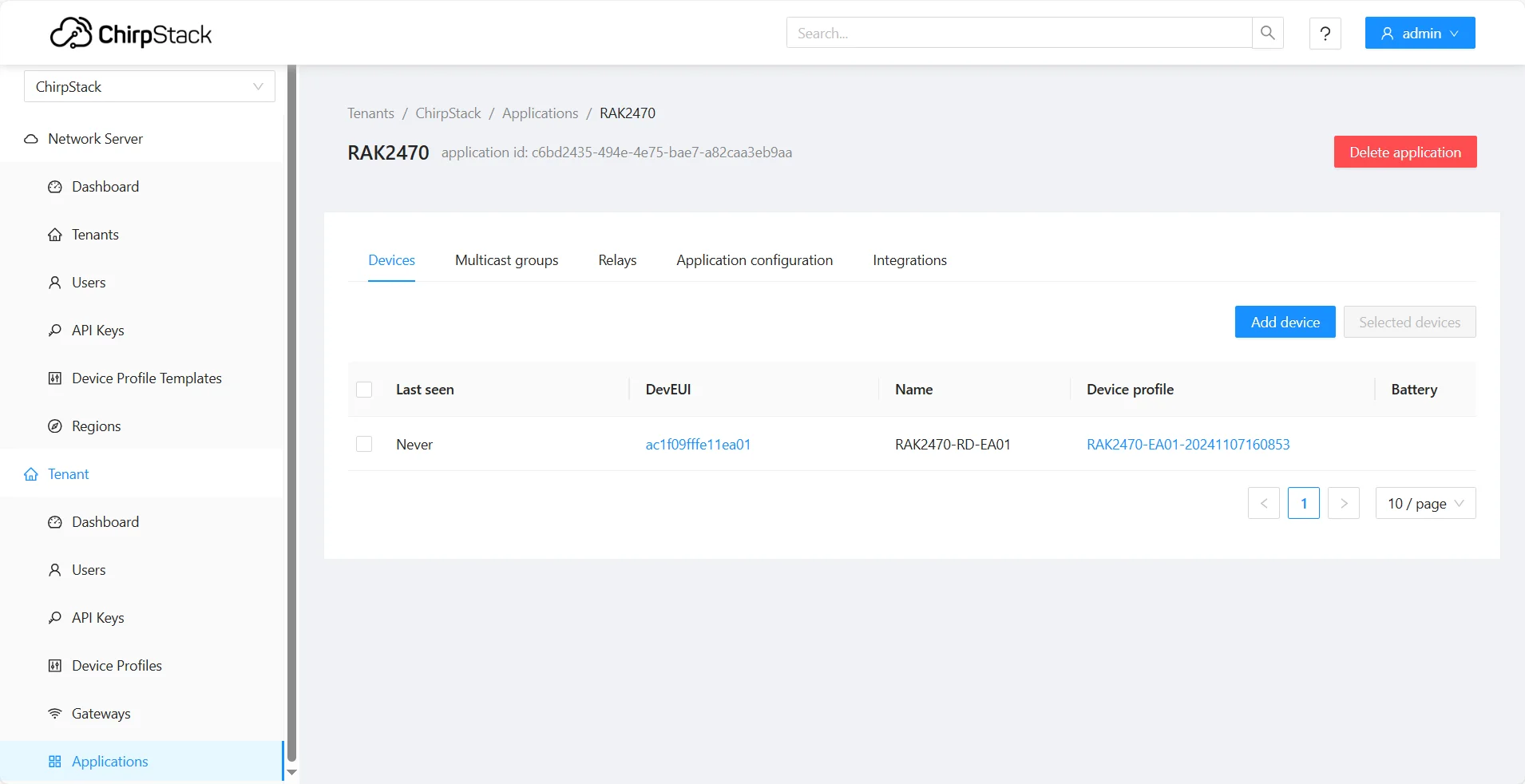 Figure 1: Added device in the ChirpStack
- To activate the device, click Apply.
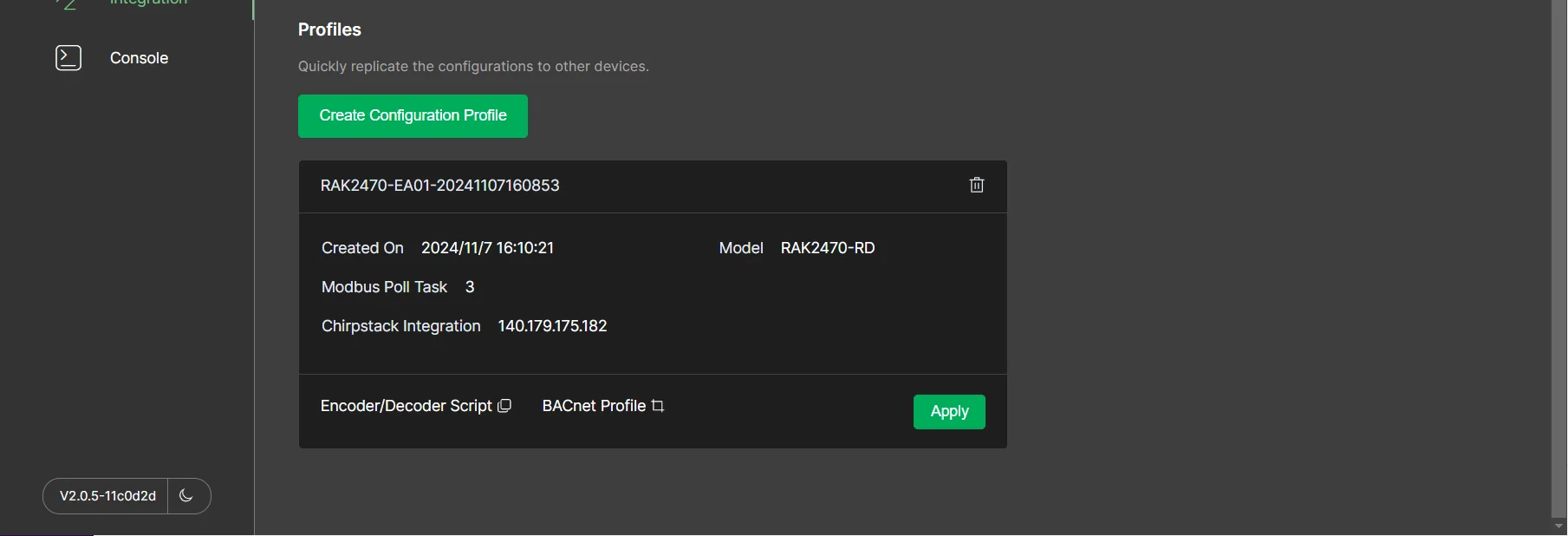 Figure 1: Active the device
- After a successful Apply, the device in the ChirpStack is activated.
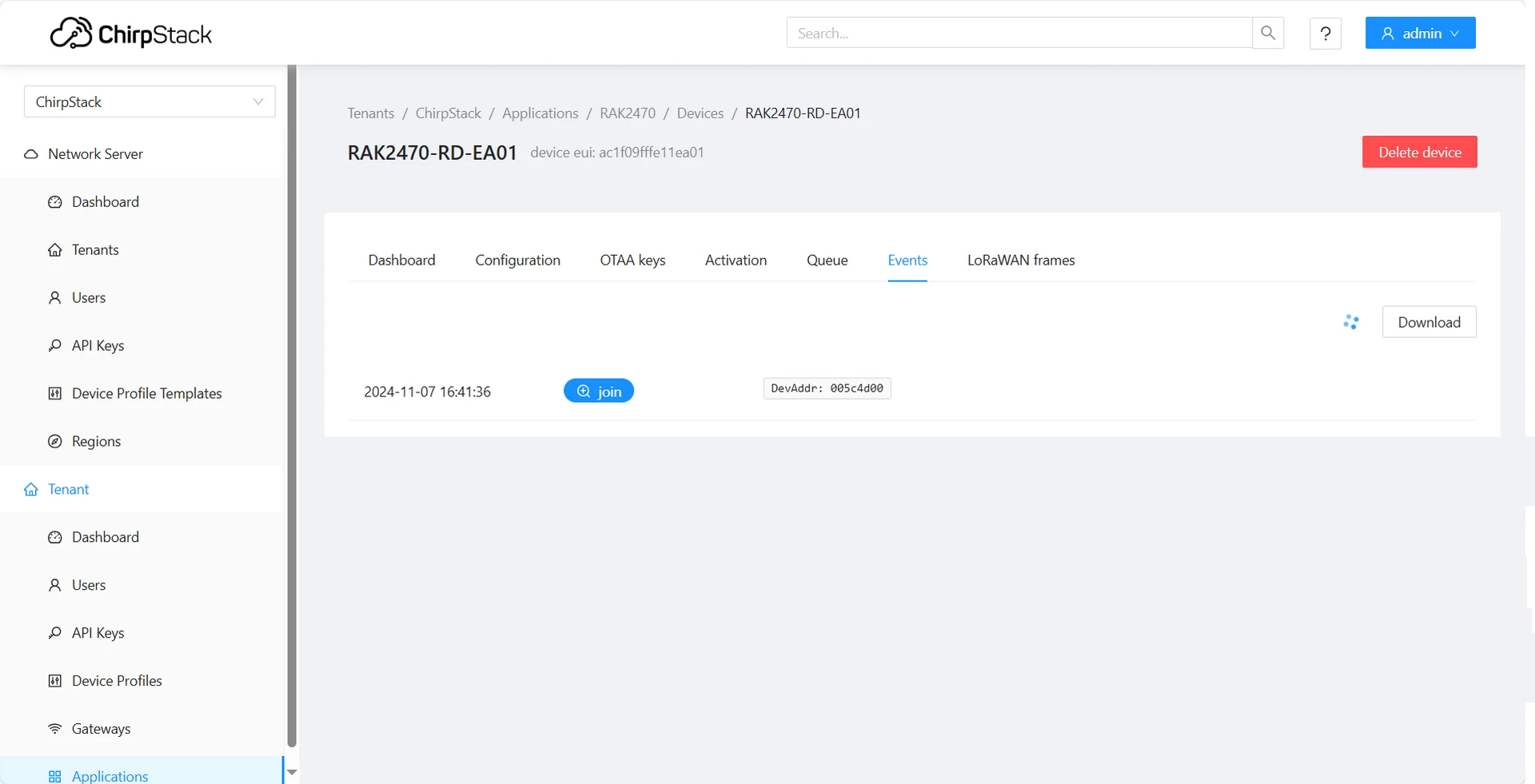 Figure 1: Active the deviceFigure 1: LoRaWAN status
You have now completed the configuration of the RAK2470. However, the LoRa network server is not yet able to receive the uplink data because the RAK2470 currently has only one channel, which is being used both for RS485 communication with the sensor and during the setup process. To resolve this, remove the configuration cable to exit configuration mode. Then, connect the RAK2470 directly to the T-type conversion cable.
After disconnecting the device, wait for a while, and you'll see uplink data from the LoRaWAN network in ChirpStack. The figure below shows the uplink data from the example sensor.
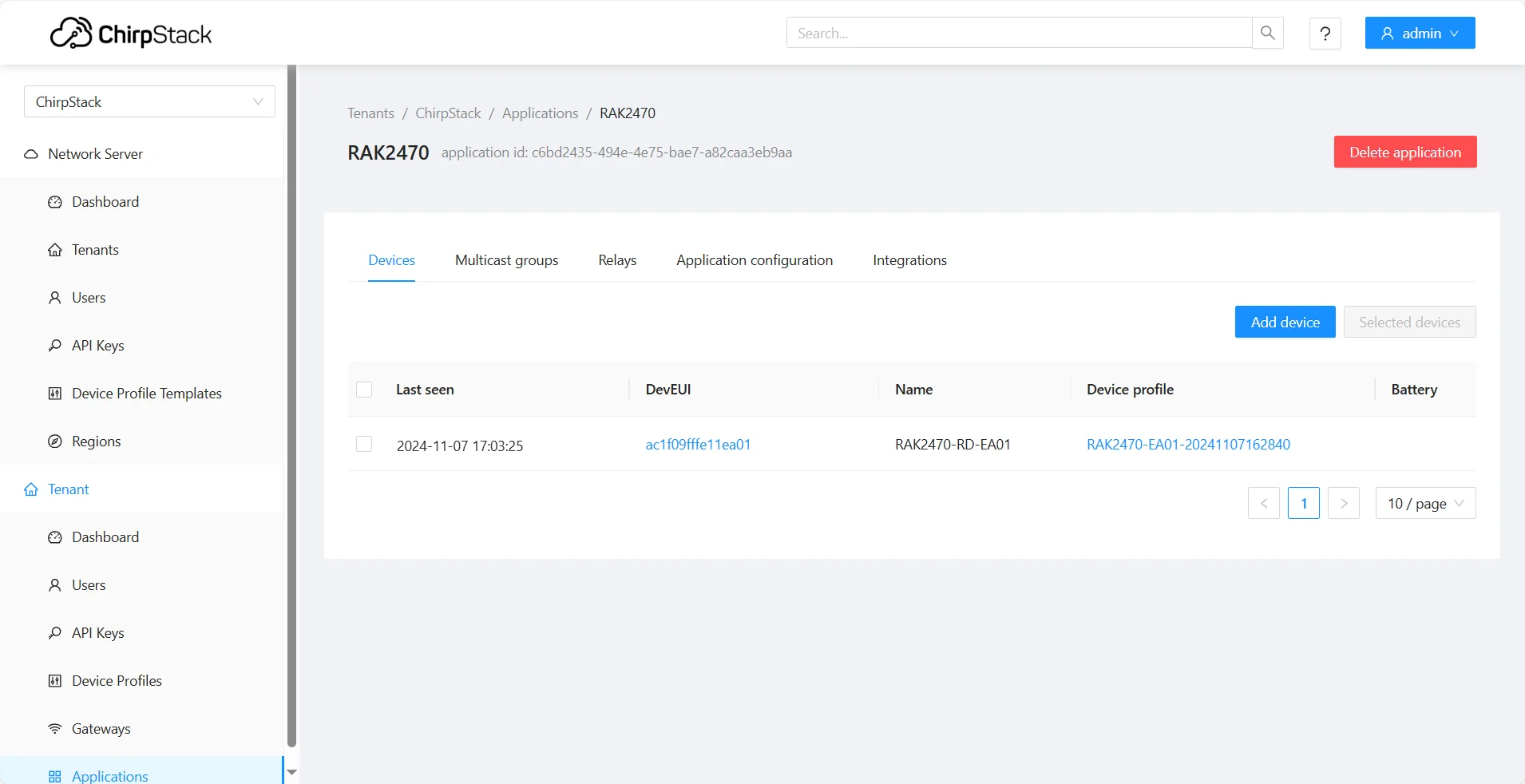 Figure 1: Device is online
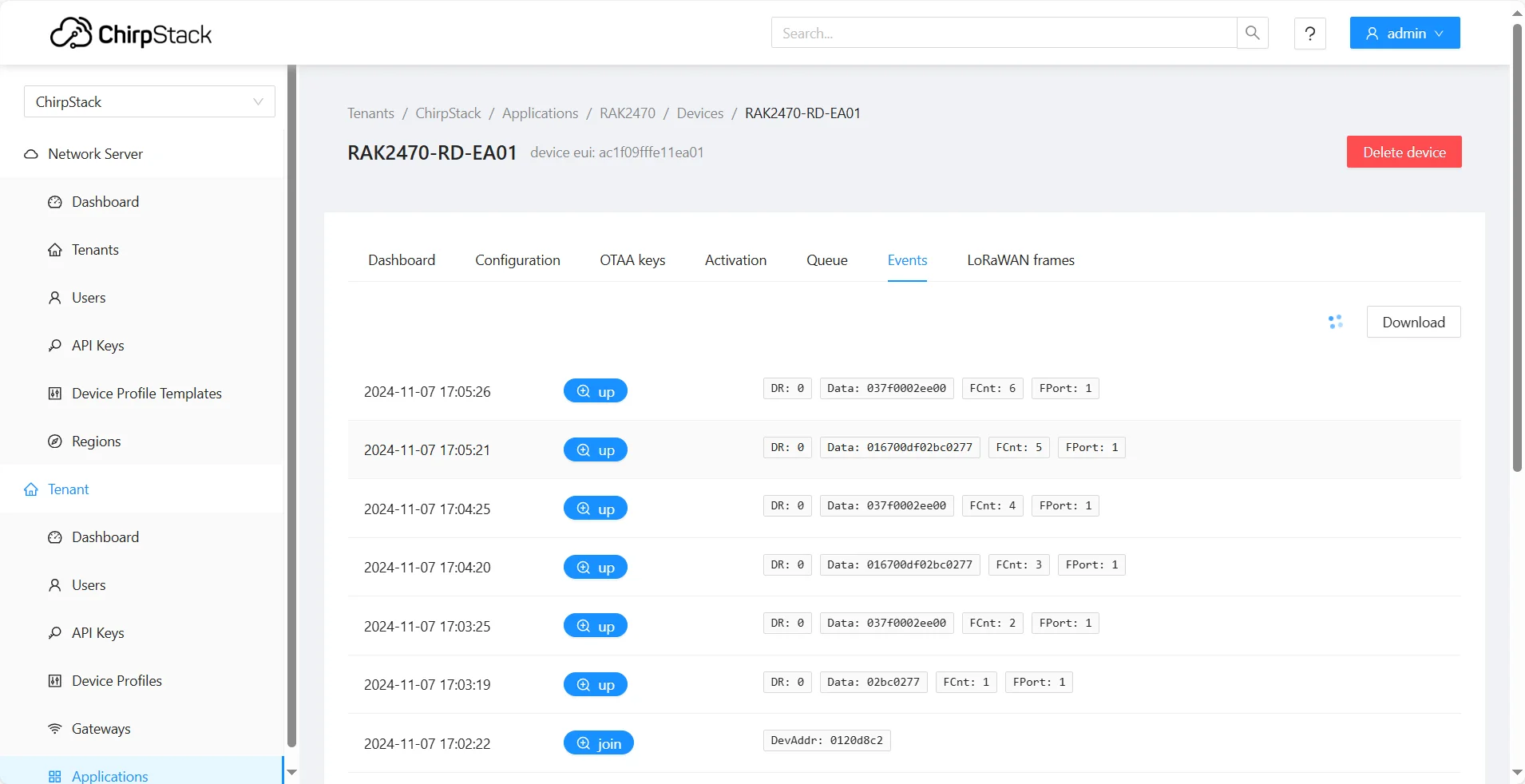 Figure 1: Data details


