ConnectOS mioty
mioty® is an LPWAN radio protocol built on telegram splitting: each message is cut into short sub-packets spread over time and frequency, so the transmission survives interference and collisions that would destroy a conventional packet. That makes it well suited to dense deployments with many devices sharing the same spectrum.
On a WisGate Connect gateway, mioty is provided by the Miromico Miro EdgeCard mioty™, a mini PCIe System-on-Module that runs its own Linux system and the mioty base station software. The card attaches to the gateway as a USB-Ethernet interface, and ConnectOS manages it from the mioty menu.
The card holds its own configuration, certificates and licence. ConnectOS configures the card over its API rather than storing that state itself, so settings survive a gateway reinstall, and the gateway never holds a copy of the card's private key.
The mioty Pages
| Page | Purpose |
|---|---|
| Card | The link to the EdgeCard, and which mode it runs in |
| Administration | Card status, firmware update and reboot |
| Base Station | Configuration for Base Station mode |
| Service Center | Configuration for Service Center mode |
Step 1: Bring Up the Card
Go to mioty → Card. This page owns the connection to the EdgeCard, everything else depends on it.
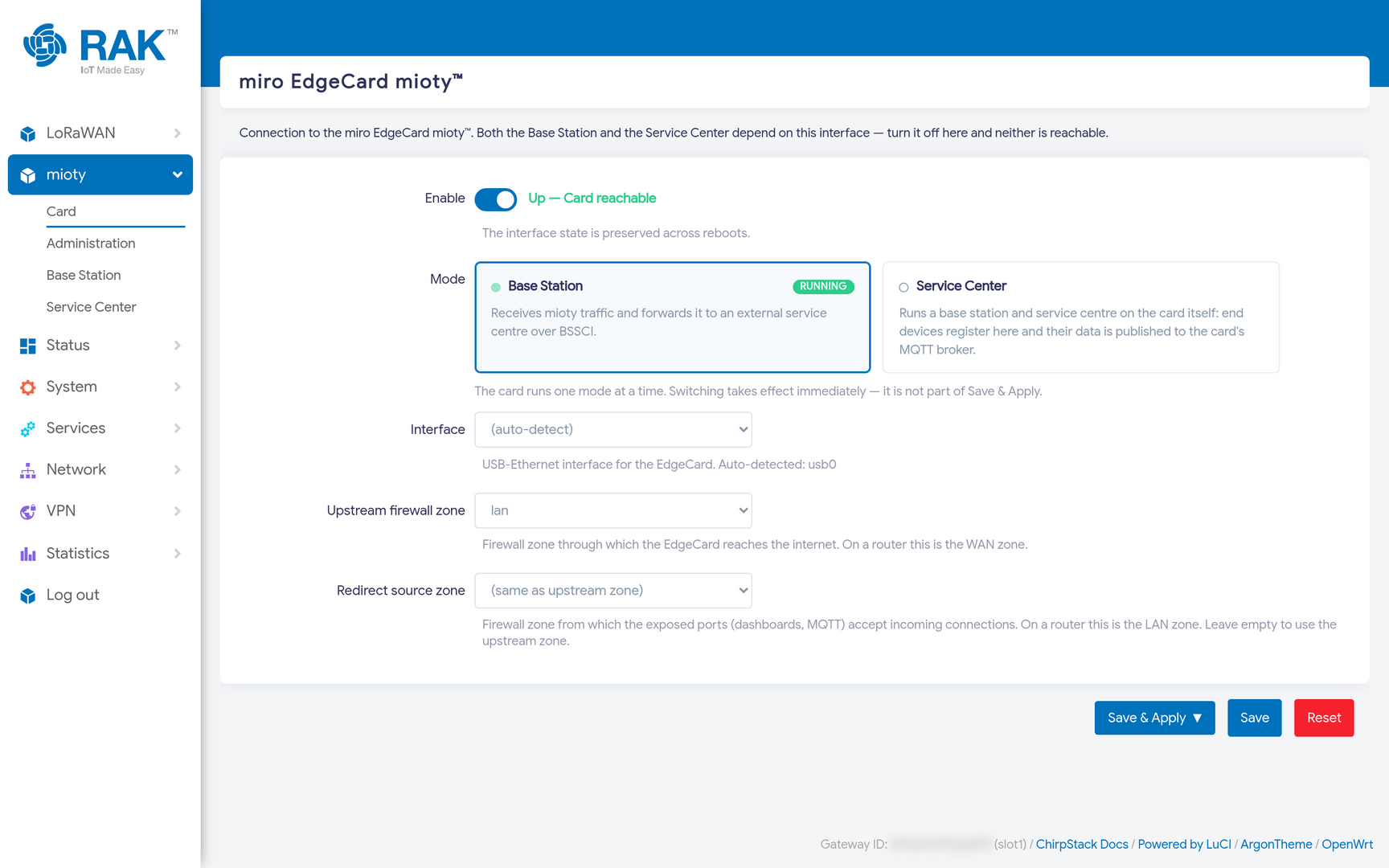 Figure 1: mioty Card Page
| Field | Meaning |
|---|---|
| Enable | Brings up the interface to the card. The state is preserved across reboots. |
| Mode | Whether the card runs as a Base Station or a Service Center. |
| Interface | The USB-Ethernet interface for the card. Leave on (auto-detect); it typically resolves to usb0. |
| Upstream firewall zone | The zone through which the card reaches the internet. On a router this is the wan zone. |
| Redirect source zone | The zone from which the exposed ports, dashboards, MQTT, accept connections. On a router this is the lan zone. Leave empty to reuse the upstream zone. |
When the card is up, the status next to the toggle reads Up — Card reachable.
Step 2: Choose a Mode
The card runs one mode at a time, and the two are quite different:
- Base Station The card receives mioty traffic and forwards it over BSSCI to an external service centre you already operate or subscribe to. This is the usual choice when joining an existing mioty network.
- Service Center The card runs both a base station and a service centre on itself. End devices register on the card and their data is published to the card's own MQTT broker. This suits a self-contained deployment with no external mioty backend.
Selecting a mode takes effect immediately, it is not part of Save & Apply, so ConnectOS asks you to confirm first.
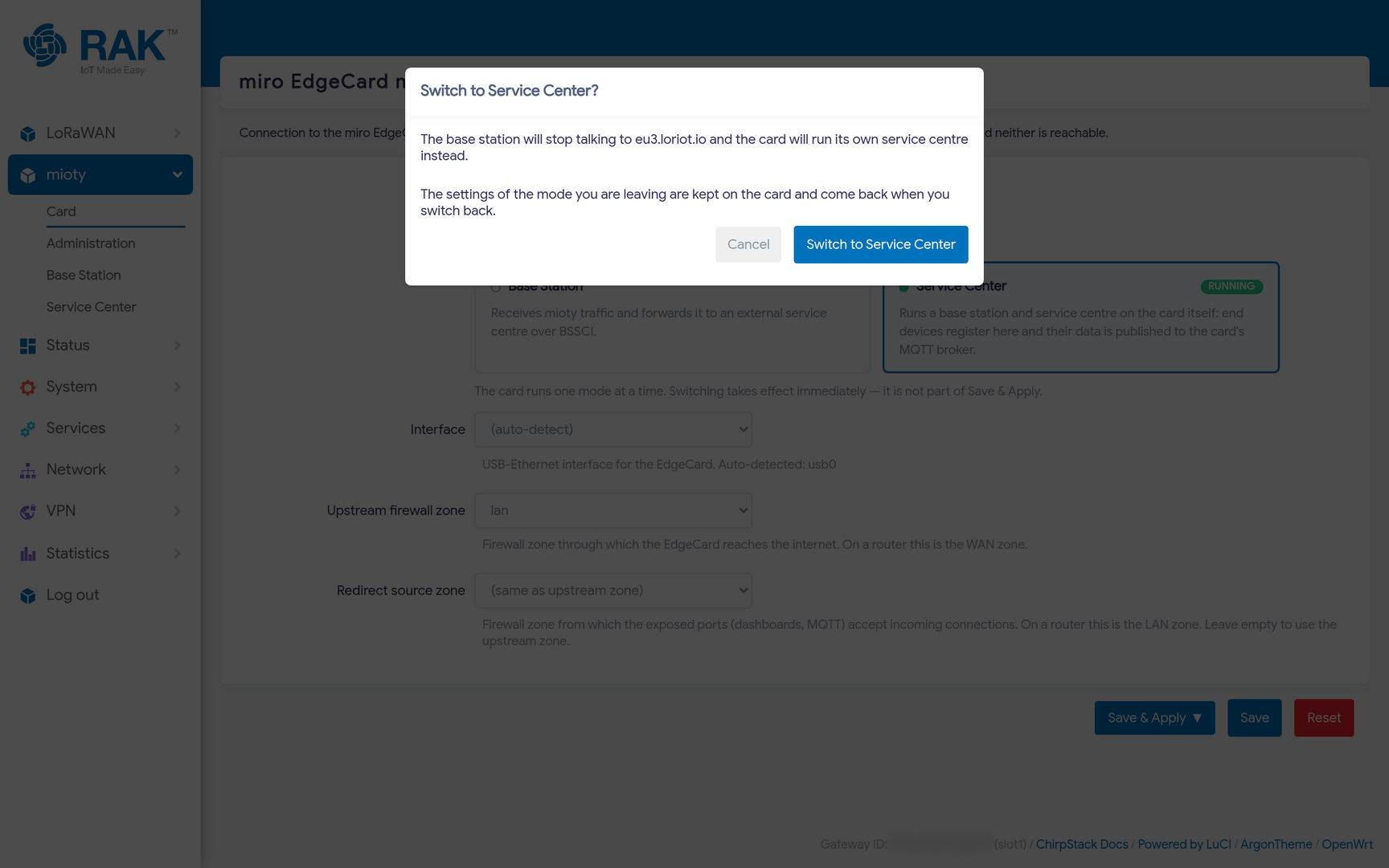 Figure 1: mioty Mode Switch Confirmation
As the dialog says, the settings of the mode you leave are kept on the card and come back when you switch back. Switching is reversible and does not lose your service-centre address or certificates.
Base Station Mode
With the card in Base Station mode, open mioty → Base Station.
General
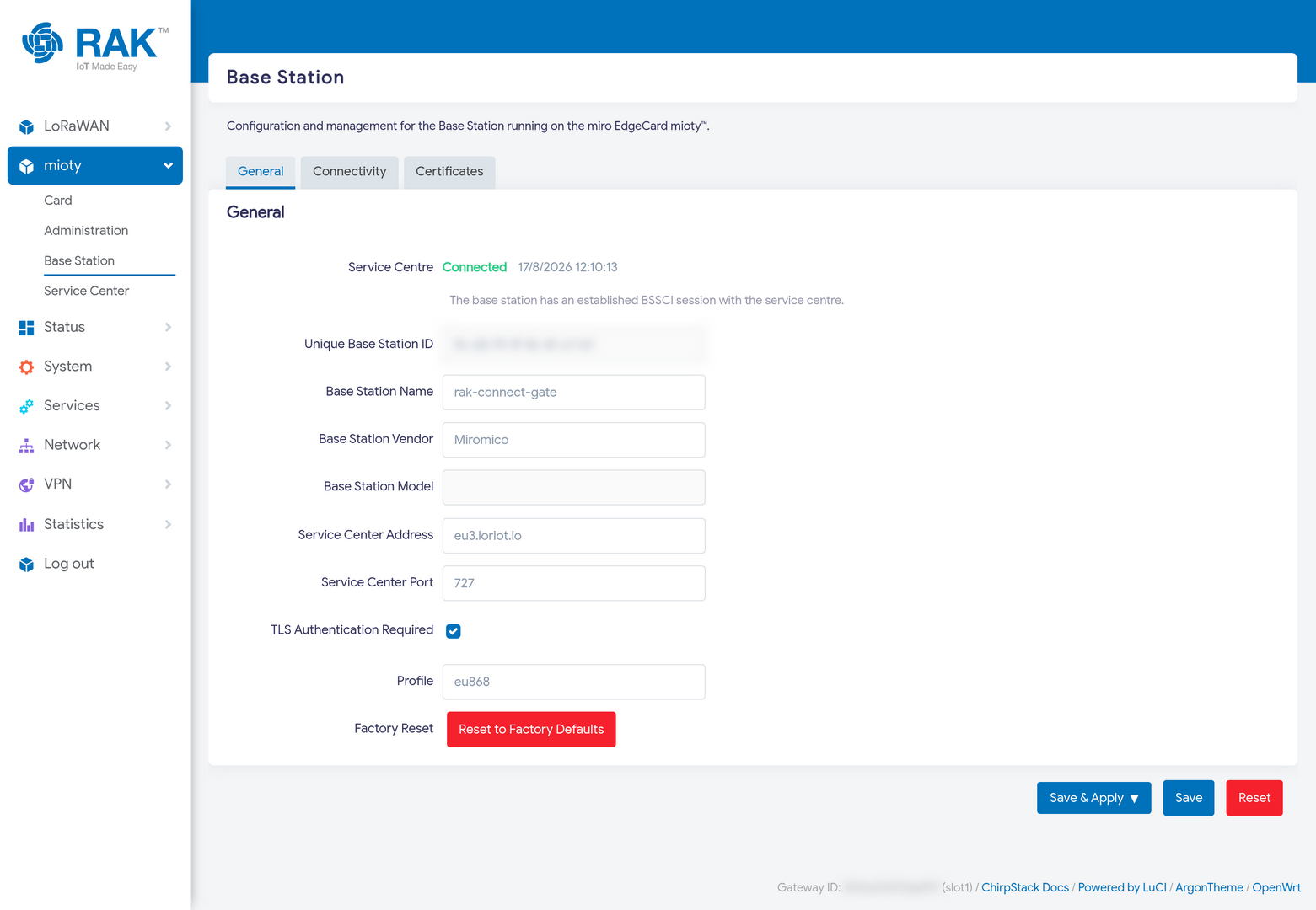 Figure 1: mioty Base Station General Settings
The Service Centre row at the top is the live status. Connected, with a timestamp, means the base station has an established BSSCI session with the service centre.
| Field | Meaning |
|---|---|
| Unique Base Station ID | The card's EUI-64 identity, as registered with the service centre. |
| Base Station Name | A friendly name for the base station. |
| Base Station Vendor | Vendor string reported to the service centre, e.g. Miromico. |
| Base Station Model | Model string reported to the service centre. |
| Service Center Address | Hostname of the service centre, e.g. eu3.loriot.io. |
| Service Center Port | BSSCI port, commonly 727. |
| TLS Authentication Required | Whether the BSSCI session uses mutual TLS. Keep enabled for any public service centre. |
| Profile | The regional profile, for example eu868. |
| Factory Reset | Resets the card's base station configuration to defaults. |
If the service centre never reaches Connected, check in this order: the card's clock, the certificates, then the network path. A base station whose clock has drifted cannot complete the TLS handshake, and the failure looks like a connection problem rather than a time problem. mioty → Administration shows whether the card's time is in sync with the gateway.
Connectivity
The EdgeCard serves its own base station dashboard. Tick Expose Dashboard and ConnectOS adds a firewall redirect so the dashboard is reachable at the gateway's own address, on the Gateway Port you choose, 8888 by default, forwarding to port 8080 on the card.
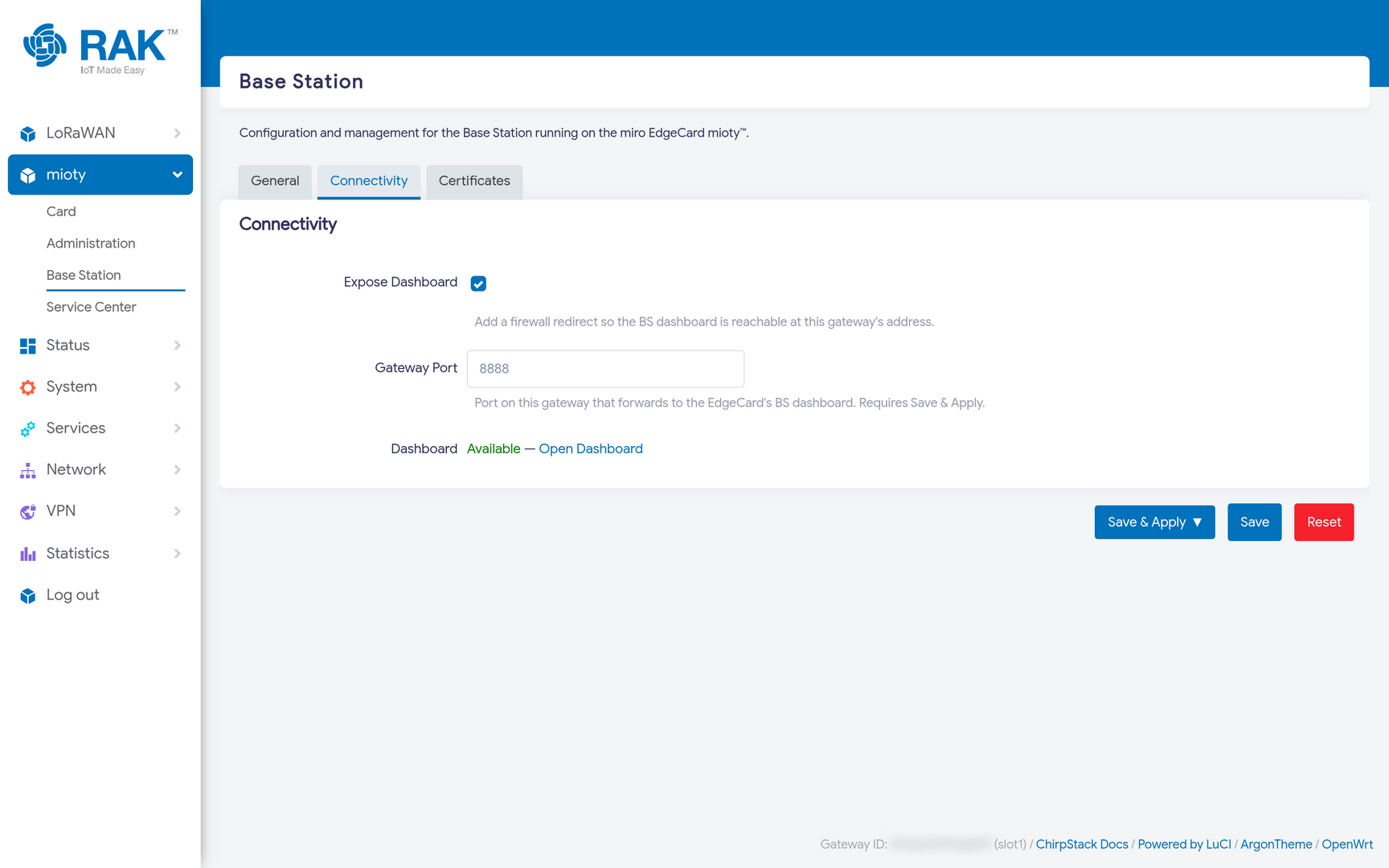 Figure 1: mioty Base Station Connectivity
When the redirect is in place, the status shows Available with an Open Dashboard link.
Certificates
BSSCI uses mutual TLS, so the card needs a certificate, a private key, and the service centre's root CA. Your mioty provider issues these when you register the base station.
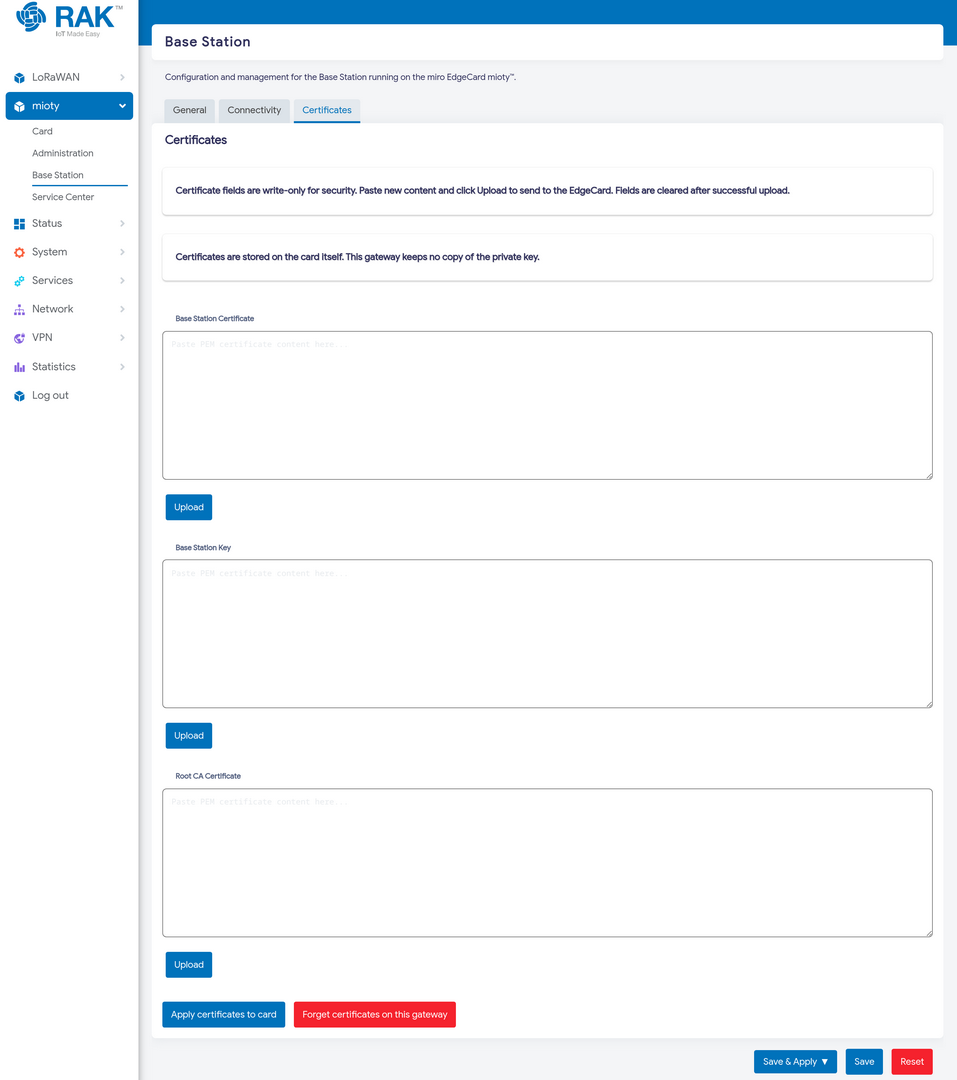 Figure 1: mioty Base Station Certificates
Paste each PEM into its field and press Upload, then Apply certificates to card.
Two properties of this page are worth understanding:
- The fields are write-only. After a successful upload they are cleared, and they stay empty when you come back to the page. That is expected, it is not a sign the upload failed.
- Certificates live on the card. The gateway keeps no copy of the private key. Forget certificates on this gateway clears any staged copy held by the gateway, without touching what the card is using.
Service Center Mode
Switch the card to Service Center on the Card page, then open mioty → Service Center.
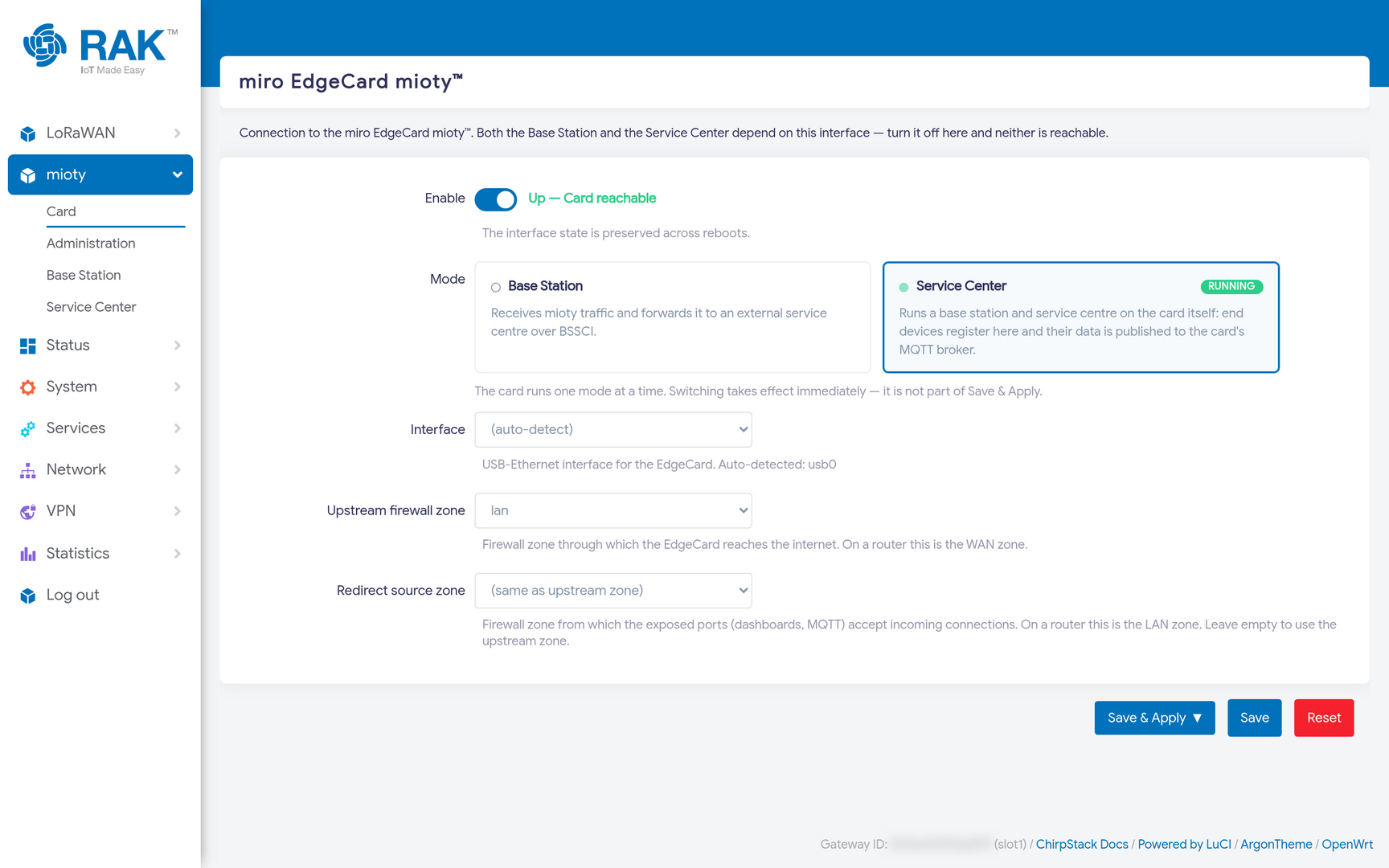 Figure 1: mioty Card in Service Center Mode
General
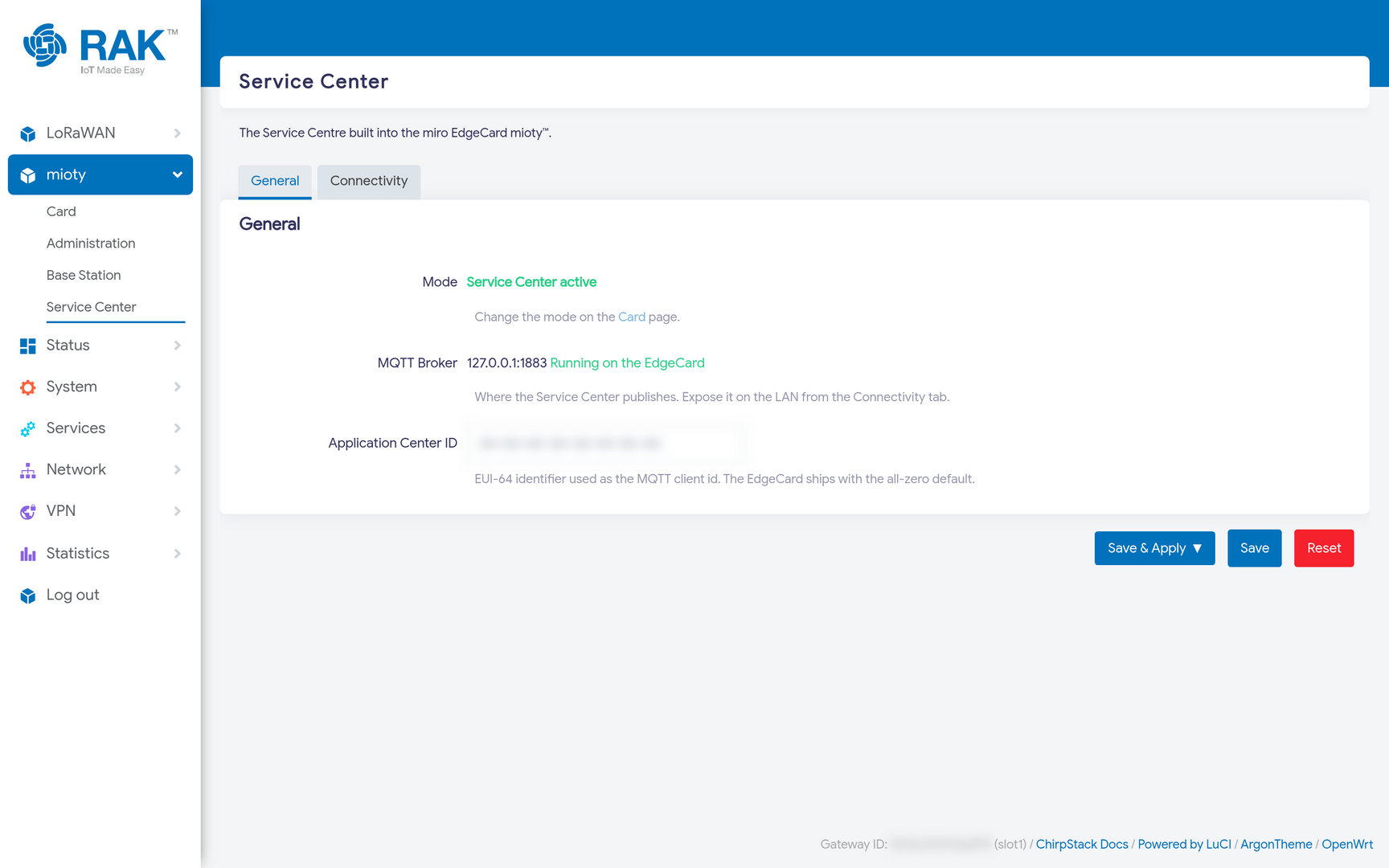 Figure 1: mioty Service Center General Settings
| Field | Meaning |
|---|---|
| Mode | Confirms Service Center active. Change it on the Card page. |
| MQTT Broker | Where the service centre publishes, the broker runs on the EdgeCard, on port 1883. |
| Application Center ID | EUI-64 used as the MQTT client id. The card ships with an all-zero default. |
Connectivity
This tab decides what the card exposes to the rest of the world. Everything is off by default.
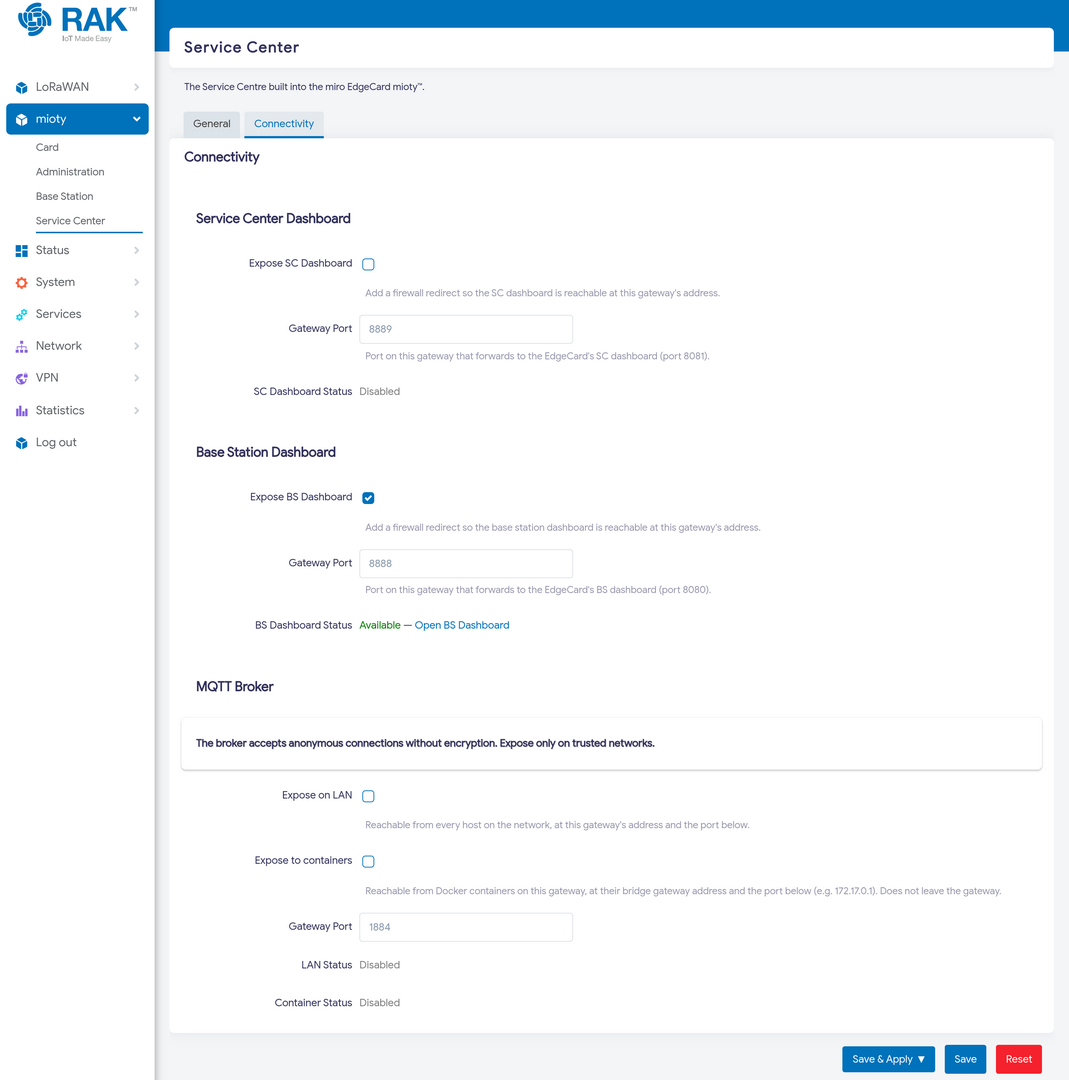 Figure 1: mioty Service Center Connectivity
| Section | What it does |
|---|---|
| Service Center Dashboard | Publishes the SC dashboard at the gateway's address, port 8889 → card port 8081. |
| Base Station Dashboard | Publishes the BS dashboard at the gateway's address, port 8888 → card port 8080. |
| MQTT Broker | Exposes the card's broker, either on the LAN or only to Docker containers on this gateway, on the gateway port you choose (1884 by default). |
The card's MQTT broker accepts anonymous connections without encryption. Exposing it on the LAN puts an unauthenticated broker on your network. If you only need a local application to consume the data, a Node-RED flow in a container, for example, prefer Expose to containers, which makes the broker reachable at the Docker bridge address and never leaves the gateway.
Administration
mioty → Administration is where you check the card itself and maintain it.
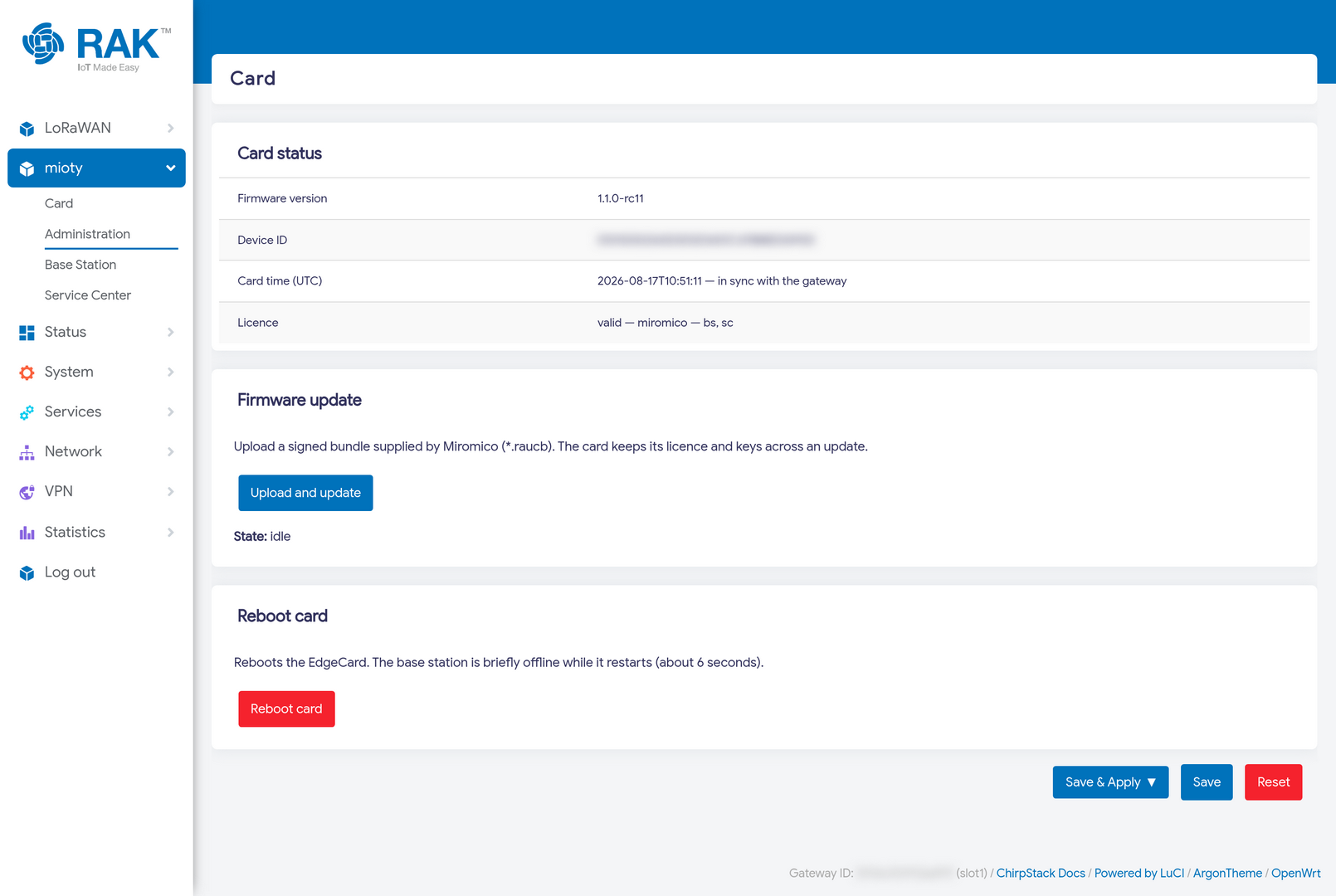 Figure 1: mioty Administration Page
Card status reports:
| Field | Meaning |
|---|---|
| Firmware version | The version running on the EdgeCard. |
| Device ID | The card's unique identifier. |
| Card time (UTC) | The card's clock, and whether it is in sync with the gateway. |
| Licence | Licence state and the modes it covers, e.g. valid — miromico — bs, sc. |
The Licence line is worth reading before troubleshooting anything else: the modes listed at the end are the modes this card is licensed for. A card licensed only for bs cannot run as a Service Center.
Firmware update takes a signed bundle supplied by Miromico (*.raucb). The card keeps its licence and keys across an update.
Reboot card restarts the EdgeCard. The base station is offline for roughly six seconds while it restarts.


