WisDM API Integration Guide
Overview
The WisDM API enables secure, programmatic access to WisDM data through API key authentication. It allows third-party systems to integrate, automate, and analyze operations using WisDM's RESTful interface.
- Available for Enterprise and On-Demand subscription tiers.
- Bound to an Organization and managed by its Administrator.
- Each API key has an independent permission scope and can be activated, revoked, or regenerated at any time.
To begin any integration, you must first generate an API key, which serves as the authentication credential for your external system.
Create Your API Key
- From the left menu, navigate to Settings > API Key.
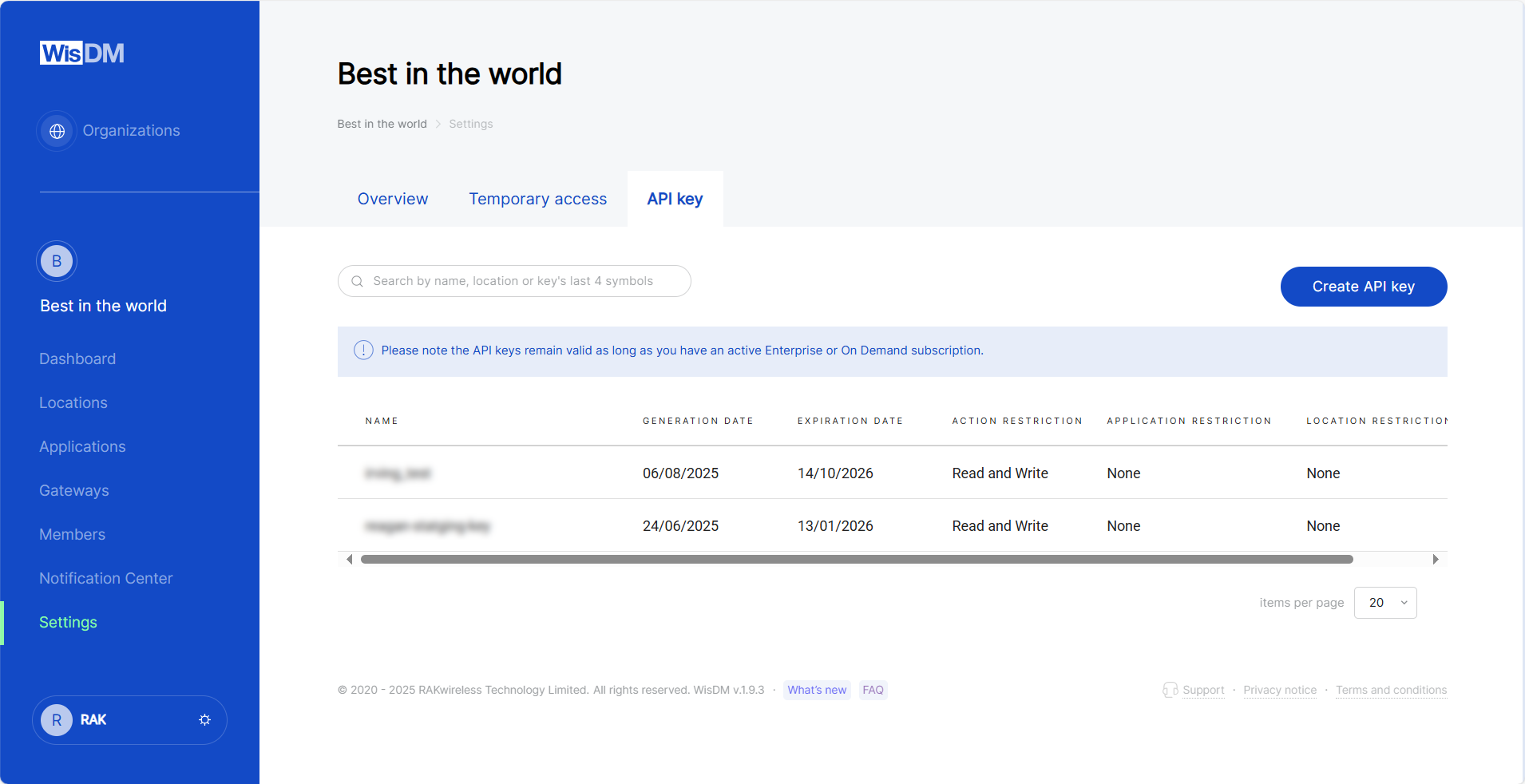 Figure 1: API overview
- Click Create API Key in the top-right corner.
- Enter a name for the new key.
- Configure the key settings:
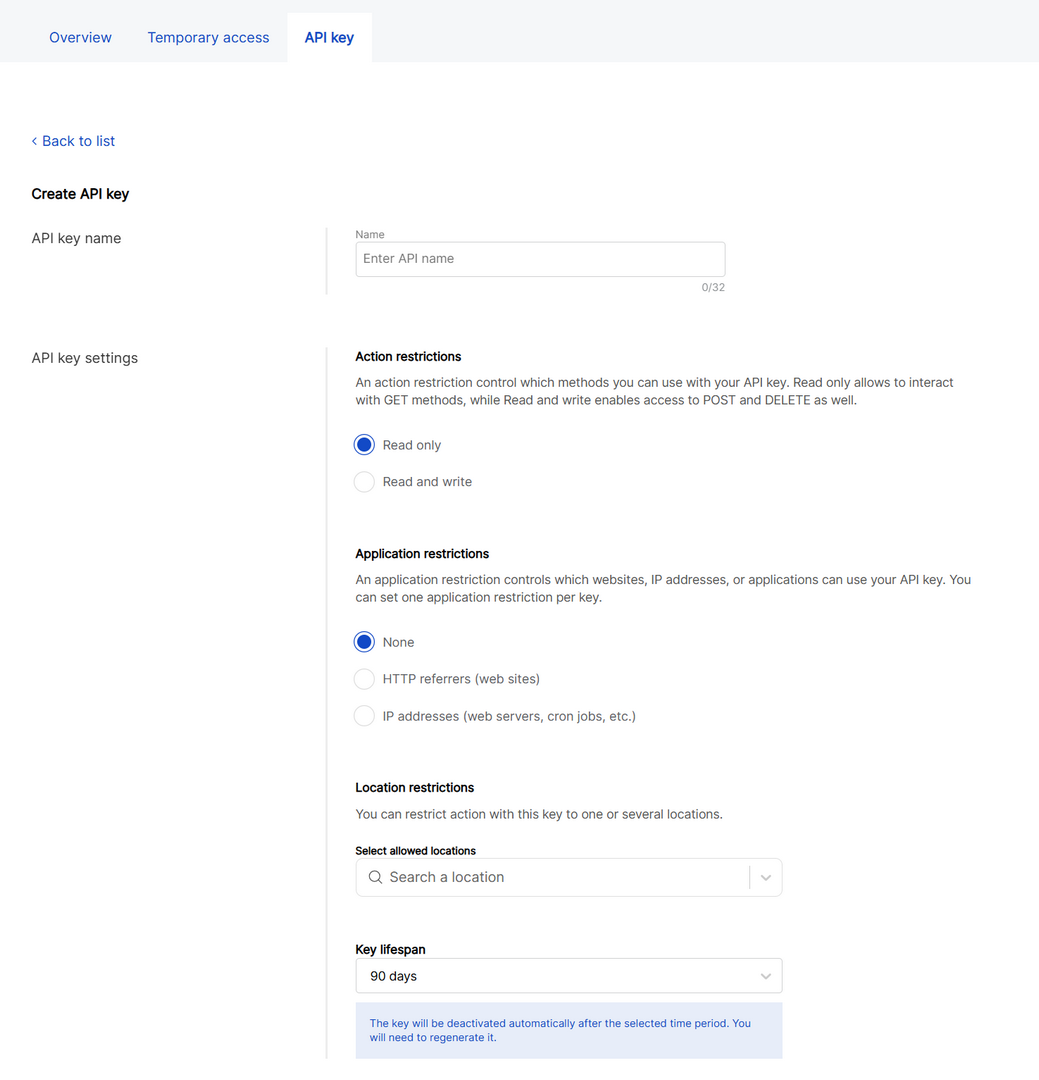 Figure 1: Configure the key
-
Action restrictions
-
Read only: Grants access to
GETmethods (for data retrieval only). -
Read and Write: Grants access to
POSTandDELETEmethods. You must explicitly select the write permissions required for your integration.Write Permission Description Assign gateway to location Registers unassigned gateways to a specific location. Create location (BS) Creates new locations configured in Basics Station mode. Firmware upgrade Remotely upgrades or downgrades gateway firmware. Network interface settings Modifies WAN/LAN interface configurations and priority settings. Reboot gateway Remotely reboots a gateway. Reset password Resets the local root password of a gateway. Solar battery monitoring (enable/disable) Enables or disables solar battery monitoring services. System settings Updates system-level configurations such as syslog settings. Update location name Updates the name of an existing location.
-
-
Application restrictions
- None: No restriction; the key can be used from any source.
- HTTP referrers (websites): Restricts API use to specific web origins.
- IP addresses (web servers, cron jobs, etc.): Allow API use only from specified IP addresses.
-
Location restrictions
- Optionally limit API use to one or more locations.
-
Key Lifespan
- Defines the validity period. The key will automatically expire after this chosen period.
-
After configuring the settings, click Generate key.
-
Enter your WisDM account password and the 6-digit verification code (if enabled) from your authenticator app. Then, click Generate key again to confirm.
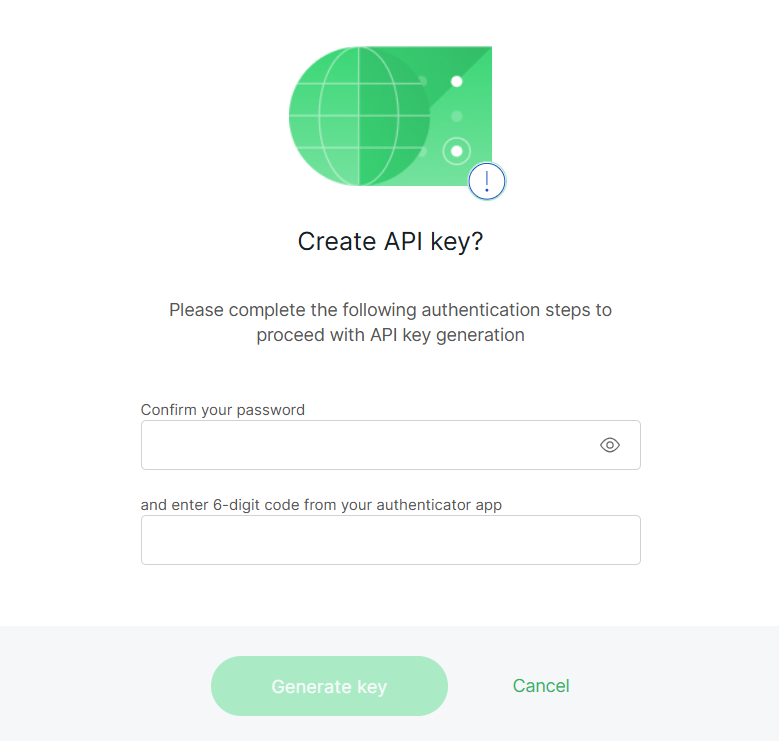 Figure 1: Confirm API key creation
- Once generated, a pop-up window will display your new API key.
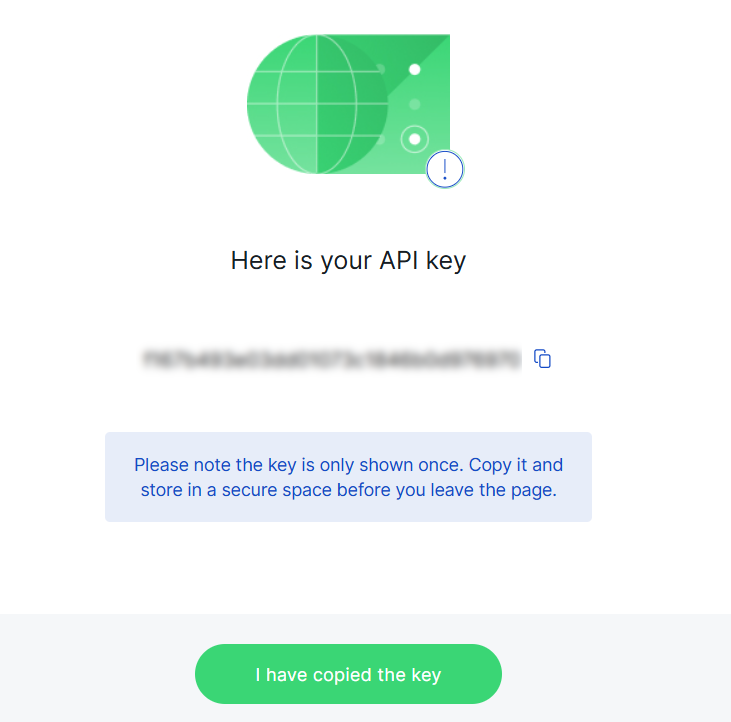 Figure 1: Copy and securely store your API key
The API key is displayed only once. Copy and store it securely before leaving the page. Lost keys cannot be retrieved and must be regenerated.
Manage API Keys
Once an API key has been created, you can view and manage it on the Settings > API Key page. Each key can be edited, regenerated, or deleted.
Edit an API Key
- From the key list, select the API key you want to modify.
- Update the name or modify permission settings as needed.
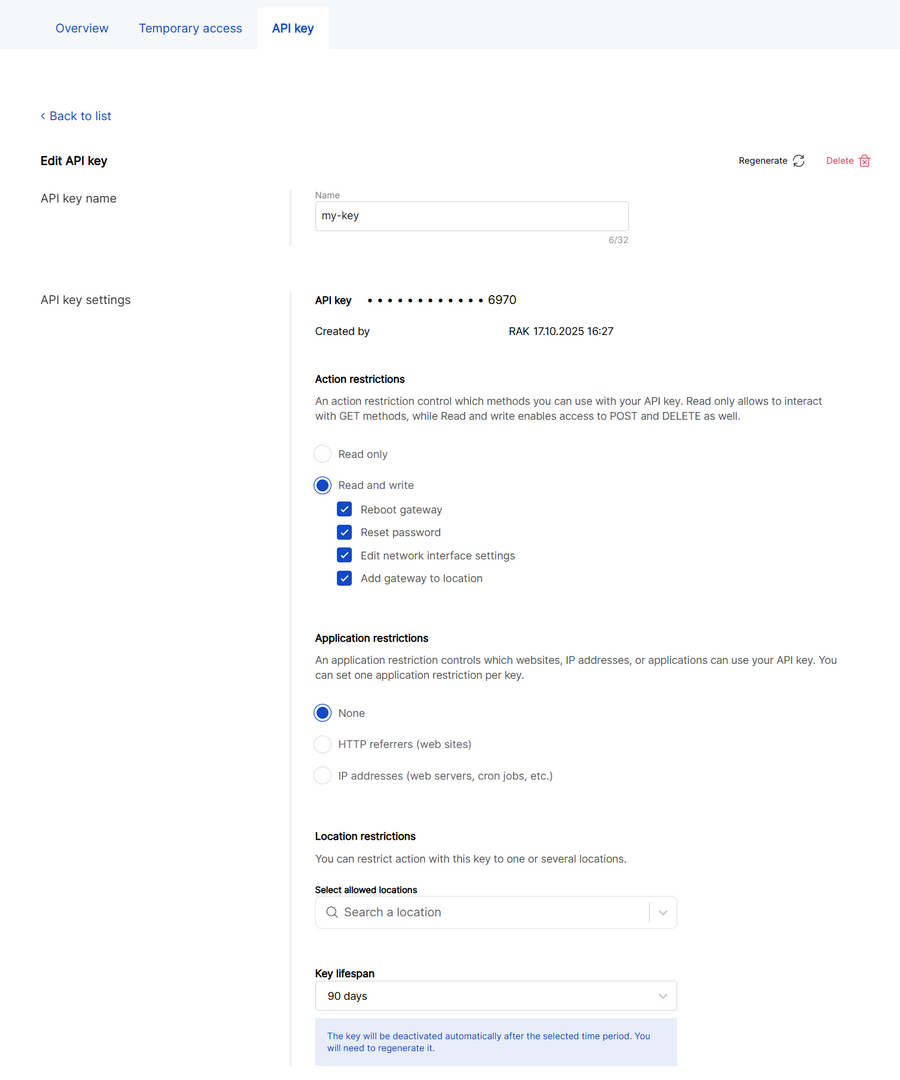 Figure 1: Update your API key
- Click Save changes to apply updates.
Regenerate a Key
Regenerate your API key when it expires or if you suspect it has been compromised. The new key will replace the old one while retaining all previous configurations.
Click the Regenerate icon in the top-right corner, enter your credentials, and then click Regenerate API key to confirm.
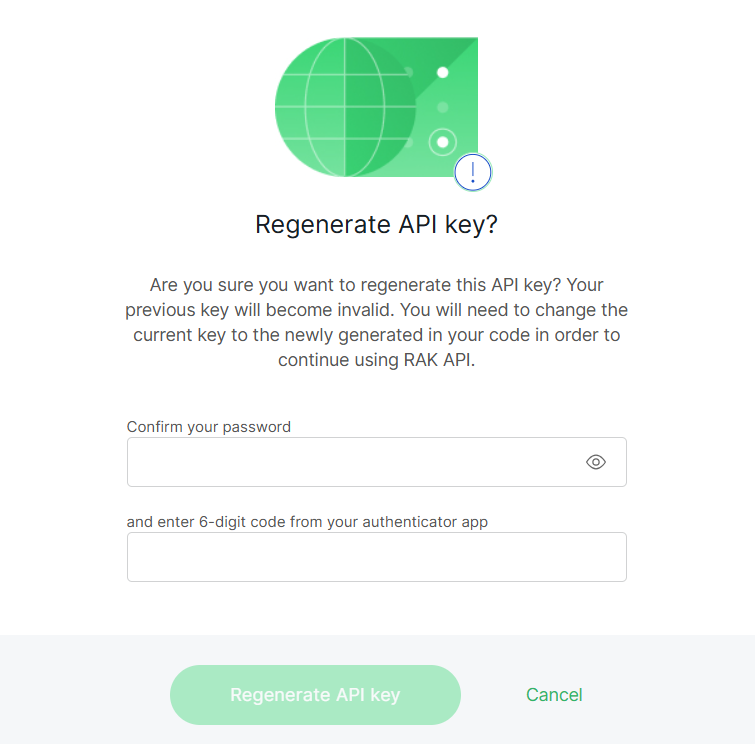 Figure 1: Regenerate a Key
Delete a Key
Delete an API key when it is no longer needed or has been replaced by a new one. Once deleted, all systems using this key will immediately lose API access.
Click the Delete icon in the top-right corner. Confirm your action, and then click Delete API Key to permanently remove it.
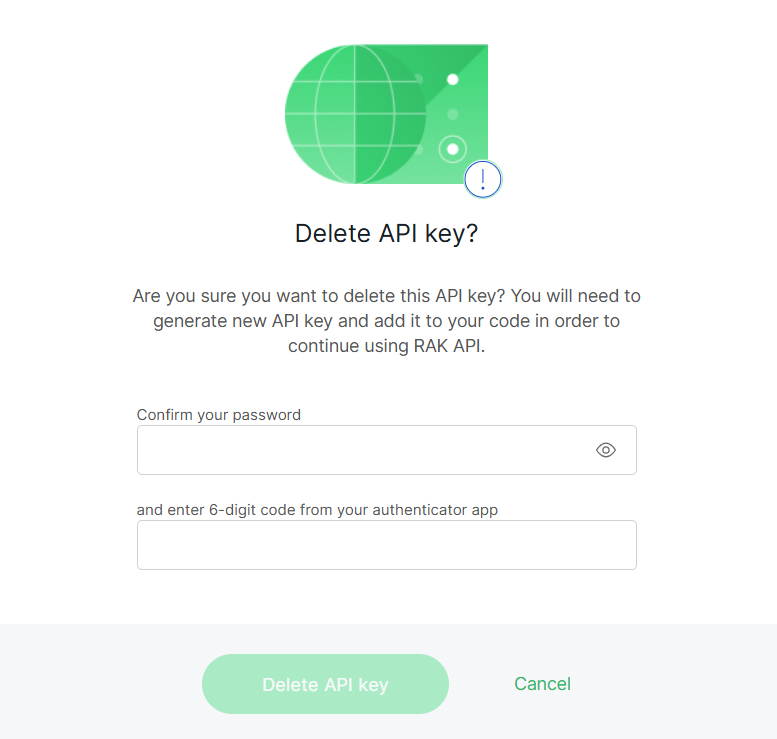 Figure 1: Delete a Key
Deleting a key cannot be undone. Any integration using this key will immediately lose access to the WisDM API.
Access the WisDM API
Access the WisDM API using any REST-compatible client, such as a backend service, automation script, or integration framework. It employs standard HTTP methods (GET, POST, etc.) and exchanges data in JSON format to ensure interoperability with most systems.
All WisDM API requests must be sent to the following domain:
https://api.wisdm.network
Each API endpoint is appended to this base URL. For example:
GET https://api.wisdm.network/v4/organization
Authentication Header
Every request requires a valid API key for authentication.
X-API-KEY: <Your_API_Key>
Accept-Encoding: gzip
X-API-KEY: Identifies your organization and permission scope.Accept-Encoding: gzip: Enables compressed responses for better efficiency.
Test Your Connection
Before integration, make sure that your API key and environment are correctly configured.
Request Example
GET https://api.wisdm.network/v4/organization
X-API-KEY: <Your_API_Key>
Accept-Encoding: gzip
Response Example
{
    "id": "7e0abc48-63b4-475c-a632-ea5bcde5c66d",
    "name": "Best in the world"
}
If your response matches the example above, it confirms the following:
- The WisDM API is reachable.
- Your API key is valid and active.
- You can proceed with further API operations.
- If the API returns 403 Action is not allowed, verify that your key has the required permission level.
- Each key belongs to one Organization and cannot access others.
- Generate separate keys for each system to enhance traceability and audit control.
API Reference
For the complete and latest WisDM API endpoint reference, including request parameters, request and response schemas, authentication requirements, response codes, and examples, see the WisDM API Reference.
The Developer Portal also provides the downloadable OpenAPI specification. Download the WisDM OpenAPI Specification.


