Firmware Upgrade
Overview
This guide explains how to upgrade the BACnet Gateway extension on RAK7437/RAK7437C gateways running WisGateOS 2.
The BACnet Gateway extension can be upgraded using the following methods:
- Online Upgrade: Click Update in the Web UI when a newer version is available.
- Manual Package Upload: Upload and install a downloaded BACnet Gateway
.weipackage through Add new extension. - Auto Upgrade: Enable automatic updates so the gateway can install a newer extension version automatically when it becomes available.
Update Notes
Back Up the BACnet Gateway Data
Before upgrading the BACnet Gateway extension, it is recommended to create a backup of the current BACnet Gateway Extension data.
The backup includes equipment, profiles, data points, and configuration settings. If an unexpected issue occurs during or after the upgrade, you can use the backup file to restore the previous BACnet Gateway Extension data.
To create a backup, refer to Backup and restore.
Version Compatibility
To upgrade the BACnet Gateway extension to version 1.2.0, the gateway must be running WisGateOS 2.3.2 or later.
If your gateway is running an earlier WisGateOS version, upgrade WisGateOS to the version 2.3.2 first, and then upgrade the BACnet Gateway extension.
Method 1: Online Upgrade from Web UI
Use this method when a newer BACnet Gateway extension version is available through the Web UI.
-
Go to Extensions > Installed.
-
Find BACnet Gateway.
-
Click Update.
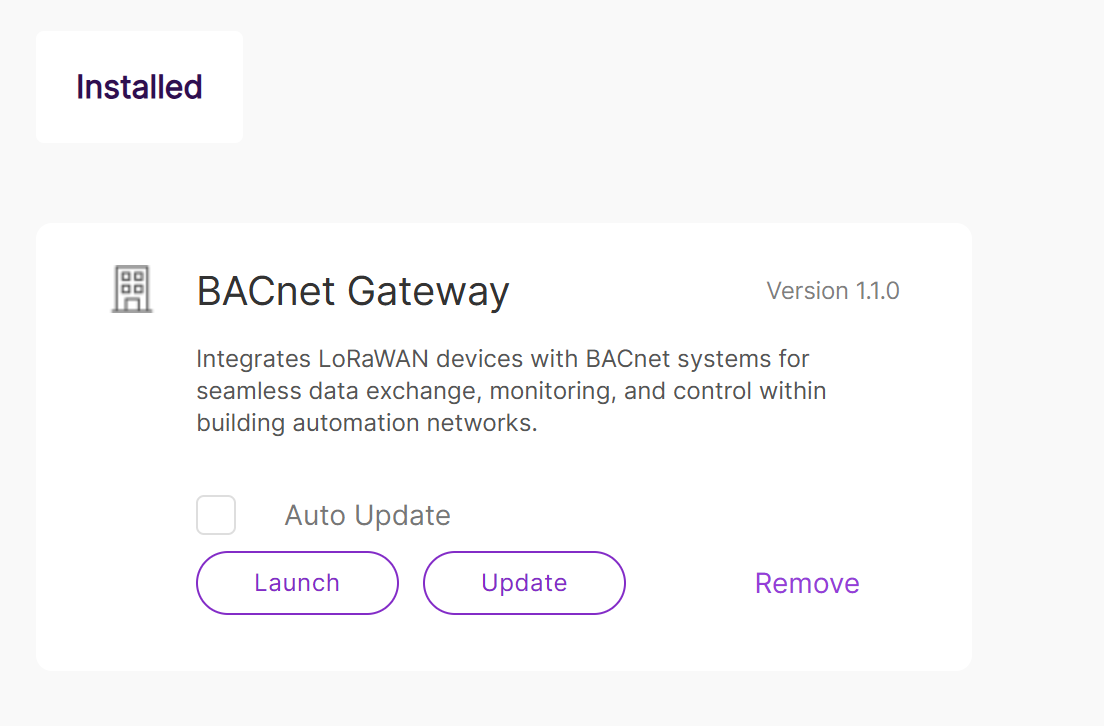 Figure 1: A newer version availableNOTE
If a newer version of the extension is available, the Update button is highlighted, indicating that the extension can be updated.
-
Wait until the upgrade process is completed.
During the upgrade, the button may show Updating. The process usually takes about 5 minutes.
Method 2: Manual Package Upload from Web UI
Use this method when you have the BACnet Gateway .wei package and need to manually upgrade the extension.
-
Go to Extensions > Installed.
-
Click Add new extension.
-
Drag and drop the downloaded BACnet Gateway
.weipackage into the upload area, or click choose file to select it manually.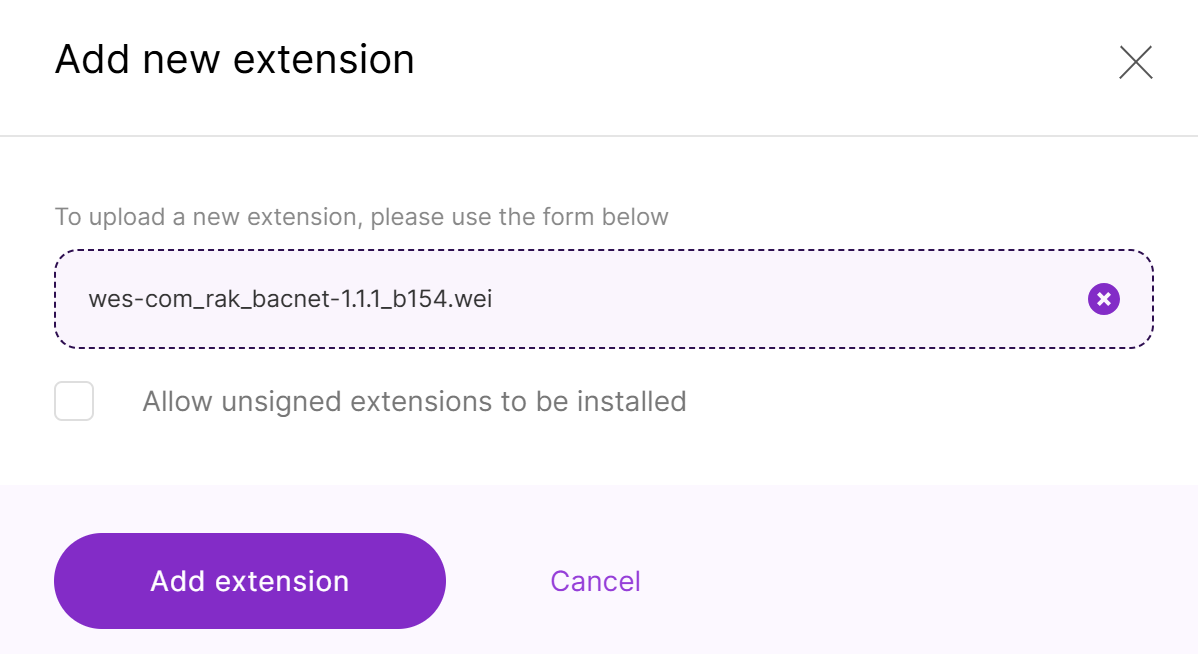 Figure 1: Upload the extension file
 -
Click Add extension to start the installation.
-
Wait until the installation is completed.
Method 3: Enable Auto Update
The Auto Update option allows the gateway to automatically update the BACnet Gateway extension when a newer version becomes available.
After Auto Update is enabled, the gateway will check for available extension updates. When a newer version is available, the gateway will automatically install it within approximately 24 hours.
Use this method when you want the gateway to keep the BACnet Gateway extension up to date without manually clicking Update each time.
To enable Auto Update:
- Go to Extensions > Installed.
- Find BACnet Gateway.
- Select the Auto Update checkbox.
Verify the Result
After the update or installation is complete, go to Extensions > Installed and find BACnet Gateway.
Confirm the following:
- The BACnet Gateway extension is displayed in the installed extension list.
- The displayed version matches the expected target version.
- If the installed version is already the latest version, the Update button is unavailable or grayed out.
- If Auto Update is enabled, the Auto Update checkbox remains selected.
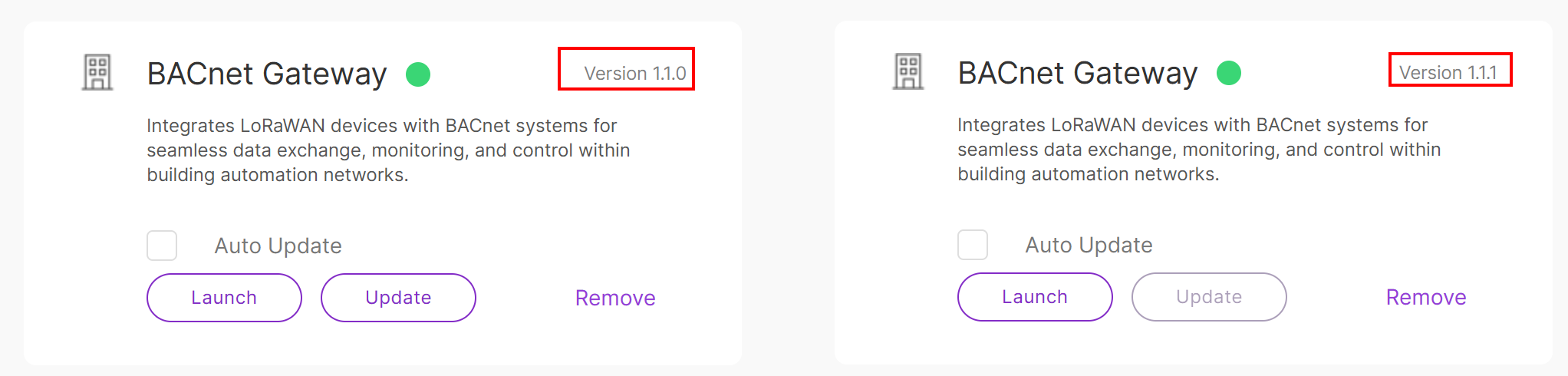 Figure 1: Verify the extension version in Web UI


