WisGateOs 2 Firmware Upgrade for X Industrial Gateways
This section guides you through the process of checking and upgrading the firmware on your WisGateOS 2 gateway.
Check the Firmware Version
Go to Settings> Firmware to view the current firmware version.
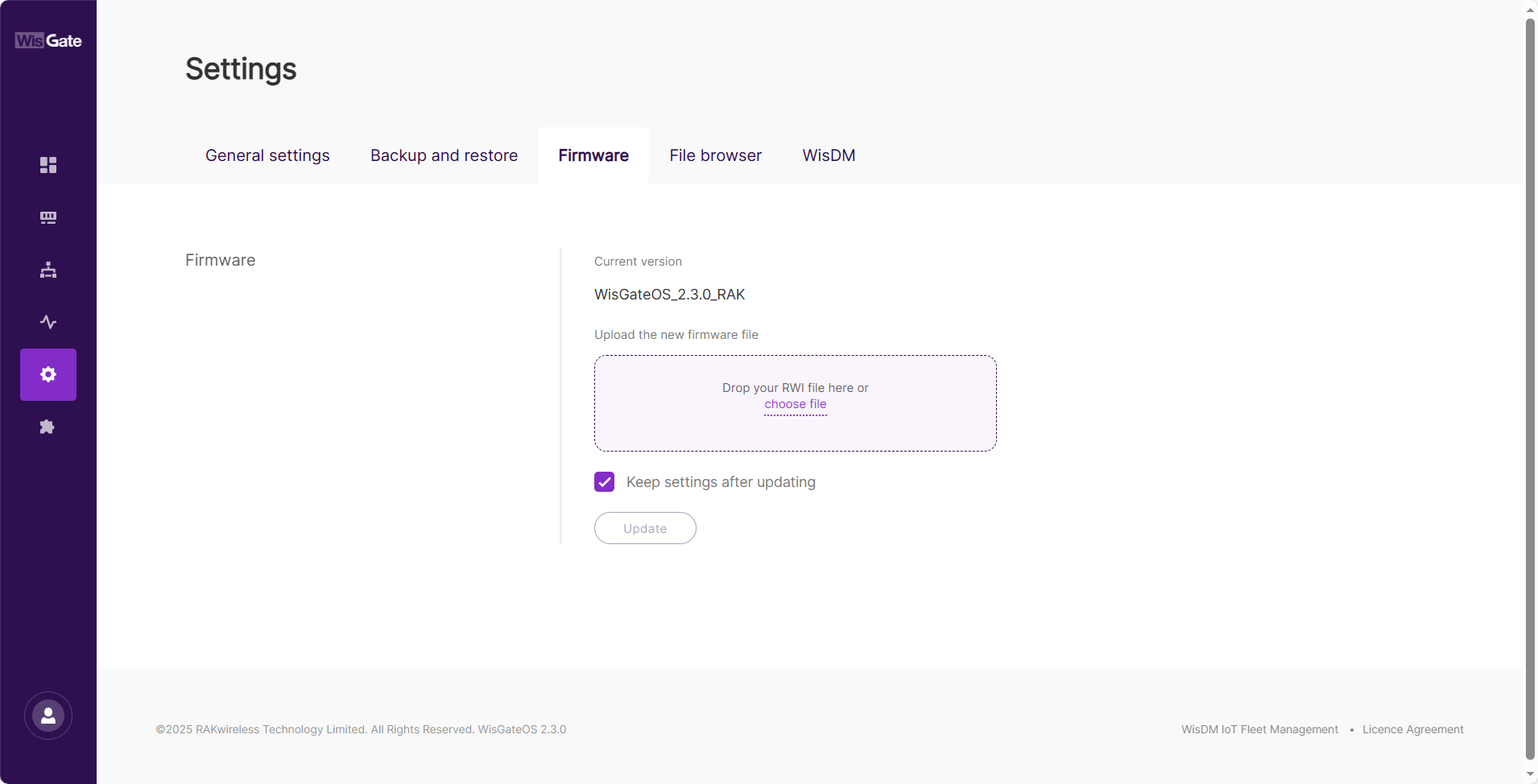 Figure 1: Firmware tab
Firmware Upgrade
Backup Before Any Upgrade
Before performing any firmware upgrade, it is highly recommended to create a full backup of your configuration. This ensures you can restore your settings in case of unexpected issues or if a reset is required.
For detailed steps on how to back up your configuration, refer to Backup Configuration.
Upgrade Steps
warning
Do not disconnect the power during the gateway upgrade.
- Download the latest version of the WisGateOS 2 firmware for the gateway and unzip the file.
- Drag and drop the
.rwifile in the Drop your RWI file here or choose file form, or click the choose file link to browse for the file. - Check the Keep settings after updating option.
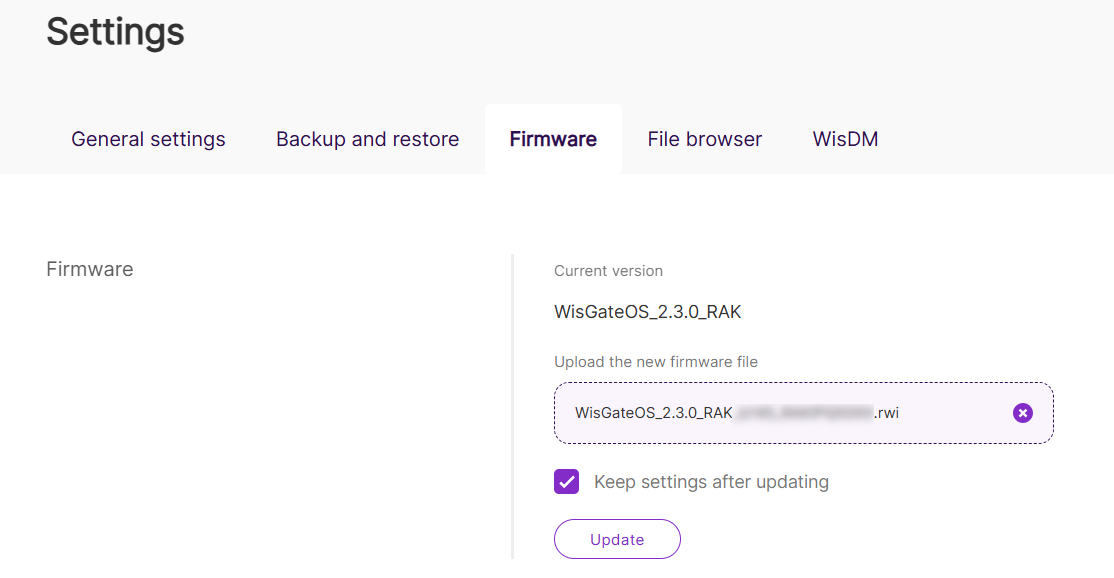 Figure 1: Upload the firmware fileNOTE
The Keep settings after updating check box is selected by default. Unchecking it will reset the gateway to stock settings after the upgrade.
- Click Update to initiate the firmware flashing process.
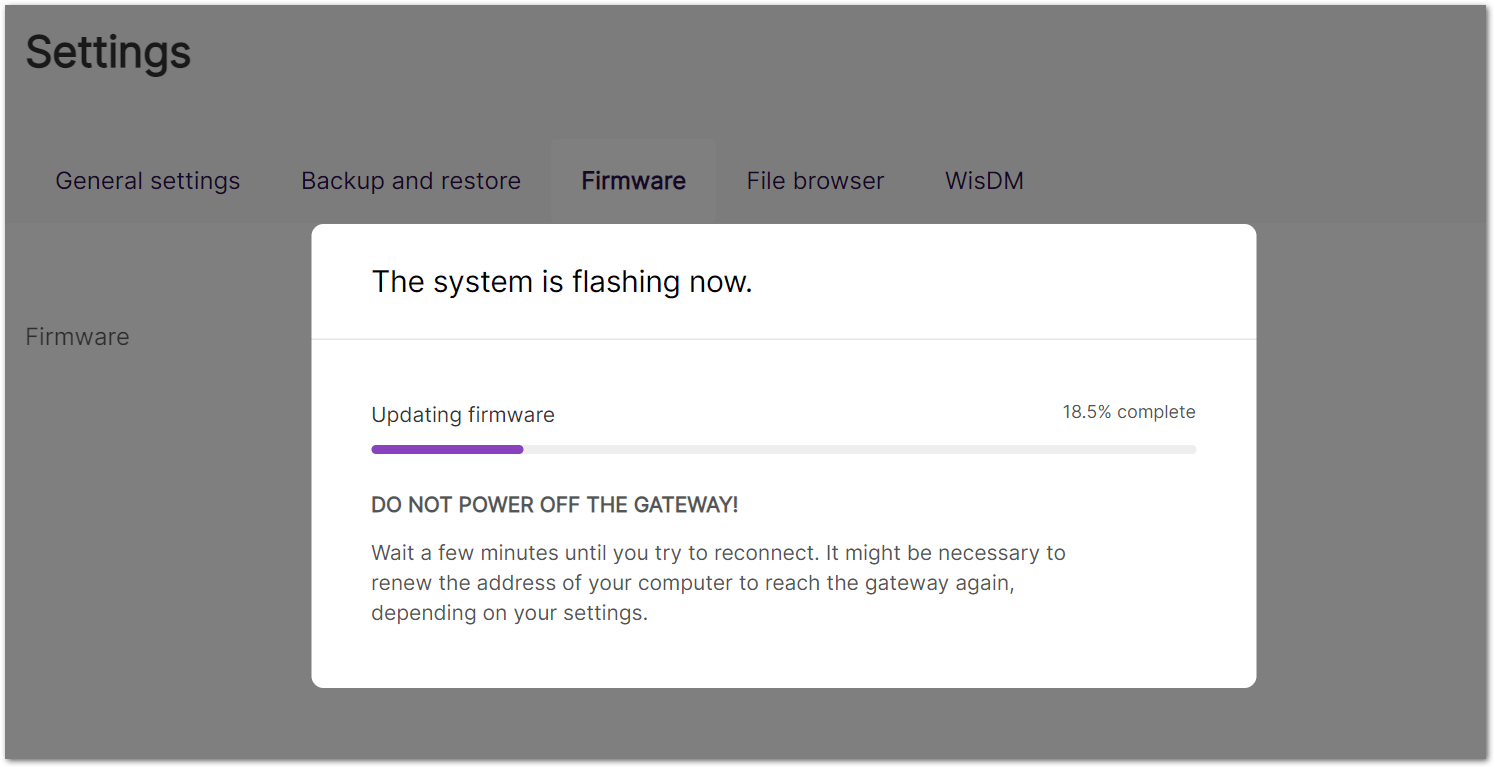 Figure 1: Upgrading
 - After the upgrade is complete, log in to the gateway and check the Firmware tab to confirm that the installed firmware version is correct.


