Access WisGateOS 2 via SSH
SSH provides command-line access to the WisGateOS 2 gateway backend. It is primarily used for advanced maintenance, diagnostics, and troubleshooting.
This guide explains the available SSH access methods and the basic requirements for connecting to the gateway system.
Overview
You can access the gateway backend through SSH in two ways:
- Local SSH access: Connect to the gateway from a PC using an SSH client tool, such as MobaXterm.
- WisDM SSH access: Start a remote SSH session from WisDM when the gateway is already managed by the platform.
Use SSH only when command-line access is required. For standard gateway configuration, use the WisGateOS 2 Web UI whenever possible.
Local SSH Access
Use local SSH access when your PC can directly reach the gateway.
Before connecting, ensure one of the following conditions is met:
- Your PC is connected to the gateway via Wi-Fi AP mode.
- Your PC and the gateway are on the same network, and you know the gateway's IP address.
- Open a terminal application on your PC. This guide uses MobaXterm is used as an example.
- Select SSH and configure the host IP address and login credentials..
- If you are connected via Wi-Fi AP mode:
- Host: 192.168.230.1
- Username: root
- If you are using the gateway’s network IP:
- Host: Your gateway IP address
- Username: root
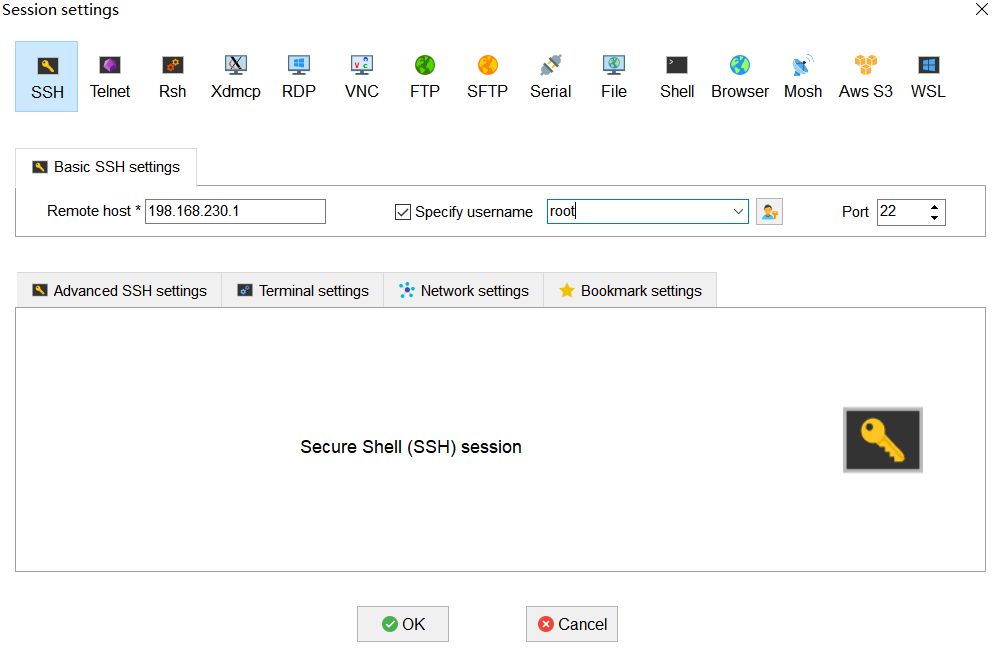 Figure 1: Create SSH Session
- Enter the SSH login password:
- If this is your first time accessing the gateway system, the default password is:
root - If the gateway password has already been changed (via Web UI or a previous SSH login), enter the updated password
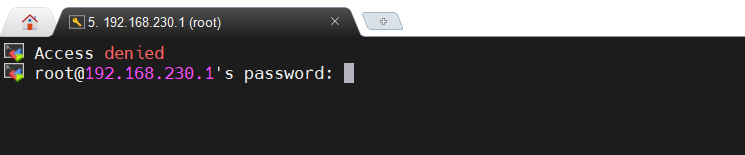 Figure 1: Enter the system password
-
(Required for WisGateOS 2.3.x and later) When accessing the gateway system for the first time via SSH, you will be prompted to change the default password.
Enter a new password in the New password field and confirm it in the Retype password field. The password must meet the following requirements:
- At least 12 characters long
- Has at least one special character (
!“#$%&\‘()*+,-./:;<=>?@[]^_{|}~) - Has at least one number
- Has at least one standard Latin letter (used in the English alphabet)
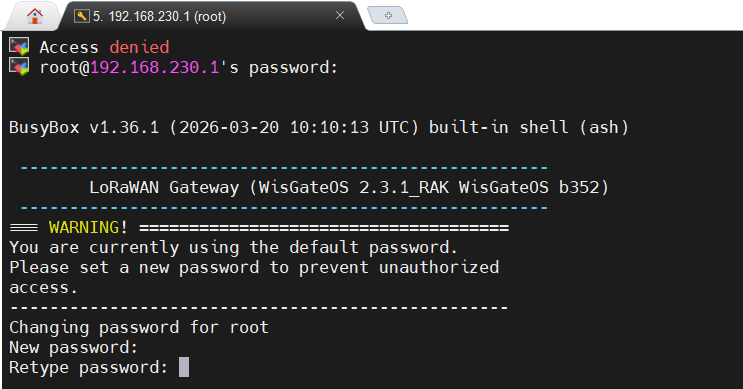 Figure 1: Reset a new password
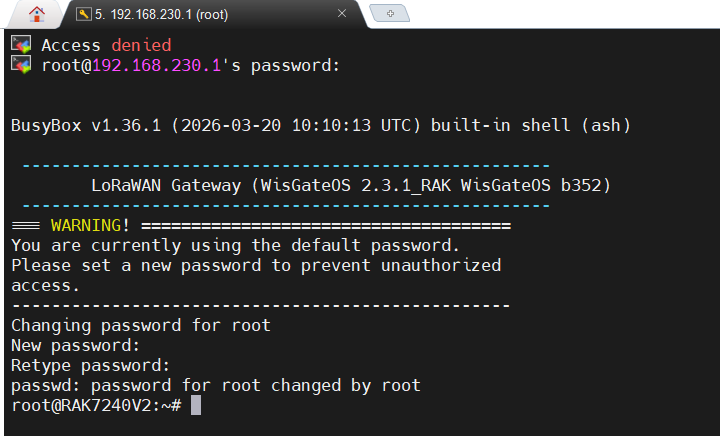 Figure 1: Retype the password
Access via WisDM (SSH)
Use WisDM SSH when the gateway is managed remotely through WisDM.
Before starting a WisDM SSH session, ensure that:
- The gateway status is Online in WisDM.
- The gateway has stable network connectivity.
For detailed steps, refer to: WisDM SSH guide.
Troubleshooting
SSH via Terminal Tool
| Issue | Possible Cause | Solution |
|---|---|---|
| Unable to establish connection | Incorrect IP address | Verify the gateway's IP address |
| PC and gateway are not on the same network | Ensure both devices are on the same network. | |
| Using wrong IP in AP mode | Use 192.168.230.1 in AP mode. | |
| Connection times out | Network connectivity issue | Ensure the gateway is powered on and reachable. |
| Firewall blocking SSH (port 22) | Ensure port 22 is open. | |
| Access denied | Wrong credentials | Verify username (root) and password. |
SSH via WisDM
| Issue | Possible Cause | Solution |
|---|---|---|
| Unable to start SSH session | Gateway is not in Online status | Ensure the gateway status is Online in WisDM. |
| Access denied | Wrong credentials | Verify password. |
FAQs
-
Is the SSH password the same as the Web UI password?
Yes, the SSH password is the same as the Web UI login password. Any changes will apply to both access methods.
-
Why do I need to change the password when accessing the system via SSH for the first time?
This is a security feature introduced in WisGateOS 2.3.x and later to prevent unauthorized access.
-
How can I find the gateway IP address?
You can obtain the gateway IP address in the following ways:
- Check the network settings in the Web UI.
- Check your router’s DHCP client list
- If connected via Wi-Fi AP mode, use the default IP: 192.168.230.1
-
Why can’t I connect to 192.168.230.1?
The IP address 192.168.230.1 is only valid when the gateway is in Wi-Fi AP mode.
Ensure your PC is connected to the gateway’s Wi-Fi AP.
-
What should I do if I forget the WisGateOS 2 password?
If you forget the WisGateOS 2 password, the only way to regain access is to reset the gateway to factory settings.
warningA factory reset will erase all configurations.
-
Why am I not prompted to change the password when accessing via SSH?
The password change prompt only appears the first time you access the gateway system via SSH.
If you are not prompted, it may be due to one of the following reasons:
- The password has already been set previously (via Web UI or SSH)
- The gateway is running a firmware version earlier than WisGateOS 2.3.x, which does not support forced password changes.


