Connect to Device with WisToolBox Mobile
Open WisToolBox Mobile
- Power up your RAK device, then launch the WisToolBox application on your mobile device.
- Press the reset button on the RAK device and click CONNECT DEVICE.
- Press ALLOW to turn on BLE and start the scan. Look for a BLE device named RAK.XXXXXX in the scan list of the app.
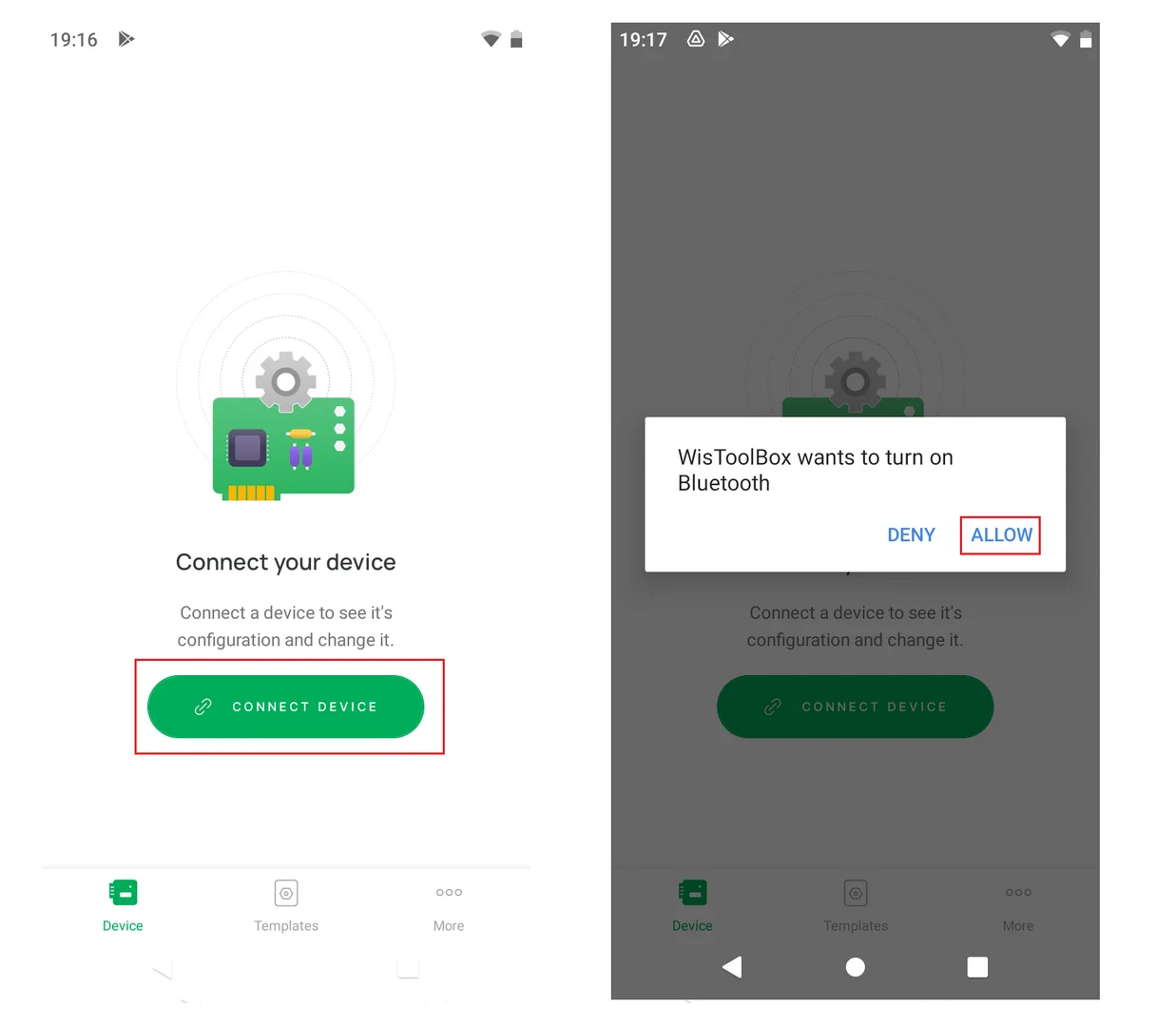 Figure 1: WisToolBox Mobile connect device
NOTE
By default, the BLE advertising of the RAK device is turned off automatically if no connection is established after 30 seconds. Connect to the RAK device immediately after pressing the reset button.
Some Android smartphones require GPS enabled to permit connection to BLE. When GPS is enabled, no sensitive information is used or shared with the application.
- When the RAK device is found, connect and pair the device by clicking the green button. Then wait for data synchronization.
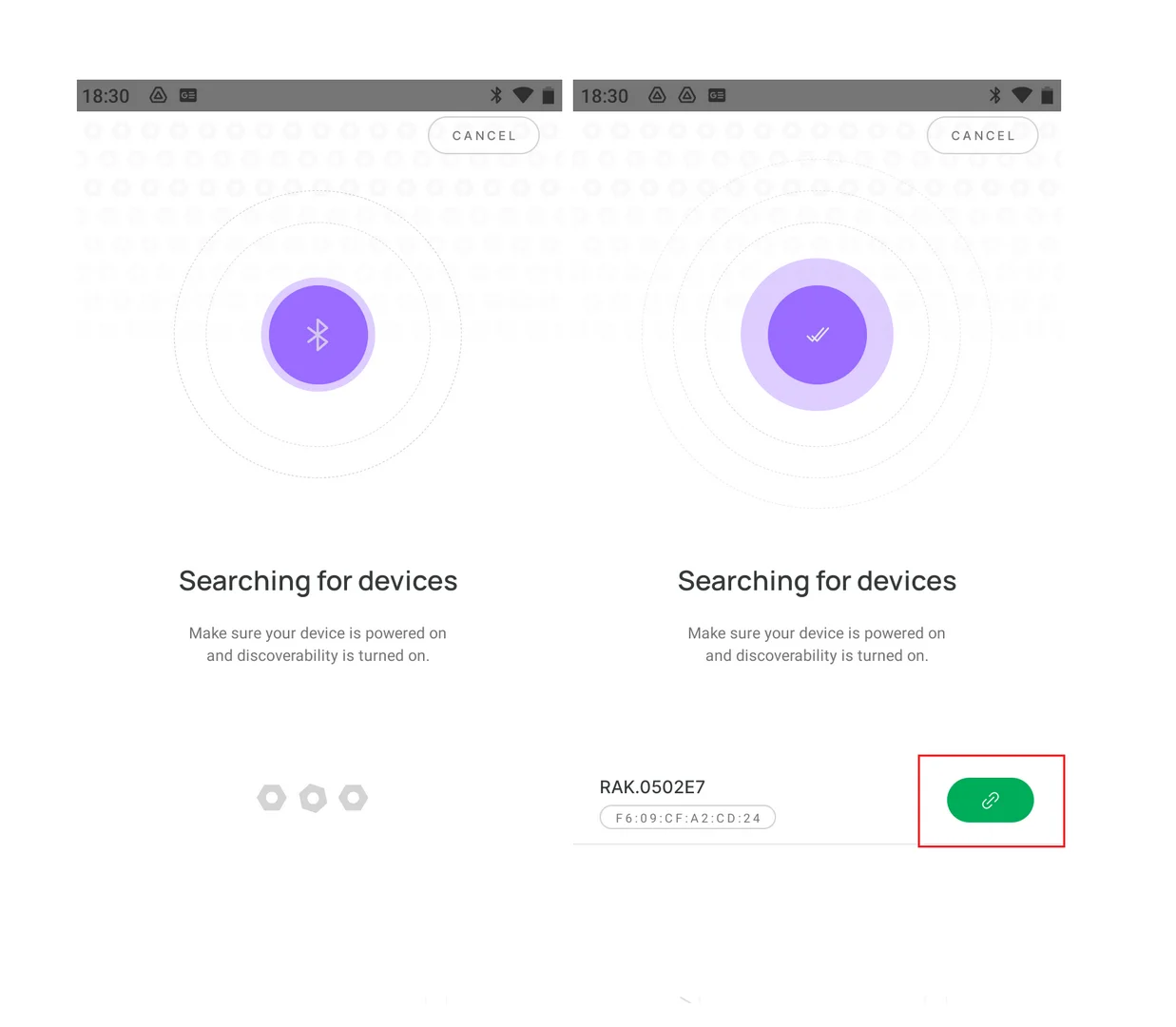 Figure 1: WisToolBox Mobile BLE scan
- When the data synchronization is completed, you will see the DEVICE INFO screen.
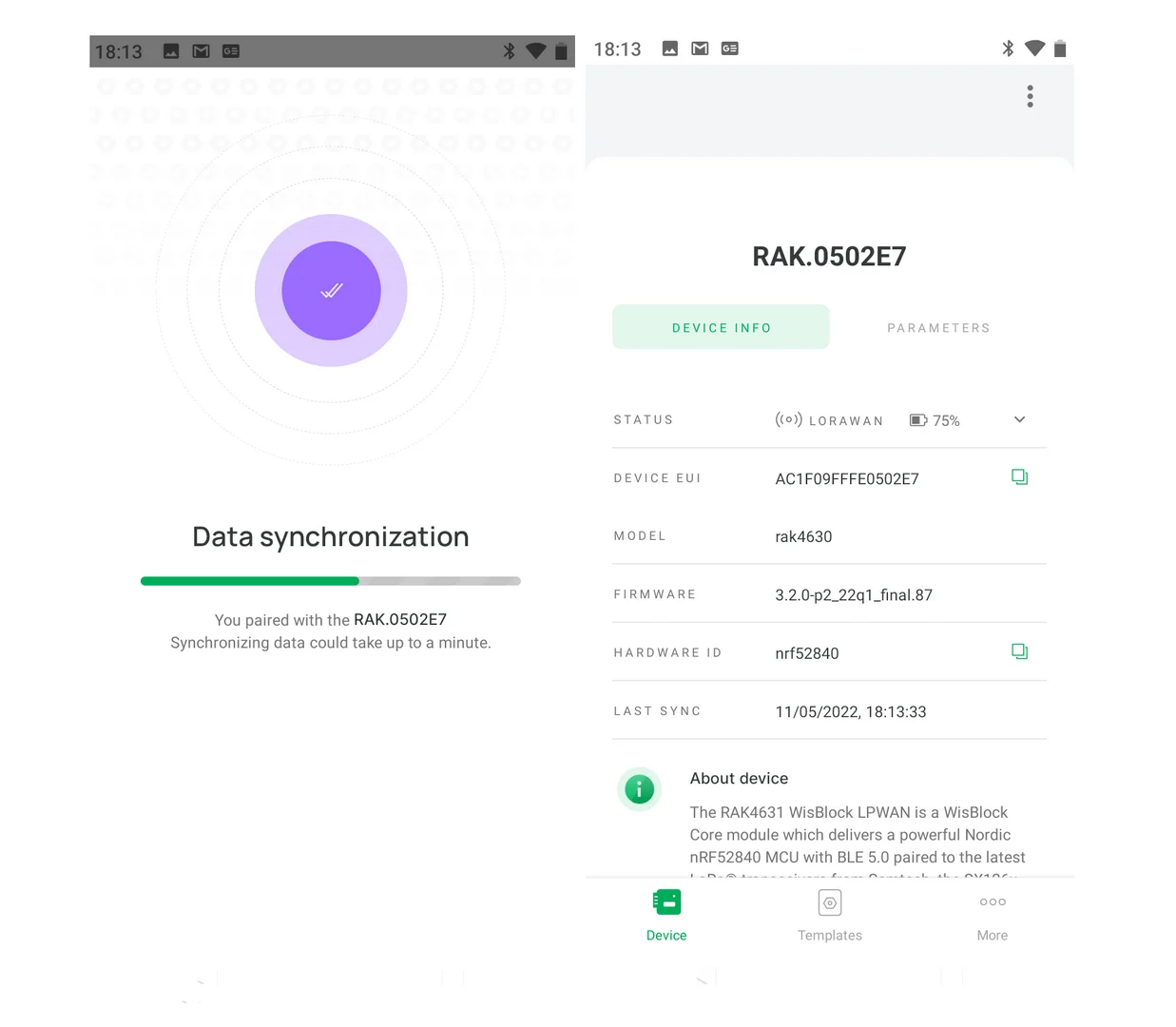 Figure 1: WisToolBox Mobile BLE is connected
- In case of an error, No devices found is displayed. Redo the connection steps from the beginning.
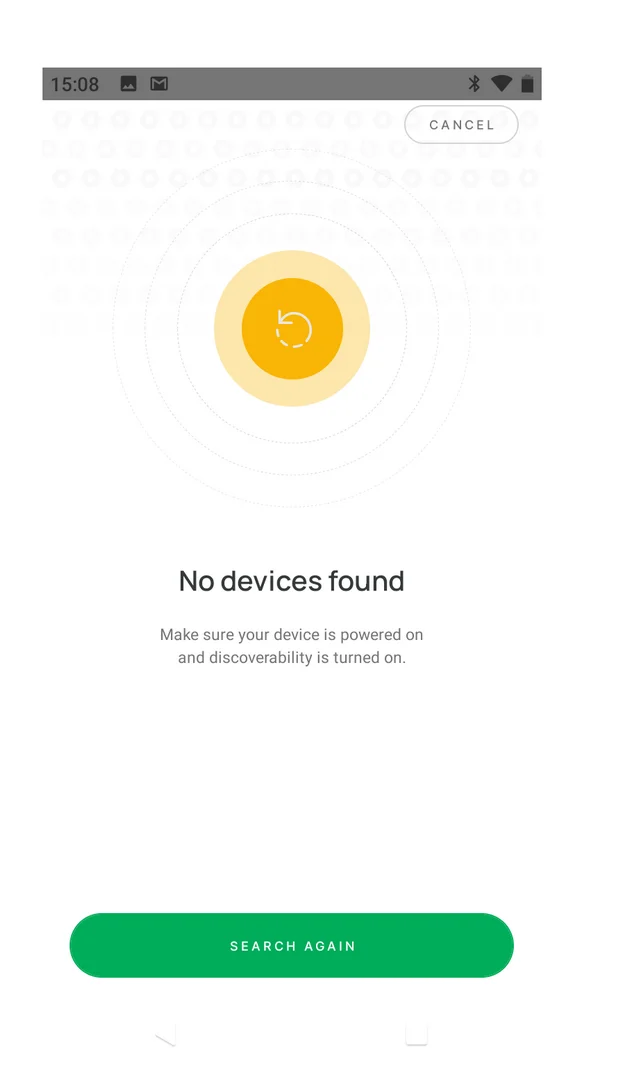 Figure 1: WisToolBox Mobile BLE scan error
Create RAK ID Profile
It is recommended to create a RAK ID profile. Your RAK ID profile will be stored in the cloud and can be synced on different PCs. You can only edit your details and preferences at the RAK ID Portal.
- First, click the More menu icon, and select Sign in.
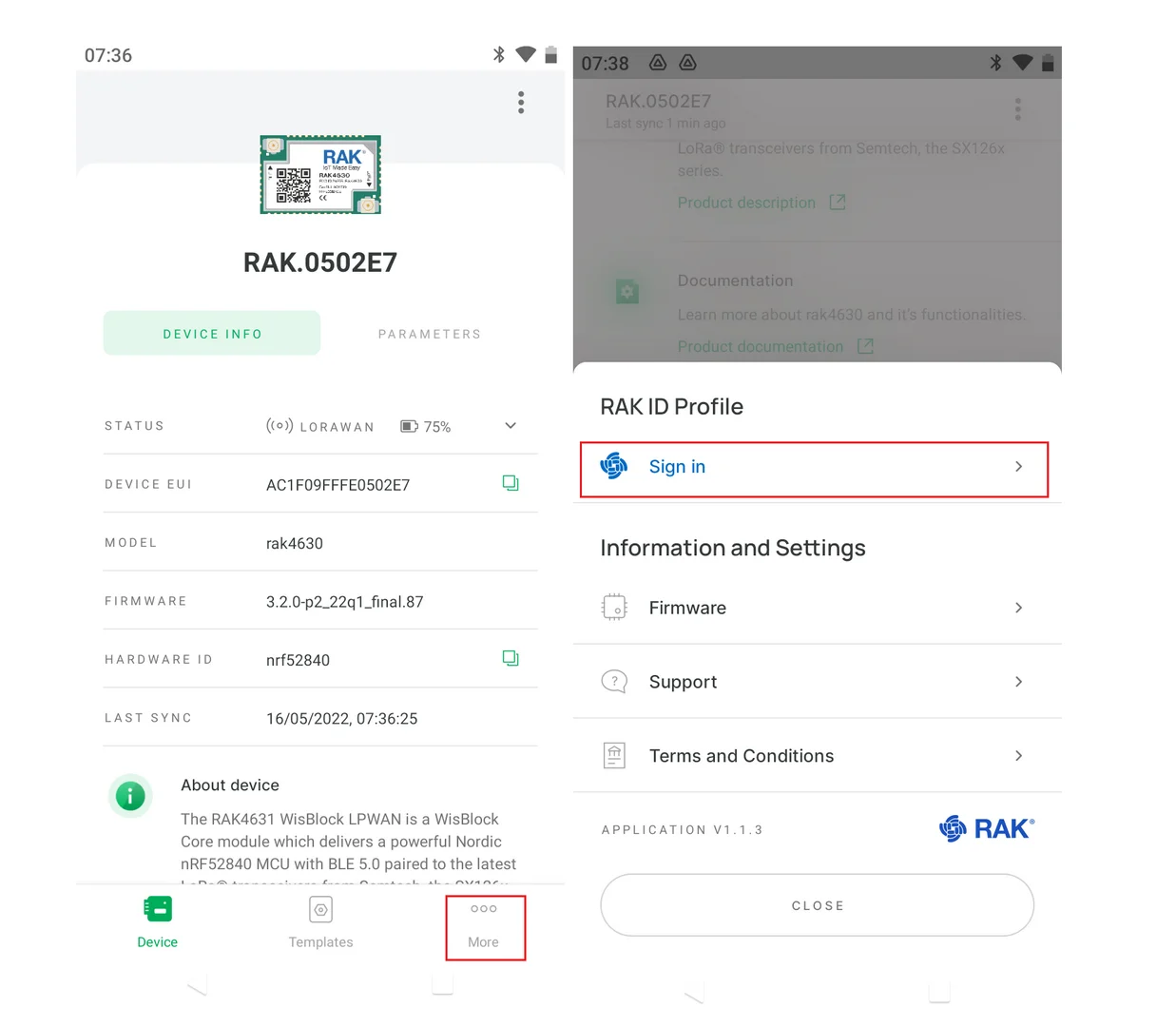 Figure 1: WisToolBox Mobile RAK ID menu
- Click the SIGN IN WITH RAK ID button.
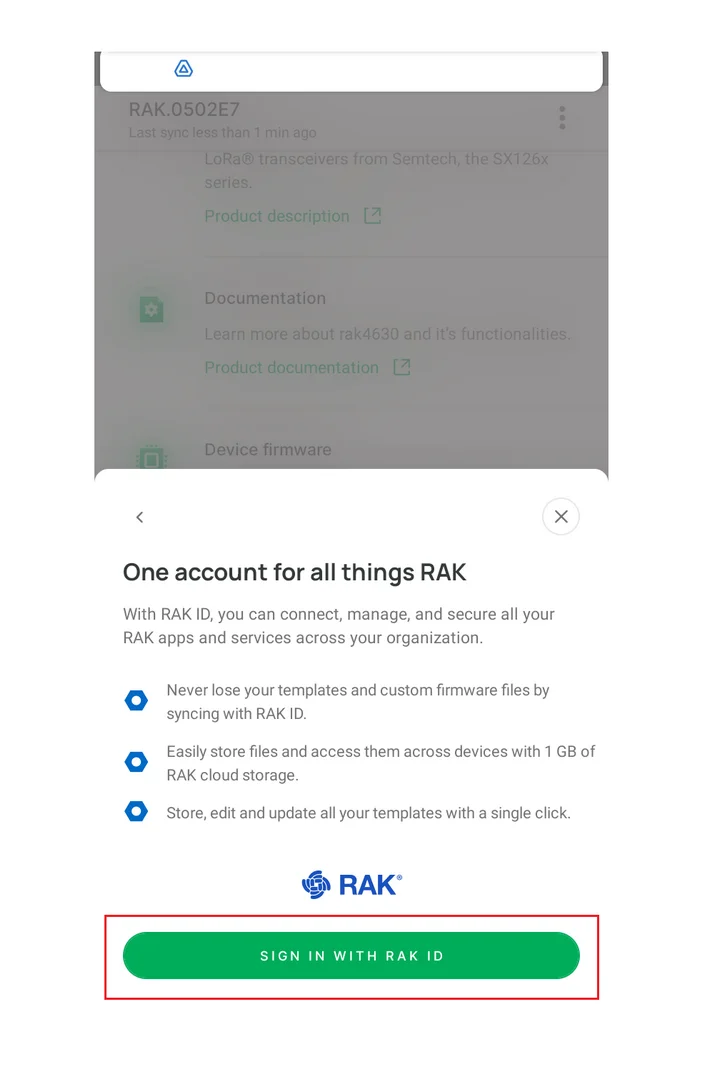 Figure 1: WisToolBox Mobile create RAK ID profile


