Manage Templates with WisToolBox Mobile
You can save the LoRa parameters used in your application in a template. It is also possible to create multiple templates for different projects and applications.
If you sign in using a RAK ID, the templates are stored in the cloud.
Create a Template
- Select the Templates icon, then click the NEW TEMPLATE button.
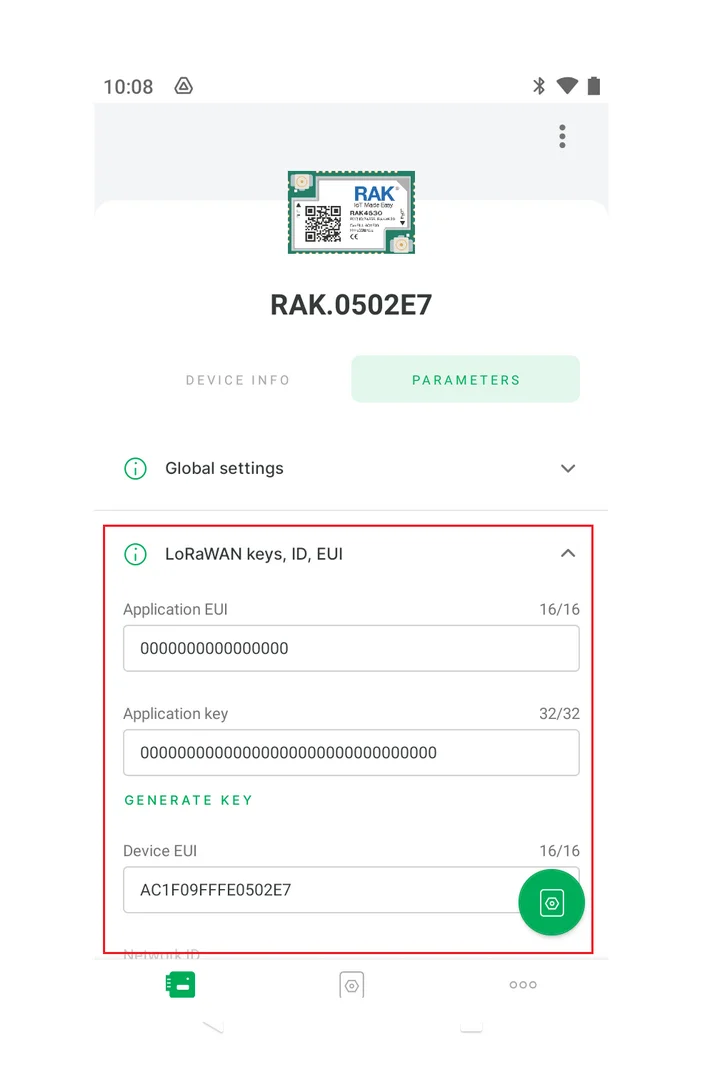 Figure 1: WisToolBox Mobile Templates
- Type a template name in the text area, then click NEXT.
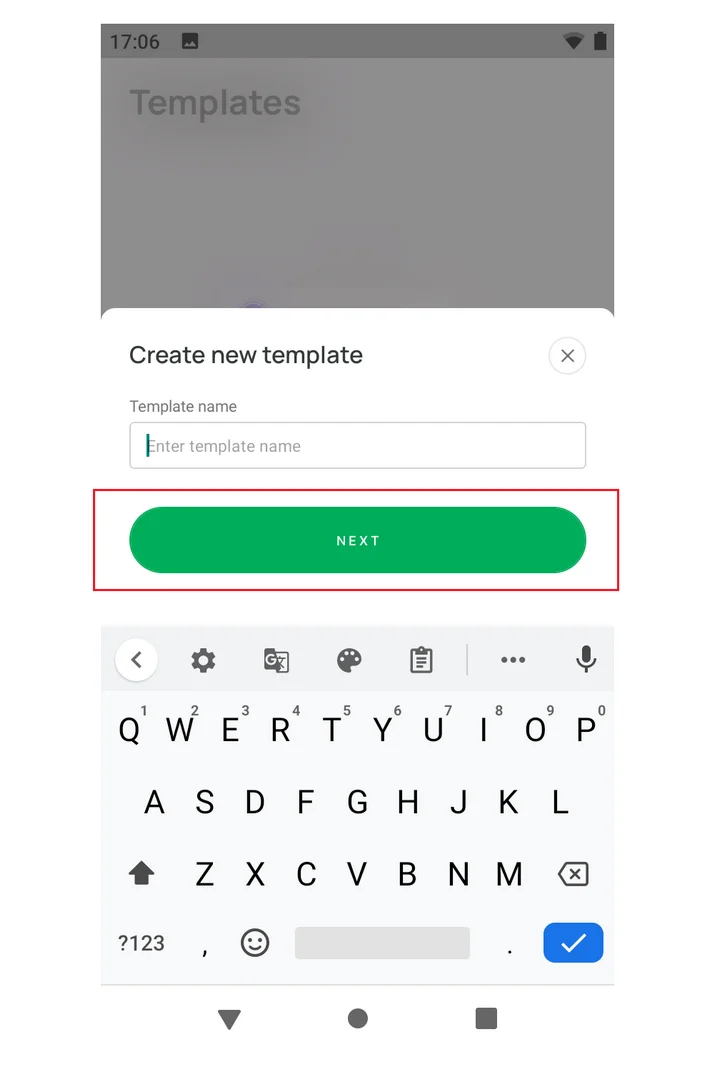 Figure 1: WisToolBox Mobile template name
- On the Template device list, choose RAK4630, then click CREATE TEMPLATE. The RAK3172 modules are not supported by WisToolBox Mobile.
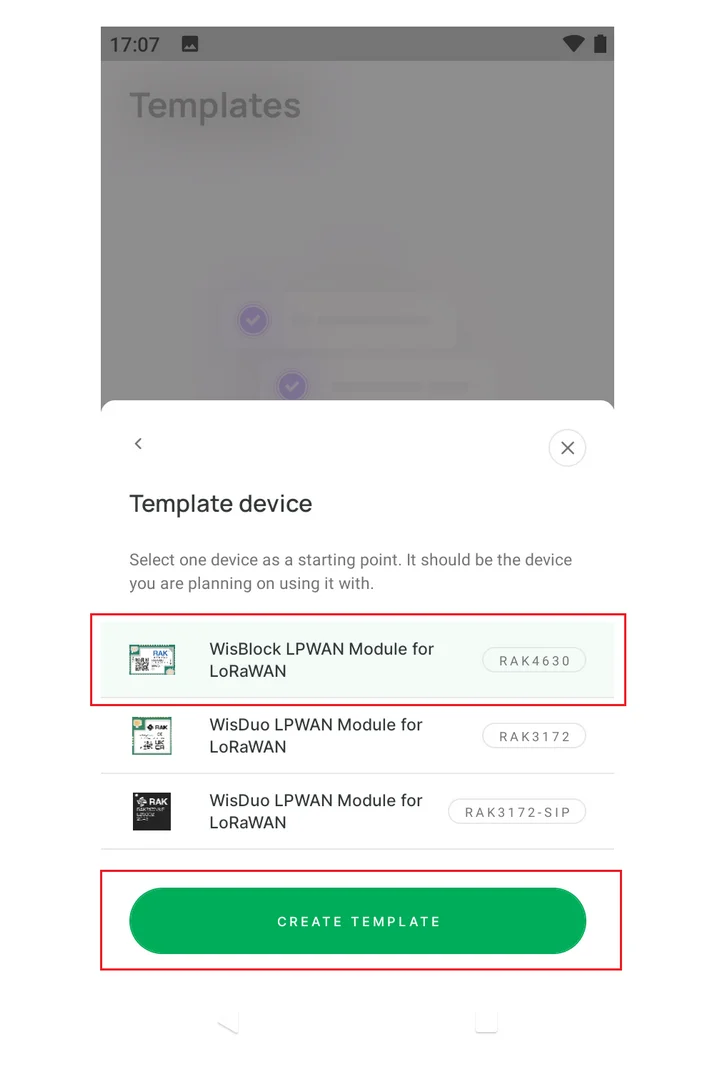 Figure 1: WisToolBox Mobile new template
Configure Template Parameters
- The template parameter screen shows the available LoRa parameters for the template.
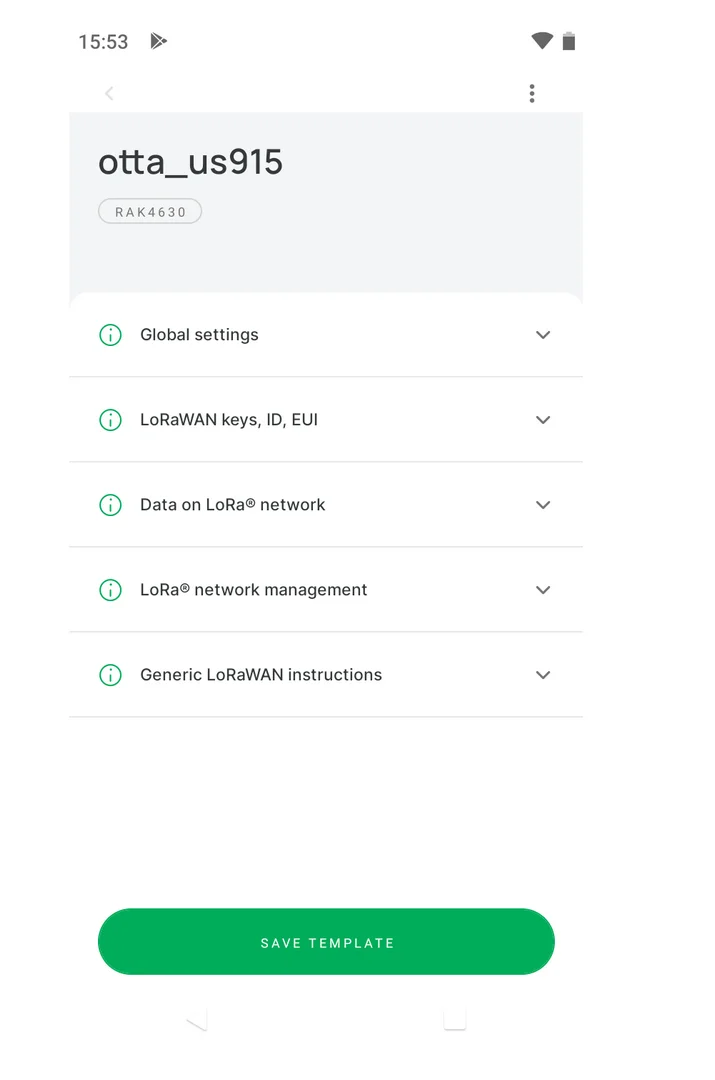 Figure 1: WisToolBox Mobile Template parameter
- To select a specific parameter set, click the corresponding icons.
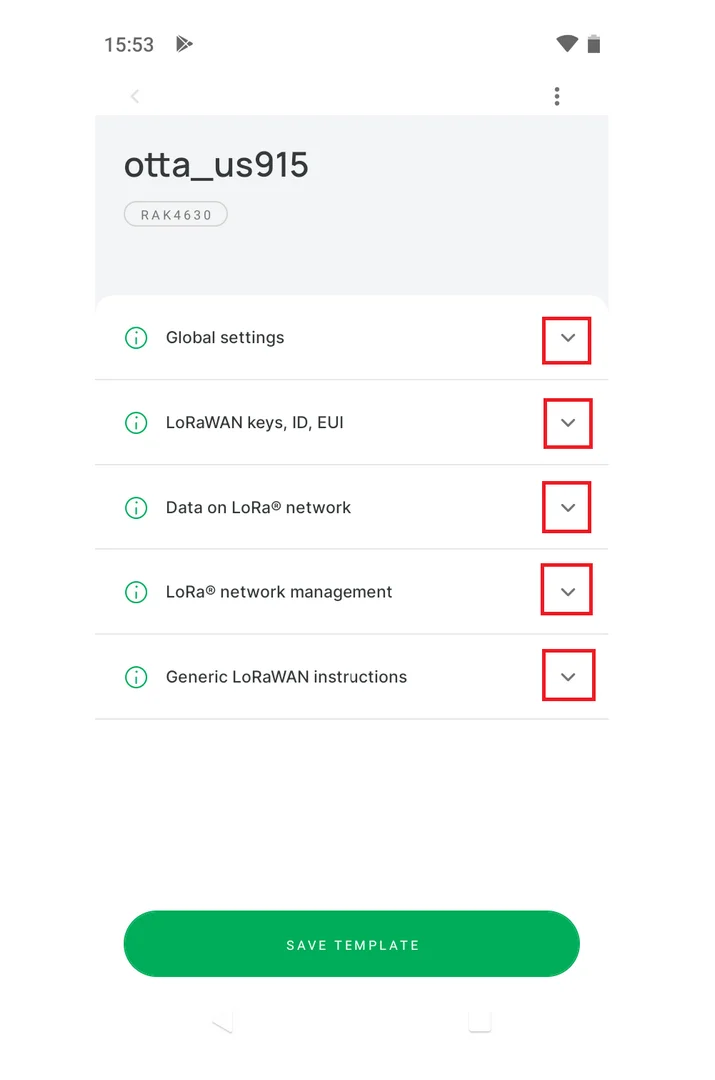 Figure 1: WisToolBox Mobile select parameter
-
The Global settings parameters can then be configured for the template.
-
After filling in all the parameters, click SAVE TEMPLATE.
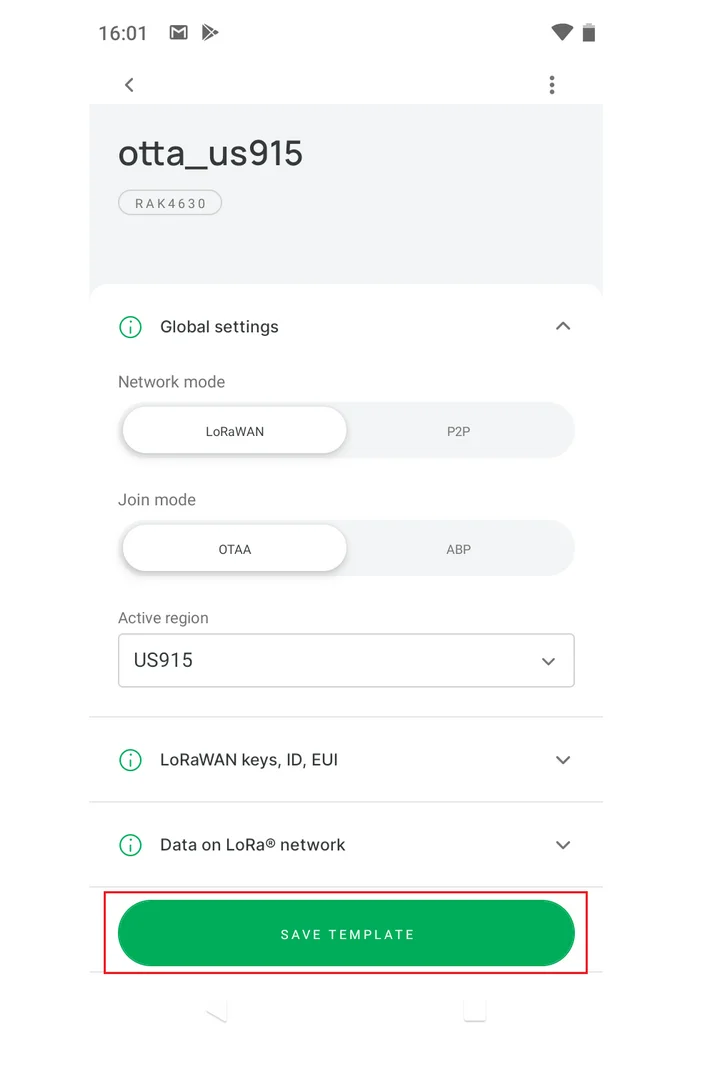 Figure 1: WisToolBox Mobile fill Global settings params
- The saved template appears in the template list.
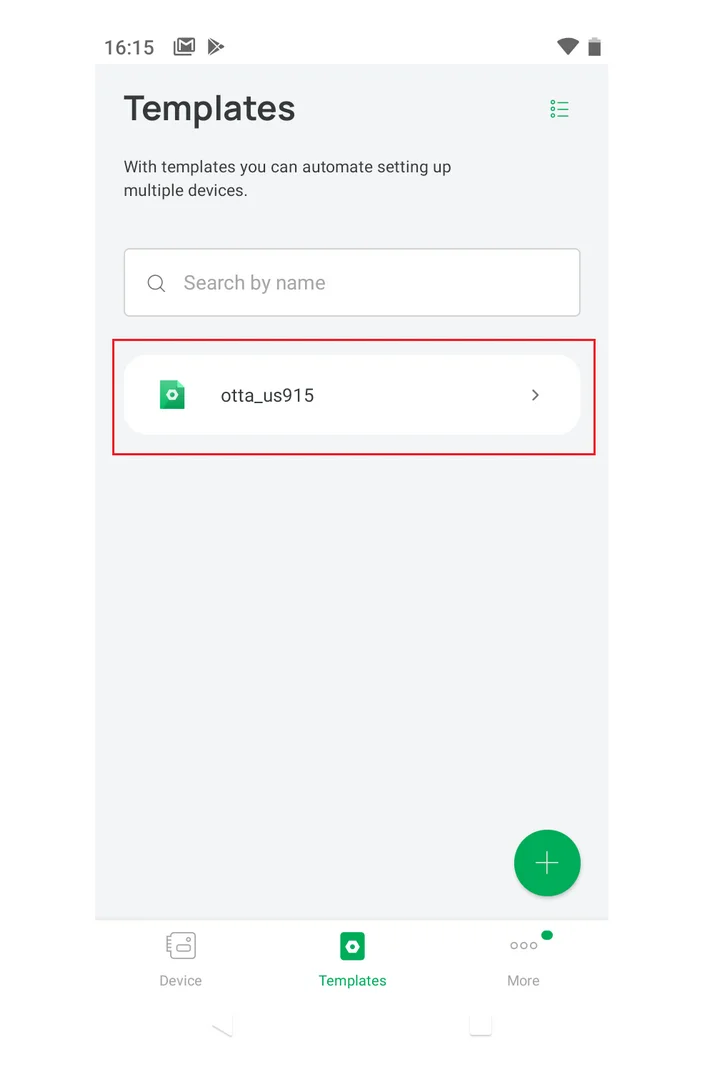 Figure 1: WisToolBox Mobile saved templates


