LoRaWAN Configuration
By configuring the following LoRaWAN parameters, you can connect your devices to a LoRaWAN network and manage communication parameters.
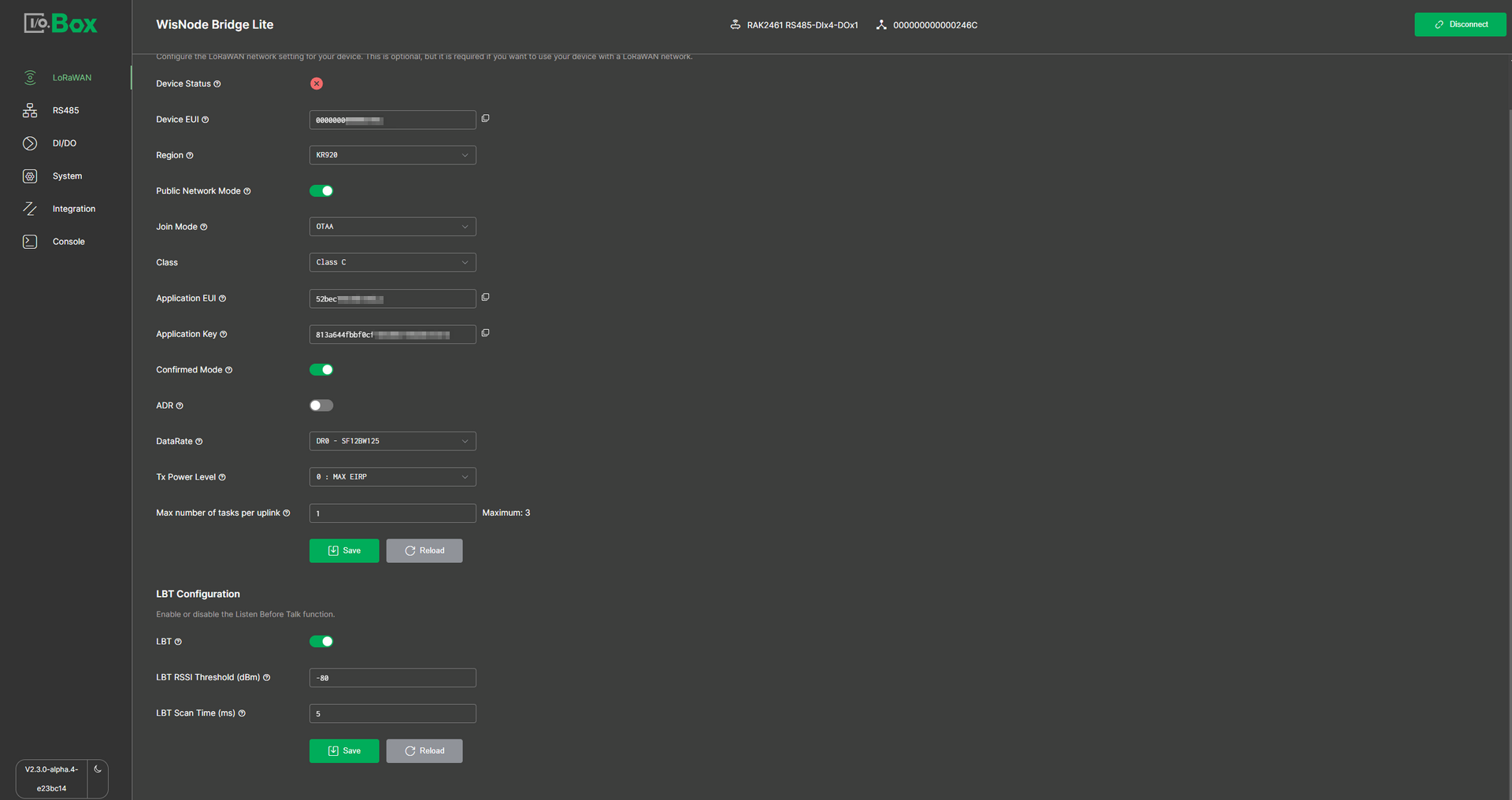 Figure 1: LoRaWAN tab1
LoRaWAN Configuration
In the LoRaWAN Configuration section, you can set various parameters required to connect your device to the LoRaWAN network. After configuring the settings, click Save to apply the changes and activate the configuration on your device.
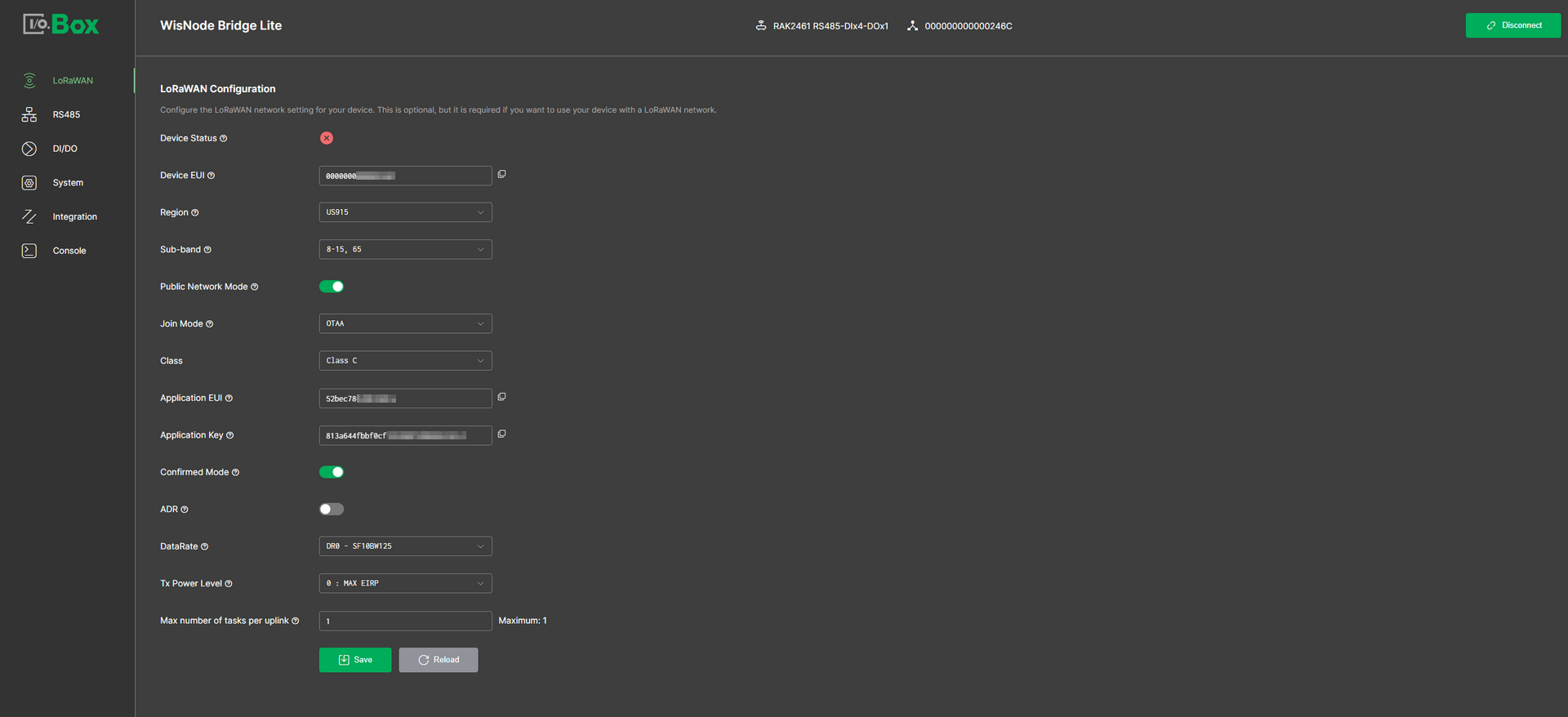 Figure 1: LoRaWAN tab2
-
Device Status: Indicates the device’s connection status to the LoRaWAN network.
-
Red: The device is not connected to the LoRaWAN network.
-
Green: The device has successfully joined the LoRaWAN network.
-
-
Device EUI: The unique identifier of the device. This cannot be modified.
-
Region: Specifies the LoRaWAN frequency band used by the device. Supported regions include US915, AU915, KR920, AS923-1, AS923-2, AS923-3, and AS923-4.
-
Sub-band: Select the specific frequency sub-band based on the region's frequency plan. US915 and AU915 support eight sub-bands, while all other regions support only one sub-band.
-
Public Network Mode: Determines whether LoRaWAN public network parameters are used. When enabled, the device can connect to public LoRaWAN network servers such as TTN or ChirpStack. When disabled, it operates only in a private LoRa network.
-
Join Mode: The mode used for device network joining. Select either OTAA or ABP depending on your device joining method.
-
Over-The-Air Activation (OTAA): Devices join the network dynamically and derive session keys during the join process.
-
Application EUI: The application identifier for the device. Ensure it matches the Application EUI configured in the LoRa network server.
-
Application Key: The security key for device-server encryption and authentication. Ensure it matches the Application Key in the LoRa network server.
-
-
Activation By Personalization (ABP): Devices transmit data without joining, using manually configured DevAddr, NwkSKey, and AppSKey that must match exactly between the device and the server.
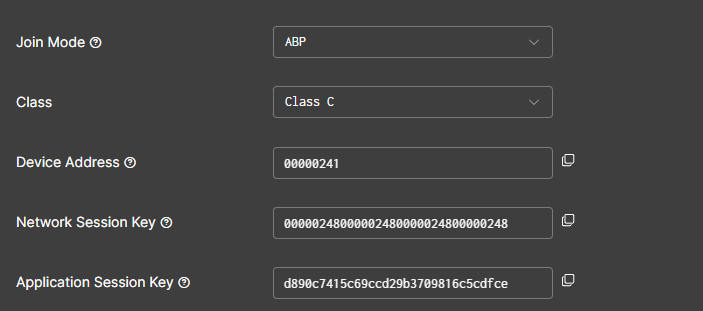 Figure 1: LoRaWAN tab3
- Device Address: The address used by the network to identify which device the data comes from.
- Network Session Key: The key used by the network server to verify that the message is from a valid device and has not been tampered with.
- Application Session Key: The key used to encrypt and decrypt the actual application data sent by the device.
-
-
Class: The type of LoRaWAN communication used by the device. Select Class C.
-
Confirmed Mode: Message acknowledgment mode. When enabled, the network server will acknowledge the uplink data. If no acknowledgment is received, the device will resend the data. If disabled, the network server will not send an acknowledgment.
-
ADR: When enabled, the network server dynamically adjusts the data rate (DR) and transmission power based on the gateway’s signal strength (SNR) and coverage. If disabled, the following parameters must be manually configured.
- DataRate: Lowering the data rate increases range but also adds communication time and power consumption. Choose based on the device-gateway distance and signal quality.
- Tx Power Level: A smaller transmission power value represents higher power. 0 is the maximum allowed power, with each increment reducing power by approximately 2 dBm.
- Max number of tasks per uplink: Determines how many tasks a single uplink message can trigger. The value is automatically calculated based on the current Region and DataRate and is not user-configurable.
LBT Configuration
LBT Configuration controls the Listen Before Talk mechanism, which requires the device to listen to the radio channel before transmitting LoRa data and only send when the channel is detected as idle. This helps reduce channel interference and packet collisions, ensures fair channel usage, and improves overall network stability.
Prerequisite
- Before configuring LBT, ensure that the selected Region is set to KR920 or AS923-1, AS923-2, AS923-3, or AS923-4.
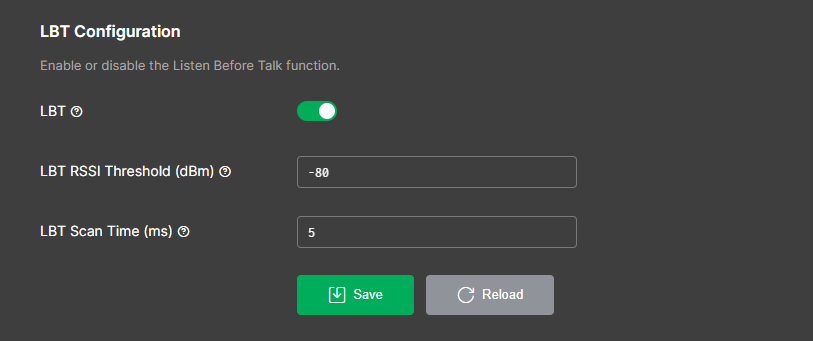 Figure 1: LoRaWAN tab4
When LBT is enabled, the device listens to the channel before transmitting to avoid collisions with other signals. Configure the following parameters, then click Save to apply the changes.
-
LBT RSSI Threshold (dBm): Determines whether the channel is busy before transmission. Signals stronger than the configured threshold indicate a busy channel and defer transmission; weaker signals allow transmission.
-
LBT Scan Time (ms): Defines how long the device listens to the channel before transmission to determine if it is free. Longer values improve detection accuracy, while shorter values reduce transmission delay.


