Connect the WisNode Bridge to IO.Box
Prerequisite
-
The WisNode Bridge is powered on and operating normally.
-
The RS485, DI/DO, or AI/AO interfaces are correctly connected to the corresponding Bridge IO ports.
Connect Automatically or Manually
- To configure the application, connect the device to your computer using the provided USB cable.
- Launch the IO.Box application and click the Connect Device button.
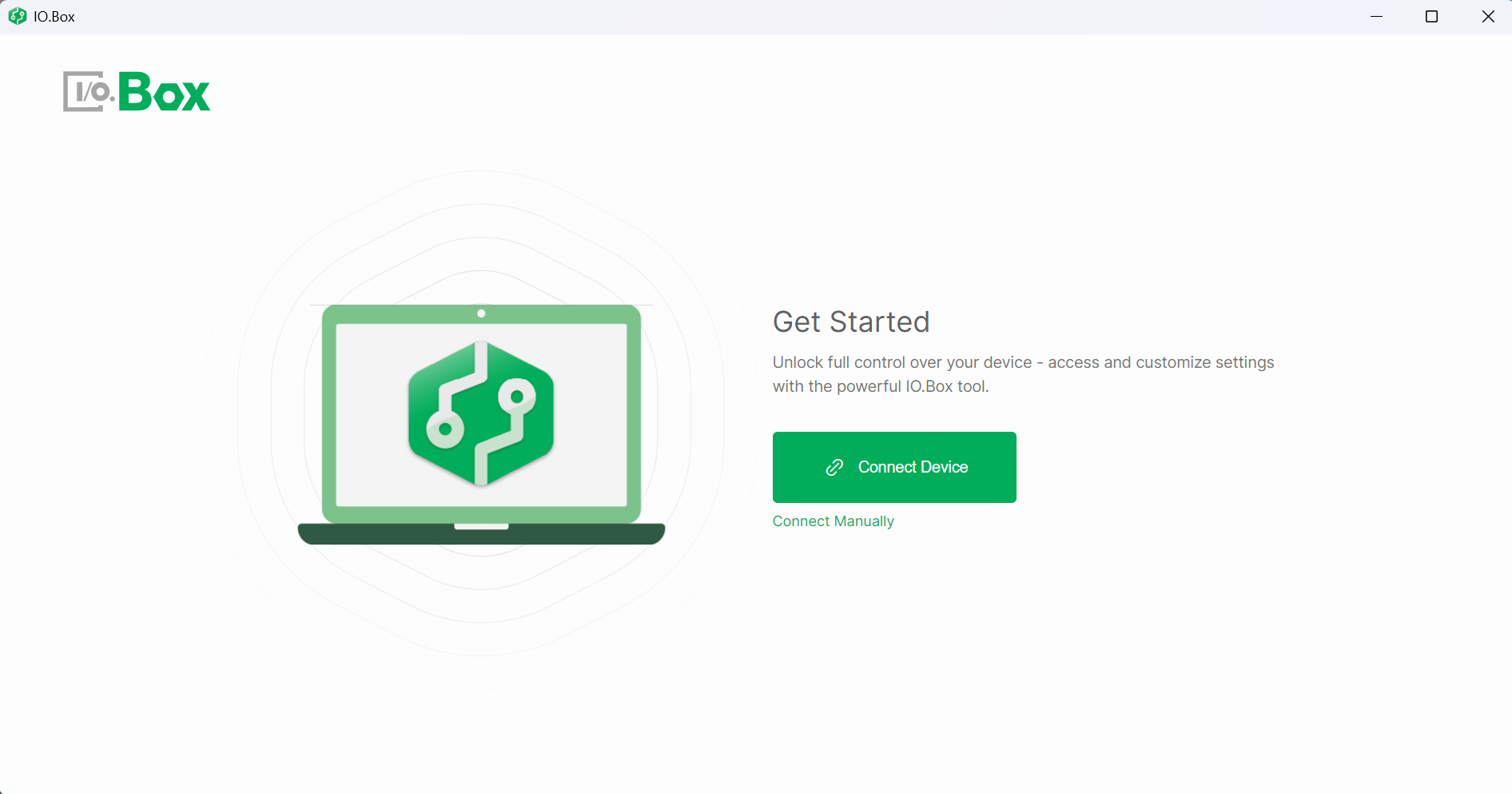 Figure 1: Start the IO.Box
- After clicking Connect Device, the device will be automatically detected, and the LoRaWAN Configuration tab will appear.
- If the device is not automatically detected, click Connect Manually and follow the instructions to add it.
- Once the device is connected, ensure that it is powered on. If it requires external power from the IO.Box, go to the System tab and enable the corresponding output under Power Output.
- The main menu on the left will vary depending on the device you are configuring.
Device Configuration Overview
Once the device is successfully connected, you will be directed to the main configuration interface. The left navigation panel will display the following options:
-
LoRaWAN: Configure the LoRaWAN parameters to connect your device to the network. You can access the LoRaWAN Configuration here.
-
RS485: Set up RS485 communication parameters for connecting to Modbus RTU devices. Go to the RS485 Configuration to configure this.
-
DI/DO: Configure Digital Input for monitoring external equipment and Digital Output for controlling actuators like relays and indicator lights. Refer to the DI/DO Configuration for setup instructions.
-
AI/AO: Configure AI for analog input signals and AO for analog output signals for industrial monitoring and control. Refer to the AI/AO Configuration for setup instructions.
-
System: View and manage general device settings, including power output and system reset options. For system configuration, go to System Settings.
-
Integration: Set up integration with LoRaWAN network servers or other external systems. You can find the Integration configuration here.
-
Console: Configure the console to display real-time AT commands automatically generated by the WisNode Bridge device for monitoring purposes. Visit Console to view the logs.


