Connect Device with WisToolBox Desktop
Open WisToolBox Desktop
- After the download has been completed, launch WisToolBox Desktop.
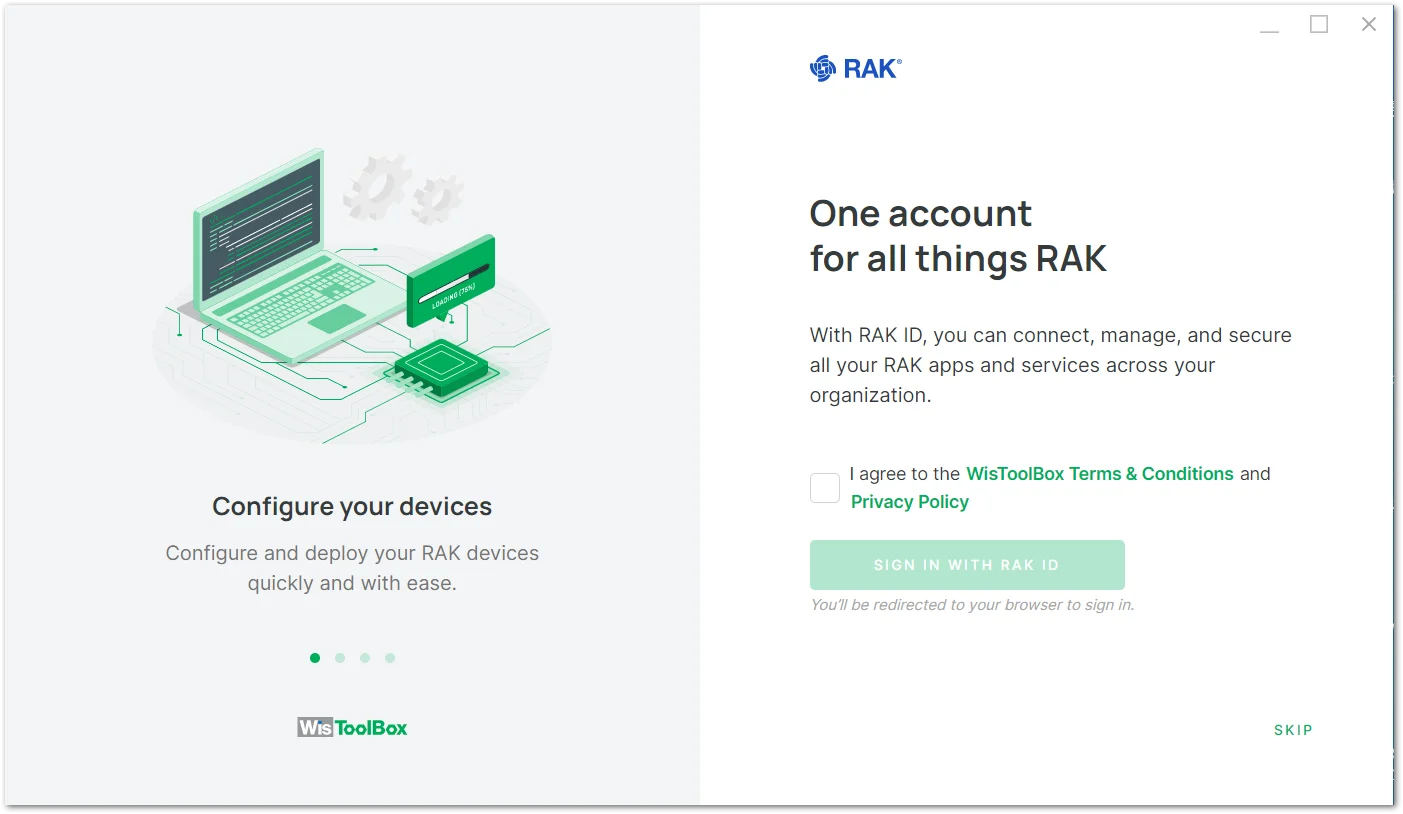 Figure 1: WisToolBox Desktop Startup screen
- Check the "I agree to the WisToolBox Term & Conditions and Privacy Policy".
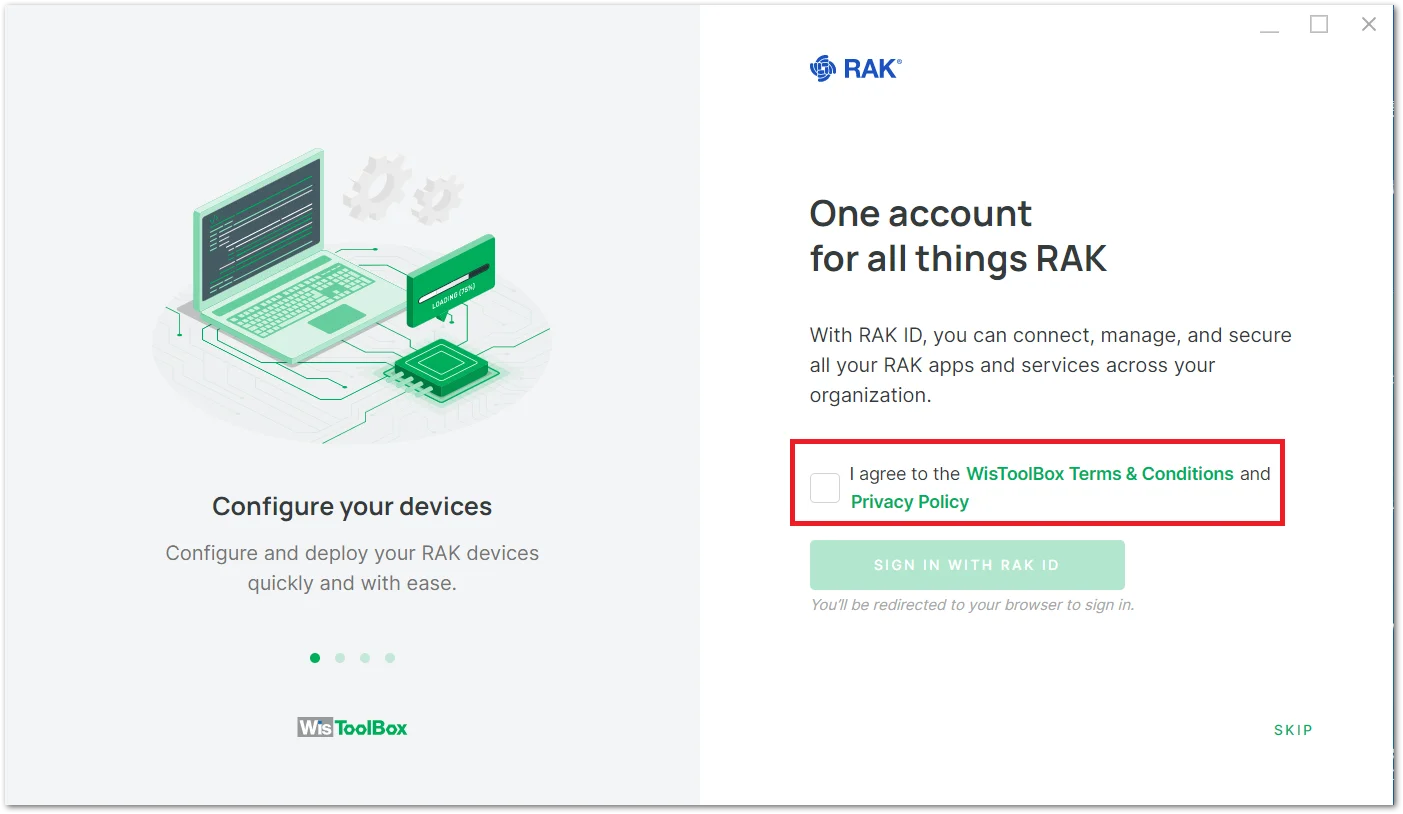 Figure 1: WisToolBox Terms and Conditions
- If you select SKIP, refer to Connect RAK Device and follow the steps. But if you choose to log in with your RAK ID, refer to Create RAK ID Profile.
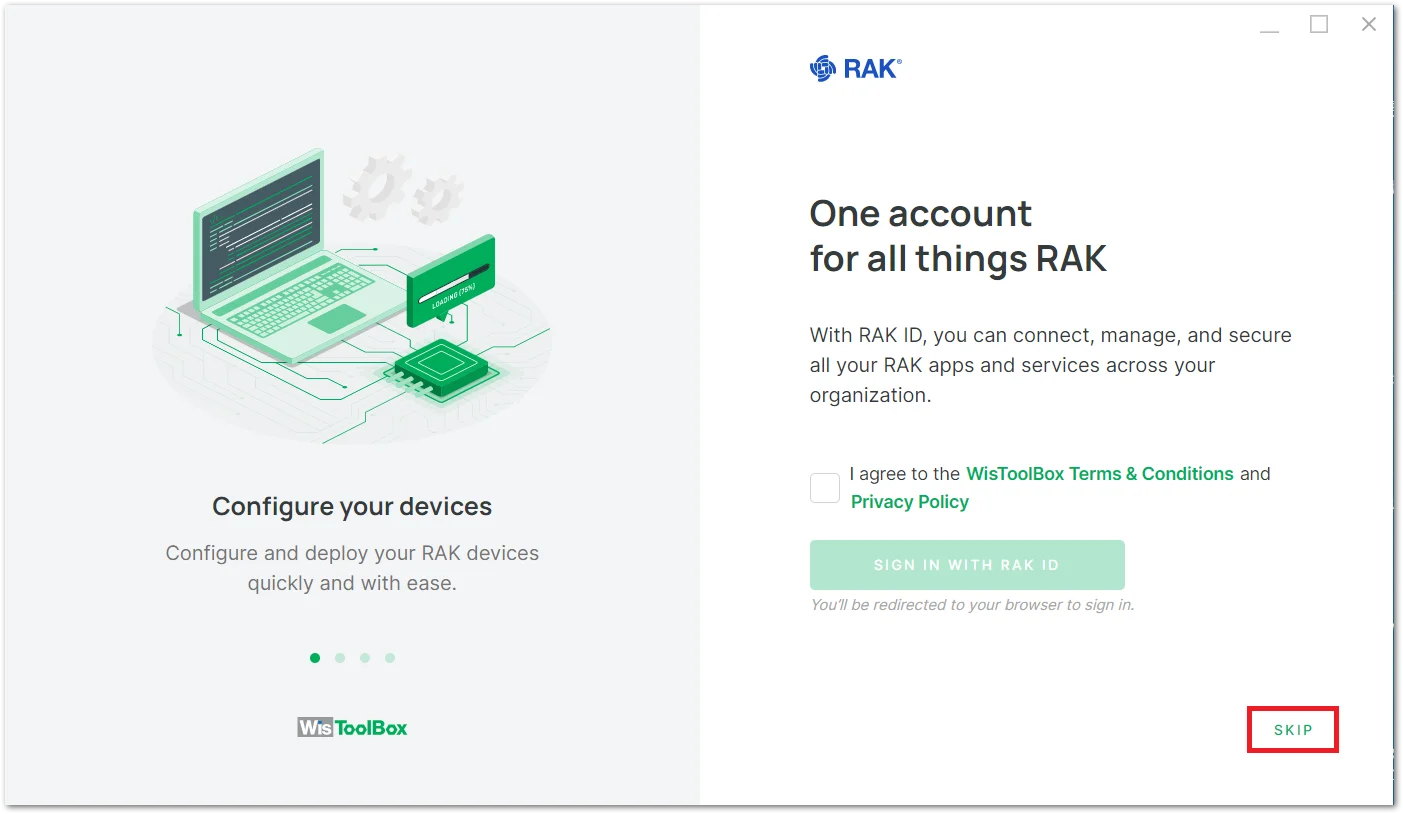 Figure 1: WisToolBox Skip
Create RAK ID Profile
It is recommended to create a RAK ID profile. Your RAK ID profile will be stored in the cloud and can be synced on different PCs. You can only edit your details and preferences at the RAK ID Portal.
- If you wish to log in with your RAK ID, click the SIGN IN WITH RAK ID button.
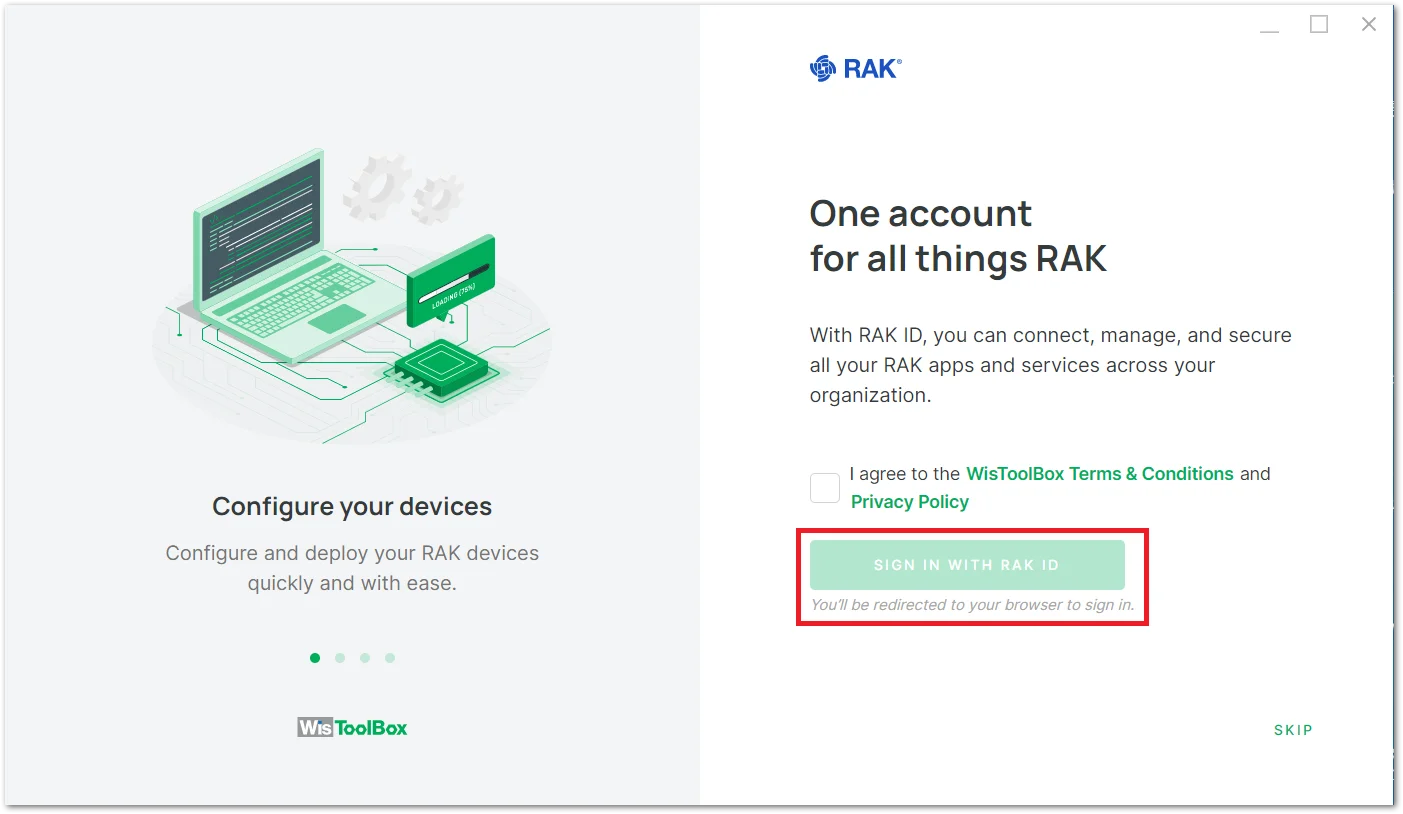 Figure 1: WisToolBox Sign in with RAK ID
- The WisToolBox Desktop will enter its Dashboard interface. Click the Sign In icon.
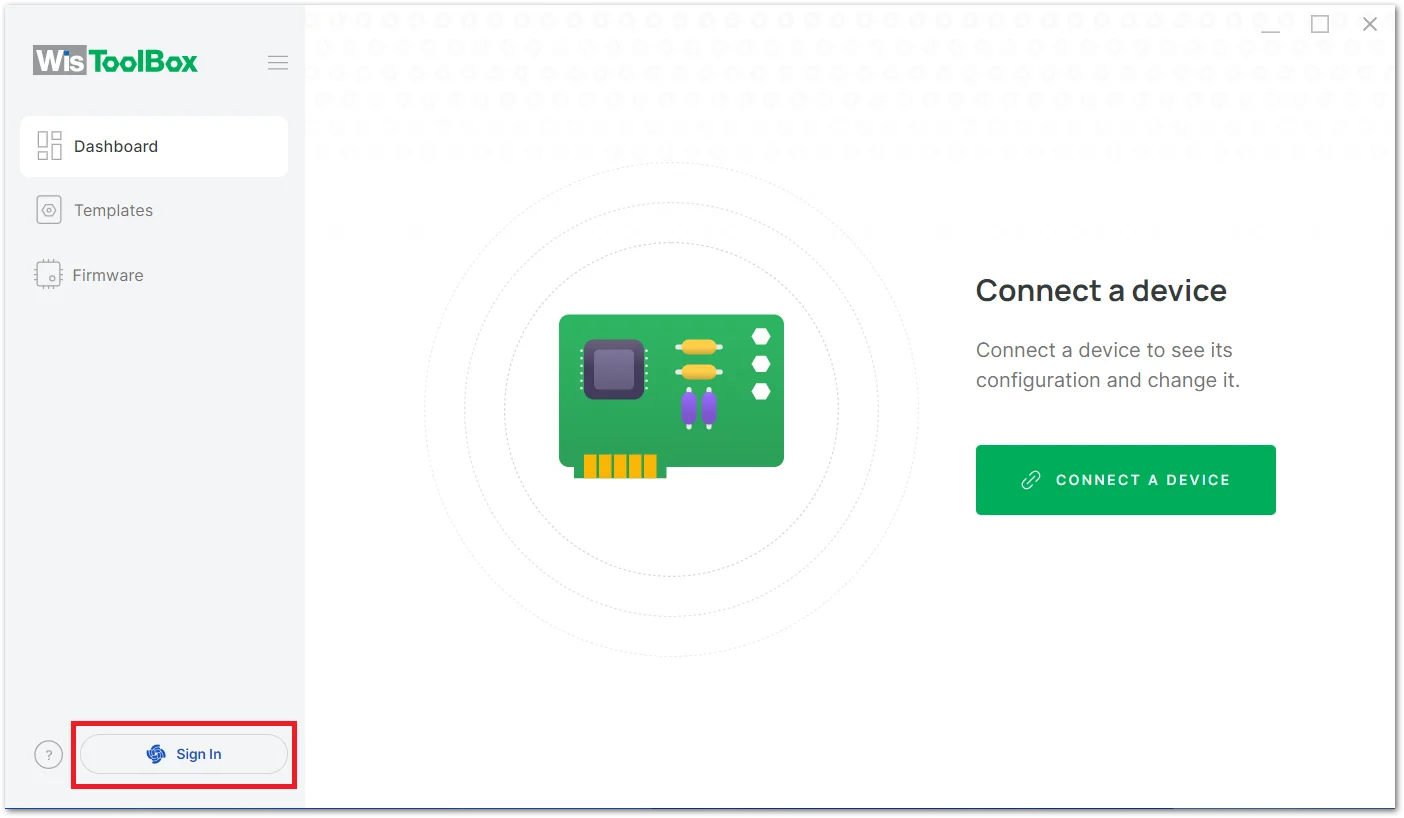 Figure 1: WisToolBox Desktop Dashboard Interface
- Click the SIGN IN TO RAK ID blue button, and you'll be redirected to the RAK ID Portal webpage in the browser to sign in.
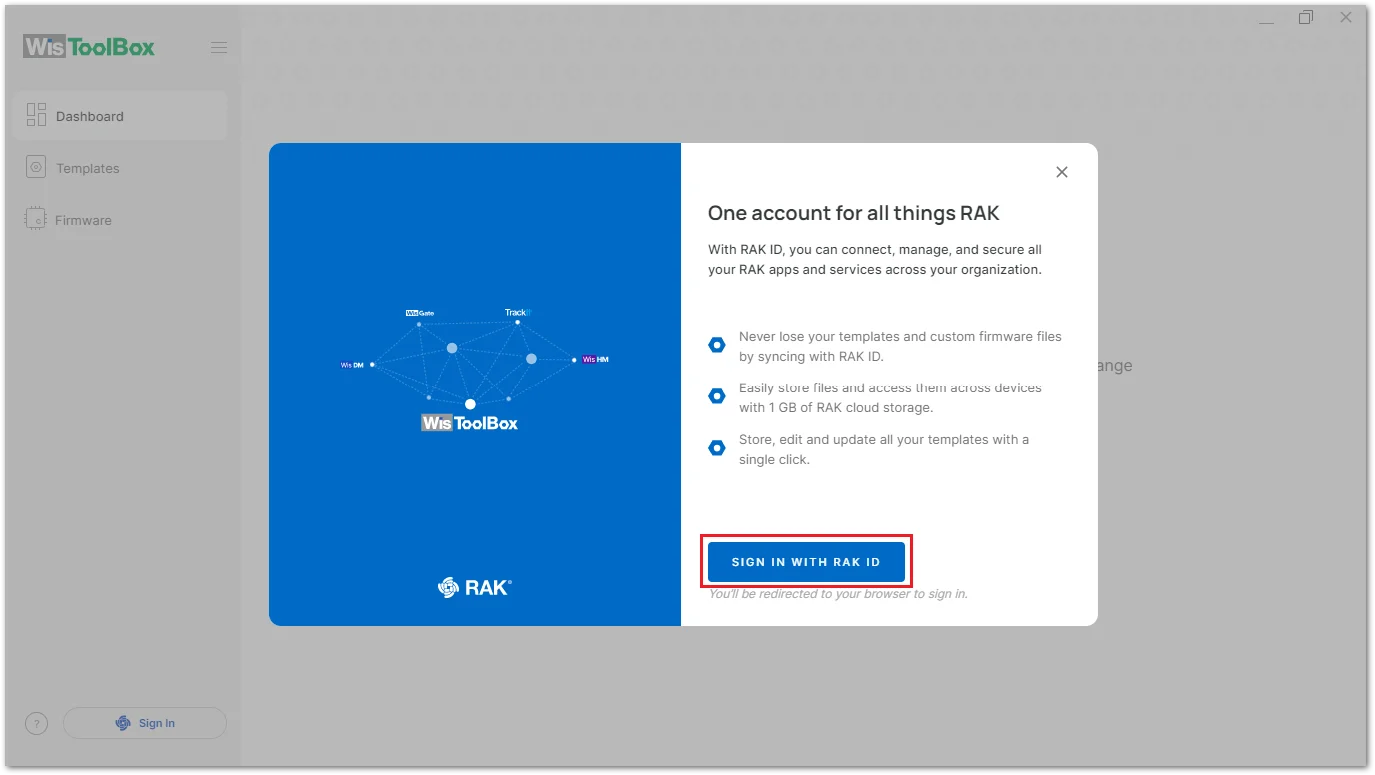 Figure 1: WisToolBox Desktop RAK ID Sign in
- Once you are already on the RAK ID Portal webpage, log in to your RAK ID account information according to the interface prompts. If you haven't registered a RAK ID, you can click Create new to create a new account, and follow the interface prompts to configure the account.
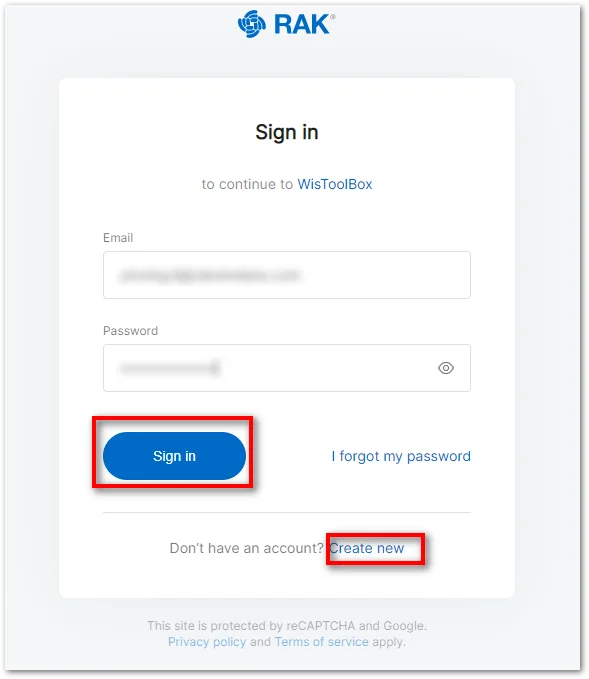 Figure 1: WisToolBox RAK ID Portal
- After you have successfully logged in, you will be then prompted on the following interface. Click the "Yes, I want to authorize" button.
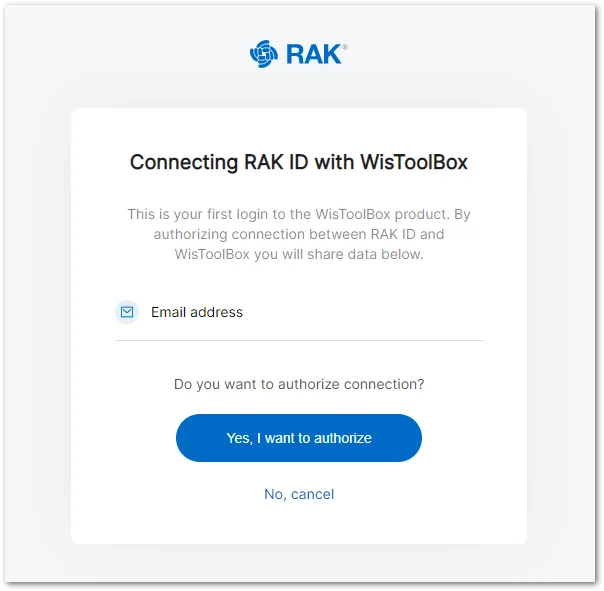 Figure 1: Authorization Connection confirmation
- After agreeing to authorize the connection, the RAK ID icon will appear in the Dashboard interface of the WisToolBox. This indicates that you have successfully logged in with your RAK ID.
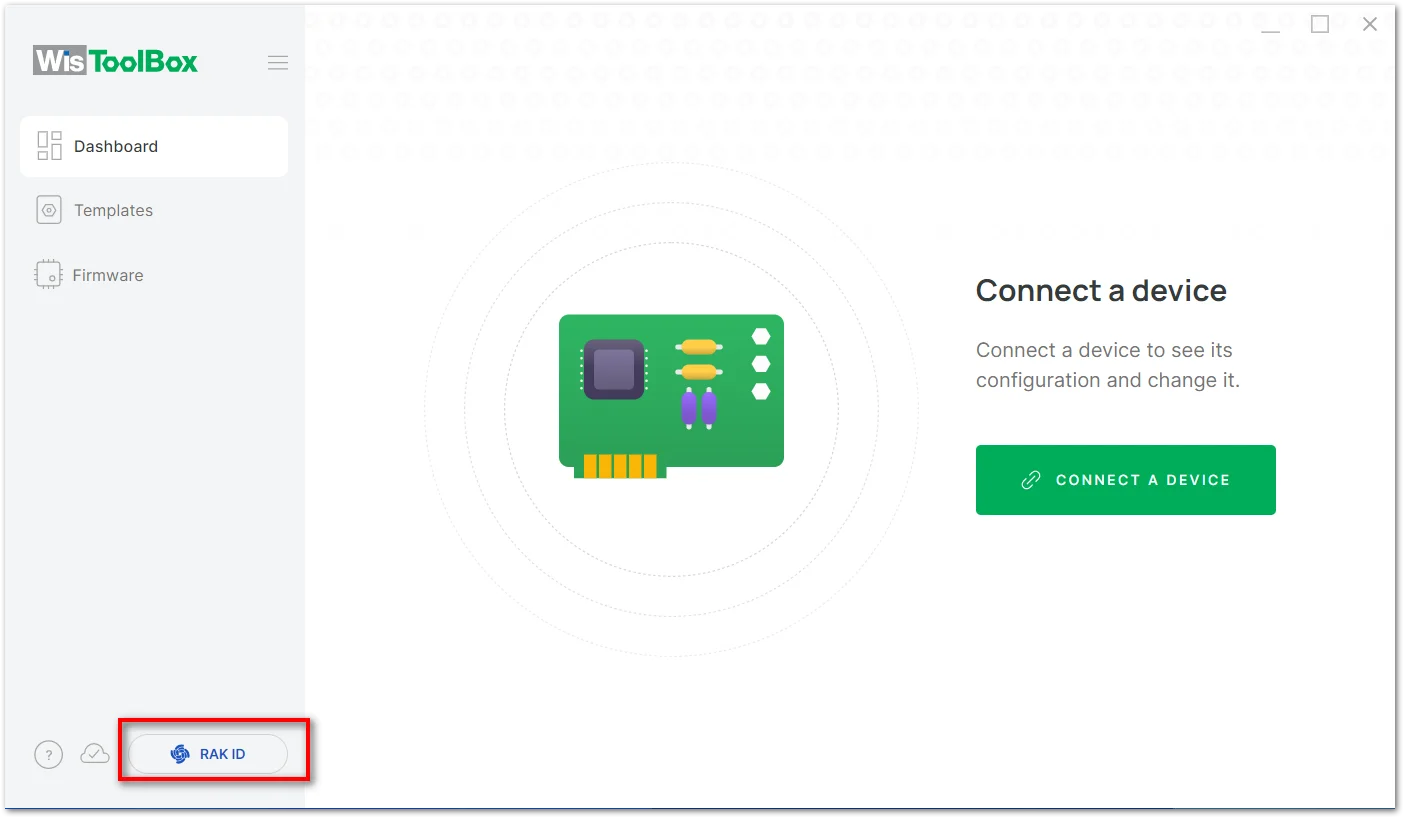 Figure 1: RAK ID successfully connected
Connect RAK Device
-
Power up the RAK device and connect it to your computer.
-
Click the CONNECT DEVICE button in the Dashboard interface of the WisToolBox Desktop to find your device.
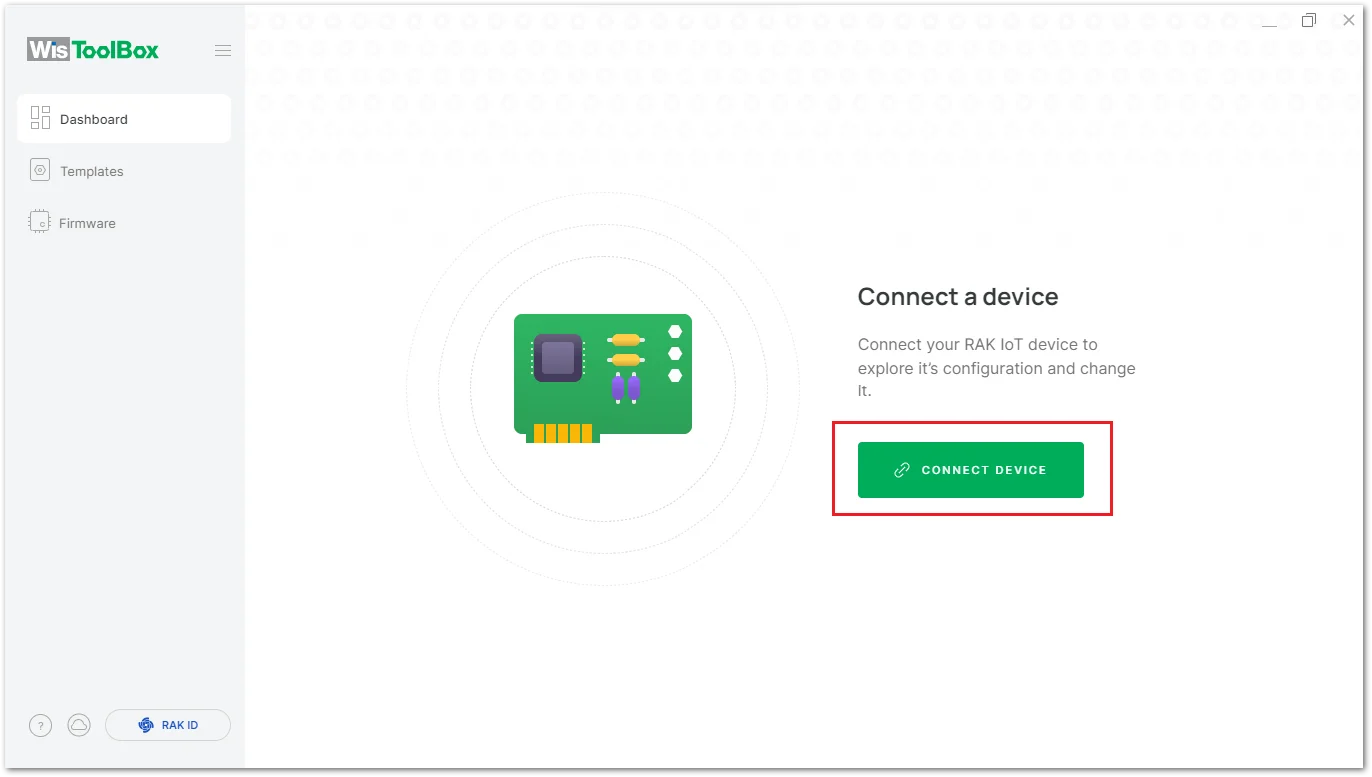 Figure 1: Connect a Device
- If
No device detectedhas occurred while searching for your device.
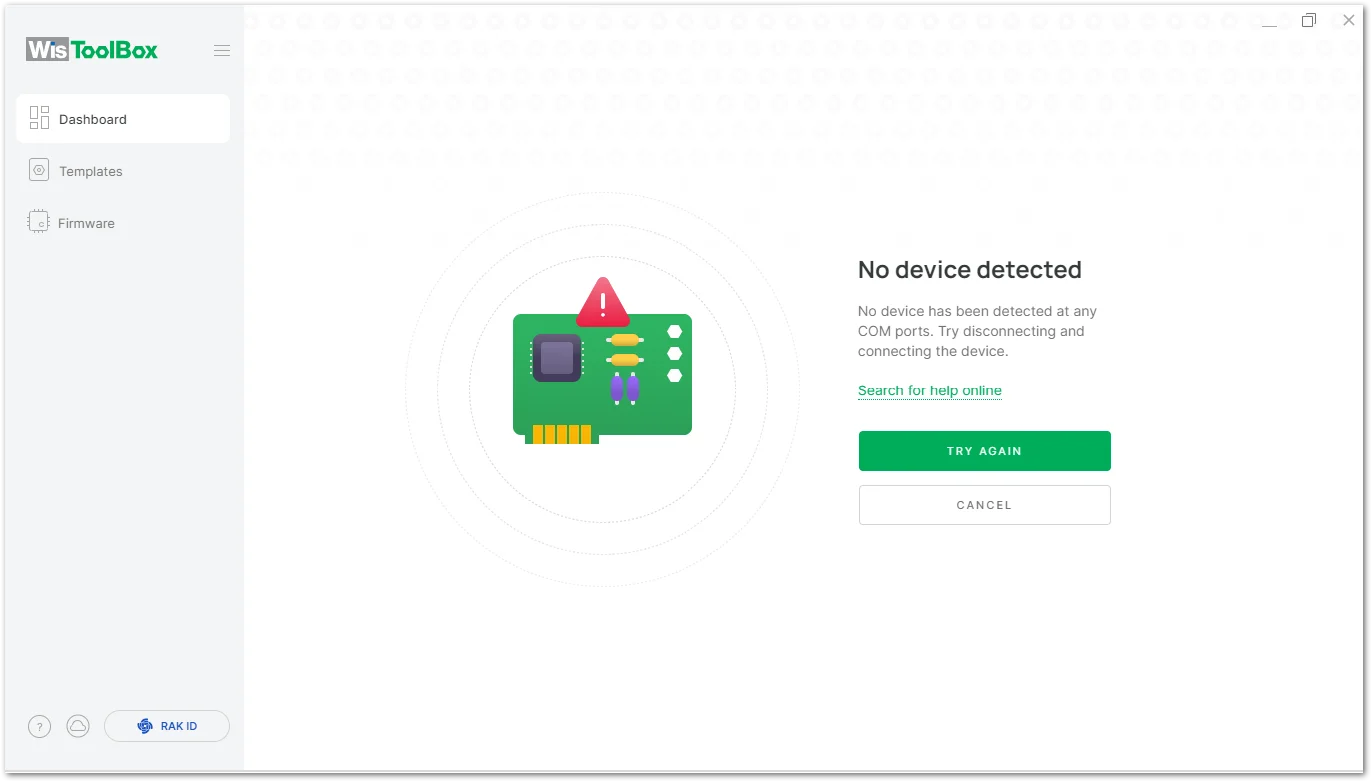 Figure 1: WisToolBox No device detected
Here are some possible causes of the No device detected error that can be fixed as follows:
-
Ensure that the device you are using has RUI3 firmware on it.
-
Double-check the quality of the USB cable and COM port used.
-
Check if other terminal software is active and still connected to the RUI3 enabled RAK module (RAK3172, RAK4630, etc).
- After the device search is successful and completed, the following interface will appear. Review the Connection settings parameters of the device on the dashboard, then click the CONNECT button.
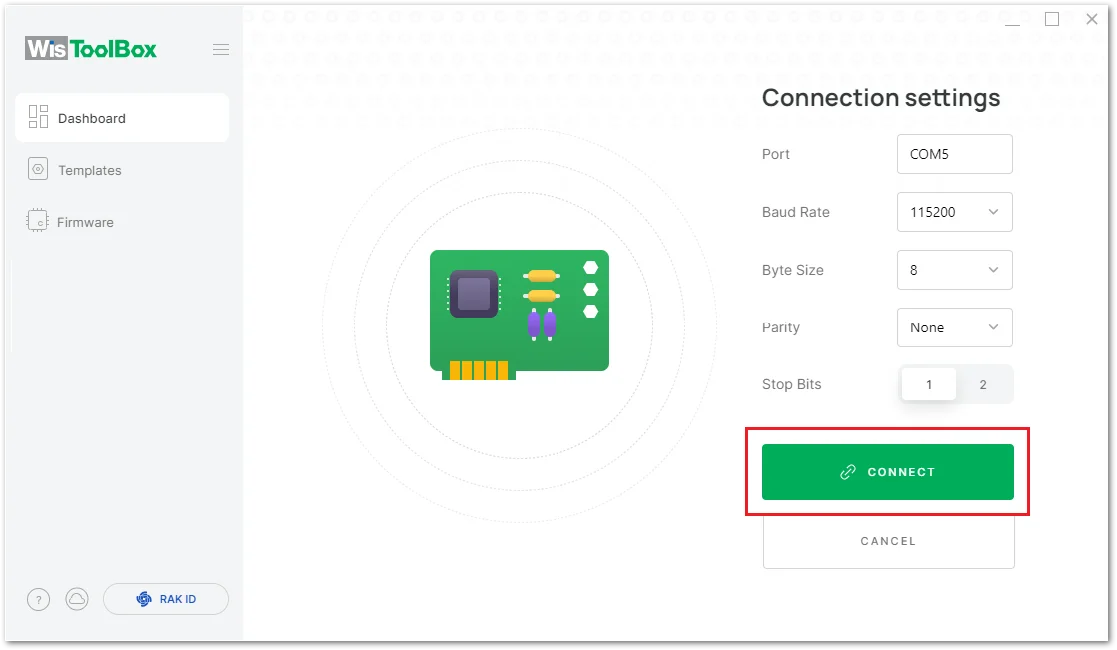 Figure 1: WisToolBox Desktop connection settings
- On the WisToolBox Dashboard screen, you can get the following information:
- List of connected devices. (1)
- The device model. (2)
- The device
EUIvalue. (3) (TheEUIis a 64-bit globally-unique Extended Unique Identifier (EUI-64) assigned by the manufacturer or the owner of the end device.) - The serial
COMport was used. (4)
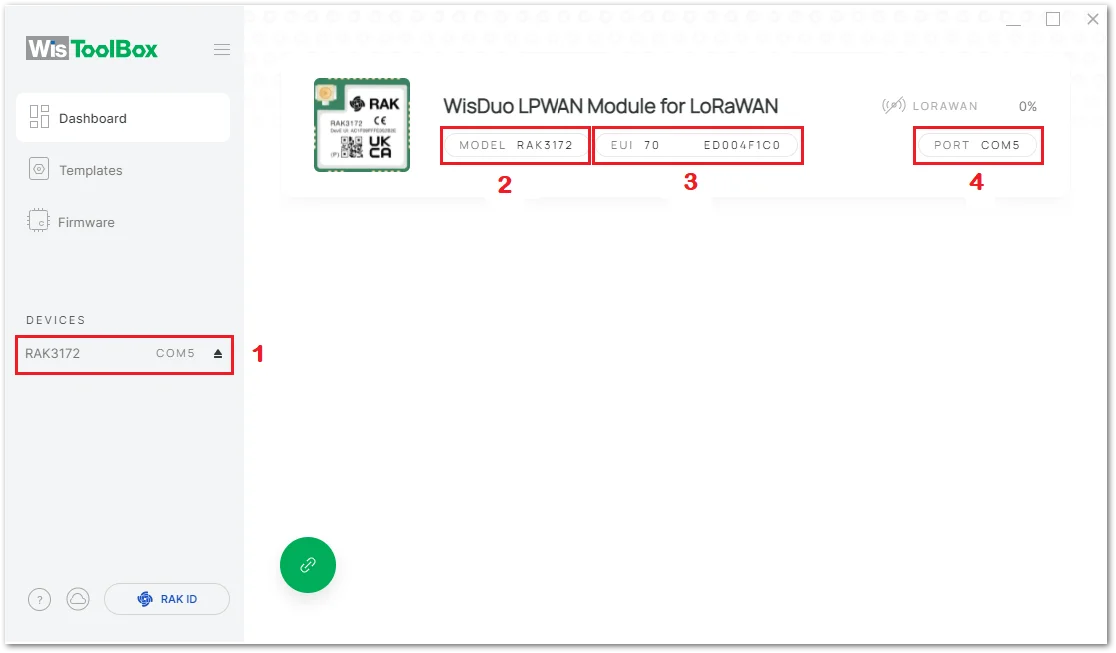 Figure 1: WisToolBox Desktop dashboard screen
- You have to select the device by clicking it to access all configurations and features - DEVICE INFO, PARAMETERS, ADVANCED, and FIRMWARE.


