Update Firmware with WisToolBox Desktop
Official Firmware
The firmware versions are officially released by RAK. If there is a new available version, it is recommended to upgrade the firmware to use the optimized functions.
- From the Dashboard window, select the FIRMWARE menu.
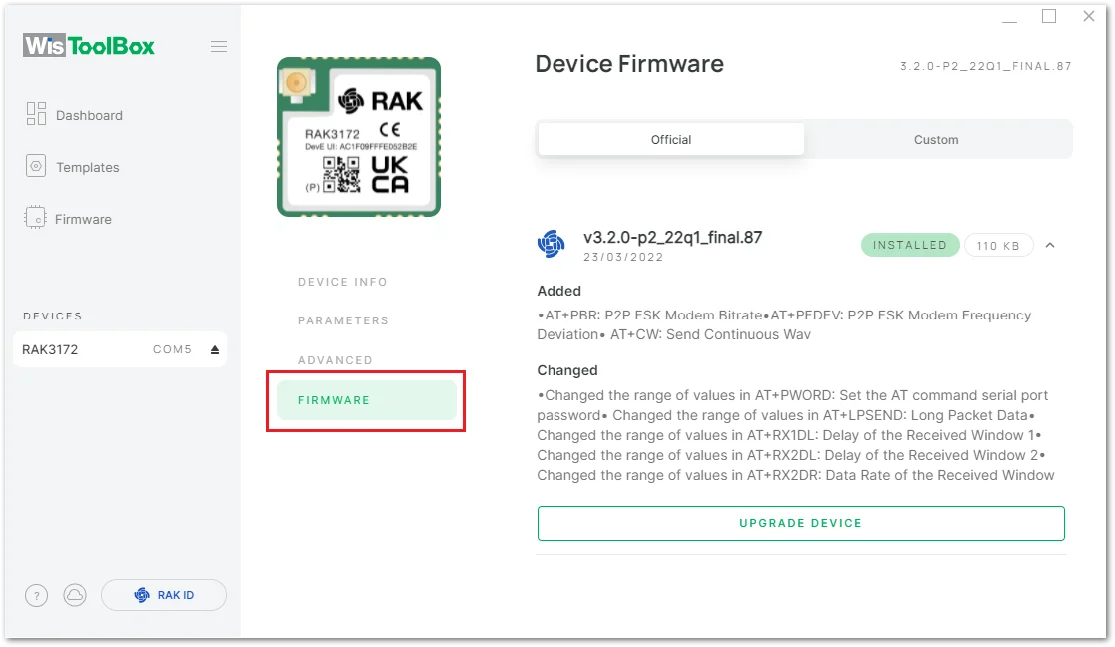 Figure 1: WisToolBox Desktop Firmware Menu
- Click the INSTALLED button to check details about the current firmware version.
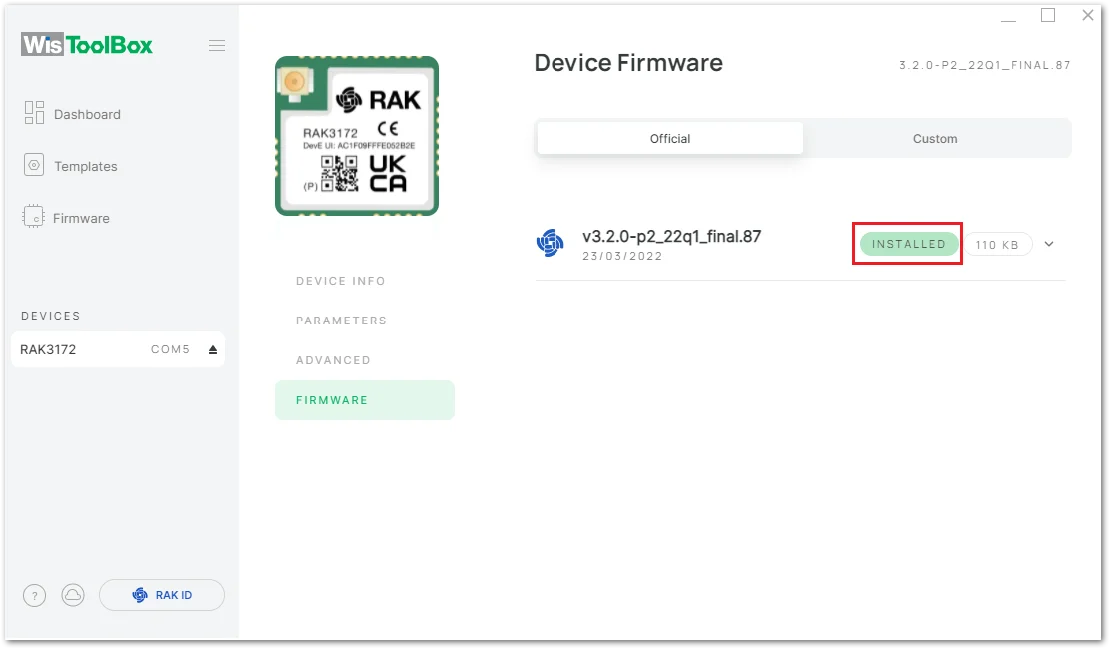 Figure 1: WisToolBox Desktop current firmware
- The firmware details show the features added and changed in the current version.To upgrade the firmware, click the UPGRADE DEVICE button.
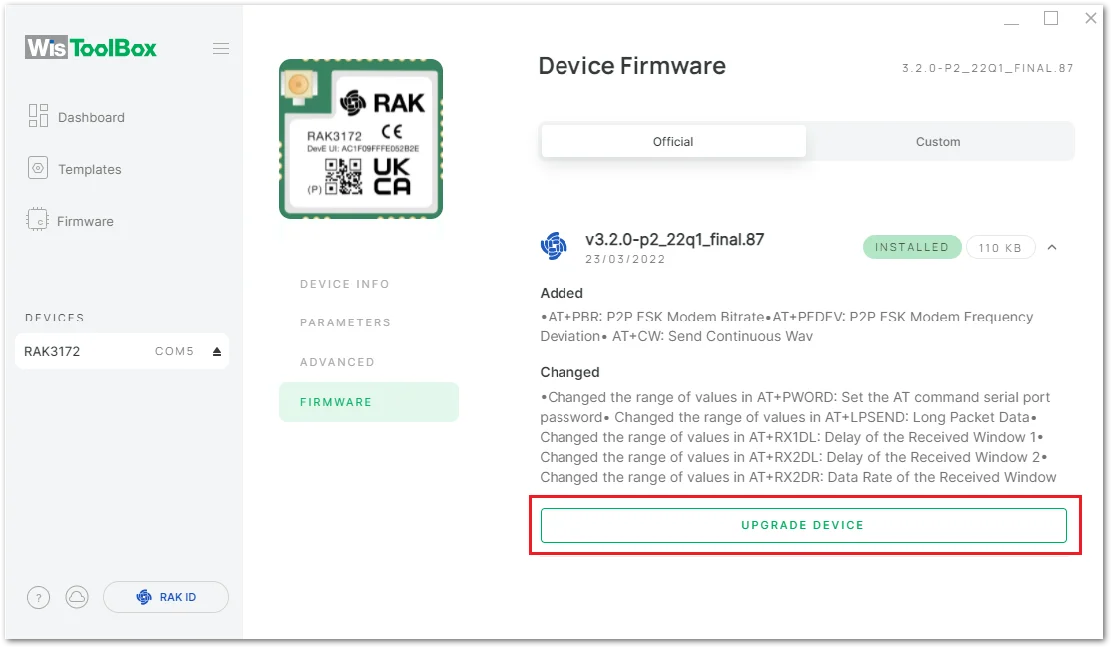 Figure 1: WisToolBox Desktop upgrade device
- Click UPGRADE in the pop-up window to confirm the upgrade.
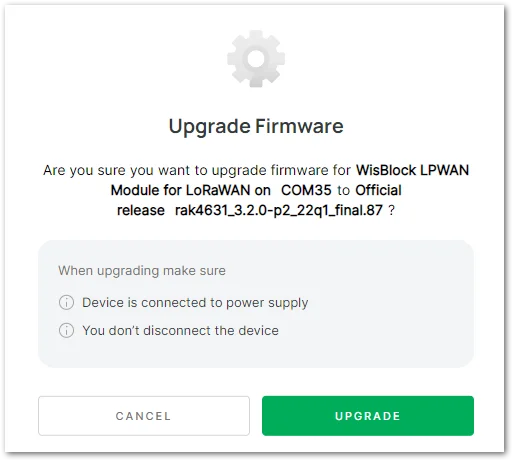 Figure 1: Upgrade Firmware Confirmation
- After the firmware upgrade is completed, click CLOSE.
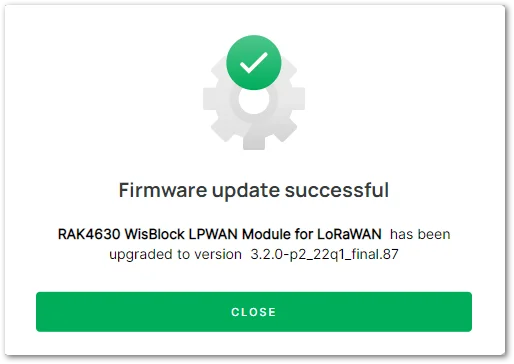 Figure 1: Firmware Upgrade Success
Custom Firmware
Users can try to upgrade Custom Firmware by compiling your application using RUI3-supported IDEs like Arduino.
The Custom Firmware is the binary .bin file generated by Arduino IDE. The file must be compressed in a zip to be accepted by WisToolBox.
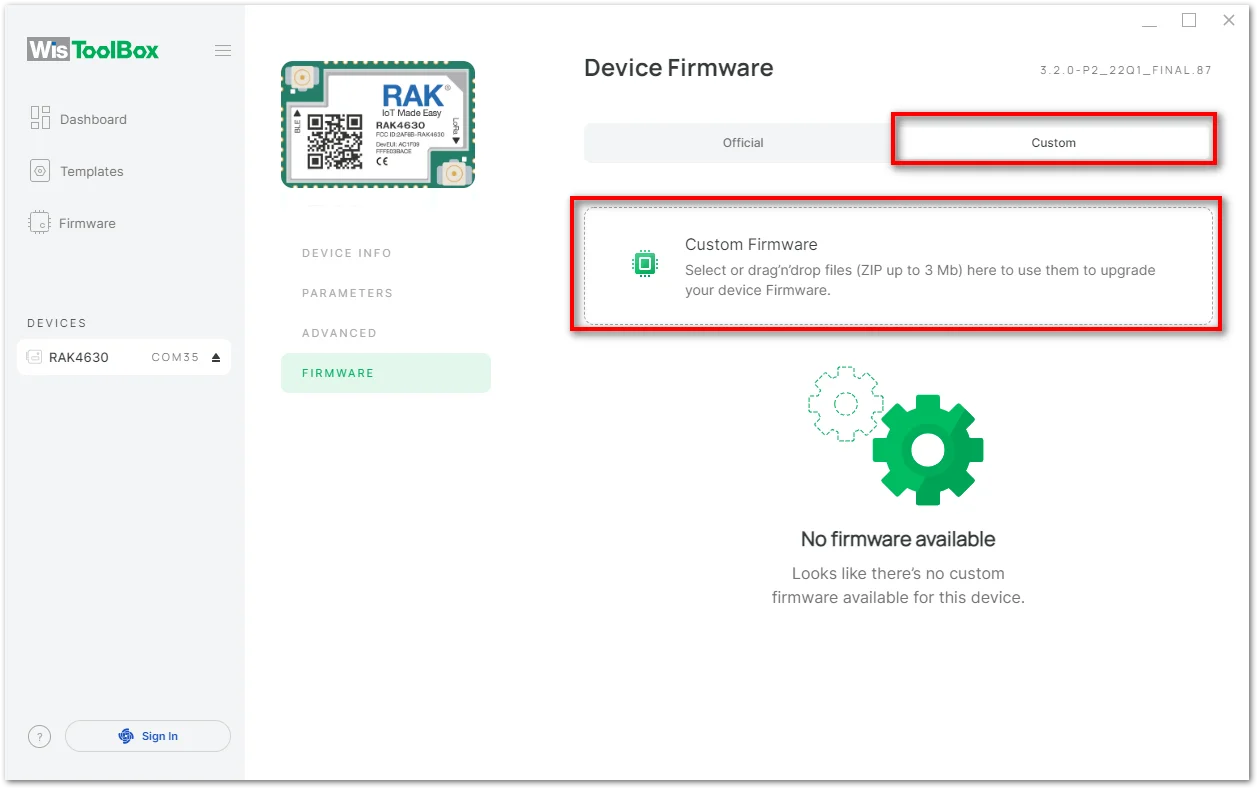 Figure 1: WisToolBox Desktop Custom Firmware


