RAK10730 WisMesh Pad Sensor Hub
The Sensor Hub workspace allows you to discover Sensor Hub nodes in the Meshtastic mesh and view their telemetry, history, and alerts.
Before You Start
Before adding a Sensor Hub, verify the following:
- The Sensor Hub is powered on and running correctly.
- The Sensor Hub and WisMesh Pad use the same Meshtastic radio and channel settings:
- LoRa Region
- LoRa Modem Preset
- LoRa Override Frequency
- Channel Name
- Channel PSK
The Sensor Hub and WisMesh Pad must use identical LoRa and channel configurations to communicate. If a Sensor Hub is not found or remains offline, check the LoRa parameters and channel settings on both devices.
Add a Sensor Hub
- Open WisMesh Station.
- Click Add new hub on the Sensor Hub page to scan for available Sensor Hubs.
- Select the required Sensor Hub and confirm the addition.
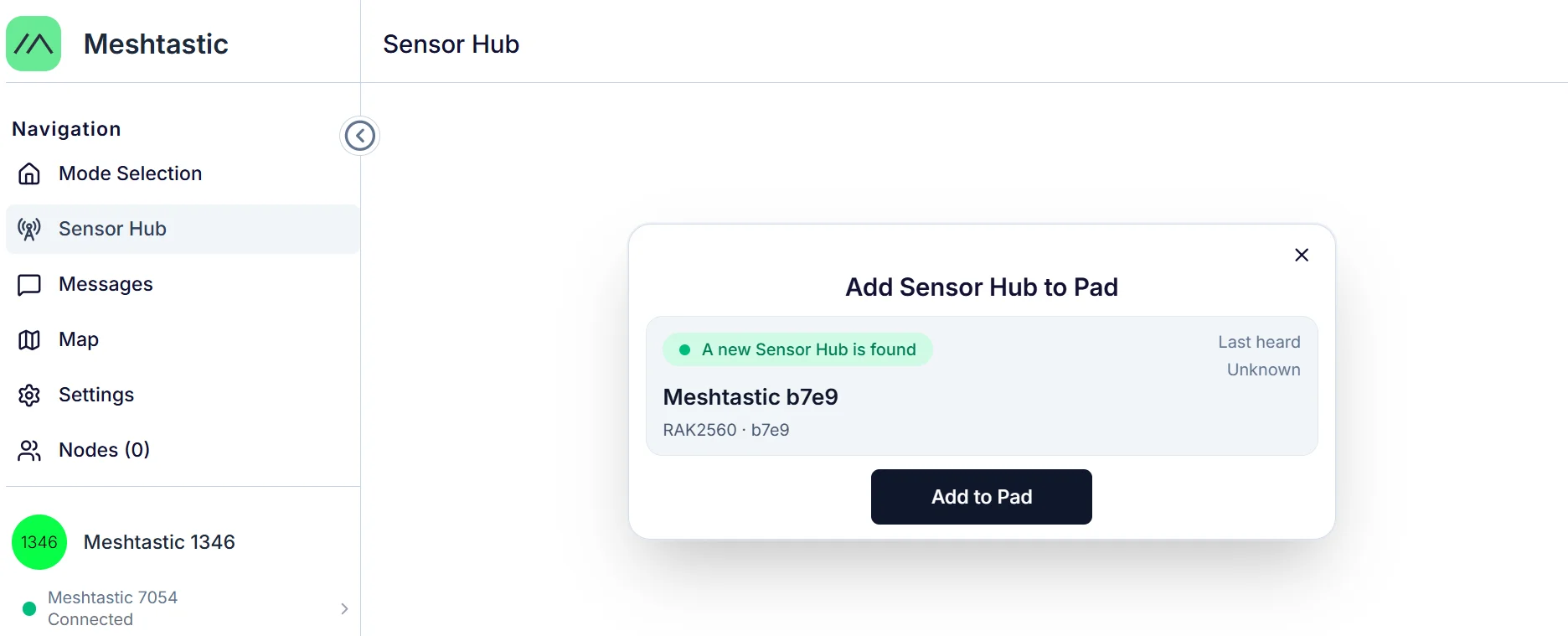 Figure 1: Add New Sensor Hub
 - After the Sensor Hub is added successfully, it appears in the Sensor Hub list.
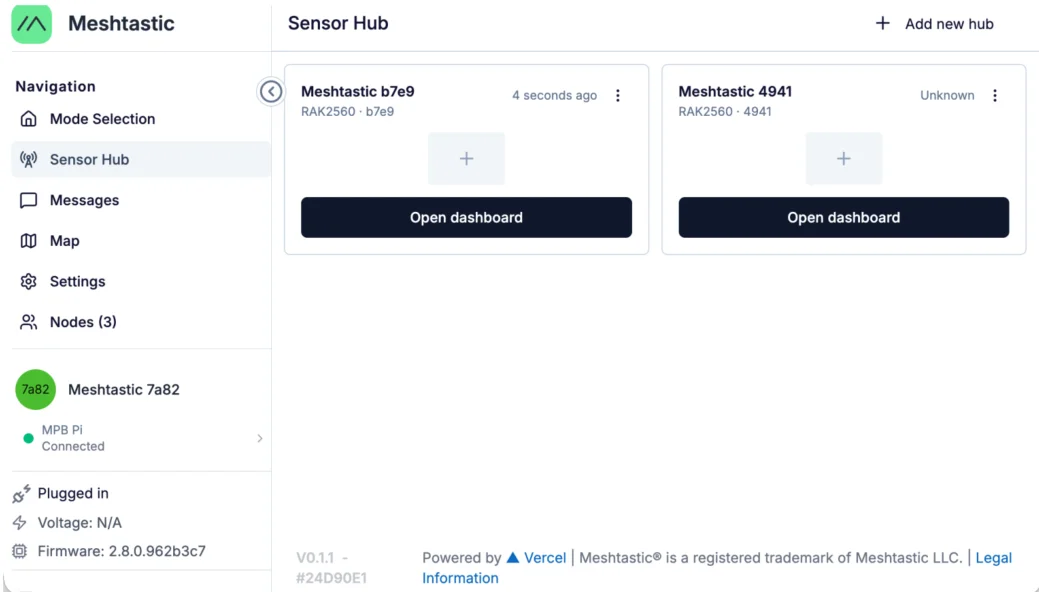 Figure 1: Registered Sensor Hub
Hub Dashboard
After adding a Sensor Hub, click Open dashboard in the Hub list to view detailed Hub information. The Hub Dashboard provides access to:
- Overview: View selected key telemetry metrics and recent alerts.
- Environment: Monitor sensor data and historical telemetry.
- Alerts: Configure and review telemetry-based and device-status alerts.
Overview
The Overview displays the latest values of favorite telemetry metrics configured from the Environment page, recent unread alerts, and basic Hub information.
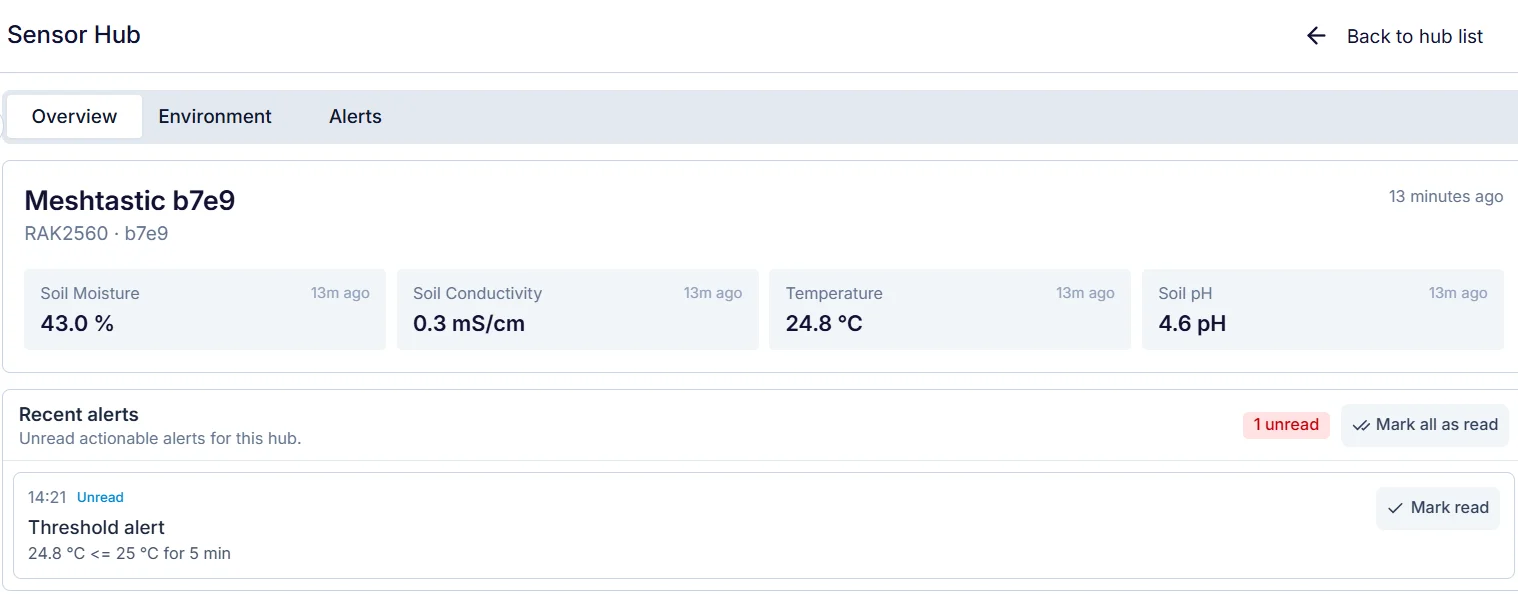 Figure 1: Sensor Hub Overview
Select Metrics
Frequently monitored metrics can be selected and displayed on the Overview page.
- Open the Environment page.
- Click the star icon next to a metric.
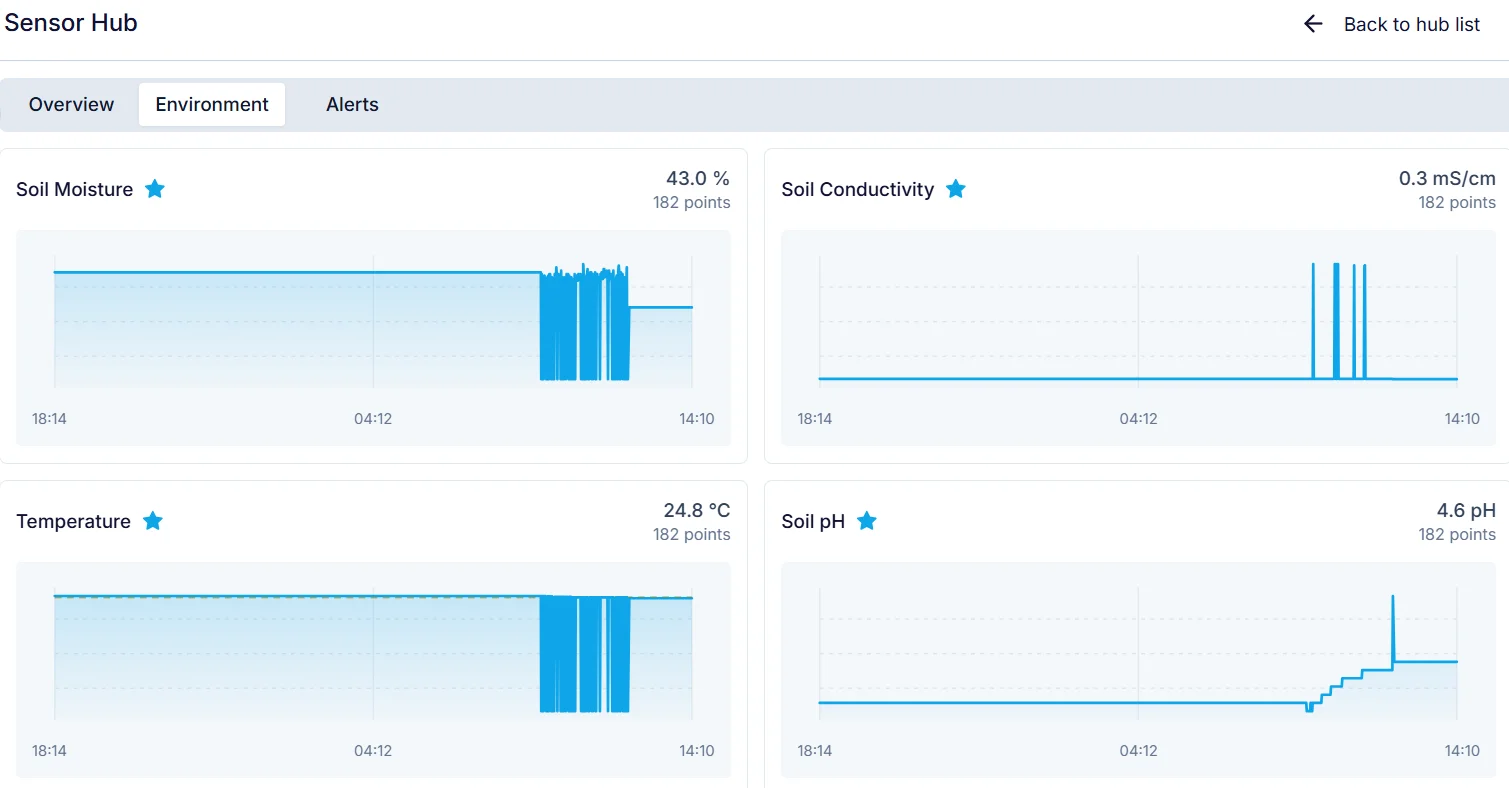 Figure 1: Select favorite telemetry metrics
 - Return to the Overview page to view the selected metrics.
NOTE
Up to four favorite metrics can be selected for one Hub and displayed on the Overview page.
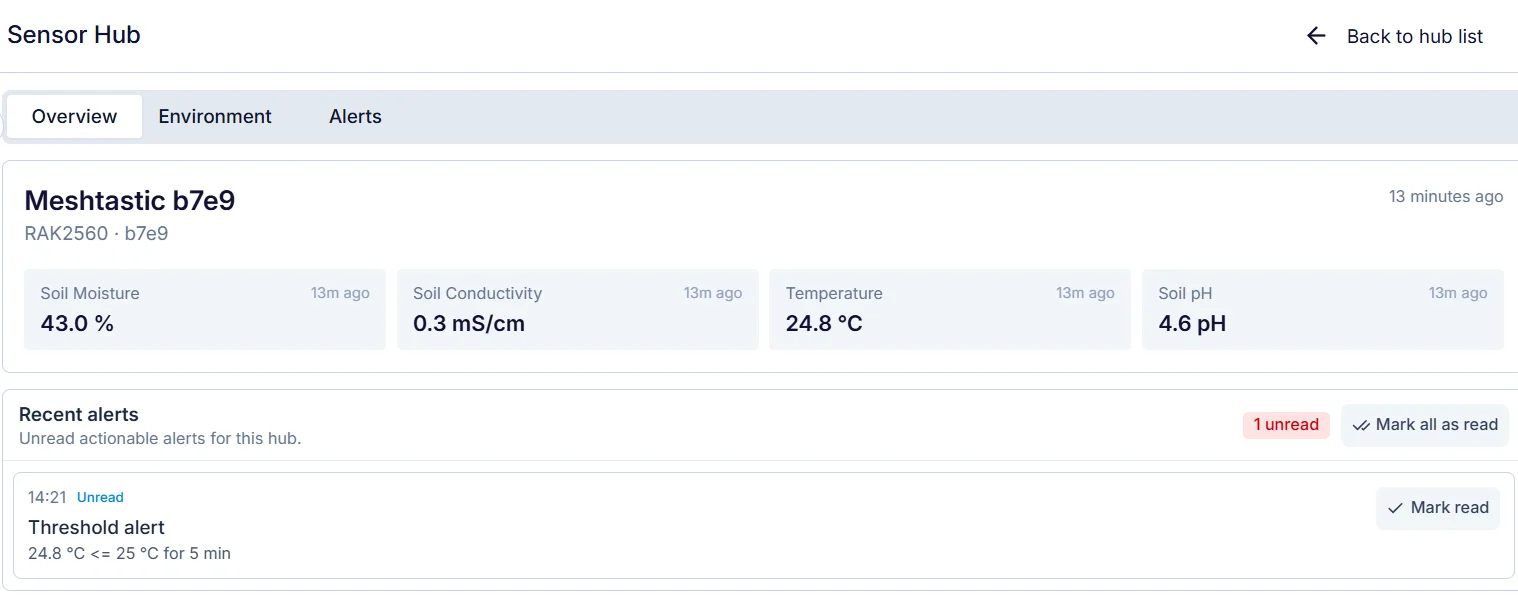 Figure 1: Selected Metrics
Environment
The Environment page displays telemetry data received from the Sensor Hub. Available metrics depend on the Sensor Hub firmware and the telemetry fields reported by the device through the Meshtastic network.
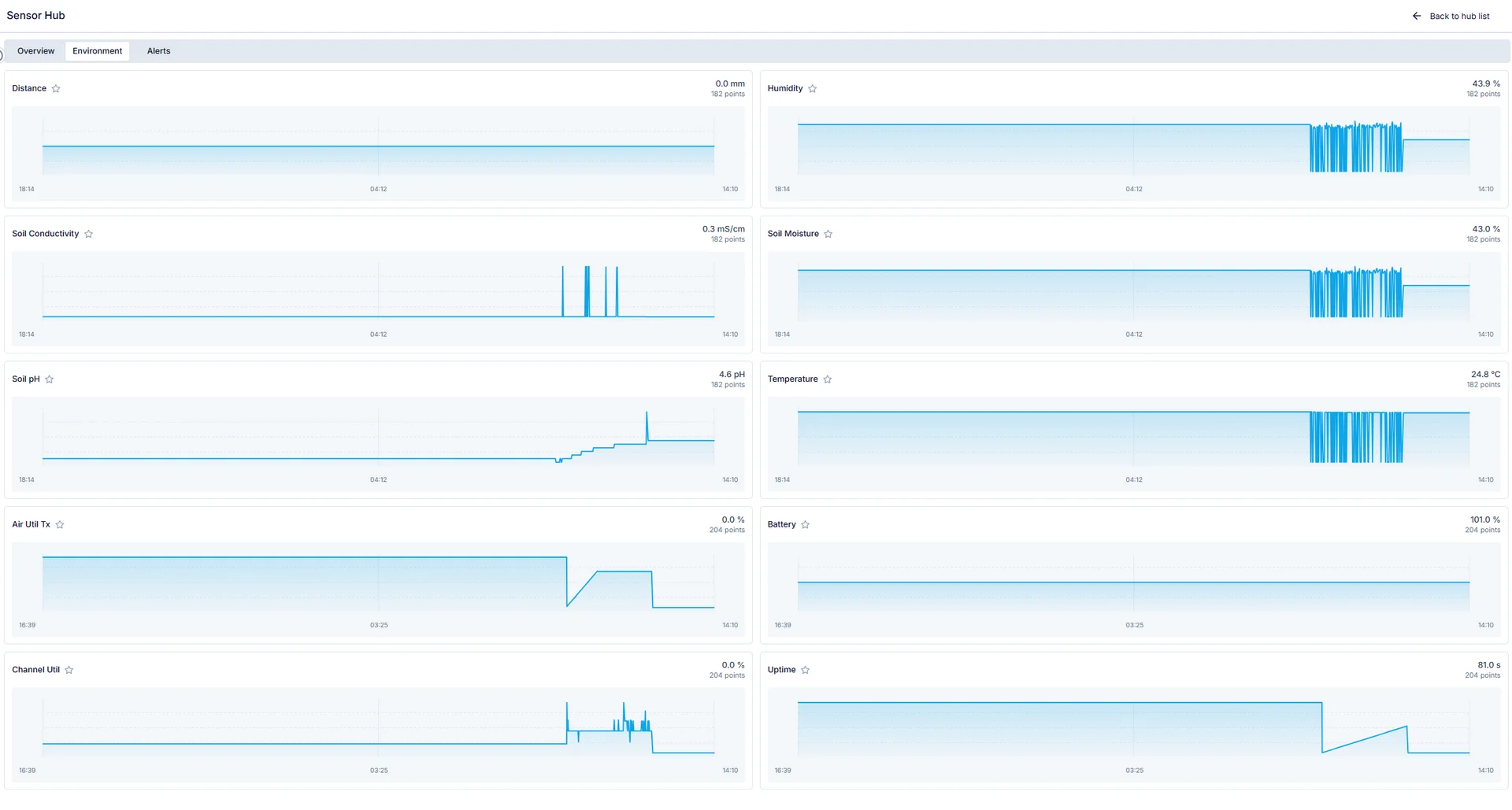 Figure 1: Environment telemetry
WisMesh Pad only displays telemetry fields received from the Sensor Hub. It does not generate or modify sensor data.
View Historical Data
To view historical telemetry:
- Open the Environment page.
- Select a telemetry metric.
- Select the required time range.
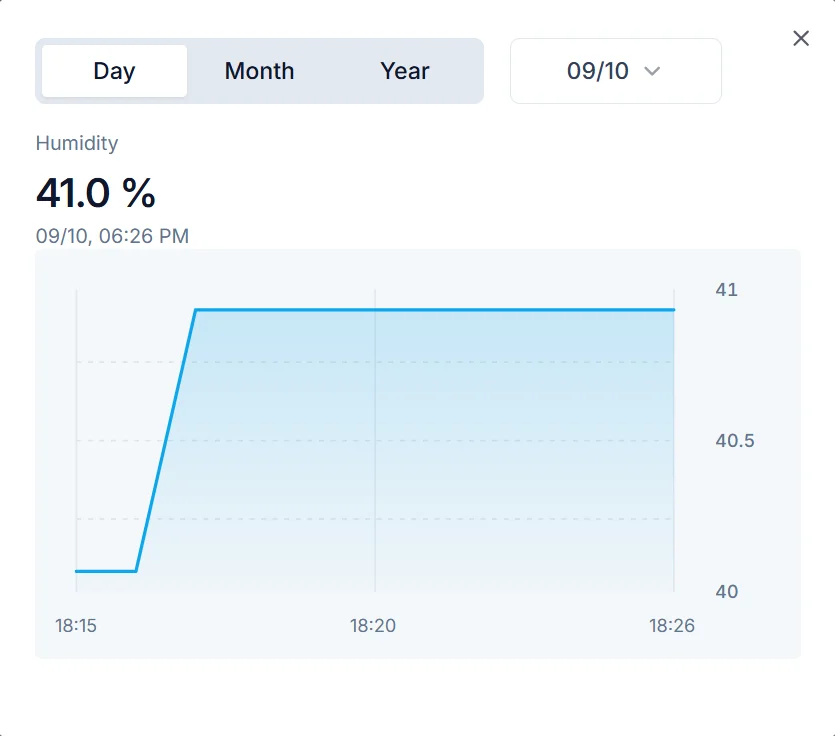 Figure 1: Add New Sensor Hub
Supported views include:
- Day: Displays sampled telemetry values for the selected day.
- Month: Displays aggregated minimum and maximum values over the selected month.
- Year: Displays aggregated minimum and maximum values over the selected year.
Alerts
The Alerts page allows you to create rules for monitoring Sensor Hub conditions. An alert is triggered when a configured condition is met and remains true for the specified duration. Supported alert types include:
- Telemetry alerts: Trigger when a telemetry metric reaches the configured threshold and remains in that state for the specified duration.
- Device-status alerts: Trigger when a Sensor Hub remains offline for the configured duration.
Create a Telemetry Alert
- Open the Alerts page.
- Click Add alert.
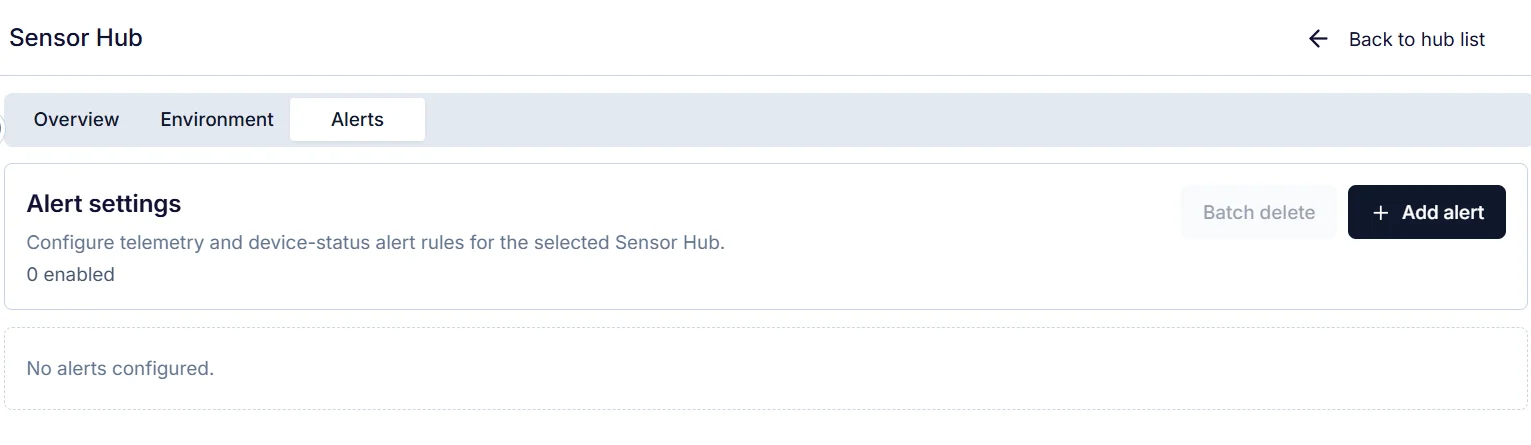 Figure 1: Add alert
 - Configure the metric, condition, threshold value, and duration for the alert rule.
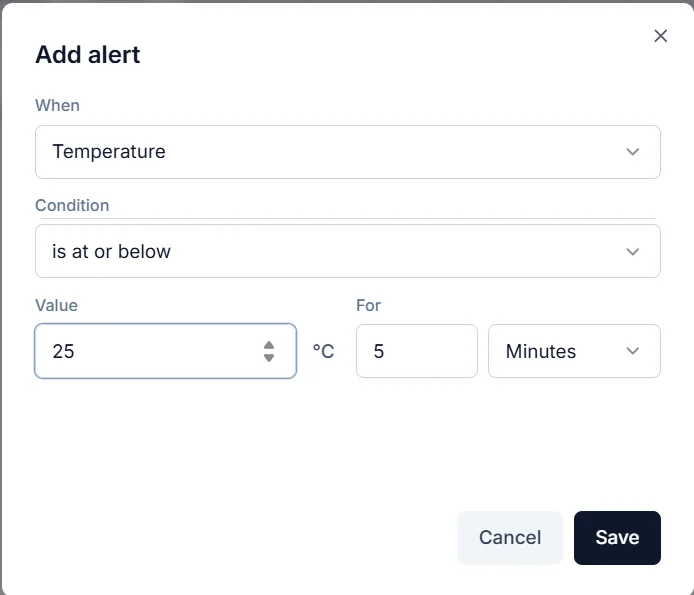 Figure 1: Set alert Value
 - Click Save to create the alert rule.
Manage Alert Rules
From the Alerts page, you can:
- Edit or delete an alert rule.
- Enable or disable an alert rule.
- Delete multiple alert rules using Batch delete.
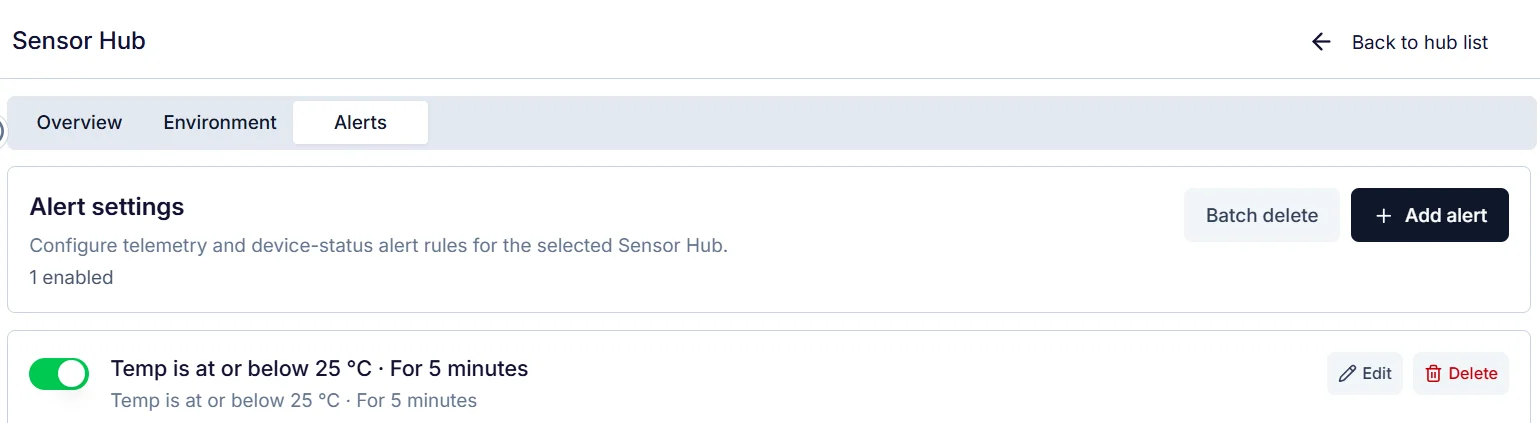 Figure 1: Sensor Hub alert rules
Return to the Overview page to view recent alert events and their read/unread status.
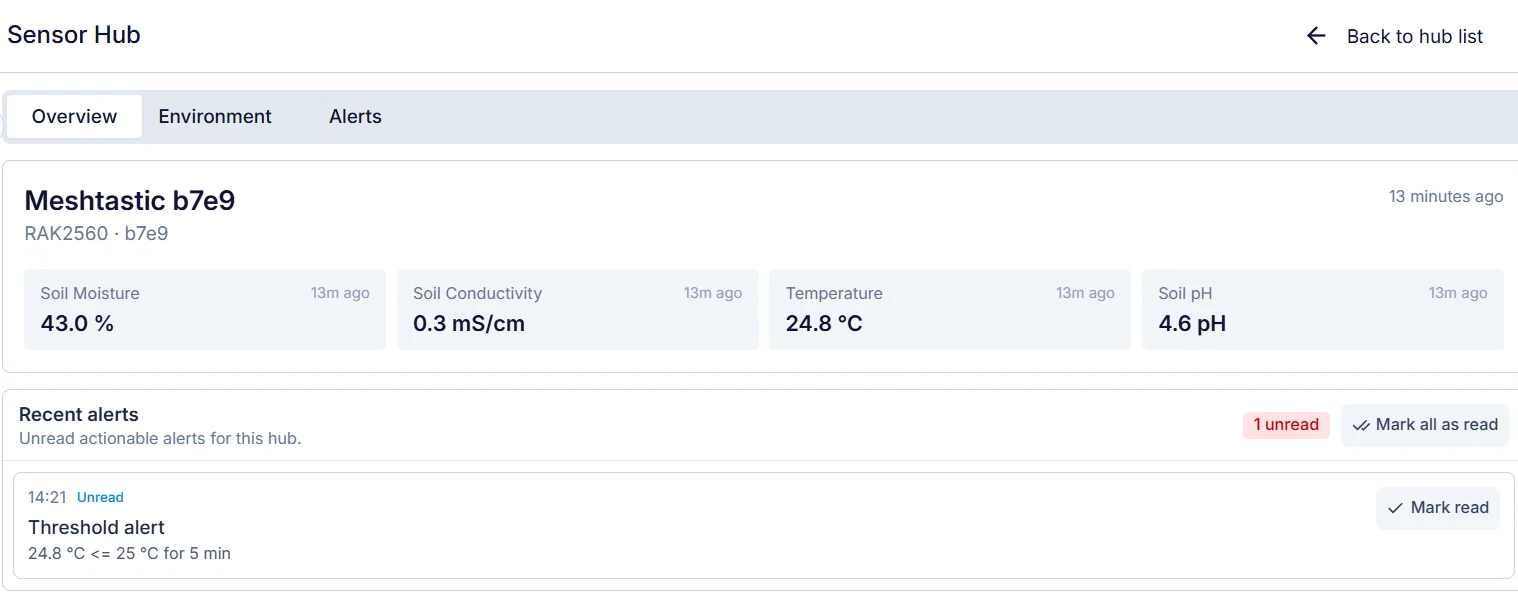 Figure 1: Alert Overview


