RAK10730 WisMesh Pad Spectrum Scan
Spectrum Scan helps you identify a suitable Meshtastic channel before deployment. It scans candidate channels, evaluates RF activity, and provides channel rankings to help you select and apply a cleaner operating channel.
Before You Start
Before running Spectrum Scan:
- Install the LoRa antenna and power on the WisMesh Pad.
- Confirm Meshtastic service: Running is displayed at the bottom of the page.
Channel Scan
Configure Scan Parameters
- From Mode Selection, select Check Your Deployment.
- Navigate to Spectrum Scan.
- Configure the scan parameters.
NOTE
You can use the current Meshtastic settings or manually configure the scan parameters. To manually configure the scan settings, disable Use my current Meshtastic settings.
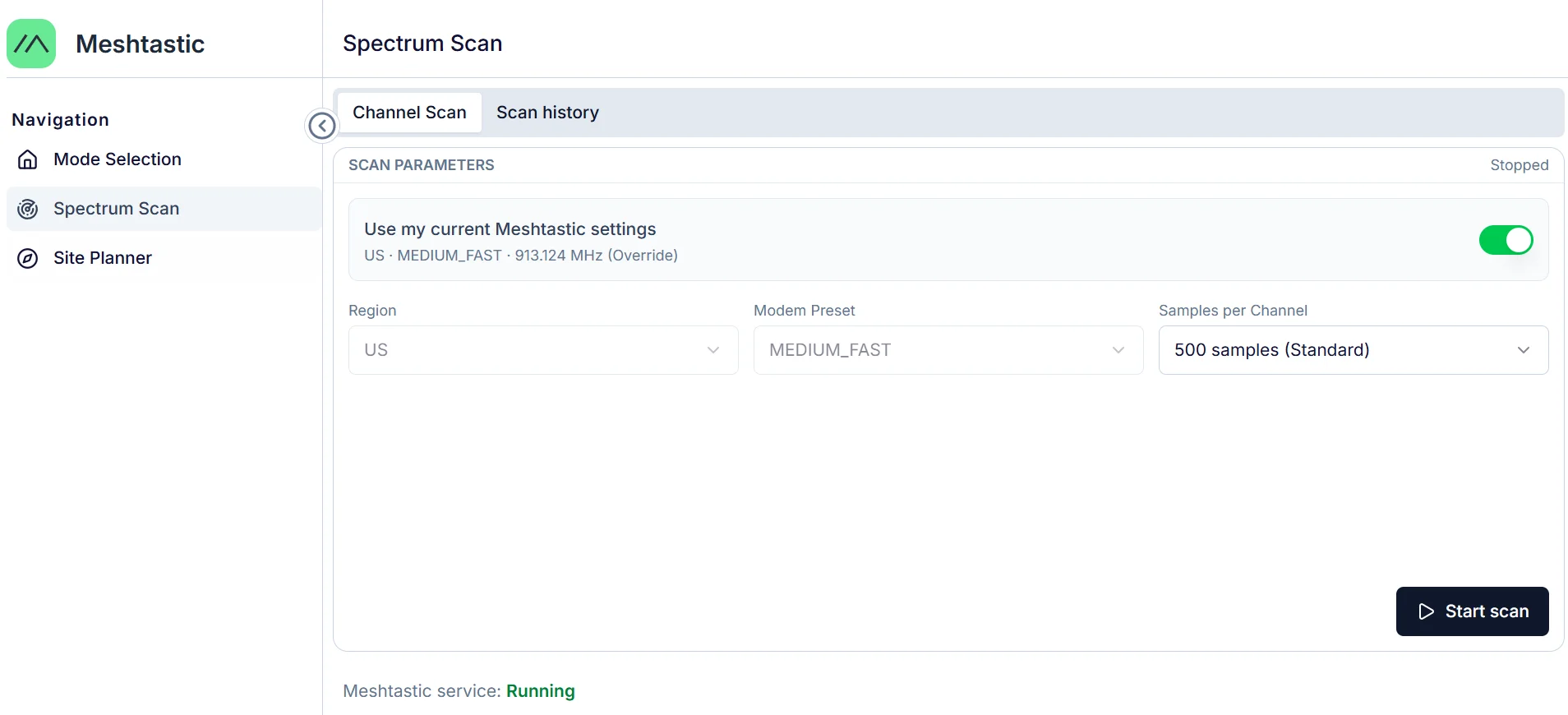 Figure 1: Spectrum Scan parameters
| Parameter | Description |
|---|---|
| Region | Defines the regional frequency plan used to generate candidate channels. |
| Modem Preset | Defines the LoRa communication mode used for scanning. It affects the balance between communication range and data rate. Presets combine a range level and a speed level, such as:
|
| Samples per Channel | Defines the number of RSSI samples collected for each channel. More samples provide more observation data but require longer scan time. Available options:
|
Run Channel Scan
In this example, the scan is configured with Region: US, Modem Preset: MEDIUM_FAST, and Samples per Channel: 100 samples (Quick).
- Review the scan configuration and click Start scan.
- Confirm the scan.
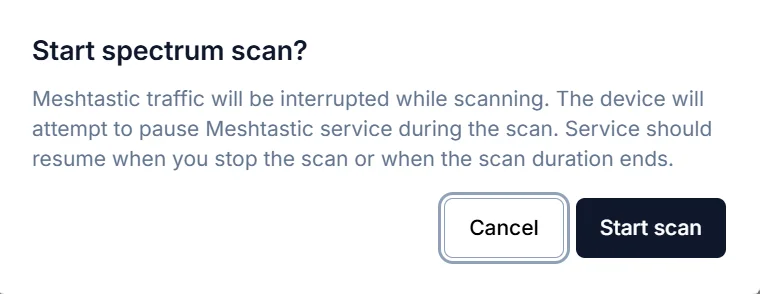 Figure 1: Scan confirmation
- During scanning, Meshtastic service displays Stopped because Spectrum Scan requires temporary exclusive access to the LoRa radio. After the scan is stopped or completed, the service automatically returns to Running.
- The Apply function is disabled during scanning and becomes available after the scan is stopped.
- Click Stop Scan according to the scan progress.
Analyze Scan Results
Use Scan Results and Waterfall to evaluate candidate channels and select a suitable operating channel based on your analysis needs.
- Scan Results provides a summarized evaluation of each channel based on RSSI statistics, channel score, and quality classification.
- Waterfall provides a visual view of RSSI variations collected from consecutive scan samples, helping you identify unstable channels or interference patterns.
Scan Results
The Scan Results page ranks candidate channels based on aggregated scan data. Each channel is evaluated using RSSI statistics collected from multiple samples during the scan.
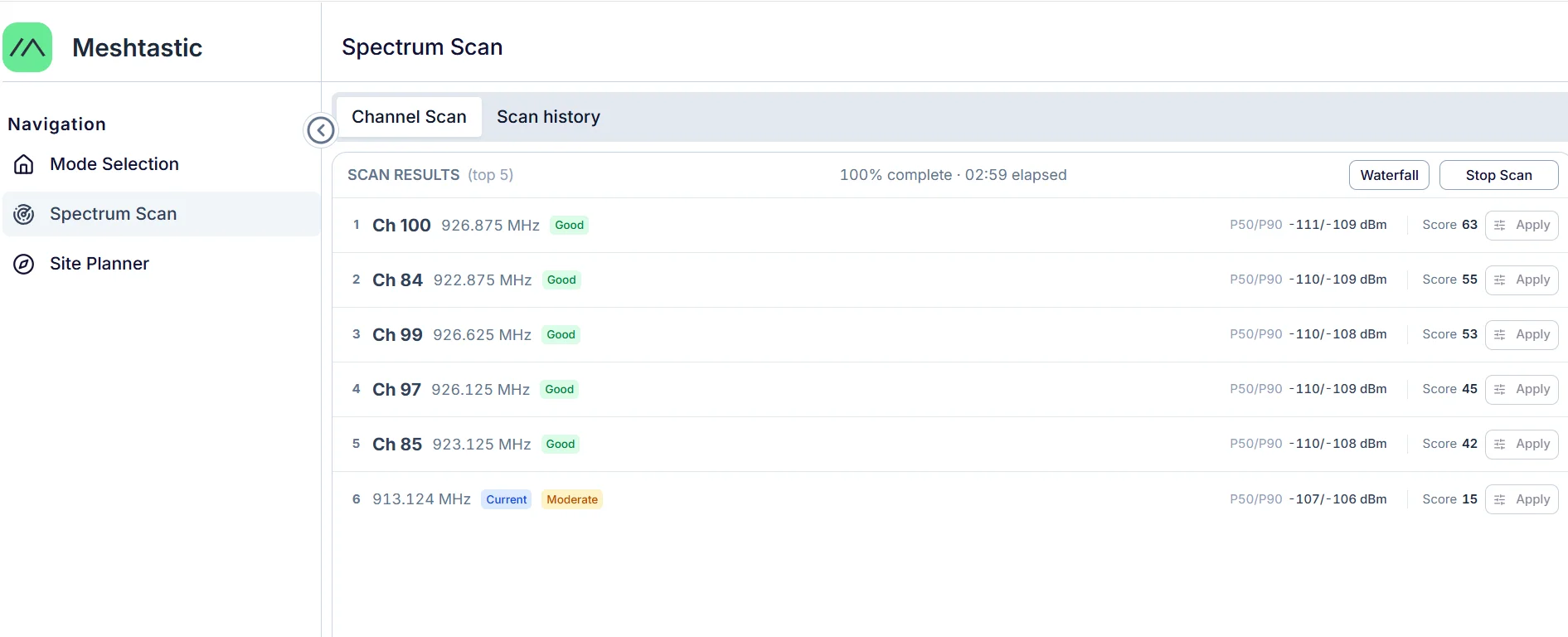 Figure 1: Scan results
| Parameter | Description |
|---|---|
| Channel / Frequency | Displays the candidate channel number and corresponding operating frequency. |
| Quality | Indicates the overall channel condition based on scan results, including Good, Moderate, and Poor. |
| P50/P90 RSSI | Shows the RSSI distribution of a channel across all collected scan samples. P50 represents the median RSSI level, while P90 represents higher RF activity observed during the scan. Lower RSSI values indicate less RF activity. |
| Score | Represents the overall channel quality score calculated from scan measurements. Higher scores indicate cleaner channel conditions. |
| Current | Indicates the channel currently used by the device. |
Waterfall
The Waterfall view displays RSSI variations across scanned channels based on consecutive scan samples. Each cell represents the RSSI level measured for a specific channel during one scan sample.
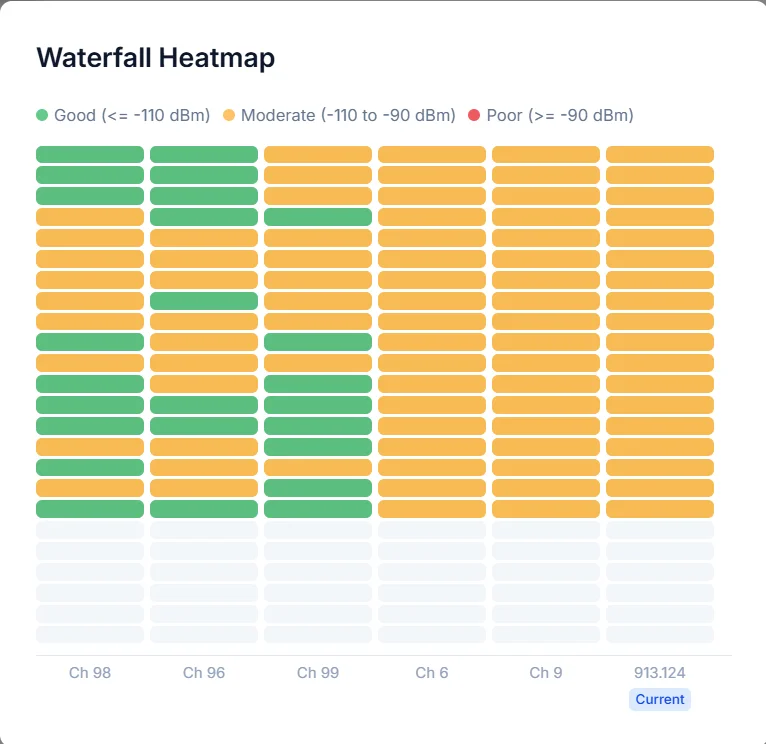 Figure 1: waterfall heatmap
| Parameter | Description |
|---|---|
| Channel / Frequency | Displays the candidate channels evaluated during the scan. Each column represents the RSSI measurements collected for one channel. |
| RSSI Level | Indicates the RF activity strength detected on each channel. Lower RSSI values (closer to the noise floor) indicate less activity. The color classification includes:
|
| Current | Indicates the channel currently used by the device. |
Apply Channel
After identifying a suitable channel from the scan results, apply the selected channel configuration to the current device.
- Click Stop Scan, then select a suitable channel from the scan results.
- Click Apply.
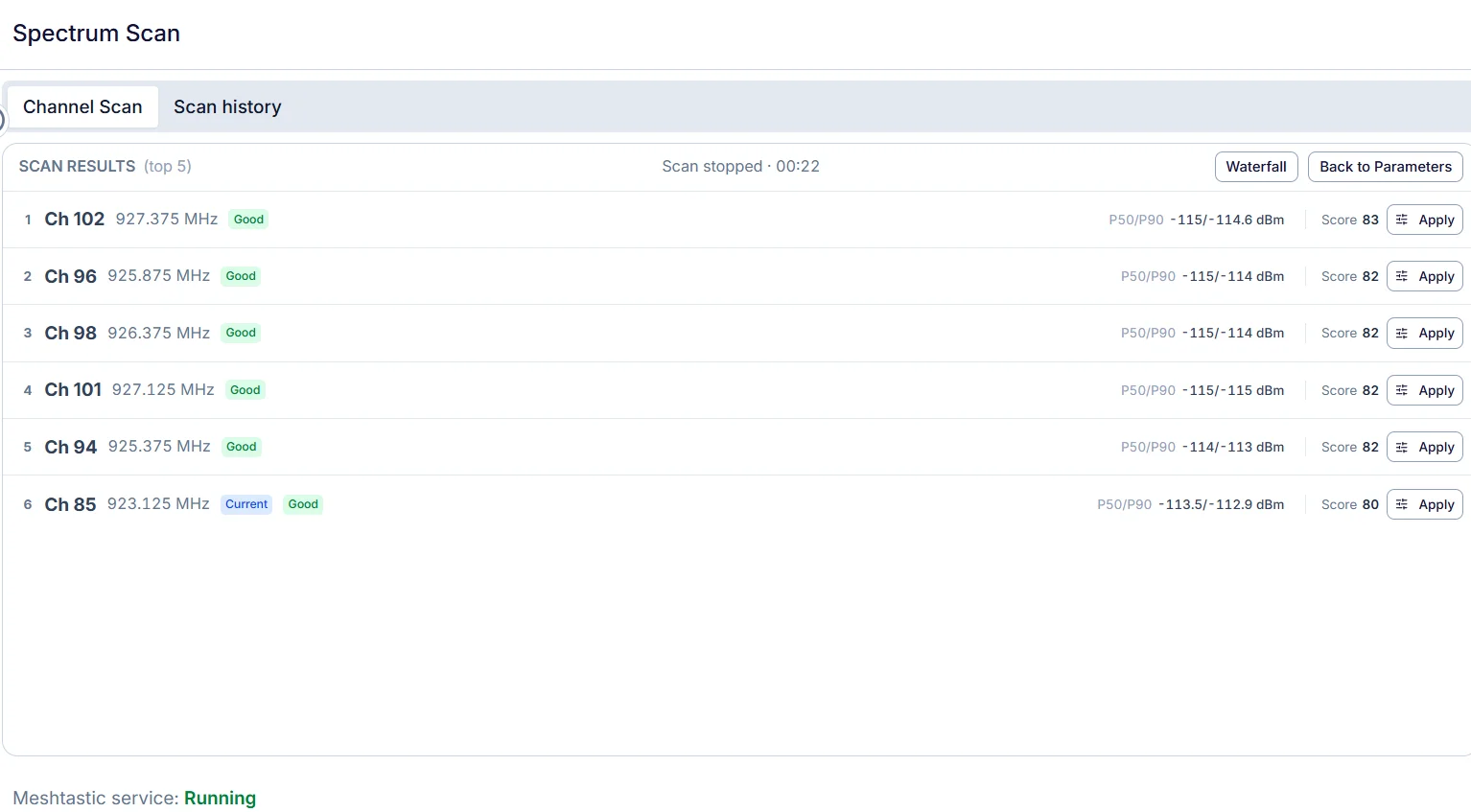 Figure 1: Apply information
 - Review the channel change information and click Apply to This Device to confirm the update.
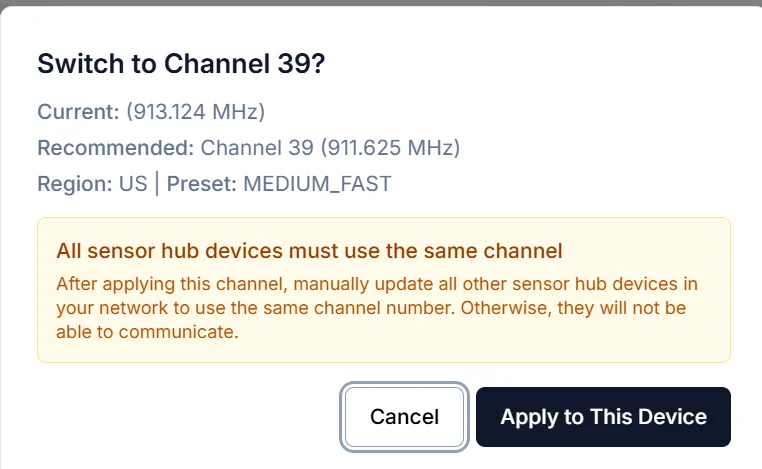 Figure 1: Applied Successfully
 - After applying the channel, the selected channel configuration is applied to the current device and used for Meshtastic communication.
All nodes in the same Meshtastic network must use the same Region, Modem Preset, and channel settings. Update all connected nodes with the new configuration to ensure proper communication.
Scan History
- Click the Scan History tab to review previous scans.
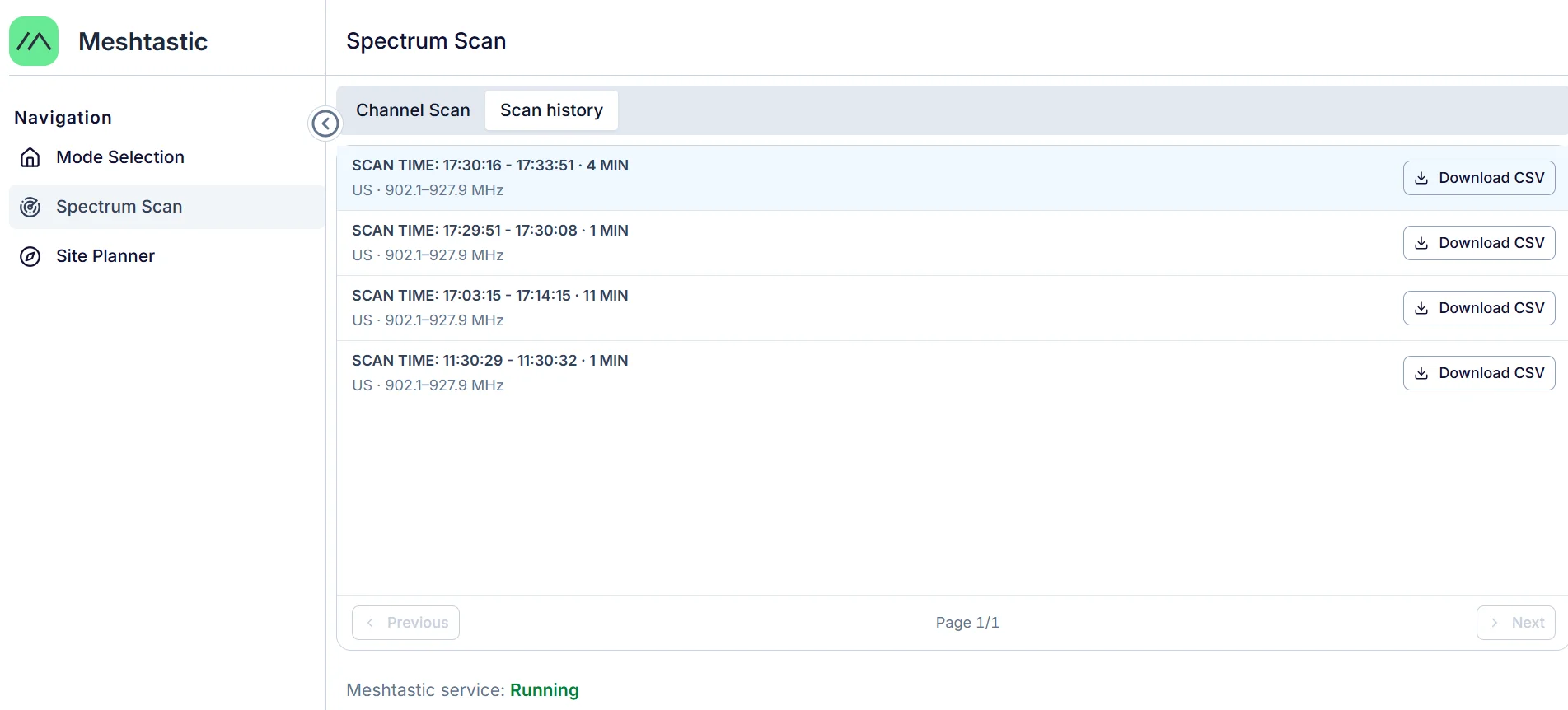 Figure 1: Scan history
 - Click Download CSV to export scan results.
- CSV files downloaded from WisMesh Pad are saved to the Downloads folder on the Pad desktop.
- Active scans cannot be downloaded until the scan reaches an ended state.


