ConnectOS BasicStation Forwarder
LoRa Basics™ Station is Semtech's packet forwarder protocol. It carries LoRaWAN® traffic between the gateway and a LoRaWAN Network Server (LNS) over a single authenticated WebSocket connection, which makes it a good fit for gateways behind NAT or a firewall: the gateway always dials out, and no inbound ports need to be opened.
Use the BasicStation Forwarder when your network server speaks the Basics Station protocol, The Things Stack, ChirpStack, Actility, Loriot and most commercial LNS platforms do.
This guide connects a gateway to The Things Network (TTN) on the eu1 cluster.
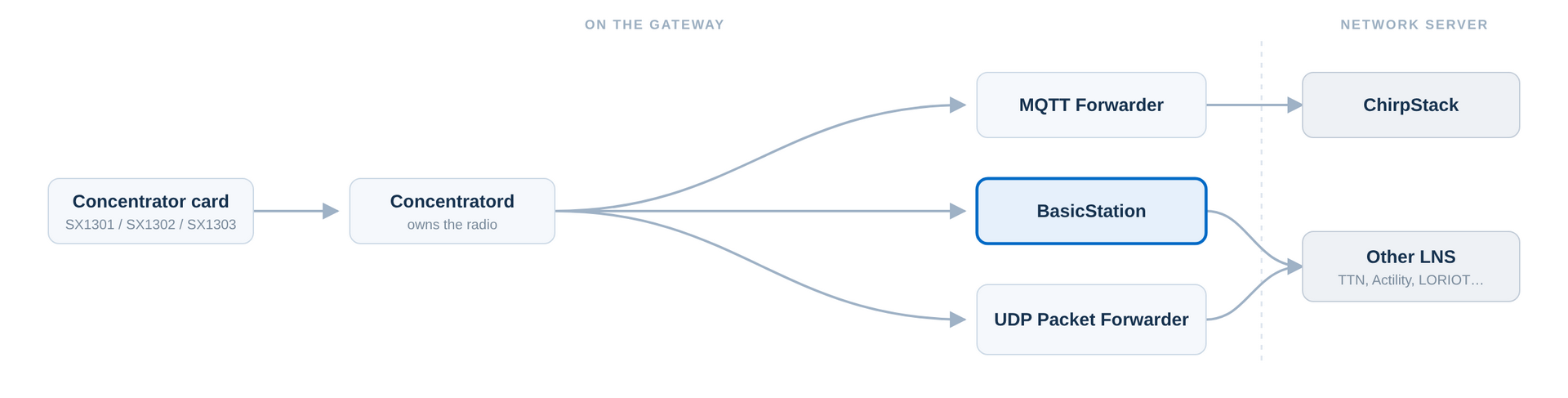 Figure 1: BasicStation Forwarder in the ConnectOS LoRaWAN Architecture
Before You Start
- The Concentratord must be configured and running, as described in Concentratord. The forwarder takes both the radio and the gateway EUI from it.
- Note the gateway EUI shown in the page footer, for example
0015c001f19ad81d. You need it to register the gateway. - The gateway needs outbound internet access on the port the LNS accepts connections (TCP port 8887 for TTN).
Only one forwarder should own a concentrator slot at a time. If you already run the MQTT or UDP forwarder against the same slot, disable it before enabling BasicStation.
Register the Gateway on The Things Stack
In The Things Stack Console, create the gateway first:
- Go to Gateways → Register gateway.
- Enter the Gateway EUI from the ConnectOS footer.
- Choose the frequency plan that matches the channel-plan you set on the Concentratord.
- Register the gateway.
Then create the credential the gateway will authenticate with:
- Open the gateway you just registered and go to API keys → Add API key.
- Grant it the Link as Gateway to a Gateway Server for traffic exchange right.
- Copy the generated key, it starts with
NNSXS.and is shown only once.
You also need The Things Stack root CA certificate, available from the Root certificates page. Download ca.pem and open it in a text editor.
Configure the Forwarder
Navigate to LoRaWAN → BasicStation Forwarder.
General
Tick Enable to turn the forwarder on.
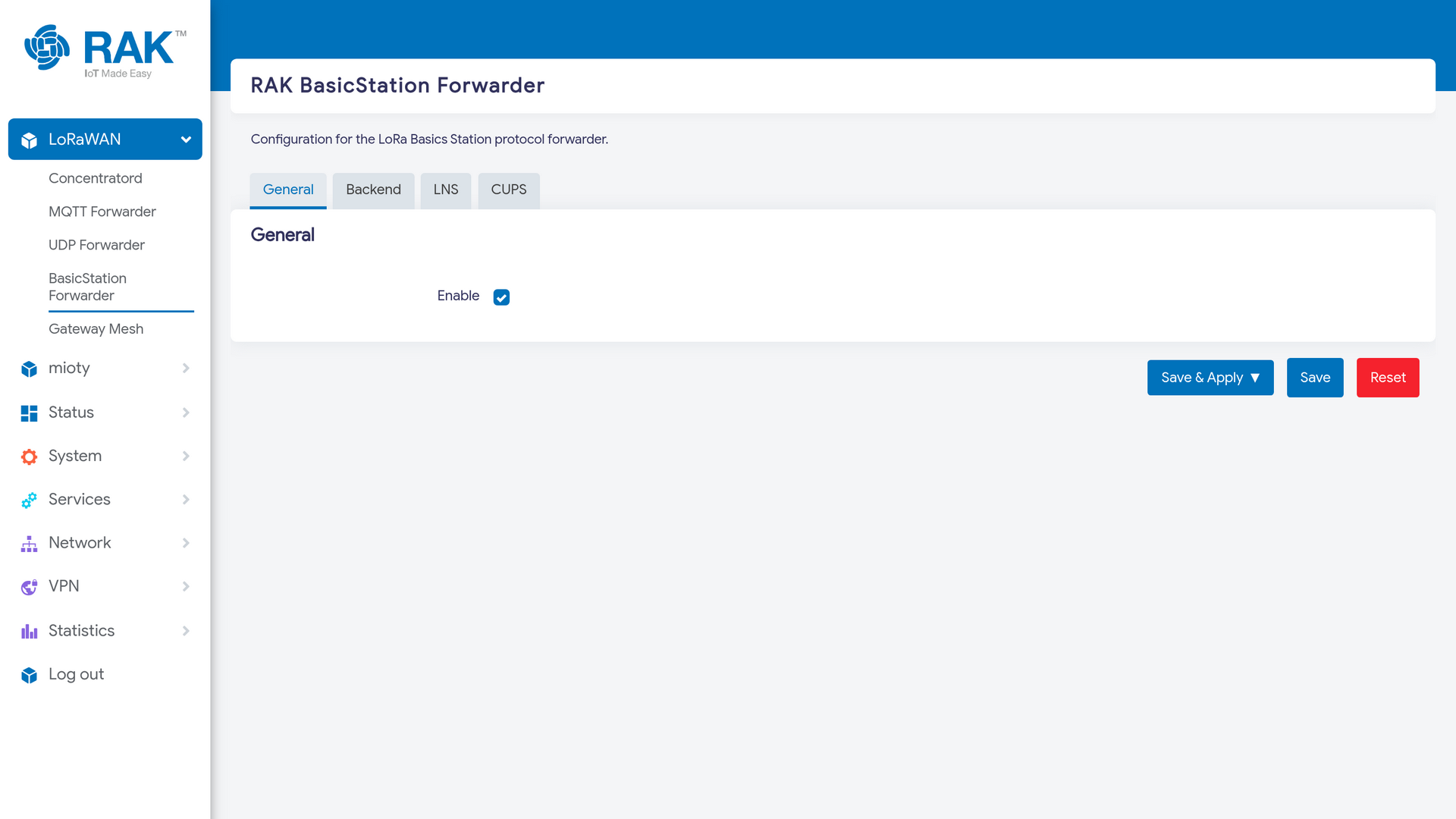 Figure 1: BasicStation General Configuration
Backend
The Backend tab tells the forwarder which radio to use.
| Field | Value |
|---|---|
| Gateway ID | Leave empty to use the EUI reported by the Concentratord. Set it only to override that EUI. |
| Concentratord slot | The slot holding your concentrator card, for example Slot 1. |
| Context caching | Enable only for Gateway Mesh compatibility. |
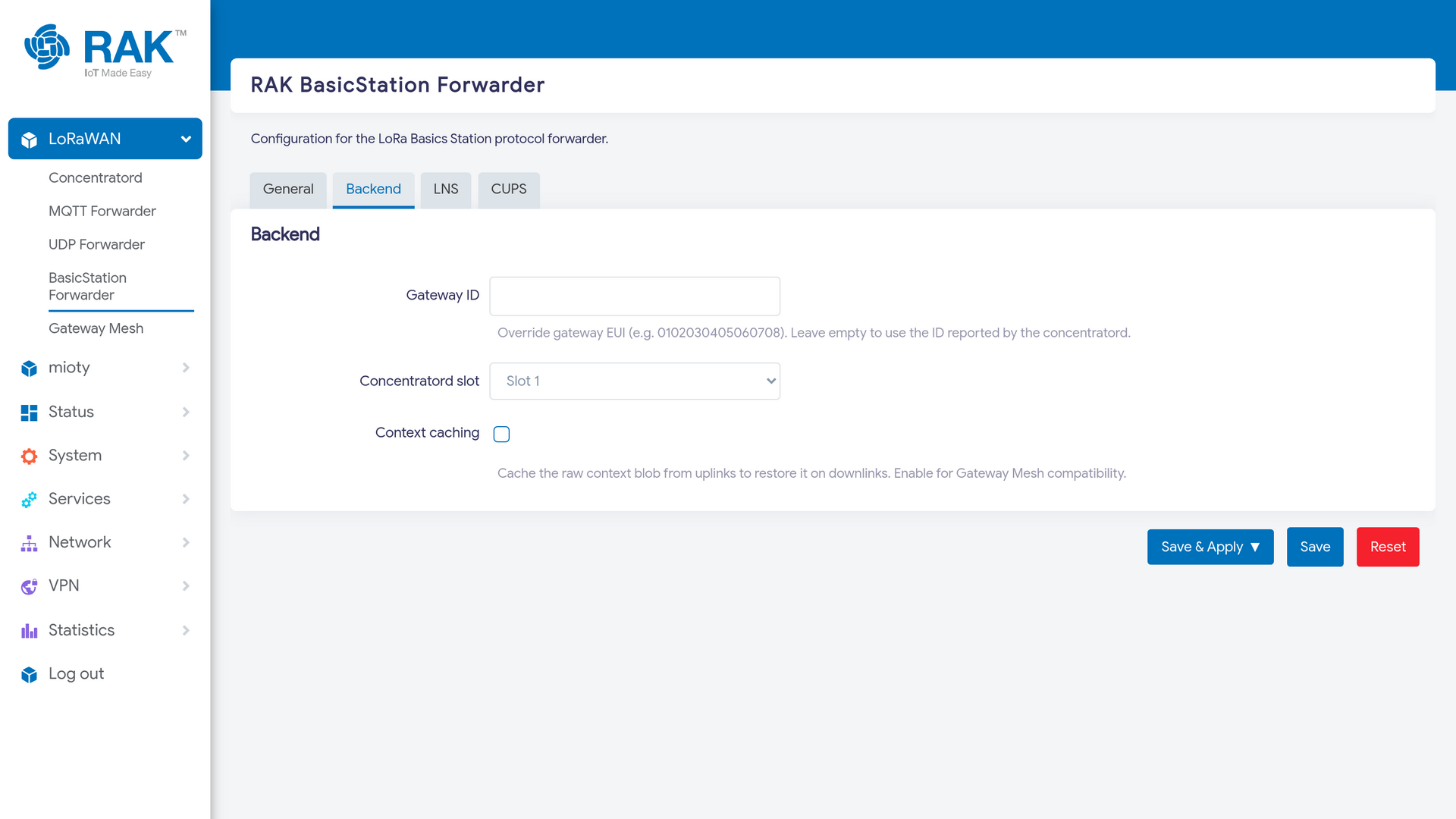 Figure 1: BasicStation Backend Configuration
LNS
The LNS tab holds the connection itself.
| Field | Value |
|---|---|
| LNS server | wss://eu1.cloud.thethings.network:8887 |
| CA certificate (PEM) | The contents of the ca.pem file you downloaded |
| Client certificate (PEM) | Leave empty, The Things Stack does not use mutual TLS |
| Client key / auth token (PEM) | The NNSXS.… API key you copied |
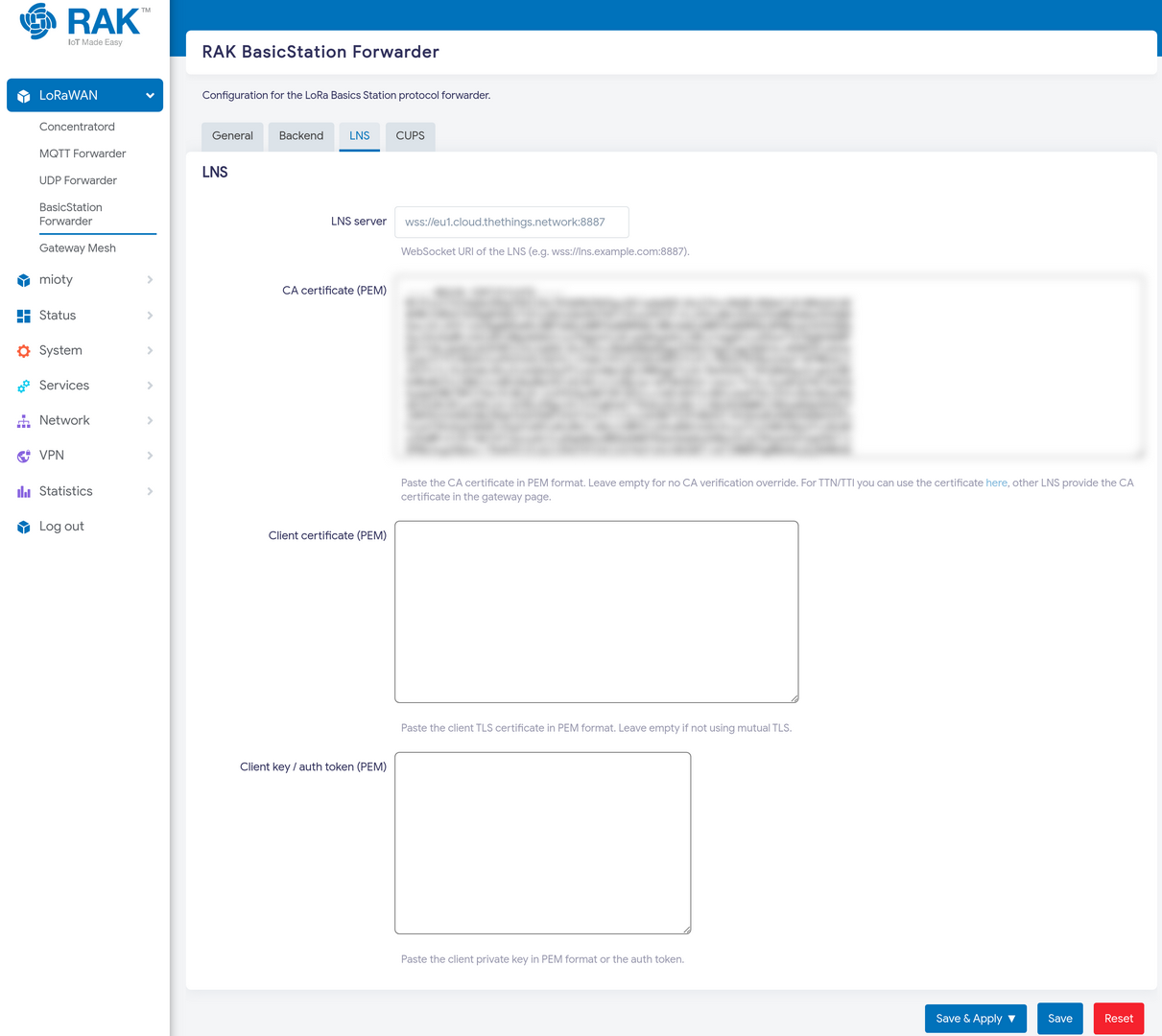 Figure 1: BasicStation LNS Configuration
Replace eu1 with the cluster your account is on (nam1, au1, …). For a different LNS, take the WebSocket URI and CA certificate from that provider's gateway page.
The API key is write-only in the interface. After you save, the field shows up empty again, that is expected, and does not mean the key was lost. To change it, paste a new one.
Press Save & Apply.
Verify the Connection
Open Status → System Log and look for rak-basicstation entries. A successful connection looks like this:
rak-basicstation: Received gateway id, gateway_id: 0015c001f19ad81d
rak-basicstation: Performing router discovery, endpoint: wss://eu1.cloud.thethings.network:8887
rak-basicstation: Router discovery succeeded, muxs_uri: wss://eu1.cloud.thethings.network:8887/traffic/eui-0015C001F19AD81D
rak-basicstation: WebSocket connected to wss://eu1.cloud.thethings.network:8887/traffic/eui-0015C001F19AD81D
rak-basicstation: Received router_config, region: EU863, channels: 1
rak-basicstation: Concentratord reconfigured successfully
The last two lines are the important ones: the LNS accepted the gateway and pushed back the radio settings for the region, which the forwarder then applied to the concentrator. In the Console, the gateway now shows as Connected.
Troubleshooting
| Symptom in the log | Likely cause |
|---|---|
| Router discovery fails to resolve | No DNS or no outbound internet access from the gateway. |
| TLS or certificate errors | Wrong or truncated CA certificate. Paste the whole ca.pem, including the -----BEGIN/END CERTIFICATE----- lines. |
| Connection is refused or closed immediately | The EUI is not registered on that cluster, or the API key lacks the Link as Gateway right. |
Waiting for backend to report Gateway ID and nothing more | The Concentratord is not running. Fix that first. |
CUPS
The CUPS tab configures the Configuration and Update Server protocol, which lets an LNS push credentials and firmware to the gateway rather than having you enter them by hand. It is disabled by default; enable it only if your network server provides a CUPS endpoint.


