WisDM Members Management
The Members module controls who can access an Organization and what each user can do in WisDM. It helps Organization administrators invite users, assign roles, configure Location access, transfer billing ownership, and remove members or pending invitations.
Overview
The Members page displays a list of all users within the current Organization. It allows administrators to view roles, manage access permissions, and invite new members to collaborate on managing locations, gateways, and applications.
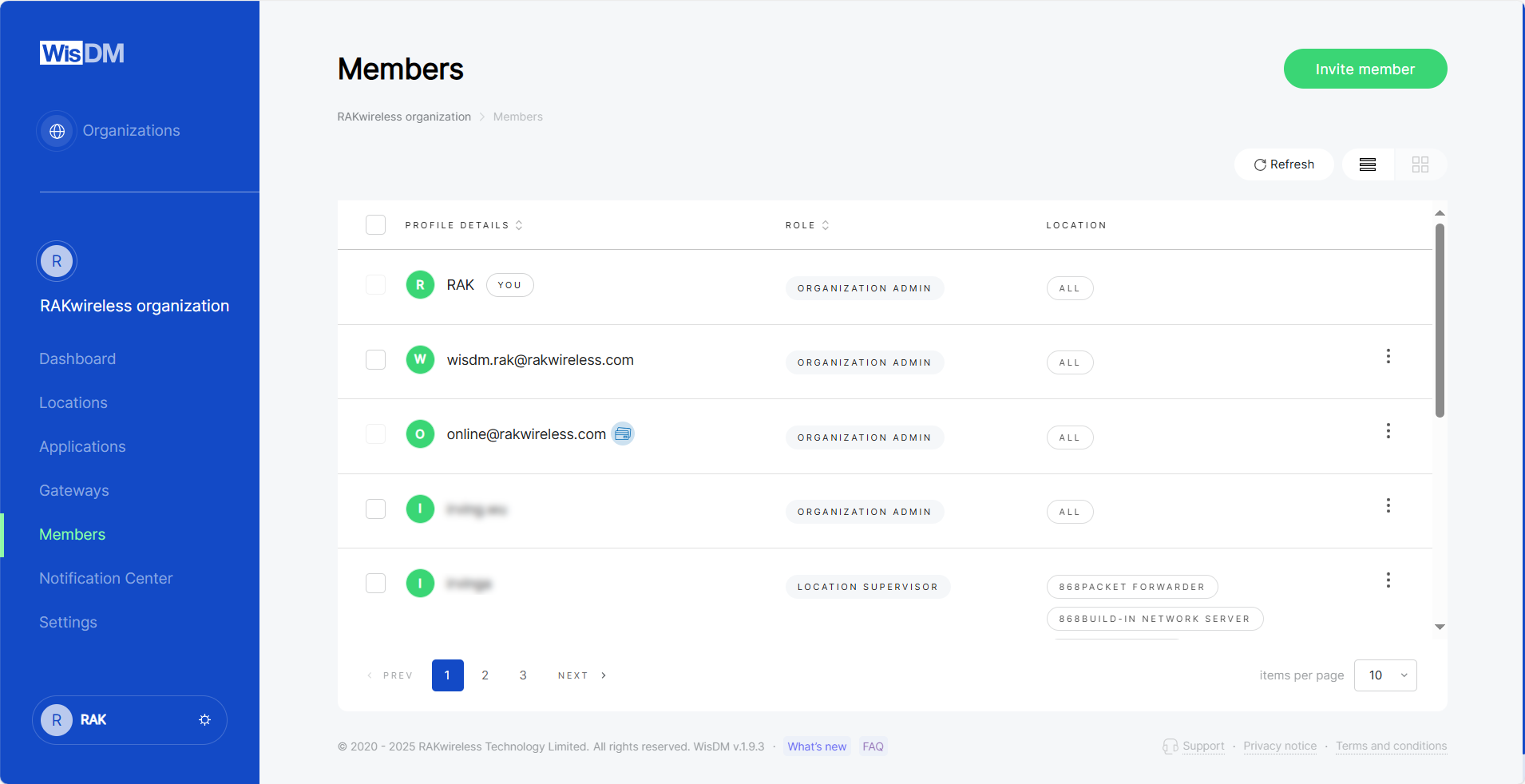 Figure 1: Members overview
The Members page may show the following indicators:
 Pending Invitation: The invitation has been sent but has not been accepted yet.
 Billing Owner: The member who has billing and subscription management permissions.
- Organization Owner: The user who owns the Organization. This is a member status, not a selectable role.
A user may have different roles in different Organizations. Member roles and permissions apply only within the Organization where they are assigned.
Roles and Permissions
WisDM uses role-based permissions to control access to Organization and Location assets. In addition to member roles, WisDM also uses billing permissions for subscription-related operations.
Role Types
| Role | Access Scope | Description |
|---|---|---|
| Organization Admin | Entire Organization | Can manage Organization assets and configuration based on granted permissions. This role is typically used for administrators who need broad control across all Locations. |
| Organization Supervisor | Entire Organization | Can view Organization assets but usually cannot make configuration changes. |
| Location Admin | Selected Locations | Can manage assets within assigned Locations, such as gateways, applications, and end devices. |
| Location Supervisor | Selected Locations | Can view assets within assigned Locations but usually cannot make configuration changes. |
Permission Matrix
The following sections summarize the default permissions available to each role category.
Organization Admin
Organization Admin has the broadest management permissions within the Organization. This role is suitable for users who need to manage Organization settings, members, Locations, gateways, Applications, and related configurations.
| Permission Category | Available Actions |
|---|---|
| Notifications | Configure gateway status notification triggers Receive assigned gateway status notifications View and edit default Location notification settings Create, edit, or delete custom Location notification settings |
| Organization Management | View and access the Organization Browse and update Organization settings Delete the Organization Provide or update temporary support access Review temporary support access details Request RAK support Export Organization information |
| Organization Assets | View Organization dashboard View and export Location list Add new Locations View assigned and unassigned gateway lists Filter gateways by Location Export gateway information Delete unassigned gateways View Organization-level Application list |
| Member Management | View members with Organization-level roles View members with Location-level roles Invite members Edit member roles and Location access Review member details Assign users to Organization or Locations Unassign eligible users |
| Location Management | Remove Locations Review and update Location general configuration |
| Gateway Management | View gateways in list or map view Add gateways to Locations Unassign gateways from Locations Delete assigned gateways when supported by the deletion flow Change Central Gateway Review and update Location network configuration Create and apply Location network configuration templates |
| Firmware Management | Review and edit Location firmware update settings Update gateway firmware manually Review firmware update status Cancel firmware updates Update a single gateway firmware |
| Applications and End Devices | Review Application list Add, edit, or delete Applications Review Application configuration Create and apply Application templates Review End Device lists Add, edit, or delete End Devices Review End Device configuration Create or upload End Device lists |
| Diagnostics and Gateway Operations | Review full gateway details Open SSH terminal Reboot gateways remotely Review gateway system logs Open gateway, Location, and End Device packet capture Rename gateways |
| Gateway System and Network Settings | Review and update gateway system settings Change gateway local password Review and update gateway network interface settings Review network interface and IP change history |
| Solar Battery | Review solar battery status, settings, and event history Update solar battery settings and events |
| Extensions | View extension gallery View extensions installed on gateways Create, update, or delete extensions for a single gateway |
| API Key | View API key list Create, update, or delete API keys |
| Metrics | View, create, copy, edit, and delete Metrics projects View, create, copy, edit, and delete dashboards Edit dashboard filters and layout Add, copy, edit, and delete widgets |
| Subscription and Billing | Available only when billing permissions are granted. |
Organization Supervisor
Organization Supervisor is mainly a view-only Organization-level role. This role is suitable for users who need visibility across the Organization but should not modify most configurations.
| Permission Category | Available Actions |
|---|---|
| Notifications | Receive assigned gateway status notifications View notification settings Create, edit, or delete custom Location notification settings when supported |
| Organization Management | View and access the Organization Browse Organization settings Review temporary support access details Export Organization information |
| Organization Assets | View Organization dashboard View and export Location list View assigned and unassigned gateway lists Filter gateways by Location Export gateway information View Organization-level Application list |
| Member Management | View members with Organization-level roles View members with Location-level roles |
| Location Management | Review Location general configuration |
| Gateway Management | View Location gateways Export Location gateway information Review Location network configuration Review firmware update settings and status Review Application list, Application configuration, End Device lists, and End Device configuration Review full gateway details |
| Gateway System and Network Settings | Review gateway system settings Review gateway network interface status and settings Review network interface and IP change history |
| Solar Battery | Review solar battery status, settings, and event history |
| Extensions | View extension gallery View extensions installed on gateways |
| Metrics | View Metrics projects, dashboards, dashboard content, and widgets |
Location Admin
Location Admin can manage selected Locations. This role is suitable for users who operate specific deployment sites but should not manage the entire Organization.
| Permission Category | Available Actions |
|---|---|
| Notifications | Configure gateway status notification triggers for assigned Locations Receive assigned gateway status notifications View default Location notification settings Create, edit, or delete custom notification settings for assigned Locations |
| Organization Management | View and access the Organization Browse Organization settings |
| Organization Assets | View Organization dashboard data for assigned Locations View assigned Locations Export Location information for assigned Locations View assigned Location gateway lists Filter gateways by assigned Locations Export gateway information for assigned Locations View Applications within assigned Locations |
| Member Management | View members related to assigned Locations Assign users to assigned Locations with Location-level roles Unassign eligible users from assigned Locations Customize Location-level permissions when supported |
| Location Management | Request Location removal Review and update Location general configuration for assigned Locations |
| Gateway Management | View gateways in assigned Locations Add gateways to assigned Locations Unassign gateways from assigned Locations Change Central Gateway Review and update Location network configuration Create and apply Location network configuration templates |
| Firmware Management | Review and edit Location firmware update settings Update gateway firmware manually Review firmware update status Cancel firmware updates Update a single gateway firmware |
| Applications and End Devices | Review Application list Add, edit, or delete Applications in assigned Locations Review Application configuration Create and apply Application templates Review End Device lists Add, edit, or delete End Devices Review End Device configuration Create or upload End Device lists |
| Diagnostics and Gateway Operations | Review full gateway details in assigned Locations Open SSH terminal Reboot gateways remotely Review gateway system logs Open gateway, Location, and End Device packet capture Rename gateways |
| Gateway System and Network Settings | Review and update gateway system settings Review and update gateway network interface settings Review network interface and IP change history |
| Solar Battery | Review solar battery status, settings, and event history Update solar battery settings and events |
| Extensions | View extension gallery View extensions installed on gateways Create, update, or delete extensions for gateways in assigned Locations |
| Metrics | View accessible Metrics projects and dashboards Create, copy, edit, and delete accessible projects when permitted Create, copy, edit, and delete dashboards when dashboard data belongs to assigned Locations Edit dashboard filters and layout when permitted Add, copy, edit, and delete widgets when permitted |
Location Supervisor
Location Supervisor is mainly a view-only Location-level role. This role is suitable for users who need to monitor selected Locations without changing configuration.
| Permission Category | Available Actions |
|---|---|
| Notifications | Receive assigned gateway status notifications View notification settings for assigned Locations |
| Organization Management | View and access the Organization Browse Organization settings |
| Organization Assets | View Organization dashboard data for assigned Locations View assigned Locations Export Location information for assigned Locations View assigned Location gateway lists Filter gateways by assigned Locations Export gateway information for assigned Locations View Applications within assigned Locations |
| Member Management | View members with Organization-level roles View members with Location-level roles related to assigned Locations |
| Location Management | Review Location general configuration for assigned Locations |
| Gateway Management | View gateways in assigned Locations Export Location gateway information Review Location network configuration Review firmware update settings and status Review Application list, Application configuration, End Device lists, and End Device configuration Review multicast group list and configuration Review full gateway details |
| Gateway System and Network Settings | Review gateway system settings Review gateway network interface status and settings Review network interface and IP change history |
| Solar Battery | Review solar battery status, settings, and event history |
| Extensions | View extension gallery View extensions installed on gateways |
| Metrics | View accessible Metrics projects and dashboards when the data belongs to assigned Locations View dashboard content and widgets |
Invite Members
Organization administrators can invite new members to join the Organization by email. When creating an invitation, the administrator assigns a role to the invited user and, if needed, defines the Locations the user can access.
Create an Invitation
-
Go to Members.
-
Click Invite member.
-
Enter the member email address.
-
Select a Member role from the dropdown menu.
- Available roles include Organization Admin, Organization Supervisor, Location Admin, and Location Supervisor.
- Each role defines different permissions for managing assets and settings. For a detailed comparison of role capabilities, see the Permission Matrix.
-
If a Location-level role is selected, choose the Locations this member can access.
- This option applies only to Location-level roles (Location Admin and Location Supervisor).
- Members with Organization-level roles automatically have access to all Locations within the Organization.
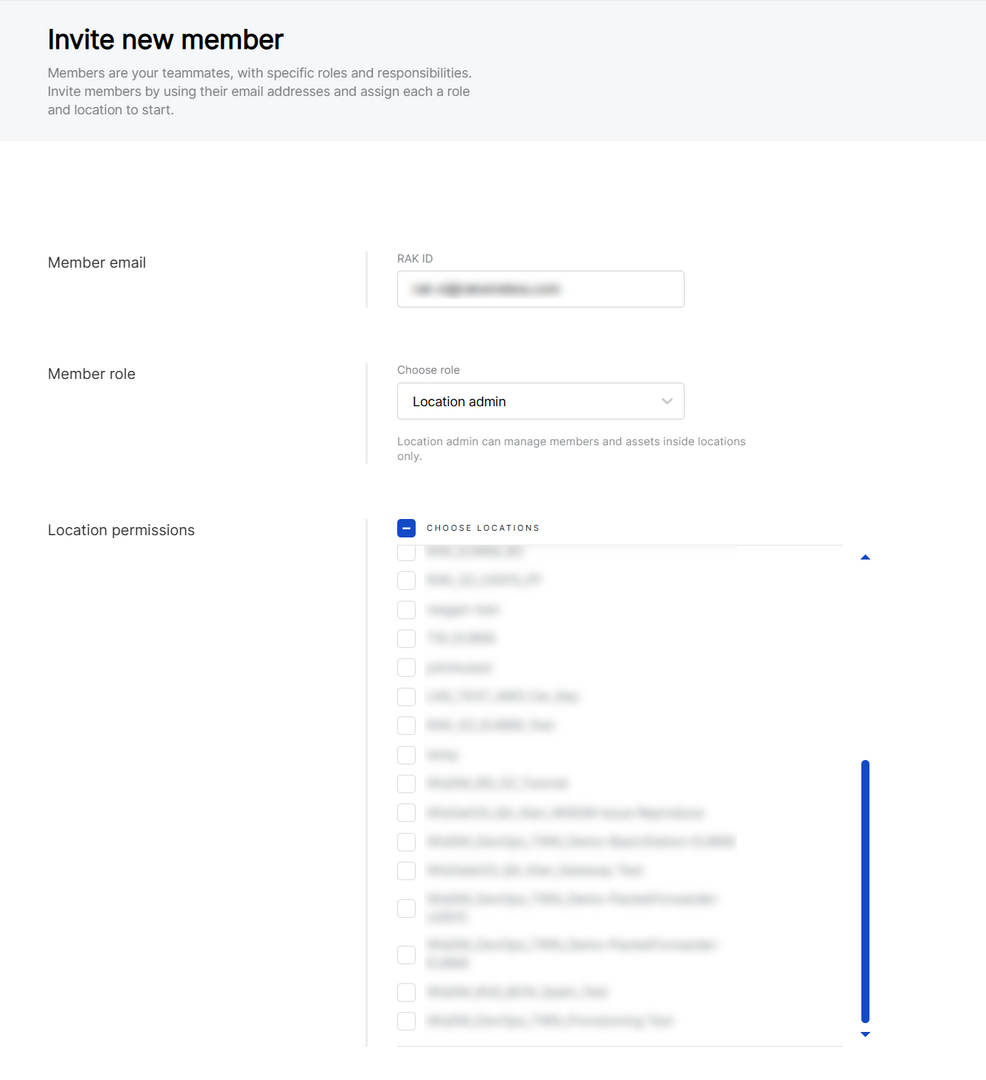 Figure 1: Invite new member
- Click Invite new member to send the invitation.
After the invitation is sent, the invited user appears in the Members list with a Pending Invitation indication.
Pending invitations expire after 7 days. If the invitee does not accept the invitation within this period, the invitation is considered declined and can be sent again later.
Accept or Decline an Invitation
After the invitation is sent, the invitee receives an email from WisDM.
-
Open the invitation email from WisDM.
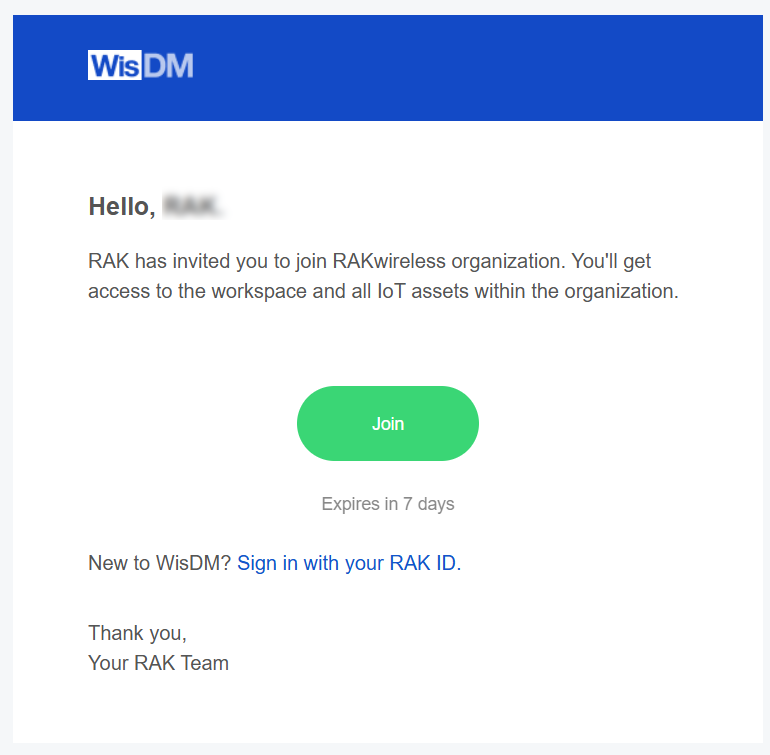 Figure 1: Invitation email example
 -
Click Join or Sign in with your RAK ID in the email. The invitee will be redirected to WisDM. Depending on whether the invitee already has a RAK ID, they can:
- Sign in with an existing RAK ID.
- Create a new RAK ID to complete registration, then review the invitation.
NOTEIf the invitee does not have a RAK ID yet, they must register with the same email address used in the invitation. Otherwise, the invitation cannot be matched to the new account.
-
In the Organizations page, review the invitation.
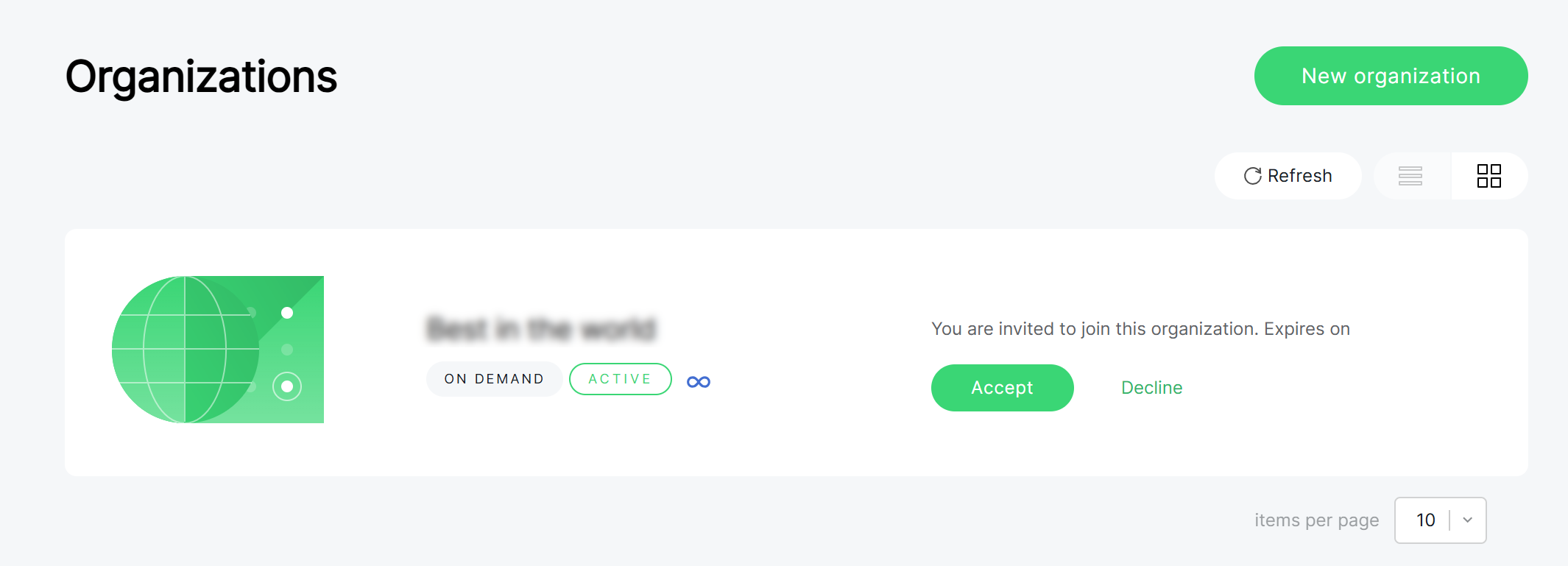 Figure 1: Accept Invitation
- Click Accept to join the Organization. After accepting, the user can access the Organization according to the assigned role and permissions.
- Click Decline to reject the invitation. After declining, the invitation is removed and the user will no longer appear as a pending invitee in the Members list.
Change Member Role and Permissions
Organization Admins can update member roles and Location permissions within the Organization.
When editing member details, note the following:
- You can update the role and Location access for both active members and users with pending invitations.
- For pending invitations, the updated role and Location access take effect only after the invited user accepts the invitation.
- The Organization Owner role is read-only and cannot be modified.
- On the Members page, locate the member you want to edit.
- Click the actions menu on the right side of the member entry.
- Select Edit member details.
- Update the member role or Location access.
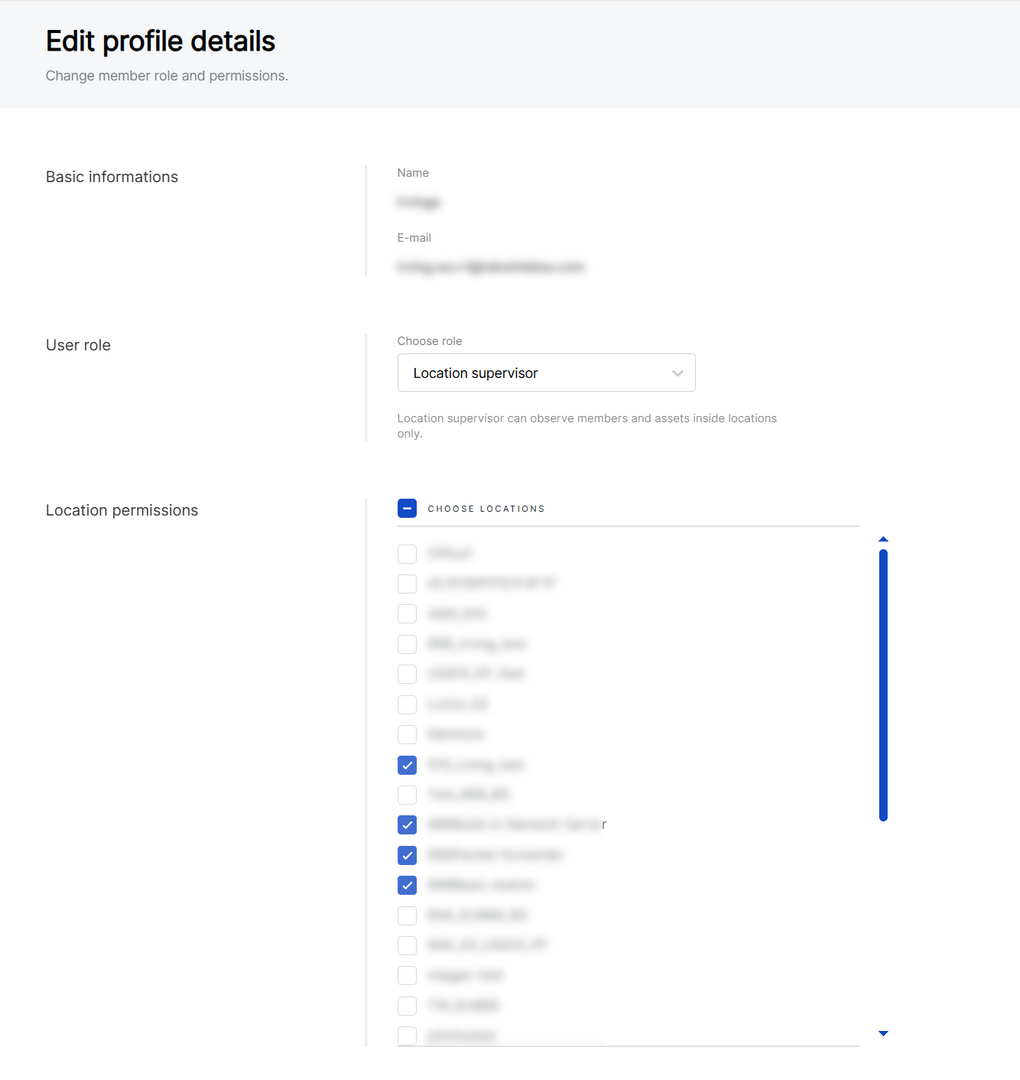 Figure 1: Access the member actions menu
- Click Save changes to apply the updates.
Transfer Billing Ownership
The Transfer billing ownership option transfers billing and subscription management permissions from the current Billing Owner to another eligible Organization Admin.
Only the current Billing Owner can initiate this action, and the new recipient must hold the Organization Admin role.
Start a Billing Ownership Transfer
-
Go to Members.
-
Locate the Organization Admin you want to transfer billing ownership to.
-
Click the actions menu on the right side of the member entry.
-
Select Transfer billing ownership.
-
In the confirmation dialog, review the recipient information.
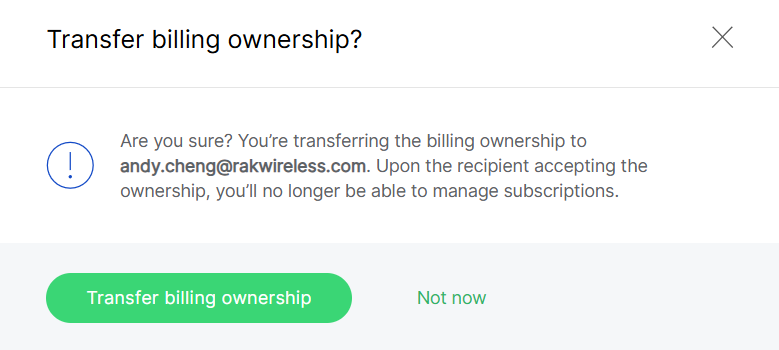 Figure 1: Transfer billing ownership from Members page
 -
Click Transfer billing ownership to send the request.
After the request is sent, the recipient appears in the Members list with a Transfer billing ownership status and a countdown showing how long the request remains valid.
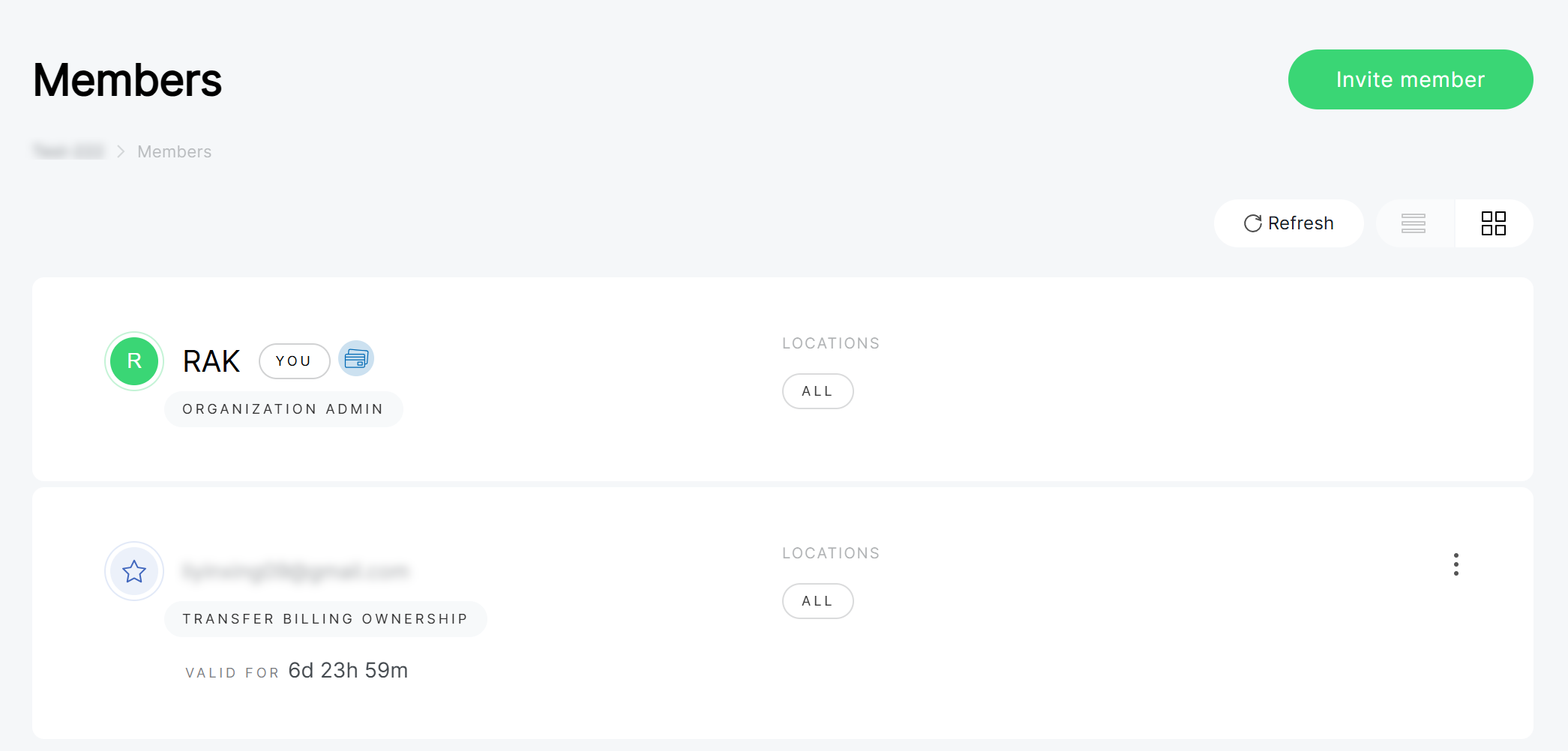 Figure 1: Pending Billing Ownership Transfer
A billing ownership transfer request expires after 7 days. You cannot start another billing ownership transfer while an existing transfer request is still pending.
Accept or Decline Billing Ownership
The recipient can review the billing ownership transfer request from the Members page.
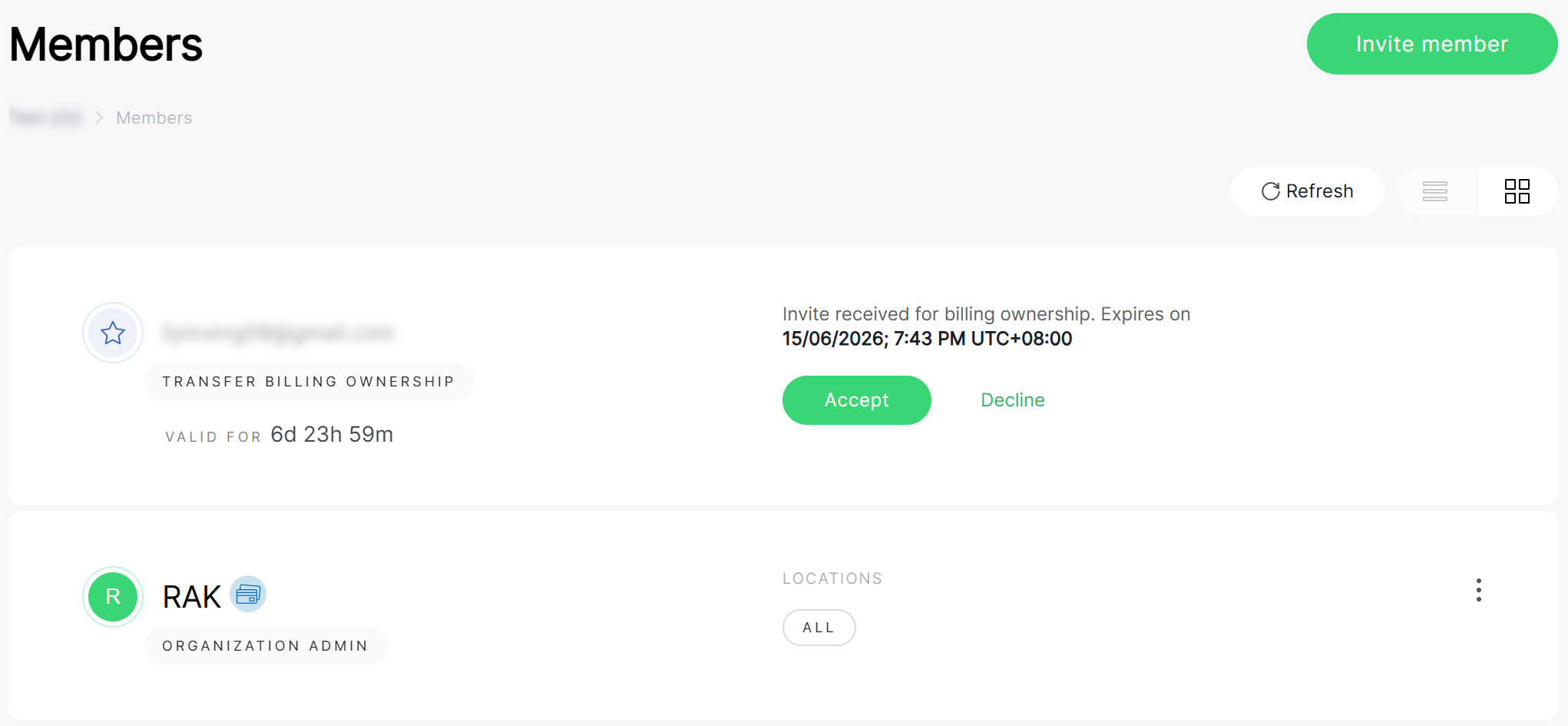 Figure 1: Accept or Decline Billing Ownership
The recipient can choose one of the following actions:
- Accept: Billing ownership is transferred to the recipient. The previous Billing Owner loses billing management permissions but remains a member of the Organization.
- Decline: The transfer request is canceled. Billing ownership remains unchanged.
Unassign Members
Organization administrators can remove both active members and pending invitations from the Organization using the Unassign member option. You can also select multiple members and click Unassign to remove them in bulk. This action revokes the member's access to all Organization assets, while their RAK ID remains valid and can be re-invited later if needed.
-
On the Members page, locate the member you want to remove.
-
Click the actions menu on the right side of the member entry.
-
Select Unassign member.
NOTEThe Organization Owner cannot be unassigned.
-
In the confirmation dialog, click Unassign to confirm the removal.
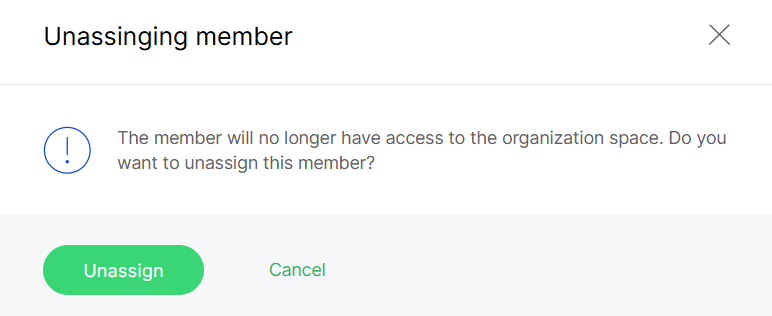 Figure 1: Unassign member confirmation dialog
After unassignment:
- Active members immediately lose access to the Organization.
- If the removed member is currently browsing the Organization, they are redirected to the Organization list.
- Pending invitations are deleted.
- The user no longer sees the Organization in their Organization list.
You cannot unassign yourself from the Members page. To leave an Organization yourself, use the Leave organization action from the Organizations page.


