WisDM Organization Dashboard
The Organization dashboard offers a comprehensive overview of system health by consolidating location distribution, gateway status, work mode ratios, and offline hotspots into a single view.
Organization Map
The map widget displays the geographic distribution of all Locations within the Organization. It supports zooming and panning, enabling administrators to quickly locate gateways and assess deployment coverage across various regions. This widget is mandatory and cannot be disabled.
The coordinates and map location shown are based on the manually entered address during the creation of each Location.
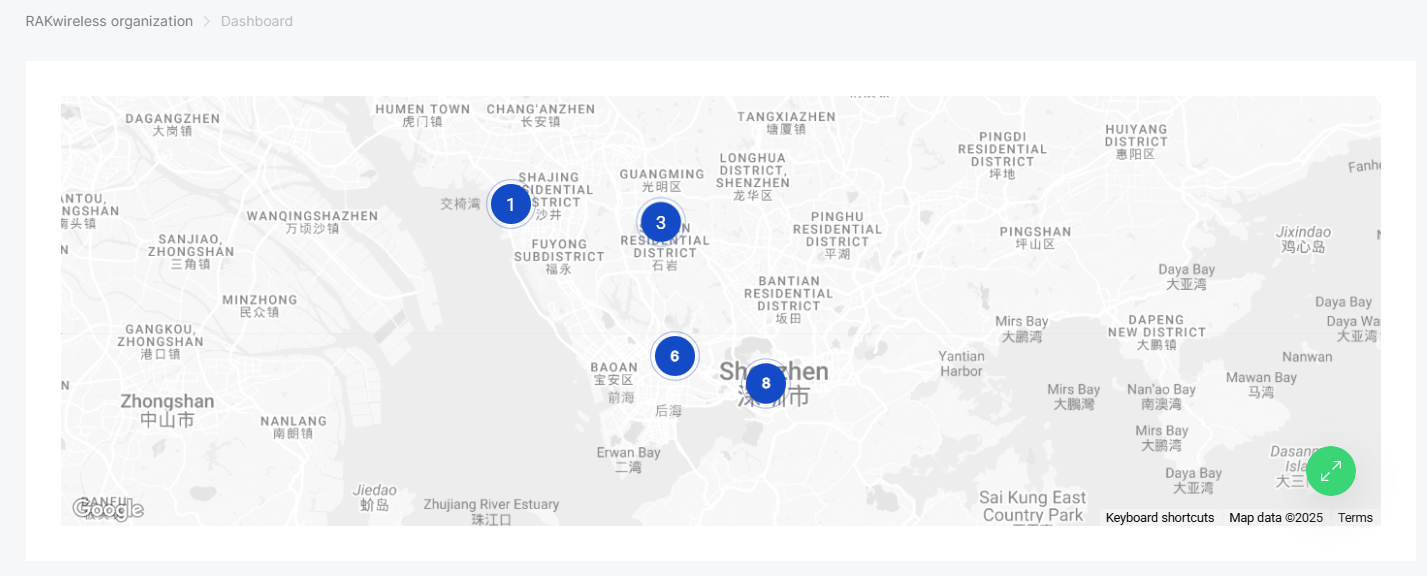 Figure 1: Organization map
Gateway Summary
The Gateways Summary widget provides an overview of all gateways under the Organization, categorized by their current connection status.
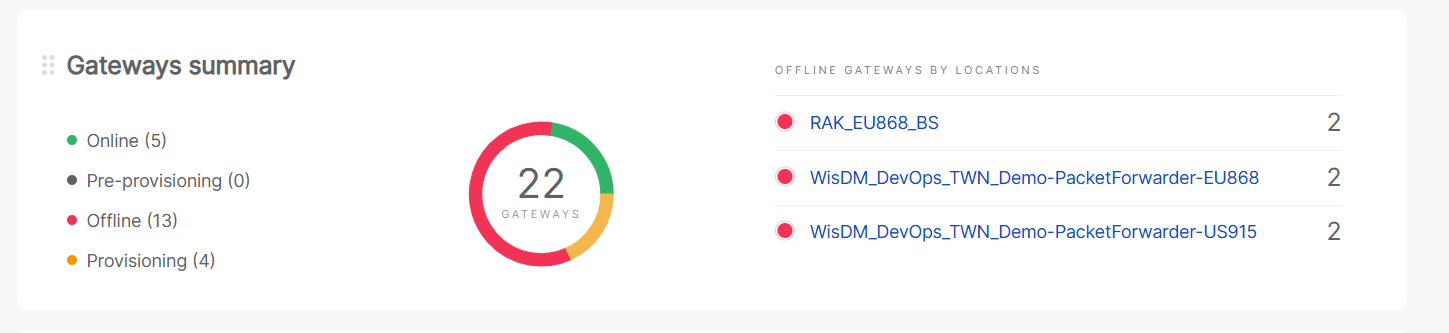 Figure 1: Gateway Summary
- Online – Connected and operating normally.
- Pre-provisioning – Pre-configured in the factory and pre-registered in WisDM, but not yet online.
- Offline – Disconnected; cannot forward traffic. Pending configurations are cached and applied once reconnected.
- Provisioning – In setup mode, typically following a factory reset or unassignment.
A donut chart in the center displays the total number of gateways, while the list on the right highlights the top three Locations with the highest number of offline gateways, enabling administrators to quickly identify areas with potential connectivity issues.
The Gateways Summary widget is optional and can be toggled on or off through the Choose widgets option in the dashboard view.
Location Summary
The Location Summary widget provides an overview of all Locations within the Organization, grouped by their current operation mode.
 Figure 1: Location Summary
- No mode(non configured)
- Built-in Network Server
- Packet Forwarder
- Basics Station
A horizontal bar visually represents the distribution of Locations by mode, while the total number of Locations is displayed on the left. This allows administrators to quickly assess the deployment composition and identify non configured or inactive Locations.
The Location Summary widget is optional and can be enabled or disabled from the Choose widgets panel on the dashboard.


