RAK WireGuard
WireGuard is a simple but fast VPN. It aims to be faster, simpler, and leaner than the IPsec protocol. It intends to be more performant than the well-known RAKwireless - OpenVPN. Before, it was not possible to use the WireGuard protocol on the RAKwireless gateways, but that is not the case now.
The new WisGateOS 2 now offers Extension features, where you can install and set up the WireGuard extension. In this tutorial, you will learn how to set the WireGuard client on the gateway.
This guide assumes that you have some knowledge in setting up a WireGuard server and have a WireGuard server set up.
Install the RAK WireGuard Extension
To install this extension, follow Add an Extension.
Configure the RAK WireGuard Extension
- To access the RAK WireGuard extension, click Launch.
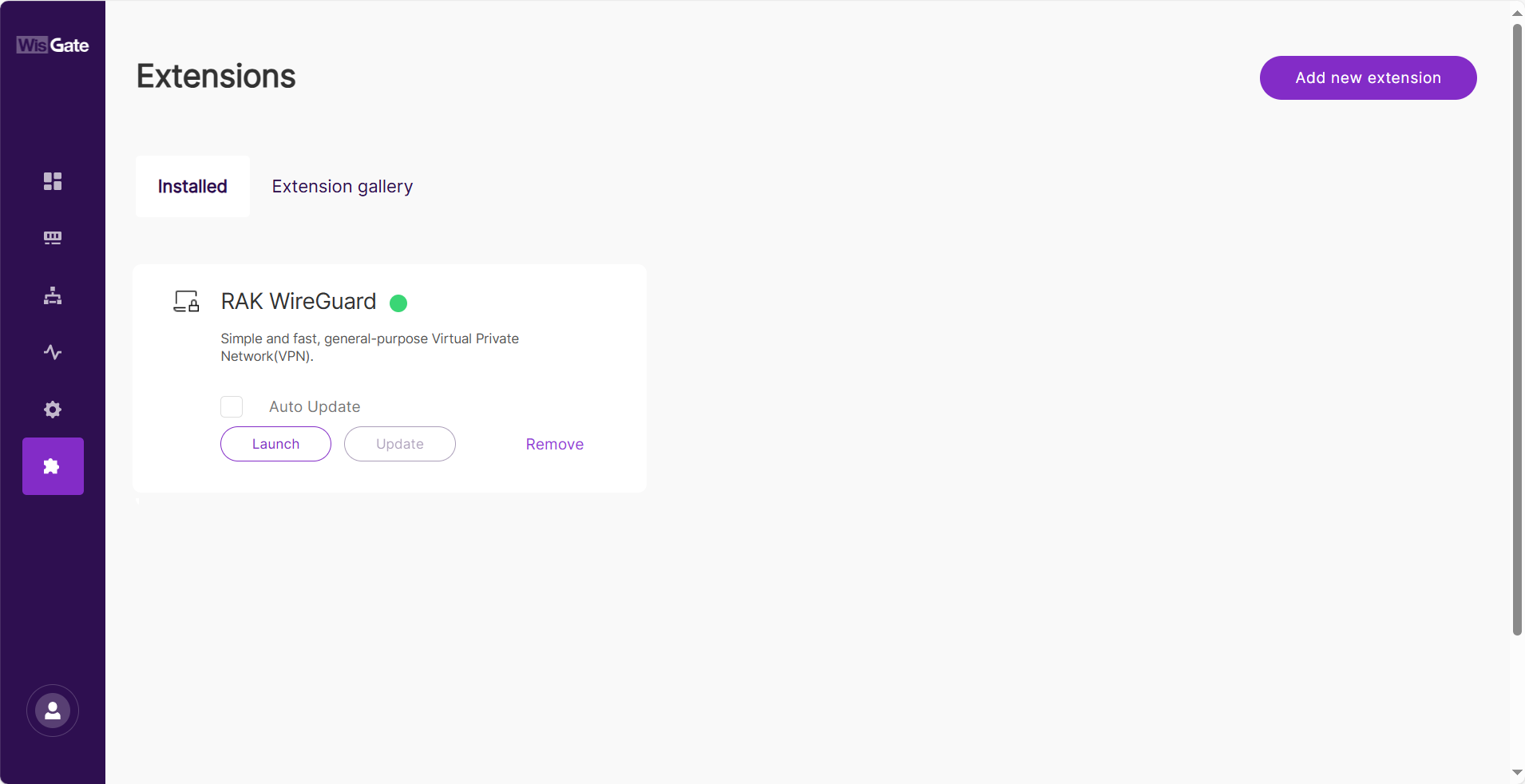 Figure 1: Launch the RAK WireGuard Extension
- In the Configuration page, enable the Enable WireGuard switch and configure the following information:
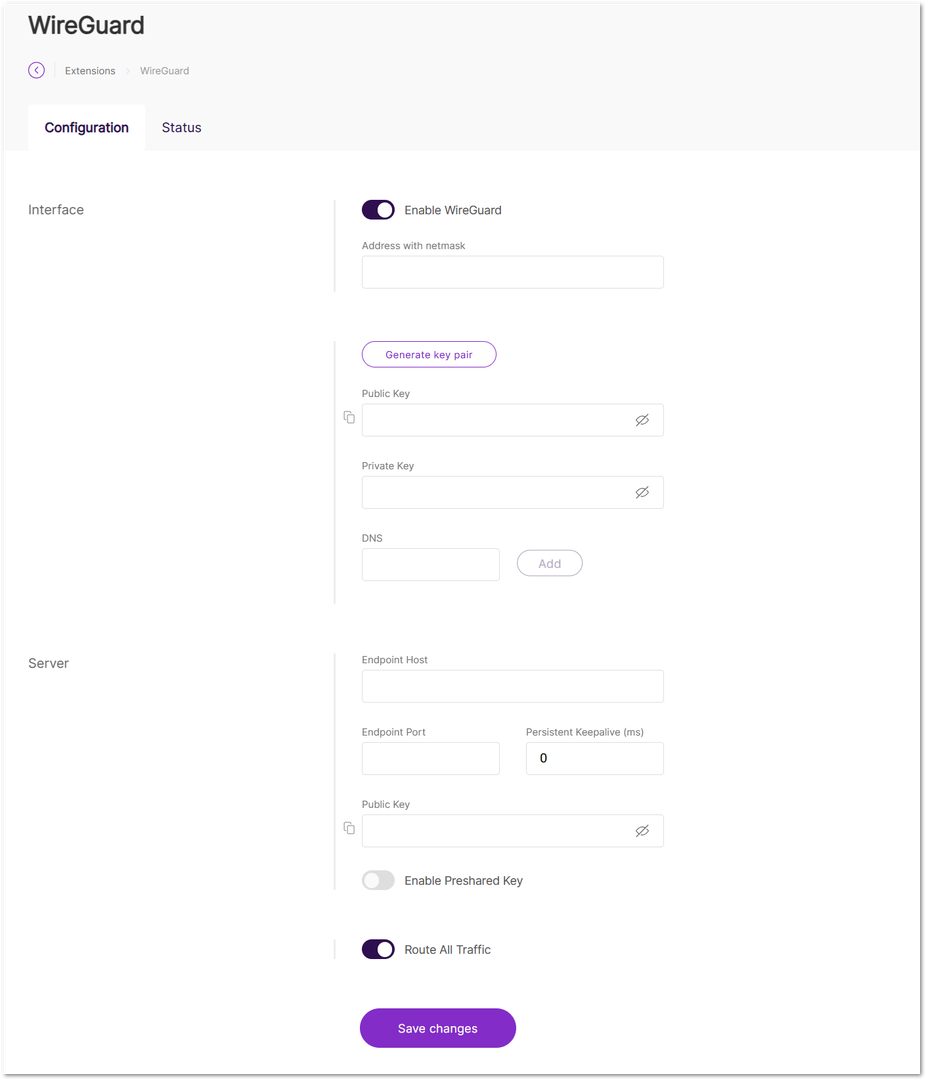 Figure 1: Configuration page
- Interface: Settings for the WireGuard client.
- Address with netmask: The IP address the WireGuard client will use. It must be in the same range (e.g.,
10.0.8.0to10.0.8.255) defined by the server. - Generate key pair: Automatically generates the key pair.
- Public Key: The public key of the WireGuard client.
- Private Key: The private key of the WireGuard client.
NOTE
Do not share your private key with anyone.
- DNS: The DNS server used by the client.
- Address with netmask: The IP address the WireGuard client will use. It must be in the same range (e.g.,
- Server: Settings for the WireGuard server.
- Endpoint Host: The IP address of the machine or cloud instance where the WireGuard server is hosted.
- Endpoint Port: The port used for WireGuard traffic.
- Persistent Keepalive (ms): The interval for sending keepalive packets to maintain the connection.
- Public Key: The public key of the WireGuard server.
- Enable Preshared Key: Enables the preshared key field. The preshared key is part of the Noise protocol used to establish an encrypted connection between peers.
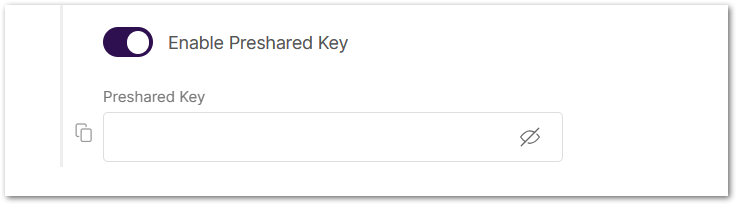 Figure 1: Enable preshared key
- Route All Traffic: Allows traffic from all IPs.
- Allowed IPs: Specifies the IPs that are allowed to connect to the gateway via the WireGuard IP. This option is only available when Route All Traffic is disabled.
- To save the changes, click Save changes.
NOTE
Remember to add the WireGuard Client credentials to the WireGuard server configuration.
- After the connection is established, open the Status tab to view the WireGuard connection.
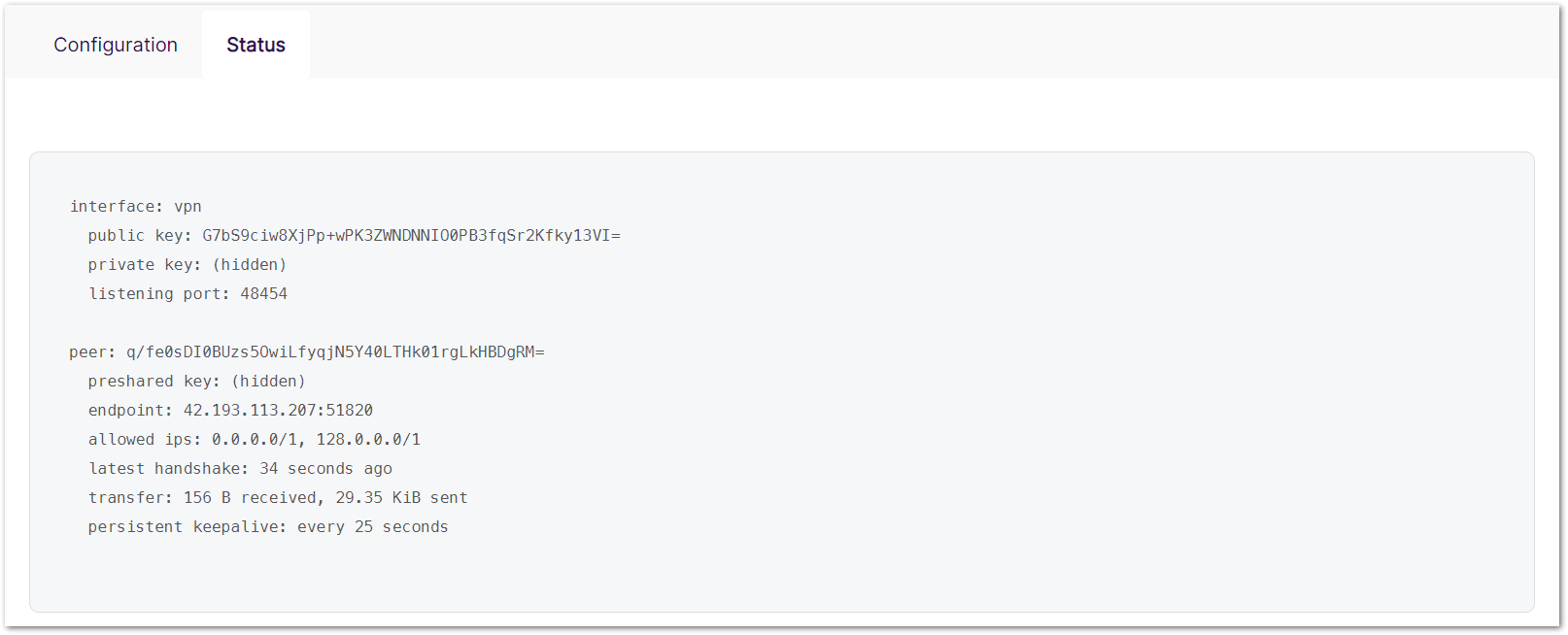 Figure 1: WireGuard status


