WisDM Create and Manage Locations
Use the Locations page to centrally manage all Locations in your organization or create new ones.
From the left navigation, click Locations to access the management console. Here, you can use the search bar to find specific locations.
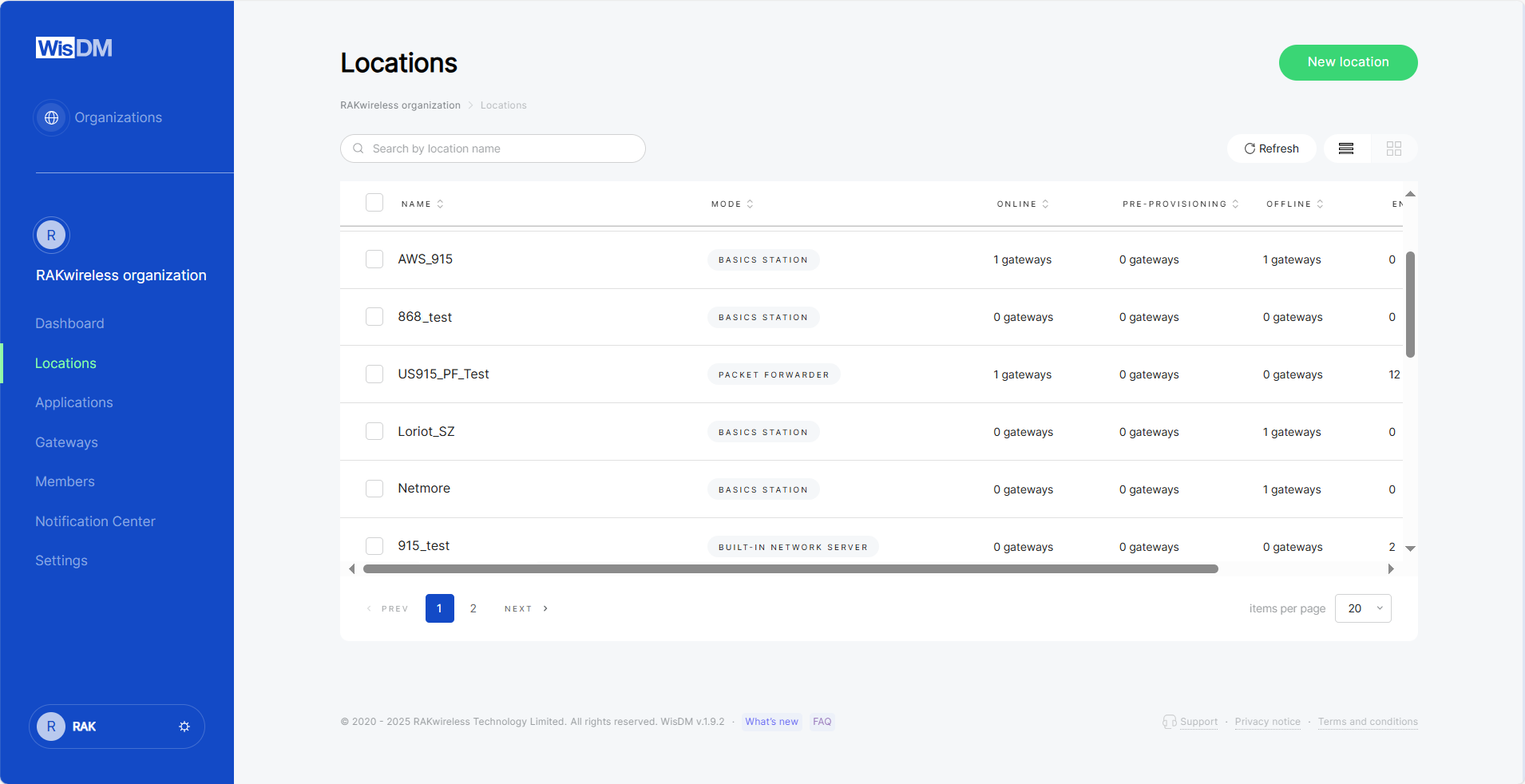 Figure 1: Locations
- Name: The name of the Location.
- Mode: Operating mode of the location; Packet Forwarder, Basics Station, Built-in Network Server, or No Mode.
NOTE
No Mode appears when a location is created but not yet configured. Use the Configure button to complete its setup.
- Online / Offline / Pre-Provisioning: Number of gateways in each status (online, offline, or pre-provisioned) under this location.
- End Devices: Number of end devices under this location.
Create a New Location
A Location is a logical or physical deployment area where gateways are grouped and managed together. Gateways assigned to the same Location inherit Location-level LoRaWAN® network settings.
To create a Location:
-
Go to Locations.
-
Click New location.
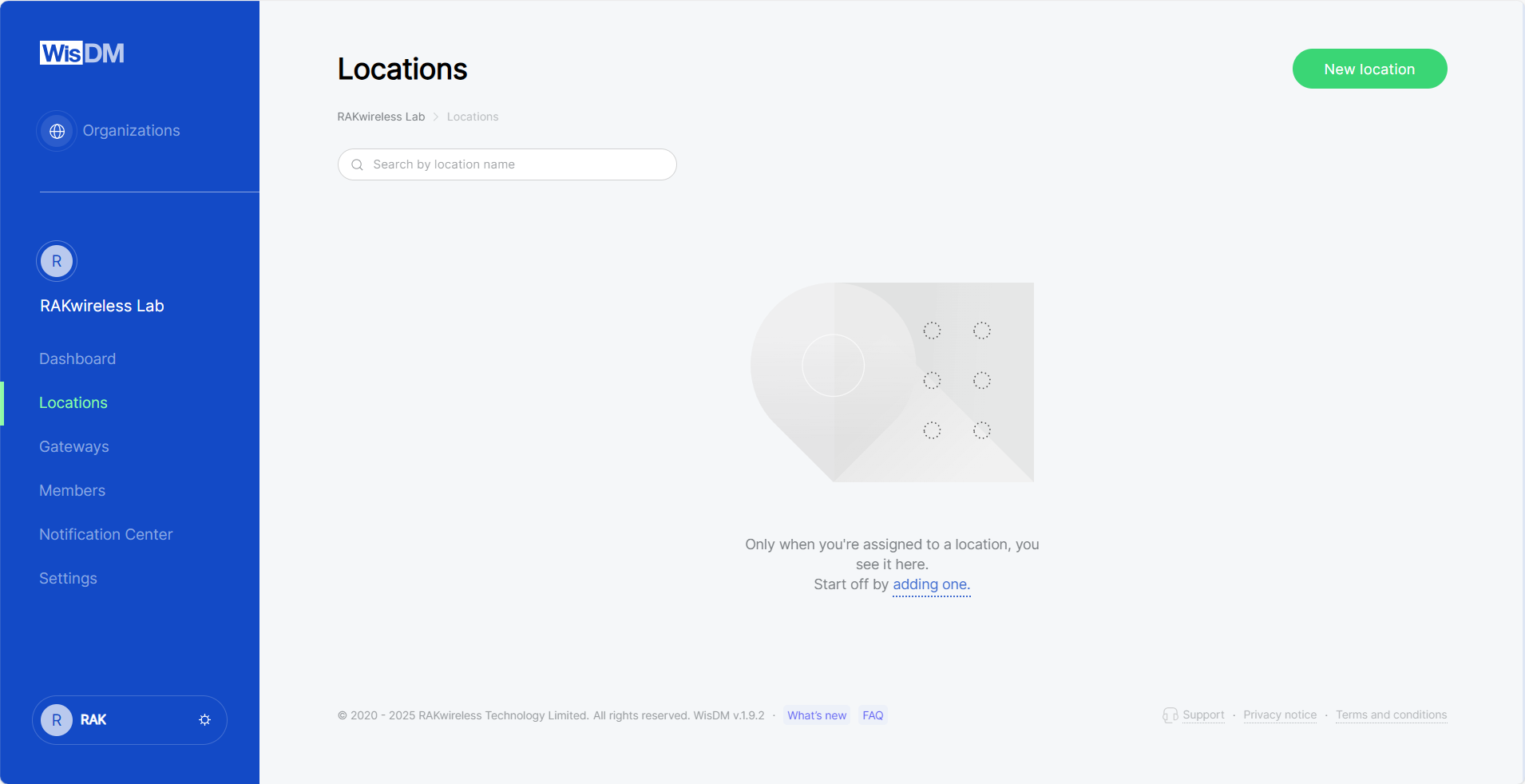 Figure 1: Locations tab
 -
Enter the location details and click Save location.
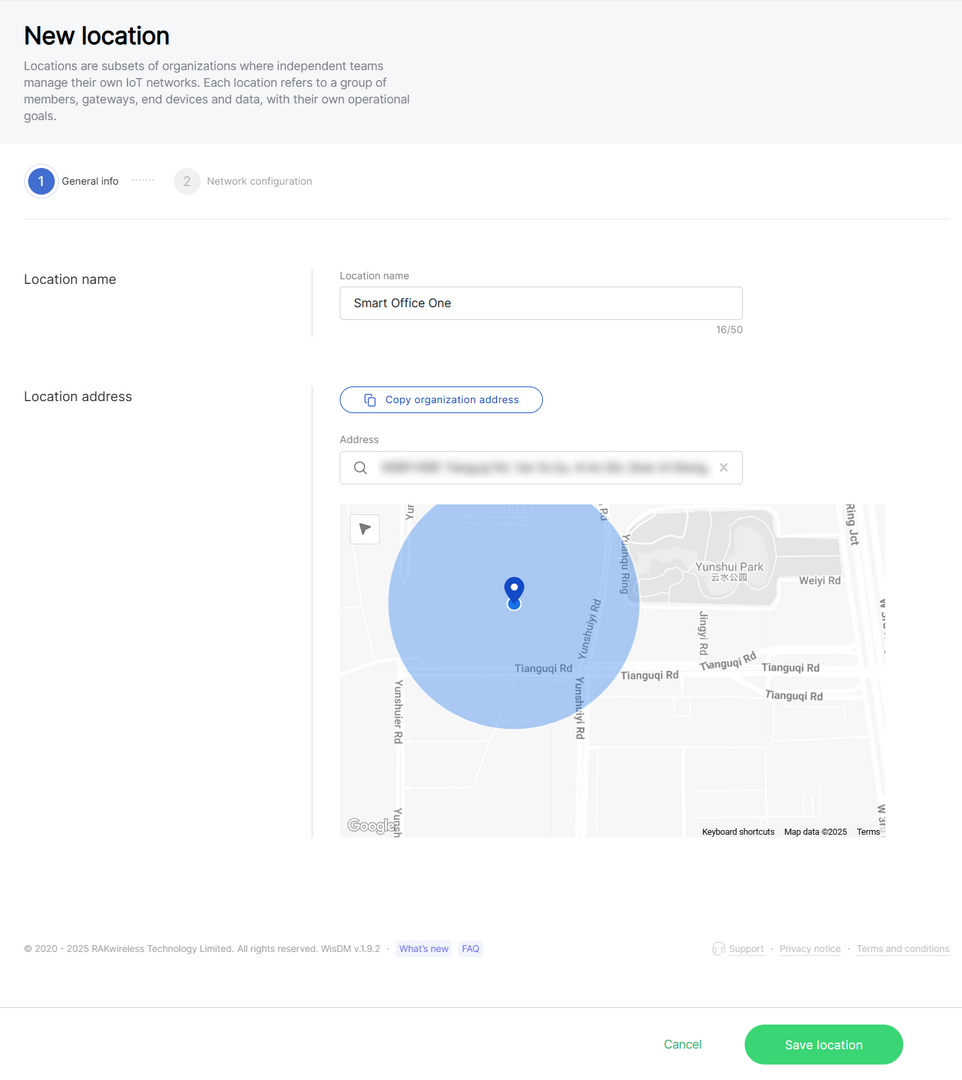 Figure 1: General information
- Location name: Choose a name of your choice, up to 50 characters.
- Location address: Either use the organization's address or provide a new one using the search bar or map.
-
Continue to the LoRaWAN network configuration. In the Network configuration step, select how gateways in this Location connect to the LoRaWAN Network Server.
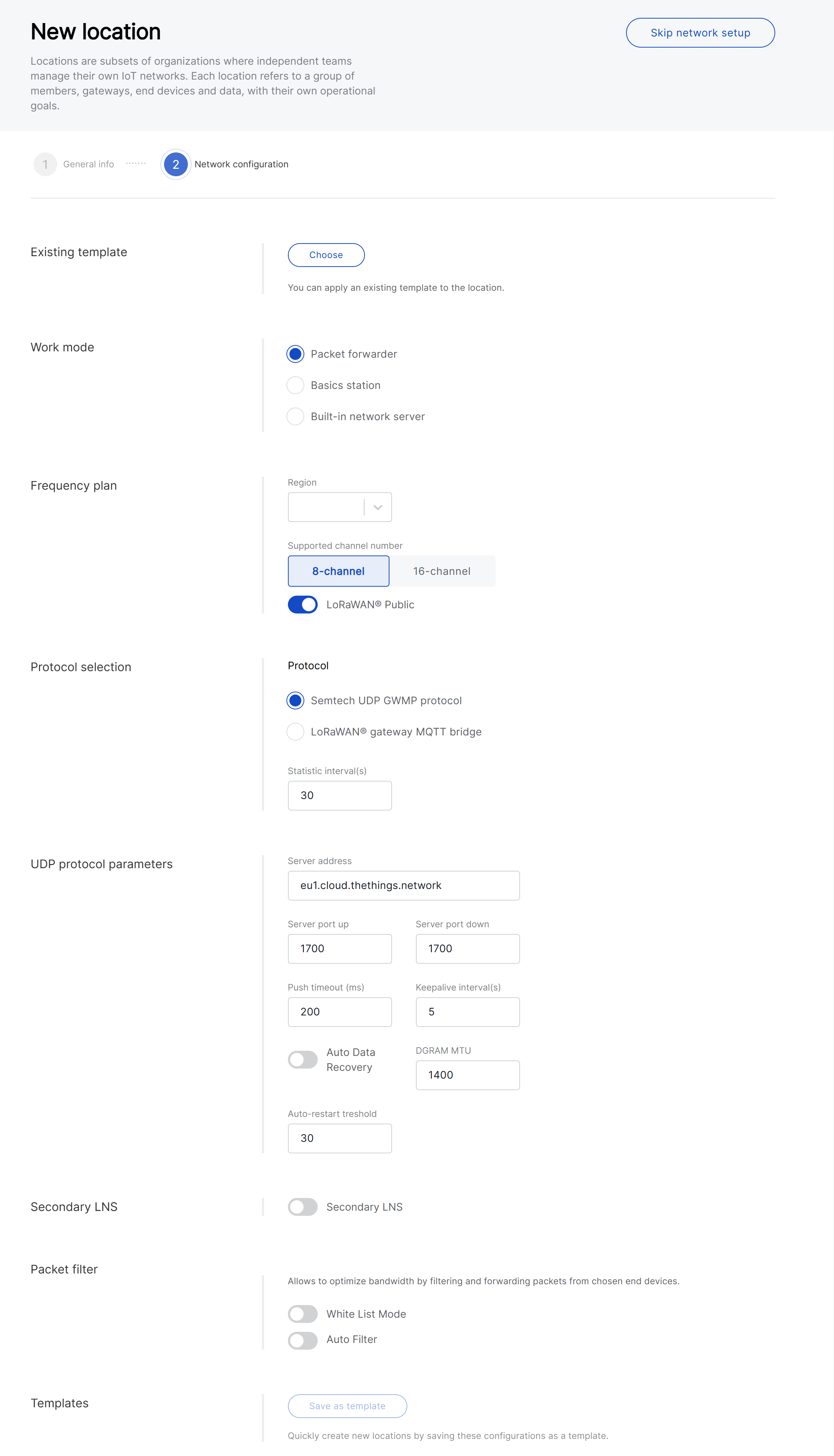 Figure 1: LoRaWAN network configuration
For detailed parameter descriptions and configuration steps for different work modes, such as Packet Forwarder, Basics™ Station, and Built-in Network Server, see LoRaWAN Network Configuration.
-
Click Save configuration to apply the changes.
View Location Details
To view a Location, go to Locations and select a Location from the list. You will enter the Location details page, where different tabs are available for managing this Location, such as General Configuration, Gateways, LoRaWAN, and other related modules.
Gateways
Access the Gateways tab to view and manage gateways assigned to this Location, add more gateways, reassign gateways, or synchronize network interface settings.
For details, see Gateway Management.
Applications
Access the Applications tab to create and manage Applications and end devices when the Location uses Built-in Network Server mode.
For details, see Applications.
General Configuration
In General Configuration, you can view and update the basic information of the Location.
- Location name: The name used to identify the Location in WisDM.
- Location address: The deployment address of the Location. You can update it by searching for an address, selecting a point on the map, or using Copy organization address to apply the Organization address.
- Delete this location or Removal request: Deletes the Location or starts a removal request, depending on your role and permissions. For details, see Delete or Request Removal of a Location.
LoRaWAN
Access the LoRaWAN tab to configure the Location-level LoRaWAN network mode, frequency plan, server parameters, and related settings.
For details, see LoRaWAN Network Configuration.
Firmware Updates
Access the Firmware updates tab to update gateway firmware, enable critical updates, and review update status for gateways under this Location.
For details, see Bulk Firmware Updates.
Notifications Settings
Access the Notification settings tab to configure Location-level notification rules or inherit Organization-level notification settings.
For details, see Location-Level Notification Settings.
Export Location Information
WisDM allows you to export Location information as a CSV file. The exported file can include basic Location information and LoRaWAN network configuration details.
To export Location information:
-
Go to the Location list.
-
Select one or more Locations, then click Export CSV.
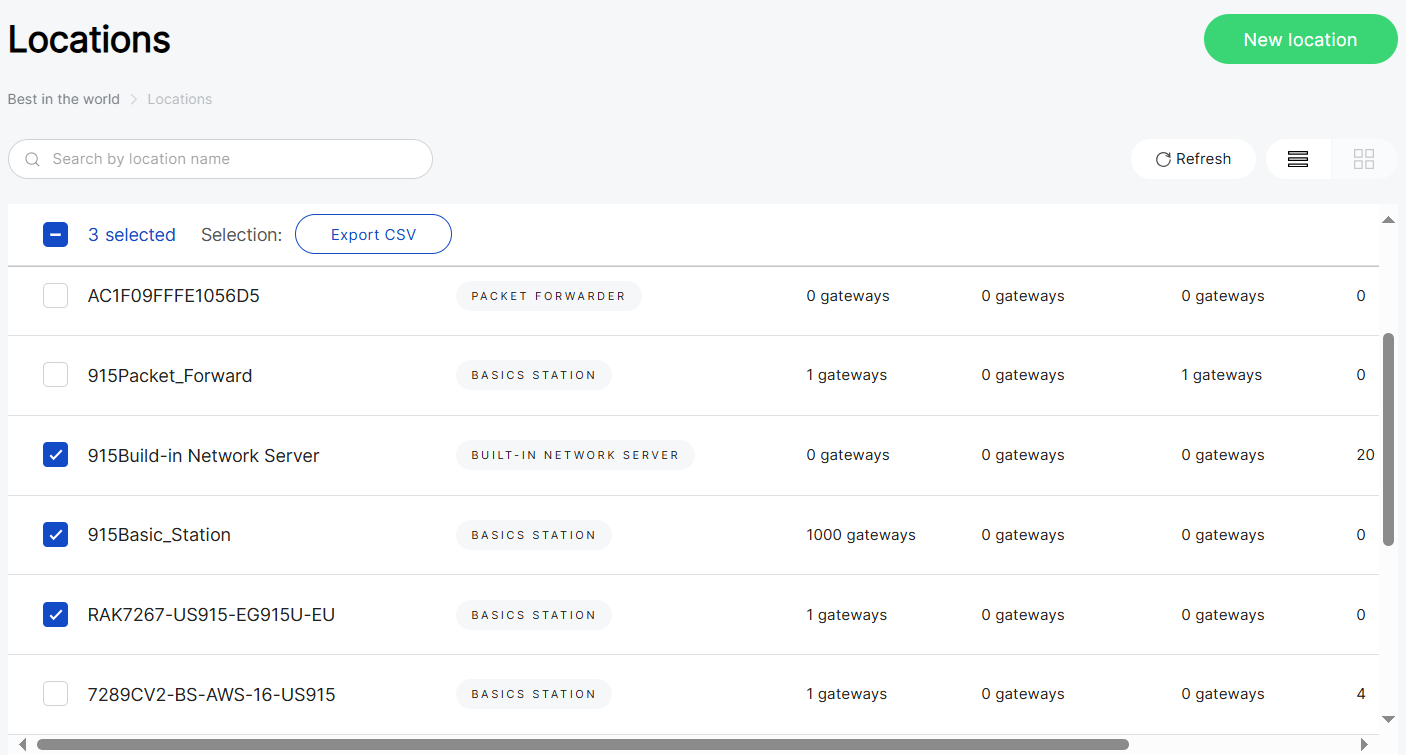 Figure 1: Location List
 -
In the export dialog, select at least one data group to include in the CSV file.
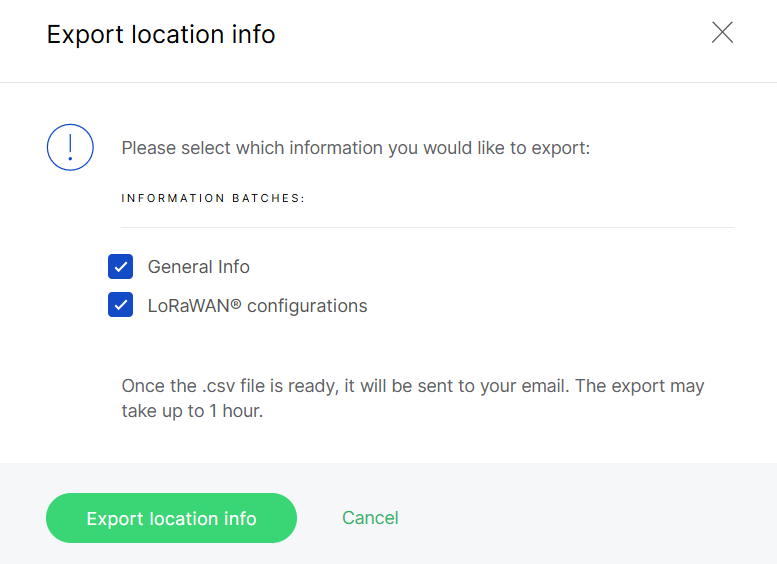 Figure 1: Location info
Data Group Description General Info Includes Location mode, gateway status counts, end device count, address, and critical firmware update setting. LoRaWAN Configurations Includes frequency plan, protocol settings, server parameters, MQTT settings, secondary LNS settings, and packet filter settings. -
Click Export location info.
After the export request is submitted, WisDM starts generating the CSV file. You can leave the page while the file is being generated. When the file is ready, WisDM sends it to your email. The export process may take up to 1 hour.
Delete or Request Removal of a Location
WisDM supports two Location removal workflows, depending on your role:
- Organization Admin: Can permanently delete a Location.
- Location Admin: Can request Location removal. The request must be reviewed by an Organization Admin.
Before deleting a location, please note:
- This action cannot be undone.
- All location-level settings, applications, and end devices will be permanently removed.
- Assigned gateways are not deleted. They will be automatically unassigned but remain associated with the organization.
Request Location Removal
A Location Admin can request removal of a Location from the General Configuration page.
-
Go to Locations and select the target Location.
-
Open General Configuration.
-
In the Request removal section, click Removal request.
 Figure 1: Request removal
 -
Review the confirmation message.
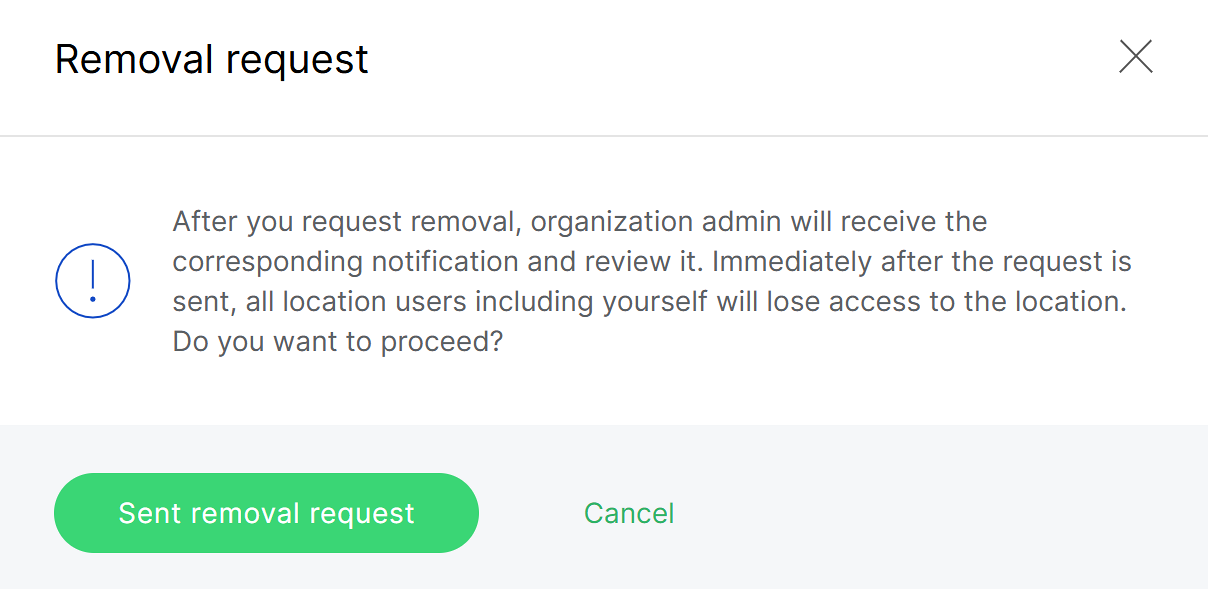 Figure 1: Removal request confirmation
 -
Click Sent removal request.
After the request is sent:
- The Location is marked as Location is pending for removal in the Location list.
- Location users, including the requester, lose access to this Location and its assets.
- Organization Admins receive an email notification with the request details.
- The request does not expire until it is reviewed or cancelled.
A Location Admin with the required permission can cancel the removal request from the Location List. After cancellation, the Pending removal status is removed and access is restored.
Delete a Location
Organization Admins can permanently delete a Location in two ways:
- Delete a Location directly from the Location List.
- Review a Location removal request and then delete the Location.
In both cases, deleting a Location is permanent.
Delete from the Location List
Use this method when you want to delete a Location directly, without a pending removal request.
- Go to Locations.
- In the Location List, open the actions menu for the target Location.
- Click Delete this location.
- In the confirmation dialog, review the warning message.
- Enter your RAK ID password. If 2FA is enabled for your RAK ID, also enter the code from your authenticator app.
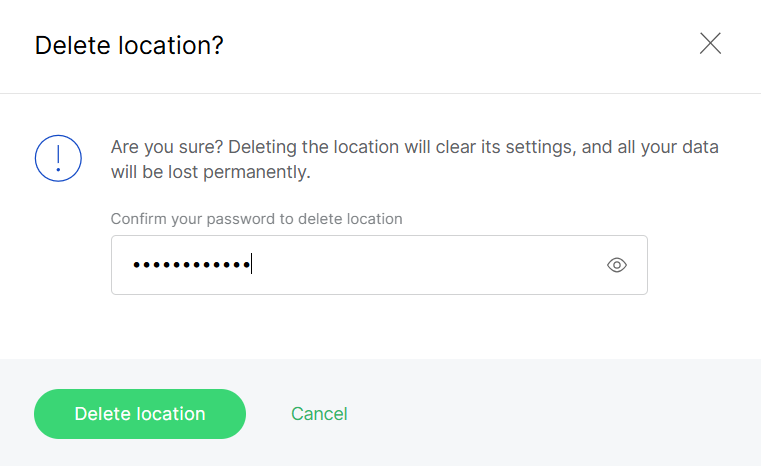 Figure 1: Delete a Location
- Click Delete location.
Delete After Reviewing a Removal Request
Use this method when a Location Admin has requested removal of a Location.
-
Open the removal request in either of the following ways:
- Click Review request from the email notification.
- Click Review in the Location list.
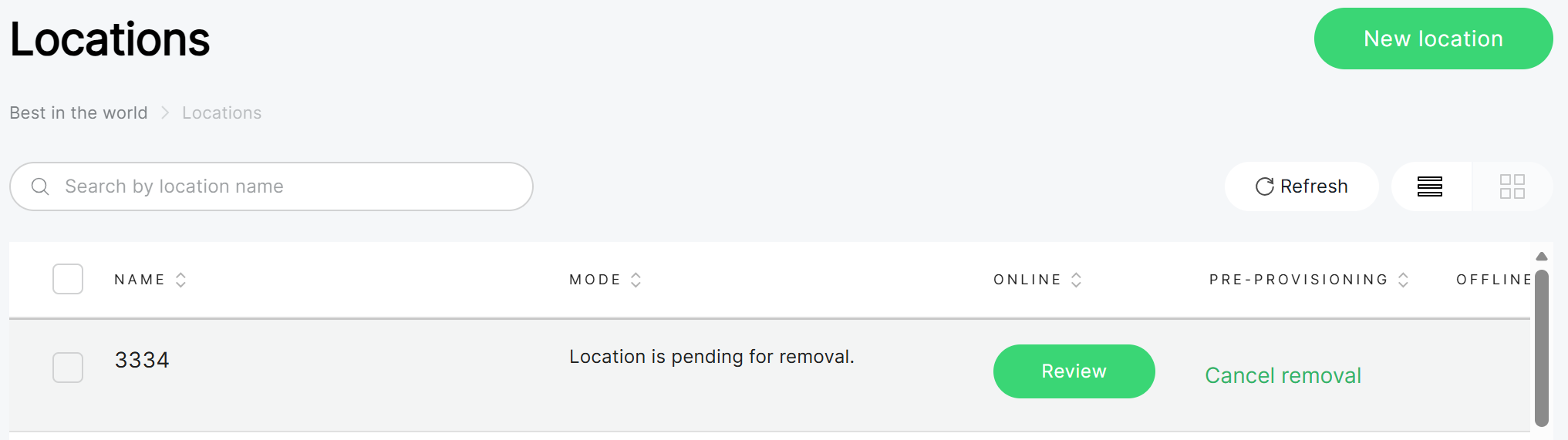 Figure 1: Location pending removal
 -
Review the removal request summary, including the requester and request time.
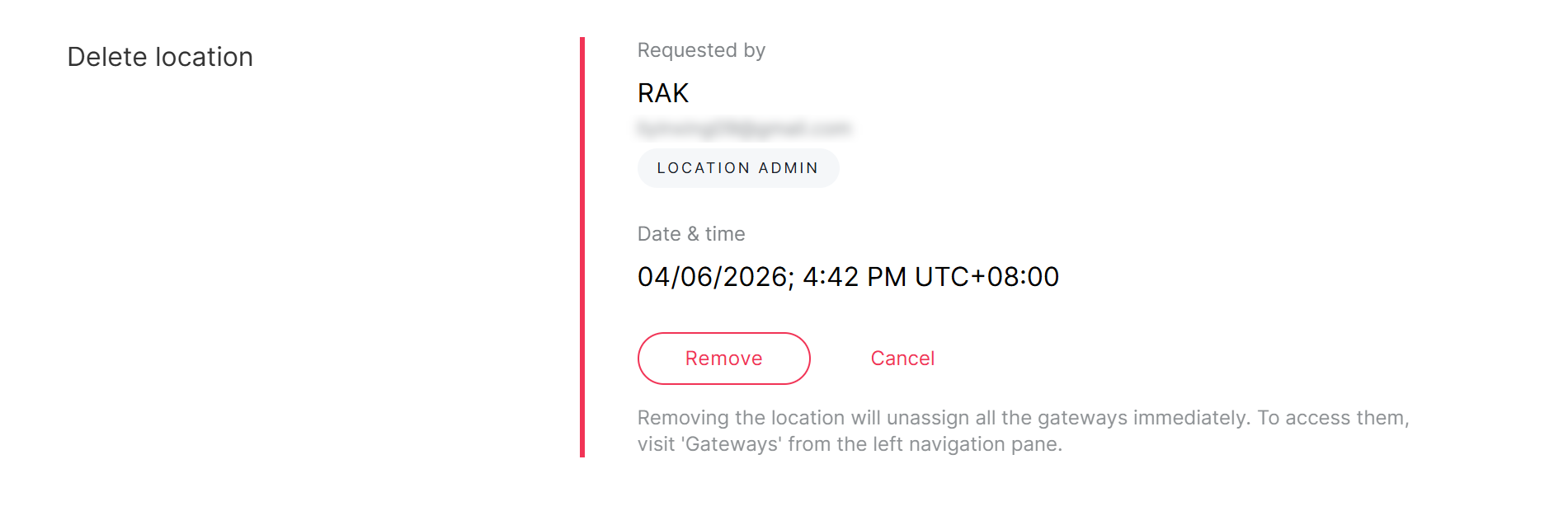 Figure 1: Review removal request
 -
Click Remove.
-
In the confirmation dialog, review the warning message.
-
Enter your RAK ID password. If 2FA is enabled for your RAK ID, also enter the code from your authenticator app.
Figure 1: Delete a Location -
Click Delete location.
Cancel a Removal Request
A pending removal request can be cancelled from the Location List.
- Organization Admins can click Cancel removal next to the Location marked as Location is pending for removal.
- A Location Admin with the required permission can also cancel the removal request from the Location List.
After cancellation, the pending removal status is removed and access to the Location is restored.


