WisDM Bulk Firmware Updates
If newer firmware versions are available, you can upgrade multiple gateways under the same Location at once.
WisDM provides two types of firmware updates for gateways under a Location:
- Standard Updates: Regular releases that include new features, performance improvements, or minor bug fixes.
- Critical Updates: Security patches or urgent fixes that should be applied as soon as possible.
Standard updates can be triggered manually by administrators for gateways under a Location. Critical updates can be applied automatically to eligible gateways when a critical firmware version becomes available.
Standard Firmware Updates
Prerequisites
- For manual standard updates, FOTA must be enabled on gateways that will receive the update.
- Gateways must be powered by a stable power supply to prevent failures during the update process.
- Gateways with a pending or in-progress firmware update are not included in a new manual firmware update.
- Gateways will reboot during the update, which may cause short service interruptions.
- Schedule upgrades during off-peak hours to minimize impact.
- Use a staged strategy: test on a small group of gateways before rolling out to the entire Location.
Update Gateways Manually
- In Locations > Your location > Gateways, click Update firmware.
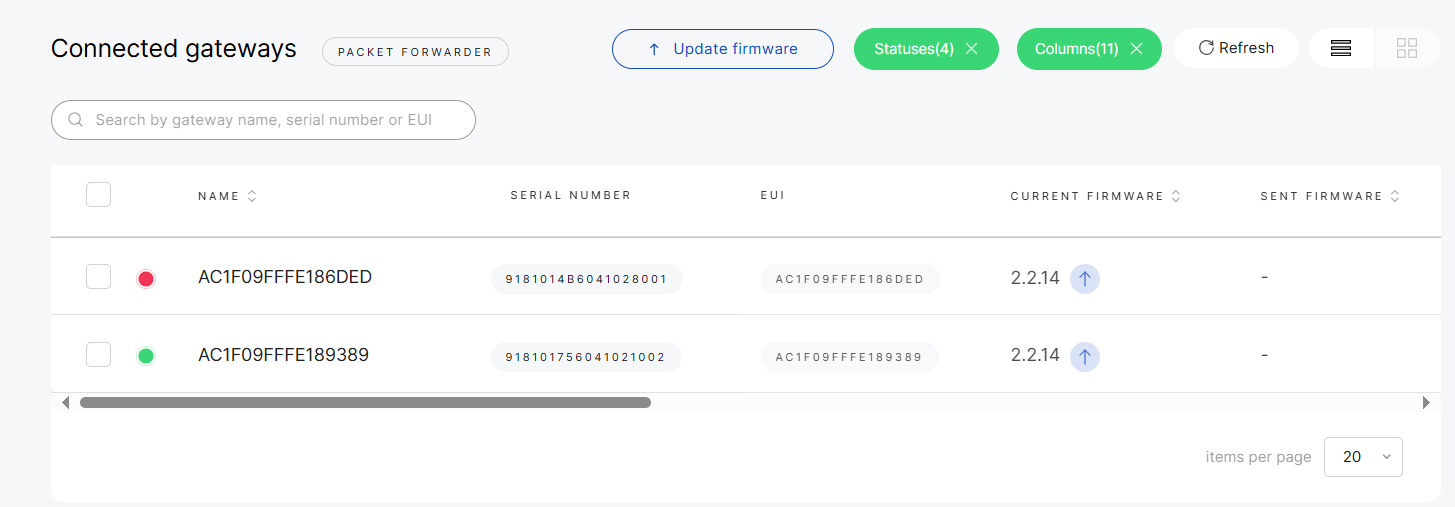 Figure 1: Update firmware
- Select the gateways and target firmware version.
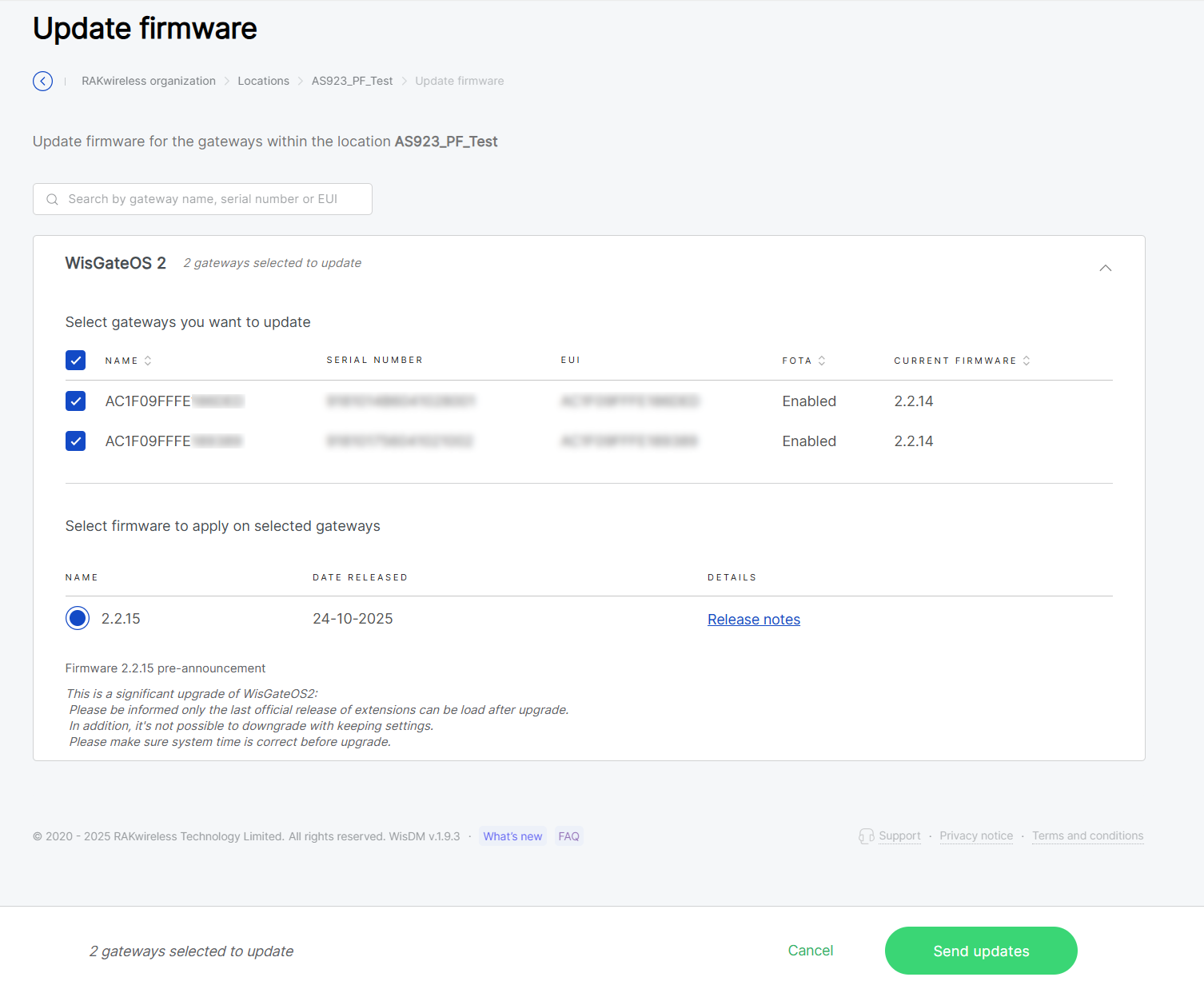 Figure 1: Select gateways and firmware version
- In the firmware update dialog, WisDM displays gateways that are eligible for manual update. Gateways that already run the latest available firmware, or have a pending or in-progress firmware update, are not included.
- If a selected firmware version is the same as or older than a gateway’s current firmware version, WisDM marks that gateway with a validation message and ignores it during the update process. The gateway will not be downgraded or updated to the same version.
- If a firmware version shows a Prerequisite, the gateway must first be updated to the required intermediate firmware version before installing the selected target version. The prerequisite firmware also appears in the firmware list, even if it is not one of the latest available versions.
- Confirm the selected gateways and firmware versions, then click Update selected gateways.
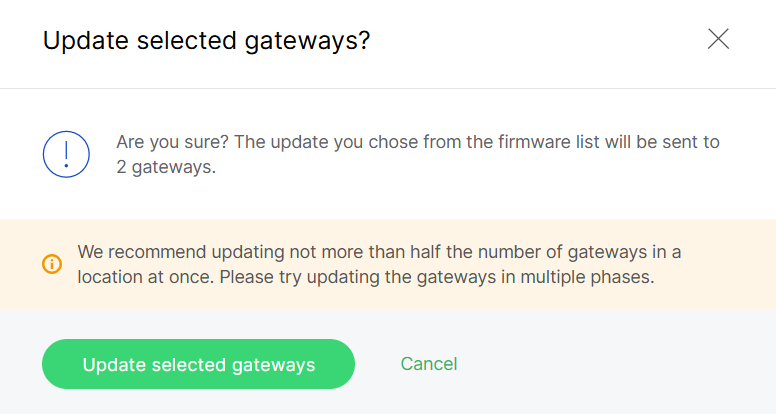 Figure 1: Confirm firmware upgrade
If a selected gateway is offline, its firmware update will remain in Pending status. You can cancel the update at any time before the upgrade begins by navigating to the gateway's System Settings > Firmware and clicking Cancel pending update.
Critical Firmware Updates
Critical firmware updates address security or data integrity issues and should be applied immediately. Critical updates are handled differently from manual standard updates. A critical update can be pushed to eligible gateways regardless of their Enable FOTA setting and regardless of whether the gateway is online, offline, or in provisioning status.
- Navigate to Locations > Your location > Firmware updates > Settings.
- Toggle Enable critical updates.
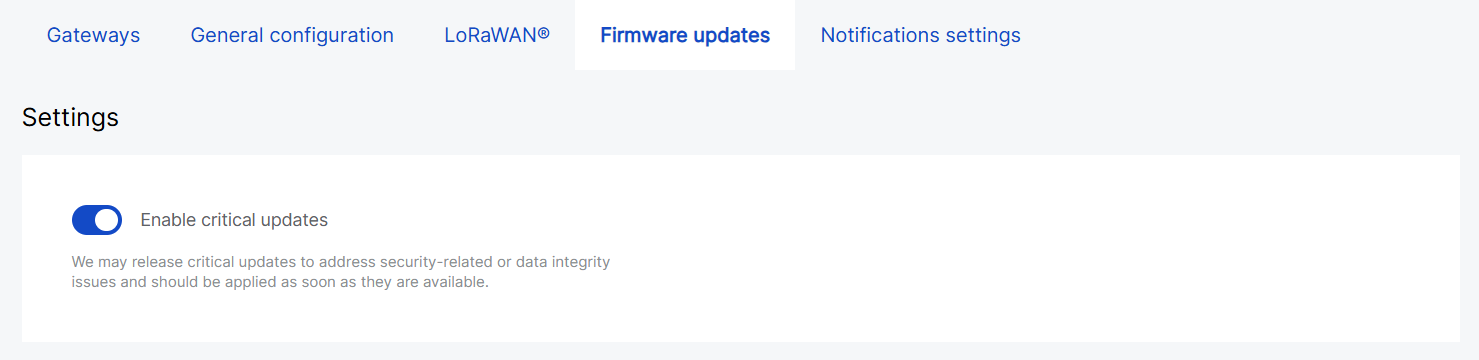 Figure 1: Enable Critical Updates
When a critical firmware version is released, WisDM can automatically send it to:
- Eligible gateways in Locations where Enable critical updates is turned on.
- Eligible unassigned gateways in the Organization.
- A gateway will receive the critical update only if it matches the affected firmware model and meets any required firmware prerequisite. If the gateway is running an older version than the required prerequisite, update the gateway to the prerequisite firmware first. After that, WisDM can apply the critical update when it becomes available for the gateway.
- Critical updates can be pushed to eligible gateways regardless of the gateway status, including online, offline, or provisioning, and regardless of the gateway’s Enable FOTA setting.
View Firmware Update Status
WisDM offers a dedicated page for checking the firmware update status across a Location.
To access it, navigate to Locations > Your location > Firmware updates > Last updates.
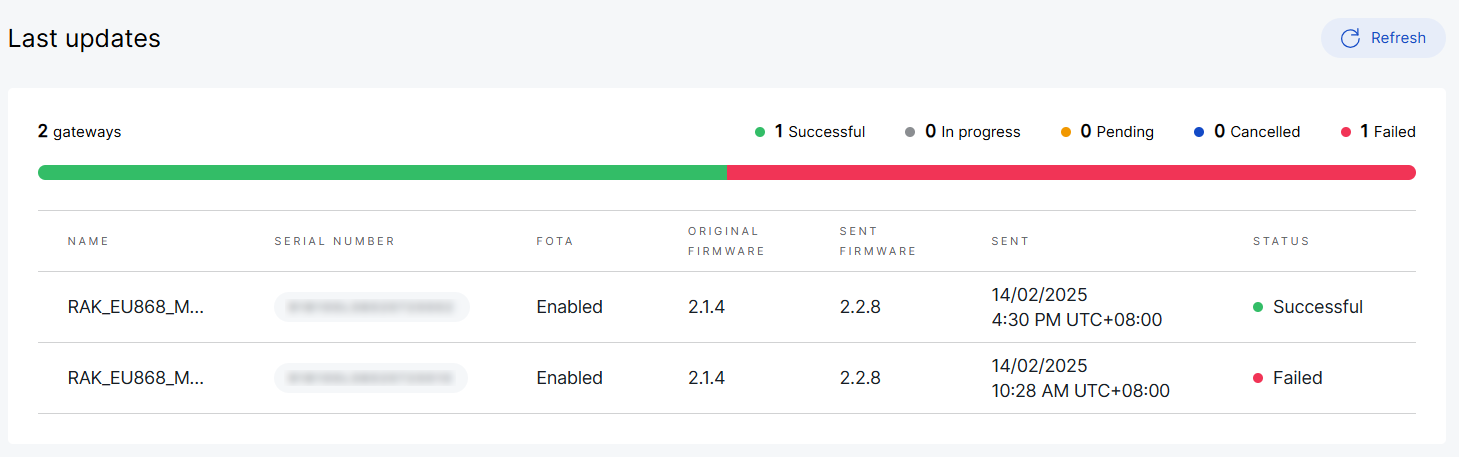 Figure 1: Check firmware update status
- Successful: Gateways that have completed the update.
- In progress: Updates that are currently running.
- Pending: Updates that are scheduled but have not yet started.
- Cancelled: Updates that were manually canceled by the user before installation began. The gateway will remain on its previous firmware version.
- Failed: Updates that did not complete successfully. Administrators can re-trigger these updates after troubleshooting.
If firmware update notifications are enabled in your account settings, WisDM will send an email summary after each update process.


