WisDM Location Diagnostics
Packet Capture
The system allows you to perform real-time packet capture across multiple gateways within a single Location. This feature is useful for analyzing network traffic, verifying LoRaWAN message flow, and diagnosing communication issues.
- From the Locations list, open the action menu and select Open packet capture, or go to the Location Details page and click Open packet capture.
 Figure 1: Starting a packet capture session from the Locations view
-
In the Duration section, choose how long the packet capture should run:
- 1 min
- 5 min
- 10 min
- or Custom duration
-
Adjust capture parameters by applying filters to refine the collected data.
- Click on Type to select which LoRaWAN® message types to capture (as shown in the second image).
Available options include:
- Join request
- Join accept
- Unconfirmed data up
- Unconfirmed data down
- Confirmed data up
- Confirmed data down
- Other
- Click Gateways to limit the capture to specific gateways.
- Additional filters, such as RSSI or SNR can also be applied if needed.
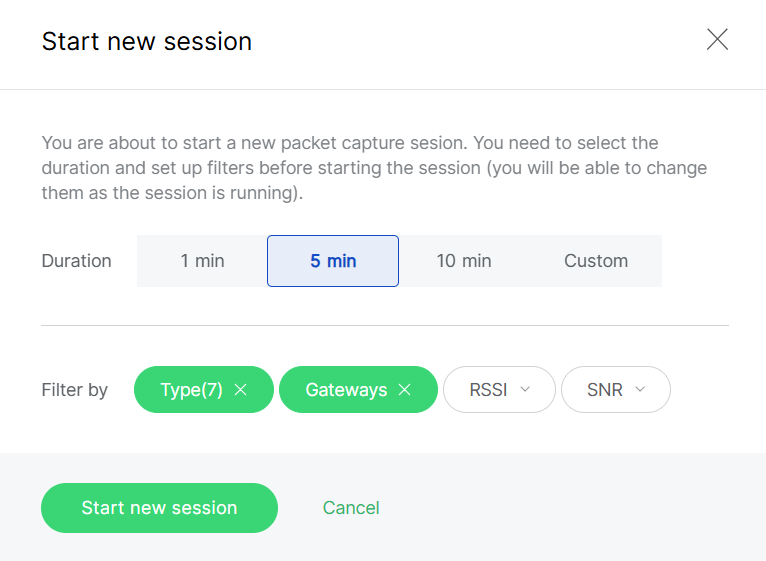 Figure 1: Set capture parameters
- Once filters and duration are set, click Start new session to begin capturing packets. Filters can be modified even while the session is active.
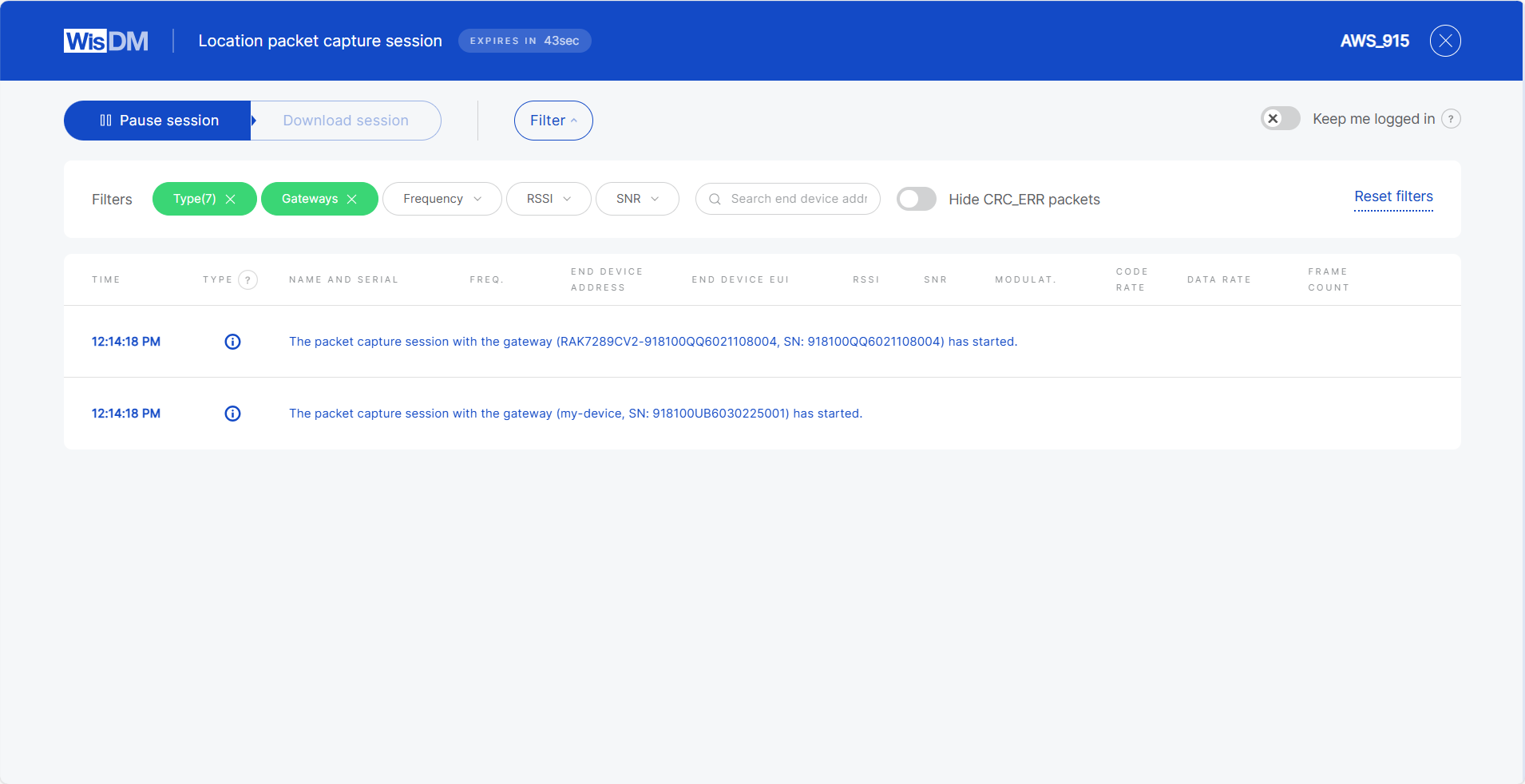 Figure 1: Start session
Keep Me Logged In
For security reasons, WisDM automatically logs you out after 15 minutes of inactivity. If your packet capture session lasts longer than 15 minutes, ensure that you enable the Keep me logged in toggle during the session to prevent interruption.


