WisDM Extensions Management
Extensions are optional gateway features that can be installed and managed from WisDM. They provide additional capabilities for your gateway.
In the Extensions tab, you can view installed extensions, browse compatible extensions from the Extension gallery, install and configure an extension, update its configuration, or deinstall it when it is no longer needed.
Before using Extensions in WisDM, make sure the following conditions are met:
- To manage extensions from WisDM, the gateway must run WisGateOS 2 2.3.1 or later. Earlier versions may still support extensions locally on the gateway.
- The gateway must be assigned to a location. Unassigned gateways only support viewing extensions and their current status.
- Extensions can be installed on online, offline, or pre-provisioning gateways. If the gateway is offline or not ready to receive the request, the installation is applied after the gateway comes online.
- Extension availability depends on the gateway firmware version and hardware model.
- Only Organization Admins and Location Admins can manage extensions. Supervisors can only view extensions within their access scope.
Supported Extensions
WisDM supports managing selected gateway extensions from the cloud. The actual extensions available for installation may vary depending on the gateway firmware version, hardware model, and the compatibility requirements of each extension.
| Extension | Description |
|---|---|
| Wi-Fi Reboot | Periodically checks Wi-Fi connectivity and, if all tests fail, reboots the Wi-Fi module or the entire gateway to restore connection. |
| Cellular Failover Reboot | Monitors the gateway network links, including LTE, Ethernet, and Wi-Fi. If all enabled links are offline, the extension attempts to restore connectivity by rebooting the LTE module or the gateway. |
| Operation and Maintenance | Provides maintenance functions such as scheduled gateway reboot and cellular network monitoring. If the cellular connection is lost, the extension can restart the cellular module automatically. |
| RAK Open/Close Port | Allows users to manage gateway traffic rules by opening or closing specific ports and limiting access based on source IP settings. |
View Extension Gallery
The Extension gallery displays the extensions that are supported by WisDM and shows their availability for the selected gateway.
- Go to Gateways.
- Select the target gateway.
- Open the Extensions tab.
- Select Extension gallery.
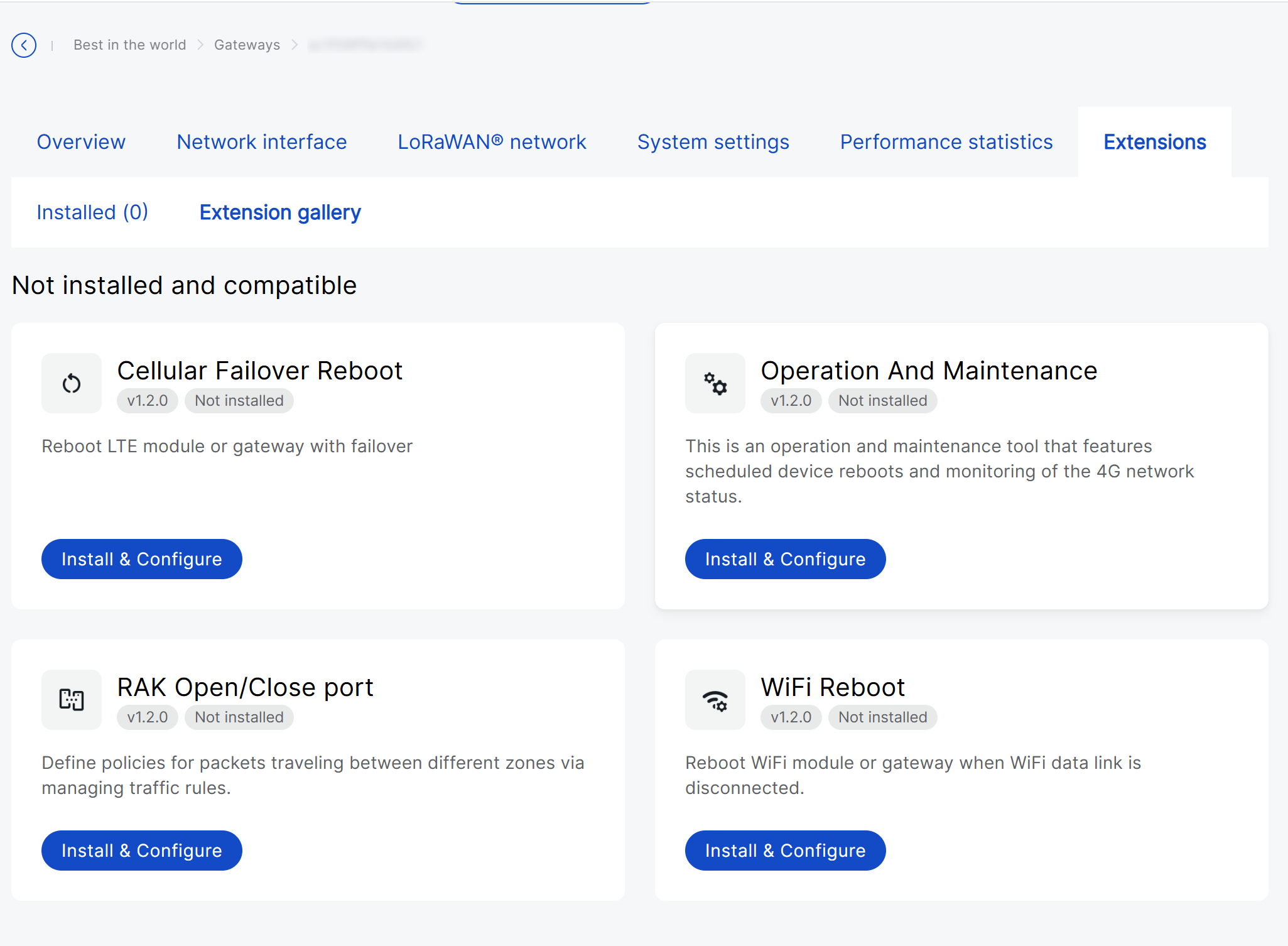 Figure 1: Extension gallery
The Extension gallery displays extensions based on their installation and compatibility status.
| Category | Description |
|---|---|
| Installed or being installed | Extensions that have been installed or are already in the configuration, update, or deinstallation lifecycle on the gateway, such as configured, in-progress, update pending, update failed, or deinstallation-related states. |
| Not installed and compatible | Extensions that are compatible with the selected gateway and can be installed. This category may also include extensions in Installation pending status, because they have not been installed on the gateway yet. |
| Incompatible | Extensions that are not available for the selected gateway due to firmware version, hardware model, or extension-specific requirements. |
Install and Configure an Extension
Most extensions can be installed and configured in one workflow. The available configuration options depend on the selected extension.
To install and configure an extension:
- Go to Gateways > select a gateway.
- Open the Extensions tab.
- Select Extension gallery.
- In the Not installed and compatible section, find the extension you want to install and click Install & Configure.
- Review the Extension version and select the extension update mode. If Auto Update is enabled, the gateway can automatically update the extension when a new compatible version is available.
- Configure the required parameters for the selected extension. The configuration parameters vary by extension. For details, refer to Extension Configuration Details.
- Click Install.
After you click Install, WisDM sends the request to the gateway. For most extensions, installation and configuration are processed as two stages:
Installation → Configuration → Installed and configured
During the process, the extension status may change as follows:
| Status | Description |
|---|---|
| Installation pending | The installation request has been submitted, and WisDM is waiting for the gateway to confirm the installation result. The recent updates may take up to 180 seconds to reflect on the gateway. If the gateway is offline or not ready to receive the request, the installation is applied after the gateway comes online. |
| Installation in progress | The gateway is installing the extension. Configuration fields and action buttons are temporarily unavailable. |
| Configuration pending | The installation stage has been completed, and the gateway is waiting to apply the initial configuration. |
| Configuration in progress | The gateway is applying the extension configuration. Configuration fields and action buttons are temporarily unavailable. |
| Installed and configured | The extension has been successfully installed and configured. You can view, reconfigure, or deinstall the extension. |
| Installation failed | The extension could not be installed. You can retry the installation or cancel it when the options are available. |
| Configuration failed | The extension was installed, but the initial configuration could not be applied. You can update the configuration, retry, or deinstall the extension when the options are available. |
Extension Configuration Details
Wi-Fi Reboot
Overview
This extension monitors Wi-Fi connectivity by periodically sending ping and httping requests to specified targets. If all tests consistently fail, it will trigger a Wi-Fi module reboot, and escalate to a full system reboot if necessary.
How It Works
- Scheduled Connectivity Tests
- Performs ping tests to all user-defined IP targets at regular intervals.
- If all ping targets fail, the system proceeds to the next step.
- Fallback HTTPing
- Sends HTTP requests to all configured web URLs.
- If all HTTPing targets also fail, the system records a failure count and begins recovery.
- Recovery Mechanism
- Step 1: Reboots the Wi-Fi module to attempt recovery.
- Step 2: If failures continue after rebooting the module, the extension will reboot the entire gateway.
If the gateway remains reachable through a backup connection (e.g., Ethernet or Cellular), and any ping or httping test succeeds through that path, no recovery action will be triggered, even if the Wi-Fi interface is down.
Configuration
This section describes the configuration parameters of the Wi-Fi Reboot extension.
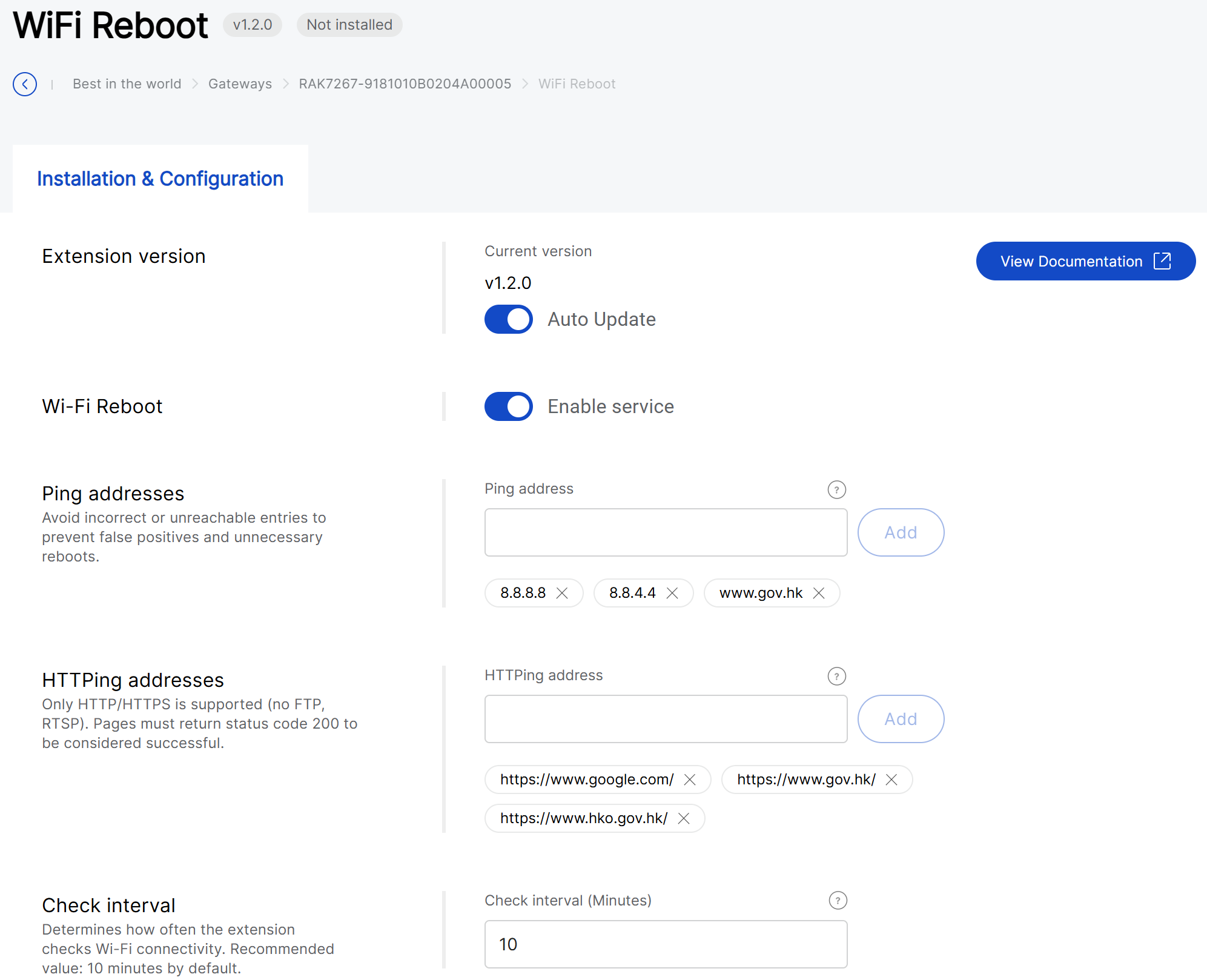 Figure 1: Wi-Fi reboot config
| Field | Description |
|---|---|
| Current version | Displays the current version of the extension. |
| Auto Update | Enables or disables automatic extension version updates. If enabled, the gateway checks for compatible extension updates and installs them automatically. |
| Enable Service | Enables or disables the Wi-Fi Reboot extension. |
| Ping addresses | Defines one or more IP addresses or domain names used for ping checks. Examples: 8.8.8.8, 8.8.4.4, www.gov.hk. ⚠️ WARNING Avoid incorrect or unreachable entries to prevent false positives and unnecessary reboots. |
| Httping addresses | Defines one or more HTTP or HTTPS URLs used for HTTPing checks. The URL must include http:// or https://. Examples: https://www.google.com/, https://www.gov.hk/. ⚠️ WARNING Only HTTP/HTTPS is supported (no FTP, RTSP). Pages must return status code 200 to be considered successful. |
| Check interval (Minutes) | Determines how often the extension checks Wi-Fi connectivity. |
Cellular Failover Reboot
Overview
The Cellular Failover Reboot extension helps restore gateway connectivity when all enabled network links are offline. It checks LTE, Ethernet, and Wi-Fi links. If at least one link is online, no action is taken.
If all links are offline, the extension first tries to recover the connection by restarting the LTE service when LTE is enabled. If the connection still cannot be restored after multiple attempts, or if LTE is not enabled, the gateway is rebooted.
Configuration
This section describes the configuration parameters of the Cellular Failover Reboot extension.
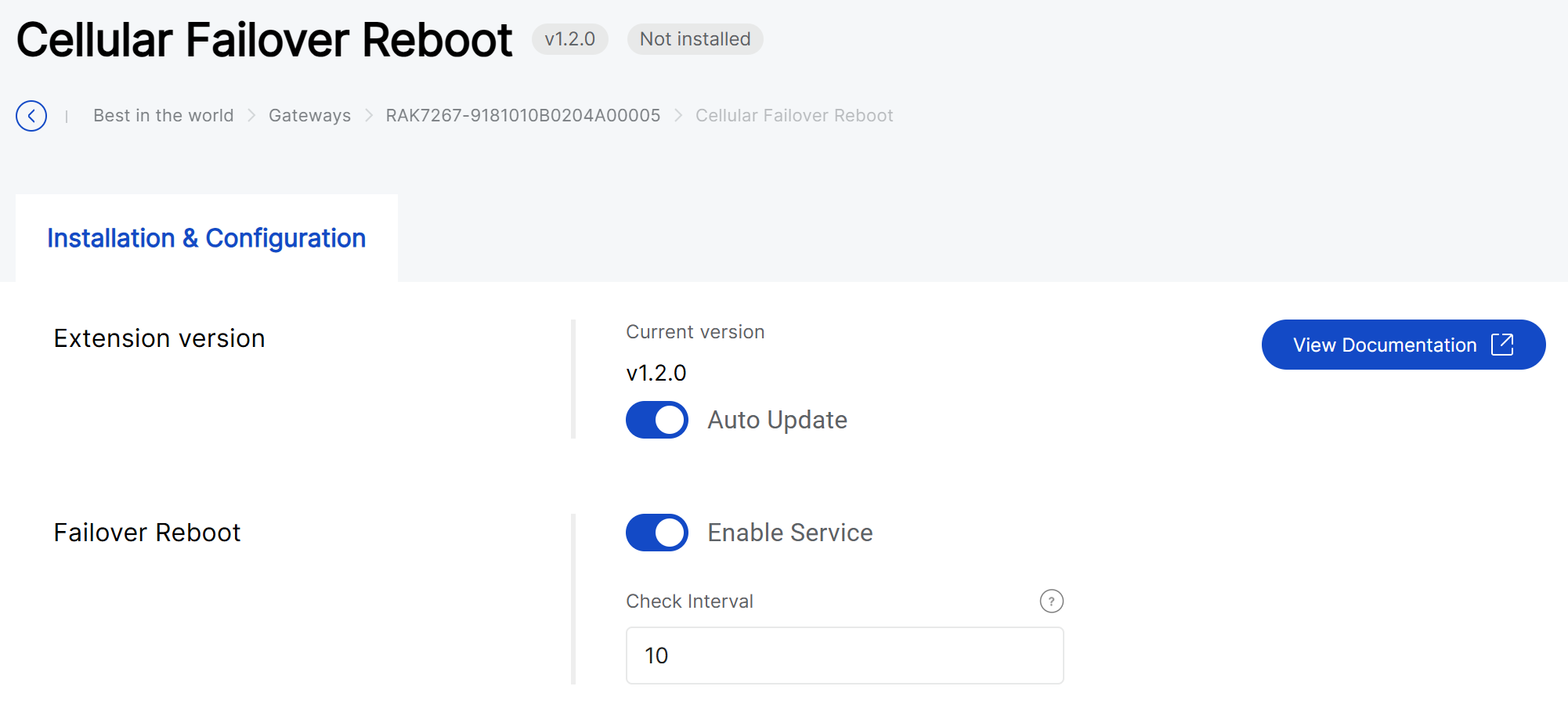 Figure 1: Cellular Failover Reboot config
| Field | Description |
|---|---|
| Current version | Displays the current version of the extension. |
| Auto Update | Enables or disables automatic extension version updates. If enabled, the gateway checks for compatible extension updates and installs them automatically. |
| Enable Service | Enables or disables the Cellular Failover Reboot extension. |
| Check interval (Minutes) | Determines how often the extension checks network status. |
Operation and Maintenance
Overview
The Operation and Maintenance extension provides scheduled gateway reboot and cellular network monitoring. If the cellular connection is lost, the extension can restart the cellular module automatically to help restore the connection.
Configuration
This section describes the configuration parameters of the Operation and Maintenance extension.
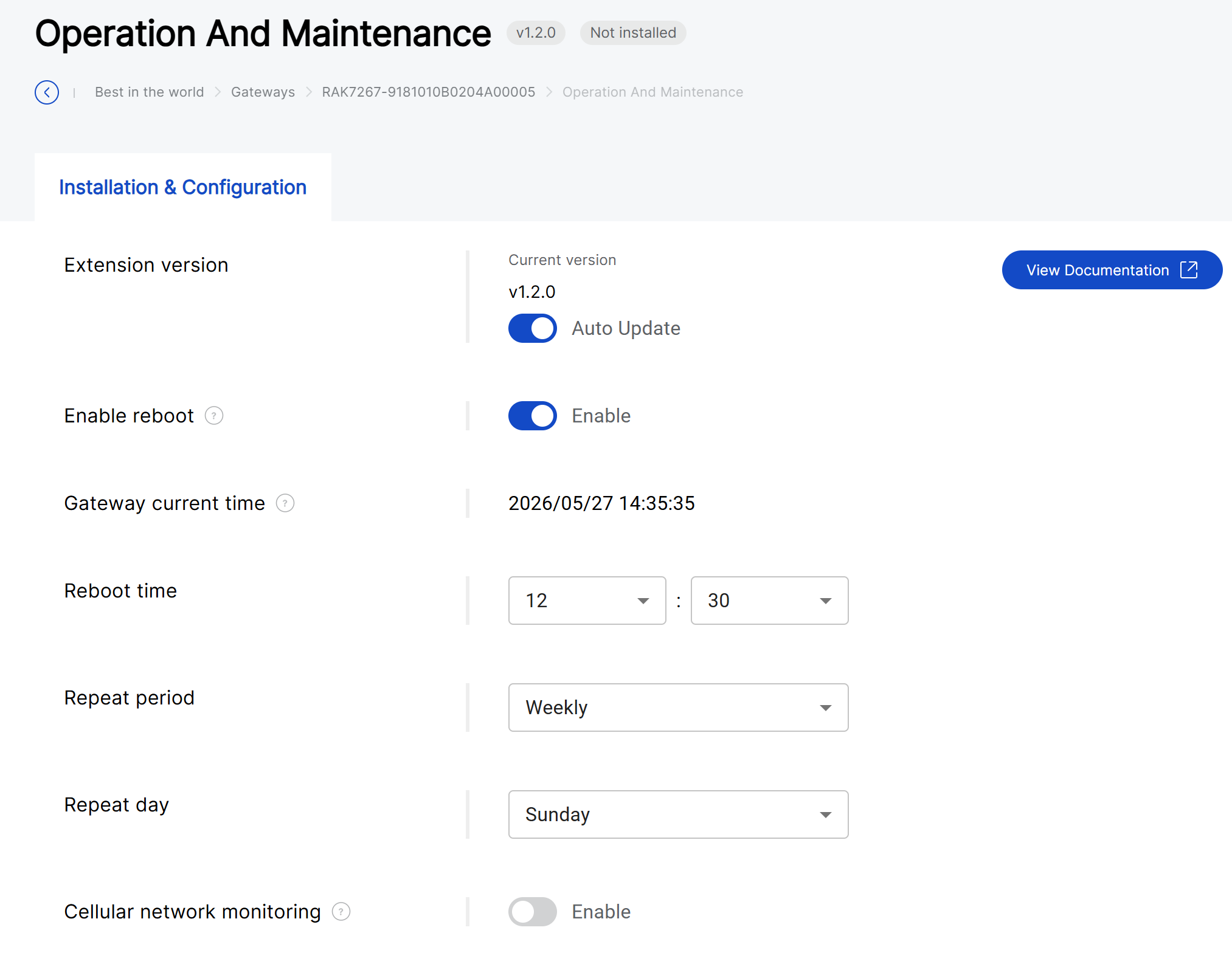 Figure 1: Operation and Maintenance config
| Field | Description |
|---|---|
| Current version | Displays the current version of the extension. |
| Auto Update | Enables or disables automatic extension version updates. If enabled, the gateway checks for compatible extension updates and installs them automatically. |
| Enable reboot | Enables or disables the scheduled gateway reboot function. |
| Gateway current time | Displays the current time of the gateway. Use this time as a reference when setting the reboot schedule. |
| Reboot time | Sets the time when the gateway will reboot. |
| Repeat period | Sets how often the scheduled reboot repeats. Available options include None, Daily, Weekly, and Monthly. |
| Repeat day | Sets the day of the week for the scheduled reboot. This field is displayed when Repeat period is set to Weekly. |
| Repeat date | Sets the date of the month for the scheduled reboot. This field is displayed when Repeat period is set to Monthly. |
| Cellular network monitoring | Enables or disables cellular network monitoring. When enabled, the extension monitors the cellular connection and attempts recovery if a connection issue is detected. |
RAK Open/Close Port
Overview
The RAK Open/Close Port extension is used to manage gateway traffic rules. It allows you to open specific ports on the gateway and control which source IP addresses can access them.
Unlike most extensions, RAK Open/Close Port must be installed before traffic rules can be configured. Before installation, you can only configure the extension update mode, such as Auto Update. Traffic rules become available after installation, when WisDM retrieves the existing firewall rules from the gateway.
View Traffic Rules
After installation, WisDM retrieves the current traffic rules from the gateway and displays them in the Traffic rules table.
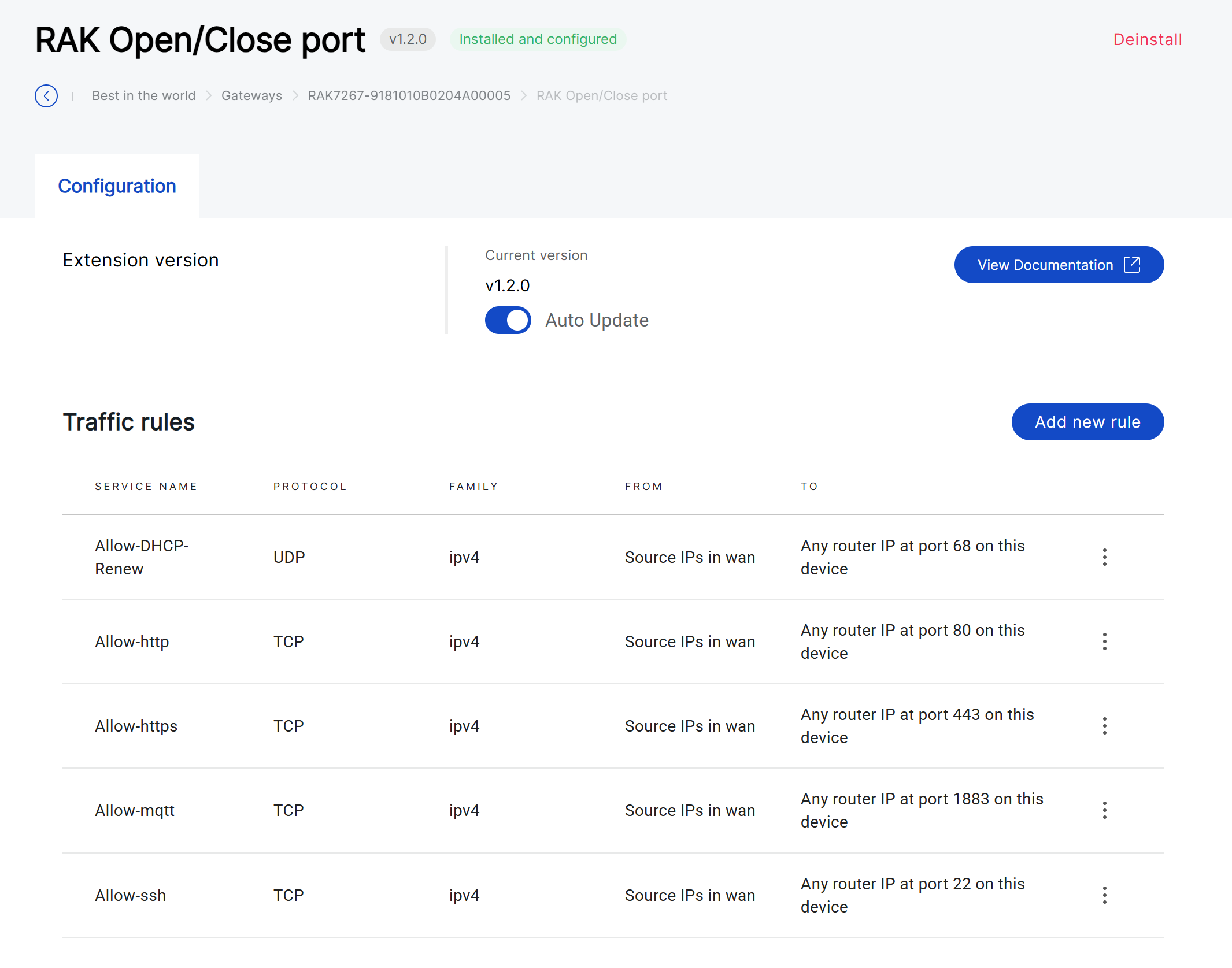 Figure 1: Traffic Rules
| Column | Description |
|---|---|
| Service name | The name of the traffic rule. |
| Protocol | The protocol used by the rule, such as TCP or UDP. |
| Family | The IP address family used by the rule, such as IPv4. |
| From | The allowed source IP addresses or source network. |
| To | The destination port and target on the gateway. |
Add a New Rule
To add a new traffic rule:
-
Open the installed RAK Open/Close Port extension.
-
Click Add new rule.
-
Configure the rule parameters.
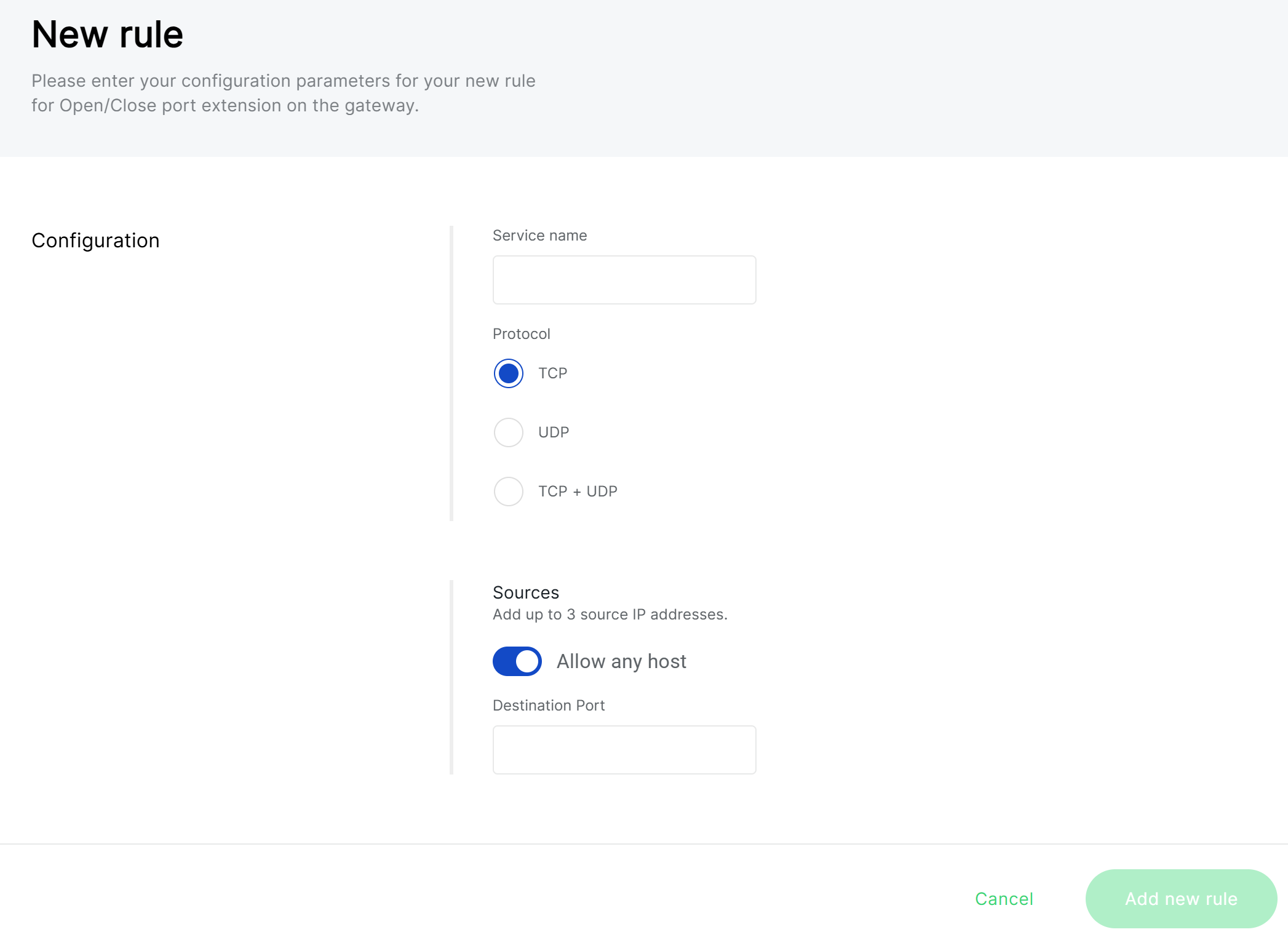 Figure 1: Add a New Rule
| Field | Description |
|---|---|
| Service name | Enter a name for the rule. Use a clear name that describes the service or port purpose. |
| Protocol | Select the protocol for the rule: TCP, UDP, or TCP + UDP. |
| Allow any host | Allows access from any source host. Disable this option if you want to restrict access to specific source IP addresses. |
| Source IP addresses | Defines the allowed source IP addresses. Up to 3 source IP addresses can be added. This field is available when Allow any host is disabled. |
| Destination Port | Specifies the destination port to open on the gateway. |
-
Click Add new rule to add the rule to the list.
-
Click Save to apply the updated traffic rules to the gateway.
Delete a Rule
To delete a traffic rule:
- Open the installed RAK Open/Close Port extension.
- In the Traffic rules table, click the action menu next to the rule.
- Click Delete rule.
- Confirm the action.
- Click Save to apply the updated traffic rules to the gateway.
Be careful when deleting existing rules. Removing rules such as SSH, HTTP, HTTPS, MQTT, or DHCP-related rules may affect remote access, the WisGateOS web interface, MQTT communication, or IP address renewal.
Reconfigure an Extension
You can update the configuration of an installed extension when the gateway operating conditions change.
To reconfigure an extension:
- Go to Gateways and select the target gateway.
- Open the Extensions tab.
- In the Installed tab, find the extension you want to update and click Reconfigure.
- Modify the configuration parameters.
- Click Save to submit the configuration update.
After the update is initiated, WisDM sends the new configuration to the gateway. The recent updates may take up to 120 seconds to reflect on the gateway.
During the process, the extension status may change as follows:
| Status | Description |
|---|---|
| Configuration update pending | The new configuration has been submitted, but the gateway has not confirmed the update yet. |
| Configuration update in progress | The gateway is applying the updated configuration. No action is available during this process. |
| Installed and configured | The new configuration has been successfully applied to the gateway. |
| Configuration update failed | The configuration update failed. You can retry the update or cancel it when the options are available. |
Deinstall an Extension
You can deinstall an extension when it is no longer needed. After the extension is deinstalled, it is removed from the gateway and can be installed again from the Extension gallery.
To deinstall an extension:
- Go to Gateways and select the target gateway.
- Open the Extensions tab.
- In the Installed tab, find the extension you want to remove.
- Click Deinstall.
- In the confirmation dialog, click Deinstall to confirm.
After you confirm the action, WisDM sends the deinstallation request to the gateway. During this process, the extension configuration cannot be edited.
The extension status may change as follows:
| Status | Description |
|---|---|
| Deinstallation pending | The deinstallation request has been submitted, but the gateway has not confirmed the result yet. The update may take some time to reflect on the gateway. During this period, extension configuration cannot be edited. |
| Deinstallation in progress | The gateway is removing the extension. No configuration changes or extension actions are available during this process. |
| Not installed | The extension has been successfully removed from the gateway and can be installed again from the Extension gallery. |
| Deinstallation failed | The extension could not be removed successfully. You can retry or cancel the deinstallation. |


