WisDM Fleet-Level Gateway Management
Overview
This section offers a consolidated list of all gateways within the organization. You can manage them in bulk or take action on individual gateways, including direct access to their details.
To access the management console, click Gateways in the left navigation menu. You can use the search bar to find specific gateways or filter the list by Status, Location, and Columns for easier navigation.
 Figure 1: Gateways
- Name: The name assigned to the gateway.
- Serial Number: The gateway’s unique SN identifier.
- EUI: The unique EUI of the gateway used for identification.
- Current Firmware: The firmware version currently running on the gateway.
- Sent Firmware: The target firmware version sent by WisDM during an upgrade, indicating the version pending installation.
- Model: The hardware model of the gateway.
- End Devices: The number of end devices currently connected to the gateway.
- Location: The Location to which the gateway is assigned.
- Assign Date: The date when the gateway was assigned to the Location.
- IP Address: The IP address currently used by the gateway.
- CPU: The current CPU usage of the gateway.
- Memory: The current memory usage of the gateway.
- Last Reported: The most recent time the gateway reported its CPU and memory status.
Status Indicators
| Icon | Description |
|---|---|
 | Online – The gateway is connected to the Internet, fully accessible through WisDM, and ready for normal cloud-based operations. Settings and updates can be delivered almost immediately. |
 | Offline – The gateway is not connected to the Internet and cannot be reached from WisDM at the moment. However, its cloud shadow remains consistent, so pending settings and updates can still be queued and applied automatically after the gateway reconnects. |
 | Provisioning – The gateway is not in a valid managed state. It does not have a consistent cloud shadow and cannot participate in normal configuration or reporting workflows. This status is typically seen after a gateway is unassigned while it is offline, or when shadow inconsistency is detected during onboarding. |
 | Pre-Provisioning – The gateway has been added to the WisDM organization in advance by RAK but has not come online yet. It is not yet active in the network but can be pre-configured to enable faster deployment once the gateway is powered on and connected. |
 | Central gateway under a Location when the network server mode is set to Built-In network server. |
 | Warning indicator – Hover over the icon to view detailed warning information. |
 | Power disconnected – The gateway has lost power. Check the power supply. |
 | Update available – A newer firmware version is available for this gateway. Hover over the icon to view the available firmware version for upgrade. |
 | Upgrading – A firmware upgrade is currently in progress. |
 | Firmware upgrade pending – The gateway did not upgrade successfully. |
Single Gateway Management
Operations available for an individual gateway include renaming, viewing details, assigning and unassigning, checking logs, running diagnostics, and deletion.
Rename the Gateway
You can rename a single gateway from the Gateway List.
To rename a gateway:
- Go to Gateways.
- Find the gateway you want to rename.
- Click the edit icon
 next to the gateway name in the Name column.
 - Enter the new gateway name.
- Use a maximum of 32 characters.
- Use only letters, numbers, hyphens (
-), and underscores (_).
- Click the checkmark icon to save the change.
Assign a Gateway to a Location
You can assign an unassigned gateway to a target Location. Supported states for assignment:
- Online
- Offline
- Pre-provisioning
- In the actions menu, click Assign to Location.
- Select the desired Location and click Use selected location.
 Figure 1: Select a location
-
After the selected, the system validates the gateway information to make sure compatible with the target Location.
- Available – The gateway passed validation and can be added to the Location.
- Unavailable – The gateway failed one or more validation checks and cannot be added. Refer to the Status column for the specific reason. For detailed explanations, see Common Status/Errors.
NOTEYou can remove a gateway from the current verification list at any time by clicking the delete icon next to the gateway entry. This action is available in both the Available and Unavailable lists.
-
(Optional) If the target Location operates in Basics™ Station mode and Use individual client keys is enabled, the system also validates the required per-gateway credentials. If any credential-related checks require attention, the corresponding results are shown in the Key State/Certificate State or Client token columns, where you can resolve them individually or in bulk before assignment. For details, see Manage Missing Credentials.
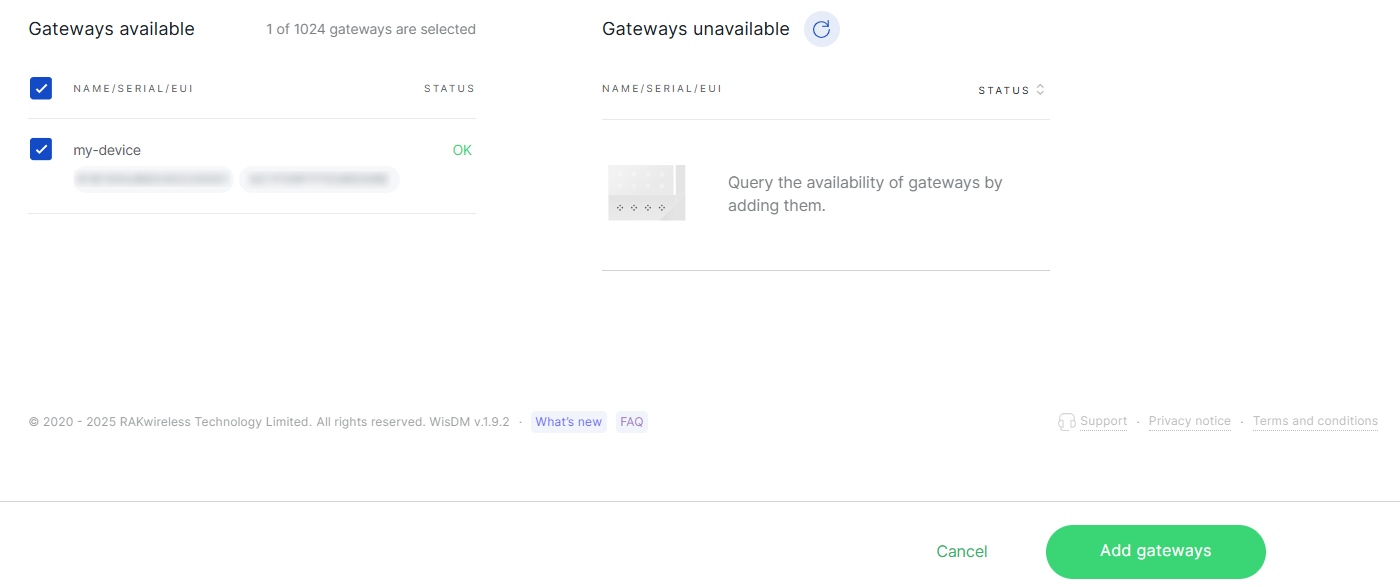 Figure 1: Adding Gateway
 -
If the gateway passes validation, or if any required credentials have been completed, click Add gateways. The gateway will then appear in the Gateways list for the selected Location.
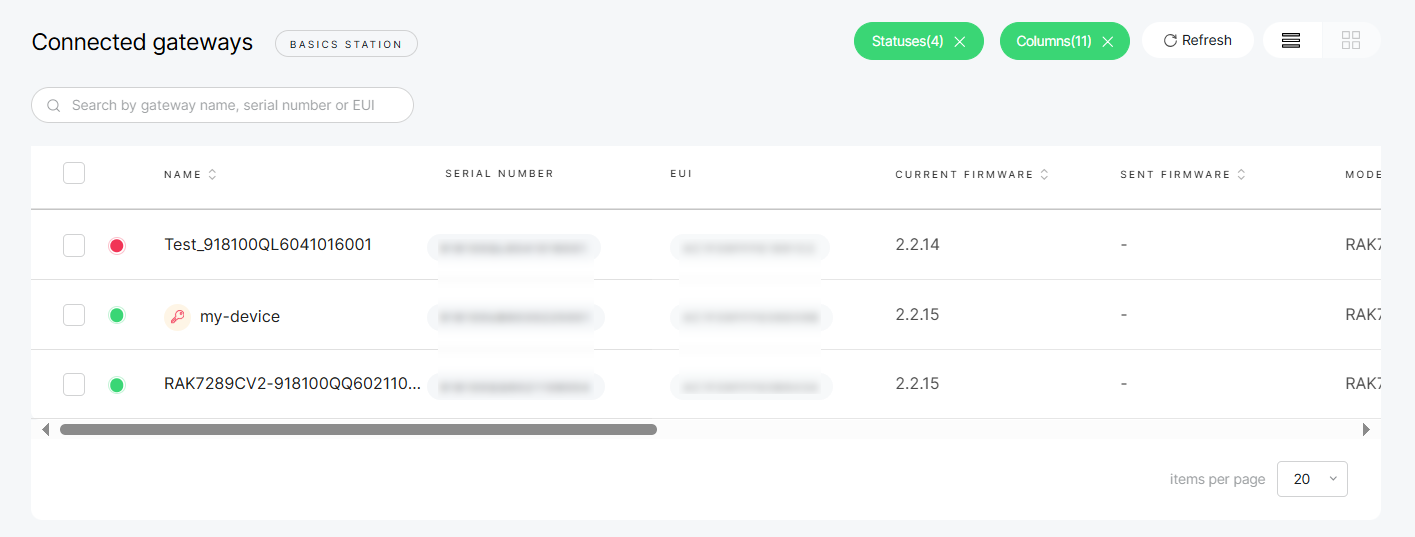 Figure 1: Gateway list
Unassign a Gateway from a Location
To remove a gateway from a location.
When unassigning a gateway:
- The gateway’s LoRaWAN® configuration is reset to default values.
- Online gateways are reset immediately and remain online after the reset.
- Offline gateways enter the Provisioning state after being unassigned, and the status remains until the gateway reconnects.
- If a gateway is in Pre-Provisioning status, the reset command is not sent.
- Keys, certificates, and tokens on the gateway are preserved for future use.
- For Built-in Network Server Locations:
- A Central Gateway cannot be unassigned while extenders are still present in the location.
- Extenders must be detached from the Central Gateway before finalizing unassignment.
- In the actions' menu, click Unassign Gateway.
- Confirm your choice in the dialog by clicking Unassign gateway.
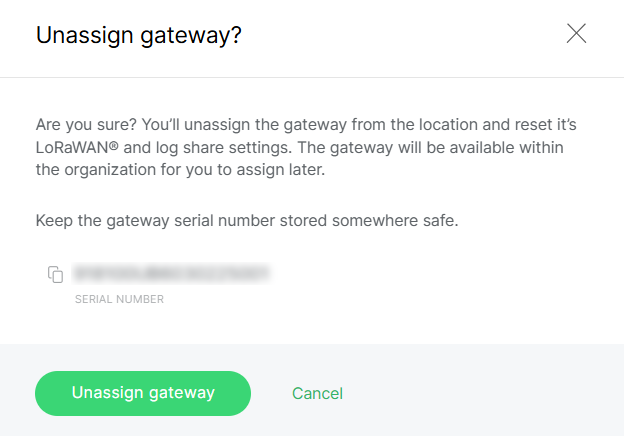 Figure 1: Confirm unassign gateway
Delete a Gateway
You can delete a gateway from the Gateway List when it is no longer needed in WisDM.
- Deleting a gateway will reset it to factory defaults, remove all configurations, including factory pre-configuration, and permanently delete the gateway and its data from WisDM. This action cannot be undone.
- Only unassigned gateways can be deleted directly. If a gateway is assigned to a Location, system will unassign the gateway first and then delete it.
To delete a gateway:
- Go to Gateways.
- Find the gateway you want to delete.
- Click the action menu next to the gateway.
- Click Delete gateway.
- In the confirmation dialog, review the warning message.
- For an unassigned gateway, click Delete.
- For an assigned gateway, click Unassign and delete. WisDM will unassign the gateway first and then delete it.
Multiple Gateway Management
Select multiple gateways from the list to apply actions in bulk. This feature is useful for large-scale operations and saves time when managing fleets.
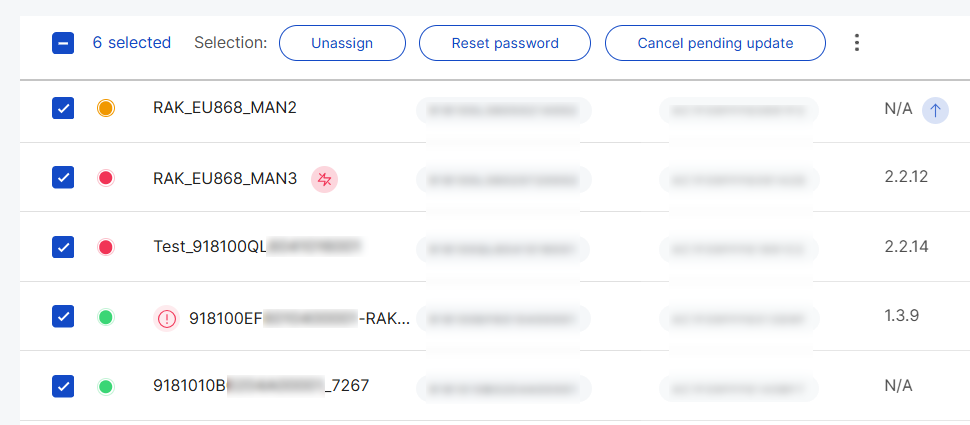 Figure 1: Manage Multiple Gateways
Unassign Gateways from a Location
For removing the gateways in bulk, follow these steps:
When unassigning a gateway:
- The gateway’s LoRaWAN® configuration is reset to default values.
- Online gateways are reset immediately and remain online after the reset.
- Offline gateways enter the Provisioning state after being unassigned, and the status remains until the gateway reconnects.
- If a gateway is in Pre-Provisioning status, the reset command is not sent.
- Keys, certificates, and tokens on the gateway are preserved for future use.
- For Built-in Network Server Locations:
- A Central Gateway cannot be unassigned while extenders are still present in the Location.
- Extenders must be detached from the Central Gateway before finalizing unassignment.
- Select multiple target gateways from the list.
- Click Unassign.
- In the confirmation dialog, confirm your selection by clicking Unassign gateways.
 Figure 1: Confirm unassign gateways
Reset Password
You can reset the local password of one or more gateways from the Gateway List. This password is used to access the gateway locally, such as logging in to the WisGateOS web interface or using SSH.
The reset password option is available only when the following conditions are met:
- You have permission to change the gateway local password.
- The gateway is online.
- You must enable 2FA for your RAK ID from the Security section of the RAK ID Portal before resetting the gateway password.
You can enable 2FA from the Security section of the RAK ID Portal.
To reset gateway passwords in bulk:
-
Go to Gateways.
-
Select one or more online gateways from the gateway list.
-
Click Reset password in the top action bar.
-
In the Reset password dialog, enter the following information:
Field Description New Password Enter the new local gateway password. Confirm new password Enter the new password again for confirmation. RAK ID password Enter your RAK ID account password for identity verification. Authenticator code Enter the verification code from your authenticator app. The new password must meet the following requirements:
- At least 12 characters
- At least one letter
- At least one number
- At least one special character
- Cannot start or end with a space.
-
Click Reset password to apply the change.
The process may take several minutes. After the password is reset successfully, use the new password to access the selected gateways.
Cancel Pending Update
You can cancel pending firmware updates for multiple gateways from the Gateway List. This is useful when firmware updates have been sent to gateways but have not started yet, and you want the gateways to continue running their current firmware version.
This option is available only when there is at least one gateway with a Pending firmware update in the gateway list.
To cancel pending firmware updates:
- Go to Gateways.
- Select one or more gateways from the gateway list.
- Click Cancel pending update.
- In the confirmation dialog, review the selected gateways and confirm the action.
After confirmation, WisDM clears the pending firmware update for each selected gateway that has a Pending firmware update. The gateway will continue to run its current firmware version.
Only firmware updates in Pending status can be canceled. Firmware updates that are already In progress cannot be canceled.
Synchronize System Settings
System settings are configured for each gateway. To expedite up configuration, you can synchronize system settings from a sample gateway to other selected gateways.
You can choose which settings to apply:
- Enable FOTA settings
- Time zone
- Log settings
- NTP server settings
- Select multiple target gateways from the list.
- In the actions' menu, click Synchronize system settings.
- Select the specific system settings to sync.
- Choose the sample gateway whose settings you want to copy.
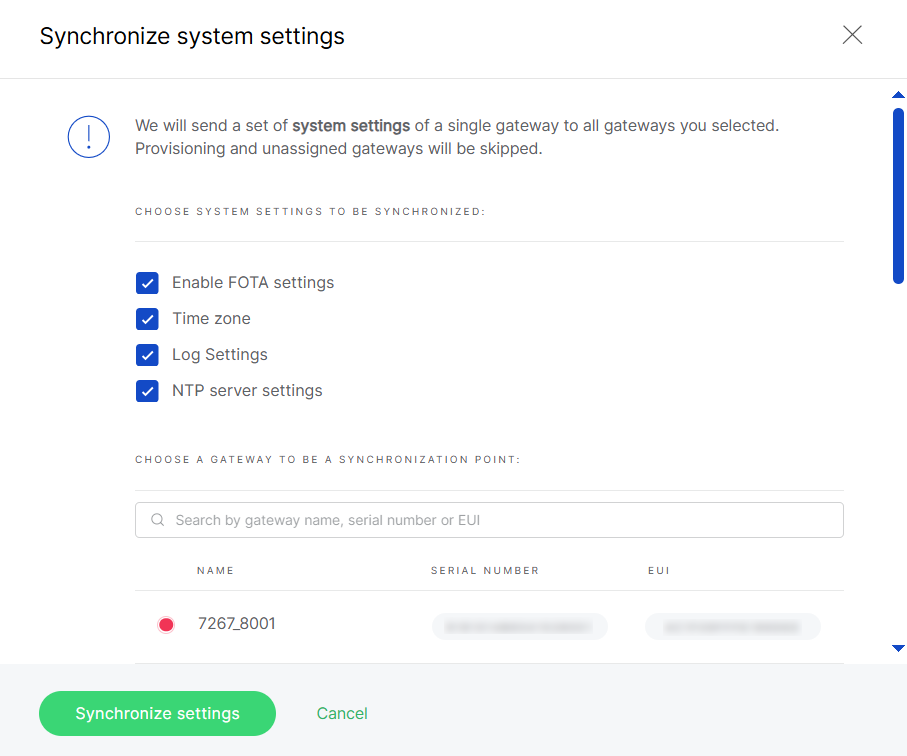 Figure 1: Synchronize system settings
- Click Synchronize settings to apply.
- Gateways in Provisioning or Unassigned states are skipped.
- Offline assigned gateways will receive the new settings the next time they come online.
Rename Gateways
You can rename multiple gateways at once from the Gateway List. WisDM applies the same group name to the selected gateways and automatically adds sequential numbers based on the order in which the gateways appear in the list.
For example, if you enter MyGateway, the selected gateways will be renamed as MyGateway_1, MyGateway_2, MyGateway_3, and so on.
To rename multiple gateways:
- Go to Gateways.
- Select the gateways you want to rename.
- Click the action menu in the top action bar.
- Click Rename.
- In the Rename gateways dialog, enter a Gateway group name.
- Use a maximum of 28 characters.
- Use only letters, numbers, hyphens (
-), and underscores (_). - Spaces and other special characters are not supported.
- Click Rename gateways to apply the change.
Export Gateway Configuration Data (CSV)
You can export gateway information from the Gateway List as a .csv file. This is useful for backup, review, or offline analysis.
The export report includes only gateways that are assigned to Locations you have access to. Unassigned gateways are not included in the exported file.
To export gateway data:
-
Go to Gateways.
-
Select the gateways you want to export.
-
Click the action menu in the top action bar.
-
Click Export CSV.
-
In the Export gateways info dialog, select at least one data group to export.
Data Group Description General Info Exports basic gateway information, such as serial number, model, EUI, MAC address, gateway name, Location name, gateway status, firmware version, CPU, memory, GPS coordinates, and last reported time. System settings Exports gateway system settings, such as FOTA, timezone, NTP, log settings, log sharing, and WisDM log retention settings. Network interface Exports selected WAN and LAN interface information, including Ethernet, Wi-Fi, Cellular, and DHCP Server settings. -
Click Export.
After the export request is submitted, WisDM starts generating the .csv file. You can leave the page after the export starts. This will not interrupt the process. Once the file is ready, WisDM sends it to your email. The export process may take up to 1 hour.
Delete Gateways
You can delete multiple unassigned gateways from the Gateway List when they are no longer needed in WisDM.
Deleting a gateway will reset it to factory defaults, remove all configurations, including factory pre-configuration, and permanently delete the gateway and its data from WisDM. This action cannot be undone.
To delete gateways in bulk:
- Go to Gateways.
- Select the gateways you want to delete.
- Click the action menu in the top action bar.
- Click Delete.
- In the Delete gateway confirmation dialog, review the warning message.
- Click Delete gateway to confirm.
- Only unassigned gateways can be deleted in bulk. If a gateway is still assigned to a Location, unassign it first before deleting it.
- If you are unsure whether a gateway should be deleted, contact RAK Support before proceeding.
View Gateway Details
To view detailed information about a gateway, navigate to: Gateways > Select a gateway from the list.
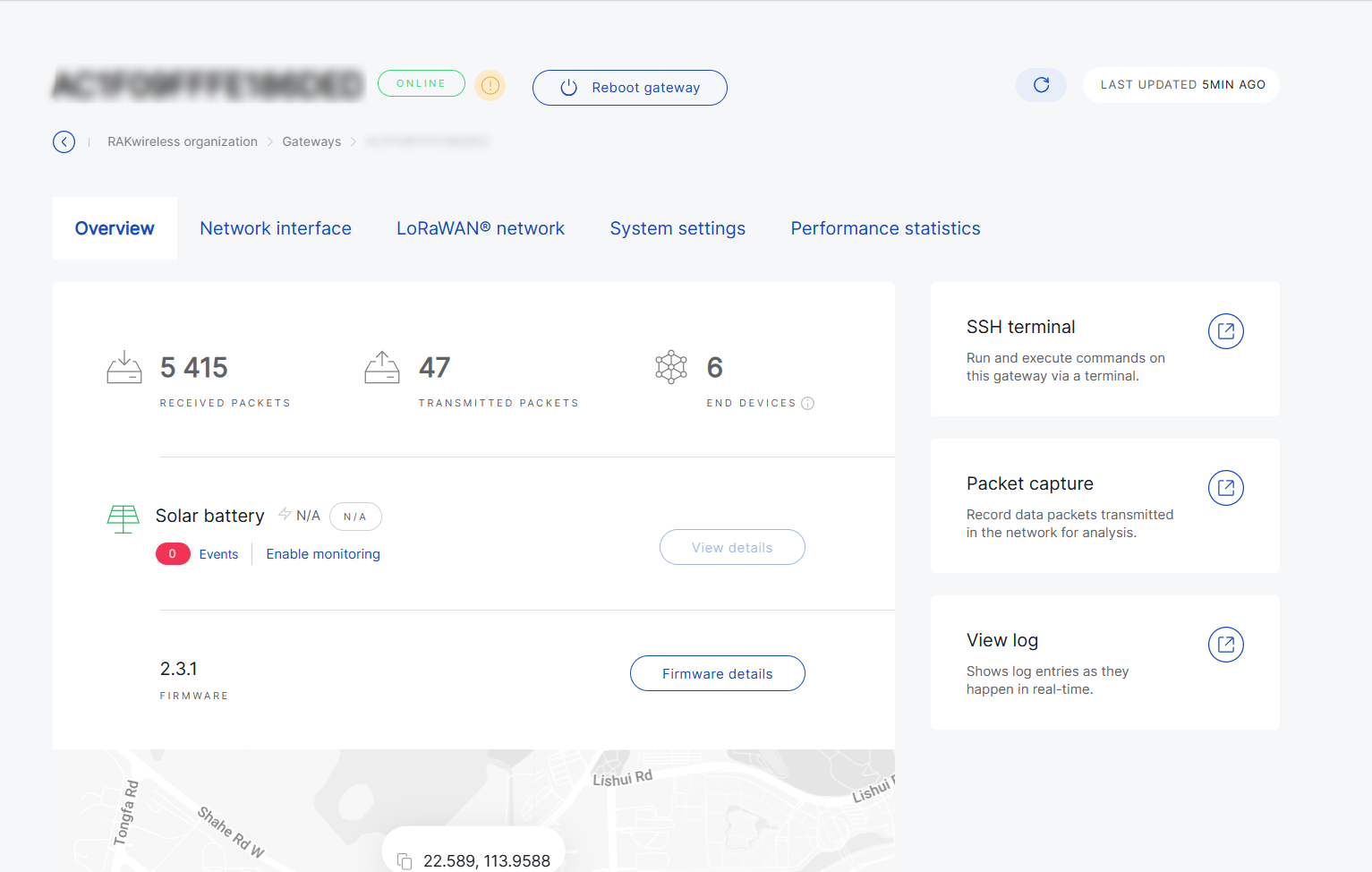 Figure 1: View Gateway Details
At the top of the gateway page, key gateway information and quick actions are displayed, including:
-
Gateway Name
-
Gateway status - Indicates the current state of the gateway, such as Online, Offline, Provisioning, or Pre-provisioning.
-
Reboot gateway - Allows you to remotely reboot the gateway from the platform. This action is available only when the gateway is online.
-
Refresh icon - Manually refreshes the gateway information displayed on the page.
-
Last updated - Shows the most recent time the gateway reported its status to WisDM.
-
Configuration Mismatch Indicator
 - This indicates that some configuration changes are pending and have not yet been applied to the gateway.
-
LoRaWAN® Settings: The configuration is inherited from the Location and must remain consistent. Click Resend to apply the latest Location configuration to the gateway.
NOTE- Pending changes for LoRaWAN® settings cannot be canceled.
- If the gateway is offline, the synchronization will remain pending until it reconnects.
-
Network Interface / System Settings: For configurations such as Ethernet, Wi-Fi, LTE, or system settings, you can choose:
- Resend – Apply the latest configuration from WisDM to the gateway.
- Cancel / Delete pending changes – Keep the current gateway configuration and discard the pending updates.
-
Below the header, the gateway page is organized into multiple modules, including Overview, Network Interface, LoRaWAN® Network, System Settings, and Performance Statistics. Detailed explanations of each module are provided in the following sections.


